Connect with us

How To

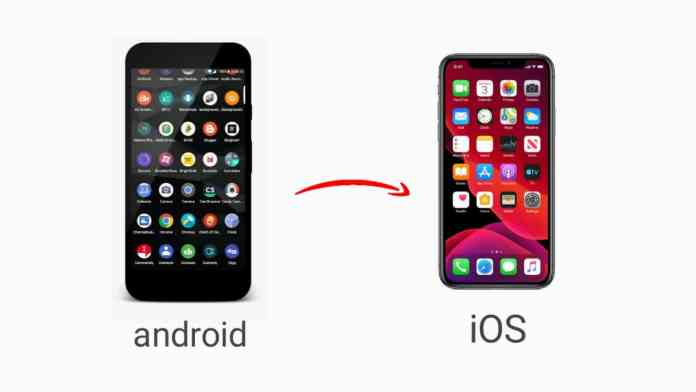
Turn Your Android Phone Into an iPhone 14 With the Best iPhone Launcher App

Published

on

Turn Your Android Phone Into an iPhone 14 With the Best iPhone Launcher App

Have you ever looked at the latest iPhone 14 and wished you could get that sleek iOS experience without buying a new device? You’re not alone. Many Android users feel the same way. However, there’s no need to switch phones or spend a fortune. With the right iPhone launcher, you can transform your Android phone into an iPhone 14 in just a few minutes. This guide walks you through everything you need to know about the iPhone 14 launcher OS 16 app, from downloading it to customising your home screen.

Why Use an iPhone Launcher on Android?

An iPhone launcher replaces your standard Android interface with one that mimics the look and feel of Apple’s iOS. This means you get the familiar grid of apps, the Control Center-style toggles, and even the iconic dock at the bottom of your screen.

For many users, this is a fun way to experiment with a different operating system. It’s also perfect for those who prefer the clean, minimalist design of iOS but want to keep the flexibility and affordability of an Android phone. Instead of buying a new device, you can simply install an app and enjoy a fresh, iPhone-like experience.

How to Download and Install the iPhone 14 Launcher OS 16 App

Getting started is surprisingly simple. The iPhone 14 launcher app is available on the Google Play Store, and the entire process takes less than five minutes.

Step 1: Open the Google Play Store

Unlock your Android phone and open the Google Play Store. This is where you’ll find the launcher app.

Step 2: Search for the App

In the search bar at the top, type “iPhone 14 launcher” or “iOS 16 launcher.” You’ll see several options. Look for the app with the highest ratings and most downloads — often named “iPhone 14 Launcher OS 16” or something similar. Alternatively, you can use a direct download link from a trusted source like iPhone 14 Launcher on Google Play.

Step 3: Install the App

Tap on the app from the search results. Then, press the green “Install” button. Wait a few seconds for the download to finish. Once installed, tap “Open” to launch the app.

Setting Up Your iPhone 14 Launcher: A Complete Guide

Once the app is installed, you’ll need to configure it to replace your current home screen. Follow these steps carefully.

Grant Necessary Permissions

When you open the launcher for the first time, it will ask for several permissions. These typically include access to your phone’s settings and the ability to draw over other apps. Grant these permissions so the launcher can function correctly.

Set the Launcher as Default

After granting permissions, the app will prompt you to set it as your default home screen. Tap “Set as default” or “Always” when asked. This step is crucial — without it, your phone will revert to the standard Android interface every time you press the home button.

Customise Your New Interface

Now the fun begins. Your Android phone will instantly transform to look like an iPhone 14. You’ll see the iOS-style dock, app icons, and even the signature swipe-up gesture to open the app drawer. Many launchers also include a Control Center that you can access by swiping down from the top-right corner, just like on a real iPhone.

If you want to tweak things further, explore the launcher’s settings. You can change the wallpaper, adjust icon sizes, and even add widgets that mimic iOS 16’s lock screen features.

Additional Tips for a More Authentic iOS Experience

To make your Android phone feel even more like an iPhone 14, consider pairing the launcher with a few extra apps. For example, you can install an always-on display app that adds a notification border light to your screen — a feature popular on newer iPhones. You can also download an iOS-style keyboard or a ringtone pack with classic iPhone sounds.

Another useful trick is to enable gesture navigation in your Android settings. This replaces the traditional back, home, and recent apps buttons with swipe gestures, mirroring the iPhone’s navigation style perfectly.

Can You Switch Back to Android?

Absolutely. One of the best things about using an iPhone launcher is that it’s completely reversible. If you decide you miss the original Android interface, simply go to your phone’s Settings > Apps > Default apps > Home app. From there, select your original launcher (often called “Pixel Launcher” or “One UI Home”). Your phone will instantly return to its original look.

This flexibility means there’s zero risk in trying out the iPhone 14 launcher. You can switch back and forth as often as you like, enjoying the best of both worlds.

Final Thoughts: Is the iPhone 14 Launcher Worth It?

For anyone curious about the iPhone experience without committing to a new device, an iPhone launcher is an excellent choice. It offers a convincing visual transformation, a smooth user interface, and plenty of customisation options. While it won’t give you access to Apple-exclusive services like iMessage or FaceTime, it does provide the aesthetic and feel of iOS 16 on your existing hardware.

So why wait? Download the iPhone 14 launcher OS 16 app today and give your Android phone a stunning makeover. Share this guide with friends who might also want to enjoy the iPhone look on their devices.

Continue Reading
Click to comment

Leave a Reply

Your email address will not be published. Required fields are marked *

How To

You Can Hide Photos & Videos from Phone Dialer Using This App!

Published

on

You Can Hide Photos & Videos from Phone Dialer Using This App!

Imagine an app that looks like a simple dialer but secretly holds your private media. Sounds like something from a spy movie, right? Well, it is real. With the Dialer Vault app, you can hide photos and videos from phone dialer in plain sight. Nobody will suspect a thing.

This clever Android application disguises itself as a standard phone dialer. When someone opens it, they see a keypad for making calls. However, behind a secret password, your hidden files stay safe. In this guide, we explore how this app works, its features, and how to use it effectively.

What Makes Dialer Vault Unique for Hiding Media?

Most privacy apps have obvious icons or names like ‘Vault’ or ‘Secret Folder’. Anyone can spot them on your phone. Dialer Vault solves this problem. It looks and behaves like a regular dialer. Even if someone opens it, they will not know it hides your private files.

The app is free to download from the Google Play Store. It works on Android version 4.1 and above. With a small size of just 3MB, it does not take up much space. Users have rated it 3 stars, and it has been installed nearly 1 million times. This means it is a trusted tool for many people.

Key Features of Dialer Vault

  • Disguised interface: Appears as a phone dialer, not a vault.
  • Password protection: Set a 4-digit code to access hidden files.
  • Media hiding: Hide photos, videos, and other files from your gallery.
  • Call functionality: You can still make real calls from the app.

Therefore, this app offers both privacy and utility. You do not lose the dialer function while gaining a secret storage space.

How to Hide Photos and Videos from Phone Dialer: Step-by-Step Guide

Getting started is straightforward. Follow these steps to set up your secret vault.

  1. Install the app: Download Dialer Vault Vault Droid Hide Photo Video OS 10 from the Play Store.
  2. Grant permissions: When you open the app for the first time, skip the introductory messages. Then, allow all required permissions, such as access to storage and photos.
  3. Set a security question: Choose a question and provide an answer. This helps if you forget your password.
  4. Create a password: On the dialer keypad, enter a 4-digit password. Tap the green button to confirm.
  5. Re-enter the password: Type the same code again to finalise it. Tap OK on the instructions.
  6. Select files to hide: Now, browse your gallery and choose the photos or videos you want to hide. The app will remove them from your main gallery and store them inside the dialer.

Once hidden, these files will no longer appear in your regular gallery app. To view them, open Dialer Vault, enter your password, and access your private collection.

Tips for Using Dialer Vault Effectively

To get the most out of this app, keep these points in mind.

  • Remember your password: If you forget it, the security question helps. But it is better to write it down safely.
  • Do not change the app icon: The icon looks like a standard dialer. Changing it might raise suspicion.
  • Test the call feature: Make a test call to ensure the dialer works normally. This adds to the disguise.
  • Check for updates: The developer may release updates that improve security or add features.

By following these tips, you can maintain the illusion that this is just a regular dialer app.

Why Choose This Method Over Other Vault Apps?

There are many apps on the Play Store that hide files. However, most have obvious names like ‘Secret Photo Vault’ or ‘Private Gallery’. Anyone who sees these icons knows you are hiding something. Dialer Vault avoids this problem entirely.

Furthermore, it integrates a real dialer function. This means you can use it to make calls without raising any eyebrows. Your hidden files remain safe behind a password that nobody knows about.

For example, if a friend borrows your phone to make a call, they will only see the dialer. They will not know that your private photos are just a few taps away behind a secret code.

Conclusion

In a world where privacy is precious, tools like Dialer Vault offer a clever solution. You can hide photos and videos from phone dialer with ease. The app is free, lightweight, and highly effective. Whether you want to keep personal memories private or secure sensitive documents, this app delivers.

So, if you value your privacy and want a discreet way to hide files, give Dialer Vault a try. It is a small download that can make a big difference. For more tips on Android privacy, check out our guide on how to hide apps on Android. Also, learn about best privacy apps for Android.

Continue Reading

How To

Top 7 Best Android PDF Editors in 2024: Comprehensive Review & Comparison

Published

on

Top 7 Best Android PDF Editors in 2024: Comprehensive Review & Comparison

Managing documents on the go has never been more essential. Whether you’re a student, a professional, or someone who simply needs to sign a contract quickly, having the best Android PDF editors installed on your device can save you time and frustration. In 2024, the Play Store is flooded with options, but not all are created equal.

This guide breaks down the top seven PDF editors for Android, focusing on features, pricing, and usability. By the end, you’ll know exactly which app fits your workflow.

Why You Need a Reliable PDF Editor on Android

PDFs are the universal format for sharing documents, but they’re not always easy to edit on a phone. A quality PDF editor lets you annotate, sign, convert, and merge files without needing a desktop. Therefore, picking the right tool is crucial for productivity.

As we dive into the list, keep in mind that some apps offer robust free tiers, while others require a subscription for advanced features. Your choice should align with how often you edit PDFs and what tasks you perform most.

1. Adobe Acrobat Reader: The Industry Standard

Adobe Acrobat Reader remains a powerhouse for Android users. It offers comprehensive features like document merging, password protection, and image adjustments. The free version covers basic needs, but a subscription unlocks advanced editing capabilities.

One of its standout qualities is seamless integration with cloud storage services, including Google Drive and Dropbox. This makes accessing files from anywhere effortless. On the other hand, the subscription cost might be a hurdle for casual users.

Key Features of Adobe Acrobat Reader

  • Full annotation and form-filling tools
  • Integration with Adobe Document Cloud
  • ChromeOS support
  • Subscription: $9.99/month or $69.99/year

2. Smallpdf: Best for Lightweight Editing

If you only need to edit PDFs occasionally, Smallpdf is an excellent choice. Its interface is intuitive, making file conversion and basic edits a breeze. However, the free version imposes daily action limits, which can be frustrating for frequent users.

Despite these restrictions, Smallpdf shines for quick tasks like compressing files or converting PDFs to Word. Its simplicity is its biggest asset. For those willing to pay, the subscription removes all limitations.

Key Features of Smallpdf

  • Free with daily usage caps
  • Ideal for document conversion
  • Clean, user-friendly design
  • Subscription: $9/month

3. Xodo: Feature-Rich and Free

Xodo is a strong competitor to Smallpdf, offering a generous set of free features. These include file conversion, text recognition (OCR), and robust annotation tools. The premium subscription enhances these capabilities further.

Many users appreciate Xodo’s speed and responsiveness when handling large PDFs. It also supports cloud storage connections, making it easy to edit files on the fly. If you annotate documents regularly, Xodo should be on your shortlist.

Key Features of Xodo

  • Free with limited daily actions
  • OCR and annotation tools
  • Fast performance with large files
  • Subscription: $12/month or $108/year

4. PDF Extra: Simple Yet Effective

PDF Extra prides itself on simplicity. The app provides immediate access to all tools without a cluttered interface. Its detailed scanning options are particularly useful for capturing documents like passports or ID cards.

Most advanced features, however, are locked behind a subscription. This makes PDF Extra ideal for users who want a straightforward editing experience without unnecessary complexity. The daily action limit on the free version is a minor drawback.

Key Features of PDF Extra

  • Streamlined interface
  • Advanced scanning options
  • ChromeOS support
  • Subscription: $4.19/month

5. PDFelement: Advanced Tools for Power Users

PDFelement by Wondershare is packed with advanced features, making it perfect for handling large, complex documents. Its search capabilities and organizational tools are top-notch. However, the interface can feel less intuitive compared to competitors.

Despite the learning curve, PDFelement offers exceptional value for those who need to edit, convert, and manage PDFs extensively. The subscription removes watermarks from edited documents, which is a nice touch for professional use.

Key Features of PDFelement

  • Advanced search and organization
  • Batch processing capabilities
  • ChromeOS support
  • Subscription: $3.99/month or $24.99/year

6. Foxit PDF Editor: Balanced and Affordable

Foxit strikes a fine balance between simplicity and functionality. Once you get used to its layout, it becomes a powerful tool for multitasking across multiple PDFs. The app includes a set of templates for quick document creation.

Foxit’s pricing is also wallet-friendly, making it a solid choice for users who need versatility without breaking the bank. Its neat organization of tools ensures that even beginners can navigate with ease.

Key Features of Foxit

  • User-friendly layout
  • Built-in templates
  • ChromeOS support
  • Subscription: $10.99/year

7. pdfFiller: Efficient Document Management

pdfFiller excels at streamlining PDF editing, especially for users who share documents constantly. Its In/Out Box feature makes tracking files simple. The app is subscription-based but offers a free trial to test its capabilities.

While pdfFiller’s editing tools are user-friendly, it’s best suited for working on single, large documents. For daily PDF management, it’s a reliable companion that gets the job done without fuss.

Key Features of pdfFiller

  • Streamlined editing workflow
  • Dedicated document tracking
  • ChromeOS support
  • Subscription: $8/month

How to Choose the Right PDF Editor for You

Selecting from the best Android PDF editors depends on your specific needs. If you require advanced features and don’t mind a subscription, Adobe Acrobat Reader or PDFelement are excellent choices. For occasional use, Smallpdf or Xodo offer great free tiers.

Consider factors like file size, frequency of use, and whether you need cloud integration. Most apps offer free trials, so take advantage of them before committing. For more tips on mobile productivity, check out our guide on best productivity apps for Android.

Additionally, if you’re looking for tools to edit videos on your phone, read our article on top video editors for Android. And for those interested in document scanning, our scanner app roundup might be helpful.

Final Thoughts on Android PDF Editors in 2024

Choosing the right PDF editor can transform how you handle documents on your Android device. Whether you prioritize cost, features, or simplicity, there’s an app on this list that fits your lifestyle.

Remember to evaluate each editor based on your workflow. The best Android PDF editors are those that make your daily tasks easier without adding unnecessary complexity. Try a few, and you’ll find your perfect match.

Continue Reading

How To

Mitron All Android App: Everything You Need to Know About This TikTok Alternative

Published

on

Mitron All Android App: Everything You Need to Know About This TikTok Alternative

The Mitron Android app has quickly emerged as a popular short-video platform, often described as a homegrown alternative to TikTok. Launched in April 2020, this app has already attracted over 5 million downloads on the Google Play Store. If you’re curious about what makes this app tick and how to get started, this guide covers everything from features to step-by-step usage.

What Is the Mitron Android App?

In essence, the Mitron Android app is a video-sharing platform that allows users to create, edit, and share short clips set to music or audio. It mirrors many of the core functionalities of TikTok, enabling you to shoot 15-second videos, apply filters, and engage with a community through likes and comments. The app was released on 11 April 2020 and currently holds a solid 4.7-star rating on the Play Store, reflecting positive early user feedback.

This means that if you enjoy creating lip-sync videos, comedy sketches, or dance routines, Mitron offers a familiar yet fresh environment. Its rapid adoption suggests it fills a gap for users seeking a dedicated short-video experience outside the TikTok ecosystem.

Key Features of the Mitron Video Sharing App

User Interface and Ease of Use

Navigating the Mitron app is straightforward. Upon opening, you are greeted with a feed of trending videos. The interface is clean, with clear icons for recording, searching, and accessing your profile. This simplicity makes it accessible even for first-time users of video apps.

Video Creation and Editing Tools

Building on its core purpose, the app provides a built-in recording studio. You can choose from a library of songs and sound effects, adjust recording speed, and add text overlays. These tools are designed to help you produce engaging content without needing external editing software.

Social Interaction and Community

Like other social platforms, Mitron encourages interaction. You can follow other creators, like videos, and leave comments. The app also features a direct messaging option, allowing private conversations. As a result, users can build a following and gain popularity if their content resonates with the audience.

How to Download and Install the Mitron App

Getting started with the Mitron Android app is a simple process. Follow these steps:

  1. Open the Google Play Store on your Android device.
  2. Search for “Mitron” in the search bar.
  3. Tap the install button and wait for the download to complete.
  4. Once installed, open the app and grant the necessary permissions (camera, microphone, storage) when prompted.

Alternatively, you can click the official download link from the developer’s website to ensure you get the latest version. For more app recommendations, check out our guide to the best Android apps of 2025.

How to Use the Mitron App: A Step-by-Step Guide

After installation, using the app is intuitive. Here is a brief walkthrough:

Creating an Account and Signing In

When you first open the app, you will be prompted to sign in. You can use your Google account, Facebook profile, or create a new account with an email address. This step is necessary to upload videos and interact with other users.

Recording and Uploading Your First Video

Once signed in, tap the plus (+) icon at the bottom of the screen. You will enter the recording interface. Select a song from the music library, then press and hold the red record button to capture your clip. After recording, you can apply filters or adjust the clip length. Finally, add a caption and tap “Upload” to share your video with the community.

If you encounter any issues, such as the app crashing or videos not loading, try clearing the app cache or reinstalling it. For more troubleshooting tips, see our article on how to fix Android app crashes.

Is Mitron a Safe and Reliable App?

Safety is a common concern with new social apps. The Mitron app requests standard permissions like camera and storage access, which are necessary for video creation. However, as with any platform, users should exercise caution. Avoid sharing personal information in comments or videos, and report any suspicious activity to the developers. The app does have a privacy policy that outlines data handling, though it is always wise to review it before uploading content.

Additionally, the app’s high rating and large download count suggest that most users have a positive experience. Nonetheless, staying informed about app permissions is a good practice for all smartphone users.

Final Thoughts on the Mitron Android App

To sum up, the Mitron Android app presents a compelling option for anyone looking for a TikTok-like experience on their Android device. Its ease of use, combined with a growing community and decent editing tools, makes it a worthy download. While it may not yet have the vast library of TikTok, its rapid growth indicates strong potential.

Therefore, if you enjoy creating short videos or simply want to explore new content, give Mitron a try. Download it today and see if it becomes your new favorite platform for creativity and entertainment.

Continue Reading

Trending