Connect with us

How To

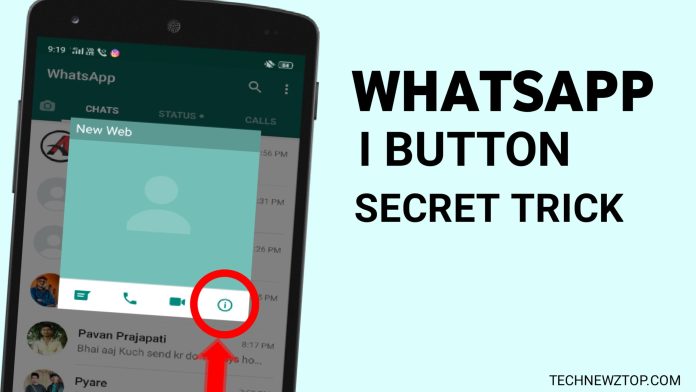
WhatsApp I Button Secret Trick: Everything You Need to Know About This Privacy Feature

Published

on

WhatsApp I Button Secret Trick: Everything You Need to Know About This Privacy Feature

Have you ever wanted to send a message that only the intended recipient can read, with no risk of prying eyes? The WhatsApp I button secret trick might be exactly what you need. This hidden feature, often overlooked, adds an extra layer of security to your conversations. In this guide, we will walk you through what this trick is, how it works, and why it matters for your privacy.

WhatsApp is one of the most popular messaging apps globally, used by billions. While it already offers end-to-end encryption, the I button trick takes things a step further. It allows you to verify that your messages are truly private, giving you peace of mind. Whether you are sharing sensitive information or just want to keep your chats confidential, this trick is worth knowing.

What Is the WhatsApp I Button Secret Trick?

The I button, often found in a contact’s profile or chat settings, is more than just an information icon. Tapping it reveals a hidden menu that includes encryption verification tools. This feature, sometimes called the WhatsApp I button secret trick, lets you scan a QR code or compare a numerical code to confirm that your messages are secure.

Many users ignore this button, assuming it only shows contact details. However, it holds the key to verifying your chat’s security. When you use this trick, you ensure that no one—not even WhatsApp itself—can intercept your messages. It is a simple yet powerful way to take control of your privacy.

How to Use the WhatsApp I Button Secret Trick

Using this feature is straightforward. Follow these steps to enable the WhatsApp I button secret trick on your device:

Step 1: Open WhatsApp and Select a Contact

First, launch WhatsApp on your smartphone. Navigate to the chat of the person you want to communicate with securely. Tap on their name or profile picture at the top of the screen to open their contact information.

Step 2: Tap the I Button

Once you are in the contact’s profile, look for the I button. On most devices, it appears as a small letter “i” inside a circle, usually in the top right corner. Tap it to access the encryption settings.

Step 3: View the Encryption Code

After tapping the I button, you will see an option labeled “Encryption” or “Security.” Click on it. A screen will appear showing a QR code and a 60-digit number. This is your unique encryption code for that chat.

Step 4: Verify the Code

To confirm that your chat is secure, you can either scan the QR code with the other person’s phone or compare the 60-digit number verbally. If the codes match, your messages are fully encrypted. This is the core of the WhatsApp I button secret trick—it verifies that no third party can read your conversations.

Why This Trick Matters for Your Privacy

In an age where data breaches and surveillance are common, protecting your messages is crucial. The WhatsApp I button secret trick gives you a way to double-check your security. It is especially useful for journalists, activists, or anyone handling sensitive information.

Moreover, this feature is built into WhatsApp, so you do not need any third-party apps. It is free, easy to use, and works on both Android and iOS devices. By using this trick, you can send messages with confidence, knowing they are truly private.

Common Misconceptions About the WhatsApp I Button Secret Trick

Some users think this trick is a hidden hack or a new feature. In reality, it has been part of WhatsApp for years. However, many people do not know about it because it is not prominently advertised. Another misconception is that it changes your encryption settings. In fact, it only verifies the existing encryption, which is always active by default.

Additionally, this trick does not allow you to hide messages from the recipient. It simply ensures that no one else can read them. If you need to hide messages from the person you are chatting with, this is not the right tool. For that, you might need to explore other privacy settings.

Tips for Using the WhatsApp I Button Secret Trick Effectively

To get the most out of this feature, here are a few practical tips:

  • Verify regularly: Check the encryption code periodically, especially if you are concerned about security.
  • Share codes securely: When comparing codes, do so in person or through a trusted channel to avoid interception.
  • Educate others: Tell your friends and family about this trick so they can protect their chats too.

For more privacy tips, check out our guide on how to read WhatsApp deleted messages or learn about using Meta AI on WhatsApp.

Final Thoughts on the WhatsApp I Button Secret Trick

The WhatsApp I button secret trick is a valuable tool for anyone who values privacy. It is simple, effective, and built right into the app. By taking a few seconds to verify your encryption, you can ensure your messages stay between you and your contact.

Do not let this feature go unused. Next time you send a sensitive message, tap the I button and confirm your security. It is a small step that makes a big difference in protecting your digital life.

Continue Reading
Click to comment

Leave a Reply

Your email address will not be published. Required fields are marked *

How To

WhatsApp Instant Video Messages: Complete Guide to the New Toggle Feature and How It Works

Published

on

WhatsApp Instant Video Messages: Complete Guide to the New Toggle Feature and How It Works

WhatsApp, the widely-used real-time messaging platform, continues to refine its user experience with a fresh update centered on WhatsApp instant video messages. This feature, initially rolled out in beta, is now gaining a new toggle switch that gives users more control over how they communicate. Instead of being forced into video mode, you can now decide when to record a quick clip or stick to a traditional voice note. Let’s explore what this update means for everyday messaging.

What Are WhatsApp Instant Video Messages?

Instant video messages allow you to record and send a short video clip—up to 60 seconds—directly from the chat interface. Unlike a standard video recording, this feature is designed for quick, spontaneous sharing, similar to how you would send a voice note. The video captures both audio and visual context, making conversations more expressive.

According to a report from WABetaInfo, the feature was initially enabled by default on both Android (version 2.23.18.21) and iOS (version 23.18.1.70). However, user feedback prompted WhatsApp to introduce a toggle, allowing individuals to enable or disable the instant video option as they see fit.

New Toggle Control in Chat Settings

The most significant change in this update is the addition of a dedicated toggle switch within the chat settings. Previously, the microphone icon automatically switched to video mode when tapped. Now, with the toggle, you have full authority over this behavior.

How to Enable or Disable the Video Message Toggle

To access this control, navigate to your WhatsApp chat settings. Look for the option labeled “Instant Video Messages.” By flipping this toggle, you can:

  • Enable the feature to keep the video recording option active. This allows you to switch between audio and video messages with a simple tap.
  • Disable the feature to remove the video recording option entirely, reverting the microphone icon solely to voice notes.

This flexibility ensures that users who prefer voice notes are not accidentally recording video, while those who enjoy visual messaging can keep the feature front and center. For more tips on customizing your messaging experience, check out our guide on WhatsApp Multi-Account Feature with New Interface for App Settings.

Enhanced User Experience for Voice Note Enthusiasts

This update is particularly beneficial for users who rely heavily on voice notes. By disabling the video message toggle, you eliminate the risk of inadvertently sending a video when you intended to send audio. This streamlines the communication process and reduces frustration.

On the other hand, for those who enjoy the richness of video, the feature remains easily accessible. You can record a 60-second clip by tapping the microphone icon, which now doubles as a video recorder when the toggle is enabled. This dual functionality makes WhatsApp more versatile without cluttering the interface.

Beta Testing and Future Availability

As of now, the toggle control for WhatsApp instant video messages is in beta testing. Android users with version 2.23.18.21 and iOS users with version 23.18.1.70 can try it out. The stable release is expected in the coming weeks, after WhatsApp collects feedback from beta testers.

Building on this, the company is likely to refine the feature based on user behavior. If you haven’t received the update yet, ensure your WhatsApp Messenger app is up to date from the Google Play Store or Apple App Store. For more on WhatsApp’s ongoing innovations, read about the 5 Best Features of WhatsApp That You Need to Know.

Why This Matters for Everyday Users

WhatsApp’s commitment to improving user experience is evident in this incremental update. By giving users more control over how they send messages, the platform acknowledges that one size does not fit all. Some people prefer the speed of voice notes, while others want the visual context of video. The toggle bridges this gap without forcing a choice.

In addition, this update aligns with WhatsApp’s broader strategy of adding premium features while maintaining simplicity. The instant video message feature, combined with the new toggle, offers a polished experience that feels intuitive.

Final Thoughts on WhatsApp Instant Video Messages

WhatsApp instant video messages represent a thoughtful evolution of the platform’s messaging capabilities. The addition of a toggle control in chat settings empowers users to tailor their communication style. Whether you are a fan of quick video clips or prefer the classic voice note, this update ensures you can message on your own terms.

What do you think about this move from Meta-owned WhatsApp? Share your thoughts in the comments below. For more updates on WhatsApp features and other tech news, stay tuned to TechNewzTop.

Continue Reading

How To

How to Enable Google Chrome Developer Tools Now: A Step-by-Step Guide

Published

on

How to Enable Google Chrome Developer Tools Now: A Step-by-Step Guide

Google Chrome Developer Tools — often called DevTools — are a built-in suite of utilities that help web developers inspect, debug, and optimize websites directly in the browser. Whether you are a seasoned coder or just starting out, learning how to enable these tools can dramatically improve your workflow. This guide explains everything you need to know, from basic activation to mastering advanced features.

Why You Should Enable Google Chrome Developer Tools

Enabling Google Chrome Developer Tools unlocks a range of powerful capabilities that streamline the development process. Instead of switching between an editor and a browser, you can make live edits, test performance, and fix bugs in real time. This section breaks down the main reasons developers rely on DevTools daily.

Inspect and Edit Live Code

The Elements panel lets you view the HTML and CSS of any webpage. You can select an element, change its styles, and see updates instantly. This makes it easy to troubleshoot layout issues or experiment with design changes without altering source files.

Measure Performance in Real Time

The Performance panel records browser activity while you interact with a page. You can identify slow scripts, heavy images, or inefficient animations. By analyzing this data, you can optimize your site for faster load times and smoother scrolling.

Debug JavaScript Efficiently

The Console panel is your command center for running and testing JavaScript code. You can type commands, inspect variables, and catch errors on the fly. This saves hours compared to traditional debugging methods.

Test Across Devices and Browsers

With Device Mode, you can simulate how your site looks and behaves on smartphones, tablets, and different screen sizes. This ensures a consistent user experience across platforms without needing physical devices.

How to Enable Developer Mode in Chrome

Activating DevTools is simple and can be done in three ways. Choose the method that suits your workflow:

  • Keyboard shortcuts: On Windows or Linux, press Ctrl + Shift + I. On Mac, use Command + Option + I.
  • Right-click menu: Open any webpage, right-click on an element, and select Inspect from the context menu.
  • Chrome menu: Click the three-dot icon in the top-right corner, go to More tools, and choose Developer tools.

Once opened, the DevTools panel appears at the bottom or side of your browser window. You can dock it to the right, left, bottom, or pop it out as a separate window.

Understanding the Core Panels of Chrome DevTools

Each panel in Google Chrome Developer Tools serves a specific purpose. Here is an overview of the most important ones:

Elements Panel

This panel displays the DOM tree of the current page. You can edit HTML tags, modify CSS properties, and add new elements in real time. All changes are visual, so you see the results immediately.

Console Panel

The Console is where you run JavaScript commands and view log messages. It also shows errors, warnings, and network issues. Use it to test code snippets and debug scripts interactively.

Sources Panel

This panel gives you access to all files loaded by the page, including JavaScript, CSS, and images. You can set breakpoints, step through code, and make persistent edits. It is essential for in-depth debugging.

Network Panel

The Network panel records all network requests made by the page. You can see loading times, request headers, and response data. Use it to identify slow resources or optimize API calls.

Performance Panel

Record a session to see a timeline of events, including scripting, rendering, and painting. This helps pinpoint bottlenecks that affect page speed. You can also simulate different network conditions to test performance under various scenarios.

Memory Panel

Monitor JavaScript memory usage and take heap snapshots. This panel helps detect memory leaks and optimize resource consumption. It is particularly useful for single-page applications that run for extended periods.

Advanced Features and Tips for Using Chrome DevTools

Beyond the basic panels, DevTools offers several advanced capabilities that can further enhance your development experience:

  • Device Mode: Simulate mobile devices, rotate the screen, and test touch events.
  • Application Panel: Inspect local storage, session storage, cookies, and service workers.
  • Lighthouse: Run automated audits for performance, accessibility, SEO, and best practices.

For more insights, check out our guide on 5 Easy Ways to Install and Manage Google Chrome Extensions to complement your DevTools workflow.

Optimizing Your Website with DevTools

Regular use of Google Chrome Developer Tools allows you to catch issues early, improve load times, and ensure cross-device compatibility. You can also customize the DevTools layout and settings to match your preferences. For example, you can enable dark mode, adjust font sizes, or disable caching while debugging.

Additionally, exploring Chrome tips and tricks can help you become more productive. Many developers also use DevTools to analyze competitor websites, learning from their structure and performance strategies.

Winding Up

Enabling and mastering Google Chrome Developer Tools is a vital skill for any web developer. From live code editing to performance analysis, these tools provide everything you need to build and maintain high-quality websites. Start by activating DevTools using one of the simple methods above, then explore each panel at your own pace. With consistent practice, you will quickly see improvements in your development speed and code quality.

Continue Reading

How To

How to Change DNS Server on Your Phone Using a DNS Changer App

Published

on

How to Change DNS Server on Your Phone Using a DNS Changer App

Have you ever noticed that your internet feels sluggish, even when your connection speed looks fine? This frustrating issue often stems from a slow or poorly configured DNS server. Fortunately, you can change DNS server on your phone using a dedicated DNS changer app, and the process is simpler than you might think. In this guide, we will walk you through the steps to boost your browsing experience on both mobile data and WiFi networks.

Why You Need to Change DNS Server on Your Phone

The Domain Name System (DNS) acts like the internet’s phonebook, translating website names into IP addresses. When your default DNS server is slow or overloaded, every website you visit takes longer to load. This is a common problem on many smartphones, regardless of your data plan speed.

By using a DNS changer app, you can switch to a faster, more reliable DNS service. This not only speeds up page loading but can also improve security and bypass certain geo-restrictions. Many users find that changing their DNS settings dramatically enhances their daily browsing on both mobile data and WiFi.

Choosing the Best DNS Changer App for Your Phone

Not all DNS changer apps are created equal. The best one should support both IPv4 and IPv6 protocols, work seamlessly with mobile data and WiFi, and offer a simple user interface. One highly recommended option is the “DNS Changer | Mobile Data & WiFi | IPv4 & IPv6” app, which is available for free on major app stores.

This app allows you to quickly switch between different DNS providers and even run a speed test to find the fastest server for your location. It is designed for both beginners and advanced users who want more control over their network settings.

Step-by-Step Guide: Change DNS Server Using a DNS Changer App

Follow these simple steps to change your DNS server on your Android or iOS device. The process takes less than two minutes and requires no technical expertise.

Step 1: Download and Install the App

First, download the DNS changer app from your phone’s official app store. Search for “DNS Changer” and look for the app that supports both mobile data and WiFi. The installation is straightforward—just tap install and wait for it to complete.

Step 2: Accept Terms and Start the Service

Open the app after installation. You will be prompted to read and accept the Terms of Use and Privacy Policy. Check the box and tap “Accept.” Then, tap the “Start” button. A popup will appear asking for permission to set up a VPN connection—this is how the app routes your DNS traffic. Tap “OK” to grant permission.

Step 3: Run a Speed Test for Optimal Performance

Once the app is connected, you can manually choose a DNS server or let the app find the fastest one for you. Look for the “Speed Test” option at the bottom of the screen. Tap it, and the app will scan available DNS servers and display the fastest ones based on your current location.

Step 4: Apply the Fastest DNS Server

After the speed test completes, you will see a list of DNS servers ranked by response time. Tap “Use It” next to the fastest option. The app will immediately switch your phone’s DNS settings to that server. You can also enable IPv6 support if your network supports it, by toggling the IPv6 option in the app settings.

Tips for Getting the Most Out of Your New DNS Service

Now that you have changed your DNS server, you should notice faster page loads and improved streaming. However, there are a few additional tips to keep in mind. First, consider using a public DNS service like Google DNS or Cloudflare DNS for enhanced privacy and speed. Many DNS changer apps allow you to select these pre-configured options.

Second, if you switch between WiFi and mobile data frequently, ensure the app is set to apply the DNS settings to both connection types. Most quality apps handle this automatically. Finally, if you encounter any connectivity issues, simply restart the app or switch back to your default DNS settings temporarily.

For more tips on optimizing your phone’s performance, check out our guide on Android performance hacks or learn about securing your WiFi connection.

Frequently Asked Questions About DNS Changer Apps

Will changing DNS affect my internet speed? Yes, switching to a faster DNS server can significantly reduce page loading times, especially for first-time visits to websites.

Is it safe to use a DNS changer app? Reputable apps are safe and use a local VPN to route DNS traffic without seeing your data. Always download from official app stores.

Can I revert to my original DNS settings? Absolutely. Most DNS changer apps have a “Stop” or “Disconnect” button that restores your phone’s default DNS settings instantly.

If you have any questions about this process, feel free to leave a comment below. And if you found this guide helpful, share it with your friends on social media so they can also enjoy a faster internet experience.

Continue Reading

Trending