Connect with us

How To

How to Check Screen Time on Samsung: A Complete Step-by-Step Guide to Digital Wellbeing

Published

on

How to Check Screen Time on Samsung: A Complete Step-by-Step Guide to Digital Wellbeing

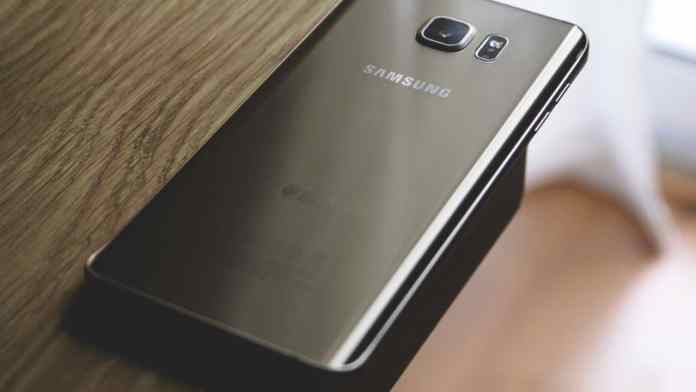
Have you ever looked up from your phone and wondered where the last hour went? You are not alone. Many Samsung users want to check screen time on Samsung devices to regain control over their digital habits. Fortunately, Samsung phones come with a powerful built-in tool called Digital Wellbeing. This guide will walk you through every method to track, limit, and schedule your screen time effectively.

What Is Screen Time and Does Samsung Have This Feature?

Screen time is a metric that shows how long you spend on your smartphone. It breaks down usage by app, tells you how many times you unlocked the phone, and even counts incoming notifications. This data helps you understand your digital behavior.

Samsung smartphones absolutely include this feature. It works on models like the Galaxy S7, S9, S10, S21, and all newer devices. The system is part of Android’s Digital Wellbeing suite, which Samsung integrates seamlessly into One UI. Whether you have Android 10 or the latest version, you can access these tools.

How to Check Screen Time on Samsung Using Digital Wellbeing

The easiest way to check screen time on Samsung is through the Digital Wellbeing & Parental Controls menu. Follow these simple steps:

  1. Open the Settings app on your Samsung phone.
  2. Scroll down and tap Digital Wellbeing and Parental Controls.
  3. You will immediately see a circular graph showing your total screen time for the day.
  4. Below the graph, you will find a list of apps sorted by usage time.

This dashboard updates in real time. You can tap any app to see more details, such as how many times you opened it and for how long. For more on managing device settings, check out our guide on how to use Do Not Disturb on Android.

Add a Screen Time Widget for Quick Access

If you want to monitor your usage without opening Settings every time, add a widget to your home screen. This method makes it easy to check screen time on Samsung at a glance.

  1. Long press on an empty area of your home screen.
  2. Tap Widgets from the menu that appears.
  3. Scroll to find the Digital Wellbeing widget.
  4. Select your preferred size and tap Add.

Now, your home screen will display your current screen time. This visual reminder can help you stay mindful of your usage throughout the day.

Set App Timers to Limit Usage

Tracking is only half the battle. To truly manage your time, you can set app timers. When the timer expires, the app grays out and you cannot open it until the next day.

  1. Go to Settings > Digital Wellbeing and Parental Controls.
  2. Tap the app you want to limit.
  3. Tap the hourglass icon next to the app name.
  4. Set the desired time limit and press Done.

This feature works well for social media apps or games that tend to eat up your time. It is a practical way to enforce digital boundaries without relying on willpower alone.

Enable Bedtime Mode for Better Sleep

Nighttime phone use can disrupt your sleep cycle. Samsung’s Bedtime Mode helps by graying the screen and silencing notifications during your chosen hours.

  1. Open Settings > Digital Wellbeing and Parental Controls.
  2. Tap Bedtime Mode.
  3. Toggle it on and set your schedule.

You can also enable Do Not Disturb alongside Bedtime Mode for complete quiet. For more tips on managing notifications, see our article on how to hide WhatsApp blue ticks.

Use Focus Mode to Minimize Distractions

When you need to concentrate on work or study, Focus Mode pauses distracting apps. During this time, those apps remain inaccessible.

  1. Navigate to Settings > Digital Wellbeing and Parental Controls.
  2. Tap Focus Mode.
  3. Select which apps to pause and turn the mode on.

You can schedule Focus Mode to activate automatically during your productive hours. This is a great way to build a routine that prioritizes important tasks over casual browsing.

Why Monitoring Screen Time Matters

Regularly checking your screen time can reveal surprising patterns. You might discover that you spend hours on apps you barely remember opening. By using the tools described above, you can reclaim that time for more meaningful activities.

For parents, Samsung’s Digital Wellbeing also offers parental controls. You can monitor and limit your child’s device usage directly from your own phone. This ensures the whole family develops healthier digital habits.

Building on this, you can also explore how to troubleshoot a slow iPad to improve overall device performance.

Final Thoughts

Learning how to check screen time on Samsung is the first step toward a more balanced digital life. Samsung’s Digital Wellbeing suite gives you all the tools you need: tracking, app timers, bedtime mode, and focus mode. Start using these features today and take control of your screen time.

Continue Reading
Click to comment

Leave a Reply

Your email address will not be published. Required fields are marked *

How To

What Is GPS and How Does It Work? A Complete Guide for Beginners

Published

on

What Is GPS and How Does It Work? A Complete Guide for Beginners

Have you ever wondered how your smartphone knows exactly where you are, even in a new city? The answer lies in a remarkable technology called the Global Positioning System, or GPS. This GPS guide will walk you through everything you need to know about this navigation system, from its origins to its everyday uses. Whether you are a curious beginner or someone looking to deepen your understanding, this guide has you covered.

The Origins of GPS: Who Created It and Why?

The Global Positioning System was first developed by the United States Department of Defense in the 1960s. Initially designed for military purposes, it allowed the US armed forces to track troop movements and guide missiles with precision. However, the technology quickly proved valuable for civilian use. By the 1980s, the US government made GPS available to everyone, sparking a revolution in navigation and location-based services.

How GPS Became a Global Tool

Today, GPS is a standard feature in nearly every smartphone, car, and wearable device. People rely on it for directions, fitness tracking, and even emergency services. Interestingly, several other countries have developed their own satellite navigation systems, including Russia’s GLONASS, the European Union’s Galileo, China’s BeiDou, and India’s NavIC. This competition has improved global coverage and accuracy.

How Does GPS Work? A Simple Breakdown

At its core, GPS operates through a network of at least 24 satellites orbiting Earth. These satellites constantly transmit signals that include their location and the exact time. Your GPS receiver—whether in a phone or a car—picks up these signals. By measuring the time it takes for each signal to arrive, the receiver calculates your distance from each satellite. With signals from at least three satellites, it can pinpoint your location through a process called trilateration.

This means that your device needs a clear view of the sky to work accurately. Tall buildings, dense forests, or underground parking can interfere with the signal. Additionally, an internet connection helps your phone download satellite almanac data faster, but GPS itself does not require Wi-Fi or cellular data to function.

Practical Uses of GPS in Daily Life

The applications of GPS extend far beyond just getting directions. Here are some key areas where this technology plays a vital role:

  • Transportation: From ride-sharing apps like Uber to airline navigation, GPS ensures efficient route planning and real-time traffic updates.
  • Military and Defense: Armed forces rely on GPS for troop coordination, drone operations, and missile guidance.
  • Shipping and Logistics: Cargo ships and delivery trucks use GPS to track shipments and optimize delivery routes.
  • Disaster Relief: Emergency responders use GPS to locate victims and coordinate rescue efforts during earthquakes, floods, or wildfires.
  • Personal Fitness: Smartwatches and fitness trackers use GPS to map runs, measure distance, and track outdoor activities.

Furthermore, GPS assists in scientific research, such as studying tectonic plate movements and monitoring wildlife migration patterns. It has truly become an indispensable tool in modern life.

Common Questions About GPS

Is GPS free to use?

Yes, the US government provides the GPS signal free of charge to anyone with a compatible receiver. However, some apps may charge for premium features like offline maps or advanced routing.

Can GPS work without internet?

Absolutely. GPS signals come directly from satellites, so your device can determine its location without any internet connection. However, downloading maps for navigation often requires an internet connection or pre-loaded offline maps.

How accurate is GPS?

Consumer-grade GPS devices are typically accurate to within 5 to 10 meters under open sky. With additional corrections, such as those used in surveying, accuracy can improve to within a few centimeters.

Conclusion: Why Understanding GPS Matters

In summary, GPS is a fascinating technology that has transformed how we navigate and interact with the world. From its military origins to its widespread civilian use, the Global Positioning System continues to evolve. By understanding how GPS works, you can make the most of its capabilities, whether you are driving to a new destination, tracking a workout, or exploring the outdoors. For more insights into modern technology, check out our guide on how to troubleshoot a slow iPad or learn about printing photos from your Android device. Embrace the power of GPS and never get lost again.

Continue Reading

How To

JioBook 2 Launch: What to Expect from Jio’s Affordable Laptop

Published

on

JioBook 2 Launch: A New Chapter in Affordable Computing

Reliance Jio is gearing up to expand its hardware lineup with the upcoming JioBook 2 launch. Following the positive reception of the original JioBook, which brought 4G connectivity to budget laptops in India, the second-generation model aims to raise the bar. Set to be unveiled on July 31, the device is generating considerable buzz among students, professionals, and tech enthusiasts. But what exactly does Jio have in store this time around?

Lightweight Design and Portability

One of the most striking upgrades in the JioBook 2 launch is its reduced weight. The new laptop tips the scales at just 990 grams, making it significantly lighter than its predecessor, which weighed 1.2 kilograms. This fan-less design not only contributes to the slim profile but also ensures silent operation.

The device sports a sleek blue finish with a minimalist aesthetic. Only the Jio branding appears on the lid, giving it a clean, professional look. For users who need a laptop that can slip easily into a backpack, this model is a compelling option.

Display and Visual Experience

While Jio has not yet disclosed full display specifications, early images suggest the JioBook 2 retains noticeable bezels around the screen. This design choice likely helps keep costs down while providing a comfortable viewing area. Users can expect vibrant colors and crisp visuals suitable for both productivity tasks and media consumption.

For students attending online classes or professionals reviewing documents, the display should prove adequate. However, those seeking ultra-thin bezels may need to look elsewhere.

Performance Under the Hood

The JioBook 2 launch confirms the inclusion of an octa-core processor, widely believed to be a Snapdragon chipset. Although official confirmation is pending, this processor promises smooth multitasking and responsive performance. Whether you are browsing the web, streaming video, or working on spreadsheets, the laptop should handle everyday tasks with ease.

Jio may offer multiple RAM and storage configurations, allowing buyers to choose a variant that fits their budget and usage needs. This flexibility is a smart move in the competitive budget laptop segment.

Connectivity: 4G as a Core Feature

Staying true to its roots, the JioBook 2 will support 4G connectivity. This feature remains a key differentiator in the Indian market, where reliable Wi-Fi is not always available. With built-in 4G, users can stay online for virtual classes, remote work, and communication without relying on external hotspots.

This always-on connectivity makes the laptop particularly appealing for students in smaller towns and rural areas. It also reduces the need for dongles or mobile tethering.

JioOS: Android-Based Simplicity

The laptop will run on JioOS, a custom operating system built on Android. This choice offers several advantages. First, users gain access to a vast library of Android apps from the Google Play Store. Second, the interface is designed to be intuitive, making it easy for first-time laptop users to navigate.

JioOS includes pre-installed apps tailored for productivity and entertainment. The system is expected to receive updates that improve stability and introduce new features over time.

Battery Life and Expected Pricing

Jio promises long battery life for the JioBook 2, though exact figures have not been announced. Given the efficient processor and Android-based OS, users can likely expect a full day of moderate use on a single charge.

As for pricing, industry analysts predict the JioBook 2 will follow its predecessor’s strategy and launch at a sub-Rs 20,000 price point. This aggressive pricing could make it one of the most affordable 4G laptops in India. For comparison, the original JioBook was priced around Rs 15,000, so a slight increase is possible given the upgraded hardware.

Check out our guide on best budget laptops in India for more options. Also, read about Jio’s new plans with Jiosaavn Pro subscription.

Conclusion: Is the JioBook 2 Worth Waiting For?

The JioBook 2 launch represents Jio’s continued commitment to affordable, connected computing. With its lightweight design, 4G support, and expected low price, it is well-positioned to attract students and budget-conscious professionals. While it may not compete with premium laptops in raw power, its focus on accessibility and ease of use fills an important gap in the market.

As the launch date approaches, keep an eye out for official specifications and availability details. For anyone seeking a no-frills laptop that keeps them connected, the JioBook 2 could be the answer.

Continue Reading

How To

WhatsApp Arrives on Wear OS Smartwatches: What You Need to Know

Published

on

WhatsApp Arrives on Wear OS Smartwatches: What You Need to Know

For years, smartwatch users have waited for a seamless way to stay connected without reaching for their phones. That wait is finally over. WhatsApp Wear OS integration has officially launched, bringing the world’s most popular messaging app to your wrist. This means you can now read messages, send quick replies, and even record voice notes directly from your Wear OS smartwatch. In this guide, we break down everything you need to know about this update, how to set it up, and why it matters for your daily routine.

Why the WhatsApp Wear OS Integration Matters

Wear OS, Google’s operating system for smartwatches, has steadily improved over the years. However, the lack of native WhatsApp support was a notable gap. With this new update, that gap is closed. The Wear OS smartwatch now acts as a true extension of your smartphone, allowing you to handle messages hands-free.

This is particularly useful for those who are always on the move. Whether you’re driving, cooking, or in a meeting, you can glance at your wrist to see who messaged you. No more fumbling for your phone in your pocket or bag. The integration is designed to be intuitive, keeping you connected without interrupting your flow.

Key Features of WhatsApp on Wear OS

The update isn’t just about receiving notifications. It brings several core features that make the experience genuinely useful.

Real-Time Notifications and Quick Replies

You will receive every WhatsApp notification directly on your watch. More importantly, you can respond instantly. Pre-set quick replies allow you to send common responses like “On my way” or “Call you later” with a single tap. Voice dictation is also supported, letting you dictate longer replies naturally.

Voice Messages and Emoji Access

Voice messages have become a staple of WhatsApp communication. On your Wear OS smartwatch, you can record and send voice messages directly. Just tap the microphone icon and speak. Additionally, a full emoji picker is available, so your responses can still be expressive and fun.

Media Sharing Made Simple

Sharing photos or other files is also streamlined. You can quickly send recent photos from your phone’s gallery or even capture a new photo using your watch’s camera remote feature. This makes sharing moments effortless, especially when your phone isn’t in hand.

How to Set Up WhatsApp on Your Wear OS Smartwatch

Setting up the WhatsApp smartwatch setup is straightforward. Follow these steps to get started in minutes.

Step 1: Check Compatibility

First, ensure your smartwatch runs Wear OS 3 or later. Most modern models from Samsung, Google, and Fossil are compatible. Check for any system updates on both your watch and phone.

Step 2: Update Your Apps

Update the WhatsApp app on your smartphone to the latest version. Also, update the Wear OS app on your watch. This ensures all new features are available.

Step 3: Enable Notifications

On your phone, go to Settings > Notifications > WhatsApp. Make sure notifications are enabled. This is crucial for the watch to receive messages.

Step 4: Pair and Sync

Pair your smartwatch with your phone via Bluetooth if you haven’t already. Then, open the Wear OS app on your phone. Navigate to the ‘Apps on your phone’ section and find WhatsApp. Toggle the switch to enable it on your watch.

Step 5: Customise Your Experience

In the Wear OS app, you can choose which WhatsApp notifications appear on your watch. You can select ‘All notifications’, ‘Priority only’, or ‘None’. This helps you stay focused on what matters most.

Practical Tips for Getting the Most Out of WhatsApp on Wear OS

To truly benefit from this integration, consider a few practical tips. First, customise your quick replies in WhatsApp settings to match your most common responses. This saves even more time. Second, use voice dictation for longer messages—it works surprisingly well on most Wear OS devices. Finally, keep your watch charged, as active notifications can drain the battery faster than usual.

For more ways to optimise your messaging experience, check out our guide on how to text an unsaved number on WhatsApp. You might also find our article on WhatsApp’s flash calls feature useful for enhancing account security.

The Bottom Line

The arrival of WhatsApp Wear OS support is a significant step forward for wearable technology. It transforms your smartwatch from a simple notification mirror into an active communication tool. With quick replies, voice messages, and media sharing, staying connected has never been more convenient. If you own a Wear OS smartwatch, this is an update you won’t want to miss. Set it up today and experience the freedom of messaging from your wrist.

Continue Reading

Trending