Connect with us

How To

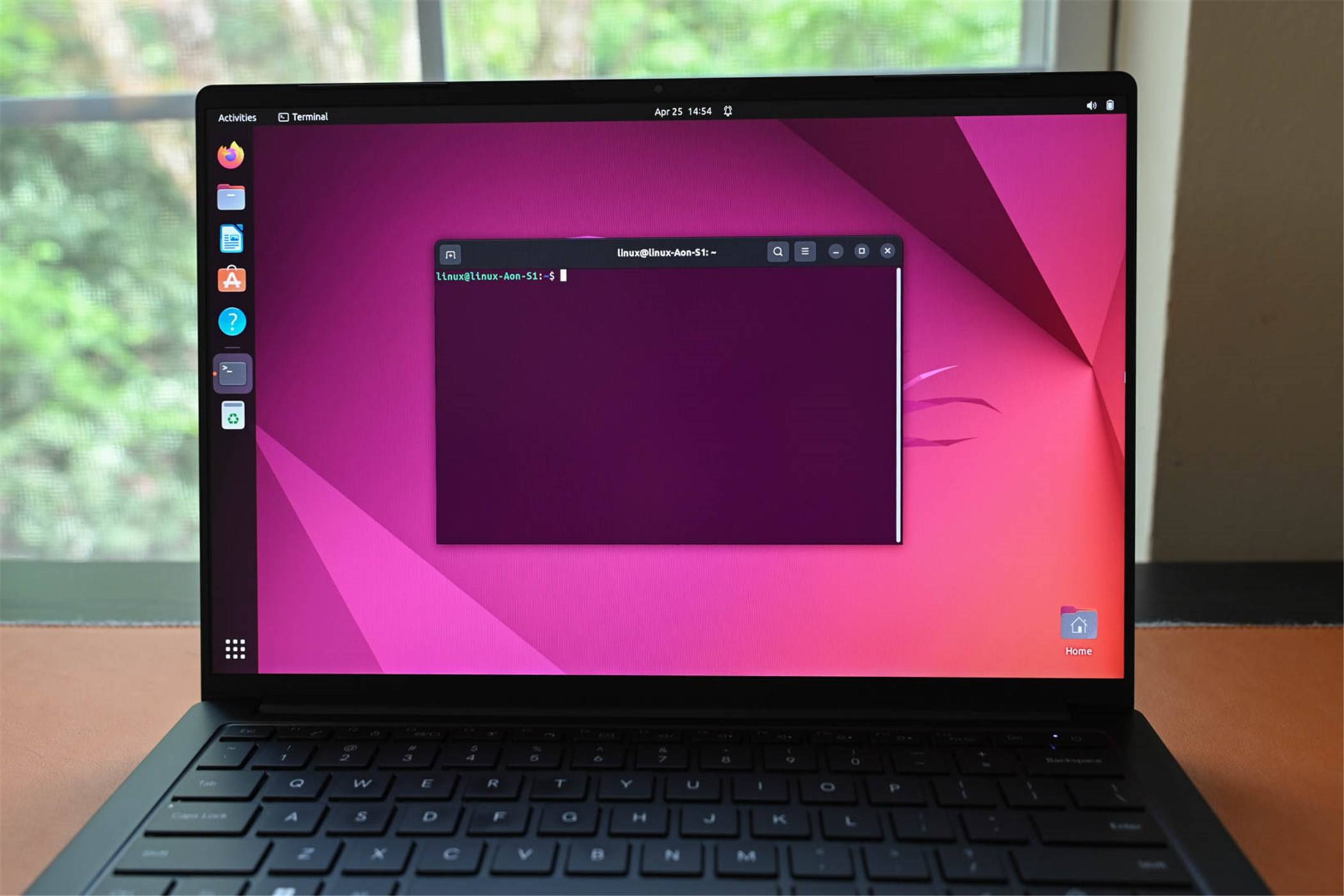
7 tricks to make learning the Linux command line easier

Published

on

Linux command line

Why the Linux command line still matters in 2026

Let’s be honest: the terminal can feel like a time machine to the 1970s. No icons, no mouse, just a blinking cursor and a blank screen. For many newcomers, that’s intimidating.

But here’s the thing — mastering the Linux command line isn’t about memorizing every flag and option. It’s about learning a few smart tricks that compound over time. Once you internalize them, you’ll wonder how you ever worked any other way.

Below are seven concrete techniques that will make learning the Linux command line not just bearable, but genuinely productive.

1. Use tab completion to stop guessing

Typing long file names or paths by hand is a waste of mental energy. The shell’s built-in tab completion does the heavy lifting for you.

Start typing a command, file name, or directory path, then press Tab. The shell fills in the rest — or shows you options if there’s ambiguity. For example, type cd Docu then Tab, and it becomes cd Documents/.

This single habit eliminates typos, speeds up navigation, and reduces frustration. It’s the first trick every beginner should adopt.

2. Leverage the history command

Repeatedly typing the same long command is tedious. Your shell remembers everything you’ve typed. Use the history command to see your recent commands, then rerun one with !number (where number is the line from history).

Even faster: press Ctrl+R to search backward through your history. Start typing part of a previous command, and the shell finds it instantly. Hit Enter to run it again.

This turns your terminal into a personal memory bank — no more retyping complex grep or find commands.

3. Chain commands with && and |

Instead of running one command, waiting, then typing the next, chain them together. Use && to run the next command only if the previous one succeeded:

mkdir new_project && cd new_project && touch README.md

Use the pipe | to send the output of one command directly into another:

ls -la | grep '.txt'

This is where the real power of the Linux command line shines — combining small tools to build complex workflows without writing a script.

4. Create aliases for repetitive tasks

If you type the same command more than once a day, make an alias. Add lines like these to your ~/.bashrc or ~/.zshrc file:

alias ll='ls -lah'
alias gs='git status'
alias update='sudo apt update && sudo apt upgrade -y'

After editing, run source ~/.bashrc to load your new aliases immediately. Now typing ll gives you a detailed file listing, and update handles system upgrades in one keystroke.

This trick saves minutes every day — and those minutes add up fast.

5. Master the manual with apropos

The man command is essential, but it’s also dense. When you know what you want to do but don’t remember the exact command name, use apropos.

For example, if you need to change file permissions but forgot whether it’s chmod or something else, type:

apropos permission

It returns a list of relevant commands with brief descriptions. This turns the manual from a wall of text into a searchable reference. Combine it with man -k for even more flexibility.

6. Use Ctrl+ shortcuts to edit faster

Nobody enjoys retyping a long command because of a typo at the beginning. Learn these keyboard shortcuts and your editing speed will double:

  • Ctrl+A — jump to the start of the line
  • Ctrl+E — jump to the end
  • Ctrl+U — delete everything before the cursor
  • Ctrl+K — delete everything after the cursor
  • Ctrl+W — delete the word before the cursor

These work in bash and zsh by default. They’re small habits, but they make the terminal feel less like a typewriter and more like a modern editor.

7. Practice with the built-in help system

Most commands include a --help flag that shows a condensed reference. For example:

tar --help

This prints a summary of options without opening the full manual. It’s faster than man tar when you just need a quick reminder.

Combine this with whatis (which gives a one-line description) and you’ve got a lightweight reference system that never requires leaving the terminal.

Start small, build momentum

The Linux command line isn’t something you conquer in a weekend. But by adopting these seven tricks — tab completion, history search, command chaining, aliases, apropos, keyboard shortcuts, and built-in help — you’ll stop fighting the terminal and start using it as the powerful tool it is.

Pick one trick today. Practice it until it becomes automatic. Then add another. That’s how real fluency develops — not through memorization, but through repeated, practical use.

Continue Reading

How To

Never seen a Marvel movie? Start here — the only 6 you truly need

Published

on

Marvel movies for beginners

You don’t need to watch 30+ movies. Honest.

So you’ve never seen a single Marvel movie. Maybe you’ve been living under a rock, or maybe you just never got around to it. Either way, the pressure to catch up can feel crushing. The Marvel Cinematic Universe (MCU) has been running since 2008 and now spans over 30 films, plus a dozen Disney+ shows. That’s a lot of homework.

Here’s the secret: you don’t need all of it. A handful of films do the heavy lifting, introducing the core heroes and the big bad villain in ways that make everything else click. I’ve picked six that give you the best return on your time — no prior knowledge required.

Why these six? A quick logic check

Before we dive in, a quick note on the picks. This isn’t a ranking of the ‘best’ Marvel movies by critical score. It’s a curated entry point. Each film on this list introduces a major hero, establishes the cosmic or political stakes, and connects to the larger story in a way that matters. You’ll finish them with a solid grasp of who’s who and why the Infinity Stones are such a big deal.

The Iron Man principle

Start with the one that started it all. Marvel‘s Iron Man (2008) isn’t just a great movie — it’s the foundation of the entire MCU. Robert Downey Jr.’s Tony Stark is witty, flawed, and instantly likable. This film teaches you the tone: grounded, tech-driven, with a wink to the audience. No cosmic nonsense here, just a genius in a cave building a suit.

The essential six for a Marvel beginner

  • Iron Man (2008) — The origin story that started the MCU. You’ll meet Tony Stark and get a feel for the franchise’s signature mix of action and humor.
  • The Avengers (2012) — The first team-up. This is where you see how individual heroes mesh, and it introduces the Chitauri invasion, a major event.
  • Captain America: The Winter Soldier (2014) — A political thriller disguised as a superhero movie. It introduces the Winter Soldier and reshapes S.H.I.E.L.D., which matters later.
  • Guardians of the Galaxy (2014) — This one expands the universe to space. You meet the Guardians, learn about the Infinity Stones, and get a dose of the MCU’s weirder, funnier side.
  • Avengers: Infinity War (2018) — The big crossover. Thanos arrives, and the stakes go cosmic. It’s the payoff for everything you’ve watched so far.
  • Avengers: Endgame (2019) — The conclusion of the Infinity Saga. It’s a long film, but it delivers emotional closure and sets up the future.

How to watch them: Order matters (sort of)

You could watch these in release order and be fine. But for a beginner, a slightly different sequence works better. Start with Iron Man, then jump to The Avengers to see the team form. Then take a detour to Guardians of the Galaxy to understand the cosmic side. After that, Winter Soldier grounds you in the espionage angle. Finally, watch Infinity War and Endgame back-to-back for the epic finale.

This order builds context naturally. You’ll meet the core heroes, understand the Infinity Stones, and then watch them clash with Thanos. It’s efficient and emotionally satisfying.

What about the other 25+ movies?

You might be wondering: what about Thor, Black Panther, or Spider-Man? Good question. Those are excellent films, but they’re not essential for a beginner. Thor introduces Asgard, but Infinity War gives you enough context. Black Panther is a standalone masterpiece, but it doesn’t drive the central Infinity Stone plot. Spider-Man: Homecoming is fun, but it’s a side quest.

If you finish the six and want more, you can branch out. But don’t feel obligated to watch everything to enjoy the MCU. The franchise is designed to be accessible, even if you’ve missed entries.

Final verdict: Start with these, thank me later

The MCU can be intimidating, but it doesn’t have to be. These six films give you the essential heroes, the cosmic stakes, and the emotional payoff. You’ll walk away understanding why people have been obsessed for over a decade.

And if you’re still hungry for more, check out our guide to the best Marvel movies ranked by critics or the MCU timeline explained simply. Happy watching.

Continue Reading

Social Media

Buried in Meta’s $18B Settlement Is a Legal Pass on Kids’ Data

Published

on

kids' data legal pass

A Curious Clause in a Landmark Deal

Meta’s massive $18 billion settlement with attorneys general from 29 states made headlines for its record-breaking fine and promised child safety upgrades. But tucked inside the fine print is a provision that has privacy experts raising eyebrows: the states have agreed not to sue Meta under existing child safety laws over its retention and use of children’s data.

Yes, you read that right. In a case centered on protecting kids, the settlement grants Meta a legal shield. The carve-out is limited to training and testing Meta’s age-assurance model, and it comes with guardrails. Still, it’s a curious policy decision — and one that could prove difficult to enforce.

What Meta Must Build (and How Fast)

Under the agreement, Meta has one year from the effective date to develop, train, and start testing a model that detects users under 13 on its platforms. The settlement doesn’t explicitly require AI, but Meta’s current age-detection tools already lean on artificial intelligence.

Here’s where it gets legally messy. The Children’s Online Privacy Protection Act (COPPA) generally forces websites to limit how much children’s personal information they collect and hold. The settlement says Meta shouldn’t have to break COPPA to train its age-assurance models. But it also says the state AGs agree “fully, finally, and forever” not to bring any past, present, or future COPPA claims — or similar state-law claims — tied to Meta’s use of children’s data.

The agreement does make one thing clear: Meta can’t use data from kids under 13 for ad targeting, marketing, or algorithmic optimization.

Is This Actually Reasonable?

Philip N. Yannella, a partner at Blank Rome who co-chairs its Privacy, Security & Data Protection practice, doesn’t think the request is unreasonable on its face. “These kinds of data minimization guardrails are pretty typical for privacy compliance: e.g., verifying compliance with deletion requests,” he said.

But he flagged a critical caveat. COPPA is a federal law primarily enforced by the FTC, not the states. The FTC isn’t a party to this settlement, so it’s unclear whether the agency has separately agreed to the same compromise. That leaves a big open question.

The Enforcement Nightmare

Keeping data technically and organizationally isolated from the rest of a company’s systems is notoriously hard. Meta is being asked to do exactly that — wall off its understanding of children’s behavioral signals and use it solely for detecting and removing under-13 users.

Fortunately, an independent auditor will monitor Meta’s compliance. So we don’t just have to take the company’s word for it.

Still, policing this limitation could get complicated. Data could hypothetically bleed into other Meta systems over time. Questions loom about whether signals or insights derived from children’s data are being used elsewhere inside the company. The agreement doesn’t specify:

  • What data Meta will retain for training the model
  • How much behavioral information that might include
  • How long the data will be kept
  • How the models will evolve as Meta meets the settlement’s terms

What This Means for Future Lawsuits

Barring state AGs from raising COPPA or similar state-law claims over this specific use of children’s data could complicate the legal avenues states can pursue if questions arise later.

Joshua Wurtzel, a partner at Schlam Stone & Dolan LLP, points out the release isn’t a blank check. “If Meta uses the data outside those lines, the release and covenant not to sue don’t apply,” he said. But any dispute would hinge on whether Meta’s use fell within the settlement’s terms — a fact-intensive fight that could drag on.

Peter Jackson, a Data & IP attorney at Greenberg Glusker LLP, sees a bigger problem. The carve-out could “disincentivize future enforcement actions.” He describes the age-assurance measures as bearing “all the hallmarks of a heavy, and perhaps hasty, negotiation.”

The Bigger AI Data Question

This deal touches on a broader tension rippling through the AI industry. As more AI agents are built to help consumers with everyday tasks, these systems need significant access to personal data to work well. Meta’s situation is no different — to identify which accounts belong to young people, the company may need deep insight into how children use social media.

The settlement is essentially an experiment in whether that kind of data access can be responsibly contained. The guardrails exist on paper. Whether they hold up in practice is another story entirely.

For now, parents and privacy advocates will be watching closely. So will the FTC. And if Meta stumbles, the states that signed this deal might find themselves wishing they hadn’t given up their legal ammunition so easily.

Continue Reading

How To

Your Motherboard Has 3 USB Upgrades Hiding in Plain Sight

Published

on

USB upgrades motherboard

Don’t Buy a New PC—Check Your Motherboard First

You’ve been staring at your PC case, frustrated by the lack of USB ports. Maybe your front panel has two slots, and both are occupied by a mouse and a headset dongle. You’re about to drop hundreds on a USB hub or, worse, a whole new motherboard.

Stop. Your current board likely has three USB upgrades hiding in plain sight. I’ve built and tested dozens of PCs over the past 20 years, and these are the tricks I use every time.

1. The Internal USB Header You Forgot About

Most motherboards have more than one internal USB header. That second header—often labeled USB 2.0 or USB 3.2 Gen 1—is sitting there, unused, under your graphics card. It’s not a secret; it’s just hidden behind cables and heat sinks.

Pop open your case and look. If you see a 9-pin or 19-pin connector with no cable attached, you’ve found your upgrade. You can buy a USB header splitter for under $10 and turn that single header into two or four ports. No soldering, no special tools—just plug and play.

This is the cheapest way to add ports. A splitter costs less than a pizza, and you’ll get two extra USB 2.0 ports on your rear I/O or front panel. Some splitters even come with a bracket that mounts to an empty expansion slot, giving you ports without opening the case again.

What About USB 3.2 Headers?

If your board has a 19-pin USB 3.2 Gen 1 header that’s free, you’re in luck. That one can push 5 Gbps—ten times faster than USB 2.0. A single 19-pin header can be split into two USB 3.2 ports, and some splitters add a USB-C port too. Just check your motherboard manual to confirm the header type before buying.

2. The USB-C Front Panel Header—If You Have It

Newer motherboards, especially those from 2020 onward, often include a USB-C front panel header. It’s a small, rectangular connector, usually near the 24-pin power connector. Most PC builders ignore it because their case doesn’t have a USB-C port on the front.

Here’s the trick: you can buy a USB-C front panel adapter that converts that header into a rear I/O port. Or, if your case has a 3.5-inch drive bay, get a bay-mounted USB-C hub. That gives you a fast USB-C port with 10 Gbps or even 20 Gbps speeds, depending on your board.

This upgrade is perfect for external SSDs, VR headsets, and fast-charging your phone. A USB-C port on the front of your case is something you’ll use every single day, and you probably didn’t know you could have it for free.

Check Your Manual First

Not every board has this header. If your motherboard was made before 2019, you might be out of luck. But if you have a mid-range or high-end board from the last few years, there’s a good chance it’s there. Look for a header labeled “USB-C,” “Type-C,” or “USB 3.2 Gen 2.”

3. The BIOS Setting That Boosts USB Power

Here’s the upgrade that costs absolutely nothing. Many motherboards have a BIOS setting that increases USB power delivery. It’s called “USB Power Delivery” or “USB Charger Boost,” and it’s often disabled by default.

Restart your PC, press Delete or F2 to enter BIOS, and look under the “Peripherals” or “USB Configuration” section. Enable the setting that says something like “USB Power Delivery” or “Always On USB.” This does two things: it increases the voltage to your USB ports, and it allows charging even when your PC is off.

The result? Your phone charges faster, and power-hungry devices like external drives won’t randomly disconnect. It’s a one-minute change that improves every USB device you own.

Don’t Forget the Software Side

Some motherboard manufacturers, like ASUS and MSI, have software that controls USB power too. Check your manufacturer’s utility app—there’s often a “USB Boost” or “Charging” tab that does the same thing without entering BIOS. It’s worth a look.

Putting It All Together

These three upgrades—using your spare internal headers, adding a USB-C port, and tweaking BIOS power settings—can transform your PC’s connectivity. You’ll add ports, boost speed, and improve charging, all without spending more than $30 or opening your case more than once.

I’ve done this on every PC I’ve built since 2015. It’s the kind of thing that makes you wonder why you ever considered buying a new motherboard. Your current board has more to give than you think.

So before you order that USB hub or start shopping for a new PC, open your case and take a look. The upgrade you need might already be hiding in plain sight.

Continue Reading

Trending