Connect with us

How To

Android secretly saves every notification you swipe away, and turning it on saved me twice

Published

on

Android notification history

I didn’t know Android was keeping a secret diary of my notifications

It happened twice. Once, I accidentally swiped away a confirmation code for a bank transfer. The second time, a reminder about a flight check-in vanished before I could read it. Both times, I felt that sinking feeling: the message was gone, and I had no way to get it back.

Except I did. Android had been quietly logging every single notification I dismissed — I just had to turn the feature on. The Android notification history is a built-in tool that stores alerts you’ve swiped away, and it’s been a lifesaver twice already.

Here is how to enable it, what it captures, and why you should turn it on right now.

What is Android notification history?

Notification history is a system-level log that records every notification your phone receives — even the ones you swipe away without reading. It is not a third-party app or a hidden trick. It’s a native feature baked into stock Android since version 11, and it’s available on most modern phones from Samsung, Google Pixel, OnePlus, and others.

Once enabled, the log captures the app name, the time the notification arrived, and the full text of the alert. You can scroll back through hours or even days of dismissed notifications. It does not capture media attachments or images, but it saves the text content reliably.

This is not the same as notification snoozing or Do Not Disturb. Those features hide or delay alerts. Notification history is a permanent record of everything that popped up on your screen — until you manually clear the log.

How to enable notification history on Android

Turning it on is straightforward, but the settings path varies slightly by manufacturer. Here is the general method that works on stock Android and most Samsung devices.

On stock Android (Pixel, Motorola, Nokia)

  1. Open Settings and tap Notifications.
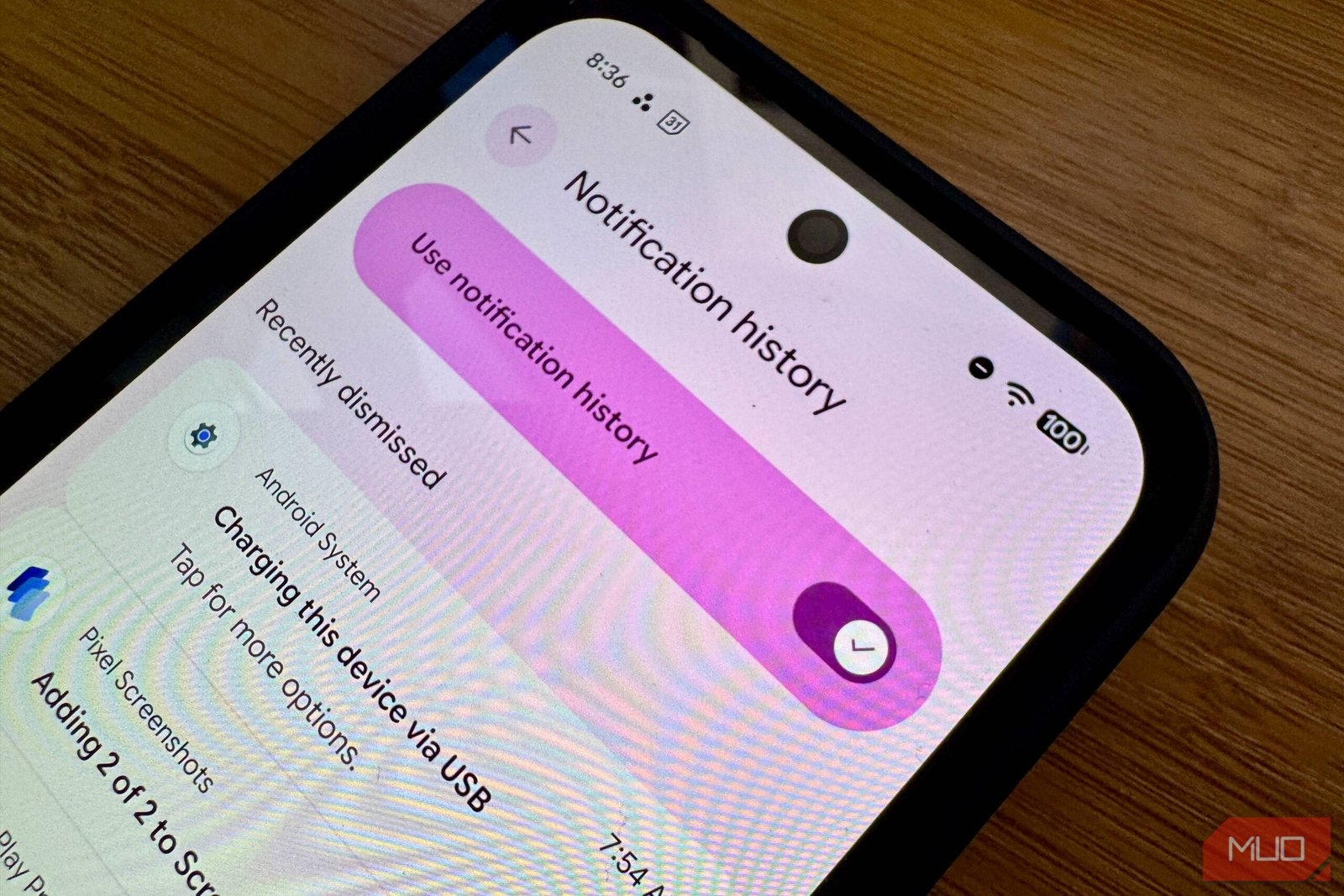
  2. Tap Notification history (it may be under Advanced).
  3. Toggle Use notification history to on.

On Samsung One UI

  1. Go to Settings > Notifications > Advanced settings.
  2. Tap Notification history.
  3. Toggle the switch to enable it.

That is it. Once enabled, the phone starts logging immediately. You can access the history from the same menu at any time. The log holds the most recent 500 notifications, and older entries are automatically overwritten.

How notification history saved me — twice

The first save was a bank OTP. I was in a hurry, swiped away a message from my banking app, and immediately realized I had not copied the code. Panic set in. Then I remembered I had enabled notification history the week before. I opened the log, found the alert, and typed in the code. Transaction completed.

The second incident was more stressful. A flight reminder popped up while I was driving. I dismissed it without reading, intending to check later. By the time I remembered, the notification was gone. I opened the history, and there it was: the check-in link, the gate number, and the departure time. I had missed it by ten minutes, but I still made the flight.

Both times, the feature did exactly what it promised. It kept a copy of something I had carelessly thrown away.

What notification history does not capture

There are limits. Android notification history does not store:

  • Notifications from apps that use priority or critical alerts (those are handled separately).
  • Media content like photos or videos attached to a message.
  • Notifications from apps that explicitly opt out of the log (rare, but possible).
  • Notifications cleared by the system during a reboot if the log was not enabled before the restart.

Also, the log is device-specific. It does not sync across your Google account or other Android devices. If you switch phones, the history starts fresh.

Privacy concerns: who can see your notification log?

Notification history is stored locally on your device. It is not uploaded to Google’s servers or shared with app developers. Anyone with physical access to your unlocked phone can open the log and read your dismissed alerts — including messages from apps you might consider private.

If you share your phone or hand it to someone else, consider clearing the log first. You can delete individual entries by swiping them away in the history view, or you can tap Clear all to wipe the entire log. The feature can also be toggled off at any time, which erases the stored history.

For most people, the convenience outweighs the privacy risk. But it is worth knowing that your dismissed notifications are not truly gone — they are just a few taps away.

Should you enable notification history?

Yes. The setup takes thirty seconds. The potential payoff is huge. Whether you accidentally dismiss a two-factor code, a calendar reminder, or a shipping update, having a searchable log of your notifications is like having an undo button for your attention.

I have left it on permanently. It has saved me twice, and I suspect it will save me again. Turn it on now — you will forget you have it until the moment you need it most.

Continue Reading

Social Media

Retro, the anti-algorithm photo app for friends, just banked $21M

Published

on

Retro photo-sharing app

Retro’s quiet $21M raise

The friend-focused photo-sharing app Retro has pulled in more than $21 million in Series A funding, according to an SEC filing spotted by Business Insider. The filing, dated August 19, sits under the startup’s legal name, Lone Palm Labs, and reveals the round actually closed back in December.

PitchBook now pegs the company’s valuation north of $100 million. Retro hasn’t commented publicly on the raise, and didn’t respond to a request for comment.

The money comes at a telling moment. Social media has become a firehose of creator content, algorithmically ranked and increasingly generated by AI. Retro’s pitch is almost contrarian: show photos to the people who actually know you.

Built by ex-Instagram engineers who saw the feed problem coming

Retro was founded by Nathan Sharp and Ryan Olson, two former Instagram product engineers. They watched the platform drift from a friend-sharing tool into a broadcast network dominated by influencers. Sharp told TechCrunch in December: “Something that has to be true and will be true is that people will still want to see more of their friends.”

His point cuts to the heart of the current social media malaise. The For You page is great for killing time, but it’s terrible for staying connected. Sharp again: “The photos and videos you take will need to find a place where they can reach the intended audience.”

Retro is that place. It strips away the algorithmic noise and puts the focus squarely on your inner circle.

From personal journal to shared photo space

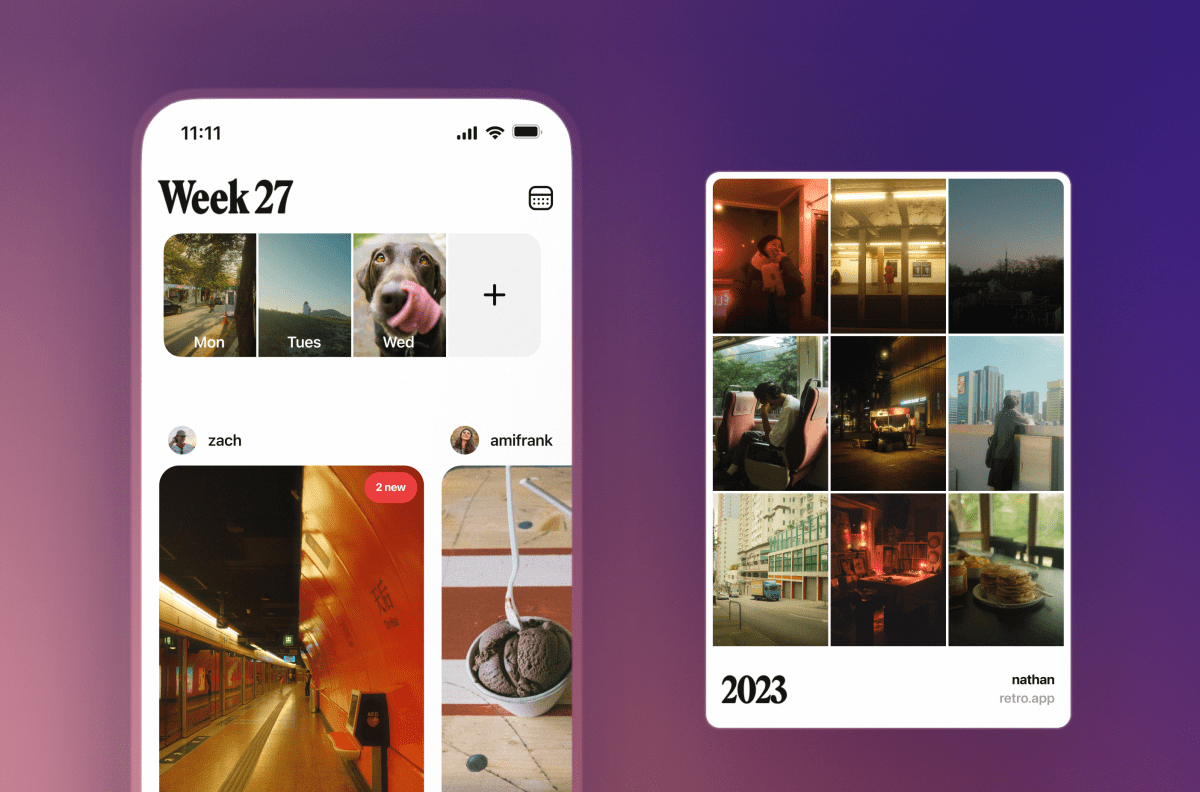
Launched in 2023 as a personal photo journal, Retro has evolved. It now lets you privately share photos of your week with friends, create shared albums, view and share recaps, and even “rewind” to time-travel through old memories. The app has become a go-to for groups who want a shared visual history without the performance of posting to a public feed.

The growth numbers back up the concept. According to app intelligence provider Appfigures, Retro has been downloaded about 7 million times since launch. In-app spending has jumped more than 460% over the past 180 days — a sign that the people who do subscribe are sticking around and using it regularly.

No ads, just subscriptions

Retro’s business model is refreshingly simple: no advertising. Instead, the company offers in-app subscriptions that unlock features like video, GIF and sticker comments, more styles, unlimited history, and special app icons.

It’s a small subset of users who pay, but the company’s bet is that those who do are committed customers. The subscription model also aligns with the app’s ethos — your data and attention aren’t the product.

Who’s backing the anti-algorithm bet?

The investor list reads like a who’s who of tech and venture circles. Thrive Capital leads the round, joined by Figma CEO Dylan Field, Scribble Ventures, Box Group, Imaginary Ventures, Coalition, Conviction, Copper, Positive Sum, and a roster of angels.

The mix of strategic and financial backers suggests confidence in Retro’s vision. Field, who runs a design tool company, likely sees the value in a social app that prioritizes genuine connection over engagement metrics.

What Retro’s raise says about the future of social

The $21M round is more than just a milestone for one startup. It’s a signal that investors are betting on a future where social media returns to its roots — connecting real people with real friends. As AI-generated content floods mainstream platforms, the demand for authentic, private sharing spaces is only growing.

Retro isn’t trying to replace Instagram or TikTok. It’s carving out a niche for something more intimate. And with this fresh capital, the team plans to keep building features that make it easier to share moments with the people who matter most.

For anyone tired of doomscrolling through sponsored posts and AI slop, Retro’s photo-sharing app offers a quiet alternative. The question now is whether it can scale its niche appeal into something bigger. The early numbers suggest it’s on the right track.

Continue Reading

How To

5 Overlooked Pixel Apps I Added to My Home Screen Because I Kept Forgetting to Use Them

Published

on

overlooked Pixel apps

Why Your Pixel Home Screen Deserves a Second Look

Google’s Pixel phones are stuffed with exclusive features. That’s not hyperbole—it’s practically the brand’s identity. But here’s the thing: many of those features are hiding in plain sight, tucked inside apps you’ve probably swiped past a hundred times.

I’m guilty of it too. I’d buy a Pixel, marvel at the camera, then completely forget about the software tricks that make the phone genuinely useful. So I did something about it. I moved five overlooked Pixel apps to my home screen. Now I actually use them.

1. Recorder: The App That Transcribes Everything

You know that feeling when you’re in a meeting or lecture, and you desperately wish you had a transcript? The Pixel Recorder app does exactly that—and it’s been on Pixels since the Pixel 4.

It’s not just a voice recorder. It transcribes audio in real time, even when you’re offline. You can search for specific words in a recording, which is a lifesaver when you’re trying to find that one action item from a two-hour call.

I added it to my home screen because I kept forgetting I had it. Now, whenever I’m about to take notes on a conversation, I just hit record instead. The transcription is shockingly accurate, and it’s one of the most underrated Google Pixel features.

2. Now Playing: Your Personal Shazam, Always On

Every Pixel has a feature called Now Playing. It listens in the background and identifies music playing around you—no app needed. The catch? It’s buried in the settings, and most people never turn it on.

Here’s what I did: I added the Now Playing history shortcut to my home screen. It’s a widget that shows a list of every song the phone has recognized recently. Tap a song, and it opens in YouTube Music or your streaming app of choice.

Why does this matter? Because you won’t have to pull out your phone and open Shazam every time you hear a tune you like. The Pixel does it silently, and you just check the history later. It’s one of the best Pixel exclusive apps you’re not using.

3. Digital Wellbeing: More Than Just a Timer

Digital Wellbeing sounds like a guilt-trip app, but it’s actually a goldmine of hidden tools. The app tracks your screen time, sure, but it also has a Focus mode that silences distracting apps when you need to concentrate.

What really sold me, though, is the Wind Down feature. It shifts your screen to grayscale at a set time, which makes doomscrolling feel less appealing. I put a shortcut to Digital Wellbeing on my home screen because I kept forgetting to set it up properly.

Now I use it every evening. It’s a small nudge, but it’s genuinely changed how I wind down. If you’re looking for Pixel productivity tips, this is a good place to start.

4. Files by Google: The Cleanup Tool You Actually Need

Files by Google isn’t exclusive to Pixel, but it comes pre-installed and is deeply integrated. It’s not just a file manager—it has a smart cleanup feature that suggests old photos, memes, and unused APKs to delete.

I used to ignore it because I thought it was just a boring file browser. Then I checked the “Clean” tab one day. It found 2 GB of junk I didn’t know existed. That was the moment I moved it to my home screen.

The app also lets you share files offline with nearby devices, which is handy when you’re in a dead zone. If you’re tired of “storage full” notifications, this is the overlooked Pixel app you need.

5. Google Lens: The Visual Search Powerhouse

Google Lens is technically part of the Google app, but it deserves its own spot on your home screen. It’s a visual search tool that can identify plants, translate text in real time, and even solve math problems by pointing your camera at them.

I kept forgetting it existed because it’s hidden behind a few taps in the Google app. So I added the Lens shortcut directly to my home screen. Now, when I’m at a museum and want to know more about a painting, or when I’m trying to read a menu in another language, it’s one tap away.

It’s one of the most versatile hidden Google Pixel features, and it’s free. No reason not to use it.

How to Add These Apps to Your Home Screen

Adding any of these to your home screen takes about ten seconds. Here’s how:

  • Open your app drawer and find the app you want.
  • Press and hold the icon.
  • Drag it to your home screen.
  • For widgets like Now Playing, press and hold an empty spot on your home screen, tap “Widgets,” and search for the app.

That’s it. You’ll actually see them every time you unlock your phone, which is the whole point.

Don’t Let These Features Collect Dust

Pixels are packed with Google Pixel tips and tricks, but they only help if you remember they exist. Moving these five overlooked Pixel apps to my home screen was a small change that made a big difference in how I use my phone.

Try it. You might be surprised at how often you reach for them.

Continue Reading

How To

Windows 11 August 2026 Update: Apps Open Way Faster Now — KB5121003 Tested

Published

on

Windows 11 August 2026 update

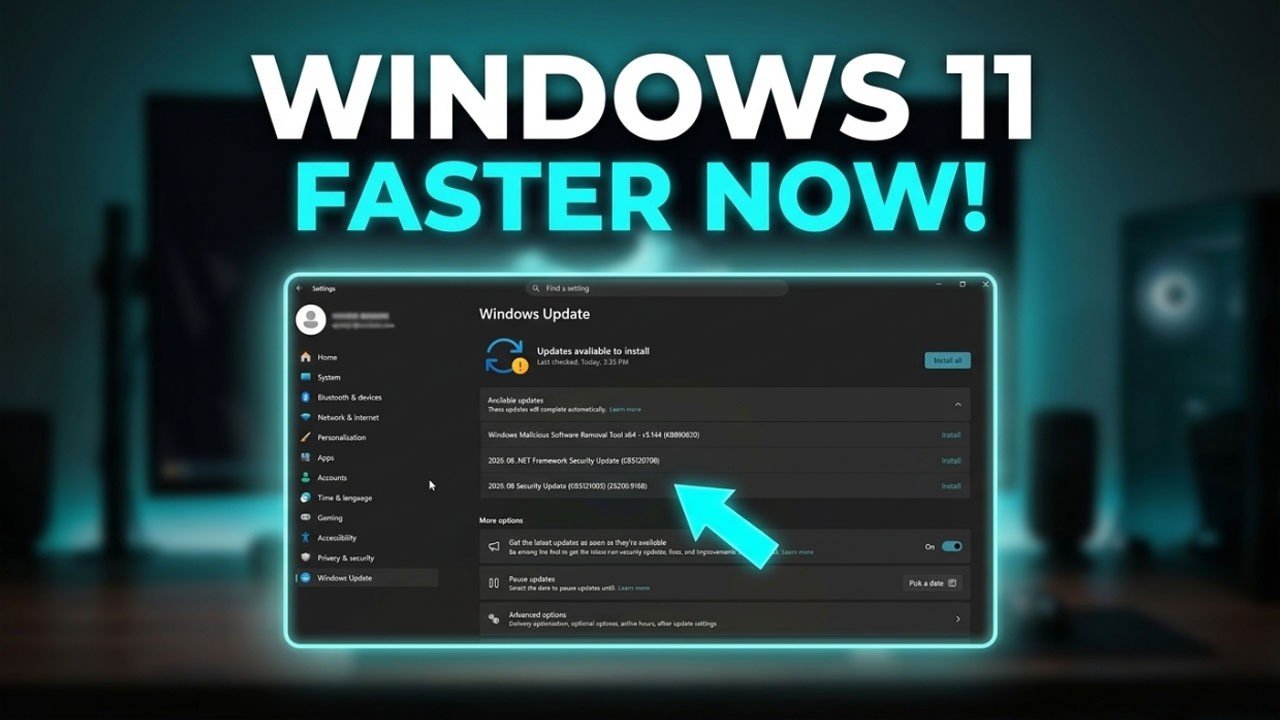
Imagine clicking an app icon and watching it spring to life instantly—no spinning cursor, no gray freeze, just pure speed. That’s exactly what Microsoft’s latest Windows 11 update promises, and after testing it myself, I can confirm: the difference is real. The August 2026 patch, KB5121003 (build 26200.9168), takes the CPU boost feature that previously only sped up the Start menu and search and extends it to your actual applications. The result? Apps open noticeably faster, and that annoying gray screen freeze after idle or boot is gone. Here’s what’s happening under the hood, why your CPU isn’t in danger, and why Microsoft probably should’ve done this years ago.

Continue Reading

Trending