Connect with us

How To

Fancy Text App: Transform Your Messages with Stylish Fonts & Effects

Published

on

Fancy Text App: Transform Your Messages with Stylish Fonts & Effects

Ever feel like your text messages blend into a sea of sameness? You type, you send, but your words look just like everyone else’s. That’s where a simple tool can change everything. The Fancy Text app isn’t about reinventing what you say—it’s about transforming how you say it.

Imagine sending a birthday wish that sparkles with heart stickers and elegant script. Or posting a social media update with a font that actually reflects your mood. This app turns plain text into a visual statement, giving you the tools to stand out in chats, emails, and feeds.

Why Settle for Plain Text?

Our digital conversations are more visual than ever. A standard system font can feel impersonal, even lazy. The Fancy Text app addresses this by putting creative control back in your hands. It’s built for anyone who wants their words to carry extra weight, personality, or flair.

Think about the last impressive message you received. Chances are, it wasn’t just the content that caught your eye. A unique style makes people pause and pay attention. This app provides that edge, turning everyday communication into a chance for creative expression.

Core Features That Redefine Messaging

This tool’s power lies in its versatility. It works seamlessly across your most-used platforms. Whether you’re crafting a WhatsApp message, composing an email, or updating your social bio, the fancy text you create integrates directly.

You get access to a vast library of calligraphic font styles. But it goes beyond fonts. Decorate your text with heart shapes, artistic strokes, feathers, and colorful backgrounds. Add love stickers or apply color filters. The combinations are nearly endless, allowing for truly unique creations.

A key advantage is cross-platform visibility. The fonts and styles are designed to be visible and render correctly whether your friend uses an Android, iPhone, or views it on a web browser. No more worrying about your artistic text turning into gibberish on the other end.

Build Your Own Custom Keyboard

For true enthusiasts, the app offers deep keyboard customization. Why use the same keys as everyone else? You can design an input experience that’s uniquely yours.

The process is straightforward. Start by selecting a background—use a photo from your album, take a new one, or choose from pre-loaded images. Then, make it yours. Customize the font and color of the keys themselves. Change the typing sound to something more pleasing. Choose from multiple key styles like classic white, sleek black, industrial steel, warm wooden, or modern designs.

You can adjust the key shape, add shadows, and tweak colors until it feels perfect. Once set up, this custom keyboard becomes your go-to tool for all typing, letting you infuse style into every message without extra steps.

Who Is This App Really For?

It’s for the style-conscious communicator. The person who believes a birthday greeting deserves a decorative border. The social media user who wants their posts to pop in a crowded feed. The friend who likes to add a little extra joy to a simple “good morning.”

It’s also incredibly practical. Using fancy text can help important information stand out in a group chat. It can add a tone of playfulness or elegance that plain text struggles to convey. In a world of endless notifications, making your message visually distinct is a smart strategy.

Ready to upgrade your digital dialogue? The Fancy Text app is a simple download away. It’s less about being flashy and more about having the choice to be expressive. Your words matter. Now you can make sure they look like they do.

Continue Reading
Click to comment

Leave a Reply

Your email address will not be published. Required fields are marked *

How To

Airtel 5G Launch: Service Now Live in 8 Major Indian Cities

Published

on

Airtel 5G Launch: Service Now Live in 8 Major Indian Cities

The wait is over for many Indian smartphone users. Bharti Airtel, the country’s second-largest telecom operator, has officially switched on its next-generation 5G network. The announcement came directly from company chairman Sunil Bharti Mittal at the India Mobile Congress (IMC) launch event.

This initial phase is a limited rollout, targeting eight key metropolitan areas. For now, residents of Bengaluru, Chennai, Delhi, Hyderabad, Kolkata, Mumbai, Siliguri, and Varanasi are the first to experience Airtel’s high-speed 5G connectivity. The company has set an ambitious target to expand this coverage across the entire nation by March 2024.

What Airtel’s 5G Rollout Means for You

5G isn’t just an incremental upgrade. It represents a fundamental shift in mobile network technology, promising dramatically faster data speeds and significantly lower latency. Think of it as moving from a country road to a multi-lane expressway for your data.

The immediate benefit? Activities that strain current 4G networks—like streaming ultra-high-definition video, immersive cloud gaming, and using augmented or virtual reality applications—will become smoother and more responsive. Prime Minister Narendra Modi highlighted this potential at the launch, stating that 5G would “open new possibilities” and be a key driver for India’s digital transformation.

Here’s the best part for early adopters: Airtel is currently offering its 5G service at existing 4G data plan rates. The company has stated that new, dedicated 5G tariffs and data schemes will be announced at a later date.

How to Get Airtel 5G on Your Phone

If you live in one of the eight launch cities and have a 5G-capable smartphone with an active Airtel SIM, you’re likely eligible. Enabling the service is a straightforward settings change.

Step-by-Step Activation Guide

First, open the Settings app on your Android or iOS device. Navigate to the section for mobile networks or SIM card settings—this might be labeled “Network & Internet,” “Cellular,” or something similar depending on your phone’s manufacturer.

Look for an option called “Network Mode,” “Preferred Network Type,” or “Voice & Data.” Tap on it. You should see a list including options like 2G, 3G, 4G/LTE, and now, 5G. Select the 5G option (it may appear as “5G/4G/3G/2G auto” or similar).

Your phone will immediately begin searching for a 5G signal. Once found, the 5G icon should appear in your status bar, replacing the 4G or LTE indicator.

What If You Don’t See the 5G Signal?

Don’t panic if you follow the steps but the 5G icon doesn’t show up right away. Network rollouts of this scale are complex. Airtel’s CEO has clarified that the team is actively installing the necessary 5G equipment on mobile towers across the launch cities.

Coverage will naturally be strongest closest to these upgraded towers. If you’re not in an immediate coverage zone, your access may come gradually over the coming days and weeks as the infrastructure build-out continues. Patience is key; the network is actively expanding even within these initial eight cities.

This phased launch allows Airtel to test network stability and performance under real-world conditions before the massive nationwide expansion. It marks the beginning of a new connectivity era for India, one that promises to reshape how we work, play, and interact with technology.

Continue Reading

How To

iPhone 15 Pro Action Button: The Customizable Side Switch Explained

Published

on

iPhone 15 Pro Action Button: The Customizable Side Switch Explained

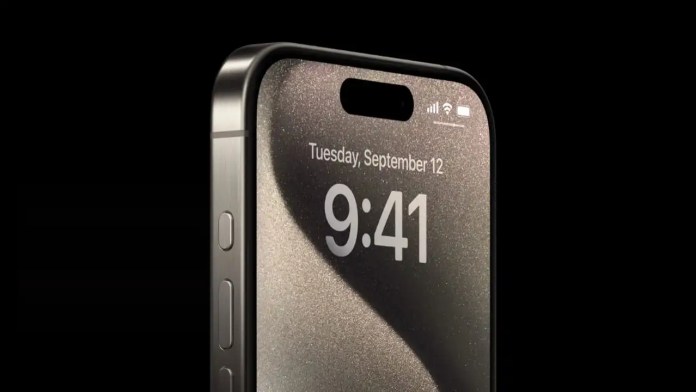
For sixteen years, the physical mute switch was a signature iPhone feature. With the iPhone 15 Pro and Pro Max, Apple has replaced it with something more versatile. The new Action Button isn’t just for silencing your phone—it’s a gateway to shortcuts, tools, and personalized controls.

This small hardware change represents a significant shift in how we interact with our devices. Gone is the simple mechanical toggle. In its place sits a programmable, multifunction key that adapts to your needs.

What Exactly Is the Action Button?

The Action Button occupies the same spot on the left side where the ring/silent switch used to live. It’s a solid-state button, meaning it doesn’t physically move like the old switch. Instead, it provides haptic feedback when pressed.

Visually, it blends seamlessly with the phone’s titanium frame, colored to match your specific iPhone 15 Pro model. The design is subtle but intentional—a clean, flush button that maintains the phone’s elegant lines.

Apple first introduced this concept on the Apple Watch Ultra, where a bright orange button offered quick access to workouts and other functions. Bringing it to the iPhone was a logical next step, transforming a single-purpose switch into a multipurpose tool.

Core Functionality and Daily Use

At its most basic, the Action Button handles the familiar mute function. A long press toggles between ring and silent modes. You’ll feel a satisfying haptic tap and see a visual confirmation in the Dynamic Island—a small mute icon or sound waves appear briefly.

This maintains the muscle memory many users developed over years of iPhone ownership. You can still silence your phone without looking at it, relying on touch and feedback rather than a physical slider.

But the real magic happens when you explore beyond the default setting. Apple has built in several predefined actions you can assign with just a few taps in Settings.

Built-In Action Options

The Action Button can become your quick-launch tool for numerous functions. Need to capture a spontaneous moment? Set it to open the Camera app instantly. Walking in the dark? Make it toggle your flashlight.

Other built-in options include launching Voice Memos for quick recording, activating the Magnifier tool for reading small text, or starting a translation session. You can even toggle Focus modes, helping you shift between work and personal contexts faster.

Two options offer particularly powerful customization: Accessibility features and Shortcuts. The first provides quick access to tools like VoiceOver, AssistiveTouch, or color filters. The second unlocks nearly limitless possibilities through Apple’s Shortcuts app.

Unlocking Advanced Customization

Assigning the Shortcuts function to your Action Button is where things get interesting. This connects the physical button to Apple’s automation platform, letting you create complex sequences triggered by a single press.

Want to start a specific playlist, send a pre-written message to your partner, and turn on Do Not Disturb all at once? Create a shortcut for that. Need to log your morning coffee order or start a home automation routine? The button can handle it.

Third-party apps don’t need direct access to the hardware. Instead, developers can create rich shortcuts that users assign to the button. This could mean opening your favorite note-taking app directly to a new page, or launching a navigation app with your home address pre-loaded.

The potential is constrained only by what you can build in Shortcuts—and that’s quite a lot. From simple app launches to multi-step automations involving data, calculations, and connected devices, the Action Button becomes your personal command center.

A Subtle But Significant Evolution

Some will miss the tactile click of the traditional switch. That’s understandable—it was a defining iPhone characteristic. Apple acknowledges this by keeping the physical switch on the standard iPhone 15 models.

For Pro users, however, the trade-off brings greater functionality. The Action Button represents Apple’s continued push toward context-aware, personalized interaction. It’s a hardware feature designed to become more useful the more you tailor it to your life.

The iPhone 15 Pro and Pro Max, complete with their new customizable button, became available for pre-order on September 15, 2023, with in-store availability starting September 22. This small change on the phone’s side might just change how you use your iPhone every day.

Continue Reading

How To

WhatsApp’s Undo Delete Feature: How to Recover Messages You Accidentally Removed

Published

on

WhatsApp’s New Safety Net for Message Deletions

Have you ever deleted a WhatsApp message and immediately regretted it? That sinking feeling might become a thing of the past. WhatsApp is rolling out a feature that lets you undo ‘Delete for Me’ actions across all platforms.

This isn’t just another minor update. It’s a direct response to one of the most common user frustrations. The feature gives you a brief window to reverse a deletion, acting as a digital safety net for those hasty taps.

How the Undo Feature Actually Works

Here’s what happens in practice. When you delete a message using ‘Delete for Me,’ a notification bar appears at the bottom of your screen. This bar contains a simple ‘UNDO’ button.

Tap it within those few critical seconds, and your message reappears as if nothing happened. The interface is clean and intuitive—no complicated menus or settings to navigate.

Think of it like reaching into a digital trash can before it gets taken out. The window is short, but it’s long enough to correct genuine mistakes.

Platform Availability and Version Requirements

WhatsApp is making this feature universally available. Whether you’re on an iPhone, Android device, or desktop computer, you should have access.

Specific version requirements ensure compatibility. Android users need version 2.22.24.73 or newer. iOS users should look for version 22.19.75, though some might find it in the 22.24.81 update.

Desktop users aren’t left out. The feature arrives with version 2.2246.10. If you haven’t seen it yet, check your app store for updates.

From Beta Testing to Full Release

This feature didn’t appear overnight. WhatsApp initially tested it with a limited group of beta users. WABetaInfo, a reliable source for WhatsApp news, first reported on it during Android beta testing.

Will Cathcart, WhatsApp’s head, confirmed the broader rollout through his official Twitter account. This progression from controlled testing to general availability follows WhatsApp’s standard development pattern.

The company clearly identified a genuine need. Accidentally deleting messages happens to everyone—during late-night chats, while multitasking, or simply through clumsy fingers.

What This Means for Your Daily Messaging

This update changes how we interact with our chat history. You can now delete messages with less anxiety, knowing there’s a brief recovery option.

It’s particularly useful in group chats where messages can disappear quickly in fast-moving conversations. That important address or phone number you accidentally removed? Now you can get it back.

The feature only works for ‘Delete for Me,’ not ‘Delete for Everyone.’ It’s about personal message management, not retracting messages from others’ phones.

Keeping Your App Updated

New features like this highlight why regular updates matter. If you haven’t received the undo option yet, visit your device’s app store.

Automatic updates sometimes lag behind manual checks. Taking a minute to verify you’re running the latest version ensures you get improvements as they roll out.

WhatsApp continues to refine its platform based on user behavior and feedback. This undo feature represents practical problem-solving rather than flashy innovation.

It shows the company understands that sometimes the most appreciated features are those that fix small but frequent annoyances. What messaging mishap will they address next?

Continue Reading

Trending