Connect with us

How To

Motorola G45 5G Deal: Save 32.19 USD in Flipkart Super Value Days Sale

Published

on

Flipkart’s Super Value Days Brings Major Motorola G45 5G Discount

Smartphone shoppers have a compelling reason to check Flipkart right now. The e-commerce giant’s Super Value Days sale, running until December 18, features a standout deal on the Motorola G45 5G. This isn’t just a minor price drop—it’s a substantial ₹3,000 saving that makes an already affordable phone even more accessible.

Originally priced at ₹14,999, the 8GB RAM and 128GB storage variant is now available for ₹11,999. That’s a solid 20% discount right off the bat. For budget-conscious buyers seeking reliable 5G connectivity without breaking the bank, this timing couldn’t be better.

Beyond the Base Price: Extra Savings & Payment Ease

The savings don’t stop at the listed price. Flipkart has layered additional benefits that can further reduce your final cost. Using a Flipkart Axis Bank credit card nets you 5% cashback. Axis Bank Buzz and ICICI Bank credit card users can snag an extra ₹1,000 discount.

Got an old phone gathering dust? The exchange program could be your best friend. Depending on the model and condition, you might get up to ₹11,150 off, potentially bringing the net price down dramatically. If you prefer to spread the cost, no-cost EMI options start at a manageable ₹2,000 per month.

What Makes the Motorola G45 5G Worth Your Money?

At this price point, the G45 5G punches above its weight. Its 6.5-inch FHD+ display isn’t just big—it’s smooth. With a 120Hz refresh rate and 240Hz touch sampling, scrolling feels fluid and gaming is more responsive. Gorilla Glass 3 adds a layer of protection against everyday scratches and minor drops.

Powering the experience is the Qualcomm Snapdragon 6s Gen 3 processor, paired with 8GB of RAM. This combination handles multitasking and everyday apps with ease. You won’t be left waiting for apps to load or struggling with lag during use.

Battery Life That Keeps Up With You

One of the phone’s strongest suits is its 5000mAh battery. It’s built to last a full day, even with heavy use. When you do need to recharge, 18W fast charging gets you back up and running quickly. For connectivity, it covers all the essentials: Wi-Fi, Bluetooth, GPS, a USB Type-C port, and even the increasingly rare 3.5mm headphone jack.

Is This the Right Time to Buy?

Sales come and go, but a ₹3,000 discount on a recently launched phone is significant. The Motorola G45 5G sits in a sweet spot for users who want 5G readiness, a large battery, and a smooth display without venturing into premium price territory.

Whether you’re a student, a professional needing a reliable secondary device, or someone looking to upgrade from an older 4G phone, this deal warrants serious consideration. The sale window is limited, so if the specs align with your needs, acting before December 18 could be a smart financial move.

Continue Reading
Click to comment

Leave a Reply

Your email address will not be published. Required fields are marked *

How To

Mind Mapping in Design Thinking: A Practical Guide for Creatives

Published

on

Unlocking Creativity with Visual Thinking

Ever stared at a notebook filled with frantic scribbles, trying to make sense of a brainstorm? You’re not alone. Traditional note-taking often creates more confusion than clarity, especially when tackling complex design challenges. That’s where mind mapping comes in—a powerful visual tool that mirrors how our brains naturally work.

Think of it as a structured brainstorm on paper. A mind map starts with a central idea and radiates outward with connected thoughts, creating a web of associations. This isn’t just about drawing pretty diagrams. It’s a practical method for capturing the chaotic energy of creativity and giving it a clear, actionable form.

The Core of Design Thinking

Before diving into mapping, let’s ground ourselves in design thinking. At its heart, this process is a human-centered approach to problem-solving. It’s not just for designers in black turtlenecks. Engineers, product managers, and entrepreneurs use it to create solutions that people actually want and need.

The classic framework moves through five key stages: Empathize, Define, Ideate, Prototype, and Test. Each phase builds upon the last, transforming vague hunches into tangible products. The goal is simple but profound—to understand users deeply and solve their real problems, not just the symptoms.

Where Mind Mapping Fits In

Mind mapping acts as a Swiss Army knife within this process. It’s particularly potent during the early, fuzzy stages. When you’re empathizing with users, a map can capture pain points and observations. During the Define phase, it helps crystallize the core problem statement. And in the Ideate stage, it becomes a launchpad for generating wild, innovative solutions without judgment.

The magic happens in its flexibility. A single map can hold user quotes, technical constraints, feature ideas, and emotional insights—all visually connected. This holistic view prevents teams from getting lost in details too early and keeps the big picture front and center.

Building Your First Design Mind Map

Ready to try it? Start with a blank surface—physical or digital. Write your core challenge or user need in the center. This is your anchor. Now, draw branches radiating out. Label these with major themes: “User Pains,” “Technical Feasibility,” “Business Goals,” “Feature Ideas.”

From each branch, grow smaller twigs. Under “User Pains,” you might add “long wait times,” “confusing interface,” “lack of customization.” Don’t edit yourself yet. The goal is volume and variety. Use colors, icons, or simple sketches to differentiate concepts. A red branch might signal urgent problems; a green one could highlight opportunities.

This isn’t about creating a masterpiece. It’s about externalizing your team’s collective thinking. The messy, interconnected nature of the map often reveals relationships you’d miss in a bulleted list. That unexpected connection between a user frustration and a technical capability? That’s where breakthrough ideas are born.

From Map to Reality: Practical Applications

So you’ve filled a whiteboard with ideas. What now? A well-crafted mind map becomes a living blueprint for your project. It informs feature prioritization, shapes user stories, and guides prototyping decisions. Before a single wireframe is drawn, the team agrees on what they’re building and why.

Consider a team designing a new fitness app. Their mind map might reveal that users care more about social accountability than tracking calories. That insight shifts the entire product direction. Instead of building complex nutrition databases, the team focuses on group challenges and sharing features. The map saved them months of wasted effort.

This tool also democratizes collaboration. When everyone can see how their idea connects to the whole, discussions become more productive. The quiet engineer in the corner might spot a potential integration that the loudest marketer missed. Visual thinking levels the playing field.

Pro Tips for Effective Mapping

Keep it simple early on. A short, focused map often contains more actionable insight than a sprawling masterpiece. Use one map per core objective to avoid cognitive overload. Embrace the mess—collect every idea, even the seemingly useless ones. They often spark the best solutions later.

Indicate hierarchy visually. Thicker branches for major themes, thinner ones for details. This visual cue helps teams quickly distinguish strategic pillars from implementation details. When it’s time to create wireframes, this hierarchy translates directly into information architecture.

Remember, the map is a means, not an end. Its value lies in the conversations it sparks and the clarity it provides. Don’t get bogged down making it beautiful. Focus on making it useful.

Transforming Your Design Practice

Mind mapping won’t solve every design challenge. But it will bring structure to your creativity and alignment to your team. It turns abstract thinking into something you can see, discuss, and refine. In the fast-paced world of product development, that visual anchor is invaluable.

The next time you face a complex problem, grab a marker. Start with a central question and let your thoughts flow outward. You might be surprised by what emerges. That simple act of mapping can reveal patterns, expose assumptions, and illuminate paths forward that linear thinking would miss.

Great design isn’t about having a single brilliant idea. It’s about connecting many ideas in novel ways. A mind map makes those connections visible. It turns the solitary act of thinking into a collaborative journey toward better solutions. And in the end, that’s what design thinking is all about.

Continue Reading

How To

WhatsApp Online Notification App: Track Profile Views and Online Activity

Published

on

What Does a WhatsApp Online Notification App Do?

Ever wondered who’s checking your WhatsApp profile picture? Or how often a particular contact comes online? These questions nag at many users. A WhatsApp online notification app claims to provide answers by tracking activity that WhatsApp itself keeps private.

These third-party applications monitor when contacts view your profile picture and track their online/offline status. They compile this data into reports, giving you insights into your social interactions on the platform. The promise is simple: knowledge about who’s paying attention to you.

Key Features of WhatsApp Monitoring Apps

These applications offer several specific functions that appeal to curious users. First, they track profile picture views. You can see exactly how many times someone has looked at your profile photo, something WhatsApp doesn’t reveal.

Second, they monitor online activity patterns. The apps log when your contacts come online and for how long. Some even provide statistics about your own WhatsApp usage habits. You might discover you spend more time on the app than you realized.

Third, they offer notification alerts. When someone you’re monitoring comes online or views your profile, you receive an instant alert. This real-time tracking is what makes these apps particularly compelling for some users.

How to Download and Use These Apps

Downloading these applications is straightforward. They’re typically available through third-party app stores or direct download links. The installation process resembles any other Android app installation.

Once installed, you’ll need to grant various permissions. The app requires access to your notifications and possibly other system functions to monitor WhatsApp activity. Setup usually involves connecting to your WhatsApp account through these permissions.

The interface typically displays statistics in a dashboard format. You can see lists of who viewed your profile, when contacts were online, and usage patterns. Some apps even generate daily or weekly reports of activity.

Important Considerations and Ethical Use

Before downloading, consider the privacy implications. These apps function by accessing data that WhatsApp intentionally keeps private. Using them raises questions about digital ethics and consent.

WhatsApp’s terms of service don’t explicitly permit this type of monitoring. While the apps might work technically, they exist in a gray area regarding platform rules. There’s also the question of whether you’d want someone monitoring your activity in this way.

The developers of these apps often include disclaimers about responsible use. They emphasize that the tools shouldn’t be used to harass or stalk others. Like any powerful tool, the ethical application matters as much as the technical capability.

If you decide to proceed, download only from reputable sources. Check reviews and research the developer’s reputation. Be cautious about granting unnecessary permissions that could compromise your device’s security.

Remember that relationships matter more than metrics. While knowing who views your profile might satisfy curiosity, it shouldn’t dictate your social interactions. These apps provide data, but human connection requires more than monitoring statistics.

Continue Reading

How To

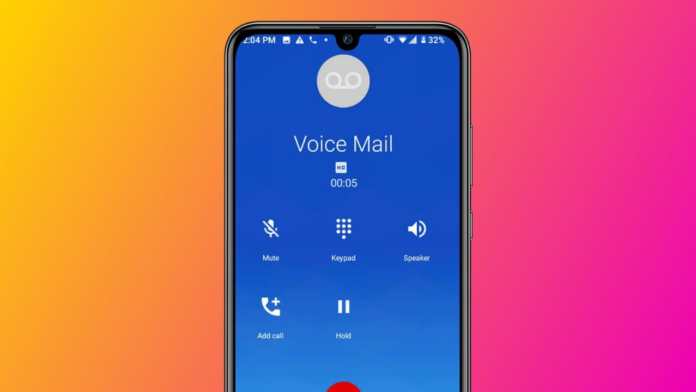
How to Turn Off Voicemail on Android: 9 Working Methods for 2025

Published

on

How to Turn Off Voicemail on Android: 9 Working Methods for 2025

Ever missed a call only to find your voicemail box clogged with messages you’ll never listen to? You’re not alone. Many Android users find the traditional voicemail system outdated and intrusive. The frustration is real when you realize Android doesn’t have a simple “disable voicemail” toggle in settings.

Why would someone want to turn it off? Maybe you prefer text messages. Perhaps you’re tired of telemarketers filling your inbox. Or maybe you just want callers to try again later instead of leaving a message. Whatever your reason, disabling voicemail requires some workaround thinking.

Here’s the reality: voicemail isn’t really an Android feature—it’s a service provided by your mobile carrier. That’s why you can’t simply switch it off in your phone settings. But don’t worry, there are several effective methods to achieve the same result.

The Most Reliable Method: Contact Your Carrier

This is your best shot at a permanent solution. Since carriers control the voicemail service, they’re the only ones who can truly disable it at the network level. The process is straightforward but requires a bit of patience.

Grab your phone and open the dialer. Call your carrier’s customer service number—for Indian users, that’s 198 for Jio, 121 for Airtel, 199 for Vi, or 1503 for BSNL. Navigate through the automated menu until you reach a live representative.

Be clear about your request: “I’d like to permanently disable voicemail service on my number.” Some carriers might push back, citing “essential service” policies. If you encounter resistance, try calling again later—you might get a more accommodating agent. Remember to ask for a confirmation once the change is processed.

Technical Workarounds That Often Work

If your carrier won’t cooperate, these technical approaches can effectively block voicemail functionality.

Disable Call Forwarding Settings

Voicemail works through call forwarding—when you don’t answer, your carrier forwards the call to their voicemail server. Break that chain, and you break voicemail.

Open your Phone app and tap the three-dot menu. Select Settings, then look for “Call forwarding” or “Supplementary services.” You’ll typically find three options: “Forward when busy,” “Forward when unanswered,” and “Forward when unreachable.” Disable all three. Some phones have a handy “Disable all call forwarding” button—use it if available.

Not every Android device shows these options in the same place. Manufacturers like Samsung, Xiaomi, and OnePlus sometimes bury them under “Advanced calling” or “SIM card settings.” If you can’t find them, don’t worry—there are other approaches.

Use Special Carrier Codes

Remember the old days of dialing *# codes to check your balance? Similar codes exist for call forwarding. Try dialing ##002# and pressing call. This should disable all conditional call forwarding, including voicemail forwarding.

Another code to attempt is ##004#. Wait for a confirmation message after dialing. Then test it by calling your own number from another phone—let it ring until it should go to voicemail. If you hear a continuous ring or get disconnected instead of the voicemail greeting, you’ve succeeded.

A word of caution: these codes don’t work with all carriers or in all regions. They’re worth trying but aren’t guaranteed solutions.

Creative Solutions When Technical Ones Fail

Sometimes you need to think outside the settings menu. These creative approaches can effectively make voicemail unusable without actually disabling it.

Fill Your Voicemail Box to Capacity

This is a clever hack that takes advantage of system limitations. Most carriers allocate limited storage for voicemails—usually 20 to 30 messages. Fill that space, and new callers can’t leave messages.

Here’s how to do it: First, enable Airplane Mode on your Android device. This ensures any test calls will immediately go to voicemail. Using another phone, call your own number repeatedly. Each time you reach voicemail, leave a short message (even a second of silence works). Repeat this 25-30 times.

Eventually, callers will hear “The mailbox is full” instead of the greeting. The drawback? Most carriers automatically delete old messages after 30 days, so you’ll need to repeat this process monthly.

Redirect Calls Elsewhere

If you can’t stop calls from forwarding to voicemail, forward them somewhere else instead. In your call forwarding settings, enable “Always forward” and enter a different number—perhaps a landline you rarely use, or a secondary mobile that doesn’t have voicemail set up.

All incoming calls will route to that number. If that destination doesn’t have voicemail enabled, problem solved. Just be aware that you’ll need access to that other phone to receive any calls.

Third-Party Apps and Psychological Tricks

When system-level changes aren’t possible, apps and psychology can come to your rescue.

Voicemail-Blocking Applications

The Google Play Store hosts several apps designed to manage or block voicemail. “No More Voicemail” works by forwarding calls to a disconnected or non-working number, effectively creating a dead end. “YouMail” offers more sophisticated call management, including voicemail blocking and visual voicemail alternatives.

Download one of these apps, follow the setup instructions, and test if it works with your carrier. Compatibility varies, so you might need to try a few options. These apps don’t actually disable voicemail at the carrier level—they just intercept calls before they reach it.

The Fake Greeting Strategy

Can’t disable the mailbox? Change what callers hear when they reach it. Record a new voicemail greeting that says “This number does not accept voice messages. Please send a text instead” or “The person you’re calling is not available. Please try your call again later.”

Most people will hang up upon hearing this, assuming voicemail is disabled. It’s not a technical solution, but it’s remarkably effective at reducing unwanted messages. Access your voicemail settings through your Phone app or a dedicated Voicemail app to change your greeting.

Alternative Approaches for Specific Situations

Sometimes you don’t need to disable voicemail entirely—just manage it better.

Enable Do Not Disturb mode when you don’t want to be interrupted. Customize it to allow calls from important contacts while silencing others. Calls from blocked numbers won’t go to voicemail either—use your phone’s blocking feature for persistent telemarketers.

Consider whether you really need to disable voicemail completely. For many people, simply changing notification settings or regularly clearing old messages solves the annoyance. But if you’re determined to shut it down permanently, contacting your carrier remains the most reliable method.

Choosing Your Best Approach

Different methods work for different people. If you want a permanent, clean solution, start with your carrier. For a quick technical fix, try disabling call forwarding or using special codes. Need something temporary? Fill your voicemail box. Prefer an app-based solution? Explore the Play Store options.

The truth is, Android’s flexibility means there’s usually a way to achieve what you want—even when there’s no official setting for it. Try these methods in order of preference, and you’ll likely find one that makes those unwanted “You have a new voicemail” notifications a thing of the past.

Continue Reading

Trending