Connect with us

How To

Wave S9 Caller Notification App Review: Transform Your Android Phone’s Calling Experience

Published

on

Android users seeking to refresh their phone’s calling interface now have an exciting solution. The Wave S9 Caller app brings dynamic visual effects to what was once a mundane experience, replacing standard calling screens with captivating wave animations.

What Makes Wave S9 Caller App Stand Out

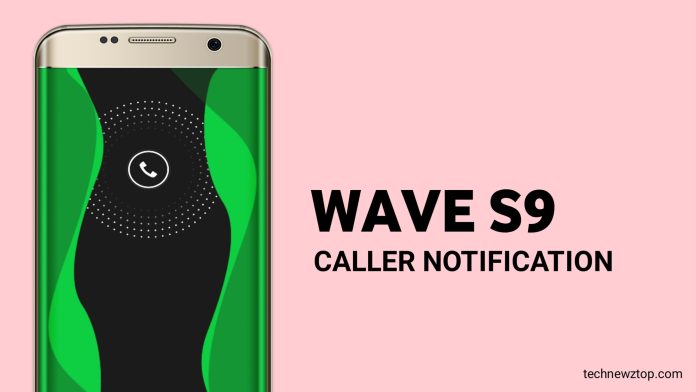
This innovative application transforms incoming call notifications by adding flowing wave animations around your screen edges. Instead of staring at the typical Android dialer, users experience smooth, colorful waves that dance across their display during calls.

The app’s compact design ensures minimal storage consumption while delivering maximum visual impact. Users appreciate how this small installation can dramatically alter their phone’s appearance without affecting performance or battery life significantly.

Key Features of the Wave S9 Caller Notification System

Several standout elements make this calling app particularly appealing to customization enthusiasts:

Visual Customization Options: The application offers extensive color palettes, allowing users to match wave animations with their personal style or phone themes. Two-layer wave systems create depth and visual complexity that standard calling screens cannot match.

However, the real strength lies in its simplicity. The interface presents all customization options clearly, making personalization accessible even for less tech-savvy users. Toggle switches enable instant activation or deactivation of effects without navigating complex menus.

Installation and Setup Process

Getting started with the Wave S9 Caller app requires minimal effort. After installation, the main dashboard displays all available customization tools immediately. Users can preview different color combinations before applying changes, ensuring satisfaction with their choices.

The color selection system deserves particular mention. Rather than offering limited preset options, the app provides hundreds of color variations organized in intuitive grid layouts. This extensive selection means virtually any aesthetic preference can be accommodated.

Additionally, the dual-wave system allows for sophisticated color layering. Users might choose complementary colors for subtle effects or contrasting hues for bold statements. This flexibility separates the Wave S9 Caller app from simpler alternatives.

Performance and User Experience

Real-world testing reveals smooth animation performance across various Android devices. The wave effects maintain consistent frame rates without creating lag during actual phone calls. This reliability ensures that visual enhancements don’t compromise core communication functionality.

On the other hand, some users might find the animations distracting during important calls. Fortunately, the quick toggle feature addresses this concern, allowing temporary deactivation when needed while preserving custom settings for later use.

The app’s lightweight nature means it integrates seamlessly with existing phone systems. Unlike resource-heavy customization apps, this solution focuses specifically on calling screen enhancement without attempting broader system modifications.

Practical Applications and Limitations

This calling enhancement proves particularly valuable for users who frequently receive calls and want their devices to reflect personal style. The visual appeal can make routine calls feel more engaging and modern.

Nevertheless, practical considerations exist. Some professional environments might require more subdued calling interfaces, making the wave animations inappropriate for business phones. Users should consider their calling contexts before installation.

The app’s educational purpose disclaimer suggests it serves primarily as a demonstration of Android customization possibilities rather than a comprehensive calling solution. This positioning helps users set appropriate expectations for functionality and support.

For those interested in broader phone customization, exploring smartphone themes and wallpapers can complement the Wave S9 Caller app’s effects. Similarly, learning about Android customization techniques helps users maximize their device personalization potential.

In conclusion, the Wave S9 Caller app delivers on its promise of transforming Android calling screens through elegant wave animations and extensive color customization. While not suitable for every user or situation, it offers an accessible way to add visual flair to daily phone interactions.

Continue Reading
Click to comment

Leave a Reply

Your email address will not be published. Required fields are marked *

How To

Yepop App Review: Connect with Friends via Free Android Video Chat in 2024

Published

on

Yepop App Review: Connect with Friends via Free Android Video Chat in 2024

Staying connected has never been more important, and finding the right tools to do so can make all the difference. For Android users seeking a straightforward way to video chat with friends and meet new people, the Yepop app presents a compelling option. This free video chat app has garnered attention for its social features and accessibility. Let’s explore what makes it stand out in the crowded landscape of communication tools.

What is the Yepop Video Chat App?

Yepop positions itself as more than just another messaging service. It’s a social platform built around live video interactions. With a user base reported to be over one million globally, the app facilitates real-time conversations and new connections. Unlike some platforms that focus solely on existing contacts, Yepop encourages discovering people nearby who also use the app, blending communication with social discovery.

This approach means the app serves a dual purpose. Primarily, it’s a tool for video calls with friends. Simultaneously, it offers a window to expand your social circle by connecting with local users who share the platform. For individuals looking to move beyond text-based chats, this free video chat app provides a more personal and immediate way to interact.

Key Features and How to Use Yepop

Getting started with Yepop is designed to be a simple process. The first step involves downloading the app from the official Google Play Store. Installation is free, aligning with its core promise of being a cost-free service. Once installed, new users need to create an account to access its features.

Creating Your Yepop Account

The account setup leverages social media for convenience. Specifically, the app uses Facebook integration to streamline profile creation. When you connect your Facebook ID, Yepop imports relevant data to build your initial profile. This includes basic information like your name, age, and general location, which helps the app suggest potential connections. It’s advisable to ensure your Facebook profile is reasonably updated to get the best start.

After authorization, you’re logged into the Yepop app. The interface typically guides you through permissions, such as allowing access to your camera and microphone, which are essential for video functionality. From there, you can explore the app’s various sections to find friends or see who is active nearby.

The Social Experience: More Than Just Chat

What defines Yepop is its focus on creating spontaneous social links. The app’s design suggests it’s useful for scenarios beyond planned calls. For instance, if you’re visiting a new area, you could use it to find and chat with locals, turning a solo trip into a more connected experience. It transforms a standard free video chat app into a tool for organic, location-based socializing.

Building on this, the platform’s appeal lies in its simplicity. There’s no complex setup or lengthy profile creation beyond the initial Facebook link. This lowers the barrier to entry, encouraging more casual use. You can quickly jump into a video call without navigating layers of menus, which is ideal for spontaneous conversations.

Is Yepop the Right Free Video Chat App for You?

Determining if Yepop fits your needs depends on what you’re looking for. If your primary goal is to have reliable video calls with a closed group of existing friends, established apps like WhatsApp or Zoom might be more suitable. However, if you’re interested in a platform that combines chatting with the potential to meet new people in your vicinity, Yepop offers a unique blend.

Its reliance on Facebook for sign-up is a double-edged sword. On one hand, it makes registration fast. On the other, it requires a Facebook account, which might not suit everyone. Users should also be mindful of privacy settings, understanding what data is shared between platforms.

Ultimately, as a free video chat app, Yepop delivers on its core promise: enabling face-to-face conversations at no cost. Its additional social discovery features provide extra value for outgoing users looking to expand their networks. For a deeper dive into managing your social connections, you might find our guide on backing up important messages useful.

Final Thoughts on Modern Video Chat

The landscape of digital communication continues to evolve, with apps like Yepop highlighting a shift towards more integrated social experiences. A free video chat app is no longer just a utility; it’s a gateway to community and new friendships. While Yepop has its niche, the best choice always depends on individual communication style and social goals.

As with any social app, practicing common-sense safety is crucial. Get to know people through the app before sharing personal details, and use the platform’s features in public, virtual spaces initially. When used thoughtfully, tools like Yepop can genuinely enrich your social life. For those interested in other ways to personalize their Android experience, exploring options like a transparent wallpaper app can also be rewarding.

In conclusion, Yepop stands as a viable option in the free video chat app category for Android users in 2024. It successfully merges direct communication with social discovery, all without a price tag. Whether it becomes your go-to app or just an occasional tool, it exemplifies the ongoing innovation in how we connect digitally.

Continue Reading

How To

How to Move Your WhatsApp History from Android to iPhone: A Step-by-Step Guide

Published

on

How to Move Your WhatsApp History from Android to iPhone: A Step-by-Step Guide

Switching from an Android device to an iPhone is exciting, but the thought of losing years of WhatsApp conversations can be daunting. For a long time, transferring your WhatsApp chat history between these two different ecosystems felt nearly impossible. However, this crucial task is now achievable. This guide will walk you through a reliable method to transfer WhatsApp from Android to iPhone, ensuring your memories and important conversations make the journey with you.

Why Transferring WhatsApp Data Was Historically Difficult

The core challenge has always been the fundamental difference in how Android and iOS handle data. Specifically, Android devices use Google Drive for cloud backups, while iPhones rely exclusively on iCloud. These are separate, walled systems that weren’t designed to talk to each other. Consequently, a direct transfer through the apps themselves wasn’t an option, leaving users to choose between manual exports or starting fresh.

Introducing a Powerful Cross-Platform Solution

Thankfully, dedicated software has emerged to bridge this gap. One prominent tool that simplifies this process is AnyTrans. This application acts as a universal data manager, specializing in moving information—including your precious WhatsApp data—between different operating systems. It’s more than just a chat mover; it’s a comprehensive utility for managing your mobile life.

Building on this, the advantage of using a dedicated tool is the preservation of your chat’s structure. Your conversations, complete with timestamps, group chats, and media, remain exactly as they were on your old phone.

Step-by-Step: How to Transfer WhatsApp from Android to iPhone

Ready to move your data? Follow this clear, step-by-step process. First, ensure you have a Windows or macOS computer available, as the software runs on a desktop.

Step 1: Preparation and Setup

Begin by downloading and installing the AnyTrans software on your computer. Next, use USB cables to connect both your Android phone and your new iPhone to the computer. Launch AnyTrans and navigate to the ‘Social Messages Manager’ section, then select ‘WhatsApp to Device’. The software should detect both connected devices.

Step 2: Selecting Source and Destination

Inside the AnyTrans interface, you will designate your Android device as the ‘Source’ and your iPhone as the ‘Target’ or destination. Click ‘Next’ to proceed. At this stage, it’s critical to create a fresh local backup of your WhatsApp data on your Android phone. Also, remember to temporarily disable ‘Find My iPhone’ on your new device for the transfer to work smoothly.

Step 3: The Transfer Process

After you confirm the settings, AnyTrans will begin the migration. Your iPhone may prompt you to install a specific version of WhatsApp; approve this installation. The software handles the heavy lifting, converting the backup format from Android to one your iPhone can read. This process is typically much faster than traditional methods and happens without needing to factory reset either device.

Step 4: Verification and Completion

Once the progress bar completes, you can disconnect your phones. Open WhatsApp on your iPhone and verify your phone number. You should now see all your chats, photos, videos, and voice messages successfully transferred. Your conversation history is now seamlessly integrated into your new iOS experience.

Key Benefits of Using a Dedicated Transfer Tool

Choosing a tool like AnyTrans offers several distinct advantages over manual workarounds. Primarily, it transfers everything in one go: messages, photos, videos, documents, and even your call logs. This means you don’t have to manually save and re-send hundreds of media files. Furthermore, the process is designed to be ‘flawless,’ aiming to prevent data corruption or loss during the cross-platform jump.

In addition, it saves an immense amount of time and effort. What could take hours of manual labor is condensed into a mostly automated process that takes just a few clicks. For more tips on managing your new device, check out our guide on setting up a new iPhone.

Important Considerations Before You Start

Before initiating the transfer, keep a few key points in mind. Always ensure you have a recent backup of your Android WhatsApp data. Double-check that you have enough free storage on your iPhone to accommodate all the incoming chat history and media. Also, make sure both your phones are sufficiently charged or plugged in during the transfer to avoid any interruptions from a dead battery.

This means that planning ahead can prevent headaches. It’s also wise to explore other iPhone migration tips to move your contacts and photos efficiently.

Beyond WhatsApp: What Else Can You Transfer?

While our focus is on WhatsApp, it’s worth noting that comprehensive tools offer broader functionality. You can often transfer your entire photo library, text message history (SMS), contacts, and even app data for certain supported applications. This holistic approach makes switching ecosystems less painful, as you’re not just moving one app but a significant portion of your digital identity.

Therefore, investing time in a proper migration tool can enhance your overall setup experience on your new iPhone, letting you focus on enjoying the device rather than reconstructing your data.

In conclusion, moving your WhatsApp chat history from Android to iPhone is no longer a mythical challenge. With the right software and by following a clear guide, you can achieve a complete and intact transfer. Your conversations are a valuable record of your connections; now you can take them with you, no matter which platform you choose.

Continue Reading

How To

Transform Your Android Keyboard: A Guide to Stylish Fonts & Customization

Published

on

Transform Your Android Keyboard: A Guide to Stylish Fonts & Customization

Are you tired of the same plain text when you message friends? Your Android device holds the key to a more expressive digital conversation. This is where a stylish font keyboard app becomes essential. It allows you to break free from standard fonts and add a personal flair to every message you send on platforms like WhatsApp, Instagram, and Facebook.

Why Your Android Needs a Font Makeover

Standard keyboards are functional, but they lack personality. In a world where visual communication is king, your text should stand out. Consequently, millions of users globally are turning to third-party keyboard applications. These apps do more than change how you type; they transform how you are perceived in chats and comments.

Building on this, a specialized font app provides access to hundreds of unique typefaces. From elegant cursive to bold, funky block letters, the variety is immense. This means that a simple “hello” can become a statement, making your conversations more engaging and visually appealing.

Key Features of a Top Stylish Font Keyboard

What should you look for in a quality stylish font keyboard application? First, ease of use is non-negotiable. The best apps integrate seamlessly, requiring just a few taps to set as your default keyboard. After that, the creative control is in your hands.

Extensive Font Libraries & Emojis

A vast collection of fonts is the core feature. The right app offers countless styles, ensuring you find the perfect look for any occasion. Additionally, many of these keyboards include exclusive stylish emojis and symbols. This allows you to craft messages that are not only textually unique but also rich in visual expression.

Universal App Compatibility

True utility comes from wide compatibility. Therefore, a superior keyboard app works across all your messaging and social platforms. Whether you’re drafting an email, posting a caption, or sending a quick WhatsApp note, your chosen fonts will carry through. This consistent branding of your digital voice is a powerful tool.

How to Download and Activate the App

The process is straightforward. Initially, you need to download the app from a trusted source like the Google Play Store. Once installed, open the app’s settings to enable it. You will typically be guided to your device’s ‘Language & Input’ settings to select the new keyboard as your default.

On the other hand, some apps might operate as a clipboard manager. In this case, you copy stylish text from the app and paste it directly into your message field. Both methods are effective, but the system-wide keyboard integration offers a smoother, more permanent solution.

Maximizing Your New Typing Tool

With your new stylish font keyboard active, the fun begins. Experiment with different fonts for different contacts or platforms. Use a playful font for close friends on Instagram and a more refined one for professional emails. The ability to switch styles keeps your communication dynamic and context-appropriate.

Moreover, this tool can be a subtle way to enhance your social interactions. A creatively styled compliment or a uniquely formatted joke can leave a stronger impression than plain text. It adds a layer of effort and thoughtfulness to your digital correspondence.

For more tips on personalizing your device, explore our guide on the best Android customization apps.

Addressing Common Questions & Tips

New users often wonder about safety. It is crucial to download keyboard apps only from official stores like the Play Store to avoid security risks. Reputable apps request necessary permissions only for functionality, not for accessing personal data.

Another point to consider is battery usage. Well-coded keyboard apps are lightweight and have a negligible impact on battery life. If you notice significant drain, it might be worth trying a different, more optimized application. For a deep dive into app performance, check out our comprehensive Android app reviews.

Finally, remember that creativity has its place. While stylish fonts are great for informal chats, it’s wise to default to standard fonts for formal or official communication where clarity is paramount.

In summary, installing a stylish font keyboard is one of the simplest yet most effective ways to refresh your Android experience. It empowers you to communicate with greater personality and visual appeal across all your apps. So why settle for ordinary text when you can make every message uniquely yours?

Continue Reading

Trending