Connect with us

How To

Google Find My Device App: How to Locate Your Lost Phone Instantly

Published

on

Google Find My Device App: How to Locate Your Lost Phone Instantly

Losing your smartphone is a sinking feeling. Your photos, contacts, banking apps — it’s all in one place. But what if you could find your phone in minutes, even if it’s on silent? The Google Find My Device app makes this possible. This built-in Android tool is free, simple to use, and surprisingly powerful. In this guide, you’ll learn exactly how to set it up, track your device, and secure your data. Let’s dive in.

What Is Google Find My Device and How Does It Work?

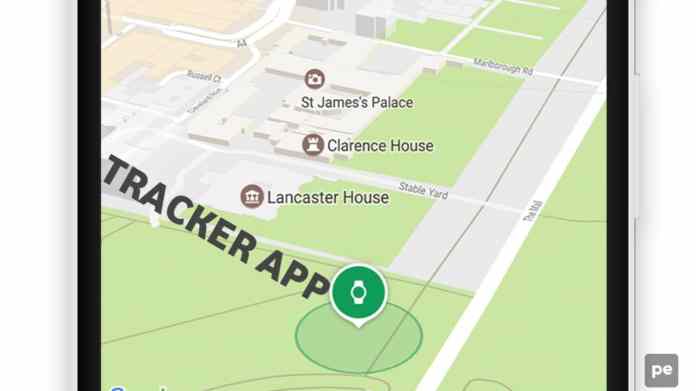
Google Find My Device is a remote tracking service pre-installed on most Android phones. It uses your Google account and the device’s internet connection to pinpoint its location on a map. You can also ring the phone at full volume — even if it’s set to silent — or erase all data remotely to protect your privacy. This tool is a lifesaver for anyone prone to misplacing their phone or worried about theft.

To use it, you need three things: an active Google account, an internet connection on the lost device, and location services enabled. Once these are in place, you can access Find My Device from any browser or another Android phone. No extra apps required, though downloading the dedicated app adds convenience.

How to Download and Set Up Google Find My Device

Setting up Find My Device takes less than two minutes. Here’s a straightforward walkthrough.

Step 1: Download the App

Open the Google Play Store on your current Android phone or tablet. Search for “Google Find My Device” and tap Install. Alternatively, you can download Google Find My Device directly from the official link. The app is lightweight and free.

Step 2: Sign In with Your Google Account

Launch the app and sign in using the same Google account that’s linked to the phone you want to track. This is critical: if you use a different account, you won’t see the lost device. Once signed in, the app automatically lists all Android devices associated with that account.

Step 3: Grant Necessary Permissions

For the app to work reliably, enable location access and allow it to run in the background. Go to your phone’s Settings > Apps > Find My Device > Permissions, and toggle on Location. This ensures the tracker can find your phone even when the screen is off.

How to Locate Your Lost Phone Using the App

Once your phone goes missing, act fast. Here’s the process.

Use the Web Version

Open any browser on a computer or friend’s phone and go to android.com/find. Sign in with your Google account. The page will show the last known location of your device on a map. If the phone is online, the location updates in real time. If it’s offline, you’ll see its most recent position.

Ring the Phone

Click the “Play Sound” button. Your phone will ring at maximum volume for five minutes, even if it’s on silent or vibrate. This is perfect for finding a phone that’s slipped between couch cushions or under a car seat.

Secure Your Data

If you believe the phone is stolen, use the “Secure Device” option to lock it with a custom message and phone number on the lock screen. This allows a Good Samaritan to contact you. As a last resort, select “Erase Device” to factory reset the phone and delete all personal data. Note that after erasing, you can no longer track it.

Common Questions About Google Find My Device

Many users wonder about limitations and quirks. Here are answers to the most frequent queries.

Can I find my phone if it’s offline?

Yes, but with reduced accuracy. Google shows the last online location. If the phone is turned off or in airplane mode, you won’t get live updates. However, once it reconnects to the internet, you’ll receive a notification with its new position.

Does it work on iPhones?

No. Find My Device is exclusive to Android. For iPhones, Apple offers a similar tool called Find My iPhone. If you’re switching platforms, consider using a cross-platform location tracker for compatibility.

What if I forgot my Google account password?

You can reset it via Google’s account recovery page. Without access to the account, you cannot use Find My Device. Therefore, always keep your account recovery options up to date.

Pro Tips for Never Losing Your Phone Again

Prevention is better than cure. Enable these settings now to save yourself future stress.

  • Keep location on: Disabling location saves battery but breaks the tracker. Use battery-saving mode instead.
  • Enable two-factor authentication: This prevents thieves from accessing your Google account and disabling Find My Device.
  • Test the app: Borrow a friend’s phone and try locating your own device. It’s a quick way to confirm everything works.

In addition, consider using a Bluetooth tracker tag for keys or bags. Combining digital and physical trackers gives you the best coverage.

Google Find My Device is a robust, free solution that every Android user should have active. It turns a moment of panic into a simple fix. Whether your phone slid under the sofa or was left in a taxi, this tool gives you a fighting chance to get it back. Set it up today — you’ll thank yourself later.

Continue Reading
Click to comment

Leave a Reply

Your email address will not be published. Required fields are marked *

How To

Infinix GT 10 Pro Launched in India: A Budget Gaming Powerhouse with LED Lights

Published

on

Infinix GT 10 Pro Launched in India: A Budget Gaming Powerhouse with LED Lights

The Infinix GT 10 Pro launched in India today, bringing a fresh wave of excitement to the budget gaming smartphone segment. Priced under Rs 20,000, this device stands out with its transparent back panel and eye-catching LED lights. For gamers on a tight budget, this phone promises a lot more than just flashy aesthetics.

Infinix has officially unveiled the GT 10 Pro, aiming to capture the attention of young gamers who want premium features without breaking the bank. The phone is now available on Flipkart for pre-order, with special discounts for ICICI Bank and Kotak Bank customers.

Infinix GT 10 Pro Launched in India: Design and Build Quality

The first thing you notice about the Infinix GT 10 Pro is its Cyber Mecha Design. The rear panel uses photochromatic technology, which changes color when exposed to UV light. In the Mirage Silver variant, the back shifts from silver to Steel Blue and Dusty Pink under sunlight.

However, the real showstopper is the LED strip placed next to the camera module. This isn’t just for decoration. It lights up for incoming calls, notifications, and even syncs with your music’s rhythm. You can also flip the phone to mute calls, a neat trick that adds to the gamer-friendly vibe.

Two Color Options: Cyber Black and Mirage Silver

Buyers can choose between Cyber Black, which is more understated, and Mirage Silver, which offers the UV-reactive color shift. Both variants feature the transparent design that shows off the phone’s internal components.

For those who love customization, the LED strip offers dynamic charging animations and startup effects. This makes the phone feel alive, especially in dark environments.

Display and Performance: Built for Gaming

The Infinix GT 10 Pro sports a 6.67-inch full-HD+ AMOLED display with a 120Hz refresh rate and a 360Hz touch sampling rate. This combination ensures smooth scrolling and snappy touch responses, crucial for fast-paced games like BGMI or Call of Duty Mobile.

Under the hood, the phone is powered by the MediaTek Dimensity 8050 chipset, built on a 6nm process. Paired with 8GB of LPDDR4X RAM and 256GB of UFS 3.1 storage, this setup handles multitasking and heavy gaming without breaking a sweat.

You can also expand the RAM virtually by up to 8GB, and the storage can go up to 1TB via a microSD card. This flexibility is a big plus for users who store lots of games and media.

Cooling System and Haptic Feedback

Infinix has included a VC (Vapor Chamber) Thermal Cooling system to keep temperatures in check during long gaming sessions. Additionally, the Haptic Z-axis motor provides realistic vibration feedback, making every shot and explosion feel more immersive.

Camera Capabilities: 108MP Main Shooter

Despite being a gaming-focused device, the Infinix GT 10 Pro doesn’t skimp on camera hardware. It features a triple rear camera setup led by a 108MP primary sensor. This allows for detailed shots in good lighting, and the camera app includes features like Portrait Mode, Film Mode, and Dual Video Mode.

On the front, there’s a 32MP selfie camera housed in a center punch-hole. It supports 2K video recording at 30fps, which is impressive for a phone in this price range. The rear camera can shoot 4K video at 30fps as well.

For photography enthusiasts, the phone offers a variety of modes to experiment with, including Short Video Mode and AI scene detection.

Battery and Software: All-Day Power with Fast Charging

A 5,000mAh battery keeps the lights on, and with 45W fast charging support, you can top up quickly. Infinix claims the phone can go from zero to full in under an hour, which is convenient for gamers who need to get back into action.

On the software side, the GT 10 Pro runs XOS 13 for GT, based on Android 13. Infinix has promised a near-bloatware-free experience, with minimal pre-installed apps. You get features like video-based Always-On-Display (AOD), live wallpapers, and extensive customization options.

Other notable features include an in-display fingerprint scanner, Widevine L1+ support for HD streaming, Hi-Res audio, and DTS audio enhancement.

Infinix GT 10 Pro Price in India and Availability

The Infinix GT 10 Pro price in India is set at Rs 19,999 for the single 8GB+256GB variant. However, during the pre-order period, you can grab it for as low as Rs 17,999 using ICICI Bank or Kotak Bank card offers on Flipkart.

This pricing puts it in direct competition with phones like the Poco X5 Pro and the Realme Narzo 60 Pro. But the unique design and LED lights give the Infinix GT 10 Pro an edge in terms of visual appeal.

If you’re looking for a phone that combines gaming performance with a head-turning design, the Infinix GT 10 Pro is worth considering. It launches at a time when the mid-range segment is crowded, but its distinctive features help it stand out.

For more updates on the latest smartphone launches in India, check out our mobile launches section.

Continue Reading

How To

How to Send a WhatsApp Message Without Saving a Contact Number

Published

on

How to Send a WhatsApp Message Without Saving a Contact Number

Have you ever wanted to message someone on WhatsApp but didn’t want to clutter your phonebook with their number? You’re not alone. Millions of people face this situation every day — whether it’s a delivery driver, a new acquaintance, or a business lead. Fortunately, you can send WhatsApp message without saving contact using a straightforward method. This guide walks you through the best tools and tricks to achieve this in seconds.

Why You Might Want to Message Without Saving

There are several practical reasons to skip the contact-saving step. For instance, you might receive a call from an unknown number and want to reply via WhatsApp without storing it permanently. Similarly, freelancers and small business owners often need to send WhatsApp message without saving contact to maintain a clean address book. This approach saves time and keeps your contacts organized.

Moreover, privacy-conscious users prefer not to leave digital traces of every number they interact with. The method we’ll describe respects your privacy while still letting you connect instantly.

Using a Dedicated App for Direct Messaging

One of the simplest solutions is to download a specialized application. These apps are designed specifically to let you send WhatsApp message without saving contact. They work by generating a direct WhatsApp link from the phone number you enter. You don’t need to add the number to your phone’s contact list at all.

Key Features of These Apps

Most of these tools share a set of common features that make them incredibly useful:

  • No contact saving required — Simply type the number and start chatting.
  • Direct access from call logs — You can select a number from your recent calls and message it instantly.
  • Completely free — These apps are free to download and use, with no hidden charges.
  • Create custom WhatsApp links — Some apps let you generate a shareable link for any number.
  • Message strangers safely — Perfect for contacting unknown people without exposing your full contact list.

Building on this, these apps often include a simple interface where you paste or type the target number, and with one tap, WhatsApp opens with that number ready to chat. It’s that easy.

Step-by-Step Guide to Using the App

If you’re ready to try this method, follow these simple steps:

  1. Download the app — Find a reliable “WhatsApp direct message” app from the Google Play Store or Apple App Store.
  2. Open the app — You’ll see a text field asking for a phone number.
  3. Enter the number — Include the country code (e.g., +1 for the US, +44 for the UK).
  4. Tap “Send” — The app will redirect you to WhatsApp with a pre-filled chat for that number.
  5. Type your message — Send your text, image, or voice note as usual.
  6. That’s all there is to it. No saving, no syncing, no hassle.

    Alternative Method: Manual WhatsApp Link

    You can also achieve the same result without any third-party app. WhatsApp has a built-in URL scheme that lets you start a chat with any number. Simply open your mobile browser and type: https://wa.me/1234567890 (replace the digits with the full number including country code). This will open WhatsApp directly with that contact.

    However, the dedicated app approach is more convenient because it often includes a history of your recent messages and lets you manage multiple unsaved numbers easily. For a deeper dive into WhatsApp features, check out our guide on hiding WhatsApp blue ticks.

    Important Considerations

    Before you start messaging strangers, keep a few things in mind. First, always respect privacy — only message people who have given you their number or have a reasonable expectation of contact. Second, be aware that WhatsApp may flag unusual activity if you message many unknown numbers in a short period.

    Additionally, some countries have regulations about unsolicited messages. Use this tool responsibly to avoid being marked as spam. If you’re looking to earn money from WhatsApp, this technique can be part of your strategy for reaching potential clients without overwhelming your contacts list.

    Final Thoughts

    The ability to send WhatsApp message without saving contact is a small but powerful feature that simplifies daily communication. Whether you use a dedicated app or the manual wa.me link, you can now connect with anyone on WhatsApp instantly. This method is especially valuable for professionals who handle numerous inquiries or for anyone who values a tidy phonebook.

    Give it a try today. Download one of the recommended apps, or bookmark the wa.me link format, and never worry about saving unwanted numbers again. For more tips on managing your smartphone, explore our article on checking notification history on Android.

Continue Reading

How To

Phone ID Faker App: How to Make Fake Voice Calls with a Spoofed Number on Android

Published

on

Phone ID Faker App: How to Make Fake Voice Calls with a Spoofed Number on Android

Have you ever wanted to call someone without revealing your real number? Or maybe you just want to have a little fun by changing your voice during a conversation. The Phone ID Faker app makes both of these tricks possible right from your Android device. This lightweight tool lets you mask your caller ID and apply voice effects in real time. In this guide, we will walk you through everything you need to know about using this app for fake voice calls.

What Is the Phone ID Faker App?

Phone ID Faker is a utility application designed for Android smartphones. It allows users to display a different phone number on the recipient’s screen when making a call. Additionally, the app offers built-in voice modulation features. That means you can sound like a different person entirely. Whether you are planning a harmless prank or testing a service that requires anonymity, this app gives you control over your caller identity.

Many people search for a reliable spoof caller ID app that does not require root access. Phone ID Faker works on most standard Android devices without complicated setup. It is available on the Google Play Store and can be installed in seconds.

How to Use Phone ID Faker for Fake Voice Calls

Getting started with this app is straightforward. Follow these steps to make your first spoofed call with an altered voice.

Step 1: Install the App

Open the Google Play Store on your Android phone. Search for “Phone ID Faker” and tap the install button. The file size is small, so the download finishes quickly. Once installed, locate the app icon in your app drawer.

Step 2: Grant Required Permissions

When you launch the app for the first time, it will request access to your contacts and phone settings. These permissions are necessary for the app to modify the outgoing caller ID and apply voice changes. Accept all prompts to proceed.

Step 3: Enter the Fake Number

Inside the app, you will see a field labeled “Caller ID” or similar. Type in the phone number you want the recipient to see. This can be any valid number you choose. For example, you could use a secondary line or a random local number.

Step 4: Choose Your Voice Effect

Phone ID Faker includes several voice modulation presets. You can sound like a robot, a child, a deep male voice, or a high-pitched female voice. Browse the options and select the one that fits your prank or test scenario.

Step 5: Dial and Enjoy

After setting the number and voice, tap the call button. The app will place the call using your default dialer. The person on the other end will see the spoofed number and hear the modified voice. It is that simple.

Why Use a Fake Voice Call App?

There are several legitimate reasons to use a fake voice call Android tool. Privacy-conscious users often want to keep their personal number hidden from strangers. For instance, if you are selling items online or contacting a service provider, masking your real ID adds a layer of security. On the fun side, friends use this app to pull off creative pranks during group calls. Just remember to keep it lighthearted and respectful.

Another practical use is testing voicemail systems or automated phone menus. By changing both the number and voice, you can simulate different caller scenarios without exposing your identity.

How to Download Phone ID Faker

To download the Phone ID Faker download file, simply visit the Google Play Store on your device. Search for the app name and tap the green install button. Alternatively, if you have enabled installation from unknown sources, you may find APK versions on trusted third-party sites. However, the Play Store version is recommended for safety and automatic updates.

After installation, open the app and grant the necessary permissions. You are now ready to start making spoofed calls. If you encounter any issues, check that your device runs Android 5.0 or higher, as older versions may not be fully compatible.

Frequently Asked Questions

Is Phone ID Faker free to use?

Yes, the basic version of the app is free. Some advanced voice effects or number presets may require in-app purchases, but the core spoofing functionality works without payment.

Can I use this app for international calls?

Phone ID Faker works with your regular phone service. If your carrier supports international dialing, you can spoof your number for calls abroad. However, voice quality may vary depending on network conditions.

Will the recipient know I am using a fake number?

In most cases, the recipient will only see the number you entered. There is no indication that a spoofing app is being used. However, some advanced telecom systems may flag spoofed numbers. Use the app responsibly.

Final Thoughts

The Phone ID Faker app is a versatile tool for anyone looking to change voice during call or hide their real number. Its simple interface and quick setup make it accessible even for beginners. Whether you want to protect your privacy or just have a laugh with friends, this app delivers on both fronts.

Before you start, remember that spoofing your caller ID for malicious purposes is illegal in many regions. Always use this technology ethically. If you found this guide helpful, share it with your friends. For more app reviews and Android tips, check out our apps reviews section or read about the best Android launchers to further customize your device.

Continue Reading

Trending