Connect with us

How To

Why Whats Web is the Best App for Android in 2024: Dual Accounts, Media Cleaner & More

Published

on

Why Whats Web is the Best App for Android in 2024: Dual Accounts, Media Cleaner & More

If you use WhatsApp daily, you have likely faced a common dilemma: how to keep your personal chats separate from work conversations without carrying two phones. The Whats Web Android app solves this problem elegantly. It also cleans up your device storage by automatically managing WhatsApp media. In this article, we explore why this tool stands out as the best app for Android in 2024.

WhatsApp remains one of the most popular messaging platforms worldwide. Yet, many users struggle with managing multiple accounts or dealing with cluttered galleries. The Whats Web Android app addresses both issues in one lightweight package. Let’s dive into its core features and see how it can transform your messaging experience.

What is the Whats Web Android App and How Does It Work?

Whats Web is a powerful utility designed specifically for Android users. It allows you to run two separate WhatsApp accounts on the same device without needing a second SIM card or a clone app. This is a lifesaver for freelancers, business owners, and anyone who wants to separate their personal and professional lives.

Beyond dual accounts, the app functions as an intelligent media manager. It automatically cleans up received and sent media files, such as photos, videos, and voice notes, based on a schedule you set or when your storage reaches a limit. This prevents your phone from filling up with unnecessary files.

How does it achieve this? The app uses Android’s accessibility features to interact with WhatsApp seamlessly. After granting the necessary permissions, you can control a second account from within the same interface. This means you never need to log out of one account to check messages on the other.

Top Features That Make This App Essential

Dual Account Management

One of the standout features of the Whats Web Android app is its ability to let you open two accounts on the same device. You can also use the same account on multiple devices, which is a feature that WhatsApp itself is only now rolling out. This gives you flexibility that no other tool offers.

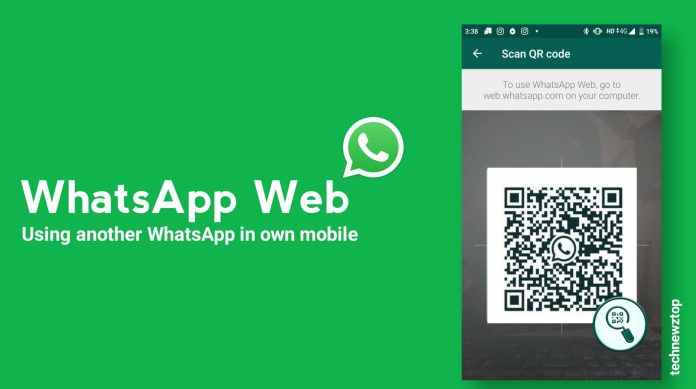
Setting up is straightforward. You install the app, link it to your secondary WhatsApp account via QR code, and you are good to go. You can send and receive messages from both accounts without switching between apps. This means you never miss an important work message while chatting with friends.

Automatic Media Cleaner

WhatsApp media can quickly eat up gigabytes of storage. The built-in media cleaner in the Whats Web Android app solves this by automatically deleting old or duplicate media files. You can set it to run daily, weekly, or whenever your storage crosses a threshold you define.

This feature is not just about saving space. It also helps you stay organized. Instead of manually scrolling through your gallery to delete WhatsApp images, the app handles it in the background. You can also choose to backup important media before deletion, ensuring you never lose precious memories.

Save WhatsApp Statuses

Another popular feature is the ability to save WhatsApp statuses. As you know, statuses disappear after 24 hours. With this app, you can download any status you like and access it later. This is perfect for saving announcements, funny updates, or important information shared by your contacts.

The process is simple. When you view a status, a save button appears. Tap it, and the status is stored in a dedicated folder within the app. You can then share it, set it as your wallpaper, or keep it as a reference. No more screenshotting or screen recording.

How to Download and Install the App

Downloading the Whats Web Android app is free and easy. You can find it on the official website or through trusted APK repositories. After downloading, open the file and grant the necessary permissions. The app will guide you through the setup process.

Once installed, you will need to grant accessibility permissions for the dual account feature to work. The app also asks for storage permissions to manage media. Rest assured, the app does not read your messages or compromise your privacy. It only interacts with WhatsApp through the official API and accessibility services.

For a step-by-step guide, check out our article on how to install Whats Web on Android. If you encounter any issues, the app’s FAQ section covers common troubleshooting steps.

Why This App is a Must-Have for Android Users in 2024

As we move deeper into 2024, the demand for multi-account management and storage optimization continues to grow. The Whats Web Android app meets both needs without requiring root access or complex setups. It is lightweight, free, and regularly updated to support the latest Android versions.

Additionally, the app respects your privacy. Unlike some third-party tools, it does not store your messages on external servers. Everything happens locally on your device. This means your conversations remain private and secure.

For those who want even more control, the app offers advanced settings. You can customize notification preferences for each account, set data limits for media downloads, and even schedule cleaning times. This level of personalization makes it suitable for both casual users and power users.

Are you tired of juggling two phones or constantly deleting WhatsApp media? If yes, then this app is exactly what you need. It simplifies your digital life and frees up your time for what matters most.

To learn more about similar Android tools, read our guide on best Android utility apps for 2024. You might also find our comparison of top dual account apps for WhatsApp helpful.

In summary, the Whats Web Android app is not just another tool. It is a comprehensive solution for anyone who uses WhatsApp extensively. With its dual account support, automatic media cleaner, and status saver, it earns its place as the best app for Android in 2024.

Continue Reading

Social Media

From Gems to Employees: How to Turn AI Tools Into Autonomous Workers

Published

on

autonomous AI employees

The Weekend Is Almost Here: Don’t Miss This AI Roundup

Friday’s looming. You’ve got one foot out the door, but before you log off, there’s a batch of AI intel worth your attention. Save it for later if you must — just don’t skip it.

This week’s edition zeroes in on three areas that matter if you’re building a serious AI workflow: converting Google Gems and custom GPTs into reusable Skills, training autonomous AI employees that actually meet your standards, and the latest industry moves from Gemini and others.

What Are Gems and GPTs — and Why Convert Them?

You’ve probably tinkered with custom GPTs in ChatGPT or played with Gems in Gemini. They’re handy, sure. But they’re also siloed. A GPT lives inside ChatGPT; a Gem stays in Gemini. That’s fine for personal use, but it falls apart when you want a consistent process across your whole operation.

The fix? Turn them into Skills. A Skill is a packaged, reusable capability that any AI agent can call on — regardless of the underlying model. Think of it as the difference between hiring a freelancer who only works in one app and hiring someone who can plug into your entire tech stack.

This isn’t just a nice-to-have. If you’re serious about building autonomous AI employees, Skills are the building blocks. They let you standardize how your AI handles specific tasks, so you’re not reinventing the prompt wheel every Monday morning.

How the Conversion Works

  • Audit what you have: List every custom GPT and Gem you’ve created. Which ones actually save time?
  • Extract the core logic: Strip away the interface and isolate the instructions, knowledge files, and workflow steps.
  • Repackage as a Skill: Define clear inputs and outputs. A Skill should be callable by any agent, not tied to a chat window.

It sounds technical, but the payoff is real. Once your best prompts become Skills, they’re versionable, shareable, and — crucially — usable inside automated pipelines.

Training AI Employees That Match Your Standards

Here’s the uncomfortable truth: most people’s AI assistants are mediocre because they’re trained by accident, not by design. You let the model guess what “good” looks like. Then you’re surprised when the output is generic.

Training an autonomous AI employee is different. You’re not just writing a prompt — you’re onboarding someone. That means setting expectations, providing examples of excellent work, and establishing guardrails for when things go sideways.

Start with a single role. Pick one repetitive task — say, drafting client emails or summarizing industry reports. Build a Skill for it, then train the agent on your feedback loop. Show it what a 9-out-of-10 response looks like. Correct it when it drifts. Over time, it gets faster and sharper.

And here’s the key: it works while you sleep. That’s the whole point of autonomous. You set the standard, the AI meets it, and you’re not in the loop for every single output.

A Simple Training Framework

  1. Define the role: Write a one-paragraph job description for your AI employee.
  2. Give it a Skills stack: Assign the Skills it needs to do the job.
  3. Run a pilot: Test on low-stakes tasks first. Measure accuracy, not speed.
  4. Iterate: Feed corrections back into the Skill definitions.

Done right, you’ll have a workforce that scales without headcount. That’s not sci-fi — it’s just good process design.

Industry News: Gemini and the Wider AI Landscape

Meanwhile, the big players aren’t standing still. Gemini has been rolling out updates that blur the line between chatbot and coworker. New capabilities are pushing toward longer context windows, better tool use, and more reliable multi-step reasoning.

What does that mean for you? The gap between consumer AI and enterprise AI is shrinking. Tools that felt experimental six months ago are now production-ready. But that also means the bar for differentiation is higher. Anyone can chat with a bot. Few can deploy a fleet of autonomous AI employees that actually deliver.

The winners this year won’t be the ones with the fanciest models. They’ll be the ones who figured out how to turn AI into a repeatable, trainable workforce. That starts with Skills — and ends with results.

So before you head out for the weekend, ask yourself: are you still playing with AI, or are you actually putting it to work?

Continue Reading

Social Media

Judge Hands X a Split Verdict in Trademark Fight With Twitter Rival Tweet.app

Published

on

Tweet.app trademark ruling

A Startup Built on Trademark Scraps

Most social media startups begin with a big idea. Operation Bluebird began with a legal loophole. The Virginia-based company, founded by two lawyers, launched with the explicit goal of picking up the trademarks Elon Musk discarded when he renamed Twitter to X. Its homepage doesn’t hide this. It says the company wants to go back and grab what Musk dropped when he “threw the bird away on his way out.”

That’s not your typical mission statement. But it might be a clever one.

On Wednesday, a federal court in Delaware delivered a split ruling in the trademark fight between X Corp. and Operation Bluebird. Judge Colm F. Connolly granted X’s request for a preliminary injunction on eight Twitter-related marks. That means the startup can’t call itself Twitter.now. The core “Twitter” name stays with X, at least for now.

But here’s the twist. The judge denied X’s motion regarding two other marks: the word “tweet” and the Twitter bird logo. He wrote that Operation Bluebird was “likely to succeed in proving both that X Corp. discontinued the bona fide use of the Tweet mark and Bird logo and that it intends not to resume the use of the marks.”

In plain English: X gave up on those words and images. The public kept using them, and now a rival can too.

The Lawyers Behind the ‘Tweet’ Revival

Operation Bluebird isn’t run by Silicon Valley dreamers. It’s led by Michael Peroff, an Illinois-based attorney, and Stephen Coates, who once worked as a trademark lawyer at Twitter. Their legal pedigree makes their claim of wanting to build a fresh social network feel a bit thin. The real prize here is likely the trademarks themselves, which carry value independent of any actual product.

Still, the startup is going through the motions. It has rebranded its website as Tweet.app and opened its doors to early testers. The company told TechCrunch that more than 172,000 people requested a handle before launch. That number probably reflects lingering public affection for the Twitter brand — a name the startup can no longer use.

There’s a catch, though. To reserve a handle and join, users must pay $20. That fee likely helps cover the mounting legal bills.

What the Judge Actually Decided

This ruling isn’t final. It’s a preliminary injunction, which means the court is weighing the likelihood of success on the merits. Judge Connolly sided with X on the eight marks tied directly to the Twitter name. He sided with Operation Bluebird on the Tweet mark and the bird logo.

The case will now proceed to a full trial to determine whether X retains any rights to the Twitter marks, given that the company now operates under the X banner in most places.

For now, the practical outcome is this:

  • X keeps exclusive rights to the “Twitter” name.
  • Operation Bluebird can use the word “tweet” and the bird logo.
  • The startup must rebrand away from Twitter.now.

A Question of Abandonment

The core legal question is whether X abandoned these marks through non-use. In trademark law, abandoning a mark means discontinuing its use with no intent to resume. Musk’s aggressive rebrand to X in 2023 left the word “tweet” and the bird logo in limbo. The company kept the Twitter handle on its own platform but stopped using the bird in most official capacities.

Coates, now president of Operation Bluebird, framed the ruling as a victory for the public. “They kept the word. They let go of the bird, and they let go of the tweet,” he wrote in an announcement shared via email with TechCrunch. “A tweet was never a corporation. It’s one person saying something. That word survived three years of a company trying to replace it, because the public declined to stop using it. We think that tells you who it belongs to.”

That’s a poetic argument. Whether it holds up in court remains to be seen.

What This Means for X and Its Rivals

For X, this ruling is a mixed bag. It protects the core Twitter trademark, which the company still uses in some contexts. But it opens the door for competitors to use the word “tweet” and the bird imagery — elements that remain culturally significant even if X has moved on.

For anyone tracking Elon Musk’s X rebrand and its legal fallout, this case is worth watching. It could set a precedent for how courts treat abandoned trademarks in the fast-moving world of social media. If X loses the full case, it might have to accept that the bird and the tweet belong to the public now.

The startup’s approach is unusual, but it’s not without precedent. Companies have long scooped up abandoned trademarks and repurposed them. The difference here is scale: Twitter’s marks are among the most recognized in internet history.

For now, Tweet.app lives. Twitter.now is dead. And the bird, it seems, has found a new perch.

Continue Reading

How To

I finally found an easy way to make Windows remember exactly where every app window belongs

Published

on

Windows remember app positions

Every morning, the ritual repeats. Open the same half-dozen apps, then spend five minutes dragging, resizing, and nudging each window into its designated spot across two monitors. By lunch, something shifts—a notification steals focus, a window snaps to the wrong screen—and the carefully built layout crumbles. It’s maddening.

I’d tried every trick I knew. Windows built-in snap layouts help, but they only work one window at a time. Third-party tools exist, but most feel like overkill or cost money. Then I stumbled on a free utility hiding inside PowerToys: Workspaces. It’s the closest thing to a magic button I’ve found for Windows remember app positions—and it’s genuinely easy.

What is PowerToys Workspaces?

Workspaces is a relatively new addition to Microsoft’s PowerToys suite, which has been around for years as a grab-bag of productivity utilities. It lets you capture a snapshot of your current desktop layout—which apps are open, where they sit, their size, and even which monitor they’re on—and save it as a named workspace.

Later, with one click, you can relaunch all those apps and have them snap back into their exact positions. No dragging. No resizing. No remembering which browser profile goes on the left screen. It’s like a bookmark for your entire desktop.

Why I stopped using manual snap layouts

Windows Snap Layouts (the hover-over-the-maximize-button feature) is fine for a quick two-window split. But it fails when you need a precise arrangement across multiple monitors or want to restore a full set of apps after a reboot. Workspaces solves that because it handles the whole layout as one unit, not window by window.

How to set up Workspaces in PowerToys

Here’s the part that sold me: setup takes less than a minute. You don’t need to configure anything complicated—just capture what’s already on your screen.

  1. Install PowerToys from the Microsoft Store or GitHub if you haven’t already.
  2. Open PowerToys and select Workspaces from the left sidebar.
  3. Arrange your apps the way you want them on your monitor(s).
  4. Click Capture Workspace—PowerToys takes a snapshot of every open window’s position and size.
  5. Give your workspace a name, like “Work” or “Coding Setup.”
  6. That’s it. You can now launch that workspace anytime from the Workspaces editor or a shortcut.

One note: Workspaces works best with apps that support command-line launching or have standard window handles. Most everyday programs—browsers, editors, terminals, chat apps—work flawlessly. Occasionally, a stubborn app might not restore perfectly, but in my testing, that’s rare.

Restoring a layout with one click

Once you’ve saved a few workspaces, using them is even simpler. Open the Workspaces editor, hover over a saved layout, and hit the launch button. PowerToys opens all the apps and arranges them exactly as captured. You can also assign a keyboard shortcut to each workspace, which turns the whole process into a single keystroke.

I now have three saved workspaces: one for writing (browser, editor, notes app), one for development (terminal, IDE, preview window), and one for communication (email, Slack, calendar). Morning startup went from a five-minute chore to a ten-second flick of a key.

What makes this different from other layout tools

I’ve tested utilities like FancyZones (also part of PowerToys) and paid tools like DisplayFusion. FancyZones is excellent for creating custom snap regions, but it doesn’t launch apps or restore a full set. DisplayFusion does window management across monitors, but it costs money and has a steeper learning curve.

Workspaces hits a sweet spot. It’s free, it’s built into a tool you might already use, and it requires zero configuration for basic use. If you’re juggling multiple monitors or just tired of rearranging after every reboot, this is the easy way to make Windows remember app positions without buying anything or wrestling with scripts.

Tips for getting the most out of Workspaces

  • Capture after a clean setup: Close apps you don’t want in the layout before capturing, so you don’t freeze in a stray window.
  • Use separate workspaces for different tasks: Don’t try to cram everything into one layout. Save distinct setups for distinct modes of work.
  • Combine with FancyZones: If you want more granular control over snap regions, set up FancyZones first, then capture a workspace that uses those zones.
  • Test with your key apps: Some apps (like elevated admin tools) may not restore automatically. Test your core set to see if anything needs a manual nudge.

If you’re like me and you’ve spent months fighting your own desktop, give Workspaces a shot. It’s the rare productivity fix that actually sticks. And for more Windows productivity tips, check out our guide on customizing your taskbar for faster workflows or setting up a multi-monitor display like a pro.

Continue Reading

Trending