Connect with us

How To

OnePlus Open Indian Price Leaked: What We Know About the Foldable Design and Specs

Published

on

OnePlus Open Indian Price Leaked: What We Know About the Foldable Design and Specs

The buzz around OnePlus’s first foldable smartphone, the OnePlus Open, has reached a fever pitch. Recent leaks have provided a clearer picture of the OnePlus Open Indian price, design, and specifications, offering enthusiasts plenty to discuss. While the official launch date remains under wraps, here is everything that has surfaced so far.

OnePlus Open Indian Price Leak: Under Rs 1.2 Lakh?

According to tipster Yogesh Brar, the OnePlus Open Indian price is expected to fall under Rs 1.2 lakh. This positions the device as a premium contender in the foldable segment. However, the exact figure has not been confirmed, leaving room for speculation. If this pricing holds true, the OnePlus Open will directly compete with heavyweights like the Samsung Galaxy Z Fold 5, the Oppo Find N2, and the Pixel Fold.

This pricing strategy suggests that OnePlus is aiming to offer a compelling alternative without straying too far from its reputation for value. Many are watching closely to see how the company balances cost with cutting-edge foldable technology.

OnePlus Open Design: Fresh Renders and Key Features

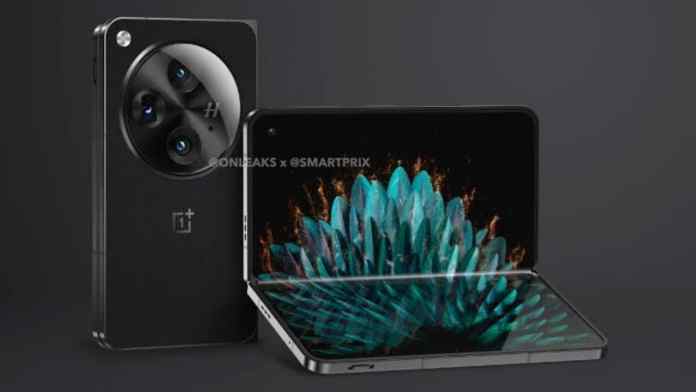
Recent design leaks have turned heads. The latest renders showcase a prominent rear camera module placed centrally, housing three lenses. This marks a departure from earlier concepts that resembled the OnePlus 11. The device is also rumored to feature a wider aspect ratio on its bezel-less display, which could enhance the viewing experience.

Alert Slider Returns

Fans will be pleased to hear that the iconic alert slider is expected to make a comeback. This signature OnePlus feature has been a favorite among users, and its inclusion on the foldable adds a touch of familiarity.

Book-Like Folding Mechanism

The OnePlus Open is anticipated to adopt a book-like folding design, similar to the Galaxy Z Fold series. This form factor allows for a compact device that unfolds into a tablet-sized screen, offering versatility for multitasking and media consumption.

OnePlus Open Specifications: Camera, Display, and Performance

Beyond the OnePlus Open Indian price and design, the specifications are equally impressive. The camera system is expected to carry Hasselblad branding, a partnership that has yielded excellent results on previous OnePlus flagships.

Camera Setup

  • Primary Sensor: 48MP
  • Telephoto Lens: 64MP
  • Ultra-Wide Lens: 48MP

There is also talk of LiDAR or ToF sensors to improve autofocus and depth sensing. This combination could make the OnePlus Open a strong contender for photography enthusiasts.

Display and Performance

The device is rumored to feature a dual-display setup: an 8-inch main foldable screen and a 6.3-inch external cover display. Under the hood, a Snapdragon 8 Gen 2 chipset is expected, paired with up to 16GB of RAM and 256GB of storage. A 4,800mAh battery with 67W fast charging should keep the device running throughout the day.

For more on the latest smartphone trends, check out our guide on best foldable phones of 2025.

Launch Timeline and What to Expect

Originally slated for an August release, the OnePlus Open’s launch may have been delayed. Reports suggest that OnePlus is reevaluating its display panel supplier, which could push the unveiling to later in the year. While this is frustrating for eager fans, it indicates that the company is prioritizing quality over speed.

As we await official word, the leaked OnePlus Open Indian price and design details paint a picture of a device that could shake up the foldable market. Stay tuned for updates, and feel free to share your thoughts in the comments below.

Interested in other upcoming devices? Read our preview of the OnePlus Nord 4 expected features.

Continue Reading
Click to comment

Leave a Reply

Your email address will not be published. Required fields are marked *

How To

10 Proven Strategies to Protect Your Identity Online in 2025

Published

on

10 Proven Strategies to Protect Your Identity Online in 2025

Every time you browse the web, you leave a trail of digital breadcrumbs. From the websites you visit to the ads that follow you, your online identity is constantly exposed. But what if you could hide your identity online without sacrificing convenience? This guide outlines ten actionable methods to safeguard your privacy, whether you’re a casual user or a privacy enthusiast.

Why Bother Hiding Your Identity?

Your personal details are a hot commodity. Hackers, advertisers, and even some companies collect and sell your data without your consent. This can lead to identity theft, targeted spam, and privacy invasions. By taking steps to hide your identity online, you minimize these risks and regain control over your digital footprint.

1. Browse Anonymously with a Secure Browser

The simplest way to start is by switching your browser. Google Chrome is notorious for data collection, so consider alternatives like Mozilla Firefox or Brave. These browsers offer built-in tracking protection and can encrypt your IP address. For maximum anonymity, use Tor Browser, which routes your traffic through multiple servers.

Why This Works

An anonymous browser prevents websites from linking your activities to your real identity. It also blocks third-party trackers that follow you across the web.

2. Delete Personal Information from Search Engines

Your name, address, and phone number often appear on public directories. Search engines like Google make this data easy to find. To reduce exposure, manually remove your information from sites like Whitepages or Spokeo. Use data removal services like DeleteMe for a more thorough clean-up.

Key Takeaway

While you can’t erase everything, removing what’s currently available significantly reduces your digital footprint.

3. Use Encrypted Messaging Apps

Standard SMS messages are not secure. Switch to WhatsApp or Signal, both of which offer end-to-end encryption. This means only you and the recipient can read your messages. Avoid apps that store conversations on their servers.

4. Switch to Encrypted Email Services

Gmail is convenient, but it scans your emails for advertising purposes. Opt for encrypted alternatives like ProtonMail or Tutanota. These services use end-to-end encryption and open-source code, ensuring your emails remain private. Best of all, they’re free to use.

5. Use Temporary Email Addresses

Don’t want to receive newsletters or spam? Use a temporary email service like Guerrilla Mail or 10 Minute Mail. These provide disposable addresses that expire after a set time, keeping your primary inbox clean.

6. Encrypt Your Cloud Storage

Google Drive and Dropbox store your files on their servers, which can be accessed by third parties. Instead, use encrypted storage providers like Sync.com or pCloud. They offer zero-knowledge encryption, meaning even the provider can’t see your data.

7. Check App Permissions Regularly

Many apps request access to your camera, microphone, or contacts unnecessarily. Review permissions in your device settings and revoke any that seem intrusive. For example, a flashlight app doesn’t need access to your location.

Pro Tip

Use apps like App Permission Manager to automate this process on Android or iOS.

8. Install Ad Blockers

Ads are not just annoying—they track your behavior. Install ad blockers like uBlock Origin or AdBlock Plus on your browser. These tools block tracking scripts and prevent advertisers from profiling you.

9. Read Privacy Policies Before Signing Up

It’s tempting to click “I Agree” without reading. But many companies sell your data to third parties. Before using a new service, check its privacy policy for data-sharing practices. If it’s vague, consider an alternative.

10. Disable Cookies in Your Browser

Cookies store information about your browsing habits, leading to targeted ads. Disable third-party cookies in your browser settings. On Chrome, go to Settings > Privacy and Security > Cookies and other site data, and select “Block third-party cookies.”

Final Thoughts

Protecting your identity online isn’t just about avoiding ads; it’s about safeguarding your personal life from malicious actors. By implementing these strategies, you can browse with confidence. Start today—your privacy is worth it.

For more tips, check out our guide on best free antivirus software and machine learning basics.

Continue Reading

How To

YouTube Introduces Unique Handle Channel Identifier: A New Way to Find and Connect with Creators

Published

on

YouTube Introduces Unique Handle Channel Identifier: A New Way to Find and Connect with Creators

YouTube, the world’s second most visited website, is working on a new feature that promises to make it easier for users to find and interact with their favorite creators. The platform is developing a unique handle channel identifier, which will assign each channel a distinct handle preceded by the @ symbol. This move aims to streamline search and communication across the site, from comments to video descriptions.

In a digital ecosystem where millions of channels compete for attention, a simple and unique identifier can make all the difference. With this upcoming feature, YouTube is addressing the challenge of channel discoverability head-on. Instead of relying on complicated URLs or manual searches, users will soon be able to type a handle and instantly land on the right creator’s page.

What Is the YouTube Unique Handle Channel Identifier?

The unique handle channel identifier is essentially a personalized tag for every YouTube channel. Similar to how Twitter or Instagram use @handles, YouTube will allow creators to choose a handle that represents their brand. This handle will appear on channel pages, in YouTube Shorts, and across the platform wherever a creator is mentioned.

If you already have a customized URL for your channel, YouTube will reserve that as your default handle. However, you retain the flexibility to change it if you prefer something different. According to internal reports, this feature is designed to ensure that every interaction on the platform is tied to the correct creator, reducing confusion and impersonation risks.

How It Differs from Custom URLs

Previously, YouTube required channels to meet specific criteria—like having at least 100 subscribers—before they could claim a custom URL. The new handle system removes that barrier. Now, any account holder can select a handle, regardless of subscriber count. This democratization of branding is a significant shift, giving smaller creators the same visibility tools as larger ones.

As a result, the unique handle channel identifier levels the playing field. Whether you are a budding vlogger or an established brand, your handle becomes your digital signature. It simplifies mentions in comments, community posts, and video descriptions, making it faster for audiences to tag and promote each other’s work.

Benefits for Creators and Viewers

For creators, this feature is a powerful tool for building a recognizable identity. Your handle will be consistent across all YouTube surfaces, from the homepage to the comments section. This consistency helps in growing a loyal audience, as viewers can easily find and reference your channel.

Viewers, on the other hand, gain a more intuitive search experience. Instead of sifting through multiple channels with similar names, you can simply type the @handle and connect directly. This reduces friction and encourages more engagement, such as tagging friends in comments or sharing content on social media.

Moreover, the unique handle channel identifier enhances safety. Because each handle is unique, it becomes harder for impostors to mimic a popular channel. This builds trust within the community, ensuring that when you interact with a handle, you are dealing with the genuine creator.

Rollout and Availability

YouTube has confirmed that the handle feature will roll out in phases over the coming months. Initially, it will appear in the comment section, mentions, and YouTube Shorts. The company will notify eligible users via email and in YouTube Studio when they can choose their handle.

If you do not select a handle before the deadline, YouTube will automatically assign one based on your channel name or existing URL. However, you can always change it later through the YouTube Studio settings. This flexibility ensures that no one is locked into a handle they do not want.

It is worth noting that the rollout considers factors like subscriber count and overall channel activity. Inactive channels may receive handles differently, but active creators will have priority access. For more insights on optimizing your channel, check out our guide on YouTube channel growth tips.

What This Means for the Future of YouTube

This move aligns with YouTube’s broader strategy to enhance community interaction and creator monetization. By simplifying how users search for and connect with creators, the platform is fostering a more engaged ecosystem. The unique handle channel identifier is just one piece of a larger puzzle that includes features like Super Chat, channel memberships, and merchandise shelves.

For businesses and influencers, this is a reminder to claim your handle as soon as it becomes available. A strong, memorable handle can become a key part of your brand identity. Additionally, it can improve your SEO on the platform, as handles are indexed and searchable.

If you are curious about other recent YouTube updates, read about YouTube Shorts monetization changes or explore how the YouTube algorithm works. These resources can help you stay ahead in the ever-evolving world of video content.

Final Thoughts

The introduction of the unique handle channel identifier marks a significant step forward for YouTube. It simplifies communication, boosts discoverability, and gives every creator a fair chance to stand out. Whether you are a seasoned YouTuber or just starting out, this feature is designed to make your experience smoother and more connected.

Have questions about the new handle system? Drop them in the comments below. And if you found this article helpful, share it with your fellow creators on social media. Stay tuned for more updates as YouTube continues to innovate.

Continue Reading

How To

How to Enable iMessage on iPhone, iPad, and Mac: A Complete Walkthrough

Published

on

How to Enable iMessage on iPhone, iPad, and Mac: A Complete Walkthrough

Enable iMessage on your Apple devices and unlock seamless, feature-rich messaging. Whether you own an iPhone, iPad, or Mac, iMessage offers encrypted chats, rich media sharing, and the iconic blue bubbles. While the service usually activates automatically with your Apple ID, sometimes you need to tweak a few settings. This guide walks you through the process for each device, ensuring you stay connected across your Apple ecosystem.

Why You Should Enable iMessage on Your Apple Devices

iMessage isn’t just another messaging app. It’s deeply integrated into iOS, iPadOS, and macOS, offering end-to-end encryption, read receipts, typing indicators, and seamless syncing via iCloud. When you enable iMessage, you can start a conversation on your iPhone and continue it on your Mac without missing a beat. This continuity makes it a favorite among Apple users worldwide.

Moreover, iMessage works over Wi-Fi or cellular data, so you can send texts, photos, videos, and documents without relying on SMS. For anyone with multiple Apple devices, activating iMessage is a no-brainer.

How to Enable iMessage on iPhone or iPad

Activating iMessage on your iPhone or iPad is straightforward. Follow these steps to get those blue bubbles glowing.

Step 1: Open Settings and Navigate to Messages

Start by opening the Settings app on your iPhone or iPad. Scroll down and tap on Messages. This is where all your messaging preferences live.

Step 2: Toggle iMessage On

In the Messages settings, you’ll see a switch for iMessage. Tap it to turn it on. If it’s already green, you’re good to go. If not, wait a few seconds while your device activates the service. A stable internet connection—either Wi-Fi or cellular—is essential here.

Step 3: Configure Send & Receive

After enabling iMessage, tap Send & Receive. Here, you can choose which phone numbers and email addresses people can reach you at. Make sure your Apple ID is listed, and check the boxes next to the contact methods you want to use. This step ensures you receive messages on all your devices.

If you encounter any activation hiccups, check our guide on fixing iMessage activation errors for troubleshooting tips.

How to Enable iMessage on Mac

Getting iMessage up and running on your Mac is just as simple. Here’s what you need to do.

Step 1: Open the Messages App

Launch the Messages app on your Mac. You can find it in the Applications folder or via Spotlight search. If it’s your first time, you’ll be prompted to sign in with your Apple ID.

Step 2: Access Preferences

In the menu bar at the top of the screen, click Messages and then select Settings (or Preferences in older macOS versions). This opens the configuration window.

Step 3: Enable iMessage and iCloud Sync

Click the iMessage tab. Here, you can toggle on Enable Messages in iCloud. This syncs your entire message history across all devices, so you never lose a conversation. Also, ensure your Apple ID is selected under the “You can be reached for messages at” section.

Step 4: Choose Your Sending Address

Under the “Start new conversations from” section, click the arrow and pick your preferred email or phone number. This determines which address appears when you send a new message. Once done, you’re all set.

For more Mac tips, check out our article on customizing Mac notifications.

Common iMessage Activation Issues and Fixes

Sometimes, enable iMessage doesn’t go as smoothly as planned. Here are a few common problems and how to solve them.

  • Activation failed: This often happens due to network issues. Switch from Wi-Fi to cellular data, or vice versa, and try again.
  • Apple ID problems: Ensure you’re signed in with the correct Apple ID on all devices. Go to Settings > [Your Name] to verify.
  • Date and time settings: Incorrect date or time can block activation. Set them to automatic in Settings > General > Date & Time.

If you’re still stuck, Apple’s support page offers detailed troubleshooting. Alternatively, you can explore our guide on resetting network settings on iPhone to resolve connectivity issues.

Final Thoughts: Enjoy Seamless Messaging Across Apple Devices

Enabling iMessage on your iPhone, iPad, and Mac is a quick process that pays off in convenience. Once activated, you’ll enjoy synchronized conversations, rich media sharing, and the satisfaction of those blue bubbles. So, take a few minutes to set it up—you’ll wonder how you managed without it.

Have you tried these steps? Share your experience in the comments below. For more Apple tips and tricks, stay tuned to our blog.

Continue Reading

Trending