Connect with us

How To

Excel has a paintbrush button most users never click — here’s what it actually does

Published

on

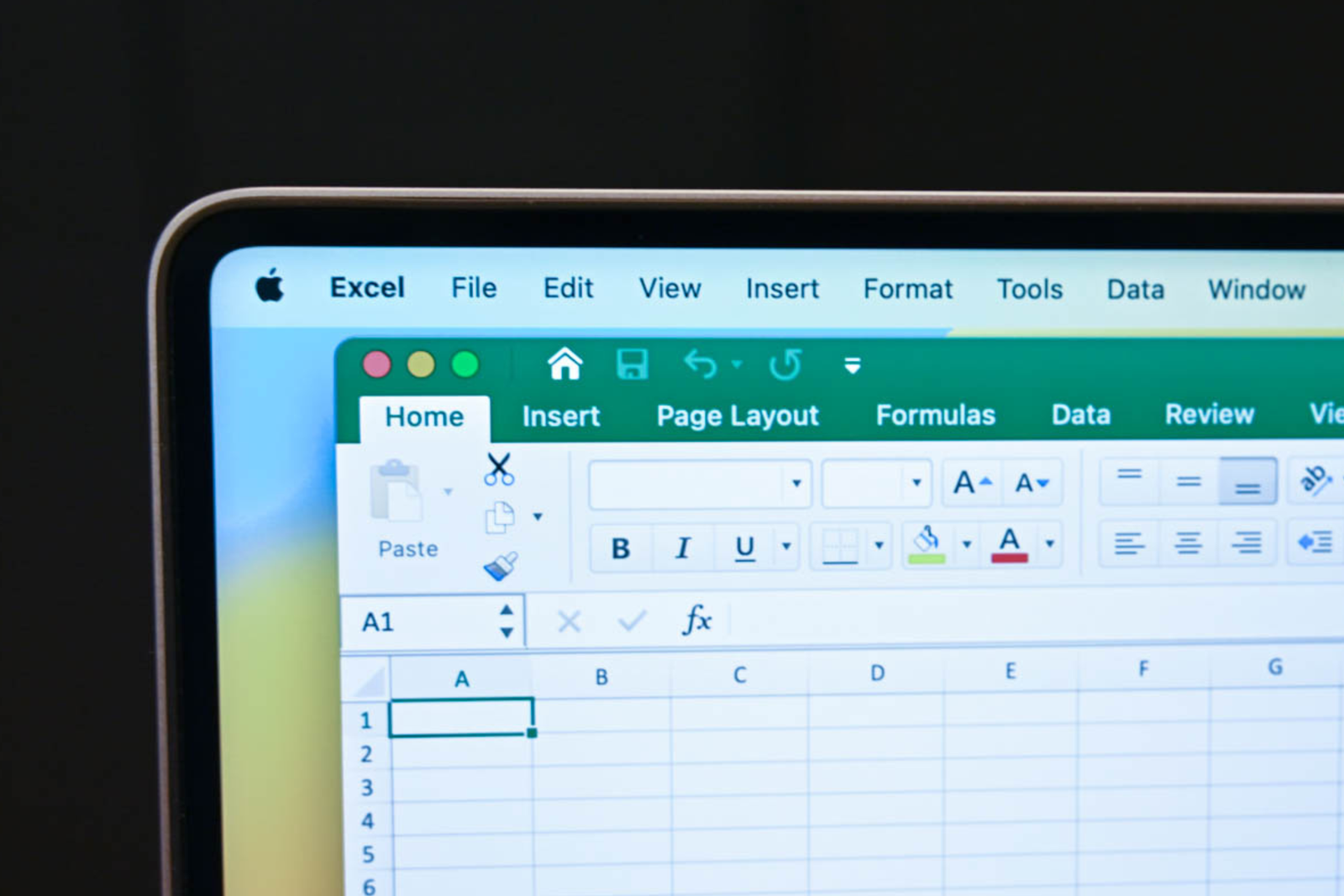
Excel paintbrush button

That tiny paintbrush icon in Excel? It’s not just decoration

Open any spreadsheet in Microsoft Excel, and you’ll spot a small paintbrush sitting in the Clipboard group on the Home tab. Most people scroll right past it. They click Copy, they click Paste, maybe they dabble with Bold or Fill Color. But that brush? It sits there, untouched, day after day.

That’s a shame — because the Format Painter (its official name) is one of the fastest ways to clean up a messy spreadsheet. It copies formatting — font, size, color, borders, number formats — from one cell and slaps it onto another. No menus. No manual re-setting. One click, and your sheet looks consistent.

Here’s exactly how it works, and why you should start using it today.

What the Excel paintbrush button actually does

The Format Painter copies the look of a cell — not its value. Think of it as a formatting clone stamp. Select a cell that has the formatting you like, click the paintbrush, then click the target cell. Instantly, the target inherits the font, alignment, border style, number format, and fill color from the source.

It works on ranges, too. Select a formatted range, click the brush, then select a target range of the same size. Everything transfers. This is a godsend when you’ve spent ten minutes perfecting a header row and need to apply the same style to the rest of the table.

One important detail: the Format Painter does not copy the cell’s content. Only the formatting. Your data stays put.

How to use the Format Painter (single use vs. multiple use)

There are two ways to use the paintbrush, and they behave differently.

Single-use mode

Click the cell with the formatting you want to copy. Click the paintbrush icon once (it lights up). Then click the destination cell. The brush deactivates automatically. You’re done. This is the quickest way to fix one or two cells.

Locked-on mode

Double-click the paintbrush icon. It stays active, even after you paste formatting onto a cell. You can click cell after cell, or drag across multiple ranges, and each one gets the same formatting. To turn it off, press the Esc key or click the paintbrush icon again.

This locked mode is perfect for applying a consistent style across an entire worksheet — say, making every subtotal row bold with a light yellow fill.

Keyboard shortcut for the paintbrush (power users, take note)

If you prefer keeping your hands on the keyboard, Excel offers a shortcut: Ctrl + Shift + C to copy formatting, then Ctrl + Shift + V to paste it. Yes, it’s the same logic as copy-paste values, but for formatting only.

This shortcut works across worksheets and even between open workbooks. Select a formatted cell in Sheet1, hit Ctrl + Shift + C, switch to Sheet2, select a cell, and hit Ctrl + Shift + V. No mouse required.

It’s a small trick, but once it becomes muscle memory, you’ll wonder how you lived without it.

When the Format Painter saves you real time

Here are a few scenarios where the paintbrush really shines:

  • Merging data from different sources. You import a CSV, and the formatting is a disaster. Use the Format Painter to copy the style from a properly formatted sheet onto the raw data. Everything snaps into alignment in seconds.
  • Building dashboards. You design one KPI card perfectly — font, border, conditional formatting. Double-click the brush, then click each of the other KPI cells. Consistent formatting across the board, instantly.
  • Applying number formats. You have a cell formatted as currency with two decimal places. You need five other cells to match. Click the formatted cell, click the brush, then select the five target cells. No need to open the Format Cells dialog.
  • Copying conditional formatting. Yes, the Format Painter can copy conditional formatting rules. If you’ve set up a color scale or data bar on one range, you can paint it onto another range. The rules adapt to the new range automatically.

What the paintbrush does NOT do (common misconceptions)

The Format Painter is powerful, but it has limits. It does not copy column widths or row heights. If your source column is 20 pixels wide and your target column is 50, the target stays at 50. You’ll need to adjust column widths separately.

It also doesn’t copy merged cell structures. If you’ve merged A1 through C1, painting that formatting onto another cell won’t merge the target cells. You still have to merge manually.

And finally, it won’t copy data validation or cell comments. Those are separate properties that live outside the formatting layer.

Why most users ignore it — and why they shouldn’t

The paintbrush sits in plain sight, but it’s easy to overlook. The icon is small. The tooltip says “Format Painter,” which sounds technical. And many users simply never explore the Home tab beyond Copy, Paste, and Bold.

But here’s the thing: formatting is often the most tedious part of working with spreadsheets. Data entry is straightforward. Formulas are logical. But making a sheet look professional — consistent fonts, aligned columns, clear borders — that’s where time disappears. The Format Painter is a direct solution to that pain point.

If you spend more than 10 minutes a week formatting cells, learning this one tool will save you hours over a year. It’s not flashy. It’s not new. It’s just a brush. But it’s one of the most useful buttons Excel has ever shipped.

Next time you open a spreadsheet, try it. Select a cell you like, click the brush, and click another cell. You’ll see the formatting jump across. Then try double-clicking the brush. You’ll wonder why you never clicked it before.

Continue Reading

How To

Android Phones Used to Be Made of Metal. Here’s Why Glass Took Over.

Published

on

glass replaced metal phones

Cast your mind back to 2012. The Android market was a very different place. Flagship phones were mostly plastic, sure, but then the metal wave hit. HTC led the charge with its iconic One series, and for a few years, aluminum was the material of choice for anyone who wanted a premium feel. Even budget phones like the HTC One V had metal bodies. Then, almost overnight, glass took over. What happened?

The Metal Era: A Quick Love Story

Metal felt like a revelation. It was cool to the touch, rigid, and gave a phone a sense of permanence that cheap polycarbonate just couldn’t match. Apple was doing the same with its iPhones, and the industry followed. The HTC One M7, with its zero-gap aluminum unibody, was a design masterpiece. It felt like a precision instrument.

But metal had a dirty little secret. It was a nightmare for antennas. Radio waves don’t pass through metal easily, which is why you saw those ugly plastic lines on the back of iPhones and HTC phones. It was a compromise, a visible scar on an otherwise beautiful design.

The Wireless Charging Problem

The real killer, though, was wireless charging. Qi wireless charging, which uses magnetic induction, simply doesn’t work through a solid slab of aluminum. The metal blocks the magnetic field. As wireless charging moved from a niche feature to a must-have, phone makers faced a choice: keep the metal and skip the feature, or switch materials.

They chose glass. It’s not because glass is better — it’s because glass is transparent to radio waves and magnetic fields. That one property solved two problems at once. It allowed for wireless charging and gave designers freedom with antennas, since the glass back doesn’t interfere with signal.

5G Made It Worse (for Metal)

Then came 5G. The new networks use a wider range of frequencies, including mmWave, which is even more easily blocked by metal. Designing a 5G phone with a metal unibody would have required so many antenna cutouts that the phone would look like a patchwork quilt. Glass, again, came to the rescue. It’s almost invisible to these signals.

So, the shift to glass wasn’t about aesthetics. It was physics. It was about keeping the phone slim while still delivering the features people demanded.

What We Lost (and Gained)

Let’s be honest: we lost something. Metal phones felt more durable. A drop that would shatter a glass back often just dented aluminum. And glass is a fingerprint magnet. You know the drill — you pull your phone out, and it’s covered in smudges within seconds.

But we gained wireless charging, which is genuinely convenient. And glass also allowed for better phone camera design, since the camera bump could be integrated more cleanly. Plus, glass can be colored and finished in ways metal can’t, giving us those gorgeous gradient finishes that were all the rage a few years ago.

Today, some brands are experimenting with ceramic and even titanium frames, like on the iPhone 15 Pro. But the back? Still glass. The physics haven’t changed.

So, Is Glass Here to Stay?

Probably. Unless someone invents a material that’s transparent to radio waves, scratch-resistant, and shatterproof — which doesn’t exist yet. Until then, we’re stuck with glass, cases, and the occasional heart-stopping moment when your phone slips from your hand.

It’s a trade-off, but it’s one the industry made willingly. The next time you set your phone on a wireless charger, you can thank the engineers who decided that a little fragility was worth the convenience. And if you’re feeling nostalgic for the metal era, you’re not alone. But don’t hold your breath for a comeback — the physics of wireless charging and 5G aren’t going anywhere.

Continue Reading

How To

FliFlik Voice Changer Honest Review: A Soundboard That Levels Up Your Gaming and Discord Sessions

Published

on

FliFlik Voice Changer review

Imagine this: you’re clutching a 1v4 in Valorant, your heart is pounding, and you land a perfect ace. Your teammates are screaming in voice chat. But instead of just yelling, you hit a keybind and a deep, robotic voice booms: “Enemy down. Good job, team.” That’s the power of a great soundboard—and it’s exactly what the FliFlik Voice Changer promises to deliver. In this honest FliFlik Voice Changer review, we’ll break down whether it’s the best soundboard for gaming and Discord, or just another overhyped tool.

As a gamer and content creator, I’ve tested my fair share of voice tools. Most are either too complicated or sound like a robot from the 90s. FliFlik, however, takes a different approach. It’s not just a voice changer; it’s a complete audio toolkit. The video I watched walks through every feature, from setup to advanced soundboard customization. But does it live up to the hype? Let’s dive in.

FliFlik Voice Changer Review: Setup and Core Features

First things first: the setup. The video shows a surprisingly clean interface. You select your input device (your mic) and output device (headphones or speakers). It’s straightforward, even for beginners. The denoise option is a godsend—it filters out keyboard clicks and background hum, which is essential for clear communication in team games.

The voice changer itself offers a variety of presets, from chipmunk to deep demon. You can tweak pitch, speed, and even add reverb. While the presets aren’t revolutionary, they sound natural enough for casual use. However, the real star here is the soundboard. This is where FliFlik shines.

Best Soundboard for Gaming: Pre-Built Lines and Instant Keybinds

The video demonstrates how FliFlik includes pre-added voice lines specifically for games like Valorant. Think callouts like “B site rushing!” or “I’m flashed!”—perfect for quick communication. But the magic lies in the keybind system. You can assign any sound to a hotkey, allowing you to trigger it instantly mid-game. No clicking through menus. Just press F1 and your character says something epic.

This feature transforms your gaming experience. Instead of typing or speaking, you can use sound effects to coordinate with teammates or just troll your friends. The video shows a live demo where the creator triggers a voice line during a match, and it works flawlessly. For Discord users, this is a game-changer. You can play sounds for reactions, memes, or even a dramatic “Omae wa mou shindeiru” before a clutch play.

Custom Soundboard with ChatGPT and ElevenLabs: A Creative Powerhouse

Building on the pre-built options, the video reveals a killer workflow: creating your own custom soundboard using ChatGPT and ElevenLabs. You can generate unique voice lines with ChatGPT—like “Nice try, noob!”—then use ElevenLabs, a leading AI voice generator, to produce natural-sounding clips. ElevenLabs offers realistic voices that mimic human emotion, so your custom lines won’t sound robotic.

The process is simple: copy the text from ChatGPT, paste it into ElevenLabs, download the audio, and import it into FliFlik. The video shows how to map these clips to keybinds, giving you an endless library of personalized sounds. This integration is brilliant for streamers and content creators who want to build a unique audio brand. It’s also a huge time-saver—no more recording your own voice or scouring the internet for sound files.

FliFlik vs Clownfish: Is the Paid Tool Worth It?

The video doesn’t shy away from comparisons. It pits FliFlik against Clownfish, a popular free voice changer. Clownfish offers basic voice effects and is fine for simple needs. However, it lacks a modern soundboard, has a clunky interface, and can be unstable with certain games. FliFlik, on the other hand, is polished, reliable, and offers the soundboard feature that Clownfish simply doesn’t.

That said, FliFlik isn’t perfect. The video highlights a few downsides: the free version limits you to a handful of sounds, and the premium license costs money. For casual users who just want to change their voice occasionally, Clownfish might be enough. But if you’re serious about gaming or streaming, the investment in FliFlik pays off. The soundboard alone justifies the price, especially when you consider the time saved and the fun factor.

In conclusion, this FliFlik Voice Changer review shows that it’s more than just a gimmick. It’s a robust tool that enhances communication and adds a layer of entertainment to your gaming sessions. Whether you’re a Valorant try-hard or a Discord meme lord, the soundboard and custom AI integration make it a top contender. If you’re on the fence, watch the video to see the full demo—it’s worth your time. And hey, even if you stick with Clownfish, at least now you know what you’re missing.

Continue Reading

How To

Never seen a Marvel movie? Start here — the only 6 you truly need

Published

on

Marvel movies for beginners

You don’t need to watch 30+ movies. Honest.

So you’ve never seen a single Marvel movie. Maybe you’ve been living under a rock, or maybe you just never got around to it. Either way, the pressure to catch up can feel crushing. The Marvel Cinematic Universe (MCU) has been running since 2008 and now spans over 30 films, plus a dozen Disney+ shows. That’s a lot of homework.

Here’s the secret: you don’t need all of it. A handful of films do the heavy lifting, introducing the core heroes and the big bad villain in ways that make everything else click. I’ve picked six that give you the best return on your time — no prior knowledge required.

Why these six? A quick logic check

Before we dive in, a quick note on the picks. This isn’t a ranking of the ‘best’ Marvel movies by critical score. It’s a curated entry point. Each film on this list introduces a major hero, establishes the cosmic or political stakes, and connects to the larger story in a way that matters. You’ll finish them with a solid grasp of who’s who and why the Infinity Stones are such a big deal.

The Iron Man principle

Start with the one that started it all. Marvel‘s Iron Man (2008) isn’t just a great movie — it’s the foundation of the entire MCU. Robert Downey Jr.’s Tony Stark is witty, flawed, and instantly likable. This film teaches you the tone: grounded, tech-driven, with a wink to the audience. No cosmic nonsense here, just a genius in a cave building a suit.

The essential six for a Marvel beginner

  • Iron Man (2008) — The origin story that started the MCU. You’ll meet Tony Stark and get a feel for the franchise’s signature mix of action and humor.
  • The Avengers (2012) — The first team-up. This is where you see how individual heroes mesh, and it introduces the Chitauri invasion, a major event.
  • Captain America: The Winter Soldier (2014) — A political thriller disguised as a superhero movie. It introduces the Winter Soldier and reshapes S.H.I.E.L.D., which matters later.
  • Guardians of the Galaxy (2014) — This one expands the universe to space. You meet the Guardians, learn about the Infinity Stones, and get a dose of the MCU’s weirder, funnier side.
  • Avengers: Infinity War (2018) — The big crossover. Thanos arrives, and the stakes go cosmic. It’s the payoff for everything you’ve watched so far.
  • Avengers: Endgame (2019) — The conclusion of the Infinity Saga. It’s a long film, but it delivers emotional closure and sets up the future.

How to watch them: Order matters (sort of)

You could watch these in release order and be fine. But for a beginner, a slightly different sequence works better. Start with Iron Man, then jump to The Avengers to see the team form. Then take a detour to Guardians of the Galaxy to understand the cosmic side. After that, Winter Soldier grounds you in the espionage angle. Finally, watch Infinity War and Endgame back-to-back for the epic finale.

This order builds context naturally. You’ll meet the core heroes, understand the Infinity Stones, and then watch them clash with Thanos. It’s efficient and emotionally satisfying.

What about the other 25+ movies?

You might be wondering: what about Thor, Black Panther, or Spider-Man? Good question. Those are excellent films, but they’re not essential for a beginner. Thor introduces Asgard, but Infinity War gives you enough context. Black Panther is a standalone masterpiece, but it doesn’t drive the central Infinity Stone plot. Spider-Man: Homecoming is fun, but it’s a side quest.

If you finish the six and want more, you can branch out. But don’t feel obligated to watch everything to enjoy the MCU. The franchise is designed to be accessible, even if you’ve missed entries.

Final verdict: Start with these, thank me later

The MCU can be intimidating, but it doesn’t have to be. These six films give you the essential heroes, the cosmic stakes, and the emotional payoff. You’ll walk away understanding why people have been obsessed for over a decade.

And if you’re still hungry for more, check out our guide to the best Marvel movies ranked by critics or the MCU timeline explained simply. Happy watching.

Continue Reading

Trending