The Feature Everyone Told Me to Turn Off
For years, the conventional wisdom among PC enthusiasts has been simple: disable Microsoft’s built-in audio enhancement immediately. It’s bloated. It muddies the sound. It’s a gimmick that only cheap laptop speakers need. I believed that — right up until I decided to test it again on a whim.
I re-enabled the feature on my daily driver, a mid-range Dell laptop running Windows 11, and braced for the worst. What I heard instead made me question everything I thought I knew about Windows sound.
The improvement wasn’t subtle. It was immediate, and it was good.
What Exactly Is Microsoft’s Audio Enhancement?
Buried deep in the Windows sound settings, the audio enhancement toggle has been part of the operating system for years. It’s a software-based signal processor that attempts to clean up, equalize, and sometimes virtualize your audio output in real time.
Microsoft has quietly updated the underlying algorithms across several Windows 11 feature updates. The version I tested — available on the 2025 Update (24H2) — is noticeably more refined than the crude bass-boost of earlier iterations.
The enhancement applies a dynamic equalizer, attempts to reduce background noise, and can simulate a wider soundstage. On paper, it sounds like the kind of thing audiophiles would mock. In practice, on mediocre laptop speakers, it does something genuinely useful.
What It Actually Did to My Music and Video
I ran a quick A/B test. First, a track I know intimately — Radiohead’s Everything in Its Right Place. With enhancement off, the laptop’s tiny down-firing speakers sounded thin and hollow, as expected. The bass was barely a suggestion. The mid-range felt scooped out.
I flipped the enhancement on. The difference was dramatic. The low end gained weight without becoming boomy. The vocals pushed forward with more clarity. The whole mix felt fuller, like someone had draped a decent pair of headphones over the laptop.
I tried dialogue-heavy video next — a scene from a quiet drama. The enhancement reduced the slight tinny echo that plagues most laptop audio. Voices sounded more natural, less like they were speaking through a tin can. It wasn’t magic, but it was a clear upgrade.
Why I Had Written It Off for So Long
My skepticism wasn’t baseless. Earlier versions of this feature were genuinely bad. On Windows 10, enabling audio enhancement often introduced a slight processing delay, a faint hiss, or a weird phase effect that made everything sound underwater. It was the first thing I turned off on any new PC.
But Microsoft has been iterating. The company now uses machine-learning models to adjust the enhancement in real time based on the content you’re playing. It’s not just a static EQ curve anymore. It adapts.
That’s the key change. The old enhancement treated all audio the same — a podcast got the same bass boost as an action movie. The new version recognizes speech, music, and ambient noise differently and processes each accordingly.
How to Try It Yourself (and When to Keep It Off)
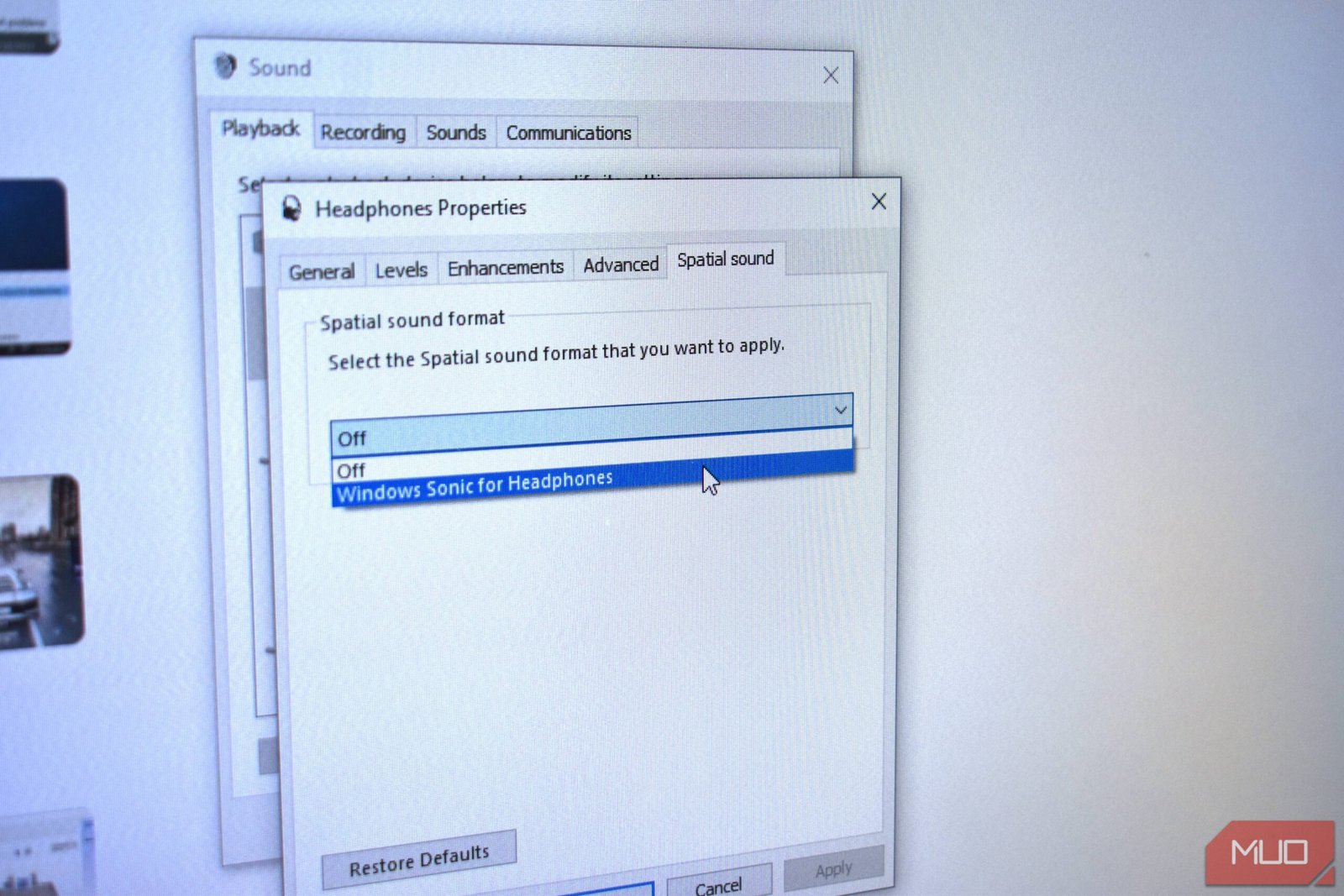
If you want to test Microsoft’s audio enhancement on your own machine, here’s how:
- Right-click the speaker icon in your system tray and select Sound settings.
- Under Output, click your active device (usually “Speakers” or “Headphones”).
- Scroll down to Audio enhancements and toggle it On.
- Play some music or video. Listen for 30 seconds. Toggle it off. Listen again.
But this feature isn’t for everyone. If you’re using high-quality external speakers or studio headphones, the enhancement will likely degrade the sound. It adds processing that can muddy a clean signal. Audiophiles should keep it off.
It’s also worth noting that some apps — particularly games with their own spatial audio engines — can conflict with the enhancement. If you hear crackling, distortion, or weird echoes, disable it per-app or entirely.
For laptop users, built-in webcam viewers, and anyone listening through cheap earbuds, though, this feature is worth a second look. It won’t turn your laptop into a hi-fi system, but it might make it listenable again.
The Verdict: A Feature That Finally Earned Its Place
Microsoft’s audio enhancement has gone from a buggy afterthought to a genuinely useful tool for the majority of PC users. It’s not a Windows sound settings option you should blindly disable anymore.
I’ve left it on. My laptop sounds better. My podcasts are clearer. My music has some life back. And for the first time in a decade, I don’t feel the need to plug in external speakers just to watch a YouTube video.
Sometimes the worst feature just needs to grow up.








 CyberSecurity8 months ago
 How To6 months ago
 How To5 months ago
 How To6 months ago
 How To5 months ago
 How To7 months ago
 How To6 months ago