Connect with us

How To

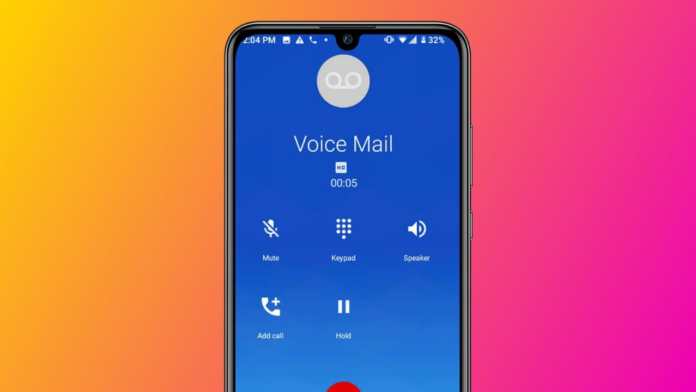
How to Turn Off Voicemail on Android: 9 Working Methods for 2025

Published

on

How to Turn Off Voicemail on Android: 9 Working Methods for 2025

Ever missed a call only to find your voicemail box clogged with messages you’ll never listen to? You’re not alone. Many Android users find the traditional voicemail system outdated and intrusive. The frustration is real when you realize Android doesn’t have a simple “disable voicemail” toggle in settings.

Why would someone want to turn it off? Maybe you prefer text messages. Perhaps you’re tired of telemarketers filling your inbox. Or maybe you just want callers to try again later instead of leaving a message. Whatever your reason, disabling voicemail requires some workaround thinking.

Here’s the reality: voicemail isn’t really an Android feature—it’s a service provided by your mobile carrier. That’s why you can’t simply switch it off in your phone settings. But don’t worry, there are several effective methods to achieve the same result.

The Most Reliable Method: Contact Your Carrier

This is your best shot at a permanent solution. Since carriers control the voicemail service, they’re the only ones who can truly disable it at the network level. The process is straightforward but requires a bit of patience.

Grab your phone and open the dialer. Call your carrier’s customer service number—for Indian users, that’s 198 for Jio, 121 for Airtel, 199 for Vi, or 1503 for BSNL. Navigate through the automated menu until you reach a live representative.

Be clear about your request: “I’d like to permanently disable voicemail service on my number.” Some carriers might push back, citing “essential service” policies. If you encounter resistance, try calling again later—you might get a more accommodating agent. Remember to ask for a confirmation once the change is processed.

Technical Workarounds That Often Work

If your carrier won’t cooperate, these technical approaches can effectively block voicemail functionality.

Disable Call Forwarding Settings

Voicemail works through call forwarding—when you don’t answer, your carrier forwards the call to their voicemail server. Break that chain, and you break voicemail.

Open your Phone app and tap the three-dot menu. Select Settings, then look for “Call forwarding” or “Supplementary services.” You’ll typically find three options: “Forward when busy,” “Forward when unanswered,” and “Forward when unreachable.” Disable all three. Some phones have a handy “Disable all call forwarding” button—use it if available.

Not every Android device shows these options in the same place. Manufacturers like Samsung, Xiaomi, and OnePlus sometimes bury them under “Advanced calling” or “SIM card settings.” If you can’t find them, don’t worry—there are other approaches.

Use Special Carrier Codes

Remember the old days of dialing *# codes to check your balance? Similar codes exist for call forwarding. Try dialing ##002# and pressing call. This should disable all conditional call forwarding, including voicemail forwarding.

Another code to attempt is ##004#. Wait for a confirmation message after dialing. Then test it by calling your own number from another phone—let it ring until it should go to voicemail. If you hear a continuous ring or get disconnected instead of the voicemail greeting, you’ve succeeded.

A word of caution: these codes don’t work with all carriers or in all regions. They’re worth trying but aren’t guaranteed solutions.

Creative Solutions When Technical Ones Fail

Sometimes you need to think outside the settings menu. These creative approaches can effectively make voicemail unusable without actually disabling it.

Fill Your Voicemail Box to Capacity

This is a clever hack that takes advantage of system limitations. Most carriers allocate limited storage for voicemails—usually 20 to 30 messages. Fill that space, and new callers can’t leave messages.

Here’s how to do it: First, enable Airplane Mode on your Android device. This ensures any test calls will immediately go to voicemail. Using another phone, call your own number repeatedly. Each time you reach voicemail, leave a short message (even a second of silence works). Repeat this 25-30 times.

Eventually, callers will hear “The mailbox is full” instead of the greeting. The drawback? Most carriers automatically delete old messages after 30 days, so you’ll need to repeat this process monthly.

Redirect Calls Elsewhere

If you can’t stop calls from forwarding to voicemail, forward them somewhere else instead. In your call forwarding settings, enable “Always forward” and enter a different number—perhaps a landline you rarely use, or a secondary mobile that doesn’t have voicemail set up.

All incoming calls will route to that number. If that destination doesn’t have voicemail enabled, problem solved. Just be aware that you’ll need access to that other phone to receive any calls.

Third-Party Apps and Psychological Tricks

When system-level changes aren’t possible, apps and psychology can come to your rescue.

Voicemail-Blocking Applications

The Google Play Store hosts several apps designed to manage or block voicemail. “No More Voicemail” works by forwarding calls to a disconnected or non-working number, effectively creating a dead end. “YouMail” offers more sophisticated call management, including voicemail blocking and visual voicemail alternatives.

Download one of these apps, follow the setup instructions, and test if it works with your carrier. Compatibility varies, so you might need to try a few options. These apps don’t actually disable voicemail at the carrier level—they just intercept calls before they reach it.

The Fake Greeting Strategy

Can’t disable the mailbox? Change what callers hear when they reach it. Record a new voicemail greeting that says “This number does not accept voice messages. Please send a text instead” or “The person you’re calling is not available. Please try your call again later.”

Most people will hang up upon hearing this, assuming voicemail is disabled. It’s not a technical solution, but it’s remarkably effective at reducing unwanted messages. Access your voicemail settings through your Phone app or a dedicated Voicemail app to change your greeting.

Alternative Approaches for Specific Situations

Sometimes you don’t need to disable voicemail entirely—just manage it better.

Enable Do Not Disturb mode when you don’t want to be interrupted. Customize it to allow calls from important contacts while silencing others. Calls from blocked numbers won’t go to voicemail either—use your phone’s blocking feature for persistent telemarketers.

Consider whether you really need to disable voicemail completely. For many people, simply changing notification settings or regularly clearing old messages solves the annoyance. But if you’re determined to shut it down permanently, contacting your carrier remains the most reliable method.

Choosing Your Best Approach

Different methods work for different people. If you want a permanent, clean solution, start with your carrier. For a quick technical fix, try disabling call forwarding or using special codes. Need something temporary? Fill your voicemail box. Prefer an app-based solution? Explore the Play Store options.

The truth is, Android’s flexibility means there’s usually a way to achieve what you want—even when there’s no official setting for it. Try these methods in order of preference, and you’ll likely find one that makes those unwanted “You have a new voicemail” notifications a thing of the past.

Continue Reading
Click to comment

Leave a Reply

Your email address will not be published. Required fields are marked *

How To

TopU App Review: How to Make Free Online Video Calls and Chat with New People

Published

on

TopU App Review: How to Make Free Online Video Calls and Chat with New People

Are you looking to connect with new people from around the world without spending a dime? The TopU app offers a straightforward solution for free online video calling and chatting. Whether you want to make friends, practice a language, or simply explore different cultures, this platform provides a convenient way to interact face-to-face from your smartphone or computer.

In this review, we break down how the TopU app works, share practical tips for starting conversations, and guide you through the download process. By the end, you’ll have everything you need to start your journey toward meaningful online connections.

What Is the TopU App and How Does It Work?

The TopU app is a free communication tool designed to help users engage in live video calls and text chats with strangers. Unlike many dating apps that require a subscription for advanced features, TopU focuses on accessibility. You can send and receive messages directly from your browser without extra charges, making it ideal for international conversations.

This platform eliminates the need for expensive SMS fees when chatting with friends abroad. Instead, you rely on an internet connection to stay in touch. The interface is simple, allowing even first-time users to navigate with ease.

Key Features of TopU App

  • Free video calling: No hidden costs or premium tiers.
  • Live chat messaging: Text-based conversations work seamlessly.
  • Cross-platform support: Use it on Android devices or via a desktop browser.
  • Global reach: Connect with people from any country.

These features make the TopU app a solid choice for anyone who wants to chat with strangers without financial commitment.

How to Make Friends Online Using TopU App

Making friends online requires more than just downloading an app. You need the right approach to build rapport. Here are actionable tips to help you succeed:

Build Confidence Before the First Call

Confidence plays a major role in online interactions. Before you start a video call, take a deep breath and remind yourself that the other person is likely nervous too. Girls, in particular, appreciate when a guy shows ambition and genuine interest. Speak naturally and avoid trying too hard to impress.

Start with Simple Topics

Begin by learning about the other person’s likes and dislikes. Ask open-ended questions about their hobbies, favorite movies, or travel experiences. Share a bit about yourself as well. This balance creates a two-way conversation that feels comfortable.

For example, you might say: “I noticed you enjoy hiking. What’s the best trail you’ve ever visited?” This approach shows you’re paying attention and care about their interests.

Give Space and Be Patient

After a long conversation, it’s wise to step back. Don’t overwhelm the other person with constant messages. Let them miss you. Wait a day or two before reaching out again with a light topic. This strategy often makes the connection stronger.

Building on this, remember that patience is key. Not every chat will lead to a lasting friendship, but each one teaches you something new about communication.

How to Download and Install TopU App

Getting started with the TopU app is quick. Follow these steps:

  1. Visit the official TopU app page on the Google Play Store.
  2. Tap the “Install” button and wait for the download to finish.
  3. Open the app and create a profile using your email or phone number.
  4. Start browsing for users and initiate your first video call.

Alternatively, you can use the web version directly from your browser. This flexibility ensures you can stay connected even without your phone.

For more tips on dating apps, check out our guide on Enhance Dating Game with These 5 Best Dating Apps. If you’re interested in customizing your phone, read about Create Your Own Video Ringtone with Video Ringtone Maker App.

Frequently Asked Questions About TopU App

Is TopU app completely free?

Yes, the TopU app offers free video calling and chat features without any subscription fees. There are no hidden charges for international messaging.

Can I use TopU app on my computer?

Absolutely. The app works in any modern web browser, so you can chat from your desktop or laptop without installing extra software.

Is it safe to chat with strangers on TopU?

As with any online platform, exercise caution. Never share personal information like your address or financial details. Report any suspicious behavior to the app’s support team.

Final Thoughts

The TopU app provides a reliable and cost-free way to engage in free online video calling and text chat. Whether you’re looking to make new friends or simply pass the time, its straightforward design and global reach make it a worthwhile tool. Download it today and start exploring connections beyond your usual circle.

Continue Reading

How To

How to Personalize Your Android with a Custom Notification Bar Photo

Published

on

How to Personalize Your Android with a Custom Notification Bar Photo

Have you ever looked at your phone’s notification bar and wished it felt more personal? Most Android devices come with a standard, uniform look. However, with the right tool, you can transform it completely. This article explores how to use a custom notification bar app to add your own photo and change the entire appearance of your phone’s top panel.

Using a dedicated app, you can move beyond simple wallpapers and inject your personality directly into the interface. This guide will walk you through the best app for the job, its standout features, and a simple setup process. By the end, you will know exactly how to make your notification area uniquely yours.

Why Use a Custom Notification Bar App?

Stock Android offers limited options for changing the notification panel. You can adjust the wallpaper and maybe the accent color, but the bar itself often stays the same. A custom notification bar app breaks these limits. It gives you total control over the look and feel of one of the most-used parts of your screen.

In addition, these apps allow for deep personalization without needing root access. You can change colors, button shapes, and even the clock position. This means that your phone can reflect your style in a way that standard settings simply cannot match.

Top Features of a Notification Bar Customizer

The best apps for this task come packed with useful features. Understanding these will help you get the most out of the customization. Here are the key capabilities you should look for:

Change Colors and Styles

You can alter the background color of the notification panel bar itself. This goes beyond the system theme and lets you pick any shade you like. Furthermore, you can change the color of the brightness slider and the quick settings icons.

Resize and Rearrange Elements

Many apps let you resize the clock or move it to the left or right side of the bar. You can also adjust the size of the notification panel itself. This flexibility helps you create a layout that feels balanced and easy to use.

Add a Personal Photo

The standout feature is the ability to set your own image in the notification shade. You can pick a favorite photo from your gallery. This image then appears as a background or accent within the panel, making it truly yours.

How to Set Up a Custom Notification Bar on Android

Getting started is straightforward. You do not need any technical skills. Follow these simple steps to install and configure the app.

First, download a reliable custom notification bar app from the Google Play Store. Look for one with good reviews and the features listed above. Once installed, open the app and grant the necessary permissions, such as access to your photos and the ability to draw over other apps.

Next, navigate to the photo or background section within the app. Select the image you want to use from your gallery. You can usually crop or adjust it to fit the notification area perfectly. After that, explore the color and style settings to match the rest of your phone’s theme.

Finally, apply the changes. The app will typically ask you to enable a service or toggle a setting. Once active, your new, personalized notification bar will appear. If you have any questions, you can check the app’s help section or leave a comment below.

Conclusion: Make Your Phone Truly Yours

Personalizing your Android device does not have to be complicated. Using a custom notification bar app is a quick and effective way to stand out. You can change colors, adjust layouts, and most importantly, add your own photos.

This small change can make your daily phone use feel more enjoyable and personal. So, why stick with the default look? Download an app today and give your notification panel a fresh, custom makeover. For more tips on personalizing your device, check out our guide on changing your Android theme. You might also like our article on best Android customization apps.

Continue Reading

How To

Cloudflare WARP App Review: How to Enjoy Faster and Safer Internet on Your Mobile Device

Published

on

Cloudflare WARP App Review: How to Enjoy Faster and Safer Internet on Your Mobile Device

Are you tired of slow connections and worried about your online privacy? The Cloudflare WARP app promises to deliver a faster and safer internet experience right from your smartphone. This free tool replaces your phone’s standard internet connection with a modern, encrypted protocol that protects your data from prying eyes. Let’s explore how it works and why it might be the perfect solution for your daily browsing needs.

What Makes Cloudflare WARP a Top Choice for Secure Browsing?

Cloudflare WARP is not just another VPN. It is a privacy-first DNS resolver that encrypts all your DNS queries. This means that your internet service provider (ISP) cannot see which websites you visit or sell your browsing history. The app uses Cloudflare’s global network to route your traffic, ensuring that your data stays private and secure. Unlike many free services, Cloudflare promises never to sell your data or use it for targeted advertising. Period.

How Does WARP Enhance Your Online Privacy?

When you enable WARP, it creates a secure tunnel between your phone and the internet. This prevents hackers, ISPs, and even governments from monitoring your online activities. The app’s one-touch setup makes it incredibly easy to activate. Just install it, tap the button, and your connection becomes encrypted. For anyone concerned about digital surveillance, this is a simple yet powerful step toward reclaiming your privacy.

Performance Boost: Is It Really Faster?

Speed is a major selling point of the Cloudflare WARP app. According to the company, WARP is on average 25% faster than the next fastest public DNS resolver. This is achieved by leveraging Cloudflare’s massive global infrastructure. The app optimizes your connection by routing traffic through the nearest server, reducing latency and improving load times. For streaming, gaming, or just browsing, this can make a noticeable difference.

One-Touch Setup for Instant Results

One of the best features of WARP is its simplicity. You do not need to configure complex settings or understand technical jargon. The installation process takes less than a minute. After downloading from the Google Play Store, you simply toggle the switch to activate the secure connection. It is designed for anyone who wants a faster and safer internet without the hassle.

WARP vs. WARP+: What’s the Difference?

The base version of Cloudflare WARP is completely free. There are no ads, no upsells, and no in-app purchases. However, for users who need even more speed and reliability, there is a paid tier called WARP+. This subscription provides unlimited data transfer and priority access to Cloudflare’s network. You can subscribe on a monthly basis, and the subscription automatically renews unless you cancel it at least 24 hours before the end of the current period.

Subscription Details You Should Know

WARP+ is a paid feature that you can enable at any time. If you sign up for a free trial, any unused portion of the trial period or WARP+ data credits will be forfeited when you purchase a subscription. This is standard practice for most subscription-based services. For most users, the free version offers plenty of speed and privacy. But if you are a heavy data user, WARP+ might be worth considering.

Why This App Stands Out in a Crowded Market

There are countless VPN and privacy apps available, but few offer the combination of speed, security, and ease of use that Cloudflare WARP provides. The app is backed by one of the largest content delivery networks in the world, giving it a reliability that smaller services cannot match. Additionally, the fact that it is free for life with no hidden costs makes it accessible to everyone.

If you are looking for a faster and safer internet experience on your Android device, this is a solid choice. For more tips on optimizing your mobile experience, check out our guide on how to back up Google Messages or learn about the Realme C100x expected launch with its massive battery.

Final Verdict: Is WARP Right for You?

In a world where online privacy is increasingly under threat, tools like Cloudflare WARP are essential. It offers a simple, effective way to protect your data while also boosting your internet speed. Whether you are a casual user or a tech enthusiast, the app’s one-touch setup and robust encryption make it a no-brainer. So why wait? Install it today and start enjoying a faster and safer internet.

Continue Reading

Trending