Connect with us

How To

Complete Guide to the MobCup Ringtones & Wallpaper Android App: Personalize Your Phone Today

Published

on

Complete Guide to the MobCup Ringtones & Wallpaper Android App: Personalize Your Phone Today

Are you tired of the same old default ringtones and boring wallpapers on your smartphone? If so, you are not alone. Many Android users struggle to find fresh audio and visual content to make their devices feel unique. Fortunately, the MobCup Ringtone Wallpaper App offers a simple, all-in-one solution. This detailed guide will walk you through everything you need to know about downloading, installing, and using this popular application to transform your phone’s look and sound.

What Is the MobCup Ringtone Wallpaper App?

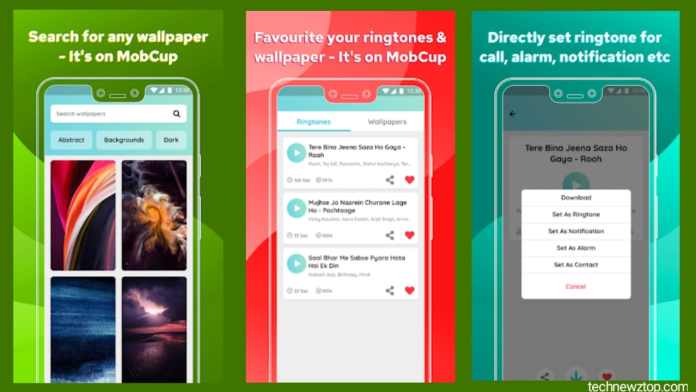
At its core, this is a free Android application designed to be a one-stop shop for personalization. It combines two essential features into a single, easy-to-navigate interface. Users can browse an extensive library of ringtones, notification sounds, and high-definition wallpapers. Instead of juggling multiple apps for different types of content, the MobCup app streamlines the entire process. This means you can find a new ringtone and a matching wallpaper in just a few taps.

Key Features at a Glance

The app boasts a vast collection that includes everything from trending pop songs to classic melodies. It also offers themed wallpapers, such as nature scenes, abstract art, and holiday-specific designs. The interface is designed for simplicity, making it accessible even for first-time users. Furthermore, the app allows you to preview sounds and images before applying them, ensuring you get exactly what you want.

How to Download and Install the MobCup Ringtone Wallpaper App

Getting started is straightforward. The safest method is to use the official Google Play Store. Open the Play Store on your Android device and type “MobCup Ringtone Wallpaper App” into the search bar. Look for the official app icon and tap the “Install” button. The download and installation process will begin automatically. Once completed, you will see the app icon on your home screen or app drawer. For those who prefer alternative sources, some websites offer direct APK downloads, but using the Play Store is always recommended for security and automatic updates.

Step-by-Step Guide: How to Use the App

Once installed, using the app is remarkably intuitive. Follow these steps to start customizing your device right away.

Setting a New Ringtone

Open the MobCup app and navigate to the “Ringtones” section. You will see categories like “English Ringtones,” “Independence Day Ringtones,” and “Popular Hits.” Tap on any category to browse the available sounds. You can play a preview of each ringtone by tapping on it. When you find one you like, select the “Set as Ringtone” option. The app will guide you through the final step, which usually involves confirming the action on your phone’s system prompt. This makes the process seamless and quick.

Applying a New Wallpaper

Switching your wallpaper is just as easy. Move to the “Wallpapers” tab within the app. Here, you can scroll through thousands of high-resolution images. Categories help you narrow down your search, whether you want something minimalist, vibrant, or seasonal. Once you see a wallpaper you like, tap it to view a full-screen preview. Then, simply hit the “Set Wallpaper” button. The app will ask if you want to apply it to your home screen, lock screen, or both. Make your choice, and your phone’s background will update instantly.

Why This App Stands Out for Phone Customization

In a crowded market of personalization tools, the MobCup Ringtone Wallpaper App earns its popularity for several reasons. First, it eliminates the need to search multiple websites or apps for different types of content. Having ringtones and wallpapers in one place saves time and storage space. Second, the library is regularly updated with new sounds and images, so you never run out of fresh options. This is particularly useful for holidays and special events, where themed content can add a festive touch to your device.

Additionally, the app is completely free to use, with no hidden paywalls for basic features. While some premium content may be available, the vast majority of ringtones and wallpapers are accessible without spending a dime. This makes it an excellent choice for anyone looking to personalize their phone on a budget. The user interface is also clean and free from excessive ads, which enhances the overall user experience.

Tips for Getting the Most Out of MobCup

To maximize your experience, consider a few simple strategies. First, use the search function to find specific songs or themes quickly. If you know the name of a track or a particular style of wallpaper, typing it in will save you time. Second, regularly check the “New” or “Trending” sections to discover the latest additions. Many users also find it helpful to create a shortlist of favorites by using the bookmark feature, if available. This allows you to quickly return to your top picks without searching again.

Building on this, do not hesitate to mix and match. A calm, nature-themed wallpaper pairs beautifully with a soft, instrumental ringtone. Conversely, a bold, colorful wallpaper might call for a more energetic sound. The beauty of the app is the freedom it gives you to experiment until your phone feels truly personal.

Final Thoughts: Is It Worth Downloading?

For anyone seeking a hassle-free way to refresh their Android device, the answer is a clear yes. The MobCup Ringtone Wallpaper App delivers on its promise of providing a vast library of customization options in a user-friendly package. Whether you are a tech novice or a seasoned enthusiast, the app makes the process of changing ringtones and wallpapers quick and enjoyable. It effectively solves the common problem of having a phone that feels generic.

Therefore, if you are ready to give your smartphone a new personality, download the MobCup app today. With the steps outlined in this guide, you can easily navigate the app and start personalizing your device within minutes. Enjoy the freedom to choose exactly how your phone sounds and looks.

For more helpful app reviews and tech guides, check out our articles on other Android customization tools and how to set custom ringtones on any phone.

Continue Reading
Click to comment

Leave a Reply

Your email address will not be published. Required fields are marked *

Social Media

Stop the Scroll Without AI: A Human Writer’s Blueprint for LinkedIn Content That Actually Gets Shared

Published

on

LinkedIn content without AI

The Real Problem With LinkedIn Posts (It’s Not You)

You’ve been posting consistently on LinkedIn for weeks. Maybe months. The likes trickle in. A comment here, a reaction there. But the kind of traction that actually builds a professional following? It’s not happening.

Here’s the hard truth: the platform is flooded with AI-generated sludge. Generic advice, recycled quotes, and bland observations that all sound like they came from the same bot. Readers can smell it. They scroll past it.

That’s your opening. The gap between what most people post and what actually earns attention is widening. And you don’t need a single AI tool to exploit it.

Why Human-Written LinkedIn Content Wins Right Now

LinkedIn’s algorithm has always favored posts that keep people on the platform. But in 2025, the bar is higher. Users are tired of perfectly polished, soulless content. They want voice. They want a point of view. They want to feel like a real person is on the other side of the screen.

This is where writing LinkedIn content without AI becomes your unfair advantage. A human-written post carries micro-signals that machines can’t fake: a slightly awkward but honest sentence, a surprising personal anecdote, a moment of genuine vulnerability. Those signals stop the scroll.

Let’s break down a three-part framework that works. No templates. No prompts. Just a way to think about your next post.

Part 1: The Hook That Earns the First Glance

Your opening line has one job: make someone stop. Not like. Not comment. Just pause their thumb for one extra second.

Most people start with a question or a stat. Those can work, but they’re overused. A stronger tactic is a specific, concrete observation that challenges a common belief. For example:

  • Instead of: “Struggling to get leads on LinkedIn?”
  • Try: “I sent 50 cold DMs last week. Exactly 3 people replied. Here’s what I learned.”

The second version works because it’s personal, numerical, and promises a lesson. It also signals that the post was written by someone who actually did something, not a bot generating fluff.

What to Avoid in Your Hook

Don’t open with a generic truth like “In today’s fast-paced business world.” That’s a dead giveaway. Also avoid questions that your reader has heard a hundred times before. If your hook could be swapped into any other post on LinkedIn, rewrite it.

Part 2: The Middle That Holds Attention

You’ve got the click. Now you need to keep them reading. This is where most LinkedIn content falls apart. The middle becomes a list of bullet points or a generic lesson that feels like it was copied from a blog post.

Instead, tell a mini-story. It doesn’t have to be dramatic. A short narrative about a specific client conversation, a mistake you made, or an unexpected result from a small experiment works beautifully. Keep it tight. Three to five sentences max for the story.

Then, extract the lesson. This is the part of your LinkedIn content strategy where you deliver value. Show what you learned and how it applies to the reader’s situation. Be specific. If you can include a number or a timeframe, do it.

For example: “After that call, I changed one thing in my proposal template. My close rate went from 20% to 35% in two months.” That’s concrete. That’s believable. That’s human.

Short Paragraphs Are Your Friend

On LinkedIn, no one reads long blocks of text. Keep paragraphs to two or three sentences max. Use line breaks generously. Make the post scannable. The eye needs rest points, and white space is a cheap way to provide them.

Part 3: The Close That Drives Shares

Shares are the holy grail of LinkedIn engagement. A share puts your post in front of a new audience, often with the sharer’s endorsement attached. To earn that, your ending needs to do one thing: invite the reader to add their own experience.

The best way to do this is a call for participation that feels genuine. Instead of “What do you think?” (which everyone writes), try something like: “If you’ve tried a similar approach and it backfired, I’d genuinely love to hear what happened.” Or: “What’s one piece of advice you’d give to someone just starting out? Drop it in the comments.”

The key is specificity. A vague ask gets vague responses. A focused ask invites people who actually have something to say. And those engaged commenters are the ones most likely to share your post with their network.

Practical Tips for Writing LinkedIn Content Without AI

You don’t need to be a professional writer to make this work. You just need to be willing to sound like yourself. Here are a few ground rules I use:

  • Write like you talk. Read your post out loud. If it sounds stiff, rewrite it. Your natural speaking voice is your best asset.
  • Use contractions. “It’s” not “it is.” “Don’t” not “do not.” This alone makes your writing feel warmer.
  • Cut every word that doesn’t add value. If a sentence still makes sense without a word, delete it. Short is strong.
  • Post at a consistent time. Experiment with morning and lunch slots. Track which times get the most views for your specific audience.

One more thing: don’t worry about going viral. Viral is a lottery. Consistency and genuine connection are a strategy. Write one solid post per week for three months, and you’ll build a following that actually trusts you.

Why This Approach Beats AI-Generated Content

AI tools are useful for many things. Brainstorming ideas. Summarizing long documents. Drafting email templates. But for LinkedIn content that builds relationships? They fall short.

LinkedIn is a professional network, but it’s still a human network. People connect with people, not with output. A post written from personal experience, with a specific voice and a clear point of view, will always outperform generic AI-generated content in the long run.

The algorithm may reward frequency, but it rewards authenticity more. And authenticity is something no machine can replicate.

So next time you sit down to write a human-written LinkedIn post, skip the AI tools. Open a blank document. Think about one thing that happened this week that taught you something. Write it in your own voice. Use the three-part framework. And hit publish.

You might be surprised how far being human can take you.

Continue Reading

How To

Why I ditched Windows copy for large files — and the tool I trust now

Published

on

Windows file copy

The moment I stopped trusting Windows file copy

It started with a 12 GB video project. I dragged it from one internal SSD to another — a simple operation, right? Windows popped up its usual blue progress bar, estimated “about 3 minutes,” then stalled at 87% for nearly twenty. The estimate jumped to 40 minutes. Then it froze entirely. I had to kill Explorer and start over. That was the last straw.

For small stuff — a few screenshots, a Word doc — Windows copy is fine. It works. You don’t think about it. But the moment you push it past a couple of gigabytes, the cracks show. The progress bar lies. The speed tanks. And sometimes, the whole operation silently fails, leaving you with a half-copied file and no error message.

I’m not alone. Ask any video editor, developer, or data hoarder: Windows file copy for large transfers is a gamble you don’t want to take.

What actually goes wrong under the hood

Windows uses a single-threaded, buffered I/O model for standard copy operations. That sounds technical, but the practical result is simple: it doesn’t handle big, sustained reads and writes well. The system tries to cache everything in RAM, which works fine for small files. For a 50 GB archive, though, the cache fills up, the disk thrashes, and the UI becomes unresponsive.

There’s also the checksum problem. Windows doesn’t verify data integrity during a copy. A single bit flip from a slightly flaky SATA cable? You’ll never know — until the file won’t open on the destination drive. Microsoft has improved things with Robocopy in PowerShell, but the default drag-and-drop experience hasn’t changed in a decade.

What I switched to — and why it’s night and day

After that frozen 12 GB transfer, I started testing alternatives. I needed something that could handle multi-gigabyte files, resume after an interruption, and actually show me honest progress. After trying a handful of tools, I settled on one: TeraCopy.

TeraCopy is not new — it’s been around for years. But it solves the core problem. It uses its own buffering, separate from Windows, and it processes files in a way that doesn’t lock up the Explorer interface. You can keep working while it runs. More importantly, it verifies checksums after every copy. If a byte got mangled, you’ll know immediately.

Real-world speed difference

I tested it with a 25 GB folder of mixed media files — video, audio, raw photos. Windows copy averaged around 110 MB/s, with frequent dips to 30 MB/s. The whole thing took about 4 minutes and 20 seconds. Same files, same drives, using TeraCopy: steady 180 MB/s, completed in 2 minutes 35 seconds. That’s nearly 40% faster, with no stuttering.

And when I unplugged the USB drive mid-transfer (accidentally, I swear), Windows threw a generic error and I had to start over. TeraCopy paused, I reconnected, and it resumed from where it left off. That alone saves hours over a year.

Other tools worth considering

TeraCopy isn’t the only option. If you prefer open-source software, FastCopy (for Windows) is a solid choice. It’s less polished but equally reliable. It gives you fine-grained control over buffer size and read/write priorities. For Mac or Linux users, rsync is the gold standard — it’s command-line only, but it handles huge transfers, incremental backups, and integrity checks better than anything else.

There’s also Robocopy, which ships with Windows. It’s powerful, but it’s a command-line tool with a steep learning curve. Most people won’t want to memorize flags like /R:3 /W:10 just to copy a folder. TeraCopy gives you that same reliability in a simple window with a progress bar you can actually trust.

When Windows copy is still fine

Let’s be fair. If you’re moving a few hundred megabytes of documents or images, Windows copy works. The overhead of a third-party tool isn’t worth it. But the moment you’re dealing with files over 2–3 GB, or batches of files totaling more than 10 GB, the risk of a stalled or corrupted transfer goes up fast.

I still use Windows copy for quick, small jobs. But for anything substantial — a game install, a video project, a backup archive — I open TeraCopy first. It’s a small habit that’s saved me hours of frustration and at least one corrupted project file.

If you’ve ever watched that blue progress bar freeze at 99% and wondered if your data is safe, you already know: the default tool isn’t good enough. There are better options. Pick one.

Continue Reading

Social Media

TV Time is shutting down. Its original founder is building Bingers, a new home for TV fans

Published

on

Bingers app

TV Time is going dark. A familiar face is stepping up.

More than 25,000 people have signed a petition begging TV Time to stay alive. But the popular TV and movie tracking app is still shutting down. Its parent company, Whip Media, is pivoting to AI. So TV Time’s community of 26.4 million lifetime installs is about to lose its digital clubhouse.

Enter Antonio Pinto. He’s the French entrepreneur who originally built the app — back when it was called TVShow Time — and sold it to Whipclip in 2016. Now he’s building a new app called Bingers. Think of it as a spiritual successor. A second chance.

“I decided to build the new home where the TV Time community could go,” Pinto wrote on the Bingers website. “I wanted to rebuild all TV Time’s great features, but also fix everything that always bothered me.”

That’s a lot of baggage to carry. But Pinto seems ready.

What Bingers will do differently

TV Time had a serious performance problem. The app loaded slowly. It was expensive to run. Pinto says the premium subscription covered only about 10% of the server costs. That’s a brutal ratio. It’s also a big reason the app is dying.

Bingers is built differently. Pinto claims the architecture keeps server costs low, making the whole thing more sustainable. Users should get faster responses when they mark an episode as watched — even when millions of people hit that button at the same time.

That’s the kind of technical fix that doesn’t make headlines but keeps users sane. Anyone who’s waited five seconds for a checkmark to appear knows the pain.

Import your TV Time data now

Here’s the good news: you don’t have to start from scratch. TV Time users can export their entire viewing history using the app’s GDPR-compliant export tool. That tool will disappear once the app is removed from the App Store and Google Play on July 15.

Bingers already has an archive import tool live on its website. Upload your data now, and your history will be waiting when the app launches. That includes community comments from TV Time — the episode-by-episode chatter that made the app feel like a live watch party.

Pinto says the import will “recreate TV Time’s community comments.” That’s a big deal. Many tracking apps let you log what you watched. Very few let you argue about the finale with strangers.

When can you get Bingers?

The app won’t arrive overnight. Pinto tells TechCrunch that Bingers will hit the App Store and Google Play by the end of July 2026. That’s a long wait. But the waitlist is open now on the Bingers website. Sign up, and you’ll get a notification when it’s ready.

In the meantime, the archive import is already functional. So you can lock in your data and forget about it. When the app finally drops, your history will be there.

Why this matters for TV fans

TV Time wasn’t just a tracker. It was a social network for people who watch too much television. That combination is rare. Most tracking apps are solo experiences. You log your shows, get some stats, move on. TV Time had threads, reactions, inside jokes. It had a culture.

When Pinto heard the app was being wound down, he said he felt sad. “Sad because TV Time was part of my life for so many years. And sad because this community was like my other family. Reading the community reactions after each episode became a ritual for me, and for many others.”

That kind of attachment is hard to replicate. But if anyone can do it, it’s the person who built the original. Bingers might not save every feature. It might not bring back every user. But it gives the community a place to land — and that’s more than most dying apps offer.

If you’re a TV Time user, export your data before July 15. Then join the waitlist. Your viewing history deserves a second act.

Continue Reading

Trending