Connect with us

How To

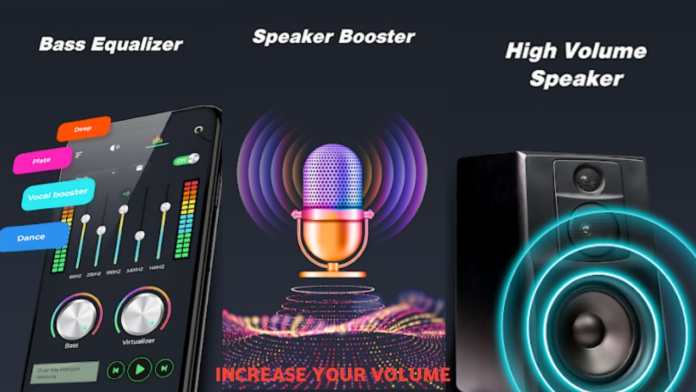
How to Increase Your Phone’s Volume by 4x with an Extra Volume Booster

Published

on

How to Increase Your Phone’s Volume by 4x with an Extra Volume Booster

Is your phone’s speaker too quiet for videos, music, or calls? You’re not alone. Many users find their device’s maximum volume insufficient. Fortunately, a solution exists: an extra volume booster app can amplify your audio output dramatically, potentially up to four times louder than your phone’s default limit. This guide explains how these apps work and how to use them safely.

What is an Extra Volume Booster App?

An extra volume booster is a software application designed to override your phone’s built-in audio limitations. It works by digitally processing the audio signal before it reaches your speaker or headphones, effectively pushing the volume beyond the manufacturer’s preset cap. While results vary by device, many users report a significant and noticeable increase in loudness and clarity.

How to Download and Install a Volume Booster

The process is straightforward. First, open the Google Play Store on your Android device. Search for terms like “volume booster” or “loud sound speaker.” You’ll find several options; look for apps with high ratings and positive reviews. Alternatively, you can follow a trusted link from a reputable tech blog. Once you’ve selected an app, tap “Install” and wait for the download to complete.

Step-by-Step Setup Guide

After installation, locate the app icon on your home screen or app drawer and open it. Typically, you’ll be greeted with a simple interface featuring a large “Start” or “Boost” button. Tapping this activates the booster. Subsequently, you’ll often see a volume slider. Gently move this slider to the right to increase the gain. It’s wise to start low and gradually increase to avoid distortion or potential speaker strain.

Essential Tips for Safe and Effective Use

While an extra volume booster can be powerful, using it responsibly is key to protecting your device and your hearing.

Check Device Compatibility: Not all apps work perfectly on every phone. Older models or certain brands might experience compatibility issues. Always skim through user reviews specific to your device model before committing.

Prioritize Gradual Adjustment: Never max out the booster immediately. Start at a low level and increase slowly while playing audio. This prevents sudden, jarring blasts of sound and helps you identify the point where audio quality begins to degrade.

Consider Using Headphones: For personal listening, headphones often deliver the best results with a booster. They can handle the amplified signal better than tiny phone speakers, providing richer sound without as much risk of distortion. For more on enhancing audio hardware, see our guide on cleaning your phone’s speaker.

Monitor Your Battery: Audio processing requires extra power. Using a volume booster continuously may lead to slightly faster battery drain. Keep an eye on your battery percentage if you’re planning a long listening session.

What to Expect from a Volume Booster

Realistically, claiming a precise “4x increase” can be optimistic, as hardware limits are absolute. However, a quality booster can make a very tangible difference. Muffled videos become clear, quiet podcast voices gain presence, and ringtones become harder to miss. The improvement is often most noticeable in mid-range frequencies, making dialogue and vocals much easier to hear in noisy environments.

Ultimately, if your phone’s lackluster volume is a daily frustration, a reputable extra volume booster app is a worthwhile experiment. It’s a software tweak that can deliver a hardware-like upgrade to your audio experience. For other ways to customize your device, explore our review of a popular voice lock security app.

Continue Reading
Click to comment

Leave a Reply

Your email address will not be published. Required fields are marked *

How To

How to Add Music to Your Instagram Story (With or Without the Sticker)

Published

on

Transform Your Instagram Stories with Sound

Have you ever scrolled through Instagram and paused on a story that perfectly captured a mood with just the right song? That’s the power of audio. Since 2018, Instagram has empowered users to add music to Instagram story posts, unlocking a library of millions of tracks. This feature isn’t just a gimmick; it’s a tool for storytelling, allowing you to set a tone, evoke emotion, and connect with your audience on a deeper level. Whether you’re sharing a quiet moment or celebrating an achievement, the right soundtrack makes all the difference.

How to Add Music Using the Official Sticker

The most straightforward method involves Instagram’s dedicated music sticker. This approach is intuitive and gives you full control over the track selection. Here is a simple, step-by-step guide to get your story sounding great.

First, open the Instagram app and tap the ‘+’ icon next to your profile picture on the home screen or swipe right from your feed. Select the photo or video you want to use for your story. Once you’ve chosen your visual content, you can add text, drawings, or other stickers. Now, to add the music, tap the sticker icon (it looks like a square smiley face) in the top toolbar. Among the sticker options, you’ll find the music icon, typically represented by a musical note. Tapping this opens Instagram’s extensive music library.

From here, you can browse popular songs, search for a specific track, or explore by mood or genre. After selecting your song, you can choose the exact clip you want to play—perfect for highlighting a catchy chorus or a poignant lyric. You can also display animated lyrics on your story for an extra layer of engagement. Once you’re happy, simply post your story as usual. The music sticker and song title will be visible to your viewers.

Adding Music to Instagram Story Without the Visible Sticker

Perhaps you want a cleaner look or your visual is too detailed for an extra icon. Fortunately, you can still add music to Instagram story posts without the sticker cluttering the frame. The process starts the same: add the music sticker and select your track as described above. However, instead of leaving it in place, use your finger to drag the sticker completely off the edge of the screen. You’ll see it disappear.

Importantly, the music will continue to play when someone views your story. The song’s title and artist will still appear in a small, subtle text line near your username at the top of the screen. This method offers a sleek, minimalist aesthetic while retaining all the audio benefits. It’s ideal for professional accounts or visually-focused content where every element on the screen matters.

Using Lyrics for a Dynamic Effect

Building on this, you can also use the lyrics feature without the sticker. When you select a song, tap the ‘Lyrics’ option if available. The words will animate across your story in time with the music. You can then hide the music sticker off-screen as before. The result is a dynamic, engaging story where the lyrics become a central part of the visual narrative, all without a prominent sticker. This is a fantastic way to share a meaningful quote from a song or simply make your content more interactive.

Why Audio Elevates Your Story Game

So, why go through the trouble? Audio is a sensory anchor. A cheerful pop song can amplify a fun day out, while a soft acoustic track can add intimacy to a personal reflection. It transforms a simple photo or video into a mini-movie, guiding the viewer’s emotional response. In a platform as visual as Instagram, sound is your secret weapon for standing out. It increases watch time and makes your content more memorable and shareable.

Furthermore, using trending songs can help your story appear in relevant music searches and explore pages, potentially expanding your reach. It’s a simple creative lever that yields significant engagement rewards. For more creative ways to use Instagram, check out our guide on how to download Instagram videos for inspiration.

Pro Tips and Troubleshooting

Before you post, always preview your story with the sound on. Check that the audio clip is the right length and that the volume level is appropriate—you don’t want the music to drown out a voiceover if you have one. Remember, the music library’s availability can vary by region due to licensing, so if a specific song isn’t showing up, that might be the reason.

If you’re creating content for a business or creator account, consider how the music complements your brand’s voice. Consistency in your audio choices, like always using upbeat tracks or sticking to a specific genre, can strengthen your brand identity. For other social media insights, explore our article on finding and joining Telegram groups to grow your community.

In conclusion, learning how to add music to your Instagram story is a fundamental skill for anyone looking to enhance their social media presence. Whether you use the visible sticker for discoverability or hide it for a clean look, this feature unlocks a new dimension of creativity. Start experimenting today and hear the difference it makes.

Continue Reading

How To

Sony Xperia 1 VII: A Deep Dive into the Upcoming Flagship’s Camera, Performance, and Design

Published

on

Sony Xperia 1 VII: A Deep Dive into the Upcoming Flagship’s Camera, Performance, and Design

The tech world is buzzing with anticipation for the next chapter in Sony’s smartphone story. The Sony Xperia 1 VII is poised for a May launch, promising to blend the company’s signature cinematic vision with cutting-edge hardware. This isn’t just another phone; it’s a statement piece for creators and power users.

Design Philosophy: Staying True to Form

From the first glimpse, it’s clear the Sony Xperia 1 VII honors its lineage. The design language remains distinctly Sony: a tall, elegant form factor with a flat, uninterrupted display. Crucially, the front-facing camera is discreetly housed within a slim top bezel, avoiding the need for a distracting notch or punch-hole. This commitment to a clean viewfinder is a nod to the device’s photographic soul.

On the rear, a vertical array of three cameras sits in the top-left corner, accompanied by an LED flash. Each lens benefits from the renowned ZEISS T* anti-reflective coating, a feature cherished by photographers for reducing lens flare and ghosting. The physical layout is both functional and familiar. All essential controls—volume rocker, power button with an integrated fingerprint sensor, and a dedicated two-stage camera shutter—are clustered on the right edge. In an era of dongles, Sony’s retention of the 3.5mm headphone jack on the top edge is a welcome feature for audio purists. Early renders suggest the phone will be available in sophisticated green, purple, and classic black finishes.

Display and Core Performance: A Multimedia Powerhouse

What good is a cinematic phone without a stunning screen? The Xperia 1 VII is expected to feature a bright OLED panel, likely leveraging Sony’s proprietary Bravia TV technology. This integration promises exceptional color accuracy, contrast, and sharpness for both streaming content and mobile gaming. A rumored Sunlight Mode could dynamically boost brightness for perfect visibility outdoors.

Under the hood, performance takes a monumental leap. The device is powered by Qualcomm‘s latest and greatest, the Snapdragon 8 Gen 3 Elite chipset. Paired with a generous 12GB of RAM, this combination is engineered to handle intensive multitasking, high-frame-rate gaming, and professional-grade video editing without breaking a sweat. For instance, this level of power is perfect for users who edit 4K footage on the go, a task explored in our guide on professional mobile workflows.

On the software front, the phone is anticipated to launch with Android 15. More impressively, Sony is reportedly committing to four major Android OS upgrades and six years of security patches. This long-term support framework ensures the device remains protected and relevant far beyond the typical two-year cycle, offering tremendous value. Powering this experience is a substantial 5,000mAh battery, which could realistically deliver up to two days of use on a single charge.

Camera System: Where Alpha Meets Mobile

This is where the Sony Xperia 1 VII truly aims to differentiate itself. Sony is directly transplanting technology from its acclaimed Alpha mirrorless cameras into this smartphone. Features like advanced Real-time Eye Autofocus and Lock-on Tracking are designed to keep fast-moving subjects—be it a sprinting athlete or a playful pet—sharply in focus. The inclusion of a physical shutter button isn’t just a gimmick; it provides tactile feedback and half-press focus control that serious photographers demand.

The triple-lens rear system is expected to comprise an ultrawide, a primary, and a periscope-style telephoto lens. The periscope design allows for significant optical zoom without increasing the camera bump’s thickness, enabling clear, lossless shots of distant subjects. Combined with the ZEISS optics, users can expect images with remarkable clarity, minimal distortion, and professional color rendering. For those looking to maximize such a system, understanding composition is key. Check out our article on advanced smartphone photography techniques to get started.

Audio Excellence and a Companion Launch

Sony’s audio pedigree is unmistakable here. The phone features stereo speakers tuned for balanced sound and supports high-resolution audio codecs like LDAC, along with Sony’s DSEE Ultimate upscaling for compressed music files. This makes the Xperia 1 VII a compelling device for both wired and wireless high-fidelity listening.

Interestingly, Sony’s May announcements won’t stop at the phone. The company is also set to unveil the next generation of its industry-leading noise-canceling headphones, the Sony WH-1000XM6. Slated for a global reveal just days after the phone, these headphones are rumored to feature a new QN3 audio processor, promising a leap in noise cancellation effectiveness and sound quality. This dual launch underscores Sony’s strategy of creating a seamless, premium ecosystem for both visual and auditory experiences.

Final Thoughts on the Sony Xperia 1 VII

As the launch date approaches, the picture of the Sony Xperia 1 VII comes into focus. It is shaping up to be a device that refuses to follow trends, instead doubling down on the core tenets that have defined the Xperia series: a creator-centric camera, a pristine multimedia display, and robust, long-lasting build quality. While it faces fierce competition in the flagship arena, its unique proposition for photographers, videographers, and audiophiles makes it one of the most intriguing releases of the year. This May, Sony isn’t just launching a phone; it’s inviting users to experience technology crafted with a distinct point of view.

Continue Reading

How To

The Complete Guide to App Lock: How to Secure Your Android Apps

Published

on

Why Your Phone Needs More Than Just a Screen Lock

Most smartphone users rely on screen locks like PINs, patterns, or biometrics. This creates a false sense of complete security. While these locks protect your device from casual access, they leave your individual applications vulnerable. An app lock provides that crucial second layer of defense, ensuring your private data stays private even when your phone is in someone else’s hands.

Consider this common scenario: you hand your phone to a friend to show them a photo. With just a screen lock, they’re confined to your gallery. However, if your messaging, email, and social media apps aren’t individually secured, what stops them from browsing further? This is the precise vulnerability an app lock is designed to address.

The Critical Importance of Locking Individual Apps

Building on this, locking your apps is not a luxury—it’s a necessity for modern digital life. Our phones contain our most sensitive information: personal conversations, financial details, private photos, and work emails. A screen lock is like locking your front door; an app lock is like putting your valuables in a safe inside the house.

Therefore, when you lend your device, even momentarily, you’re potentially exposing all this data. An app lock acts as a digital gatekeeper for each application, requiring separate authentication. This means your contacts in Google Contacts, your chats in WhatsApp, and your photos remain inaccessible without your explicit permission.

How to Implement an App Lock on Your Android Device

So, how do you actually set up this vital protection? The process is straightforward and doesn’t require technical expertise. First, you need to select a dedicated app locking application from the Google Play Store. Numerous reputable, free options are available that offer robust security features.

After downloading and installing your chosen app lock, you’ll be guided through a simple setup. Typically, you’ll create a master PIN, pattern, or password for the locker app itself. Then, you can browse your list of installed applications and select which ones you want to protect. You might choose to lock your banking apps, social media, messaging platforms, and your gallery. The app lock will then intercept any attempt to open these programs, presenting its own authentication screen first.

Choosing the Right App Lock for You

With many options available, selection is key. Look for an app lock with positive reviews, a clean interface, and no intrusive ads. Some advanced features to consider include fingerprint sensor integration, fake crash screens to deter snoopers, and the ability to lock settings or the Play Store itself. For a deeper dive into selecting security tools, check out our guide on preventing account breaches.

Beyond the Basics: Advanced App Lock Strategies

Once your basic app lock is in place, you can enhance your strategy. For instance, use different lock methods for different apps—a PIN for your gallery and a fingerprint for your email. Furthermore, many app lockers offer timed locks or location-based triggers, automatically securing apps when you’re at work or after a certain time of day.

This means that your security adapts to your life. It’s also wise to periodically review which apps are locked. As you install new applications, especially those handling sensitive data, add them to your protected list immediately. For related tips on managing your digital footprint, explore our article on backing up your messages securely.

Final Thoughts on Digital Privacy

In today’s connected world, assuming a screen lock is sufficient is a significant risk. Proactively managing access to your applications is a fundamental part of personal cybersecurity. An app lock is a simple, effective tool that puts you in control, ensuring your private life stays just that—private. Take a few minutes today to set one up; your future self will thank you for the peace of mind.

Continue Reading

Trending