Connect with us

How To

How to Make Money Using ChatGPT: A Practical Guide to AI-Powered Income Streams

Published

on

How to Make Money Using ChatGPT: A Practical Guide to AI-Powered Income Streams

Artificial intelligence has moved from science fiction to financial reality. Among these tools, ChatGPT stands out as a versatile platform capable of generating not just text, but tangible income opportunities. This guide explores practical methods to make money with ChatGPT, transforming AI interaction from a novelty into a revenue stream.

Understanding the ChatGPT Economy

Before diving into specific methods, it’s crucial to recognize how ChatGPT creates value. The model processes natural language requests to produce written content, code, marketing copy, and strategic ideas. Consequently, anyone with internet access can leverage this capability to offer services that were previously time-intensive or required specialized skills. The key is identifying where AI efficiency meets market demand.

Content Creation and Marketing Services

First and foremost, written content remains in high demand. Businesses constantly need blog posts, product descriptions, and social media updates. With ChatGPT, you can establish a content writing service with significantly reduced production time. Simply provide the AI with a topic and key points, then refine the output into polished articles. This approach allows you to take on more clients without sacrificing quality.

Similarly, affiliate marketing becomes more accessible. You can use ChatGPT to research products, generate persuasive review articles, and create email marketing sequences. The AI helps identify compelling angles and address potential customer objections, increasing conversion rates for your affiliate links. Building on this, many successful marketers now use AI to scale their content output across multiple platforms.

Scriptwriting for Video Platforms

The video content boom on platforms like YouTube and TikTok requires consistent scripting. Many creators struggle with writer’s block or time constraints. Here, ChatGPT can generate video outlines, dialogue, and even full scripts based on a creator’s niche and style. You can offer scriptwriting as a standalone service or partner with influencers on a revenue-share basis for videos that perform well.

Technical and Development Opportunities

Moving beyond content, ChatGPT demonstrates remarkable proficiency in technical domains. For instance, individuals with minimal coding experience can use the AI to build simple software tools and browser extensions. Identify a common problem—like data organization or social media management—describe it to ChatGPT, and receive functional code snippets. After testing, you can sell these tools directly or through marketplaces.

Furthermore, the demand for website development and troubleshooting remains strong. ChatGPT can explain error messages, suggest fixes, and generate code for specific functionalities. This enables you to offer technical support or web development services at competitive rates. Many small businesses prefer affordable, quick solutions over expensive agency contracts, creating a perfect niche for AI-assisted developers.

Educational and Consulting Services

The education sector also presents lucrative opportunities. Online tutoring platforms and course creators need quality educational materials. ChatGPT can generate practice questions, lesson summaries, and study guides across subjects. You can use these materials to tutor students directly or sell them as digital products. Additionally, the AI can help create customized learning plans based on individual student needs.

Similarly, business consulting becomes more data-driven with AI assistance. ChatGPT can analyze market trends, generate SWOT analyses, and draft business plans. While human insight remains essential for strategy, the AI dramatically reduces research and drafting time. This means you can offer consulting services at lower rates while maintaining healthy profit margins, appealing to startups and small businesses.

Creative and Niche Applications

Interestingly, creative fields are embracing AI tools. Songwriters and poets use ChatGPT to overcome creative blocks, generating lyrical ideas and thematic concepts. While the final artistic touch must be human, the AI provides a valuable starting point. You could offer lyric-writing services to musicians or create poetry for special occasions, building a unique creative business.

Moreover, specialized niches like nutrition benefit from AI personalization. Dietitians can use ChatGPT to generate meal plans accommodating allergies, preferences, and nutritional goals. This allows professionals to serve more clients without starting each plan from scratch. The same principle applies to fitness training, travel planning, and other personalized service industries.

SEO and Digital Visibility Services

Search engine optimization remains critical for online success. ChatGPT excels at generating keyword lists, meta descriptions, and SEO-friendly article structures. You can offer SEO audits and content optimization services to website owners looking to improve their search rankings. The AI helps identify content gaps and suggests topics that align with current search trends, providing immediate value to clients.

To illustrate, a local bakery might need help appearing in “best birthday cake” searches. ChatGPT can research related keywords, suggest blog topics about cake decorating, and draft location-specific content. You would then refine these suggestions and implement them, helping the business attract more customers. This service model applies to virtually any industry with an online presence.

Getting Started and Best Practices

Now that you understand the possibilities, how do you begin? Start by selecting one method that aligns with your existing skills or interests. Test ChatGPT’s capabilities in that area thoroughly. Create sample outputs and refine your process. Then, develop a portfolio—even if using hypothetical projects—to demonstrate your AI-assisted work to potential clients.

Remember that human oversight remains essential. Always review and edit AI-generated content for accuracy, tone, and brand alignment. Disclose your use of AI tools transparently when appropriate, as many clients appreciate efficiency but value authenticity. Additionally, stay updated on AI tool developments to maintain a competitive edge as the technology evolves.

Ultimately, making money with ChatGPT requires combining AI efficiency with human creativity and judgment. The tool handles repetitive tasks and generates ideas, while you provide strategy, quality control, and client relationships. This partnership allows you to offer high-value services at scale, turning artificial intelligence into authentic income. For more insights on leveraging technology for business, explore our guide on digital side hustles.

Continue Reading
Click to comment

Leave a Reply

Your email address will not be published. Required fields are marked *

How To

How to Uninstall Apps on Windows 10: The Definitive Step-by-Step Guide

Published

on

How to Uninstall Apps on Windows 10: The Definitive Step-by-Step Guide

Is your Windows 10 computer feeling sluggish? Over time, unused applications accumulate, consuming valuable storage and system resources. Learning how to properly uninstall apps on Windows 10 is a fundamental skill for maintaining a fast, organized, and efficient PC. This guide walks you through every available method, from the simplest clicks to advanced command-line tools.

Why You Should Regularly Uninstall Apps on Windows 10

Before diving into the ‘how,’ let’s address the ‘why.’ Every installed application uses disk space. Many run background processes that drain CPU and memory, even when you’re not using them. Consequently, a cluttered system leads to slower boot times, reduced battery life on laptops, and overall degraded performance. Therefore, a periodic cleanup is not just housekeeping—it’s essential maintenance.

Method 1: Uninstall via the Start Menu (The Quickest Route)

For most users, the Start Menu offers the fastest way to uninstall apps on Windows 10. This method is perfect for removing standard desktop programs and modern Windows apps.

Step-by-Step Process:

  1. Click the Windows icon in your taskbar to open the Start Menu.
  2. Scroll through your app list or begin typing the app’s name in the search bar.
  3. Right-click on the application’s icon or name.
  4. Select Uninstall from the context menu.
  5. A confirmation dialog will appear. Click Uninstall again to proceed.

This method typically launches the program’s native uninstaller, guiding you through the removal. For more control over all installed software, navigate to the Settings menu.

Method 2: Using the Windows Settings App

The Settings app provides a centralized, detailed view of everything installed on your machine. It’s arguably the most comprehensive built-in tool to manage and uninstall apps on Windows 10.

Here’s how to use it:

  1. Press the Windows Key + I to open Settings instantly.
  2. Click on Apps.
  3. You’ll see a list titled “Apps & features.” You can sort this list by name, size, or install date.
  4. Click on the application you wish to remove.
  5. Click the Uninstall button that appears, then confirm.

This interface is powerful because it shows you exactly how much space each app occupies, helping you prioritize what to remove. For legacy software or a more traditional approach, many users still prefer the Control Panel.

Method 3: The Classic Control Panel Approach

While Microsoft is phasing it out, the Control Panel remains a reliable tool, especially for older desktop programs. It’s the go-to method for many long-time Windows users.

To access it:

  1. Type Control Panel into the Windows search bar and open it.
  2. Under the “Programs” section, click Uninstall a program.
  3. You will see a list of traditional desktop software. Find your target program.
  4. Select it and click the Uninstall/Change button at the top of the list.

This action triggers the software’s own uninstaller. However, built-in tools sometimes leave behind residual files. For a deeper clean, consider a dedicated uninstaller program.

Method 4: Deep Clean with a Third-Party Uninstaller

Windows’ native methods don’t always remove every trace of a program. Registry entries, leftover folders, and temporary files can persist. This is where a dedicated uninstaller shines. Programs like Wise Program Uninstaller or Revo Uninstaller scan for these remnants.

Typical workflow with a third-party tool:

  1. Download and install the uninstaller from its official website.
  2. Launch the program to see an enhanced list of your installed software.
  3. Select an app and choose Uninstall.
  4. The tool runs the standard uninstaller, then performs a deep scan for leftovers.
  5. Review the found residues and delete them to complete the purge.

This method ensures a thorough removal, which is crucial for troubleshooting or before installing a new version of the same software. For users who love automation and scripts, command-line tools offer unparalleled power.

Method 5: Command-Line Power with Winget

Windows Package Manager, or winget, is a command-line tool for power users. It allows you to quickly uninstall apps on Windows 10 via text commands, which is ideal for scripting or remote management.

Basic winget uninstall commands:

  1. Open Command Prompt or Windows Terminal as Administrator.
  2. Type winget list to see all installed packages with their exact IDs.
  3. To uninstall, use the command: winget uninstall "PackageName" or winget uninstall --id Publisher.Package.
  4. Confirm the action when prompted.

For example, to uninstall a common app, you might type winget uninstall Google.Chrome. This method is fast and precise. Similarly, PowerShell can handle even more stubborn apps, particularly built-in Windows ones.

Method 6: Removing Stubborn Apps with PowerShell

Some pre-installed Windows apps (like Get Started or Xbox) resist standard removal. PowerShell gives you the authority to remove them. Use this method with caution.

PowerShell removal steps:

  1. Right-click the Start button and select Windows PowerShell (Admin).
  2. To list all provisioned apps, type: Get-AppxPackage | Select Name, PackageFullName.
  3. Find the exact package name for the app you want to remove.
  4. To remove it for your user account, type: Get-AppxPackage *PackageName* | Remove-AppxPackage.
  5. To remove it for all users, add the -AllUsers parameter.

This is the nuclear option for bloatware. After you uninstall apps on Windows 10 using this method, they are typically gone for good unless you reset the OS.

Best Practices for a Clean Uninstall

Simply clicking ‘uninstall’ isn’t always enough. Follow these tips for a pristine system:

  • Restart After Uninstalling: Some processes lock files until a reboot. Restart to ensure complete removal.
  • Check for Leftover Folders: Look in C:Program Files, C:Program Files (x86), and %AppData% for empty application folders to delete.
  • Use Storage Sense: Go to Settings > System > Storage and turn on Storage Sense to automate the cleanup of temporary files.
  • Review Startup Programs: After uninstalling, check Task Manager’s Startup tab to ensure no orphaned entries remain.

By integrating these steps into your routine, you maintain a responsive system. For more on general PC optimization, see our guide on speeding up Windows 10.

Troubleshooting Common Uninstall Problems

What if an app won’t uninstall? Here are quick fixes:

  • Error: “You’ll need to provide administrator permission”: Right-click the uninstaller or shortcut and select Run as administrator.
  • App is running in the background: Open Task Manager (Ctrl+Shift+Esc), find the process, end it, then try uninstalling again.
  • Corrupted installer: Use the program’s official cleanup tool (like for Microsoft Office) or a third-party uninstaller to force removal.
  • Missing uninstall entry: This is where the Force Uninstall feature in tools like Wise Program Uninstaller becomes essential.

Building on this, remember that a clean system is a fast system. Regular maintenance prevents most of these issues from arising in the first place.

Conclusion: Mastering Your Windows 10 System

Knowing how to uninstall apps on Windows 10 is a core component of digital literacy. Whether you’re a casual user preferring the Start Menu, an enthusiast leveraging the Settings app, or a power user scripting with winget, you now have a method for every scenario. This means that you can confidently remove bloatware, free up gigabytes of space, and reclaim your computer’s performance. Start with the simple methods and explore the advanced ones as needed. Your streamlined, efficient Windows 10 experience awaits.

For further reading on managing your system, explore our article on advanced disk cleanup techniques.

Continue Reading

How To

WhatsApp’s New Screen-Sharing Feature Transforms Video Calls

Published

on

WhatsApp’s New Screen-Sharing Feature Transforms Video Calls

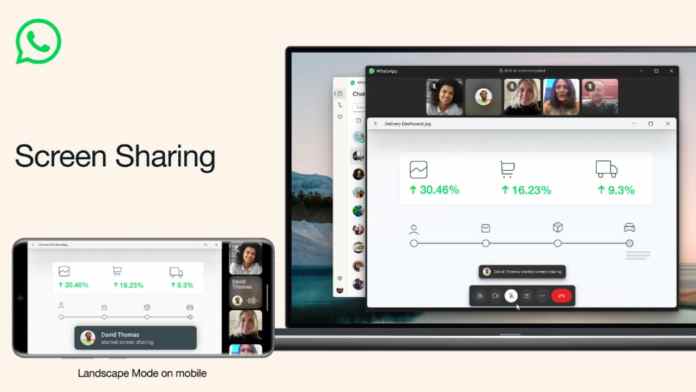
In a significant update, WhatsApp has introduced a screen-sharing capability directly within its video calling function. This WhatsApp screen sharing feature marks a strategic expansion for the platform, moving it beyond simple messaging into more complex, collaborative spaces. For millions of users, it eliminates the need to juggle multiple apps during important conversations.

This means that whether you’re walking a relative through a phone setting, brainstorming a presentation with a colleague, or planning a trip with friends, you can now do it all without leaving the WhatsApp interface. The feature represents a clear shift in how the app positions itself in the competitive communication landscape.

How WhatsApp Screen Sharing Works in Practice

Activating the feature is designed to be intuitive. During any video call, users will find a new “Share” icon. Tapping it presents the option to broadcast either the entire phone screen or a single, specific application window. This level of control is crucial for privacy, allowing users to share only what’s necessary.

For instance, you could share just a photo gallery to review vacation pictures, or a specific document in a PDF reader without revealing your notifications or other sensitive information. The integration is seamless, requiring no extra downloads or complicated setup procedures, which has always been a hallmark of WhatsApp’s user-friendly design.

Professional and Personal Use Cases

Consequently, the applications for this tool are vast. Professionally, freelancers and remote teams can use it for quick reviews, designers can get instant feedback on visuals, and tutors can guide students through problems in real time. It provides a lightweight alternative to more formal meeting software for impromptu discussions.

On a personal level, the utility is just as pronounced. Imagine helping a parent troubleshoot a banking app, collaborating on a shared shopping list, or even choosing a movie together by browsing a streaming service. This feature turns WhatsApp video calls into interactive, shared experiences rather than passive conversations.

The Competitive Edge in Communication Apps

By embedding screen sharing, WhatsApp directly challenges dedicated platforms like Zoom, Google Meet, and Microsoft Teams for casual and semi-professional use. The advantage for WhatsApp is its ubiquitous install base; people are already there. There’s no need to schedule a meeting or send a link—you simply start a call with a contact who is already in your phone.

This move is part of a broader trend of “super app” development, where platforms strive to keep users within their ecosystem for as many tasks as possible. Adding robust calling and sharing tools makes WhatsApp a more compelling one-stop shop for daily communication needs, from quick texts to full collaborative sessions.

Enhancing the Overall Video Call Experience

Alongside screen sharing, WhatsApp is reportedly refining the core video call interface. Updates like a landscape mode for iOS, and presumably later for Android, indicate a focus on improving visual fidelity and usability. A better viewing experience makes screen sharing more effective, especially when presenting detailed information or media.

These incremental improvements show a platform that is listening to user behavior. As video calls became a staple of modern life, the demand for richer features within trusted apps grew. WhatsApp’s development pipeline seems focused on meeting that demand head-on.

What This Means for Users and Future Updates

The rollout of WhatsApp screen sharing is typically gradual, reaching Android, iOS, and eventually desktop users over time. It’s a feature that was tested extensively in beta, suggesting a strong focus on stability and performance before a wide release. Users should keep their apps updated to access the feature as it becomes available in their region.

Looking ahead, this development signals WhatsApp’s ambition. It’s no longer just an alternative to SMS. With features like screen sharing, voice chats for large groups, and advanced privacy controls, it is building a comprehensive communication suite. For small businesses, families, and friend groups deeply embedded in its network, this reduces friction and complexity in digital interaction.

Ultimately, the introduction of screen sharing is a logical and powerful step. It leverages WhatsApp’s greatest strength—its massive, connected user base—and gives them more reasons to communicate visually and collaboratively within the app. As these features solidify, the way we use WhatsApp for both work and play will continue to evolve in more integrated and dynamic ways.

Continue Reading

How To

Motorola Moto G35 5G India Launch: Affordable 5G Phone Arrives December 10

Published

on

Motorola Moto G35 5G India Launch: Affordable 5G Phone Arrives December 10

The Indian smartphone market is about to get a significant new contender. Motorola has officially confirmed the launch of its latest budget-friendly 5G device, the Moto G35 5G, scheduled for December 10, 2024. This move signals a direct challenge to other players in the sub-₹10,000 segment, promising to bring next-generation connectivity to a wider audience.

Price and Availability: A Strategic Market Entry

Motorola’s pricing strategy for the Moto G35 5G appears aggressive. The company, in partnership with Flipkart, has confirmed the phone will be priced below the psychologically important ₹10,000 mark. This positions it as one of the most accessible 5G smartphones in the country. Consequently, it is poised to attract first-time 5G users and budget-conscious buyers looking for an upgrade.

Furthermore, the exclusive availability on Flipkart starting December 10 at 12 PM suggests a focused sales strategy. The device will be offered in three color variants: classic Black, vibrant Blue, and bold Red, catering to diverse consumer tastes.

Display and Performance: Balancing Speed and Smoothness

At the heart of the Moto G35 5G experience is its 6.7-inch display, which supports a 120Hz refresh rate. This feature, often reserved for more expensive phones, ensures exceptionally smooth scrolling, responsive touch feedback, and a better gaming experience. To protect this screen, Motorola has employed Corning Gorilla Glass 3, offering resilience against everyday scratches and minor impacts.

Adding to its usability, the display boasts a peak brightness of 1,000 nits. This means that, unlike many budget phones, the Moto G35 5G should remain perfectly readable even under harsh sunlight, addressing a common pain point for users.

Processing Power and Storage

Powering the device is the Unisoc T760 chipset, a processor designed to deliver capable 5G performance while maintaining energy efficiency. The phone will be available with configurations offering up to 8GB of RAM and 128GB of internal storage. Remarkably for this price bracket, it supports storage expansion via microSD card up to a massive 1TB, providing ample space for apps, media, and files.

Camera and Battery: Core Features That Impress

Motorola has equipped the Moto G35 5G with a capable camera system that belies its budget positioning. The rear setup features a 50MP primary sensor, promising detailed and vibrant photographs in various lighting conditions. For selfies and video calls, a 16MP front-facing camera is included, ensuring users look their best on every call.

Supporting all-day use is a substantial 5,000mAh battery. This capacity is becoming the standard for endurance-focused devices and should comfortably power the phone through a full day of mixed usage. When it’s time to recharge, 18W fast charging support helps get the device back up to speed quickly.

Additional Features and Security

Beyond the core specs, the Moto G35 5G includes thoughtful additions that enhance the overall user experience. Security is handled by a conveniently placed side-mounted fingerprint scanner, allowing for quick and secure unlocking. For multimedia enthusiasts, the phone features dual speakers with Dolby Atmos tuning, aiming to deliver an immersive audio experience whether you’re watching videos or playing games.

This launch is part of Motorola’s broader strategy to recapture market share in the competitive Indian smartphone arena. By offering a feature-rich package like the Moto G35 5G at an aggressive price point, the brand is making a clear statement about its intentions. For consumers, this translates to more choice and better value in the rapidly evolving 5G segment.

If you’re interested in other affordable options, you might want to read about the recent Poco M7 Pro 5G launch. Alternatively, for insights into how 5G networks are expanding, check our analysis on Airtel’s 5G rollout in India.

Continue Reading

Trending