Connect with us

How To

Fortnite on iPhone in 2025: Your Complete Guide to Playing Now

Published

on

Fortnite on iPhone in 2025: Your Complete Guide to Playing Now

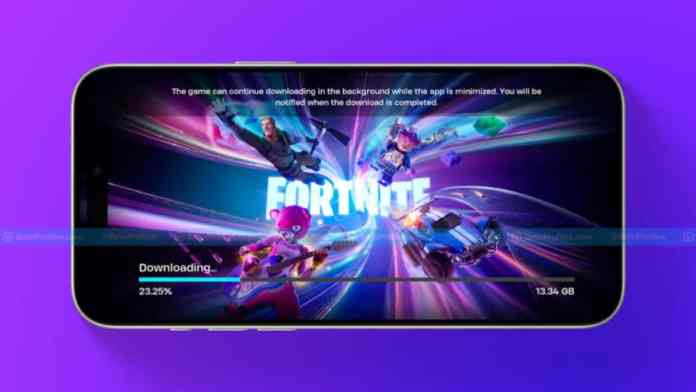
Remember when Fortnite was the game to play on your iPhone? For years, a legal battle between Epic Games and Apple left iOS players out in the cold. That long wait is finally ending. The landscape has shifted dramatically, and getting back into the battle bus on your iPhone or iPad is now possible. Whether you’re in the EU, the US, or elsewhere, here’s how to jump back into the action today.

The Road Back to the App Store

Fortnite’s removal from the App Store in 2020 was a major event for mobile gamers. Epic Games challenged Apple’s payment rules, and the game was pulled. For nearly five years, iPhone users were locked out of the official experience.

A pivotal court ruling in April 2025 changed everything. The decision stated Apple could not block external payment links or charge extra fees for payments made outside its ecosystem. In response, Epic Games CEO Tim Sweeney announced Fortnite’s return to the U.S. App Store is imminent, scheduled for early May 2025. He also indicated that if Apple applies these rules globally, Epic will relaunch the game worldwide and drop its lawsuits.

So, the official return is on the horizon. But what if you don’t want to wait? You have options.

Play Fortnite Instantly with Cloud Gaming

Don’t want to fuss with downloads or location tricks? Cloud gaming is your best friend. These services stream the game directly to your Safari browser. No installation needed, just a solid internet connection. It’s a perfectly legal and secure way to play right now.

Xbox Cloud Gaming (XCloud)

This is arguably the simplest method. It’s free and works directly in your browser.

Just visit the official Fortnite page on Xbox Cloud Gaming using Safari on your iPhone or iPad. You’ll need a free Microsoft account. Tap ‘Play,’ and you’re in. You can even play without a controller using touch controls. Performance is surprisingly good, even on older devices, as long as your Wi-Fi is stable.

Amazon Luna

If you have an Amazon Prime subscription, you already have access. Head to the Fortnite page on Amazon Luna’s website, sign in with your Amazon account, and link your Epic Games profile. Tap ‘Play Free with Prime’ to start streaming. The service is optimized for smooth gameplay with minimal input lag, making it a great choice for competitive matches.

Nvidia GeForce Now

GeForce Now offers a bit more flexibility. You can start with a free plan that gives you one-hour gaming sessions—perfect for a few quick matches. For unlimited play and priority access, a paid subscription is available. Visit the service via Safari, log in, and launch Fortnite. It’s a powerful option for players who want the highest possible streaming quality.

Direct Installation: For EU Users and Beyond

If you prefer having the app on your home screen, the process depends heavily on where you live.

For Players in the European Union

New EU regulations have opened the door. You can download Fortnite directly from the Epic Games Store. First, ensure your iPhone or iPad is running iOS 17.4 or later. Go to Settings > General > Software Update to check.

Next, visit the Epic Games Store website on your device. Tap ‘Install iOS’ and follow the prompts. You may need to grant permission in your Settings under Privacy & Security to allow installations from Epic Games. Once complete, the Fortnite icon will appear on your home screen, ready for action.

A Workaround for Players Outside the EU

For those outside Europe, the App Store remains locked. However, a method involving a location change can work. This process is more technical and is most reliable on Wi-Fi-only iPads, as they don’t use cellular data for location.

The idea is to make Apple’s services think you’re in the EU. This typically involves using a proxy on your network and creating a new Apple ID with an address in an EU country. After signing into this new account on your device, you can search the App Store and download Fortnite. Remember to switch back to your main Apple ID afterward. While effective, this method requires careful setup.

Optimizing Your iPhone for Fortnite

Before you drop into the island, take a minute to set up your device for the best experience.

Keep your iOS updated. Each update can bring performance improvements and bug fixes. A strong, stable Wi-Fi connection is non-negotiable for cloud gaming or online play. If you’re serious about winning, pair a Bluetooth controller like a PlayStation DualSense or an Xbox Wireless Controller. The precision is far superior to touchscreen controls.

Most importantly, only use official sources: Epic Games, Xbox, Amazon, or Nvidia. Avoid any third-party sites promising “hacked” versions; they’re often scams or security risks.

The Future is Cross-Platform

The return of Fortnite to the iPhone App Store marks the end of a long chapter in mobile gaming. Epic Games has committed to ending its legal battles once the game is available globally under the new rules. Soon, the complex workarounds and cloud streaming will be unnecessary for most players. You’ll simply search the App Store, hit download, and play—just like old times, but with all the new seasons and content you’ve missed.

Until that global rollout is complete, you’re not stuck waiting. Whether through the seamless stream of XCloud, the direct download in the EU, or a clever location switch, the battle bus is boarding. Your iPhone is ready to be a gaming device again.

Continue Reading
Click to comment

Leave a Reply

Your email address will not be published. Required fields are marked *

How To

I Wish Every Android Phone Copied These 4 Samsung Galaxy Features

Published

on

Samsung Galaxy features

Why Samsung Still Leads the Android Pack

Ask any Android enthusiast to name the best phone brand, and you’ll hear a lot of different answers. But when it comes to Samsung Galaxy features, there’s a quiet consensus: Samsung just gets it right. Not because its hardware is flashier, but because its software thinks ahead.

I’ve tested plenty of Android phones over the years. Pixel, OnePlus, Motorola, you name it. And every single time, I end up missing something from my Galaxy. It’s not the specs. It’s the little things — the tools that save you five minutes a day without you even noticing.

Here are the four features I’d love to see on every Android phone, not just the ones with a Galaxy logo.

1. The Side Button That Does Everything

Samsung’s side key is more than a power button. It’s a shortcut hub. One press locks the screen, sure, but a long press summons Bixby or the power menu, and a double press opens the camera. You can remap it too.

That flexibility is rare. Most Android phones give you a plain power button and nothing else. Some let you customize it, but none do it as cleanly as Samsung. It’s the kind of feature you don’t realize you need until you switch away.

Why It Matters

Think about how often you reach for the power button. Now imagine if that same button could launch your favorite app, toggle the flashlight, or start recording a voice memo. That’s the Galaxy experience. It’s small, but it changes your daily flow.

2. Edge Panels: The App Switcher Nobody Uses (But Should)

Edge Panels are Samsung’s hidden gem. Swipe from the right edge of the screen, and a slim tab slides out. From there, you can access apps, contacts, tools, and even a clipboard history. It’s like having a second home screen that’s always one swipe away.

I’ll be honest — I ignored Edge Panels for years. Then I set up the app panel with my most-used tools, and I never looked back. It’s faster than scrolling through app drawers, and it works in any app.

Imagine if every Android phone had this. No more digging through folders. Just swipe, tap, done.

3. Samsung DeX: Your Phone as a Desktop

DeX is the feature that makes Samsung phones feel like computers. Plug in a monitor, connect a keyboard and mouse, and you get a full desktop interface. It’s not a gimmick — it’s genuinely useful for productivity.

Other Android phones have tried desktop modes, but none match DeX’s polish. Samsung has refined it over years, and it shows. You can run multiple windows, drag files, and even use it wirelessly with compatible TVs.

Every flagship Android phone should offer this. It’s the kind of Android productivity feature that turns a phone into a workhorse.

Who Benefits Most

Students, remote workers, and travelers. If you’ve ever needed to edit a document on the go without carrying a laptop, DeX is a lifesaver. It’s one of those Samsung Galaxy features that feels like a superpower.

4. One UI’s Attention to Detail

One UI, Samsung’s custom skin, gets a bad rap from stock Android purists. But it’s packed with thoughtful touches. The notification panel is one-handed friendly. The settings app is organized logically. And the customization options are endless.

Take the Always-On Display, for example. Samsung lets you add widgets, change clock styles, and even display your calendar. Other phones offer a basic clock and nothing else. It’s the difference between a tool and a toy.

These Samsung One UI tips are why I keep coming back. It’s not about having the most features — it’s about having the right ones, designed well.

The Bottom Line: Copy These, Please

I’m not asking every Android phone to become a Samsung clone. But these four features are so well-executed that it’s hard to understand why competitors ignore them. They’re not gimmicks. They’re daily drivers.

If Google and other manufacturers took notes, the whole Android ecosystem would be better for it. Until then, I’ll keep my Galaxy close — and keep wishing my other phones could keep up.

Continue Reading

Social Media

Lightspeed goes all-in on creator-led venture capital — and it’s not just about the money

Published

on

creator-led venture capital

The new handshake: creators before checks

Venture capital has always been a relationship business. But the relationship used to start with a warm intro, a conference hallway, or a cold email that somehow landed in the right inbox. These days, it might start with an Instagram post.

Lightspeed Venture Partners just made that bet explicit. The firm hired Claire Zau, a seed investor with a serious following on social media, to help it reach founders who don’t move in traditional VC circles. It’s a signal that creator-led venture capital has moved from fringe experiment to mainstream strategy.

Zau isn’t a celebrity. She’s an operator-turned-investor who built her audience by actually explaining how seed deals work — the term sheets, the cap tables, the mistakes. Her followers aren’t just spectators. They’re potential founders, and Lightspeed wants them to think of her — and by extension, the firm — before anyone else.

Why trust is the new due diligence

The logic is straightforward. A founder’s first interaction with a VC firm used to be the pitch. Now, for a growing slice of the startup world, it’s a DM, a comment thread, or a saved post that gets watched three times.

That changes the power dynamic. Founders are doing their own diligence on investors, and they’re doing it publicly. They want to know who they’re dealing with before they give up a chunk of their company. A creator who’s been transparent about the ugly parts of fundraising — the rejections, the bad advice, the deals that fell apart — becomes a trusted voice in a sea of polished marketing.

Lightspeed isn’t alone in seeing this. Andreessen Horowitz acquired Erik Torenberg’s Turpentine podcast network, a move that gave it direct access to a massive audience of founders and operators. OpenAI snapped up TBPN, the tech podcast network behind some of the industry’s most-listened shows. These aren’t vanity acquisitions. They’re distribution plays.

The Turpentine and TBPN pattern

Look closer at those deals. Turpentine produces shows that founders actually listen to — not just for entertainment, but for signal. TBPN does the same on the AI and tech side. When a firm owns the channel, it owns the relationship. It gets to be in the ear of the next generation of founders months or years before a term sheet is ever discussed.

Lightspeed’s hire of Zau is a lighter-touch version of the same playbook. You don’t need to buy a network. You just need the right person who already has the audience’s trust.

What Claire Zau brings to Lightspeed

Zau’s background is a mix of operator and investor. She’s worked in product and growth roles, then moved into seed investing, where she built a reputation for being accessible and direct. Her social presence is less about hype and more about education — breaking down the mechanics of early-stage funding in a way that demystifies the process.

For Lightspeed, that’s the point. The firm has deep pockets and a long track record. What it needs is a bridge to founders who might not have a Stanford email address or a Y Combinator alum in their contacts. Zau is that bridge.

  • She reaches founders where they already are — on Instagram, not just in boardrooms.
  • She translates VC jargon into something actionable.
  • She models the kind of transparency that younger founders expect from investors.

The creator economy comes full circle

There’s a poetic loop here. The creator economy was once the domain of consumer startups — the platforms, the monetization tools, the influencers-turned-entrepreneurs. Now the venture firms themselves are borrowing the playbook. They’re becoming creators, building audiences, and treating content as a core part of their deal flow.

It’s not hard to see why. The cost of acquiring a founder’s attention through traditional channels has gone up. Conferences are expensive, intros are scarce, and every firm is fighting for the same handful of hot deals. Content flips that equation. It compounds. A good post from a year ago is still bringing in inbound interest today.

This also changes what a “warm intro” means. In the old model, you needed a mutual connection. In the new model, a founder who has followed an investor for two years and learned from their content already has a relationship. It’s parasocial, sure. But it’s real enough to get a meeting.

What this means for founders

If you’re raising a seed round, this trend matters more than you might think. The investors who are building in public are the ones who are easier to approach. They’ve already shown you how they think. You can tailor your pitch to their interests, their pet peeves, their investment thesis — because they’ve told you, in public, on the record.

That’s a huge advantage. It levels the playing field for founders who don’t have the “right” network. You don’t need a cold intro if you can write a thoughtful comment on a post and follow up with a sharp email.

But a word of caution: creators aren’t pushovers. Zau and others like her have built their audiences by being discerning. A follower count doesn’t get you a check. It gets you a conversation. The bar for the actual deal is still high.

The risk of the creator-led model

There are downsides, and the smart firms know it. A creator-investor can become a bottleneck if every founder wants a piece of their time. There’s also the risk of style over substance — a firm that looks great on camera but doesn’t have the operational chops to help founders when things get hard.

And there’s a subtler issue: the audience itself. A large following doesn’t mean the right following. A firm that hires a creator with a million followers in the fitness space won’t help its enterprise SaaS deals. The fit has to be genuine, not just performative.

Lightspeed’s bet on Zau looks like a fit. She’s in the seed stage, she’s focused on founder education, and she operates in the same world as the startups the firm wants to back. But the proof will be in the deals — and in whether the founders she reaches actually become Lightspeed’s next big wins.

The bottom line

Creator-led venture capital isn’t a gimmick anymore. It’s a distribution strategy, a trust engine, and a filter for finding founders who don’t fit the old mold. Lightspeed’s move is a clear signal that even the most established firms see the value in having a real person, with a real audience, doing the work of building relationships before the money ever changes hands.

For founders, the takeaway is simple: the investors you follow are watching you too. And the ones who create content are the ones who are easiest to reach. Use that. It’s the closest thing to a warm intro you’ll ever get.

Continue Reading

How To

Samsung Just Fixed Bluetooth’s Most Annoying Problem — Here’s How

Published

on

Separate App Sound

Bluetooth audio on Android is a mess — but not on Samsung

There’s a quiet frustration that every Android user knows too well. You connect your wireless earbuds, hit play on a podcast, and then — bam — a notification ping blasts through your ears. Or worse, Google Maps starts shouting directions over your favorite song.

Most Android phones treat Bluetooth audio as an all-or-nothing deal. Either everything plays through the connected device, or nothing does. It’s binary, rigid, and honestly, kind of lazy for a platform that prides itself on flexibility.

Samsung, though, has been sitting on a fix for years. It’s called Separate App Sound, and it solves this problem more elegantly than anything Google has shipped natively. Let’s break down how it works and why you should be using it.

What exactly is Separate App Sound?

Separate App Sound is a Samsung One UI feature that lets you split audio between two outputs. You can send music from Spotify to your Bluetooth speaker, while navigation prompts, notifications, and calls stay on your phone’s speaker. Or flip it — keep the podcast on your headphones and route alarms to a smart speaker.

It’s not just about silencing pings. The feature lets you assign a specific app to a specific Bluetooth device. So your YouTube app can play through your car’s stereo, while your messaging app chimes through the phone’s speaker. That’s a level of control stock Android simply doesn’t offer.

Why this matters more than you think

Think about your daily commute. You’re listening to a true crime podcast through your car’s Bluetooth. Suddenly, a text message notification screams through the speakers, startling you and missing the key plot twist. With Separate App Sound, that text alert stays on your phone’s speaker — quiet, unobtrusive, and easy to ignore.

Or consider a workout. Your earbuds are playing a high-energy playlist, but you also need to hear your surroundings. Route the music to your earbuds and keep the phone’s speaker free for alerts. It’s a small tweak that makes a big difference in daily usability.

The real-world use cases

  • Driving: Keep navigation voice prompts on the car stereo, but let music play only in your earbuds.
  • Working: Play background music on a desk speaker while keeping call notifications on your phone.
  • Gaming: Route game audio to your headset, but keep Discord or WhatsApp calls on the phone speaker.
  • Watching TV: Send a movie’s audio to your soundbar while keeping the phone’s alerts silent.

How to enable Separate App Sound on your Samsung phone

Finding the feature isn’t hard, but it’s buried a bit. Here’s the step-by-step path:

  1. Open Settings on your Samsung device.
  2. Tap Sounds and vibration.
  3. Scroll down and select Separate app sound.
  4. Toggle it on. You’ll see a list of apps and audio devices.
  5. Select the app you want to route to a different device, then choose which Bluetooth device or speaker should play it.

That’s it. Once set, the chosen app will always play through the selected device, while everything else stays on the default output. You can change the mapping anytime by revisiting the same menu.

Is this better than stock Android’s approach?

Stock Android has no equivalent. There are third-party apps that try to mimic this, but they often require root access or rely on clunky workarounds. Samsung’s implementation is baked into the system, which means it’s reliable, battery-efficient, and works across all apps.

It’s worth noting that Google has been slowly adding audio routing features, but nothing as granular as this. For now, Samsung’s One UI remains the gold standard for Bluetooth audio management on Android.

Which Samsung devices support this?

Separate App Sound has been available since One UI 2.0, which launched with the Galaxy S20 series. That means most Samsung phones from 2020 onward have it. If you’re using a Galaxy A-series, a Galaxy Z Fold, or a Galaxy Tab, you likely have access too.

Just head to Settings > Sounds and vibration and look for the option. If you don’t see it, make sure your device is running a recent version of One UI.

Final thoughts

Samsung’s Separate App Sound is one of those features you don’t know you need until you try it. It’s a small quality-of-life improvement that makes Bluetooth audio feel less chaotic and more intentional. If you’re tired of your headphones blaring every notification, give it a shot.

And if you’re on a non-Samsung phone? Well, you might have to wait for Google to catch up — or consider making the switch.

Continue Reading

Trending