Connect with us

How To

How to Read WhatsApp Deleted Messages: Best WhatsApp New Tricks & Apps in 2025

Published

on

How to Read WhatsApp Deleted Messages: Best WhatsApp New Tricks & Apps in 2025

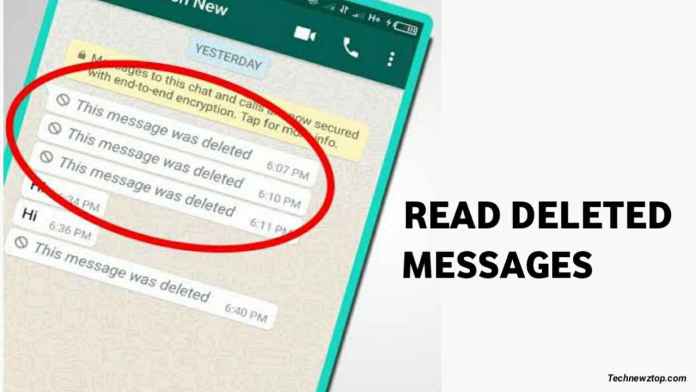
Have you ever received a notification from WhatsApp, only to open the app and find the message has vanished? It’s a frustrating experience that millions of users face daily. Whether a friend deleted a message before you could read it, or you accidentally removed an important text yourself, the need to read WhatsApp deleted messages is more common than you think. Fortunately, there are reliable methods and apps that can help you recover that lost content. In this guide, we’ll explore the best tools and tricks to recover deleted WhatsApp messages, photos, and videos.

Why Messages Get Deleted on WhatsApp

Messages disappear from your chat for several reasons. The most common scenario is when a sender uses the ‘Delete for Everyone’ feature, which removes the message from both sides of the conversation within a limited time window. Additionally, you might accidentally delete a conversation or individual messages while cleaning up your chat list. Understanding these causes is the first step toward finding a solution to read WhatsApp deleted messages.

Common Scenarios for Deleted Messages

  • Sender deletes for everyone: The other person decides to retract their message.
  • Accidental deletion: You mistakenly remove a message or entire chat.
  • App glitches: Rarely, syncing issues cause messages to disappear temporarily.

Regardless of the cause, the good news is that you can often recover these messages using the right approach.

Best App to Recover Deleted WhatsApp Messages: WhatsDeleted

One of the most effective tools for this purpose is WhatsDeleted: Recover Deleted messages. This Android utility works by scanning your device’s notification log. Whenever a new message arrives, it triggers a notification. Even if the sender deletes the message later, the notification record often remains. WhatsDeleted captures these notifications, allowing you to view the deleted content.

Key Features of WhatsDeleted

  • Recover text messages: Read any deleted text, even if the sender used ‘Delete for Everyone’.
  • Recover media files: Retrieve deleted photos, videos, voice notes, and animated GIFs.
  • User-friendly interface: The app is designed for simplicity, making it accessible for everyone.

Moreover, the app works silently in the background, so you don’t need to manually save every message. It automatically logs everything for later review.

How to Use WhatsDeleted to Read Deleted WhatsApp Messages

Using this app is straightforward. Follow these simple steps to start recovering lost WhatsApp content:

  1. Download and install: Get the WhatsDeleted app from a trusted source like the Google Play Store.
  2. Open the app: Launch it on your phone after installation.
  3. Grant permissions: The app requires notification access to function. Allow it to read your notifications.
  4. Start recovery: Once permissions are granted, the app will begin scanning. You’ll see a list of deleted messages and media that were captured from notifications.

That’s it! You can now browse through recovered messages and even restore media files to your gallery.

Important Considerations When Using Deleted Message Recovery Apps

While WhatsDeleted is a powerful tool, it has limitations. First, it only works with messages that triggered a notification. If your phone’s notifications for WhatsApp are turned off, the app cannot capture anything. Therefore, ensure your notification settings are enabled for WhatsApp.

Additionally, the app is free but may contain advertisements. If you prefer an ad-free experience, you might explore premium alternatives or donate versions. Always download such apps from official stores to avoid security risks.

For more tips on managing your WhatsApp account, check out our guide on how to use fingerprint lock in WhatsApp.

Alternative Methods to Recover Deleted WhatsApp Messages

Besides third-party apps, there are other ways to read WhatsApp deleted messages. One method involves using WhatsApp’s built-in chat backup feature. If you have enabled automatic backups to Google Drive or iCloud, you can restore an older backup that contains the deleted messages. However, this method will replace your current chat data, so use it with caution.

Another approach is to check your phone’s notification history. Some Android devices have a built-in notification log that stores recent alerts. You can access this log via system settings or a shortcut, though it varies by device manufacturer.

If you’re looking for more advanced tricks, explore our article on WhatsApp’s upcoming features in 2021 for additional insights.

Final Thoughts on Recovering Deleted WhatsApp Messages

Losing an important message can be stressful, but with tools like WhatsDeleted, you don’t have to miss out. The ability to read WhatsApp deleted messages gives you peace of mind, knowing you can always retrieve crucial information. Remember to keep your notifications active and regularly back up your chats for maximum protection.

Have you tried any of these methods? Share your experience in the comments below. If you found this guide helpful, don’t forget to share it on social media with your friends who might also benefit from these tricks!

Continue Reading
Click to comment

Leave a Reply

Your email address will not be published. Required fields are marked *

How To

iQOO Z10R India Launch Teased with Strong Features: Design, Specs, and Expected Price Revealed

Published

on

iQOO Z10R India Launch Teased with Strong Features: Design, Specs, and Expected Price Revealed

The iQOO Z10R India launch has been officially teased, generating significant buzz among smartphone enthusiasts. iQOO has started revealing the device’s design online, confirming that the phone is arriving soon in the Indian market. It is expected to hit shelves by late July this year, offering a compelling mix of premium features at an affordable price point.

iQOO Z10R Design and Colour Options

The official teaser, now live on iQOO India’s website, shows a sleek phone with a pill-shaped camera module on the rear. This module houses two sensors and an Aura LED light, giving it a distinct look reminiscent of the Vivo V50e. The phone will be available in glossy Blue and Gold finishes, appealing to style-conscious buyers.

In addition, the device features a curved display with a punch-hole camera, enhancing its modern aesthetic. The circular camera sits neatly within the pill bar, and the phone is expected to support 2x portrait zoom. These design cues suggest that iQOO is targeting users who want a premium look without the flagship price tag.

Performance and Geekbench Listing

Under the hood, the iQOO Z10R will be powered by the MediaTek Dimensity 7400 SoC, as revealed by a recent Geekbench listing. This chipset promises better performance than the Dimensity 7300, ensuring smooth multitasking and gaming. The listing, under model number vivo I2410, also indicates up to 12GB of RAM, which will further boost the phone’s responsiveness.

The device will run Android 15 with Funtouch OS 15, offering the latest software features and a clean user interface. This combination of hardware and software is designed to deliver a fluid experience for daily tasks and heavy applications alike.

Display and Camera Highlights

The iQOO Z10R is expected to sport a 6.77-inch OLED display with a quad-curved design and a 120Hz refresh rate. The full-HD+ resolution will ensure vibrant colours and smooth scrolling, making it ideal for media consumption and gaming. The punch-hole cutout houses the front camera, which is likely a 32MP sensor.

On the rear, the phone will feature a 50MP main camera with Optical Image Stabilization (OIS), allowing for stable photos and 4K video recording. The 2x portrait zoom capability adds versatility, making the Z10R a strong contender for vloggers and photography enthusiasts. These camera features are similar to those found on premium Vivo models, which bodes well for image quality.

Battery, Charging, and Expected Price

Battery life is a key selling point for the iQOO Z10R. It is tipped to pack a 5,600mAh or 6,000mAh cell, supporting 90W fast wired charging. This means users can enjoy long hours of usage and quick top-ups, a boon for heavy users and mobile gamers.

According to tipsters, the iQOO Z10R price in India will be under ₹20,000, positioning it as a value-for-money option. This aggressive pricing makes it an attractive choice for students and budget-conscious buyers who want flagship-like features without breaking the bank. The phone is expected to compete with other mid-range devices like the Samsung Galaxy A56 5G and Redmi Note 14 Pro Plus 5G.

Final Thoughts on the iQOO Z10R India Launch

The iQOO Z10R India launch is shaping up to be one of the most anticipated events in the budget segment. With a powerful Dimensity 7400 chipset, a capable 50MP OIS camera, and fast 90W charging, the phone offers a well-rounded package. iQOO is likely to announce the final launch date soon, and if the pricing remains under ₹20,000, this could be the best smartphone in its price range in India.

For more updates on upcoming smartphones, check out our smartphones news section.

Continue Reading

How To

Huawei Nova 13 Series and FreeBuds Pro 4 Go Global: Pricing, Specs, and Key Features

Published

on

Huawei has officially taken the wraps off its latest mid-range powerhouse, the Huawei Nova 13 series, alongside the new Huawei FreeBuds Pro 4 wireless earbuds. After debuting in China earlier this year, the lineup is now rolling out to global markets, bringing a blend of premium design, capable cameras, and fast charging. Let’s break down what these devices offer and how they stack up against the competition.

Huawei Nova 13 Series Pricing and Color Options

Huawei has priced the Nova 13 series competitively for the mid-range segment. The standard Huawei Nova 13 costs MXN 10,999 (roughly ₹46,100) for the 12GB RAM and 256GB storage variant. Meanwhile, the Nova 13 Pro, which comes with 12GB RAM and 512GB storage, retails for MXN 15,999 (approximately ₹67,100).

Both models are available in three elegant finishes: black, green, and white. The color palette leans toward a sophisticated, minimalist aesthetic that should appeal to users who value understated style.

Display and Performance: Kirin 8000 and 120Hz Screens

When it comes to the viewing experience, the Nova 13 series does not disappoint. The standard model sports a 6.7-inch Full-HD+ OLED panel, while the Pro variant upgrades to a 6.76-inch quad-curved OLED display. Both screens support a 120Hz refresh rate, ensuring smooth scrolling and fluid animations.

Under the hood, Huawei has equipped both phones with the Kirin 8000 SoC. This chipset, combined with HarmonyOS 4.2 (based on Android 14), delivers snappy performance for daily tasks and moderate gaming. The software experience is clean and intuitive, with Huawei’s ecosystem integrations baked in.

Battery and Charging

Battery life is a strong suit here. Both the Nova 13 and Nova 13 Pro pack a 5,000mAh cell, which easily lasts a full day of heavy use. More importantly, they support 100W wired fast charging via USB Type-C. This means you can go from zero to full in under 30 minutes, significantly reducing downtime.

Camera System: 50MP Primary and Versatile Lenses

Photography enthusiasts will find plenty to like in the Huawei Nova 13 series. Both models feature a 50-megapixel primary rear sensor, which captures detailed and well-exposed shots in most lighting conditions.

Where the two models diverge is in their secondary lenses:

  • Nova 13: An 8-megapixel ultra-wide camera for landscape shots.
  • Nova 13 Pro: A 12-megapixel telephoto lens with 3x optical zoom, plus an 8-megapixel macro sensor for close-up work.

For selfies, both phones boast a 60-megapixel front-facing camera. The Pro model goes a step further by adding an additional 8-megapixel 5x zoom lens, making it ideal for vloggers and those who want crisp, zoomed-in self-portraits.

Huawei FreeBuds Pro 4: Premium Audio Meets ANC

Alongside the smartphones, Huawei introduced the FreeBuds Pro 4 TWS earbuds. Priced at MXN 3,199 (around ₹13,400), they come in the same three colors as the Nova 13 series — black, green, and white — allowing for a matching setup.

Audio quality is a highlight. The FreeBuds Pro 4 features an 11mm four-magnet dynamic driver and carries Hi-Res Audio certification. This translates to clear highs, punchy mids, and decent bass response. Active Noise Cancellation (ANC) and spatial audio support further elevate the listening experience, making these earbuds a strong contender in the sub-$150 segment.

Final Verdict: Who Should Buy the Huawei Nova 13 Series?

The Huawei Nova 13 series fills a specific niche: it offers a premium-looking device with capable cameras, a smooth display, and incredibly fast charging — all at a price that undercuts many flagships. However, the lack of Google Mobile Services (due to US sanctions) remains a potential dealbreaker for users heavily reliant on Google apps. For those already invested in Huawei’s ecosystem or willing to work around this limitation, the Nova 13 series is a compelling option.

For more insights, check out our comparison of the Huawei Mate X6 foldable or see how the Oppo Find X9s competes in this price bracket.

Continue Reading

How To

How to Save Another User’s WhatsApp Status: A Simple Step-by-Step Guide

Published

on

How to Save Another User’s WhatsApp Status: A Simple Step-by-Step Guide

Have you ever stumbled upon a friend’s WhatsApp status that you wished you could keep forever? Perhaps it was a hilarious video or a stunning photo. Unfortunately, WhatsApp doesn’t offer a built-in way to download someone else’s status directly. However, there is a straightforward solution. In this guide, we’ll show you how to save another user’s WhatsApp status using a free third-party app. This method works on Android devices and takes just a few taps.

Why You Might Want to Save Another User’s WhatsApp Status

WhatsApp status updates disappear after 24 hours. This ephemeral nature can be frustrating when you see content you’d like to revisit. Whether it’s a friend’s travel photo, a funny meme, or an important announcement, having a local copy is useful. Additionally, you might want to share the status with someone who missed it. Instead of relying on screenshots (which don’t work for videos), using a dedicated app is the most efficient way to save another user’s WhatsApp status.

The Best Tool for the Job: Status Saver App

Several apps on the Google Play Store can help you download WhatsApp statuses. One of the most popular and user-friendly options is Status Saver. This lightweight app scans your phone’s internal storage for recently viewed WhatsApp statuses and presents them in a simple interface. It requires minimal permissions and is free to use. Below, we walk through the entire process step by step.

Step 1: Install the Status Saver App

First, open the Google Play Store on your Android phone. In the search bar, type “Status Saver” and look for the app with a high rating. Tap the “Install” button and wait for the download to complete. This typically takes less than a minute on a stable internet connection.

Step 2: Grant Necessary Permissions

Once installed, open the app from your app drawer. The app will request permission to access your photos, media, and files. Grant this permission. This is essential because WhatsApp stores status media in a hidden folder on your phone. The app needs read access to locate those files. Rest assured, Status Saver does not upload your data anywhere—it only reads local files.

Step 3: View Recent Status Updates

After granting permissions, the app will automatically scan your device. You will see a list of photos and videos that your contacts have recently posted as WhatsApp statuses. The list updates in real time as new statuses appear. Scroll through to find the specific status you want to keep.

Step 4: Select and Preview the Status

Tap on the photo or video you wish to download. The app will show a full-screen preview. This allows you to double-check that you are saving the correct content. If it’s a video, you can play it directly within the app to ensure it’s what you want.

Step 5: Download and Save

Below the preview, you will see a prominent “Download” button. Tap it. The app will instantly save the file to your phone’s storage. A confirmation message will appear, and the file will be stored in a dedicated folder named “Status Saver” inside your Downloads directory.

Step 6: Access Your Saved Statuses

Open your phone’s file manager or gallery app. Navigate to the “Status Saver” folder. You will find all your downloaded WhatsApp statuses there. You can now view, share, or edit these files anytime—even after the original 24-hour period has passed.

Important Considerations and Privacy Tips

While using a status saver app is legal for personal use, always respect others’ privacy. Do not share downloaded statuses without the original poster’s permission. Also, keep the app updated to ensure compatibility with the latest WhatsApp updates. For more tips on managing your WhatsApp experience, check out our guide on how to read WhatsApp deleted messages.

Frequently Asked Questions

Can I save WhatsApp statuses on iPhone?

Unfortunately, iOS restrictions make it harder to use third-party apps for this purpose. Status Saver is primarily designed for Android. iPhone users may need to use screen recording or ask the person to share the file directly.

Is Status Saver safe to use?

Yes, the app is safe if downloaded from the official Google Play Store. It does not request unnecessary permissions and has a good track record. However, always read user reviews before installing any app.

Will the person know I saved their status?

No. The app works locally on your device. WhatsApp does not notify users when someone saves their status through third-party tools. Your activity remains private.

Final Thoughts

Learning how to save another user’s WhatsApp status is a handy skill that enhances your messaging experience. With the Status Saver app, the process is quick, free, and reliable. For more useful tricks, explore our article on who viewed your WhatsApp profile. If you have any questions, leave a comment below. Don’t forget to share this guide with friends who might find it helpful!

Continue Reading

Trending