Connect with us

How To

How to Recover Deleted WhatsApp Messages: Practical Methods That Work

Published

on

How to Recover Deleted WhatsApp Messages: Practical Methods That Work

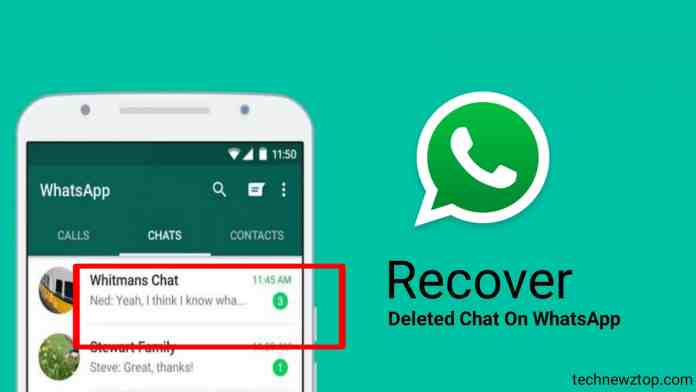
We’ve all been there. A friend sends a message, then quickly deletes it for everyone. Your curiosity spikes. What did they say? Was it important? Maybe you accidentally deleted an entire conversation yourself. That sinking feeling is real. While WhatsApp’s “Delete for Everyone” feature seems permanent, there are legitimate ways to retrieve what’s been lost.

This isn’t about magic tricks. It’s about understanding how your data is stored and using that knowledge to your advantage. Let’s explore the actual methods that can help you recover deleted WhatsApp chats.

Understanding WhatsApp’s Data Ecosystem

WhatsApp doesn’t just vaporize your data the moment you hit delete. Messages and media are stored in two primary places: on your device’s local storage and, if you’ve enabled it, in cloud backups. The “Delete for Everyone” feature works by sending a command to all recipients’ devices to remove the message from the chat log. However, if the message was already delivered and read, or if a backup was created in the interim, traces remain.

Think of it like throwing a letter in the trash. The letter is gone from your desk, but it might still be in the bin, or a copy might exist in your filing cabinet. Recovery depends on how quickly you act and what systems you had in place beforehand.

Method 1: Restore from a Local Backup

This is your first and most reliable line of defense. WhatsApp on Android automatically creates a local backup every night at 2 AM, storing it in your phone’s internal memory. These backup files are named something like “msgstore-YYYY-MM-DD.1.db.crypt12”.

To use this method, you need to uninstall and then reinstall WhatsApp. During the setup process, the app will detect the local backup file and prompt you to restore it. This will roll your chats back to the state they were in at the time of that last backup. Any messages sent or received after that backup was created will be lost, but everything before it returns.

It’s a blunt instrument, but it works. Just ensure you have a recent backup before proceeding.

Method 2: Utilizing Third-Party Notification Log Apps

Here’s a clever workaround for messages deleted by others. When a notification pops up on your phone, it’s logged in your device’s notification history—temporarily. Some Android versions have a built-in notification log you can access via a widget. For others, third-party apps can help.

Apps like “Notification History Log” or “NotiSave” run in the background and archive every notification that appears on your screen. If your friend’s message appeared as a notification before they deleted it, these apps might have captured the text.

It’s not foolproof. The message content might be truncated, and it only works if the app was installed and running *before* the message was sent and deleted. Still, for those moments of burning curiosity, it can provide answers.

Method 3: Exploring Data Recovery Software

For messages you’ve deleted yourself without a backup, specialized data recovery software is an option. Tools like Dr.Fone, EaseUS MobiSaver, or DiskDigger can scan your phone’s internal storage (or an extracted backup file) for SQL database fragments.

WhatsApp stores chats in an encrypted database file. When you delete a message, the space it occupied is marked as available but isn’t immediately overwritten. Recovery software attempts to find these orphaned data fragments. Success isn’t guaranteed. The more you use your phone after deletion, the higher the chance the data has been overwritten and is permanently gone.

This method often requires root access on Android, which voids warranties and carries security risks. It’s a last resort for critically important information.

Proactive Steps: How to Prevent Future Loss

Recovery is stressful. Prevention is easier. Take a minute to configure your WhatsApp settings for better data security.

First, enable cloud backups. Go to WhatsApp Settings > Chats > Chat Backup. Choose a daily backup frequency over Wi-Fi. This ensures a recent copy is always in Google Drive (Android) or iCloud (iPhone).

Second, manually back up before major actions. If you’re about to clear a long chat history or transfer to a new phone, tap “Back Up” manually. Third, consider periodically exporting important individual chats. WhatsApp allows you to export a chat (without media) via email, creating a simple text file archive.

These habits turn a potential disaster into a minor inconvenience.

The Reality of “Delete for Everyone”

Can you truly beat this feature? The honest answer is: sometimes, but not always. If you see the “This message was deleted” notification, the official app has removed the content from your active chat view. Your only hope lies in the notification log or a pre-deletion backup.

Apps that claim to bypass this feature directly often require intrusive permissions or are outright scams. Be wary of any tool promising to secretly save all deleted messages without any prior setup; it likely doesn’t work as advertised.

The best approach is a combination of curiosity and caution. Use notification loggers if you’re often on the receiving end of vanishing messages. Maintain regular backups for your own data peace of mind. Your chats are more recoverable than you think, but only if you’ve laid the groundwork.

Continue Reading
Click to comment

Leave a Reply

Your email address will not be published. Required fields are marked *

How To

Clear iPhone System Data in 2025: Reclaim Storage & Boost Performance

Published

on

Clear iPhone System Data in 2025: Reclaim Storage & Boost Performance

That dreaded “Storage Almost Full” alert. You’ve deleted photos, removed apps, yet your iPhone still groans under the weight of invisible files. What’s left? A hidden culprit called System Data.

This digital clutter accumulates silently—cached files, temporary downloads, app logs. Apple doesn’t provide a simple “delete” button for it, but that doesn’t mean you’re powerless. Let’s explore practical ways to clean it up.

What Exactly Is iPhone System Data?

Think of System Data as your iPhone’s attic. It’s where temporary files get stored: browser caches, failed downloads, app logs, and offline content from streaming services. These files help apps load faster initially, but they rarely clean up after themselves.

Over months, this attic becomes packed. Your phone slows down, storage disappears, and performance suffers. The first step is understanding what you’re dealing with.

Check Your System Data Usage

Navigate to Settings > General > iPhone Storage. Wait a moment for the colorful bar to load. Below your apps, you’ll see “System Data”—often taking up several gigabytes. That’s your target.

Effective Ways to Clear System Data

You don’t need technical expertise. These methods work for any iPhone user.

1. Tackle App Caches Directly

Many apps store temporary data. Some, like Spotify, let you clear it manually. Open Spotify, tap your profile icon, go to Settings and Privacy > Storage > Clear Cache.

For apps without this option, consider offloading. Go to Settings > App Store and enable Offload Unused Apps. This removes the app but keeps its documents and data. You can reinstall it later without losing your information.

2. Purge Browser Data

Safari and Chrome accumulate cached pages and cookies. Clearing them frees space and can improve browsing speed.

For Safari: Settings > Safari > Clear History and Website Data.

For Chrome: Open the app, tap the three-dot menu, select History > Clear Browsing Data. Choose a time range and confirm.

3. Declutter Your Messages

Years of message attachments—photos, videos, GIFs—pile up. Go to Settings > General > iPhone Storage > Messages. Here you can review and delete large attachments by category.

Better yet, set messages to auto-delete. Navigate to Settings > Messages > Keep Messages and select 30 Days or 1 Year instead of Forever. Your phone will handle the cleanup automatically.

4. Remove Offline Content

Downloaded movies from Netflix, music from Spotify, videos from YouTube—they all count as System Data. Open each streaming app and check your downloads section. Delete anything you’ve already watched or listened to.

Advanced System Maintenance

Sometimes basic cleaning isn’t enough. These steps address deeper system issues.

Update Your iOS

Apple’s software updates often include storage optimizations. An update might clear temporary system files that regular cleaning misses. Check Settings > General > Software Update.

The Power of a Simple Restart

Don’t underestimate this. Restarting your iPhone clears temporary system files and refreshes memory. Hold the side button and volume button, then slide to power off. Wait 30 seconds before turning it back on.

Disable Background Data Hogs

Certain features constantly generate data in the background. Consider turning off:

  • Background App Refresh (Settings > General > Background App Refresh > Off)
  • Unnecessary Location Services (Settings > Privacy & Security > Location Services)
  • Automatic Downloads for apps and updates (Settings > App Store)

These small adjustments reduce constant data accumulation.

The Nuclear Option: Factory Reset

If System Data remains stubbornly high after trying everything, a factory reset might be necessary. This erases everything and returns your iPhone to its original state.

Crucial warning: Back up your data first using iCloud or a computer. Then go to Settings > General > Transfer or Reset iPhone > Erase All Content and Settings.

After resetting, you can set up as new or restore from backup. Setting up as new typically leaves less System Data, but you’ll need to reinstall apps manually.

Keeping System Data Under Control

Prevention beats cure. Make these practices part of your routine:

  • Check iPhone Storage monthly to spot trends
  • Clear browser data every few weeks
  • Review message attachments quarterly
  • Keep iOS updated
  • Restart your phone weekly

Your iPhone’s performance and available storage depend on managing these hidden files. With regular attention, you can keep System Data from overwhelming your device.

Continue Reading

How To

WhatsApp Extends Delete Message Time Limit to Over 2 Days

Published

on

A Major Shift in Digital Conversation Control

Remember that sinking feeling after sending a message you instantly regret? For years, WhatsApp’s ‘Delete for Everyone’ feature offered a brief one-hour window to correct those mistakes. That safety net is about to get significantly larger. WhatsApp is currently rolling out a substantial update in its Android beta program that dramatically extends the time limit for deleting messages for all participants in a chat.

This isn’t just a minor tweak. It’s a fundamental change in how we manage our digital conversations. The new limit, confirmed by reliable sources tracking WhatsApp’s development, is now a generous two days and twelve hours. That’s over 60 times longer than the previous allowance.

What the New WhatsApp Delete Feature Means for You

So, how does this work in practice? The mechanics remain familiar. You long-press a sent message, select ‘Delete,’ and then choose ‘Delete for Everyone.’ The critical difference is the expanded timeframe in which this action is possible.

The previous cutoff was precisely 1 hour, 8 minutes, and 16 seconds—a oddly specific number that often left users scrambling. The new limit provides a more realistic grace period for catching typos, retracting sensitive information sent to the wrong chat, or simply reconsidering a poorly worded statement after a night’s sleep.

This update, found in WhatsApp beta version 2.22.15.8 for Android, is currently available to a select group of testers. If you’re part of the beta program, you can check if the feature is active on your account by trying to delete a message sent more than the old time limit. If it works, you’re in.

Why This Privacy Update Matters

Messaging apps are our primary mode of daily communication. They host everything from casual banter to critical personal and professional discussions. The ability to retract a message isn’t about promoting carelessness; it’s about granting users greater control over their digital footprint and personal privacy.

Think about it. How many times have you sent a photo, a document, or a piece of personal data to a group chat by accident? The old one-hour window was often insufficient, especially if you were away from your phone or asleep. This extended limit acknowledges that our messaging mistakes aren’t always immediately apparent.

What’s Next for WhatsApp’s Delete Function?

The extended delete timer isn’t the only improvement in the pipeline. WhatsApp’s development team is reportedly working on another powerful tool: granting group administrators the ability to delete any message within their groups.

This feature, still under development, would be a game-changer for moderating large community groups, work chats, or family threads. It would allow admins to quickly remove spam, offensive content, or misinformation, helping maintain a healthier and more respectful conversation space for all members.

For now, the focus is on the broader rollout of the extended personal delete limit. The feature is being activated gradually, so not all beta testers will see it immediately. A wider release to all users is expected in a future stable version of the app.

How to Access the Latest WhatsApp Features

If you’re eager to test new features like this one, joining the WhatsApp Beta program via the Google Play Store is the way to go. Be aware that beta software can sometimes be unstable. It’s a trade-off: early access to new tools in exchange for potentially encountering a few bugs.

For everyone else, patience is key. Major updates like this typically move from beta testing to a full public release within a few weeks, assuming no significant issues are found. Keep your app updated through your device’s official app store to ensure you receive the new functionality as soon as it’s available globally.

The evolution of the ‘Delete for Everyone’ feature reflects a broader trend in messaging: empowering users with more tools to manage their privacy and conversations. From disappearing messages to view-once media, and now this significantly extended retraction window, WhatsApp is giving us more ways to communicate on our own terms. It’s a welcome step toward more thoughtful and controlled digital interaction.

Continue Reading

How To

Google Pixel 9a Leak: Live Images Reveal New Oval Camera Design

Published

on

Google Pixel 9a Leak: Live Images Reveal New Oval Camera Design

Just when you thought the smartphone rumor mill was quiet, a fresh leak kicks it back into high gear. New live images of what appears to be a Google Pixel 9a prototype have surfaced, giving us our clearest look yet at the upcoming budget-friendly contender. The photos, shared by a known leaker, suggest Google is refining its formula with a distinct new camera design.

A Fresh Look for the A-Series

The most striking change is on the back. Forget the familiar metal visor from the Pixel 9 and 9 Pro. The Pixel 9a prototype sports a sleek, horizontal oval-shaped camera module. It’s a clean departure that sets the phone apart from its more expensive siblings.

Inside that oval, you’ll find two rear cameras precisely aligned to the left, with an LED flash positioned to the right. It’s a subtle but confident design choice. The prototype also features a placeholder logo instead of the final “G” branding, which is standard for test units.

Flip the phone over, and the front looks more familiar. It seems Google is sticking with a proven formula here: a center-aligned hole-punch cutout for the selfie camera and slightly larger bezels. This approach helps keep costs down while maintaining a clean, functional look.

Expected Pixel 9a Specifications and Features

If the leaks hold true, the Pixel 9a could be a significant step up from the Pixel 8a. Performance should get a major boost from the inclusion of Google’s Tensor G4 chipset. This is the same processor found in the flagship Pixel 9 series, promising powerful AI features and smooth performance.

Memory and storage configurations are rumored to include 8GB of RAM and up to 256GB of internal storage. That’s plenty for most users and matches what many expect from a modern mid-range device.

Camera, Display, and Battery Details

The camera system is always a highlight on Pixel phones. The Pixel 9a is tipped to feature a dual 48MP rear camera setup. This sensor upgrade could lead to noticeably better image quality, especially in challenging lighting conditions.

For the display, a 6.3-inch screen is on the cards, likely with a dynamic refresh rate that can swing between 60Hz and 120Hz. This technology saves battery when you’re reading static text but delivers smooth scrolling when you need it.

Perhaps the most welcome upgrade is the battery. The Pixel 9a is expected to pack a larger 5,000mAh cell, a solid jump from the 4,500mAh battery in the Pixel 8a. This should translate to a full day of use, and then some, for most people.

What This Leak Means for Buyers

These leaks paint a picture of a phone that refines rather than reinvents. Google appears to be focusing its budget on where it counts: the chipset, the camera sensors, and the battery life. The new oval camera design gives the phone its own identity within the Pixel family.

For anyone considering a mid-range Android phone later this year, the Pixel 9a is shaping up to be a compelling option. It promises flagship-level AI smarts and camera software in a more affordable package. We’ll have to wait for an official announcement to confirm all the details, but the early signs are promising.

Continue Reading

Trending