Connect with us

How To

How to Set Up and Use a Voice Lock Screen on Your Android Device

Published

on

How to Set Up and Use a Voice Lock Screen on Your Android Device

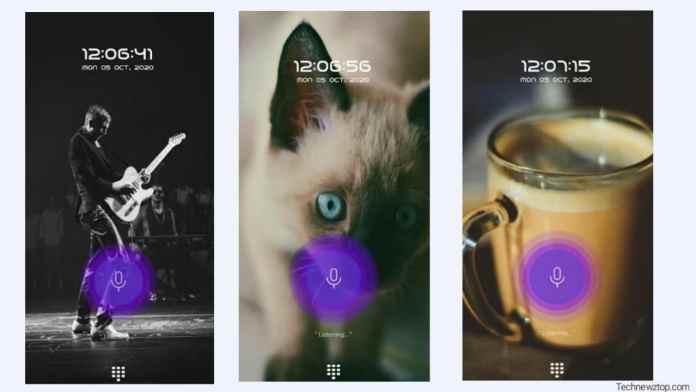
Have you ever wished your phone could unlock just by hearing your voice? A voice lock screen app makes this possible. Instead of typing a PIN or drawing a pattern, you simply speak a phrase. This guide walks you through everything you need to know — from downloading the app to setting it up securely. Whether you are new to Android or a seasoned user, this method adds a layer of convenience and security to your daily routine.

Why Choose a Voice Lock Screen for Your Android Phone?

Traditional lock screens rely on something you know (a password) or something you have (a fingerprint). A voice lock screen introduces something you are — your unique vocal print. This means that even if someone watches you type your password, they cannot mimic your voice pattern accurately. It is a hands-free solution that works well while driving, cooking, or when your hands are full. Moreover, it adds a futuristic feel to your device without requiring expensive hardware.

Voice Lock vs. Pattern Lock: Which Is Better?

Both options have their place. A pattern lock is visual and quick, but it can be guessed or observed. A voice lock, on the other hand, relies on audio biometrics. However, voice locks may struggle in noisy environments. The best approach is to use both: set a pattern as a backup and enable voice unlock for convenience. Many apps allow you to toggle between them easily.

How to Download the Voice Lock Screen App

Getting started is straightforward. Open the Google Play Store on your Android device. Search for “voice lock screen” or use a specific app like Technewztop Voice Lock. Look for an app with high ratings and positive reviews. Tap “Install” and wait for the download to finish. Once installed, you will see the app icon on your home screen or app drawer.

Alternatively, you can visit the official website of the developer to get a direct download link. Always ensure you download from trusted sources to avoid malware. After installation, grant the necessary permissions — the app will need access to your microphone and device administrator rights to function correctly.

Step-by-Step Guide to Setting Up Your Voice Lock

Once the app is installed, follow these steps carefully. The process is simple and takes less than five minutes.

Step 1: Open the App and Choose Your Lock Type

Launch the app. You will see two main options: Pattern Lock and Voice Lock. Select Voice Lock to proceed. If you prefer a hybrid approach, set the pattern first and then enable voice as an additional unlock method.

Step 2: Record Your Voice Command

The app will ask you to record a phrase. Speak clearly and naturally. Use a phrase that is easy for you to remember but hard for others to guess. For example, “Open sesame” or “My private phone.” Repeat the phrase twice so the app can create a reliable voice model. Avoid background noise during recording for best results.

Step 3: Confirm and Test Your Voice Lock

After recording, the app will ask you to unlock using your voice. Say the same phrase. If the app recognizes it, the lock is active. If not, re-record until the app responds consistently. You can also adjust sensitivity settings in the app menu — higher sensitivity means stricter matching, while lower sensitivity allows more lenient recognition.

Step 4: Set a Backup Unlock Method

Always set a pattern or PIN as a fallback. Voice recognition can fail due to a sore throat, noisy surroundings, or app glitches. A backup ensures you are never locked out of your own phone. Most voice lock apps prompt you to create a backup during initial setup.

Tips for Maximizing Voice Lock Security

To get the most out of your voice lock screen, keep these pointers in mind. First, re-record your voice every few months. Your voice changes slightly over time, and updating the sample improves accuracy. Second, avoid using common phrases like “Hello” or “Okay” — they are easy for others to mimic. Instead, use a unique combination of words. Third, test the lock in different environments: at home, in a car, and outdoors. This helps you understand its limitations.

Additionally, enable notifications for failed unlock attempts. If someone tries to break in, you will know. Some apps also offer a “panic mode” where saying a specific word triggers an alarm or locks the phone completely. Explore these advanced features in the app settings.

Sharing the App with Friends and Family

Once you have set up your voice lock, consider sharing the app with others. It is a great conversation starter and a practical tool for elderly family members who struggle with remembering passwords. Send them the Play Store link or show them how it works on your phone. They will appreciate the added security and ease of use. Remember, phone security apps are only effective when used correctly, so offer to help with the setup if needed.

Final Thoughts on Using a Voice Lock Screen

Adopting a voice lock screen is a smart move for anyone who values both security and convenience. It eliminates the need to remember complex passwords and speeds up access to your phone. While no system is perfect, combining voice unlock with a pattern lock creates a robust defense against unauthorized access. Download the app today, follow the steps above, and enjoy a new level of phone protection. Do not forget to share this guide with friends who might benefit from it.

For more tips on securing your Android device, check out our comprehensive security guide or explore other useful Android apps that can enhance your daily experience.

Continue Reading
Click to comment

Leave a Reply

Your email address will not be published. Required fields are marked *

How To

How to Backup WhatsApp Delete Message Photos and Video: A Complete Guide

Published

on

How to Backup WhatsApp Delete Message Photos and Video: A Complete Guide

Have you ever missed an important photo or video because someone deleted it on WhatsApp before you could view it? This happens more often than you think. Fortunately, there is a practical solution. In this article, we explain how to backup WhatsApp delete message photos and video using a reliable third-party app called Whats Removed. This tool has already been downloaded by over 5 million users worldwide, and for good reason.

Why You Need to Backup WhatsApp Delete Message Media

WhatsApp remains the most popular messaging platform globally, with billions of active users. Every day, countless photos, videos, and text messages are sent and then deleted by senders. Without a backup method, you lose access to that content permanently. However, with the right app, you can easily backup WhatsApp delete message media and never miss a thing.

Think about it: a friend sends you a hilarious video, then removes it moments later. Or a colleague shares an important document image, only to delete it by mistake. In both cases, a backup solution saves the day. This is why understanding how to recover deleted WhatsApp messages is essential for any active user.

What Is the Whats Removed App?

Whats Removed is a dedicated Android application designed to automatically backup deleted media from WhatsApp. It works silently in the background, capturing photos, videos, and even text messages before they vanish. The app does not require root access, making it accessible to virtually every Android user.

In addition, the app is completely free to download and use. It respects your privacy by storing all backed-up data locally on your device. No information is sent to external servers. This means you can backup WhatsApp delete message content with complete peace of mind.

How to Download and Install the App

Getting started is straightforward. Follow these simple steps:

  • Open the Google Play Store on your Android phone.
  • Search for “Whats Removed” or click this direct Whats Removed download link.
  • Tap “Install” and wait for the process to finish.
  • Once installed, open the app and grant the necessary permissions, such as notification access.

After installation, the app will automatically begin monitoring your WhatsApp notifications. Whenever someone deletes a message, photo, or video, Whats Removed saves a copy in its own secure folder. You can then view or share the backed-up content anytime.

Step-by-Step Guide: Backup WhatsApp Delete Message Photos and Video

Step 1: Enable Notification Access

For the app to work, it needs permission to read your WhatsApp notifications. When you first open Whats Removed, it will prompt you to enable notification access. Simply follow the on-screen instructions to grant this permission.

Step 2: Let the App Run in the Background

Whats Removed runs quietly in the background. You do not need to keep it open. It will automatically capture any deleted media as soon as it happens. This means you never have to worry about missing a thing.

Step 3: Access Your Backed-Up Files

To view your saved media, open the Whats Removed app. You will see a simple interface with categories like “Photos,” “Videos,” and “Messages.” Tap any category to browse the recovered content. From there, you can save items to your phone’s gallery or share them with others.

Building on this, you can also set the app to automatically save certain file types. For example, you can choose to backup only photos and videos, ignoring text messages. This customization helps keep your storage tidy.

Important Considerations and Disclaimer

While this tool is incredibly useful, it is important to use it responsibly. The app is designed for educational and personal use only. Do not misuse it to invade others’ privacy or violate WhatsApp’s terms of service. Always respect the sender’s intent when they delete a message.

Furthermore, remember that Whats Removed works best on Android devices. iOS users may need to explore alternative methods, as Apple’s operating system restricts notification access. For Android users, however, this is one of the most effective ways to backup WhatsApp delete message media.

Frequently Asked Questions

Is Whats Removed safe to use?

Yes, the app is safe. It has millions of downloads and positive reviews. It does not collect personal data or upload files to the cloud. All backups remain on your device.

Will the app work for deleted messages I already missed?

No, the app only captures messages deleted after you install and activate it. It cannot recover content that was deleted before installation.

Does the app work for WhatsApp Business?

Yes, Whats Removed also supports WhatsApp Business. The same steps apply for both versions.

For more tips, check out our guide on how to read deleted messages on WhatsApp and explore other useful social media tips on our site.

Final Thoughts

Losing important media on WhatsApp is frustrating, but it no longer has to be permanent. By using the Whats Removed app, you can effortlessly backup WhatsApp delete message photos and video. The process is simple, free, and highly effective. Download the app today and take control of your WhatsApp experience.

Did you find this guide helpful? Share it with your friends on social media so they too can learn how to recover deleted WhatsApp messages. If you have any questions, feel free to leave a comment below.

Continue Reading

How To

Top Ad Blockers to Eliminate Ads and Protect Your Privacy

Published

on

Top Ad Blockers to Eliminate Ads and Protect Your Privacy

Nobody enjoys intrusive pop-ups, auto-play videos, or the constant tracking that comes with online advertisements. Finding the best ad blockers can transform your browsing experience, making it faster, cleaner, and far more secure. Whether you’re looking for a simple pop-up blocker or a comprehensive privacy suite, the right tool can block spyware-infected ads, reduce clutter, and safeguard your personal data.

In this guide, we’ll explore both free and paid ad blocking solutions, helping you choose the perfect fit for your needs. From browser extensions to VPN-integrated tools, these options promise a clutter-free browsing experience without compromising on performance.

Why You Need an Ad Blocker for a Clutter-Free Browser

Online ads are more than just annoying—they can slow down your device, consume bandwidth, and even expose you to malicious scripts. A reliable ad blocker stops these threats at the source, ensuring that only safe, relevant content loads on your screen.

Moreover, many ad blockers now include privacy features like tracker blocking and URL trimming. This means that ad blocking isn’t just about removing visual clutter; it’s about taking control of your digital footprint. For example, some tools automatically remove tracking parameters from links, giving you an extra layer of anonymity while browsing.

Top Free and Paid Ad Blockers Compared

Total AdBlock

Starting with a premium option, Total AdBlock is a paid ad blocker that often comes with generous discounts. It filters out advertising nuisances like auto-play videos, pop-ups, and banner ads across the web. Think of it as a complete security package for your browser.

Available on both Android and iOS, this blocker costs around $29 per year. While it’s not free, its comprehensive protection may justify the price for users who want a hassle-free experience. However, if you’re on a tight budget, several excellent free alternatives exist.

NordVPN Ad Blocker

NordVPN’s ad blocker is part of its Threat Protection suite, which shields your entire device. Alongside blocking unwanted ads, trackers, and malicious content, it also offers a reputable VPN service to hide your IP address. This combination makes it a strong contender for privacy-conscious users.

One standout feature is URL trimming, which removes tracking parameters from links. Additionally, the tool scans downloaded files for malware, adding an extra security layer. For those already using NordVPN, this ad blocker is a seamless addition.

Poper Blocker

Poper Blocker focuses specifically on pop-ups and website overlays, earning praise from many users. It works well on both Firefox and Chrome, blocking intrusive elements that other blockers might miss. If an overlay slips through, you can right-click to remove it manually.

This tool is entirely free, with no features locked behind a paywall. You don’t even need to sign up. However, it does collect anonymized data, though you can opt out in the settings. For a lightweight, no-cost solution, Poper Blocker is a solid choice.

Surfshark CleanWeb

Surfshark’s CleanWeb feature goes beyond standard ad blocking. It eliminates regular ads, malicious pop-ups, and cookie consent banners, creating a smoother browsing experience. For enhanced privacy, you can upgrade to Surfshark One, which includes antivirus protection, a data breach scanner, and a private search engine.

Priced at just $3.99 per month, CleanWeb 2.0 is available as an extension for Edge, Firefox, and Chrome. It blocks trackers and malware whether you’re connected to the VPN or not, making it a flexible option for daily use.

AdBlock

AdBlock is one of the most popular Chrome extensions, offering both free and premium plans. The free version lets you enable or disable ad blocking and manually block specific ads by entering their URLs. The premium tier adds sync and backup features, plus distraction control.

What sets AdBlock apart is its simplicity. The extension icon shows the number of ads blocked per minute, giving you real-time feedback. As an open-source tool, it also benefits from community audits, ensuring transparency and reliability.

Can an Ad Blocker Stop Viruses?

Yes, many ad blockers, including Total AdBlock and AdBlock Ultimate, can prevent viruses. By blocking page elements, they stop infected scripts from loading and prevent malicious pop-ups from appearing. However, they are not a replacement for dedicated antivirus software.

Think of ad blockers as a first line of defense. They reduce the risk of encountering malware-laden ads, but you should still run a full antivirus solution for comprehensive protection. Combining both tools gives you the best chance of staying safe online.

How to Choose the Right Ad Blocker for You

With so many options available, selecting the right ad blocker can feel overwhelming. Start by considering your priorities: Do you need basic pop-up blocking, or do you want advanced privacy features? Free tools like Poper Blocker and AdBlock work well for casual users, while paid options like NordVPN and Surfshark offer deeper protection.

Also, check compatibility with your browser and device. Most blockers support Chrome, Firefox, and Edge, but mobile users should verify iOS and Android availability. Finally, read reviews and test a few tools to see which one fits your browsing habits best.

For more tips on improving your online experience, check out our guide on using AI tools effectively or explore top streaming services for 2025.

Final Thoughts on Ad Blockers

Not all ad blockers are created equal. Some fail to block YouTube ads or banners, wasting bandwidth and slowing down your browser. Worse, certain tools track your data and sell it to third parties, defeating the purpose of using them in the first place.

Therefore, do your research before committing to a blocker. Choose a reputable option that balances performance with privacy. If you’re already using a reliable ad blocker, share your experience in the comments—it could help other readers achieve a truly clutter-free browsing experience.

Continue Reading

How To

Huawei’s Next Foldable Smartphone Set for Global Launch on December 12

Published

on

Huawei’s Next Foldable Smartphone Set for Global Launch on December 12

Huawei is gearing up to unveil its latest Huawei foldable smartphone on December 12 in Dubai. While the company has kept the exact name under wraps, industry insiders believe the device could be either the Huawei Mate X6 or the innovative Huawei Mate XT Ultimate. Both models have already made waves in China, thanks to their cutting-edge designs and impressive specifications.

This global launch marks a significant step for Huawei as it continues to expand its footprint in the premium smartphone market. The event is expected to draw attention from tech enthusiasts and industry analysts alike.

What to Expect from the Huawei December 12 Event

Huawei has confirmed that the upcoming device will be a flagship foldable, but details beyond the launch date remain scarce. Rumors strongly suggest two possibilities: the Mate X6, which debuted in China earlier this year, or the Mate XT Ultimate, a revolutionary tri-fold handset announced in 2024.

Either way, consumers can expect a device that pushes the boundaries of foldable technology. Huawei has a track record of delivering premium build quality and innovative features, and this launch is likely no exception.

Huawei Mate X6: A Foldable Powerhouse

If the Mate X6 is the star of the show, users are in for a treat. This device is packed with flagship-grade hardware designed to impress.

Display and Design

The Mate X6 features a 6.45-inch LTPO 2.0 outer screen that unfolds into a spacious 7.93-inch LTPO 2.0 inner display. Both screens offer a smooth 120Hz refresh rate, ensuring fluid scrolling and an immersive viewing experience.

Camera System

Photography enthusiasts will appreciate the triple rear camera setup: a 50MP primary sensor, a 40MP ultrawide lens, and a 48MP telephoto macro sensor. An infrared sensor adds extra functionality for low-light shots. Selfie cameras on both the outer and inner screens are 8MP each.

Battery and Charging

With a 5,200mAh battery and support for 66W fast charging, the Mate X6 is built to keep up with heavy usage. You can go from zero to full in under an hour.

Huawei Mate XT Ultimate: The Tri-Fold Innovation

On the other hand, the Mate XT Ultimate represents a leap forward in foldable design. Its tri-fold mechanism offers three distinct screen modes, making it one of the most versatile smartphones on the market.

Display Flexibility

The Mate XT Ultimate boasts a 6.4-inch outer screen, a 7.9-inch 2K dual display, and an astonishing 10.2-inch tablet mode screen. This adaptability allows users to switch between phone, tablet, and even a mini-laptop experience.

Camera Capabilities

The rear camera array includes a 50MP main sensor, a 12MP ultrawide lens, and a 12MP periscope telephoto lens for impressive zoom capabilities. An 8MP front camera handles selfies and video calls.

Battery Life

To power its larger display, the Mate XT Ultimate packs a 5,600mAh battery with 66W fast charging. This makes it ideal for users who demand all-day performance without compromise.

Why This Launch Matters for Huawei

This global release is crucial for Huawei as it aims to regain momentum in international markets. The company has faced challenges in recent years, but its foldable lineup continues to attract attention for its innovation and quality.

For more insights on foldable technology, check out our guide on the best foldable phones of 2025. You can also explore how Huawei compares to Samsung in the foldable space.

As December 12 approaches, all eyes will be on Dubai. Whether it’s the Mate X6 or Mate XT Ultimate, one thing is certain: Huawei is not backing down from the foldable race. Stay tuned for full coverage of the event and hands-on impressions.

Continue Reading

Trending