Connect with us

How To

I Tried 5 Linux Distros That Promise to Run Windows Apps—Only One Delivered

Published

on

Linux distro for Windows apps

Why I Spent a Week Testing Linux Distros for Windows Apps

Let me be blunt. Most people don’t switch to Linux because they love the penguin. They switch because they’re tired of Windows—the updates, the bloat, the ads in the Start menu. But there’s one thing that keeps them chained: their software.

So when a handful of distros claim they can run your Windows apps out of the box, that’s a big promise. I decided to put five of them through real-world testing. Not just installation, but actual daily use. Opening documents, running utilities, even playing a game or two.

One distro stood out so clearly that I’m almost embarrassed it took me this long to try it properly.

What I Tested and How

I used a spare laptop with an Intel Core i5, 8GB of RAM, and a 256GB SSD. Nothing fancy—a typical machine someone might repurpose. For each distro, I did a fresh install, then tried to run a set of common Windows programs:

  • Microsoft Office (via the web installer)
  • Adobe Acrobat Reader
  • 7-Zip
  • Spotify
  • Notepad++
  • Steam with a lightweight game

I gave each distro a fair shot. Updated everything, installed the recommended tools, and followed the official guides. Here’s what happened.

Zorin OS: The Pretty One That Almost Made It

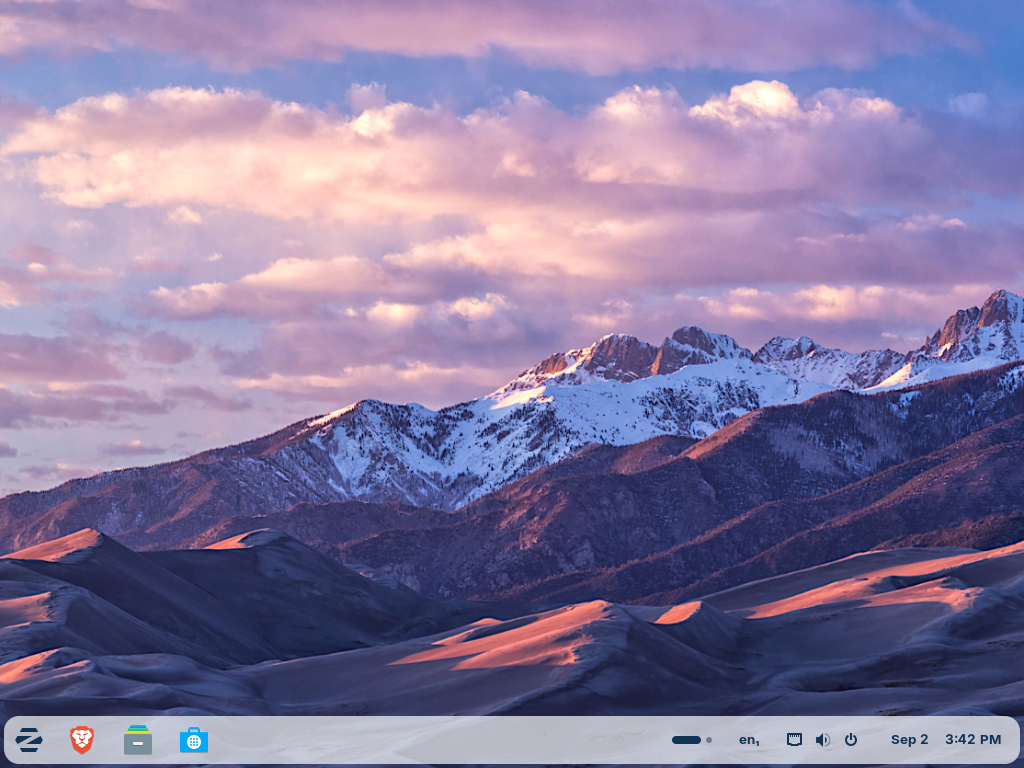
Zorin OS is often recommended to Windows refugees. Its interface mimics Windows closely, and it ships with a tool called Zorin Connect that helps with phone integration. The setup process for Windows apps is straightforward—you install Wine, and you’re off.

In practice, it worked—but with friction. Office installed, but the ribbon felt sluggish. Notepad++ ran fine, which is expected. Spotify worked, but only after I installed an older version. The game? It stuttered enough to be annoying.

Zorin is a decent introduction, but it’s not the best Linux distro for Windows apps. It’s more of a gentle on-ramp for people who want a Windows-like desktop, not a powerhouse for running Windows software.

Linux Mint: The Reliable Workhorse

Linux Mint is beloved for its stability. And it didn’t disappoint—everything installed without crashing. But “without crashing” isn’t the same as “running well.”

Adobe Reader worked, though the interface looked dated. 7-Zip was flawless. But Office was a different story. The installer took forever, and once it was done, the apps opened slowly. Saving a document occasionally caused a delay that made me nervous.

Mint is a great daily driver for Linux-native software. For Windows compatibility, it’s merely acceptable. You’ll spend time tweaking settings and hunting for workarounds that other distros handle automatically.

Pop!_OS: Built for Gamers, Not for Windows Users

Pop!_OS has a reputation for gaming, thanks to its NVIDIA driver integration. I hoped that would translate to better Windows app support. It didn’t.

Steam worked well—no surprise there. But the rest was a mess. Office wouldn’t install at all. Spotify’s Snap version kept crashing. I spent more time in terminal troubleshooting than actually using the system.

Pop!_OS is excellent for gamers who want a Linux-native experience. But if your priority is running Windows software, you’re better off elsewhere.

Ubuntu: The Default Choice That’s Just Okay

Ubuntu is the distro everyone recommends to beginners. It’s polished, well-documented, and has the largest community. That means when you run into problems, you’ll find solutions quickly.

And you’ll need them. Ubuntu’s default Wine setup is fine for basic apps, but anything complex requires additional configuration. I got Notepad++ and 7-Zip running easily. Adobe Reader took some work. Office was a no-go without a virtual machine.

Ubuntu is a safe choice for general use, but it doesn’t offer anything special for Windows app compatibility. You’re essentially on your own, relying on community guides and trial-and-error.

Bottles: The Unexpected Champion

Here’s where things get interesting. Bottles isn’t a full distro—it’s a compatibility layer that runs on top of Linux. But it’s so good at what it does that it deserves a place in this comparison.

Bottles simplifies the entire Wine process. Instead of manually configuring prefixes and dependencies, you create a “bottle”—a virtual environment for your Windows apps. Each bottle can have its own settings, runners, and dependencies. It’s like having a dedicated Windows machine for each program.

I installed Bottles on Ubuntu, and the difference was night and day. Office installed without a hitch. Adobe Reader worked perfectly. Even the game ran smoothly, with minimal tweaking.

The secret is Bottles’ dependency management. It automatically installs the libraries and components each app needs, so you don’t have to figure out why something isn’t working. It’s the closest thing to a plug-and-play experience for Windows software on Linux.

Which Distro Should You Choose?

If you want the absolute best Linux distro for Windows apps, pair a stable base like Ubuntu or Linux Mint with Bottles. That combination gave me the smoothest experience, with the least amount of headache.

Zorin OS is a good starting point for beginners, but you’ll eventually want Bottles there too. Pop!_OS is great for gaming, but don’t expect miracles with Windows software. And while Ubuntu and Mint are reliable, they need Bottles to truly shine.

My final setup: Linux Mint + Bottles. It’s stable, fast, and handles Windows apps better than any distro I tested on its own. If you’re considering making the switch, that’s where I’d start.

And if you’re curious about other ways to bridge the gap, check out our guide on using Wine for Windows apps and our comparison of Linux distros for beginners.

Continue Reading

Social Media

From Gems to Employees: How to Turn AI Tools Into Autonomous Workers

Published

on

autonomous AI employees

The Weekend Is Almost Here: Don’t Miss This AI Roundup

Friday’s looming. You’ve got one foot out the door, but before you log off, there’s a batch of AI intel worth your attention. Save it for later if you must — just don’t skip it.

This week’s edition zeroes in on three areas that matter if you’re building a serious AI workflow: converting Google Gems and custom GPTs into reusable Skills, training autonomous AI employees that actually meet your standards, and the latest industry moves from Gemini and others.

What Are Gems and GPTs — and Why Convert Them?

You’ve probably tinkered with custom GPTs in ChatGPT or played with Gems in Gemini. They’re handy, sure. But they’re also siloed. A GPT lives inside ChatGPT; a Gem stays in Gemini. That’s fine for personal use, but it falls apart when you want a consistent process across your whole operation.

The fix? Turn them into Skills. A Skill is a packaged, reusable capability that any AI agent can call on — regardless of the underlying model. Think of it as the difference between hiring a freelancer who only works in one app and hiring someone who can plug into your entire tech stack.

This isn’t just a nice-to-have. If you’re serious about building autonomous AI employees, Skills are the building blocks. They let you standardize how your AI handles specific tasks, so you’re not reinventing the prompt wheel every Monday morning.

How the Conversion Works

  • Audit what you have: List every custom GPT and Gem you’ve created. Which ones actually save time?
  • Extract the core logic: Strip away the interface and isolate the instructions, knowledge files, and workflow steps.
  • Repackage as a Skill: Define clear inputs and outputs. A Skill should be callable by any agent, not tied to a chat window.

It sounds technical, but the payoff is real. Once your best prompts become Skills, they’re versionable, shareable, and — crucially — usable inside automated pipelines.

Training AI Employees That Match Your Standards

Here’s the uncomfortable truth: most people’s AI assistants are mediocre because they’re trained by accident, not by design. You let the model guess what “good” looks like. Then you’re surprised when the output is generic.

Training an autonomous AI employee is different. You’re not just writing a prompt — you’re onboarding someone. That means setting expectations, providing examples of excellent work, and establishing guardrails for when things go sideways.

Start with a single role. Pick one repetitive task — say, drafting client emails or summarizing industry reports. Build a Skill for it, then train the agent on your feedback loop. Show it what a 9-out-of-10 response looks like. Correct it when it drifts. Over time, it gets faster and sharper.

And here’s the key: it works while you sleep. That’s the whole point of autonomous. You set the standard, the AI meets it, and you’re not in the loop for every single output.

A Simple Training Framework

  1. Define the role: Write a one-paragraph job description for your AI employee.
  2. Give it a Skills stack: Assign the Skills it needs to do the job.
  3. Run a pilot: Test on low-stakes tasks first. Measure accuracy, not speed.
  4. Iterate: Feed corrections back into the Skill definitions.

Done right, you’ll have a workforce that scales without headcount. That’s not sci-fi — it’s just good process design.

Industry News: Gemini and the Wider AI Landscape

Meanwhile, the big players aren’t standing still. Gemini has been rolling out updates that blur the line between chatbot and coworker. New capabilities are pushing toward longer context windows, better tool use, and more reliable multi-step reasoning.

What does that mean for you? The gap between consumer AI and enterprise AI is shrinking. Tools that felt experimental six months ago are now production-ready. But that also means the bar for differentiation is higher. Anyone can chat with a bot. Few can deploy a fleet of autonomous AI employees that actually deliver.

The winners this year won’t be the ones with the fanciest models. They’ll be the ones who figured out how to turn AI into a repeatable, trainable workforce. That starts with Skills — and ends with results.

So before you head out for the weekend, ask yourself: are you still playing with AI, or are you actually putting it to work?

Continue Reading

Social Media

Judge Hands X a Split Verdict in Trademark Fight With Twitter Rival Tweet.app

Published

on

Tweet.app trademark ruling

A Startup Built on Trademark Scraps

Most social media startups begin with a big idea. Operation Bluebird began with a legal loophole. The Virginia-based company, founded by two lawyers, launched with the explicit goal of picking up the trademarks Elon Musk discarded when he renamed Twitter to X. Its homepage doesn’t hide this. It says the company wants to go back and grab what Musk dropped when he “threw the bird away on his way out.”

That’s not your typical mission statement. But it might be a clever one.

On Wednesday, a federal court in Delaware delivered a split ruling in the trademark fight between X Corp. and Operation Bluebird. Judge Colm F. Connolly granted X’s request for a preliminary injunction on eight Twitter-related marks. That means the startup can’t call itself Twitter.now. The core “Twitter” name stays with X, at least for now.

But here’s the twist. The judge denied X’s motion regarding two other marks: the word “tweet” and the Twitter bird logo. He wrote that Operation Bluebird was “likely to succeed in proving both that X Corp. discontinued the bona fide use of the Tweet mark and Bird logo and that it intends not to resume the use of the marks.”

In plain English: X gave up on those words and images. The public kept using them, and now a rival can too.

The Lawyers Behind the ‘Tweet’ Revival

Operation Bluebird isn’t run by Silicon Valley dreamers. It’s led by Michael Peroff, an Illinois-based attorney, and Stephen Coates, who once worked as a trademark lawyer at Twitter. Their legal pedigree makes their claim of wanting to build a fresh social network feel a bit thin. The real prize here is likely the trademarks themselves, which carry value independent of any actual product.

Still, the startup is going through the motions. It has rebranded its website as Tweet.app and opened its doors to early testers. The company told TechCrunch that more than 172,000 people requested a handle before launch. That number probably reflects lingering public affection for the Twitter brand — a name the startup can no longer use.

There’s a catch, though. To reserve a handle and join, users must pay $20. That fee likely helps cover the mounting legal bills.

What the Judge Actually Decided

This ruling isn’t final. It’s a preliminary injunction, which means the court is weighing the likelihood of success on the merits. Judge Connolly sided with X on the eight marks tied directly to the Twitter name. He sided with Operation Bluebird on the Tweet mark and the bird logo.

The case will now proceed to a full trial to determine whether X retains any rights to the Twitter marks, given that the company now operates under the X banner in most places.

For now, the practical outcome is this:

  • X keeps exclusive rights to the “Twitter” name.
  • Operation Bluebird can use the word “tweet” and the bird logo.
  • The startup must rebrand away from Twitter.now.

A Question of Abandonment

The core legal question is whether X abandoned these marks through non-use. In trademark law, abandoning a mark means discontinuing its use with no intent to resume. Musk’s aggressive rebrand to X in 2023 left the word “tweet” and the bird logo in limbo. The company kept the Twitter handle on its own platform but stopped using the bird in most official capacities.

Coates, now president of Operation Bluebird, framed the ruling as a victory for the public. “They kept the word. They let go of the bird, and they let go of the tweet,” he wrote in an announcement shared via email with TechCrunch. “A tweet was never a corporation. It’s one person saying something. That word survived three years of a company trying to replace it, because the public declined to stop using it. We think that tells you who it belongs to.”

That’s a poetic argument. Whether it holds up in court remains to be seen.

What This Means for X and Its Rivals

For X, this ruling is a mixed bag. It protects the core Twitter trademark, which the company still uses in some contexts. But it opens the door for competitors to use the word “tweet” and the bird imagery — elements that remain culturally significant even if X has moved on.

For anyone tracking Elon Musk’s X rebrand and its legal fallout, this case is worth watching. It could set a precedent for how courts treat abandoned trademarks in the fast-moving world of social media. If X loses the full case, it might have to accept that the bird and the tweet belong to the public now.

The startup’s approach is unusual, but it’s not without precedent. Companies have long scooped up abandoned trademarks and repurposed them. The difference here is scale: Twitter’s marks are among the most recognized in internet history.

For now, Tweet.app lives. Twitter.now is dead. And the bird, it seems, has found a new perch.

Continue Reading

How To

I finally found an easy way to make Windows remember exactly where every app window belongs

Published

on

Windows remember app positions

Every morning, the ritual repeats. Open the same half-dozen apps, then spend five minutes dragging, resizing, and nudging each window into its designated spot across two monitors. By lunch, something shifts—a notification steals focus, a window snaps to the wrong screen—and the carefully built layout crumbles. It’s maddening.

I’d tried every trick I knew. Windows built-in snap layouts help, but they only work one window at a time. Third-party tools exist, but most feel like overkill or cost money. Then I stumbled on a free utility hiding inside PowerToys: Workspaces. It’s the closest thing to a magic button I’ve found for Windows remember app positions—and it’s genuinely easy.

What is PowerToys Workspaces?

Workspaces is a relatively new addition to Microsoft’s PowerToys suite, which has been around for years as a grab-bag of productivity utilities. It lets you capture a snapshot of your current desktop layout—which apps are open, where they sit, their size, and even which monitor they’re on—and save it as a named workspace.

Later, with one click, you can relaunch all those apps and have them snap back into their exact positions. No dragging. No resizing. No remembering which browser profile goes on the left screen. It’s like a bookmark for your entire desktop.

Why I stopped using manual snap layouts

Windows Snap Layouts (the hover-over-the-maximize-button feature) is fine for a quick two-window split. But it fails when you need a precise arrangement across multiple monitors or want to restore a full set of apps after a reboot. Workspaces solves that because it handles the whole layout as one unit, not window by window.

How to set up Workspaces in PowerToys

Here’s the part that sold me: setup takes less than a minute. You don’t need to configure anything complicated—just capture what’s already on your screen.

  1. Install PowerToys from the Microsoft Store or GitHub if you haven’t already.
  2. Open PowerToys and select Workspaces from the left sidebar.
  3. Arrange your apps the way you want them on your monitor(s).
  4. Click Capture Workspace—PowerToys takes a snapshot of every open window’s position and size.
  5. Give your workspace a name, like “Work” or “Coding Setup.”
  6. That’s it. You can now launch that workspace anytime from the Workspaces editor or a shortcut.

One note: Workspaces works best with apps that support command-line launching or have standard window handles. Most everyday programs—browsers, editors, terminals, chat apps—work flawlessly. Occasionally, a stubborn app might not restore perfectly, but in my testing, that’s rare.

Restoring a layout with one click

Once you’ve saved a few workspaces, using them is even simpler. Open the Workspaces editor, hover over a saved layout, and hit the launch button. PowerToys opens all the apps and arranges them exactly as captured. You can also assign a keyboard shortcut to each workspace, which turns the whole process into a single keystroke.

I now have three saved workspaces: one for writing (browser, editor, notes app), one for development (terminal, IDE, preview window), and one for communication (email, Slack, calendar). Morning startup went from a five-minute chore to a ten-second flick of a key.

What makes this different from other layout tools

I’ve tested utilities like FancyZones (also part of PowerToys) and paid tools like DisplayFusion. FancyZones is excellent for creating custom snap regions, but it doesn’t launch apps or restore a full set. DisplayFusion does window management across monitors, but it costs money and has a steeper learning curve.

Workspaces hits a sweet spot. It’s free, it’s built into a tool you might already use, and it requires zero configuration for basic use. If you’re juggling multiple monitors or just tired of rearranging after every reboot, this is the easy way to make Windows remember app positions without buying anything or wrestling with scripts.

Tips for getting the most out of Workspaces

  • Capture after a clean setup: Close apps you don’t want in the layout before capturing, so you don’t freeze in a stray window.
  • Use separate workspaces for different tasks: Don’t try to cram everything into one layout. Save distinct setups for distinct modes of work.
  • Combine with FancyZones: If you want more granular control over snap regions, set up FancyZones first, then capture a workspace that uses those zones.
  • Test with your key apps: Some apps (like elevated admin tools) may not restore automatically. Test your core set to see if anything needs a manual nudge.

If you’re like me and you’ve spent months fighting your own desktop, give Workspaces a shot. It’s the rare productivity fix that actually sticks. And for more Windows productivity tips, check out our guide on customizing your taskbar for faster workflows or setting up a multi-monitor display like a pro.

Continue Reading

Trending