How to Install Linux in VirtualBox: A Complete Beginner’s Guide
Ever wanted to try Linux without risking your main computer? Virtualization makes it possible. Think of it as running a computer inside your computer—a safe sandbox where you can experiment, learn, and explore. This guide walks you through installing Ubuntu Linux in VirtualBox, from downloading the software to navigating the desktop.
Why Virtual Machines Are Perfect for Learning Linux
Modern computers have power to spare. Multi-core processors and ample RAM mean you can run multiple operating systems simultaneously. Virtualization software like VirtualBox creates these virtual machines (VMs), letting you install and run Linux without touching your Windows or macOS installation.
What’s the advantage? Everything happens in isolation. If something goes wrong in the VM, your host computer remains unaffected. You can test software, learn commands, or explore different Linux distributions without fear. It’s like having a practice computer that you can reset with a few clicks.
Getting Ready: What You’ll Need
Before we start, let’s check your system. You’ll need a computer with at least 2GB of RAM and 10GB of free disk space. More is better—4GB RAM and 20GB disk space will give you a smoother experience. You’ll also need a reliable internet connection to download the necessary files.
We’ll be using two main components: VirtualBox (the virtualization software) and Ubuntu Desktop (the Linux distribution). Both are free and widely supported. Ubuntu offers an excellent starting point for Linux newcomers with its user-friendly interface and extensive documentation.
Step 1: Setting Up Your Virtual Environment
First, download VirtualBox from Oracle’s website. Choose the version matching your operating system—Windows, macOS, or Linux. The installation process is straightforward: run the downloaded file and accept the default settings. No special configuration needed at this stage.
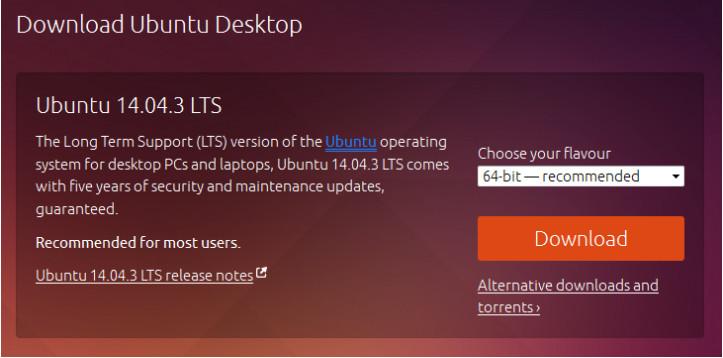
Next, grab the Ubuntu Desktop ISO. Visit ubuntu.com/download/desktop and select the 64-bit version unless you’re running older 32-bit hardware. The download is about 2GB, so grab a coffee while it completes. Save the file somewhere you’ll remember, like your Downloads folder.
Creating Your Virtual Machine
Open VirtualBox and click “New.” Name your VM “Ubuntu”—this helps keep things organized. Set Type to “Linux” and Version to “Ubuntu (64-bit).” Click through the memory allocation screen, keeping the slider in the green zone. Allocating too much RAM to the VM will slow down your host system.
For storage, create a virtual hard disk now. Choose VDI format and dynamically allocated storage. The default 10GB size works fine for basic exploration. Click “Create” and your empty VM appears in the VirtualBox manager.
Step 2: Installing Ubuntu Linux
Select your new Ubuntu VM and click “Start.” VirtualBox will prompt you to select a startup disk. Click the folder icon and navigate to your downloaded Ubuntu ISO file. This tells the VM to boot from the installation image rather than an empty virtual hard drive.
The Ubuntu installer loads. Choose “Install Ubuntu” rather than trying it live. You’ll see several preparation screens—most can be left at default settings. Check both “Download updates” and “Install third-party software” for the best experience. The installation type is crucial: select “Erase disk and install Ubuntu.” This sounds dangerous, but remember—it’s only erasing the virtual disk, not your actual computer’s drive.
Personalizing Your Installation
Set your timezone by clicking on the map. Choose your keyboard layout—most English speakers can stick with the default. Create your user account with a name and password. For practice purposes, many instructors recommend using “ITEUser” and “ITEpass!” to match lab environments. The installation process takes 15-30 minutes depending on your system. When complete, restart the VM.
Step 3: Exploring the Linux Desktop
Log into your fresh Ubuntu installation. You might notice the desktop looks small—that’s because we haven’t installed VirtualBox Guest Additions yet. These tools improve integration between host and guest systems. From the VirtualBox menu bar, select Devices > Insert Guest Additions CD Image. A virtual CD loads in Ubuntu.
Run the installation script when prompted. Enter your password when asked. The process installs better video drivers, shared clipboard functionality, and seamless mouse integration. Once complete, restart your VM from the Ubuntu system menu.
Navigating the Ubuntu Interface
After reboot, everything looks sharper. The desktop environment is clean and intuitive. The dock on the left provides quick access to common applications. Click the grid icon in the dock (called “Dash”) to search for programs. Type “web browser” to launch Firefox, Ubuntu’s default browser.
Want to try the command line? Search “terminal” in Dash. You’ll find three terminal emulators: Terminal, UXTerm, and XTerm. Terminal is the standard choice. This black window might seem intimidating, but it’s where Linux’s real power lives. We’ll explore commands in another guide.
The Virtual Machine Advantage
Why go through this setup? Virtual machines offer incredible flexibility. You can test software that might be unstable or dangerous. You can take snapshots before making major changes, then revert if things go wrong. Need multiple Linux distributions? Create separate VMs for each.
The trade-off? Virtualization consumes resources. Your host computer shares RAM, CPU cycles, and disk space with the VM. Performance won’t match running an OS directly on hardware. But for learning and development, it’s a small price to pay for safety and convenience.
Ready to continue your Linux journey? With Ubuntu running in VirtualBox, you have a perfect playground. Explore the applications menu. Customize the desktop. Browse the web. When you’re comfortable with the GUI, that terminal window awaits—gateway to Linux’s true potential.







 CyberSecurity5 months ago
 How To4 months ago
 CyberSecurity5 months ago
 CyberSecurity5 months ago
 Social Media5 months ago
 Infosecurity5 months ago
 CyberSecurity5 months ago
 CyberSecurity5 months ago