Connect with us

How To

Linux Mint Isn’t the Best Windows Replacement Anymore — Here’s What Is

Published

on

Linux Mint Windows replacement

The Cinnamon Comfort Zone Isn’t Enough

For over a decade, Linux Mint has been the default recommendation for anyone jumping ship from Windows. Its Cinnamon desktop felt familiar — a taskbar, a start menu, system tray icons — and it just worked out of the box. No command-line acrobatics required.

But 2026 is a different world. Windows 10 support ended last October. Millions of users are finally making the switch. And the Linux ecosystem has evolved fast. Mint, frankly, hasn’t kept pace.

That’s not to say Mint is bad. It’s still a solid, stable distro. But the title of “best Windows replacement” belongs to someone else now.

What Made Linux Mint the King

Mint’s rise wasn’t accidental. In the early 2010s, Ubuntu was pushing its Unity desktop — a radical, phone-inspired interface that confused traditional PC users. Mint offered a lifeline: a classic desktop that felt like home.

Its Cinnamon desktop, now on version 6.4, still gives you a panel at the bottom, a menu button on the left, and system tray on the right. You can right-click the desktop. You can minimize windows. It’s comfortable.

Mint also shipped with multimedia codecs and proprietary drivers pre-installed or one-click away. No hunting for Flash or MP3 support. For Windows refugees in 2012, it was a revelation.

The Problem: Stagnation in a Moving Market

Here’s the thing — comfort can become complacency. While Mint polished Cinnamon, other distros rethought the entire onboarding experience.

Take Zorin OS. Its layout switcher lets you choose between a Windows-like panel, a macOS-style dock, or even a GNOME 2 layout. You pick your poison at first boot. Mint’s customization? You get Cinnamon. That’s it.

Or consider Ubuntu itself. GNOME in 2026 is a different beast. Extensions like Dash-to-Panel and ArcMenu give you a Mint-like taskbar with far more flexibility. Ubuntu’s installer now detects Windows BitLocker and offers seamless dual-boot. Mint’s installer? It works, but it’s simpler — and simplicity isn’t always better when you need to handle encrypted partitions.

What a Modern Windows Replacement Needs

Switching operating systems is a big deal. People don’t just want a familiar desktop. They want:

  • Hardware compatibility out of the box — especially for Wi-Fi, Bluetooth, and fingerprint readers.
  • Easy software installation — preferably a store-like experience with Flatpak, Snap, or AppImage support.
  • Gaming performance — Steam Proton and NVIDIA driver support are non-negotiable now.
  • Touchscreen and hybrid support — more laptops have touch displays than ever.
  • Long-term stability without sacrificing newer kernels — you need both security updates and hardware enablement.

Mint checks some of these boxes, but not all. Its default kernel is conservative. Its NVIDIA driver management, while improved, still lags behind Ubuntu’s automated ubuntu-drivers tool. And touch support in Cinnamon? Let’s just say it’s not a priority.

The Distros That Have Pulled Ahead

So who’s actually the best Windows replacement in 2026? The answer depends on your hardware and tolerance for change, but a few clear winners have emerged.

Zorin OS 17 — The Most Windows-Like Experience

Zorin OS has taken the crown for pure familiarity. Its layout switcher is genius — you can literally make it look like Windows 11, Windows 10, or even Windows 7. The Pro edition (paid, but worth it) includes pre-installed software and additional layouts.

Zorin also ships with a custom GNOME session that feels snappier than stock GNOME. It includes WINE pre-configured for running some Windows apps. And its update manager is dead simple — no terminal needed.

Ubuntu 24.10+ — The Power User’s Choice

If you want the broadest software support and the most up-to-date drivers, Ubuntu wins. Its Snap package format is controversial among purists, but for a new user, the Ubuntu Software Center just works. Steam is one click away. NVIDIA drivers install automatically during setup.

Ubuntu’s GNOME desktop, with a few extensions, can mimic Windows closely enough. And you get faster kernel updates than Mint, which means better support for new hardware.

Pop!_OS 24 — For Gamers and Developers

Pop!_OS from System76 has its own Cosmic desktop (now in Rust). It ships with a dedicated graphics-switching tool for laptops with both integrated and discrete GPUs. That’s a killer feature for gamers.

Pop also includes built-in tiling window management — which sounds intimidating but actually makes multitasking way easier once you try it. For Windows users who do any coding or graphic design, it’s a serious upgrade.

Where Linux Mint Still Shines

Let’s be fair. Mint isn’t obsolete. It’s still the best option for a specific type of user: someone with older hardware who just wants a stable, low-maintenance desktop for web browsing, email, and office work.

Mint’s Xfce edition runs beautifully on 4GB RAM machines. Its update policy is conservative — you won’t get broken by a kernel regression. And the community forums are among the friendliest in open source.

But for a Windows 10 refugee in 2026 — someone with a modern laptop, a desire to game, or a need for hybrid tablet support — Mint is no longer the automatic answer. Zorin, Ubuntu, and Pop!_OS have all surpassed it in different ways.

The crown has shifted. And honestly? That’s good for everyone. Competition makes Linux better.

Continue Reading
Click to comment

Leave a Reply

Your email address will not be published. Required fields are marked *

Social Media

Bluesky’s AI assistant Attie evolves into an open-ended research tool for the social web

Published

on

Bluesky Attie AI assistant

A new chapter for Attie

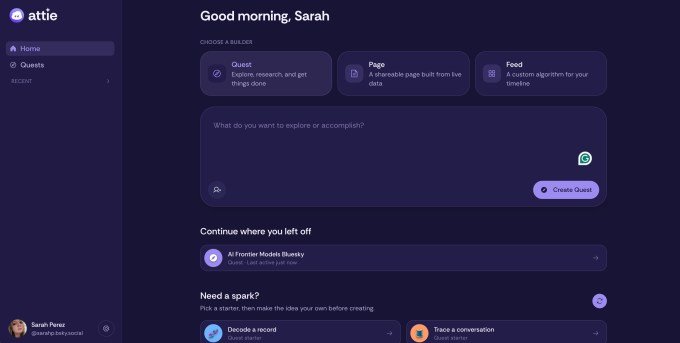
Bluesky’s AI assistant, Attie, is getting a major upgrade. Originally launched in March as a tool to help users build custom social feeds without writing a single line of code, Attie is now expanding into what the company calls an open-ended research tool. The new feature, named Quests, lets anyone ask Attie questions about what’s happening across the broader Bluesky ecosystem — which the company nicknames the Atmosphere.

That ecosystem doesn’t stop at Bluesky itself. Quests can pull information from any app built on the AT Protocol, the decentralized foundation that underpins the network. So if you’re curious about trending topics, influential voices in a specific city, or even a niche field like open-source gardening tools, Attie can now help you dig into it.

What Quests actually does

Think of Quests as a research assistant for the open social web. Instead of just filtering your feed or recommending accounts, you can ask Attie open-ended questions. For example: “What are the most talked-about topics among climate scientists on Bluesky right now?” or “Who are the top accounts discussing AI policy in Europe?”

The company describes the feature as a way to “fight back against the proliferation of misinformation and noise.” In a blog post, Bluesky’s chief innovation officer Jay Graber — who stepped down as CEO in March and was replaced by Toni Schneider, former founding CEO of Automattic — wrote that Attie is meant to help people “make sense of the internet” and “find the truth yourself.”

Graber also emphasized that the goal is to lower the barrier to entry for using the AT Protocol. “We want Attie to reduce the barrier to entry and expertise required to learn how to use the AT Protocol,” she wrote, “and to put the tools for customizing your experience in the hands of anyone who wants them.”

Why Bluesky needs this now

Bluesky’s user growth has clearly slowed. The social network saw its user base double to 40 million last October — a remarkable surge within just a year — but it now reports around 45.6 million registered accounts. That’s growth of only about 5.6 million over the past eight months.

So the company is looking for fresh ways to expand its audience and, eventually, generate revenue. Attie is free for now, but Bluesky has floated the idea of charging for the service down the road. In March, the company announced it had raised $100 million in funding, giving it some runway to experiment. That cash is being used to explore ideas like Attie, a premium subscription tier, and tools for power users.

Balancing community sentiment with revenue needs

There’s a tension here. Many Bluesky users are openly skeptical of AI — for economic, political, and environmental reasons. The company has to navigate that community sentiment while also figuring out how to keep the lights on. Attie is one of the more visible attempts to strike that balance: a useful AI tool that doesn’t feel like an intrusion, and that might one day become a paid service.

Graber acknowledged that Attie is being redesigned with accessibility features and a new logo. More changes are coming in the months ahead.

What’s next for Attie (and who gets access)

For now, the new Attie experience is in beta. Users will be invited in from a waitlist over the coming weeks. The company hasn’t shared a specific timeline for a wider rollout, but the direction is clear: Attie is no longer just a feed-builder. It’s becoming a research tool for the open social web.

The bigger picture is that Bluesky is betting that tools like Attie will prove more useful than the algorithmic noise machines that dominate much of social media today. As Graber put it, “Our bet is that tools that help people make sense of the world will prove to be more useful than those that fill it with confusion.”

Whether users will pay for that clarity is an open question. But for now, the company is focused on getting the tool right — and getting it into more hands.

If you’re interested in how Bluesky’s approach compares to other platforms, you might also want to check out our guide on WhatsApp HD photo sending or read about the latest WhatsApp privacy settings.

Continue Reading

How To

I Built My Own Internet Speed Test Server — Here’s What Ookla Doesn’t Tell You

Published

on

speed test server

Why I Ditched Ookla and Built My Own Speed Test Server

For years, I trusted Ookla’s Speedtest like everyone else. Click “Go,” watch the needle swing, and declare victory—or call your ISP. But something nagged at me. The numbers looked too clean. Too consistent. So I decided to stop being a passive consumer of speed tests and start running my own.

I set up a private speed test server on a virtual private server (VPS) located in a major data center. The idea was simple: measure my real-world connection without Ookla’s optimizations, server selection bias, or traffic shaping. What I found changed how I think about internet performance.

The Ookla Problem: Servers Built to Make You Look Fast

Ookla’s infrastructure is massive—thousands of servers worldwide. But here’s the catch: ISPs can host their own Ookla servers. And many do. That means when you test with an ISP-hosted server, you’re essentially measuring the speed of your local network plus a short hop to the ISP’s own rack. Of course it looks fast.

Even when you pick a random third-party server, Ookla’s algorithm tends to select the one with the lowest latency and highest throughput. That’s great for a best-case scenario. But the real internet isn’t a best-case scenario. You don’t get to choose your server when you stream Netflix, join a Zoom call, or play Call of Duty.

How My Self-Hosted Test Changed the Results

My own server sits in a different city, three hops away from my ISP’s backbone. No special peering. No optimization. Just a standard Linux box running OpenSpeedTest and iperf3.

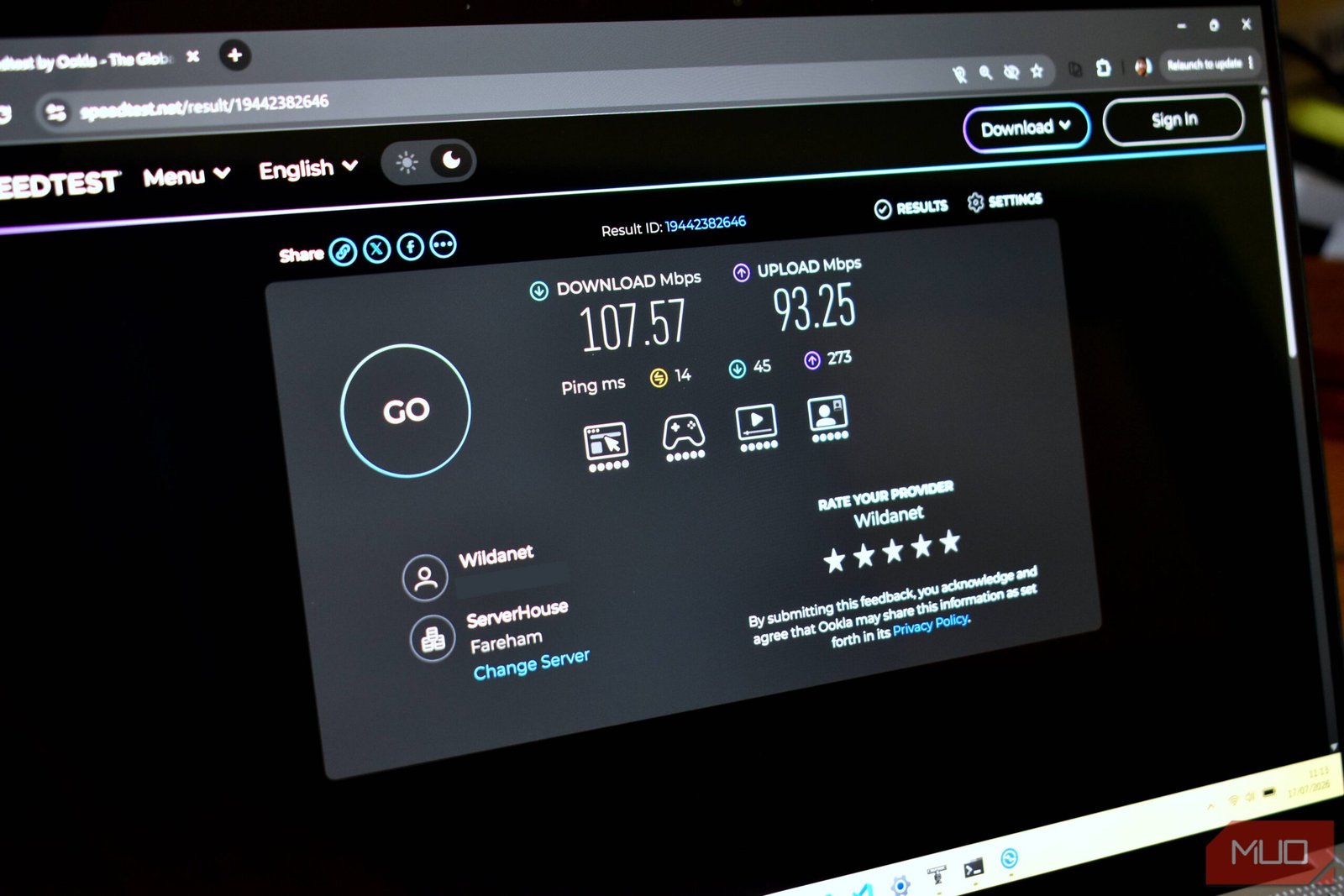
The first test was sobering. Ookla gave me 940 Mbps down, 35 Mbps up. My server? 620 Mbps down, 28 Mbps up. That’s a 34% drop on download. Not a fluke—I ran it twelve times over three days. The gap persisted.

Why? Because my ISP’s Ookla server is practically inside the exchange. My server requires traversing an actual internet path, complete with congestion, routing delays, and the occasional packet loss. That’s the connection you actually live with.

Bufferbloat: The Silent Killer Ookla Ignores

Ookla measures throughput and ping. It does not measure bufferbloat—the latency spike that happens when your connection is saturated. This is a huge blind spot.

I ran a bufferbloat test alongside my speed test server. With Ookla, my ping was 12 ms. Under load from my server, it jumped to 380 ms. That explains why your video call stutters even when “speed is fine.” Ookla’s short burst test doesn’t fill the buffer long enough to reveal the problem.

A self-hosted test with a sustained download exposes bufferbloat immediately. It’s the difference between a sprint and a marathon. Your ISP optimizes for the sprint. Real life is a marathon.

Peak-Hour Performance: The Truth Comes Out at 8 PM

Ookla tests at any time of day. But ISPs know when people test. They can prioritize speed test traffic. It sounds paranoid, but it’s documented: traffic shaping and deep packet inspection can identify Ookla traffic and give it a fast lane.

I scheduled my server to run tests automatically every hour for a week. The results were eye-opening. At 3 AM, I got 890 Mbps. At 8 PM on a Tuesday? 410 Mbps. That’s a 54% drop during peak hours. Ookla tests taken at 3 PM looked fine. They didn’t reflect my evening experience at all.

If you’re only testing during the day or late at night, you’re getting a lie. A self-hosted server gives you the full picture—including the ugly hours.

How to Build Your Own Speed Test Server

You don’t need to be a network engineer. Here’s the quick version:

  • Get a VPS — Any provider like DigitalOcean, Linode, or AWS Lightsail works. Pick a location far from your home for realistic results.
  • Install OpenSpeedTest — It’s a free, open-source HTML5 speed test. Deploy it with Docker in about five minutes.
  • Set up iperf3 — For more granular testing, iperf3 gives you TCP and UDP throughput, jitter, and packet loss.
  • Run tests at different times — Use cron jobs or a simple script to automate hourly tests. Log everything.

That’s it. You now have a truth-teller that doesn’t care about your ISP’s feelings.

What Your ISP Doesn’t Want You to Know

After a month of data, here’s what I learned: Ookla is a useful tool, but it’s a marketing tool first. It shows you the best possible version of your connection. My self-hosted speed test server showed me the real version—the one that lags during peak hours, bloats under load, and doesn’t get special treatment from the ISP.

If you’re serious about knowing your internet’s actual performance, don’t rely on one test from one provider. Run your own. The truth is worth the 20 minutes it takes to set up.

Continue Reading

How To

Linux finally does HDR gaming right — here’s the exact setup

Published

on

Linux HDR gaming

HDR gaming on Linux: no longer a pipe dream

For years, High Dynamic Range gaming on Linux was a punchline. You could buy a fancy HDR monitor, boot up a title on Steam, and get… washed-out colors, crushed blacks, or a desktop that looked like someone smeared Vaseline on the screen. The promise was always there. The delivery? Barely.

That’s changed. In 2026, Linux can do HDR gaming properly — not through hacks, not through third-party patches that break every other update, but through genuine, upstream support. The combination of KDE Plasma 6 and Gamescope has turned a frustrating mess into something that just works. Here’s exactly what you need and how to set it up.

What changed? The software stack that finally works

The turning point was Wayland. The display protocol that Linux enthusiasts have been championing for years finally got serious HDR support baked in. But Wayland alone isn’t enough — you need a compositor that knows what to do with it. That’s where KDE Plasma 6 comes in.

KDE’s developers put serious work into color management and HDR output. The result is a desktop environment that can switch between SDR and HDR modes without you needing to restart X11 or fiddle with config files. It just detects your monitor’s capabilities and asks what you want to do.

Then there’s Gamescope. This is Valve’s micro-compositor, originally built for the Steam Deck. It wraps your game in its own little display environment, handling HDR metadata, color conversion, and refresh rate locking. When you launch a game through Gamescope, it gets a clean HDR pipeline — no fighting with the rest of the desktop.

Together, these two pieces form the backbone of modern Linux HDR gaming. No custom kernels. No patched drivers. Just a distro that ships recent software.

Hardware you’ll actually need

Before you dive in, check your gear. HDR on Linux makes specific demands.

GPU: AMD leads, Intel works, Nvidia is complicated

An AMD Radeon RX 6000 or RX 7000 series card is the smoothest path. AMD’s open-source drivers have excellent HDR support under Wayland. Intel’s Arc GPUs also work well if you’re on a recent kernel (6.8 or later).

Nvidia? It’s getting better. The proprietary driver (version 555 and above) supports Wayland HDR, but expect more edge cases — flickering in some full-screen games, weird behavior with multiple monitors. If you have an Nvidia card, make sure you’re on the latest driver and using a distro that ships it cleanly.

Monitor: look for DisplayHDR 600 or higher

Not all HDR monitors are created equal. A DisplayHDR 400 panel will technically work, but the experience is underwhelming — low peak brightness, poor local dimming. Aim for DisplayHDR 600 or better. OLED panels are ideal because each pixel controls its own brightness, giving you true blacks and vibrant highlights.

Your monitor also needs to support HDR10. That’s the standard Linux uses. Dolby Vision and HDR10+ are not supported on the desktop yet.

Cable: DisplayPort 1.4 or HDMI 2.1

This is the part people forget. A cheap HDMI 1.4 cable will bottleneck your HDR signal. Use DisplayPort 1.4 or HDMI 2.1 to get the full 10-bit color depth and high refresh rates. If your monitor and GPU support DSC (Display Stream Compression), even better — you can push 4K at 144Hz with HDR enabled.

Step-by-step: setting up HDR gaming on Linux

Let’s get practical. These steps assume you’re on a distro that packages recent software — Fedora 40+, Arch Linux, or openSUSE Tumbleweed. Ubuntu 24.04 LTS works too, but you’ll need the KDE Plasma 6 backports PPA.

1. Install KDE Plasma 6

If you’re not already on Plasma 6, switch to it. On Fedora: sudo dnf groupinstall "KDE Plasma Workspaces". On Arch: sudo pacman -S plasma-meta. Make sure you log into a Wayland session, not X11 — you’ll see the option at the login screen.

2. Enable HDR in display settings

Open System Settings → Display and Monitor. You should see an “HDR” toggle if your monitor supports it. Turn it on. The screen will go dark for a second, then come back with noticeably richer colors. You can also set the SDR brightness slider here — this controls how bright standard content (like your web browser) appears while HDR is active.

3. Install Gamescope

Gamescope is available in most distro repos. On Fedora: sudo dnf install gamescope. On Arch: sudo pacman -S gamescope. On Ubuntu: sudo apt install gamescope (if the version is too old, grab it from the Kisak Mesa PPA).

4. Launch a game with HDR

Open a terminal and run something like this:

gamescope -W 2560 -H 1440 -r 144 --hdr-enabled -- %command%

Replace the resolution and refresh rate with your monitor’s specs. The --hdr-enabled flag is the magic part — it tells Gamescope to pass HDR metadata to the game.

For Steam games, you can set this as a launch option. Right-click the game in your library → Properties → Launch Options, paste the command above. For non-Steam games, wrap the executable the same way.

5. Check the game’s HDR settings

Not every game automatically switches to HDR mode. You may need to go into the in-game video settings and enable HDR manually. Titles built on modern engines — Unreal Engine 5, Unity HDRP, or Vulkan-native renderers — usually detect the HDR signal and prompt you. Older games with HDR patches (like Resident Evil Village or Cyberpunk 2077) require you to toggle it on.

Which games actually work?

The list is growing fast. Here are the titles I’ve tested that work without major issues:

  • Cyberpunk 2077 — HDR looks stunning on an OLED. Bright neon, deep shadows. Needs in-game HDR enabled.
  • Horizon Forbidden West — Native Linux port. HDR works out of the box with Gamescope.
  • Baldur’s Gate 3 — The UI can be a bit bright in HDR, but the game world benefits hugely from the wider color range.
  • Forza Horizon 5 — Runs via Proton. HDR needs the --hdr-enabled flag and in-game toggle.
  • Doom Eternal — id Tech 7 handles HDR beautifully. Smooth, responsive, and vibrant.

Games that use DirectX 12 with HDR can be trickier. Some need Proton Experimental or GE-Proton to get the HDR path working. Check ProtonDB before you buy.

Troubleshooting common HDR problems on Linux

HDR on Linux isn’t perfect yet. Here’s what you might run into and how to fix it.

Screen goes black when enabling HDR — Your cable might not support the bandwidth. Try lowering the refresh rate to 60Hz temporarily. If that fixes it, upgrade to a certified HDMI 2.1 or DP 1.4 cable.

Colors look washed out in desktop mode — This is usually a color profile issue. Go to System Settings → Color and make sure you have an ICC profile loaded for your monitor. Without it, the desktop can’t map SDR content correctly into the HDR container.

Game crashes on launch with Gamescope — Try adding --mangoapp to the Gamescope command. This enables the performance overlay and sometimes stabilizes the compositor. If that doesn’t work, run the game without Gamescope first to confirm it launches at all.

HDR toggle is grayed out in display settings — Your GPU driver might not be reporting HDR support. Check that you’re on a Wayland session (run echo $XDG_SESSION_TYPE in a terminal — it should say wayland). Also confirm your monitor is connected via a port that supports HDR — some monitors only enable HDR on specific HDMI inputs.

The verdict: is Linux HDR gaming ready?

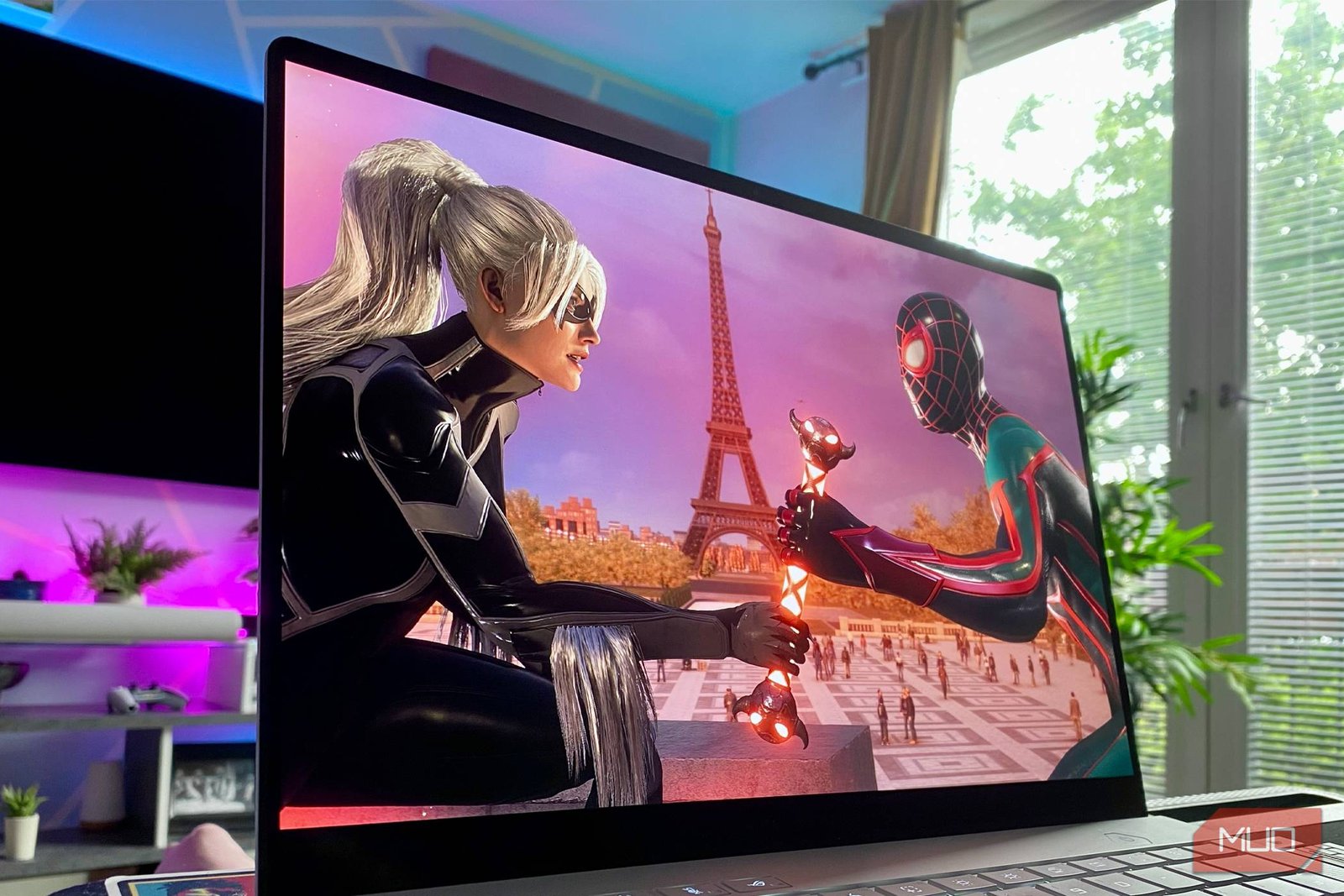
For the first time, I’d say yes — with caveats. If you have the right hardware (AMD GPU, decent HDR monitor, proper cable) and a distro that stays current, you can get a genuinely good HDR experience. Colors pop. Highlights shine. Black levels stay black.

It’s not as frictionless as Windows, where HDR has been a standard feature for years. But Windows HDR has its own problems — auto brightness, inconsistent app support, and the infamous “washed out desktop” issue that Microsoft still hasn’t fully fixed. Linux’s approach, while newer, is more technically sound: a clean pipeline from compositor to game, with no mystery processing in between.

If you’ve been waiting for the right moment to try HDR gaming on Linux, this is it. Grab a recent distro, install KDE Plasma 6, and let Gamescope handle the heavy lifting. The future of PC gaming is open source — and it’s finally bright.

Continue Reading

Trending