Kimi K3 lands, and the policy debate reignites
On July 16, Moonshot AI dropped Kimi K3, the largest open-weight model ever released. Within days, it had reopened a policy argument in Washington that had been dormant for a year. The question for enterprises evaluating Chinese open-weight models this month isn’t about benchmarks. It’s about whether using one will still be straightforward a year from now.
The outcome will affect procurement decisions well outside the United States. The mechanisms under discussion — federal procurement rules, export blacklists, security advisories — travel through the same cloud providers that serve most of the world.
The immediate trigger: a post by Dean W. Ball, OpenAI’s head of strategic futures and until recently a senior AI adviser in the Trump White House.
Ball’s forecast: regulatory risk, not a ban
Ball’s assessment of the model was largely positive. He called it a very good model whose performance he didn’t think could be explained away by distillation. He also noted it seemed ‘very token hungry’ and wasn’t obviously cheap to run — a useful caution, given K3 launches with maximum reasoning effort as its only setting and bills output at $15 per million tokens.
Then he predicted the Trump administration would eventually decide its best strategy was to create regulatory risk around Chinese open-weight models. Not a ban, which he called one of the dumber motifs in AI policy, but soft guidance from agencies suggesting such models may contain backdoors. ‘It needn’t be that well justified,’ he wrote. Enough uncertainty, and regulated enterprises retreat on their own.
Why Chinese open-weight models are a commercial problem first
The reaction was fierce, and it came from Americans rather than Beijing. David Sacks, co-chair of the President’s Council of Advisors on Science and Technology, said he couldn’t tell whether Ball was confessing to a regulatory capture strategy or predicting one. Either way, weaponising regulatory uncertainty as a competitive tool should be unacceptable, Sacks argued.
He added that the leading closed labs, already a duopoly in model revenue, want the government to remove their open-source competition. Yann LeCun and Martin Casado argued that open and proprietary development can coexist. Ball later clarified he had been forecasting rather than recommending, and walked back the claim that open weights necessarily slow the field down.
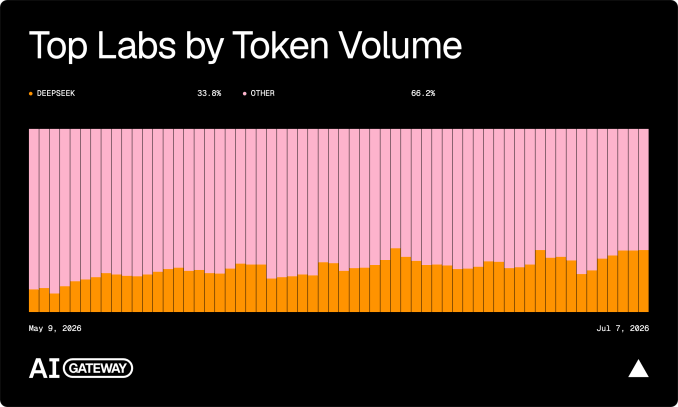
Underneath the personalities is an arithmetic problem. Closed labs need revenue per token to justify the capital they are raising for data centres. Cheaper open-weight models compress that revenue without reducing how much AI gets used — the point Snorkel AI co-founder Braden Hancock put to TechCrunch. The routing data already shows the shift: open-weight models handled 29% of tokens through Vercel’s production gateway in June, up from roughly a ninth in April, while accounting for under 4% of spending.
That pressure is arriving from inside the American stack. GitHub made Moonshot’s Kimi K2.7 Code generally available in the Copilot model picker on July 1, hosted on Microsoft Azure. The Information reports Microsoft is now adding K3 to Azure and evaluating whether it can run Copilot features currently handled by OpenAI and Anthropic models, with potential inference savings of up to $600 million.
Microsoft has confirmed neither the figure nor which features. It’s an evaluation, not a deployment. But it’s the largest customer of both American frontier labs, pricing the alternative.
The security argument, taken seriously
Commercial motive does not make the security concern fake. The strongest version of it deserves stating. Open weights cannot be recalled. Once a model is downloaded and running inside thousands of organisations, no vendor can patch it, revoke it, or push a fix — a materially different risk profile from a hosted API. Model behaviour is harder to audit than model code: a fine-tune can carry biases or failure modes that no licence inspection would reveal.
NIST has previously found security vulnerabilities in DeepSeek’s open models. For regulated industries, questions about training data provenance and content handling are live regardless of where a model was built.
The counterargument is about proportionality rather than dismissal. Georgetown research fellow Sam Bresnick has argued that halting Nvidia H200 sales to China would slow Beijing considerably more than banning open models Americans want to use — targeting the input rather than the output. Ball himself conceded a version of this in his second observation, attributing China’s open-weight strategy partly to a lack of domestic compute for serving customers. That would make it an unintended byproduct of US export controls in the first place.
What is actually likely to happen
Axios reported on July 20, citing people close to the administration, that Commerce last year weighed adding Chinese AI labs to the Entity List. The NSA and the Office of the National Cyber Director considered issuing an advisory on Chinese AI lab threats. The White House considered an executive order making US companies liable for breaches if they used Chinese models. Officials concerned about stifling innovation killed all of it.
With adviser Sriram Krishnan gone and security hawks louder, the effort has revived. But the described approach is procurement rules, Entity List threats and public pressure rather than prohibition. ‘What’s actually happening is slower and more durable,’ one source told Axios. Neither the White House nor Commerce responded to Axios’s requests for comment. Politico reports Commerce will not move imminently.
Impact on buyers outside the US
For buyers outside the US, the exposure is indirect but real. A rule written for American regulated industries and federal procurement does not bind a Malaysian bank or an Indonesian telco. The hyperscalers are the transmission line.
Most enterprises in this region reach Kimi K3 through Azure, AWS or Google Cloud rather than Moonshot’s own API. If Washington makes hosting Chinese open-weight models uncomfortable enough for those providers, the model quietly leaves the catalogue in Kuala Lumpur at the same time it leaves it in Virginia.
Ball anticipated this in his own post, noting that regulators would not want to push so hard that hyperscalers stop serving Chinese models altogether. That would only drive startups toward less reputable providers. The obvious hedge is to hold your own copy. Moonshot publishes K3’s weights on July 27, and from that point the model cannot be withdrawn from anyone who has downloaded it.
But as covered previously, K3 is a difficult model to self-host. Moonshot recommends serving it across 64 or more accelerators, and the weights alone come to roughly 1.4TB. For most companies, the fallback is theoretical.
That leaves a narrower question than the headlines imply. Not whether Chinese open-weight models are safe or permitted. But whether the specific model you build on will still be in your cloud provider’s catalogue in twelve months, and what it would cost you to move if it isn’t. That’s a due-diligence question, and it’s answerable today.
For more on the technical side, see our analysis of the Kimi K3 open-weight model and its memory-focused architecture. Also explore how Washington AI policy is shaping global tech procurement.







 CyberSecurity5 months ago
 CyberSecurity5 months ago
 How To3 months ago
 CyberSecurity4 months ago
 Social Media4 months ago
 Infosecurity5 months ago
 CyberSecurity5 months ago
 CyberSecurity5 months ago