Connect with us

Video

Samsung Galaxy S23 Ultra Gets a Major Upgrade: Exploring the One UI 8.5 Beta

Published

on

Samsung is once again pushing the boundaries of its software experience, with the One UI 8.5 beta now making its way to the flagship Galaxy S23 Ultra. This isn’t just a minor point update; it’s a significant refresh that promises to refine the user experience with a host of new features and subtle improvements. For owners of one of last year’s most powerful Android devices, this beta rollout signals that Samsung is committed to keeping its premium hardware feeling fresh and cutting-edge. The question on every tech enthusiast’s mind is simple: what does One UI 8.5 actually bring to the table?

Building on this, the arrival of the One UI 8.5 beta is a clear statement from Samsung about its software development cycle. While the update is currently in a testing phase, its deployment to the S23 series indicates a mature and confident development pipeline. This proactive approach to software, delivering meaningful updates even to previous-generation flagships, is a key differentiator in the competitive smartphone market. Therefore, diving into these new features offers a glimpse not only at what S23 Ultra users can expect soon but also at the future direction of Samsung’s software philosophy.

A Closer Look at the One UI 8.5 Feature Set

The core of the One UI 8.5 update lies in its collection of new features and refinements. Early reports and hands-on experiences suggest a focus on enhancing daily usability and visual polish. Users can anticipate improvements in system animations, making navigation feel smoother and more responsive. Furthermore, there are likely new customization options for the always-on display and lock screen, giving users more control over their device’s personality. The update also seems to bring optimizations for battery management and background processes, aiming to extend the already impressive endurance of the S23 Ultra. These under-the-hood tweaks are just as crucial as flashy new additions, as they contribute directly to a more reliable and satisfying user experience.

In addition, Samsung appears to be integrating more AI-powered functionalities into the system. This could manifest in smarter gallery suggestions, enhanced Bixby capabilities, or more contextual awareness from the device. The integration of artificial intelligence is no longer a novelty but an expectation, and One UI 8.5 seems poised to deepen this integration in practical ways. For instance, imagine your phone proactively suggesting the perfect photo filter based on the scene or optimizing performance based on your usage patterns throughout the day. These are the kinds of intelligent touches that modern software updates strive to deliver.

Why the S23 Ultra is the Perfect Testbed for One UI 8.5

Choosing the Galaxy S23 Ultra for the initial One UI 8.5 beta rollout is a strategic move by Samsung. This device, with its top-tier Snapdragon 8 Gen 2 chipset and ample RAM, provides a robust hardware foundation to test new software features without performance bottlenecks. Consequently, beta testers on this device can provide feedback on the pure software experience, rather than reporting issues caused by underpowered hardware. The S23 Ultra’s diverse hardware, including its advanced camera system and S-Pen, also allows Samsung to test features that might be specific to its Note-style lineage, ensuring full compatibility and optimization for the flagship’s unique capabilities.

However, it’s important to remember that this is a beta release. While the new features are exciting, they may come with instability, bugs, or battery drain issues that are typical of pre-release software. This is the inherent trade-off of participating in a beta program: early access in exchange for being a digital pioneer who might encounter rough edges. Therefore, it is generally recommended for enthusiasts and developers, not for users who rely on their phone for critical daily tasks without a backup.

The Bigger Picture: Samsung’s Software Strategy

This update is more than just a list of new features; it’s a reflection of Samsung’s evolving software strategy. By delivering a substantial update like One UI 8.5 to a year-old flagship, Samsung reinforces its commitment to long-term software support, a factor increasingly important to consumers. It builds brand loyalty and trust, assuring customers that their premium purchase will continue to evolve. Moreover, it keeps the S23 Ultra competitive against newer devices, effectively extending its lifecycle and value proposition in the market.

As a result, the One UI 8.5 beta serves a dual purpose. It directly improves the device for testers while simultaneously gathering invaluable data to polish the final, stable release for a broader audience. This iterative, community-informed development process is becoming the gold standard for major tech companies, and Samsung’s execution here appears to be well-organized.

To see all these new One UI 8.5 features in action, from the revamped animations to the potential AI integrations, watching a detailed hands-on video is essential. Visual demonstrations provide context that text alone cannot, showing the fluidity of new transitions and the practical application of new settings. For any Galaxy S23 Ultra owner curious about the immediate future of their device, seeking out this visual guide is the next logical step. The video offers a comprehensive tour, confirming which rumored features are present and how they truly impact the user experience, making it an indispensable resource for staying ahead of the curve in the fast-paced world of mobile technology.

Continue Reading
Click to comment

Leave a Reply

Your email address will not be published. Required fields are marked *

Video

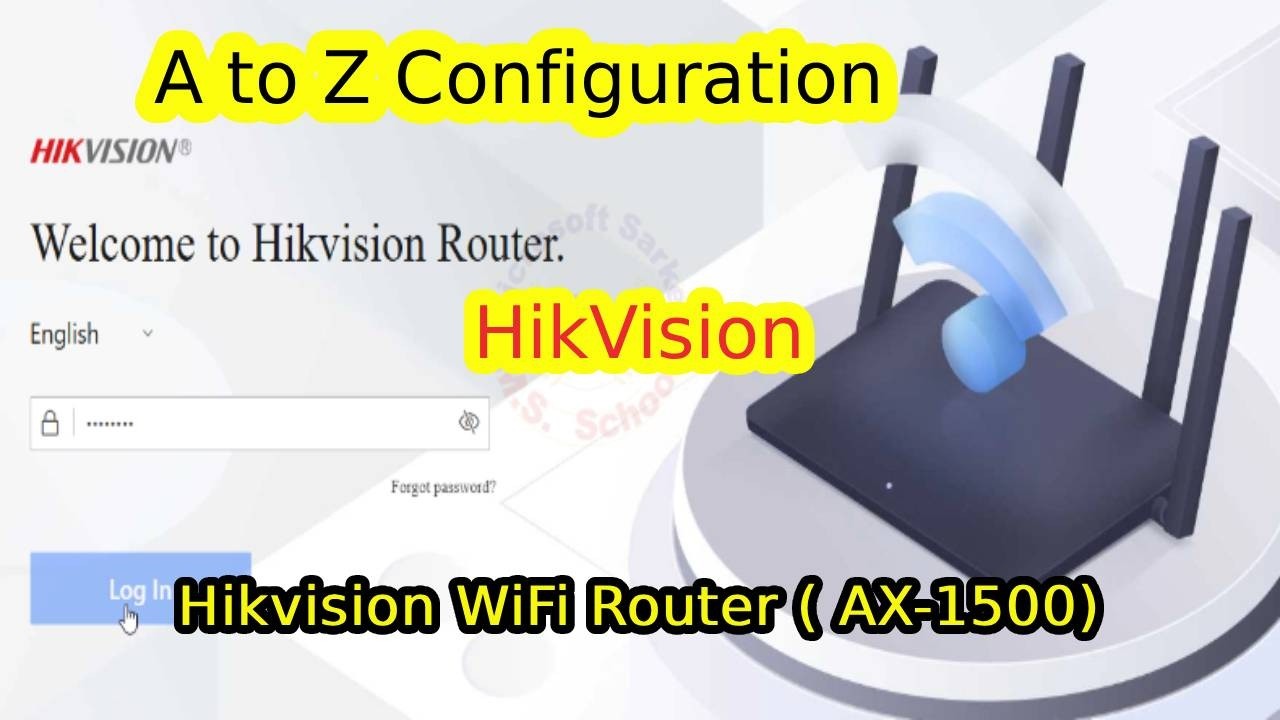
The Complete A-Z Guide to Configuring Your Hikvision WiFi Router

Published

on

Setting up a new router can often feel like deciphering a foreign language, especially when it comes to enterprise-grade equipment like Hikvision’s offerings. While many tutorials skim the surface, a truly comprehensive guide that walks you from initial plug-in to advanced network management is a rare find. This is precisely what makes a complete A-Z configuration walkthrough so valuable for both IT professionals and savvy home users looking to leverage robust hardware.

Building on this, the process begins with the fundamental step of accessing the router’s administrative interface. Typically, this involves connecting a computer directly to the router via an Ethernet cable and navigating to a default IP address, such as 192.168.1.1, in a web browser. From this dashboard, the real configuration begins, transforming a simple network device into a tailored and secure gateway for your digital life.

**Mastering Basic and Advanced Network Configuration**
The cornerstone of any reliable network is its basic configuration. This initial phase involves setting up your primary WiFi network’s name (SSID) and a strong, unique password. However, the Hikvision router’s capabilities extend far beyond this. A critical step demonstrated in comprehensive guides is changing the router’s default LAN IP address. This not only helps avoid conflicts with other devices on your network, such as a separate modem, but also adds a layer of obscurity for basic security. Following this, configuring the DHCP server ensures all your devices—from laptops to smart phones—receive an IP address automatically, creating a seamless plug-and-play environment.

**Implementing Robust Security and Access Controls**
Therefore, after establishing network connectivity, the focus must shift to security. A Hikvision router provides a suite of tools to lock down your network. Firstly, the built-in firewall should be enabled and configured to monitor and filter incoming and outgoing traffic. In addition, features like URL filtering allow administrators to block access to specific websites, a useful tool for parental controls or workplace productivity. Perhaps one of the most practical security features for home users is the ability to hide the WiFi network’s SSID. While not a foolproof security method, it prevents your network name from appearing in the standard list of available networks, deterring casual snoopers.

**Leveraging Advanced Features for Optimal Performance**
As a result of its enterprise heritage, a Hikvision router packs advanced features often absent in consumer models. For instance, the scheduler setting lets you automatically turn the WiFi on or off at predetermined times, saving energy and enhancing security during off-hours. Furthermore, setting up a dedicated guest network is essential. This isolates visitors’ devices from your main network, protecting your personal files and IoT devices from potential threats. Another powerful feature is user speed limiting (bandwidth control), which allows you to allocate specific upload and download speeds to different devices or users, ensuring a critical work video call isn’t interrupted by someone else’s movie streaming.

**Ensuring Reliability and Remote Management**
Consequently, for a setup to be truly complete, administrative and maintenance tasks are crucial. Configuring the router’s time settings ensures that schedules and logs are accurate. Moreover, learning how to create a backup of your configuration profile is a lifesaver; if the router is reset or malfunctions, you can restore all your settings in moments instead of reconfigured them manually. For users who need to manage their network while away, the remote web access feature can be enabled, though this should be done with extreme caution and paired with a very strong admin password to prevent unauthorized access.

Ultimately, a well-configured Hikvision WiFi router is more than just an internet pipe; it’s a managed, secure, and optimized hub for all connected devices. From basic WiFi naming to advanced traffic shaping and firewall rules, each setting contributes to a faster, safer, and more reliable online experience. For a visual, step-by-step walkthrough that brings each of these configuration menus and options to life, watching a detailed tutorial video is highly recommended. Seeing the exact clicks and navigation within the router’s interface can demystify the process and give you the confidence to fully customize your network’s backbone.

Continue Reading

Video

The Silent Saboteurs: How 3 Hidden YouTube Settings Are Secretly Killing Your Channel’s Reach

Published

on

Have you ever felt like you’re creating your best content, yet your YouTube views have mysteriously plateaued or even dropped? You’re not alone. A troubling trend is emerging where creators are discovering that their own channel settings—buried deep within YouTube Studio—are working against them, sabotaging their hard work before it even has a chance to succeed. This isn’t about poor content quality or inconsistent uploads; it’s about a silent war waged within your own dashboard.

Building on this alarming premise, the video from Shane Hummus exposes a critical blind spot for content creators. We often focus on thumbnails, titles, and SEO, while overlooking the foundational platform settings that dictate how YouTube interprets and distributes our videos. The revelation is clear: you can have a masterpiece of a video, but if these hidden switches are flipped the wrong way, the algorithm will never give it a fair shot.

The Audience Splitter Ruining Your Video’s Focus

One of the primary culprits highlighted is a feature that acts as an inadvertent “audience splitter.” This setting, often enabled with good intentions, sends conflicting signals to YouTube’s recommendation engine about who your content is for. Consequently, instead of building momentum with a core demographic, your video gets shown in small, ineffective bursts to disparate viewer groups, preventing it from gaining the sustained traction needed for the algorithm to promote it further. Therefore, understanding and consolidating your video’s intended audience signal is paramount.

The Language and Location Bug Pushing Content to the Wrong Viewers

In addition to audience splitting, a particularly insidious issue involves metadata related to language and location. Creators frequently report a “data glitch” where, despite their video being in English and targeting a global audience, YouTube’s system misinterprets signals and begins pushing the content primarily to non-English speaking regions. This mismatch devastates key performance metrics like watch time and retention because the viewers who are being shown the video aren’t the intended ones. As a result, YouTube’s AI logically concludes the content is low-quality and stops recommending it, creating a vicious cycle of poor performance.

The Engagement Assassin Hiding in Your Upload Defaults

Perhaps the most shocking finding is the “engagement assassin”—a default or optional setting that quietly removes or dampens crucial engagement signals from your videos. These signals, such as likes, comments, and shares, are the lifeblood of YouTube’s algorithm. They tell the platform that viewers are not just watching, but interacting and valuing the content. However, when this specific feature is enabled, it can inadvertently filter out these vital interactions or confuse the system about how viewers are responding. The platform then assumes your video is failing to resonate, leading to a sudden and unexplained drop in reach.

Ultimately, the message is one of empowerment through knowledge. The digital landscape of content creation is complex, and the tools provided by platforms like YouTube are double-edged swords. They offer incredible reach but come with layers of settings that require careful navigation. This investigation serves as a crucial reminder that success on YouTube isn’t just about what you create, but also about how you configure the stage upon which it’s presented. To fully understand the exact steps to diagnose and fix these hidden saboteurs on your own channel, watching the full breakdown is essential. Shane Hummus not only identifies the problems but provides the clear, actionable switches you need to flip to reclaim your channel’s potential reach and stop your settings from working against you.

Continue Reading

Video

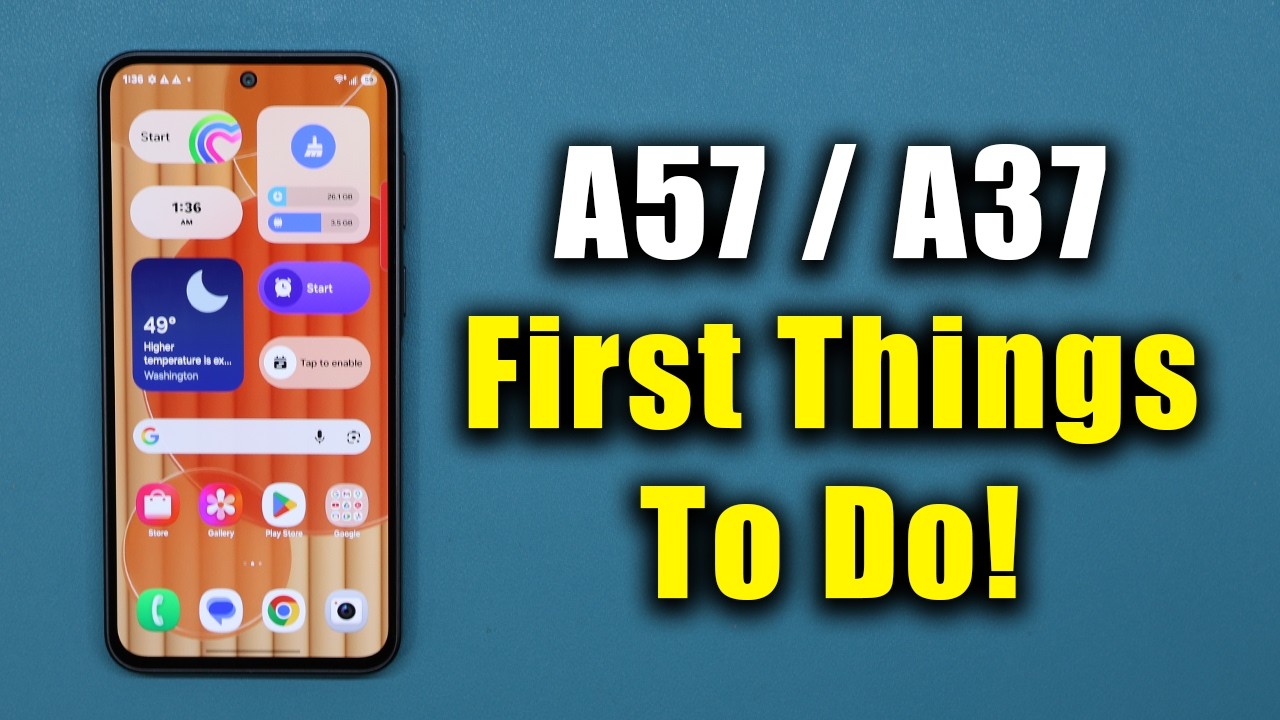
Unlock Your Samsung Galaxy A57 & A37: The Ultimate First-Time Setup Guide

Published

on

You’ve just unboxed your sleek new Samsung Galaxy A57 or the more budget-friendly A37. The excitement is palpable, but before you dive into the endless scroll of social media, there’s a crucial step that can define your entire experience with the device: the initial setup. This isn’t just about connecting to Wi-Fi and logging into your Google account. It’s about laying the foundation for a phone that works intelligently for you, not the other way around. A thoughtful first configuration can unlock hidden performance, extend battery life for years, and tailor the interface to your unique habits. This guide, inspired by expert walkthroughs, will take you beyond the basics to transform your new Samsung from a generic gadget into a personalized powerhouse.

**Building Your Personalized Foundation**

The first moments with your phone are the perfect time to make it unmistakably yours. Therefore, start by giving your device a name. This goes beyond a simple label; it helps in identifying your phone quickly on networks and when using features like Bluetooth file sharing. Next, immediately visit the battery settings. Here, you can enable protective features that slow down charging overnight to preserve long-term battery health—a small setting that pays significant dividends over the lifespan of your phone. Furthermore, dive into the display settings. Both the A57 and A37 offer high refresh rate options. Enabling this makes every swipe, scroll, and animation buttery smooth, fundamentally enhancing the feel of the interface. Don’t forget to explore the color profiles to match your visual preference, whether you prefer vibrant, saturated colors or a more natural, accurate palette.

**Optimizing Navigation and Audio**

How you interact with your phone is deeply personal. Consequently, one of the most impactful changes you can make is to the navigation system. Samsung offers the traditional three-button layout, but also supports intuitive gesture controls—swiping from the bottom and sides to go home, back, or switch apps. Experiment to see which method feels more fluid for you. In addition, the sound experience on these devices is more capable than you might think. Head to the sound settings and ensure features like Dolby Atmos are activated. This virtual surround sound technology can dramatically widen the soundstage for music, videos, and games, providing a more immersive experience whether you’re using the built-in speakers or a pair of headphones. For those who consume a lot of media, this is a non-negotiable setting.

**Harnessing Advanced Tools and Shortcuts**

Samsung’s One UI is packed with productivity tools that often go unnoticed. Building on this, one of the most powerful is the Edge Panels feature. This allows you to swipe in from the side of the screen to access a customizable panel of app shortcuts, contacts, tools like a compass or ruler, and even quick tasks. Setting this up early can save you countless taps later. Moreover, explore the ‘Motions and gestures’ menu. Here, you’ll find incredibly useful tricks like ‘Flip to Mute,’ which silences calls and alarms by simply turning the phone over—a lifesaver in meetings. Another gem is the ability to double-tap the screen to wake it or lock it, saving wear and tear on the physical power button.

**Leveraging Intelligent Features for Daily Efficiency**

Finally, modern Samsung devices are equipped with AI-powered features that border on magic. For instance, the Gallery app includes an ‘Object Eraser’ tool that can seamlessly remove photobombers or unwanted objects from your pictures with a few taps. Similarly, the Voice Recorder app can transcribe speech to text in real-time, perfect for journalists, students, or anyone in a meeting. To keep your phone running smoothly, set up the Device Care widget on your home screen. This provides a one-tap optimization button that clears out temporary files and RAM. As a result, you maintain peak performance without ever needing a third-party ‘cleaner’ app. By investing time in these initial configurations, you’re not just setting up a phone; you’re calibrating a sophisticated tool that will become a seamless extension of your daily life. For a visual, step-by-step walkthrough of all these tips and more, be sure to watch the complete guide from Sakitech on YouTube.

Continue Reading

Trending