Connect with us

Video

Why Your YouTube Videos Suddenly Stop Getting Views — and How to Fix It

Published

on

Every creator knows the feeling: you upload a video, watch the early spike in views, and then—silence. The numbers flatline. What happened? Why did YouTube stop pushing your content? This isn’t random bad luck. It’s a predictable pattern driven by the platform’s algorithm, and understanding it is the key to breaking the cycle.

In a recent deep-dive, YouTube strategist Shane Hummus reveals the real reasons behind this frustrating phenomenon. He doesn’t just blame the algorithm; he unpacks the specific signals that cause a video to be throttled, and more importantly, how to avoid them. For anyone tired of inconsistent performance, this analysis offers a roadmap to sustainable growth.

The Algorithm’s Secret Judgment System

YouTube doesn’t just look at total views. It tracks a sophisticated set of metrics to decide which videos to promote—and which to bury. According to Hummus, the platform runs a silent test on every upload. If a video fails to meet certain benchmarks in the first few hours, it’s effectively put on a shelf.

Building on this, he explains that the algorithm prioritizes videos that keep viewers watching. A high click-through rate (CTR) is crucial, but it’s not enough. If viewers click and then quickly leave, YouTube interprets that as a sign that the content didn’t deliver on its promise. As a result, the video stops getting views.

The #1 Video Killer Nobody Talks About

Most creators obsess over thumbnails, titles, and keywords. However, Hummus argues that the biggest killer of video performance is something far more subtle: failing to validate your video idea before production. He uses a memorable analogy—the desert vs. drunk college kids—to illustrate the point.

In the desert, everyone is desperate for water. But if you try to sell water to drunk college kids, they won’t care. The lesson is simple: your video must solve a problem or satisfy a desire that your audience actively feels. Without that alignment, no amount of clever packaging will save it.

How to Spot Winning Video Ideas

So how do you know if an idea will work before you spend hours filming? Hummus reveals a hidden method used by top creators: they test ideas by analyzing search volume and competition. They don’t rely on gut feelings. Instead, they look for topics with high search interest but low-quality existing content. That’s the sweet spot.

In addition, he suggests looking at the comments on popular videos in your niche. What questions are people asking? What frustrations do they express? These are goldmines for video ideas that are guaranteed to resonate. By addressing those specific needs, you signal to YouTube that your content is highly relevant.

The Invisible Chain Strangling Your CTR

Even if your idea is solid, your click-through rate can still suffer. Hummus identifies an invisible chain that silently damages CTR: inconsistent branding and misleading thumbnails. When viewers see a thumbnail that doesn’t match the video’s content, they lose trust. Once trust is broken, they’re less likely to click on your future videos.

He also shares three sneaky ways creators unknowingly break viewer trust: using clickbait titles, starting the video with a long irrelevant intro, or failing to deliver the promised value within the first minute. These mistakes trigger YouTube to stop pushing your video, because the platform prioritizes viewer satisfaction.

The Intro Mistake That Kills Momentum

Your video’s first 10 seconds are critical. Hummus points out that many creators waste this precious window with lengthy channel introductions, personal stories, or requests to like and subscribe. This is a fatal error. YouTube’s algorithm measures audience retention from the very first second. If viewers drop off early, the video is flagged as low-quality.

Instead, he recommends jumping straight into the value. Hook the viewer with a compelling statement or a preview of what they’ll learn. The goal is to make them feel that watching the full video is worth their time. Once you have their attention, you can earn their loyalty.

The Packaging Secret That Drives Viral Growth

One creator mentioned in the video went from obscurity to viral success in just a month by changing one thing: packaging. This includes the thumbnail, title, and description. By treating the video like a product on a shelf, the creator made it impossible to ignore. The key was to create a clear, curiosity-driven thumbnail that promised a specific benefit.

Furthermore, Hummus emphasizes the overlooked math problem destroying your growth: not publishing enough videos to build momentum. He suggests a double-down strategy—focus on one proven topic and create multiple videos around it. This concentration signals to YouTube that you are an authority on that subject, leading to increased recommendations.

Watch the Full Breakdown

If you’re serious about understanding why your YouTube videos suddenly stop getting views, this video is essential viewing. Shane Hummus provides actionable tactics that go beyond surface-level advice. He connects the dots between algorithm mechanics, viewer psychology, and content strategy.

Ready to stop guessing and start growing? Watch the full video below to uncover the exact method that took one channel past 500K subscribers.

Continue Reading
Click to comment

Leave a Reply

Your email address will not be published. Required fields are marked *

Video

Massive 3GB+ Samsung Core Update Arrives for Millions of Galaxy Phones — Here’s What’s New

Published

on

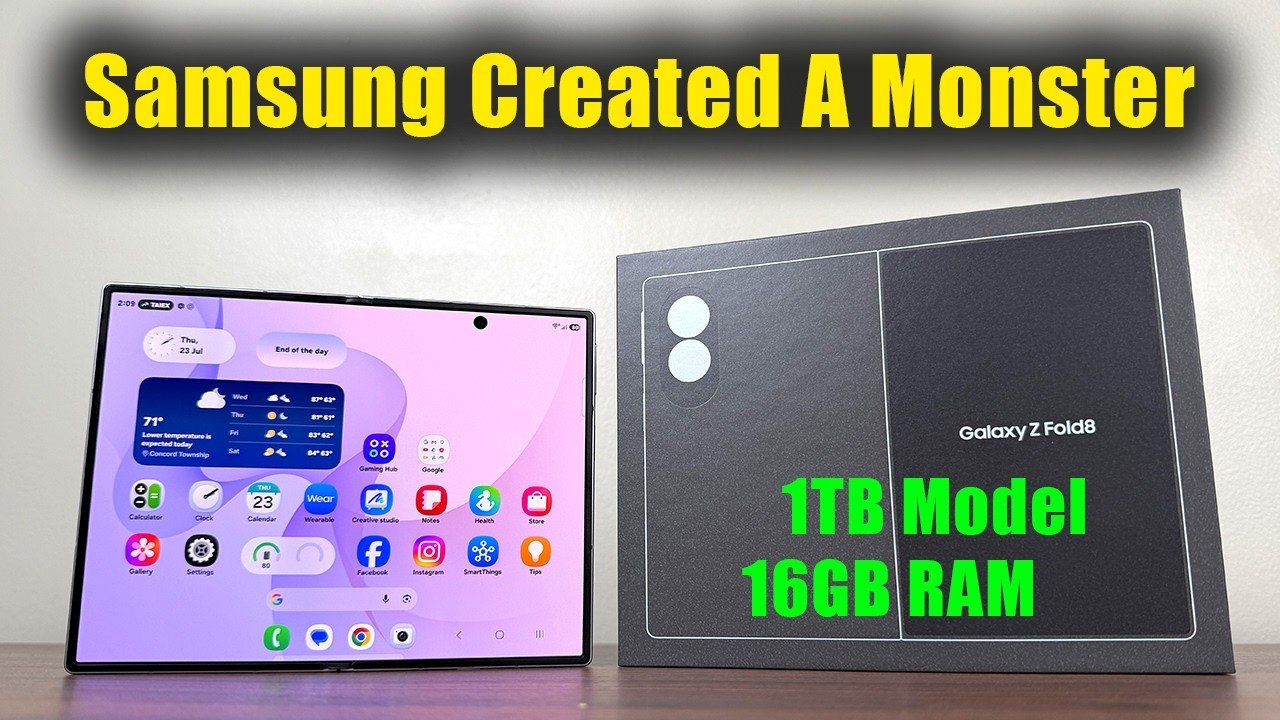
If you own a Samsung Galaxy phone, you might want to check your notifications right now. A massive new update — weighing in at over 3GB — is rolling out to millions of devices worldwide. This isn’t just another routine security patch. It’s a Samsung core update designed to overhaul how your phone performs, connects, and secures your data.

In a recent video, tech reviewer Sakitech broke down exactly what this update brings. From core system enhancements to subtle interface tweaks, the changes are significant enough that skipping this update could mean missing out on a noticeably smoother experience. Let’s dive into what this 3GB+ package actually includes and why it matters for everyday users.

What Is the Samsung Core Update?

The term “core update” might sound like technical jargon, but it simply means Samsung is updating the foundational software that runs your phone — the operating system, drivers, and essential apps. Unlike monthly security patches that fix specific vulnerabilities, a core update revamps the underlying framework.

Building on this, the update targets several critical areas: system stability, battery efficiency, and connectivity. According to Sakitech, early testers have reported faster app launches and smoother multitasking after installation. The 3GB size reflects the depth of changes — this isn’t a minor tweak but a substantial rework of how your Galaxy phone operates.

Key Improvements in Performance and Battery Life

One of the most immediate benefits users can expect is a noticeable performance boost. The update optimizes CPU and memory management, reducing lag when switching between apps or running demanding games. For those who rely on their phone for work or entertainment, this can translate to fewer interruptions and a more fluid experience.

In addition, battery management receives a major overhaul. The update introduces smarter background app restrictions and adaptive power profiles that learn your usage patterns. As a result, many users might see an extra hour or two of screen-on time without changing their habits. Sakitech highlighted that the update also reduces standby drain, so your phone holds its charge better overnight.

Enhanced Security and Privacy Features

Security remains a top priority for Samsung, and this update reinforces that commitment. The package includes the latest Android security patches, but goes further by adding new privacy controls. For instance, users can now grant apps temporary permissions that expire after a set time, preventing background data access.

Moreover, the update strengthens the Secure Folder and Samsung Knox platform. This means sensitive files, passwords, and biometric data are better protected against emerging threats. For professionals who store work documents on their phones, these enhancements offer peace of mind. Sakitech emphasized that while the update is large, the security improvements alone justify the download.

How to Install the Update and What to Expect

Before you rush to install, there are a few things to keep in mind. The update is rolling out in phases, so not every Galaxy phone will receive it simultaneously. To check if it’s available for your device, go to Settings > Software Update > Download and Install. If the update appears, ensure you’re connected to Wi-Fi and have at least 50% battery — a 3GB download can take a while on slower connections.

After installation, your phone will reboot and optimize apps, which may take several minutes. Some users might notice a slight performance dip initially as the system recalibrates, but this should stabilize within a day. Sakitech recommends backing up important data before updating, just in case of unforeseen issues.

Conclusion: Don’t Skip This Update

With its substantial size and wide-ranging improvements, this Samsung core update is one of the most significant in recent months. Whether you’re seeking better performance, longer battery life, or stronger security, the update delivers on all fronts. For millions of Galaxy users, taking the time to download and install it could transform the daily smartphone experience.

To see the full breakdown and real-world tests, check out Sakitech’s video above. It dives deeper into the specifics and shows you exactly what changes after installation. Don’t miss out — your Galaxy phone deserves this upgrade.

Continue Reading

Video

How to Change Microsoft Account in Windows 11: A Step-by-Step Tutorial

Published

on

Are you looking to switch the Microsoft account linked to your Windows 11 device? Whether you’ve changed your email, need to separate work and personal profiles, or simply want a fresh start, updating your account is a straightforward process. In a recent tutorial, a tech expert walks viewers through each step, ensuring even beginners can follow along without confusion. This guide breaks down the method, highlights key settings, and offers tips to avoid common pitfalls.

Why Change Your Microsoft Account in Windows 11?

Your Microsoft account is the gateway to many Windows features, from syncing settings across devices to accessing the Microsoft Store and OneDrive. However, there are several reasons you might want to change Microsoft account in Windows 11. For instance, you may have created a temporary account for a specific project, or you might be passing your computer to a family member. Additionally, security concerns—such as a compromised password—can prompt an update. Building on this, switching accounts can help you manage multiple identities more efficiently, keeping your work and personal data separate.

Step-by-Step: How to Change Microsoft Account in Windows 11

The video demonstrates a clear, sequential process to change Microsoft account in Windows 11. Here’s what you need to do:

1. Access Windows Settings

Begin by opening the Start menu and clicking the gear icon to open Settings. Alternatively, press the Windows key + I on your keyboard. This is your control center for all system adjustments.

2. Navigate to Accounts

In the Settings window, select “Accounts” from the left-hand menu. Here, you’ll find options for managing your identity, including email, sign-in options, and family settings.

3. Click on “Your Info”

Under the Accounts section, click on “Your info.” This page displays your current account details. To proceed, look for the “Sign in with a local account instead” link—a critical step to disconnect your existing Microsoft account.

4. Switch to a Local Account (Temporary Step)

Windows 11 requires you to first create a local account before linking a new Microsoft account. Follow the prompts to set up a local profile. This ensures that your personal files and settings remain intact during the transition.

5. Sign In with Your New Microsoft Account

Once the local account is active, return to the “Your info” page. You’ll now see an option to “Sign in with a Microsoft account.” Enter your new email and password, and confirm your credentials. After a brief sync, your device will be associated with the updated account.

Common Issues and How to Avoid Them

While the process is designed to be smooth, users occasionally encounter hurdles. Therefore, it’s wise to prepare beforehand. First, ensure you have access to the new Microsoft account—verify your email and reset the password if needed. In addition, back up any important data before making changes, especially if you’re switching to a completely different user profile. For those using paid apps or subscriptions linked to the old account, note that you may need to transfer licenses or repurchase content. The video’s creator emphasizes checking your Microsoft account dashboard to manage these details.

Why This Matters for Your Workflow

Changing your Microsoft account can significantly impact how you use Windows 11. For example, your OneDrive files, browser bookmarks, and even desktop wallpaper settings sync automatically with your account. As a result, a smooth transition ensures you don’t lose access to critical documents or preferences. Moreover, if you’re troubleshooting persistent errors—like sync failures or login loops—updating your account can resolve underlying issues. The tutorial’s practical approach makes it a valuable resource for both casual users and IT professionals.

Final Thoughts and Next Steps

Ready to make the switch? The video provides a complete walkthrough, so you can follow along in real-time. By mastering how to change Microsoft account in Windows 11, you gain greater control over your digital environment. As the creator suggests, don’t forget to like, comment, and subscribe for more tech tutorials. With this knowledge, you can confidently manage your accounts and keep your system running smoothly.

Continue Reading

Video

How to Get Liquid Glass Icons on Your Samsung Galaxy Phone – A Fresh iOS-Inspired Look

Published

on

If you’ve ever looked at an iPhone and admired its sleek, uniform icons, you’re not alone. Many Samsung Galaxy users crave that same polished, transparent aesthetic without switching ecosystems. Fortunately, a new trick has emerged that lets you achieve liquid glass icons on your Samsung Galaxy phone—no rooting or complex coding required. This guide breaks down everything you need to know, from the tools involved to the final stunning result.

What Are Liquid Glass Icons and Why Do They Matter?

Liquid glass icons are a modern take on home screen customization. They feature a translucent, glossy finish that mimics the look of frosted glass, often with subtle gradients and reflections. This style gained popularity thanks to iOS design language, which emphasizes depth and clarity. However, Samsung users have traditionally been limited to static icon packs or heavy themes that don’t capture that fluid, airy feel.

Building on this demand, creators have developed a method that applies a liquid glass effect to any icon on your Samsung device. The result is a home screen that feels both premium and minimalist, blending seamlessly with wallpapers and widgets. It’s a subtle upgrade that makes your phone look more modern without sacrificing functionality.

Step-by-Step: How to Get Liquid Glass Icons on Your Samsung Galaxy

To transform your home screen, you’ll need a few key tools. First, download a compatible launcher like Nova Launcher or One UI Home (if you’re on Android 12 or later). Next, install an icon pack that supports the liquid glass style—popular options include “Liquid Glass Icon Pack” from the Google Play Store or custom packs from the Samsung Galaxy Store.

Once installed, follow these steps:
1. Open your launcher’s settings and navigate to “Icon Style” or “Theme.”
2. Select the liquid glass icon pack from your list of installed packs.
3. Apply the pack and adjust icon size if needed (most packs look best at 80-90% size).
4. For a truly iOS-like experience, enable “Show Icon Base” or “Adaptive Icons” to keep the shape consistent.

As a result, your app icons will instantly adopt a glossy, transparent look. The effect works best with dark or gradient wallpapers, as the glass elements reflect light dynamically.

Customization Tips for a Perfect iOS-Style Home Screen

Once you’ve applied the liquid glass icons, you can take customization further. Consider adding a widget stack (like iOS’s Smart Stack) using apps like KWGT or Samsung’s own widgets. Use a minimalist wallpaper with a blur effect to enhance the glass illusion. Additionally, hide app labels for a cleaner look—this mimics the iOS approach where icons speak for themselves.

In addition, you can mix and match icon packs. Some users prefer a hybrid look where system icons (like Settings or Camera) remain stock, while third-party apps get the glass treatment. Experiment with different color accents—pastels work well, but bold hues like electric blue or neon green can make the glass pop.

Why This Trick Beats Traditional Samsung Themes

Samsung’s official theme store offers thousands of options, but most are heavy, slow down performance, or don’t integrate well with third-party apps. Liquid glass icons, on the other hand, are lightweight and system-friendly. They don’t alter the core OS, so your phone remains fast and responsive. Moreover, you can revert to stock icons anytime without a factory reset.

Therefore, this method gives you the best of both worlds: the visual polish of iOS with the flexibility of Android. It’s a perfect solution for users who want a fresh look without sacrificing Samsung’s powerful features like split-screen or edge panels.

Final Thoughts: Watch the Full Tutorial

Ready to give your Samsung Galaxy a stunning makeover? The video below walks you through every step, from downloading the right tools to fine-tuning the final look. Whether you’re a customization veteran or a first-time tweaker, this liquid glass icon trick is easy to follow and delivers professional results. Click play and transform your home screen today.

Continue Reading

Trending