Connect with us

Artificial Intelligence

You Can Now Send Emails Directly from ChatGPT on the Web — Here’s How It Works

Published

on

You Can Now Send Emails Directly from ChatGPT on the Web — Here’s How It Works

If you’ve ever asked ChatGPT to draft an email, only to copy and paste it into Gmail or Outlook, you’re not alone. That extra step has just become obsolete. OpenAI has quietly rolled out a feature that lets you send emails from ChatGPT directly within the conversation — no more switching tabs or copying text.

This update streamlines the entire workflow. You draft, edit, and send your message without ever leaving the chat interface. It’s a small change, but for anyone who uses ChatGPT for daily correspondence, it could save significant time.

How the ChatGPT Email Feature Works

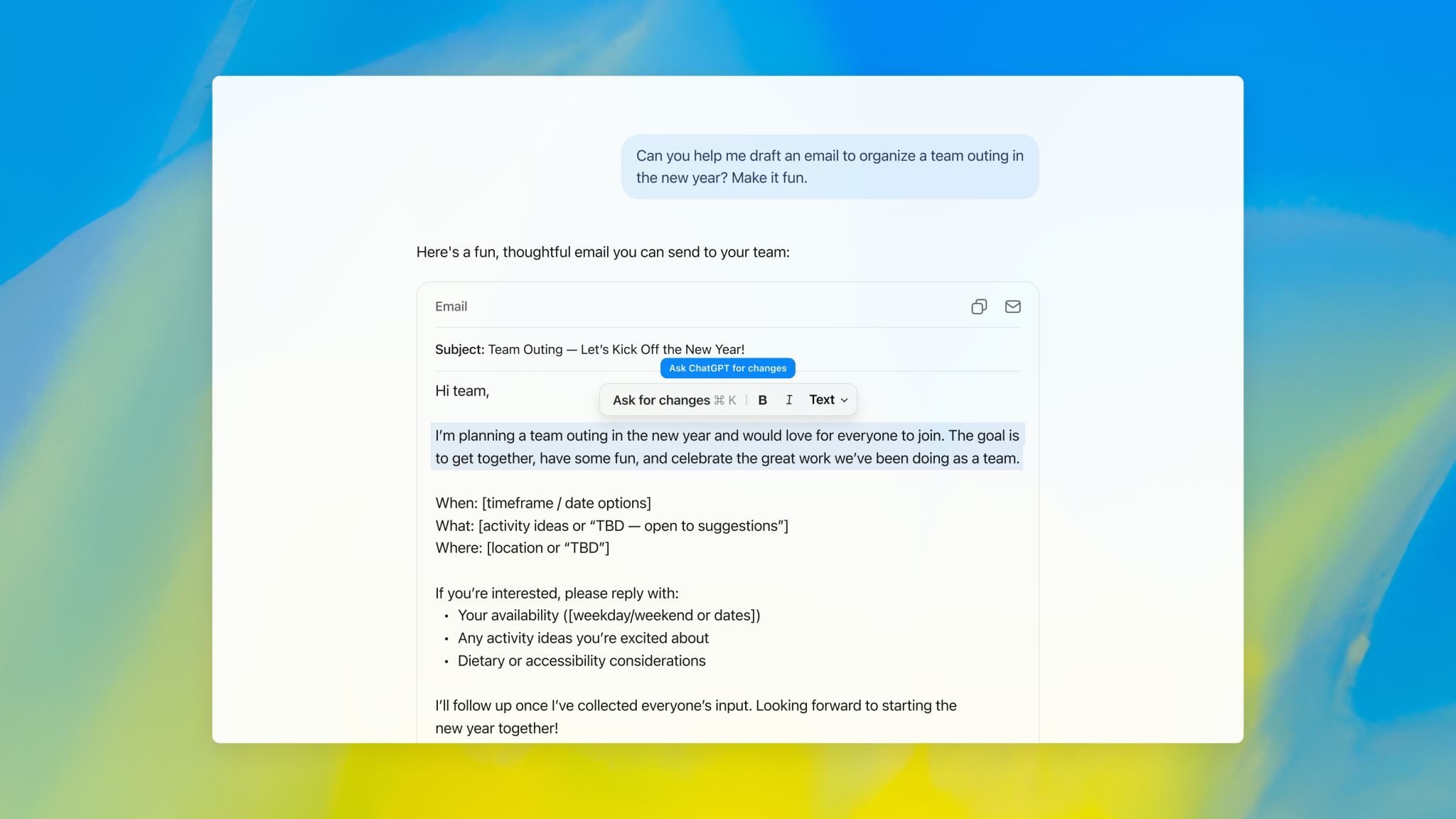
Writing blocks have been part of ChatGPT since late last year. When you ask the AI to compose an email, it now presents the result in a clean, separate block that mimics a real email editor. You can highlight any line and request changes, accept or reject suggestions one by one, or edit the text directly inside the block.

Building on this, the latest update adds a send button. Once you’re happy with your draft, you can hit send without copying anything elsewhere. The entire process — from drafting to delivery — stays inside the same conversation.

As a result, the workflow feels more seamless. You no longer need to juggle multiple windows or worry about formatting getting lost during copy-paste. For frequent email writers, this is a notable productivity boost.

Is It Safe to Send Emails Through ChatGPT?

Before you start using this feature for all your correspondence, there’s an important caveat. A recent lawsuit filed in California alleges that OpenAI shared user prompts, chat queries, and identifying information with Google and Meta tracking tools without proper consent. The case claims this violated California privacy law and federal wiretap regulations.

This means you might want to think twice before sending sensitive or confidential emails through ChatGPT. While the feature is convenient, privacy concerns remain. OpenAI has not commented directly on the lawsuit, but the allegations highlight potential risks.

On the other hand, for routine, non-sensitive messages, the new email capability could be a practical tool. Just be mindful of what you share.

What Else Is New with ChatGPT?

OpenAI isn’t slowing down on innovation. Beyond the email feature, ChatGPT is becoming more personalized. It now learns from your chat history over time, retaining information to make conversations feel tailored to you. This means the AI can remember your preferences, writing style, and recurring topics.

Additionally, ChatGPT for Excel and Google Sheets has officially moved out of beta and is now available globally. This tool lets you build workbooks, clean data, and write formulas using plain language — no spreadsheet expertise required. It’s designed to make data tasks accessible to everyone, not just analysts.

For more on how AI is reshaping productivity, check out our guide on top AI productivity tools for 2025.

Final Thoughts on Sending Emails from ChatGPT

The ability to send emails from ChatGPT directly on the web is a welcome addition for anyone who values efficiency. It removes friction from the drafting process and keeps everything in one place.

However, the privacy concerns raised by the recent lawsuit cannot be ignored. As with any AI tool, it’s wise to weigh convenience against confidentiality. For everyday, non-sensitive emails, this feature is a game-changer in terms of workflow. For anything sensitive, stick to traditional email clients.

OpenAI continues to push boundaries, and this update is another step toward making AI an integral part of daily tasks. Whether you’re a busy professional or a casual user, the new email capability is worth trying — just keep your privacy settings in check.

Continue Reading
Click to comment

Leave a Reply

Your email address will not be published. Required fields are marked *

Artificial Intelligence

OpenAI Lockdown Mode: The Best New ChatGPT Feature Most Users Will Overlook

Published

on

OpenAI Lockdown Mode: The Best New ChatGPT Feature Most Users Will Overlook

For years, the AI conversation has centered on what these tools can do—browse the web, analyze documents, connect to apps, conduct research, and act on your behalf. But as artificial intelligence grows more capable, a pressing question emerges: how do you stop an AI assistant from being tricked into leaking sensitive data? OpenAI Lockdown Mode is the company’s latest answer to that challenge.

Available across all ChatGPT account types, this optional security setting is designed for people and organizations handling confidential information. The trade-off is clear: you gain stronger protection against certain forms of data theft, but you lose access to some of ChatGPT’s most powerful features. This isn’t a feature for everyone—and that’s precisely the point.

How Lockdown Mode Makes ChatGPT More Secure

Lockdown Mode primarily exists to reduce the risk of data exfiltration from prompt injection attacks. Prompt injection has become one of the most difficult security hurdles in the AI era. Instead of attacking software directly, malicious instructions are hidden inside documents, websites, spreadsheets, emails, or other content an AI system might process. If the model follows those hidden instructions, an attacker can manipulate its behavior.

OpenAI is careful to note that Lockdown Mode does not stop prompt injections from appearing in content. A malicious instruction could still exist inside an uploaded file or cached webpage. What Lockdown Mode aims to prevent is the final, potentially most damaging step: getting sensitive information out. To accomplish that, OpenAI dramatically restricts what ChatGPT can communicate with outside its own environment.

What Gets Disabled in Lockdown Mode

Once enabled, live web browsing is essentially shut down. ChatGPT can only access cached content, which means search results may be limited, outdated, or unavailable altogether—Deep Research disappears, Agent Mode is disabled, and network access through Canvas-generated code is blocked. ChatGPT also loses the ability to download files for analysis.

While users can still upload images and create AI-generated visuals where supported, ChatGPT won’t be able to fetch images from the web or display them in normal responses. In essence, Lockdown Mode transforms ChatGPT from a highly connected AI assistant into something much more isolated.

Why Most Users Will Never Need Lockdown Mode

That’s not a criticism. In fact, one of the most interesting aspects of Lockdown Mode is how openly OpenAI acknowledges it isn’t designed for everyone. Security professionals have long accepted that stronger protection usually comes at the expense of convenience. The closest comparison is probably Apple’s Lockdown Mode, introduced several years ago. Apple built it for people at risk of highly sophisticated cyberattacks, not average iPhone owners. OpenAI appears to be taking a similar approach here.

For users dealing with highly sensitive information, limiting network requests can be worth the sacrifice. If an AI system cannot freely interact with external services, there are simply fewer opportunities for confidential information to leave the environment. This move reflects a broader shift across the AI industry. Earlier conversations centered around whether AI could access more data and more services. Increasingly, companies are asking how much access these systems should have in the first place.

That question becomes especially important as AI assistants gain the ability to browse websites, connect to business software, read internal documents, and perform actions across multiple services. OpenAI’s answer isn’t to eliminate those capabilities. Instead, it’s offering users a choice.

The Rise of AI Security Controls

Lockdown Mode is perhaps most notable for what it says about the future of AI products. For years, software security has largely focused on protecting people from malicious programs. AI introduces a different challenge: protecting AI systems from malicious information.

That’s a much messier problem. A prompt injection can be hidden in a webpage, embedded inside a document, or disguised as normal text. Detecting every possible attack is difficult, which is why OpenAI describes prompt injection as an ongoing research challenge rather than a solved problem.

Lockdown Mode acknowledges that reality. Rather than claiming complete protection, it reduces the potential damage if something slips through existing defenses. For enterprise customers, the feature becomes even more granular. Workspace administrators can create custom Lockdown Mode roles, restrict apps and connectors, and carefully decide which actions employees are allowed to perform. OpenAI also recommends limiting write-enabled integrations, since they create opportunities for information to leave trusted environments.

Building on this, the feature aligns with broader trends in AI security. As tools like ChatGPT vs. Gemini vs. Copilot compete on capabilities, the emphasis on security controls is becoming a differentiator. For organizations handling sensitive data, a model that can be locked down might be more valuable than one that can do everything.

In many ways, Lockdown Mode feels like a sign of where AI security is heading. The more powerful AI assistants become, the more users will need tools to dial back their powers when the situation demands it. That may not be as exciting as a new reasoning model or an AI agent that can book your flights. But for organizations handling sensitive information, it could be far more important. Sometimes the smartest AI isn’t the one that can do everything. It’s the one that knows when not to.

For more on how OpenAI is shaping the future of AI, check out our analysis of ChatGPT enterprise features and AI security best practices.

Continue Reading

Artificial Intelligence

Google Gemini’s New Troubleshooting Mode Could Save You a Trip to Help Manuals

Published

on

Google Gemini’s New Troubleshooting Mode Could Save You a Trip to Help Manuals

Imagine your car won’t start, and instead of digging through a dusty manual or scrolling endless forums, you tap a button and get a guided, step-by-step diagnostic. That’s exactly what Google’s Gemini troubleshooting mode promises. Recently spotted in the wild by TestingCatalog, this new feature quietly appeared inside the Gemini model picker menu for a handful of users. It sits alongside familiar options like Gemini 3.5 Flash and 3.1 Pro, but its purpose is radically different.

What Does Gemini Troubleshooting Mode Actually Do?

Instead of delivering a dense block of text, the Gemini troubleshooting mode walks you through problems using a combination of written responses and interactive widgets. For example, if you tell Gemini your car won’t start, it might list common culprits—like a dead battery—and then present you with symptom options to tap, such as “clicks or silent.” This helps narrow down the issue far more efficiently than a standard chat query.

According to early reports from TestingCatalog, the mode uses a structured, guided experience. It’s not just about giving you an answer; it’s about leading you through a logical diagnostic process. This could be a game-changer for anyone who has ever struggled with appliance repairs, computer errors, or vehicle issues.

Building on this, the interactive widgets allow you to select symptoms, view possible causes, and receive targeted fixes—all within the Gemini interface. It’s a far cry from the generic responses you’d get in regular chat mode.

How Is This Different from Asking Gemini Normally?

That’s a fair question. The key difference lies in how the mode is tuned under the hood. Redditors who gained early access suggest that Gemini troubleshooting mode operates on a lower temperature setting. In AI terms, this means the model sticks closely to the problem at hand and avoids conversational filler. Its responses are reportedly laser-focused on diagnosis and practical fixes rather than general information.

As a result, you get concise, actionable advice without the fluff. Google hasn’t officially announced the feature, and it remains unclear whether this is a planned rollout or an internal test that leaked. For now, the troubleshooting option appears to be an unintended release—meaning Google likely flipped it on by mistake and could pull it back at any time.

What This Means for Users

If you’re excited about this Gemini troubleshooting mode, you’re not alone. It represents a shift toward more practical, task-oriented AI assistance. However, keep in mind that the feature is still in flux. More details are expected in the coming weeks, especially if Google decides to officially unveil it.

In the meantime, there’s plenty more happening with Gemini. Google recently unveiled Gemini Spark, a 24/7 AI agent that handles background tasks. On the flip side, free users may soon face stricter weekly usage caps. For a deeper dive into how AI assistants are evolving, check out our guide on AI assistant features.

Will Troubleshooting Mode Replace Help Manuals?

Potentially, yes. The Gemini troubleshooting mode is designed to be a one-stop shop for common problems—from tech glitches to household repairs. Instead of flipping through PDFs or watching disjointed YouTube videos, you get a coherent, step-by-step walkthrough. This could save time and reduce frustration, especially for non-tech-savvy users.

Nevertheless, it’s still early days. The feature hasn’t been stress-tested on a wide scale, and its accuracy will depend on the quality of the underlying data. Google’s AI models are powerful, but they’re not infallible. For now, think of it as a helpful starting point rather than a definitive fix.

Curious about other Gemini innovations? Read our analysis of Gemini Spark’s background capabilities.

What’s Next for Gemini’s Troubleshooting Mode?

Given that this appears to be an accidental release, Google’s next steps are anyone’s guess. The company could either embrace the feature and roll it out officially, or quietly remove it. Based on the positive early feedback, an official launch seems likely—but nothing is guaranteed.

To stay updated, keep an eye on the Gemini app’s model picker menu. If you see the troubleshooting option appear, you’ll know you’re among the first to test it. In the meantime, you can explore other Google Gemini tips to get the most out of the assistant.

Ultimately, Gemini troubleshooting mode represents a step toward more intuitive, human-like AI assistance. It’s not just about answering questions; it’s about solving problems. And that’s something we can all get behind.

Continue Reading

Artificial Intelligence

iOS 27 could force iPhone users to retrain muscle memory with a new notification gesture

Published

on

iOS 27 could force iPhone users to retrain muscle memory with a new notification gesture

Apple is reportedly preparing a major shift in how notifications work on the iPhone with the upcoming iOS 27 notification gesture redesign. According to a report from Bloomberg’s Mark Gurman, internal builds of iOS 27 and iPadOS 27 now show incoming notifications sliding in from the left side of the screen. While this might seem like a minor visual tweak at first glance, it actually signals a much deeper rethinking of navigation gestures — one that could force longtime iPhone users to unlearn years of ingrained muscle memory.

Why the familiar swipe may no longer work as expected

For years, iPhone users have relied on a simple, almost instinctive gesture: swipe down from the center of the screen to pull up notifications. That core interaction is reportedly changing in iOS 27. Under the new system, swiping down from the center would instead open Search or an AI-powered assistant panel. Notifications would move to a separate gesture, requiring users to swipe down from the left side of the display to access Notification Center. Anyone who has ever switched from another smartphone platform knows how deeply these gestures become embedded in daily use. This means that millions of people may need to consciously retrain their thumbs — and their brains — to adapt to the new flow.

How the new gesture compares to current behavior

Currently, a single swipe down from the top left or center reveals your notification shade. In iOS 27, that same motion from the center would launch Apple’s AI assistant or Search. The notification center would only appear when you swipe from the left edge. This is a fundamental shift in interaction design. It mirrors how some Android skins have handled notifications, but for iPhone loyalists, it could feel jarring at first. The visual cue of notifications sliding in from the left side is designed to reinforce the new behavior, but whether users embrace the change remains an open question.

Apple’s AI ambitions may be driving the gesture overhaul

The reported redesign suggests that Apple wants to give Search and AI features a much more prominent role in the iPhone experience. Rather than hiding AI tools behind buttons or menus, the company appears to be assigning them one of the most natural gestures on the phone: the center swipe. This is a strong signal about where Apple sees user interactions heading. By placing AI front and center, Apple is betting that users will eventually prefer a more proactive, intelligent assistant over a simple notification list. However, history shows that even small adjustments to familiar gestures can spark strong reactions. The iOS 27 notification gesture change is not just about where notifications appear — it’s about redefining how people instinctively interact with their devices every day.

What this means for iPad users

iPadOS 27 will likely follow the same logic. On the larger screen, swiping from the left side to access notifications could feel more natural, given the iPad’s wider display. But for iPad users who have grown accustomed to the center swipe, the transition may still require some adjustment. Apple’s decision to unify the gesture across both platforms suggests a long-term vision: one where AI and search are the primary entry points, and notifications are a secondary layer. This could also pave the way for deeper integration with Siri and future AI features.

Will users embrace the change or resist it?

Change is never easy, especially when it involves muscle memory. The iOS 27 notification gesture redesign is a classic example of Apple prioritizing future functionality over current comfort. On one hand, the shift could make the iPhone more intuitive for new users who haven’t yet developed strong habits. On the other hand, longtime iPhone users may find themselves accidentally opening Search instead of notifications for weeks after the update. Apple has a history of making bold interface changes — like removing the home button — that initially frustrate users but eventually become standard. Whether this gesture overhaul follows that pattern or sparks a backlash depends on how well Apple communicates the change and how quickly users adapt.

For more on how iOS updates impact user behavior, check out our guide on iOS gesture changes over the years. And if you’re curious about the broader trend toward AI-first interfaces, read our analysis of Apple’s AI strategy in 2025.

Continue Reading

Trending