Connect with us

How To

25 Hidden iOS 18 Features That Will Transform Your iPhone Experience

Published

on

25 Hidden iOS 18 Features That Will Transform Your iPhone Experience

Apple’s WWDC 2024 brought the spotlight on iOS 18, but many hidden iOS 18 features flew under the radar. While the company highlighted major updates like Apple Intelligence, a treasure trove of smaller yet powerful enhancements is waiting to be discovered. These hidden iOS 18 features focus on usability, customization, and everyday convenience. Let’s dive into 25 updates that will genuinely improve how you interact with your iPhone.

Control Center and Navigation Upgrades

Power Button Access via Control Center

Struggling to turn off your iPhone when the physical buttons are hard to press? iOS 18 introduces a power-off button right inside the Control Center. Simply swipe down, tap the power icon, and your device shuts down without fumbling with side buttons. This is especially useful if you use a thick case.

Search Call History with Ease

Accidentally calling someone while scrolling through your Recents is a thing of the past. The Recents section now includes a dedicated search bar. Type a name or number to find exactly who you need, eliminating embarrassing misdials.

Customization and Aesthetic Tweaks

Hide App Labels for a Cleaner Home Screen

If you recognize apps by their icons, you can now remove the text label underneath. Long-press the home screen, tap Edit, then Customize, and select the Large option. This creates a sleek, minimal look with bigger icons.

The Rainbow Clock on Your Home Screen

Personalization gets a colorful boost. The standard white clock on your lock screen can now display a rainbow gradient. This subtle touch adds personality and helps the time stand out against any wallpaper.

Customizable Flashlight Width

On iPhone 14 Pro and newer models, the flashlight beam width becomes adjustable. Open the Dynamic Island and use the slider to switch from a narrow spotlight to a wide floodlight. Perfect for different lighting needs.

Communication and Productivity Enhancements

T9 Dialing Comes to iPhone

Android users have enjoyed T9 dialing for years. Now, iOS 18 brings this feature to the Phone app. Open the dial pad and type a contact’s name using the keypad letters — the phone will search and display matching contacts instantly.

Link Previews in iMessages

Sharing a URL in iMessage now generates a rich preview with the website’s title and image. This works for Safari, social media, and other links, making conversations more visual and informative.

Backspace and Unit Conversion in Calculator

Mistyped a number? The Calculator app finally includes a backspace button. You can also convert units directly within the app, eliminating the need to search the web for quick conversions.

Privacy and Security Upgrades

Rotate Wi-Fi Address for Better Privacy

To reduce tracking, iOS 18 lets you rotate your device’s Wi-Fi address periodically. Go to Settings > Wi-Fi, tap your network, and enable the Rotate Wi-Fi option. This makes it harder for advertisers to follow you across networks.

Share Wi-Fi via QR Codes

Instead of sharing a password verbally, iOS 18 generates a QR code for your Wi-Fi network. Open the Passwords app, select the network, and tap Share Network QR. Friends can scan the code to connect instantly.

Emergency SOS Live Video

When calling emergency services, you can now stream live audio and video. This provides dispatchers with real-time information about your location and situation, potentially speeding up response times.

Productivity and Organization Features

App Section in Settings

Finding apps in Settings used to require endless scrolling. iOS 18 introduces a dedicated Apps section at the bottom of the Settings menu. Tap it to see a clean list of all installed apps with their specific settings.

Customizable Photos App

The Photos app now lets you reorder and edit collections like Memories, Trips, and Timelines. You can pin your favorite albums to the top for quick access, tailoring the app to your workflow.

Reminders in Calendar App

No more switching between apps. You can now create reminders directly within the Calendar app. Set a reminder for an event without leaving the calendar view, keeping your schedule organized in one place.

Revamped iCloud Screen

The iCloud settings page has been redesigned from a list to a grid layout. This makes it easier to see your storage breakdown, manage backups, and access iCloud+ features without excessive scrolling.

Accessibility and Audio Improvements

Sound Actions for Quick Commands

Set custom keywords to trigger actions. For example, say “photo” to open the Camera app. Go to Settings > Accessibility > Touch > Sound Actions to configure these voice shortcuts.

Music Haptics Customization

If you enjoy haptic feedback, iOS 18 offers more control over vibrations. You can adjust the intensity and pattern for different actions, making your iPhone’s tactile response more personal.

Audio Recording in Notes

The Notes app now includes an attachment menu at the bottom right. You can record audio directly within a note, perfect for lectures, meetings, or quick voice memos.

Weather, Widgets, and Lock Screen Changes

Weather App Shows Home and Work Locations

The Weather app now displays conditions for both your home and work addresses simultaneously. This helps you decide whether to grab an umbrella before commuting. Enable this in the Weather settings.

Customizable Widgets on Home Screen

Long-press the home screen to enter jiggle mode, then tap the plus icon to add widgets. You can now resize widgets manually, choosing between small, medium, and large formats to fit your layout.

Remove Icons from Lock Screen

The default camera and flashlight icons on the lock screen can now be removed entirely. This gives you a clean, minimalist lock screen if you prefer not to have those shortcuts.

Final Hidden Gems

Pop-Out Bezel Animation

Pressing the power and volume buttons simultaneously triggers a subtle bezel expansion animation. It’s a tiny detail, but it shows Apple’s attention to refined user experience.

Added Charging Limits

Beyond the standard 80% limit, iOS 18 introduces additional charging thresholds. You can now cap charging at 70%, 80%, or 90% to extend battery lifespan, depending on your needs.

Remote Screen Access

iOS 18 includes a screen-sharing feature that allows another user to remotely control your device. This is useful for tech support or helping a family member troubleshoot an issue.

Color Options in Notes

Add colorful text to your notes for better organization. Tap the Aa icon and choose from five colors: purple, pink, orange, blue, and mint. Highlight key points or make your notes visually engaging.

These hidden iOS 18 features may not have made the WWDC keynote, but they significantly enhance daily usability. From privacy tools to customization options, Apple has packed iOS 18 with thoughtful updates. For more tips, check out our guide on customizing the iPhone Control Center or learn about iOS 18 privacy settings. Also, explore best iPhone productivity apps to complement your new OS.

Continue Reading
Click to comment

Leave a Reply

Your email address will not be published. Required fields are marked *

How To

I Ditched Task Manager for a 17-Year-Old Free App That Puts It to Shame

Published

on

free app beats Task Manager

Task Manager Has a Blind Spot

For as long as I’ve used Windows, Task Manager has been my go-to for checking hardware usage or hunting down rogue processes. But honestly? I stuck with it out of habit, not because it’s the best tool for the job.

That hit me hard last week. My CPU was pinned at a steady 40 percent, and the culprit was dllhost.exe. Task Manager showed me the process name and its CPU number — and that was it. No details on which DLL it was hosting, no file path, no way to dig deeper. I was staring at a black box.

Enter Process Explorer: A 17-Year-Old Veteran

Then I remembered a tool I’d used years ago: Process Explorer. First released in 2001, this free utility from Microsoft’s Sysinternals suite is still actively maintained. It’s often called Task Manager on steroids — and for good reason.

Within minutes of launching it, I could see exactly what dllhost.exe was doing. Process Explorer reveals the command line, the full path to the executable, and even the specific COM object the process is hosting. That one insight turned a frustrating guessing game into a quick fix.

What Process Explorer Does That Task Manager Can’t

  • Tree view: See parent-child relationships between processes, so you know what spawned what.
  • Full details: Double-click any process to get a mountain of tabs — performance, threads, TCP/IP, environment variables, and more.
  • DLL and handle search: Use Ctrl+F to find which process has a file or DLL locked. Task Manager can’t do this at all.
  • Color-coded processes: Services are pink, processes are blue, and new items flash green — you can spot changes instantly.

Why a 17-Year-Old App Still Wins

You’d think a tool that predates Windows XP would feel dated. Process Explorer doesn’t. It’s been updated consistently, and it supports 64-bit systems, high-DPI displays, and modern Windows versions up to Windows 11. It’s free, portable (no installation needed), and runs on any Windows PC.

Task Manager has improved over the years — the Windows 10 and 11 versions are far better than the old XP-era one. But it still hides the deep technical data that power users crave. Process Explorer hands it to you on a silver platter.

If you’re troubleshooting a dllhost.exe high CPU issue or just want to understand what your computer is really doing, this is the tool to grab. It’s also a lifesaver for finding which process is using a specific file — something Task Manager simply can’t do.

How to Get Started

Download Process Explorer from the official Sysinternals site. Unzip the folder, run procexp64.exe (or procexp.exe on 32-bit systems), and you’re in. It doesn’t even need admin rights for basic viewing, though you’ll want to run it as administrator to see full details on system processes.

Replace Task Manager in your muscle memory. The learning curve is gentle — the interface looks familiar, but every click reveals more depth. Once you’ve used Process Explorer, going back to the default tool feels like driving a car with a blindfold on.

So next time your CPU spikes and Task Manager gives you nothing but a name and a number, remember: there’s a free 17-year-old app that runs circles around it. Give it a try.

Continue Reading

How To

Stop settling for Android’s surface-level automation—Tasker does what Google won’t

Published

on

Tasker automation

Why Android’s built-in automation feels shallow

Most people have dabbled with the smart automation features baked into our phones. Between Samsung’s routines, Google Assistant, and the newer Gemini integrations, it feels like there are plenty of ways to automate a job. But here’s the thing: I’ve always found them disappointingly surface-level, especially when you stack them against the Shortcuts app on iPhones, which is genuinely stellar.

Android’s native tools are fine for the basics—turning on Wi-Fi when you get home, silencing notifications during a meeting. But the moment you want something even slightly unconventional, you hit a wall. Google’s approach is to hand you a few pre-baked recipes and hope you don’t ask for more.

That’s where Tasker automation steps in. It’s been around for over a decade, and it still does things that Google won’t even attempt.

Tasker isn’t just another automation app—it’s a toolbox

Tasker isn’t a single-purpose tool. It’s closer to a Swiss Army knife for your phone’s operating system. You build “profiles” that trigger “tasks” based on conditions you define—time, location, sensor data, app activity, even the content of a notification.

Want your phone to read out incoming texts when you’re driving? Tasker can do that. Want to automatically switch to grayscale mode at 10 PM to curb late-night scrolling? Done. Want to log every time you open Instagram and how long you spend there? Tasker will track it and even generate a report.

The real power, though, comes from its plugin ecosystem. Tools like AutoInput let you simulate taps and swipes, while Tasker’s built-in variables let you create logic loops that would make a programmer smile.

Tasker vs. Samsung Routines: No contest

Samsung’s Routines are slick and user-friendly, no doubt. But they’re also locked down. You can only use the conditions and actions Samsung decided to expose. Tasker, on the other hand, gives you root-level access if you’re willing to go that far, and even without root, it can reach into system settings that Samsung hides away.

Tasker vs. Google Assistant’s routines

Google Assistant routines are voice-first and cloud-dependent. That means they break when your connection is flaky, and they can’t do anything that requires local, real-time processing. Tasker runs entirely on your device, so it’s faster, more private, and infinitely more flexible.

What Tasker can do that Google won’t touch

Let’s get concrete. Here are five things I’ve personally set up with Tasker that would be impossible (or absurdly convoluted) with Google or Samsung’s tools:

  • Notification-based triggers: When a specific app sends a notification with certain text, Tasker can react—like auto-replying to a message from your partner when you’re in a meeting.
  • Sensor fusion: Combine accelerometer data, light sensor readings, and battery level to create a context-aware profile. For example, if the phone is face-down and the room is dark, it could assume you’re asleep and silence everything.
  • Variable manipulation: Store data across profiles, calculate things, and build complex decision trees. It’s like having a mini programming language in your pocket.
  • Auto-input simulation: With the AutoInput plugin, Tasker can physically tap buttons on your screen. That means you can automate apps that don’t offer any official automation hooks.
  • Tasker scenes: Create custom floating buttons or menus that appear over other apps. I’ve built a one-tap timer for my workouts that overlays any screen.

Getting started with Tasker: A quick primer

Tasker has a reputation for being intimidating, and honestly, it deserves it. The interface is dense, and the learning curve is steep. But the payoff is worth it, and there are ways to ease in.

Start with the built-in Tasker 101 tutorial, which walks you through your first profile. Then, browse the best Tasker profiles shared by the community—there are thousands of ready-made ones you can import with a single tap.

You’ll also want to grab a few essential plugins: Tasker itself, plus AutoInput, AutoNotification, and AutoTools. They’re paid, but they turn Tasker from a curiosity into a genuine workhorse.

Beginner mistakes to avoid

  • Don’t try to build everything at once. Pick one small automation and master it before moving on.
  • Read the variable names carefully. A single typo will break your profile silently.
  • Use the “Test” button on every action before you rely on it. Trust me, you’ll save yourself hours of debugging.

Is Tasker still relevant in 2025?

You might be wondering: with all the AI-powered automation coming from Google and Samsung, is Tasker still necessary? The short answer is yes—more than ever.

Gemini and Assistant are great at understanding natural language commands, but they’re still bound by the same API limitations. They can’t reach into the guts of your device the way Tasker can. And as Google continues to lock down Android’s internals for security, Tasker’s community keeps finding workarounds.

Moreover, Tasker has evolved. It now supports JavaScript, has a modernized UI, and integrates with Home Assistant for smart home automation. It’s not a relic; it’s a living project with a dedicated developer and a passionate user base.

The bottom line

If you’re happy with the surface-level automation that Google and Samsung offer, that’s fine. But if you’ve ever felt that nagging itch—the sense that your phone could do so much more—then Tasker automation is the answer. It’s not the easiest path, but it’s the most rewarding one.

Give it a weekend. Import a few profiles. Break something. Fix it. You’ll never look at your Android the same way again.

For more on getting the most out of your device, check out our guide on Android customization tips and advanced phone productivity tricks.

Continue Reading

Social Media

Bluesky’s active user base is shrinking as its focus expands beyond the app

Published

on

Bluesky user decline

The post-election bump has faded

Bluesky rode a wave of discontent out of X in late 2024. Millions signed up after the U.S. elections, eager for a decentralized alternative. But two years on, the numbers tell a sobering story.

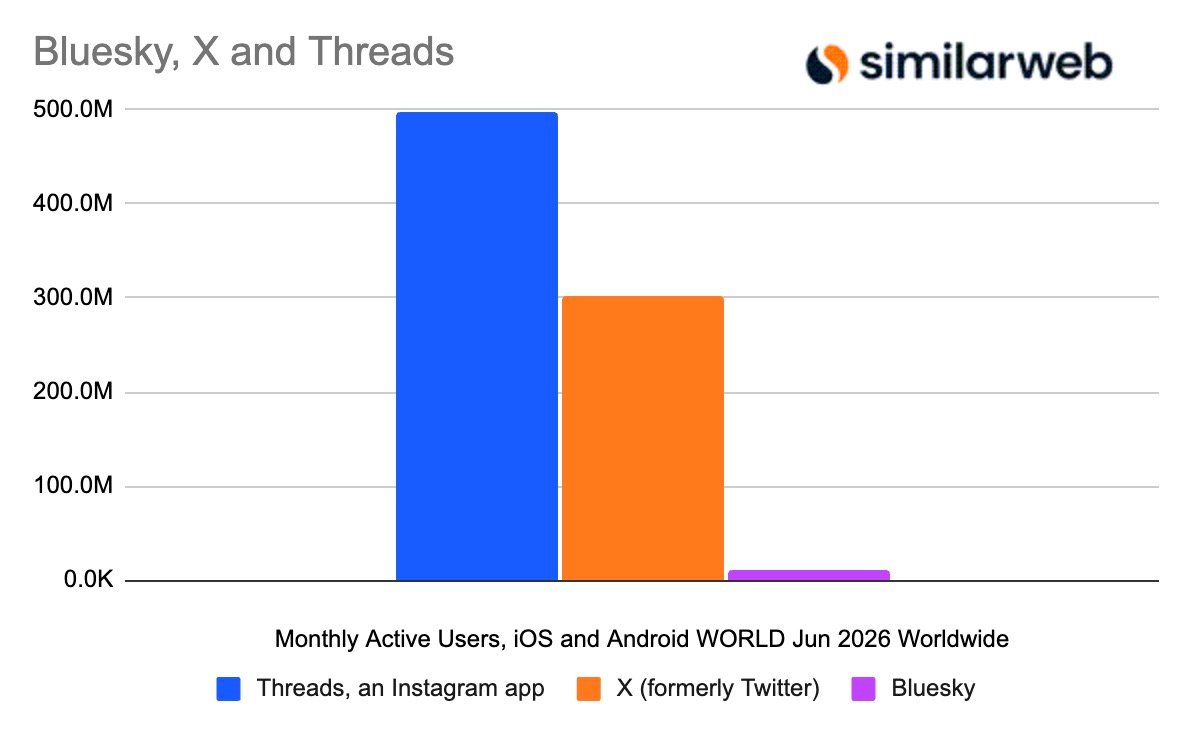
According to digital intelligence firm Similarweb, Bluesky’s mobile app had 10.4 million monthly active users worldwide in June 2026. That’s down 27.2% year-over-year. Daily active users fell even harder — 25.6% year-over-year in July, landing around 3 million.

These are not just post-election jitters. The app has lost more than half its monthly active users since its late-2024 peak. Quarterly averages dropped from roughly 22.1 million in Q4 2024 to 10.7 million in Q2 2026. That’s a 52% decline.

So what happened? Some of those who fled X simply didn’t stick around. The initial surge was real, but retention has been the challenge.

Quality over quantity: the committed core

Here’s the silver lining. The people who stayed are actually engaged. Bluesky’s stickiness rate — the ratio of daily to monthly active users — held at roughly 29% in June. That’s about the same as Threads, Meta’s X competitor.

This suggests Bluesky isn’t a ghost town. It’s a smaller, more loyal community. For a platform built on principles rather than scale, that might be enough.

But is it? The company’s public stats claim nearly 46 million registered users. Yet it doesn’t share daily or monthly active figures. Similarweb’s data fills that gap — and it’s not pretty.

Pivoting beyond the app: the AT Protocol bet

New CEO Toni Schneider isn’t panicking. And here’s why: Bluesky’s future may not be the Bluesky app at all.

The company is increasingly focused on the AT Protocol — the underlying infrastructure that powers Bluesky and now a growing ecosystem of third-party apps. Projects like BlackSky and Eurosky are gaining traction. Video-focused Skylight has found early adopters. The company even launched Attie, an AI-powered research tool.

This is a strategic shift. Instead of competing head-to-head with X or Threads for every user, Bluesky is betting that the protocol becomes the backbone for a new wave of social apps. If that happens, the app’s declining numbers matter less.

Private data support is also on the roadmap. That could attract a different type of user — people more interested in closed communities than public squares.

What the data doesn’t show

One fear was that Bluesky’s losses meant a return to X. Similarweb says no. X’s mobile monthly active users were down 3% year-over-year in June. Daily active users fell 7% in July to 123.7 million.

X is still huge, though — around 302 million monthly active users on mobile as of June 2026. Web visits actually grew 5.3% year-over-year to 4.7 billion in July.

So people aren’t rushing back to X. They’re just… leaving Bluesky.

Threads is the real winner

If anyone’s benefiting from Bluesky’s slide, it’s Threads. The Meta-owned app’s daily active users jumped 21.3% year-over-year to 147 million in July 2026. Website visits soared 112% to 471.6 million.

It’s unclear whether Threads is stealing Bluesky’s disenchanted users or attracting people who never used a Twitter-like service. Either way, the momentum is unmistakable.

For Bluesky, the question is whether a protocol-first strategy can sustain the company while the flagship app shrinks. It’s a risky bet. But with a loyal core and a growing developer ecosystem, it’s not a crazy one.

The next year will tell whether Bluesky becomes the decentralized social network that powers a new generation of apps — or just a footnote in the Twitter wars.

Continue Reading

Trending