Why the Linux command line still matters in 2026
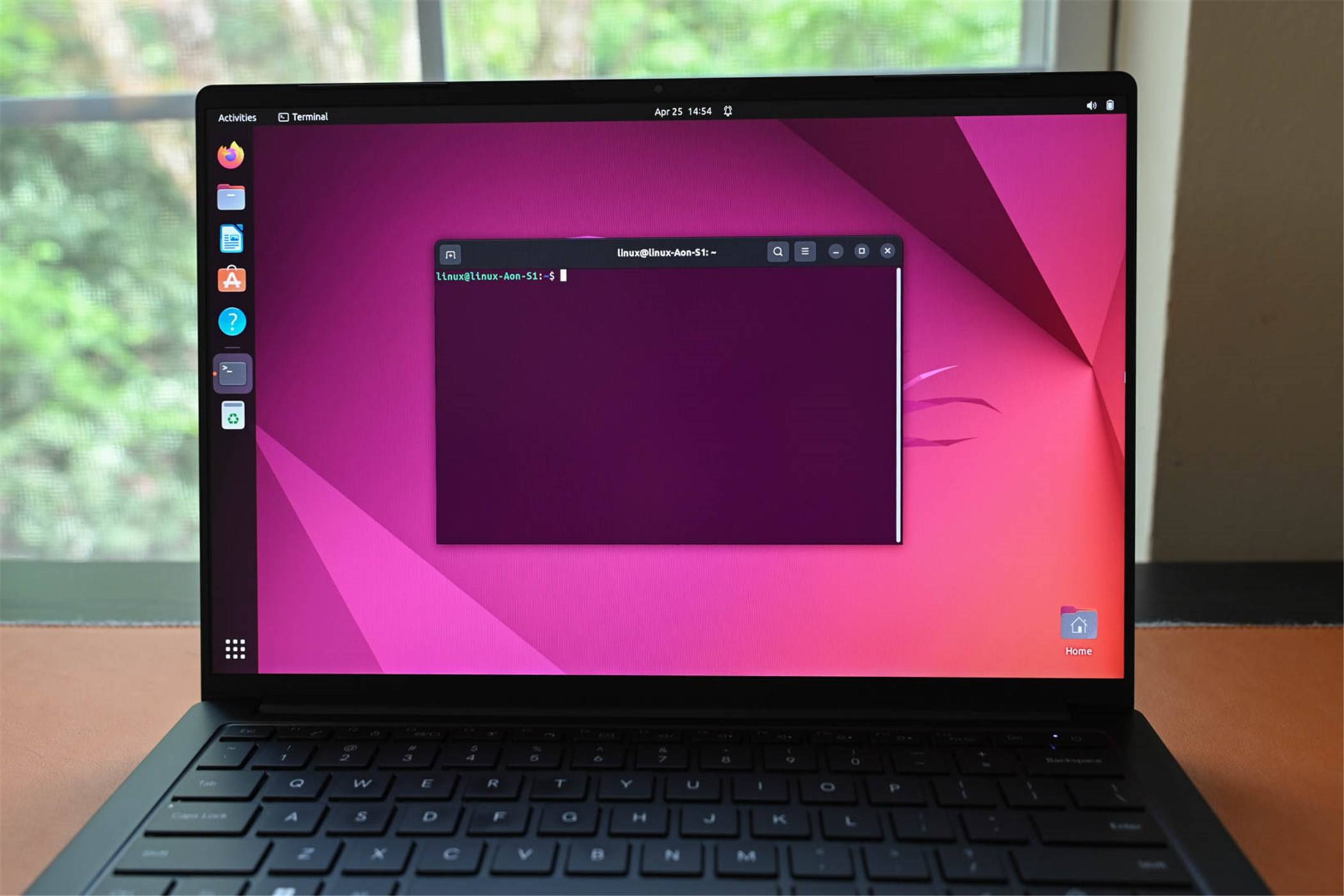
Let’s be honest: the terminal can feel like a time machine to the 1970s. No icons, no mouse, just a blinking cursor and a blank screen. For many newcomers, that’s intimidating.
But here’s the thing — mastering the Linux command line isn’t about memorizing every flag and option. It’s about learning a few smart tricks that compound over time. Once you internalize them, you’ll wonder how you ever worked any other way.
Below are seven concrete techniques that will make learning the Linux command line not just bearable, but genuinely productive.
1. Use tab completion to stop guessing
Typing long file names or paths by hand is a waste of mental energy. The shell’s built-in tab completion does the heavy lifting for you.
Start typing a command, file name, or directory path, then press Tab. The shell fills in the rest — or shows you options if there’s ambiguity. For example, type cd Docu then Tab, and it becomes cd Documents/.
This single habit eliminates typos, speeds up navigation, and reduces frustration. It’s the first trick every beginner should adopt.
2. Leverage the history command
Repeatedly typing the same long command is tedious. Your shell remembers everything you’ve typed. Use the history command to see your recent commands, then rerun one with !number (where number is the line from history).
Even faster: press Ctrl+R to search backward through your history. Start typing part of a previous command, and the shell finds it instantly. Hit Enter to run it again.
This turns your terminal into a personal memory bank — no more retyping complex grep or find commands.
3. Chain commands with && and |
Instead of running one command, waiting, then typing the next, chain them together. Use && to run the next command only if the previous one succeeded:
mkdir new_project && cd new_project && touch README.md
Use the pipe | to send the output of one command directly into another:
ls -la | grep '.txt'
This is where the real power of the Linux command line shines — combining small tools to build complex workflows without writing a script.
4. Create aliases for repetitive tasks
If you type the same command more than once a day, make an alias. Add lines like these to your ~/.bashrc or ~/.zshrc file:
alias ll='ls -lah'
alias gs='git status'
alias update='sudo apt update && sudo apt upgrade -y'
After editing, run source ~/.bashrc to load your new aliases immediately. Now typing ll gives you a detailed file listing, and update handles system upgrades in one keystroke.
This trick saves minutes every day — and those minutes add up fast.
5. Master the manual with apropos
The man command is essential, but it’s also dense. When you know what you want to do but don’t remember the exact command name, use apropos.
For example, if you need to change file permissions but forgot whether it’s chmod or something else, type:
apropos permission
It returns a list of relevant commands with brief descriptions. This turns the manual from a wall of text into a searchable reference. Combine it with man -k for even more flexibility.
6. Use Ctrl+ shortcuts to edit faster
Nobody enjoys retyping a long command because of a typo at the beginning. Learn these keyboard shortcuts and your editing speed will double:
- Ctrl+A — jump to the start of the line
- Ctrl+E — jump to the end
- Ctrl+U — delete everything before the cursor
- Ctrl+K — delete everything after the cursor
- Ctrl+W — delete the word before the cursor
These work in bash and zsh by default. They’re small habits, but they make the terminal feel less like a typewriter and more like a modern editor.
7. Practice with the built-in help system
Most commands include a --help flag that shows a condensed reference. For example:
tar --help
This prints a summary of options without opening the full manual. It’s faster than man tar when you just need a quick reminder.
Combine this with whatis (which gives a one-line description) and you’ve got a lightweight reference system that never requires leaving the terminal.
Start small, build momentum
The Linux command line isn’t something you conquer in a weekend. But by adopting these seven tricks — tab completion, history search, command chaining, aliases, apropos, keyboard shortcuts, and built-in help — you’ll stop fighting the terminal and start using it as the powerful tool it is.
Pick one trick today. Practice it until it becomes automatic. Then add another. That’s how real fluency develops — not through memorization, but through repeated, practical use.








 CyberSecurity7 months ago
 How To6 months ago
 How To4 months ago
 How To6 months ago
 How To5 months ago
 How To7 months ago

 How To6 months ago