Connect with us

How To

How to Play Fortnite on iPhone and iPad in 2025: A Complete Step-by-Step Guide

Published

on

How to Play Fortnite on iPhone and iPad in 2025: A Complete Step-by-Step Guide

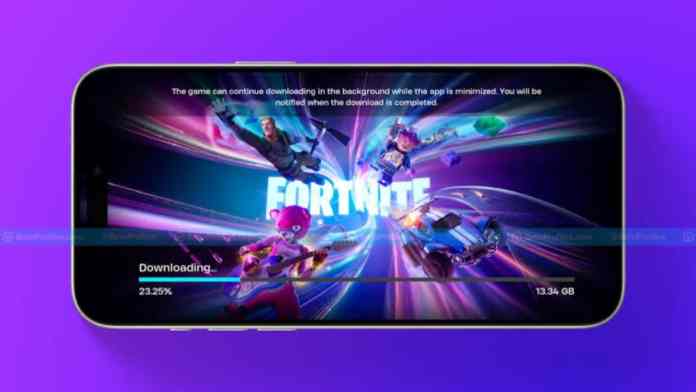
For millions of mobile gamers, the question of how to play Fortnite on iPhone has lingered since 2020. After a bitter legal clash between Apple and Epic Games, the battle royale giant vanished from the App Store. Now, in 2025, the landscape is shifting. New court rulings and regional regulations are opening doors again. This guide covers every reliable method to get back into the game today—whether you’re in the U.S., the EU, or beyond.

Fortnite’s Long Road Back to iOS Devices

Fortnite was once a staple on iPhones and iPads, offering seamless cross-platform play with friends on consoles and PCs. That changed abruptly in 2020. Epic Games attempted to bypass Apple’s 30% commission on in-app purchases, sparking a legal firestorm. Apple removed Fortnite from its store, and for nearly five years, direct installation was impossible.

However, a landmark court ruling in April 2025 turned the tide. The court decided that Apple cannot impose extra fees on payments made outside its App Store. It also cannot block developers from including external payment links. Following this, Epic Games CEO Tim Sweeney announced that Fortnite would return to the U.S. App Store between May 4 and May 10. He also stated that if Apple applies this framework globally, Epic will relaunch worldwide and drop all lawsuits.

Until that official release rolls out, players can still enjoy Fortnite through safe, legal alternatives. Cloud gaming services and region-specific installations are the most effective paths.

How to Play Fortnite on iPhone Using Cloud Gaming Services

Cloud gaming is the simplest way to play Fortnite on iPhone without waiting for the App Store return. These services stream the game directly to your device, requiring no download. They work well on both iPhones and iPads, provided you have a stable internet connection.

1. Xbox Cloud Gaming (XCloud)

Xbox Cloud Gaming is one of the most accessible options. It runs entirely through Safari, so there’s no app to install. Best of all, it’s free.

To get started, create a Microsoft or Xbox account if you don’t already have one. Then, visit the official Fortnite page on XCloud using your iPhone browser. Tap Play, and if prompted, select Continue Anyway if you lack a controller. The game launches instantly. XCloud works on older iPhones too, as long as your internet speed is solid. It’s a fast, no-hassle solution for quick matches.

2. Amazon Luna

Amazon Luna is another excellent choice for Fortnite on iPad and iPhone. It requires only an Amazon Prime account, and you can start with a free trial.

Open the Fortnite page on the Amazon Luna website. Tap Play Free with Prime, sign in with your Amazon account, and link your Epic Games account. Then, tap Start to begin playing. Luna delivers smooth graphics with minimal lag, especially on a strong Wi-Fi connection. This makes it ideal for players who want a console-like experience on their mobile device.

3. Nvidia GeForce Now

Nvidia GeForce Now offers both free and premium tiers. The free plan provides one-hour gaming sessions, which is perfect for quick rounds. For longer playtime and better performance, you can upgrade to a paid plan.

To use it, visit the official Fortnite page on GeForce Now via Safari. Log in with your Nvidia account, tap Play, and wait for the stream to load. GeForce Now is particularly good for players who want flexibility—you can jump in for a short session or commit to a longer one with the premium option.

Installing Fortnite Directly on iPhone and iPad: EU and Beyond

For those who prefer a native installation, the process depends on your location. European Union users now have a direct path thanks to new digital regulations. Players outside the EU can use a workaround until the global rollout.

For EU Users: Install via the Epic Games Store

If you’re in the European Union, you can download Fortnite on iPhone directly from the Epic Games Store. First, ensure your iOS device is updated to version 17.4 or higher. Check this by going to Settings > General > Software Update. Install any available updates.

Next, visit the official Epic Games Store website on your iPhone. Tap Install iOS and follow the on-screen instructions. If you see a warning about blocked installations, go to Settings > Privacy & Security > Allow App Installations for Epic Games. Then, return to the Epic Games Store and finish the installation. Fortnite will appear on your home screen, ready to play. This method is safe, official, and approved for EU residents.

For Non-EU Users: A Regional Workaround

Players outside the EU still face restrictions, but there is a working method. It involves a few settings changes and a new Apple ID.

Start by setting up a proxy server on your Wi-Fi router to mask your location. Then, create a new Apple ID registered with an EU country address. Install the iOS 18 beta version for better compatibility. Sign in with your new Apple ID, open the App Store, and search for Fortnite. Download and install it directly.

This method works especially well on iPads without SIM cards, as they don’t share location data easily. Once installation is complete, switch back to your original Apple ID. Remember, this is a temporary fix until Epic Games releases Fortnite globally.

Preparing Your Device for the Best Fortnite Experience

Before diving into a match, take a few steps to optimize your device. Simple adjustments can dramatically improve performance.

  • Update iOS regularly: Keeping your system current ensures smoother gameplay and fewer crashes.
  • Use a strong internet connection: A stable Wi-Fi network is essential for lag-free cloud gaming.
  • Link your Epic Games account: This saves your progress and unlocks cross-platform play.
  • Use a Bluetooth controller: A controller provides better control and aiming than touchscreens.
  • Avoid fake apps: Only use official links from Epic Games, Xbox, Amazon, or Nvidia.

Following these tips guarantees a safer and more enjoyable experience.

What’s Next for Fortnite on iOS?

The return of Fortnite to the App Store is imminent. According to Epic’s CEO, the game will land in the U.S. between May 4 and May 10. Once Apple expands its new policy worldwide, Epic plans to bring Fortnite to every region. This means that soon, you won’t need cloud gaming or workarounds. You’ll simply download it from the App Store like before.

Epic has confirmed that once this happens, it will end all legal cases against Apple. For players, this is the end of a long wait. The Fortnite on iPad and iPhone experience is finally making a full comeback.

In the meantime, cloud services like Xbox Cloud Gaming and Amazon Luna offer reliable alternatives. For those seeking a direct install, the Epic Games Store works for EU users, while the proxy method helps others. No matter your region, you can play Fortnite on iPhone right now.

For more tips on mobile gaming, check out our guide on using Discord’s in-game overlay or explore the best controllers for iPhone gaming.

Continue Reading
Click to comment

Leave a Reply

Your email address will not be published. Required fields are marked *

How To

How to Download Books to a Kindle Fire in 2025: A Complete Guide

Published

on

How to Download Books to a Kindle Fire in 2025: A Complete Guide

Reading every day is a fantastic habit, but purchasing books can quickly drain your wallet. Fortunately, you can download books to a Kindle Fire without spending a fortune. With a few straightforward techniques, you can fill your digital library with both new releases and timeless classics. This guide walks you through every reliable method available in 2025.

Using the Amazon Store Directly on Your Kindle Fire

The most straightforward way to get content is through the built-in Amazon Store. It comes pre-installed on every Kindle Fire, offering millions of titles, many of which are free.

Step-by-Step: Buying or Borrowing from Amazon

First, turn on your device and connect to a Wi-Fi network. From the Home screen, tap the Books tab at the top. Next, select the Store option to browse the catalogue. You can search for a specific author or browse categories like “Top 100 Free.”

When you find a promising title, tap the cover to open its details page. Here, you will see the price, user ratings, and a brief description. Many books offer a “Try a Sample” feature, letting you read the first chapter for free. If you are an Amazon Prime member, look for the “Borrow for Free” badge. To complete the purchase or borrow, simply tap Buy or Borrow. The file will begin downloading instantly.

To start reading, return to the Books tab on your Home screen. Tap the cover of your newly acquired book, and it will open immediately. This method is undeniably the simplest way to download books to a Kindle Fire.

Downloading Books via Your Computer or Laptop

Another reliable approach involves using a computer. This method is particularly useful if you prefer browsing on a larger screen.

How to Send Books from a Web Browser

Open your preferred web browser and go to Amazon.com. Sign in with your Amazon credentials. Use the search bar at the top to look for Kindle books, or click on the Kindle tab to explore genres like fiction, non-fiction, or bestsellers.

Once you select a book, click on it to see the price, customer reviews, and a summary. Before clicking the orange Buy button, ensure your Kindle Fire is selected in the “Deliver to” dropdown menu. After the purchase, the book is sent directly to your Amazon cloud library.

On your Kindle Fire, connect to the internet and open the Books tab. Pull down to refresh your library, and the new title will appear. Tap it to start the download. This computer-based workflow is ideal for those who manage their digital library from a desktop.

Borrowing Free eBooks with the Libby App

For readers who want to access thousands of titles without paying a cent, the Libby app is a game-changer. It connects directly to your local library’s digital collection.

Setting Up Libby on Your Kindle Fire

First, you need a library card. Visit your local library in person or check if they offer online registration. Once you have your card number and PIN, download the Libby app from the Amazon Appstore on your Kindle Fire. Open the app and follow the on-screen prompts to add your library card.

After linking your account, tap the library icon to browse the collection. You can search by author, title, or genre. When you find a book you want, tap Borrow. If it is currently checked out, tap Place Hold and wait for an email notification.

To read the borrowed book on your Kindle, tap Read With Kindle. This will open Amazon’s website in your browser. Confirm the delivery by clicking Get Library Book. Finally, open the Books tab on your Kindle Fire and refresh the page. The book will appear, ready to read. Most titles are returned automatically after the due date, so you never have to worry about late fees.

Alternative Sources for Free Kindle Books

Beyond Amazon and Libby, several other platforms provide free content legally.

Amazon’s Top 100 Free List

Amazon updates a daily list of free bestsellers. Navigate to the Kindle Store and search for “Top 100 Free.” Authors often offer the first book in a series for free to attract readers. Be aware that some free books end on a cliffhanger, encouraging you to purchase the next volume.

Public Domain Websites

Books with expired copyrights are in the public domain. Websites like Project Gutenberg and ManyBooks offer thousands of classics by authors like Jane Austen and Mark Twain. You can download these in Kindle Fire PDF or MOBI format. After downloading, transfer the file to your device using a USB cable or the Send to Kindle email feature.

Email Alert Services

Platforms such as BookBub and Free Booksy send daily newsletters featuring discounted and free Kindle books. Sign up, select your favourite genres, and receive curated lists directly in your inbox. This saves you time searching manually.

Sending Personal PDFs to Your Kindle Fire

If you have documents, notes, or eBooks in PDF format, you can easily transfer them. Connect your Kindle Fire to a computer using a USB cable. Unlock the screen, and your device will appear as a drive on your PC. Drag and drop the PDF files into the Documents folder. After safely ejecting the device, tap the Docs tab on your Kindle Fire to find your files. This method is perfect for personal use or sharing reading material.

Building on these methods, you now have a complete toolkit to download books to a Kindle Fire in 2025. Whether you prefer the Amazon Store, library apps, or public domain archives, each approach is safe, legal, and budget-friendly. Start exploring today and enjoy unlimited reading without breaking the bank.

Continue Reading

How To

How to Record Calls on Android and iPhone: A Step-by-Step Guide for 2025

Published

on

How to Record Calls on Android and iPhone: A Step-by-Step Guide for 2025

Recording phone conversations has become a common need for professionals, students, and everyday users. Whether you want to capture important business agreements, preserve family memories, or keep a record of critical discussions, knowing how to record calls on Android and iPhone is essential. However, the process isn’t always straightforward due to varying device capabilities, operating system restrictions, and legal requirements. This guide walks you through every reliable method, highlights the best iPhone call recording app options, and explains the call recording legality India rules you must follow.

Why People Need to Record Calls Today

Modern life moves fast, and memory often fails. Many individuals forget key details immediately after hanging up. Recordings serve as a reliable backup for business deals, client instructions, and personal commitments. Professionals use them during interviews, while students capture lecture notes from remote classes.

Moreover, families record conversations with elderly relatives to preserve stories and advice. Some users also rely on recordings for personal safety, documenting threatening or harassing calls. Beyond these uses, call recording boosts productivity. Instead of scribbling messy notes during a conversation, you can focus on the discussion and review the audio later.

Recordings also help teams align on decisions and avoid misunderstandings. Clear audio tracks make it easy to create accurate summaries, ensuring everyone stays on the same page.

Call Recording Legality in India Explained Clearly

Before you start recording, understanding the legal framework is crucial. Call recording legality India follows a consent-based system. You must inform the other party that you are recording the conversation. Recording without consent can lead to legal trouble, including privacy violations under Indian law.

Companies handling customer calls must also adhere to strict privacy regulations. Some states impose even stricter rules. Operating system updates now reflect these legal concerns. Many Android phones hide built-in recording tools in certain regions, and iPhones restrict silent recording entirely for safety reasons.

Because laws vary across countries, features differ by location. Apple blocks recording features in some nations, while Google restricts silent recording in many markets. Third-party apps must comply with similar safety laws. Therefore, obtaining clear consent remains the safest and most ethical approach. Always tell the other person before pressing record.

How to Record Calls on Android Easily Today

The method to record calls on Android depends heavily on your device model and region. Some smartphones come with a built-in recording feature. To check, open your Phone app and navigate to Settings. If you see a “Call Recording” option, enable it. During an active call, a record button usually appears on the screen.

However, this feature isn’t universal. Many devices automatically disable it in regions with strict privacy laws. If your phone lacks a built-in option, third-party apps step in. Auto Call Recorder is a popular choice. Download it from the Google Play Store, grant microphone and storage permissions, and enable automatic recording for specific contacts. On Android 10 and higher, you may need to activate accessibility permissions for the app to function properly.

The Google Phone app also supports recording on many devices, but availability hinges on your phone model and local regulations. Keep in mind that long recordings may stop if storage runs low. Some Android versions block call recording entirely due to restrictions.

Third-party apps, however, face challenges. They can crash during lengthy calls or record only one side of the conversation clearly. Some introduce subscription fees unexpectedly. These issues push users to seek more stable solutions.

iPhone Call Recording App Options and Limitations

For Apple users, iPhone call recording app options have historically been limited. Apple blocked silent recording for years. With iOS 18, the company introduced a built-in recorder. During a call, tap the Record button. A loud announcement informs all participants that recording has started. The audio file saves automatically in the Notes app.

While convenient, this feature has drawbacks. It isn’t available in every country. It produces only an audio file without summaries or transcripts. The announcement makes discreet recording impossible. Alternatively, you can use speakerphone and the Voice Memos app, but audio quality often suffers from background noise.

Google Voice offers recording, but only for calls made to your Google Voice number and exclusively within the United States. Normal carrier calls remain unrecorded. For users outside the U.S., this method isn’t an option. Consequently, many iPhone owners turn to hardware solutions for reliable performance.

Why Third-Party Apps Often Fail Today

Software-based recording methods frequently encounter problems. Apps crash during long conversations, fail due to microphone restrictions, or get disabled by new privacy rules. Many include hidden fees for essential features. Some record low-quality audio, making playback difficult.

Operating system updates introduce tougher security measures globally. On Android, newer versions block background recording for privacy. On iOS, third-party apps cannot access the call audio stream directly. These restrictions make app performance unreliable. That’s why a growing number of users are shifting to hardware recording devices.

Hardware Recording: A Safe and Reliable Solution

Dedicated hardware recorders offer the most dependable experience. The Plaud Note is a standout device. It attaches to your phone via a magnetic MagSafe case or an adhesive ring for non-MagSafe models. The device features two recording modes: flip the switch up for Phone Call mode, down for On-Site mode during meetings.

Press and hold the main button to start recording. The device captures audio directly from the source, producing clear, crisp sound without needing speakerphone. It works across all platforms, including WhatsApp, Zoom, and FaceTime.

Plaud Note boasts impressive storage and battery life. With 64GB of memory, it stores thousands of hours of audio. It records continuously for nearly 50 hours and stays in standby mode for up to 60 days. The included AI features transcribe audio into text, support over 112 languages, generate short summaries, extract action items, and identify speakers. Over 3,000 templates help format professional notes, saving users hundreds of hours annually.

The Bottom Line

Learning how to record calls on Android is simple when you use safe, legal methods. iPhone call recording app options remain limited but are improving with each iOS update. Always respect call recording legality India rules by obtaining consent. Third-party apps can work but face increasing restrictions. For the best clarity and reliability, consider hardware solutions like the Plaud Note. Whichever method you choose, prioritize legal compliance and data safety. For more tips, check out our guide on how to hide WhatsApp blue ticks or learn about lock screen customization.

Continue Reading

How To

Lock Screen Widgets Android & iOS: The Ultimate Productivity Hacks Guide

Published

on

Lock Screen Widgets Android & iOS: The Ultimate Productivity Hacks Guide

Your smartphone’s lock screen is no longer just a barrier. Today, lock screen widgets on Android and iOS transform that idle screen into a powerful dashboard. Instead of unlocking your phone repeatedly, you can view calendar events, check the weather, or launch apps instantly. This shift saves seconds each time, adding up to minutes of reclaimed productivity every week. But how do you make the most of it? Let’s explore the best customization options and practical hacks for both platforms.

Why Lock Screen Widgets Matter for Daily Productivity

Every time you unlock your phone to check a notification, you risk distraction. Lock screen widgets eliminate that step. They place critical information—like upcoming meetings, weather forecasts, or fitness stats—right on the locked display. This means you can glance and go, without opening apps or scrolling through menus.

For professionals, calendar widgets are indispensable. They show your next appointment at a glance, preventing missed deadlines. Weather widgets, on the other hand, help you plan your commute or outfit without launching a separate app. Quick app launch widgets, such as for music or camera controls, reduce extra taps. Over time, these small efficiencies compound into significant time savings.

iOS Lock Screen Customization: Design Meets Function

Apple’s iOS 18 brought a wave of iOS lock screen customization options. Users can now tweak font styles, colors, and widget placements to suit their aesthetic. The result is a lock screen that feels personal and purposeful.

Visual Themes and Wallpaper Ideas

One popular trend is using gradient wallpapers. These create a modern, colorful look that pairs well with minimal widgets. Anime-themed designs, such as Studio Ghibli scenes, add a touch of nostalgia. For travelers, wallpapers featuring destinations can inspire wanderlust, while clock widgets show local times from around the world.

Textured wallpapers—like marble or iridescent finishes—add depth without clutter. Meanwhile, Photo Shuffle rotates your favorite images automatically, keeping the screen fresh. If you prefer a playful vibe, emoji pattern wallpapers let you choose up to six emojis arranged in grids or spirals.

The Depth Effect and Dynamic Widgets

iOS 18’s Depth Effect uses AI to separate subjects from backgrounds. This allows the clock to sit behind a person or object in your wallpaper, creating a 3D-like illusion. For best results, use clear, high-contrast subjects. Dynamic weather widgets animate live conditions—rain, clouds, or sunshine—making the screen feel alive.

Fitness enthusiasts can add Apple Watch activity rings directly to the lock screen. Calories, minutes of exercise, and stand hours appear at a glance. Similarly, astrology widgets show moon phases, while nature wallpapers bring forests or mountains to your pocket.

Android Lock Screen Widgets: Flexibility and Power

Android has long offered more flexibility with Android lock screen widgets. Depending on your device and OS version, you can add a variety of tools. Music controls let you pause or skip tracks without unlocking. Smart home widgets provide quick access to lights or thermostats. Voice assistant shortcuts enable hands-free tasks like setting reminders.

How to Add Widgets on Android

The process varies by manufacturer, but generally, you wake the phone and stay on the lock screen. Swipe left or right to access the widget panel, then tap the plus icon. After entering your PIN or password, you can choose from available widgets. Resize or reorder them as needed, then save. Samsung users, for instance, can find dedicated guides in the Galaxy Store.

Not all devices support every widget type. Older Android versions or budget phones may limit options. Always check your device’s compatibility before customizing.

Common Mistakes and Expert Widget Tips

While lock screen widgets boost productivity, overloading them can backfire. Too many widgets create visual clutter and may slow down your device. High-refresh widgets, like live weather animations, can drain battery life. Stick to widgets that update on demand rather than continuously.

Privacy is another concern. Widgets displaying sensitive information—such as email previews or calendar details—could be seen by others. Avoid showing notifications with personal data. Always use a PIN, pattern, or biometric lock to secure your device. Convenience should never compromise safety.

Experts recommend choosing widgets based on utility, not just looks. Frequent-use apps like calendar, weather, and music players are top choices. Glanceable information saves effort, and developers are improving widget privacy with each update. For more tips, check out our guide on hiding WhatsApp blue ticks to complement your lock screen setup.

Lock Screen Productivity Hacks for Daily Life

Lock screen productivity hacks go beyond widgets. They change how you interact with your phone. By reducing unnecessary unlocks, you minimize distractions. This helps maintain focus during work hours. Quick replies to messages become possible without opening the app. Meeting checks feel effortless, and music control stays smooth.

Even casual users benefit. App searching decreases, and phone usage feels more controlled. The lock screen subtly guides your daily priorities without adding stress. For example, a fitness widget reminds you to stand, while a news widget keeps you informed without diving into social media.

To further streamline your digital life, explore our article on using Do Not Disturb on Android. It pairs perfectly with lock screen widgets to minimize interruptions.

Final Thoughts

Lock screen widgets on Android and iOS are more than just decorative. They are practical tools that save time and reduce friction. Whether you prefer the polished design of iOS or the flexibility of Android, the key is choosing widgets that match your daily routine. Calendar, weather, and quick-launch apps remain the most useful. Keep layouts minimal to avoid clutter, and always prioritize privacy. With the right setup, your lock screen becomes a smart assistant that works for you.

Continue Reading

Trending