Connect with us

How To

WhatsApp End-to-End Encrypted Backup: Complete Setup Guide for Android & iOS

Published

on

WhatsApp End-to-End Encrypted Backup: Complete Setup Guide for Android & iOS

Think about what’s in your WhatsApp chats. Private conversations, family photos, sensitive documents. Now imagine all that data sitting in your cloud backup, completely unprotected. That’s the reality for millions who haven’t enabled one crucial setting.

The Critical Gap in WhatsApp’s Security

WhatsApp’s standard end-to-end encryption is excellent. It scrambles your messages so only you and the recipient can read them during transmission. But here’s the catch everyone misses.

When your chats back up to Google Drive or iCloud, that protection vanishes. Your backup files sit there in readable form. If someone accesses your cloud account, they get your entire chat history. No encryption. No protection.

Why does this matter? Cloud breaches happen regularly. Weak passwords get cracked. Phishing attacks succeed. Your WhatsApp backup could be the weakest link in your digital security chain.

What End-to-End Encrypted Backup Actually Does

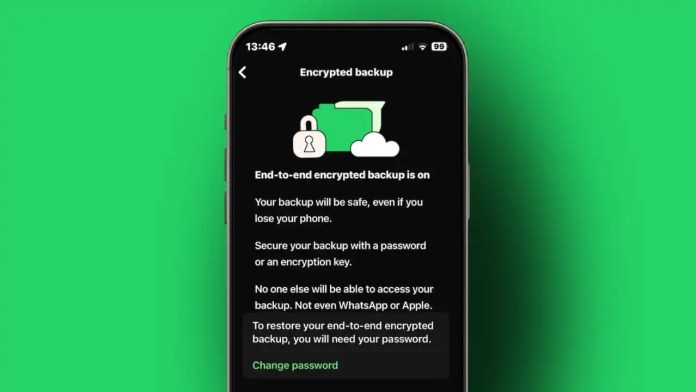
This feature creates a digital vault for your backup. Before anything leaves your phone, WhatsApp encrypts everything using a key only you control. The encrypted data then uploads to the cloud.

Neither Google nor Apple can read it. WhatsApp’s servers can’t access it. Even if someone steals the backup file, it’s just scrambled nonsense without your unique password.

The system generates a complex encryption key on your device. You protect that key with a password you create. Lose the password? The backup becomes permanently inaccessible. That’s how serious this protection is.

Enabling Encrypted Backup on Android

Let’s get practical. The process takes two minutes but protects years of conversations.

Open WhatsApp and tap the three dots in the top-right corner. Select Settings, then Chats. Tap Chat Backup. You’ll see “End-to-end encrypted backup” as an option.

Tap “Turn On.” WhatsApp will prompt you to create a password. This isn’t your WhatsApp PIN or phone password—it’s a brand new password specifically for your backup encryption.

Choosing Your Backup Password

This password is non-negotiable. Use at least eight characters mixing uppercase, lowercase, numbers, and symbols. Avoid birthdays, pet names, or common phrases.

Write it down somewhere physically secure. Store it in a password manager. Do not save it in your phone’s notes or email it to yourself. WhatsApp cannot recover this password if you forget it.

After setting your password, WhatsApp will encrypt your existing backup and all future backups automatically. The process might take a while depending on your chat history size.

Setting Up Encrypted Backup on iPhone

iPhone users follow a similar path with slight interface differences.

Open WhatsApp and tap Settings at the bottom-right. Select Chats, then Chat Backup. Look for “End-to-end Encrypted Backup” and tap it.

Tap “Turn On” and create your secure password. Confirm it when prompted. Your iPhone will now encrypt your iCloud backup.

Extra iPhone Security Measures

While you’re securing WhatsApp, enable two-factor authentication for your Apple ID. This adds another layer protecting your iCloud account itself.

Keep your iPhone updated. Apple regularly patches security vulnerabilities in iOS updates. Use Face ID or Touch ID for device unlocking—it’s more secure than simple passcodes.

Verifying Your Backup Is Protected

How do you know it worked? Return to Settings > Chats > Chat Backup. You should see “End-to-end encrypted backup: On” with the date of your last encrypted backup.

If you see “Off” instead, the feature isn’t active. Your backup remains vulnerable in cloud storage.

Another telltale sign? Unencrypted backups restore almost instantly during WhatsApp setup. Encrypted backups take longer because your device must decrypt the data first.

The Password Recovery Reality

This bears repeating because people underestimate it. WhatsApp cannot reset your encrypted backup password. There’s no “Forgot password” link. No customer support recovery option.

Forget your password? Your backup becomes digital concrete. Permanently locked. Irretrievable.

This absolute control is the feature’s greatest strength and biggest responsibility. You become the sole guardian of your chat history.

Beyond Backup: Daily WhatsApp Security Habits

Encrypted backup is crucial, but it’s not everything. Practice these habits for comprehensive protection.

Update WhatsApp regularly. Security patches matter. Enable two-step verification in WhatsApp Settings > Account. This requires a PIN when registering your number on a new device.

Be skeptical of links, even from contacts. Scammers often hijack accounts to spread malware. Don’t share verification codes with anyone—WhatsApp will never ask for them.

Regularly review linked devices in Settings > Linked Devices. Remove any you don’t recognize. Log out of WhatsApp Web sessions you’re no longer using.

Why This Feature Changes Everything

End-to-end encrypted backup completes WhatsApp’s security circle. Your messages stay protected in transit, at rest on your device, and now in cloud storage.

It addresses the vulnerability most people don’t realize exists. Your cloud provider might get hacked. Your password might get compromised. With encrypted backup, those incidents don’t expose your private conversations.

The feature represents a shift toward user-controlled security. You hold the keys. Not tech giants. Not cloud providers. You.

Take those two minutes today. Future you will thank present you when another major cloud breach hits the news and your WhatsApp history remains safely locked away.

Continue Reading
Click to comment

Leave a Reply

Your email address will not be published. Required fields are marked *

How To

How to Make a WhatsApp Sticker from Your Photo: The Ultimate Guide for Custom Chat Fun

Published

on

How to Make a WhatsApp Sticker from Your Photo: The Ultimate Guide for Custom Chat Fun

Have you ever wanted to turn your favourite selfie into a playful sticker for WhatsApp? You are not alone. Millions of users love expressing themselves with custom stickers. In fact, learning how to make WhatsApp sticker from photo is simpler than you think. This guide walks you through every step so you can start sending personalised stickers today.

Why Create Custom WhatsApp Stickers from Your Photos?

Standard emojis and stickers are great, but nothing beats a sticker that features your own face or a funny moment. Custom stickers add a personal touch to conversations. They make your chats more engaging and memorable. Whether it is a birthday greeting or a silly expression, a photo-based sticker stands out.

Moreover, creating your own stickers is completely free. You only need a reliable app and a few minutes of your time. This process works on both Android and iOS devices. So, no matter what phone you use, you can join the fun.

What You Need to Make a WhatsApp Sticker from a Photo

Before diving into the steps, gather these essentials:

  • A smartphone with WhatsApp installed.
  • A photo you want to convert into a sticker.
  • The Sticker Maker app (available on Google Play Store).
  • Basic editing skills – cropping and background removal.

That is it. No paid subscriptions or advanced tools required.

Step-by-Step: How to Make a WhatsApp Sticker from Your Photo

Step 1: Download the Sticker Maker App

First, open the Google Play Store on your Android device. Search for “Sticker Maker”. Look for the app by developer Marsvard. It has millions of downloads and a high rating. Tap “Install” and wait for the download to finish.

Step 2: Open the App and Create a New Sticker Pack

Once installed, launch the Sticker Maker app. You will see a clean interface. Tap on “Create a new sticker pack”. A pop-up will ask you to name your pack. Choose something descriptive, like “My Faces” or “Funny Selfies”. This name will appear in WhatsApp later.

Step 3: Enable Permissions

The app will request access to your storage and photos. Grant these permissions. Without them, you cannot select an image from your gallery. Do not worry – the app only uses the photos you choose.

Step 4: Select Your Photo

Tap the gallery icon. Browse your photo library and pick the image you want to transform. For best results, choose a photo with a clear subject and a simple background. This makes editing easier.

Step 5: Edit and Remove the Background

After selecting the photo, the app opens an editing screen. Use the cropping tool to trim unwanted areas. Then, tap the magic wand icon to erase the background automatically. You can refine the edges manually. Add text or doodles if you want extra flair.

Step 6: Save Your Sticker

When you are satisfied with the result, tap the save icon. The sticker is now stored inside your sticker pack in the Sticker Maker app.

Step 7: Add the Sticker Pack to WhatsApp

Go back to the main screen of Sticker Maker. You will see your new pack listed. Tap the “Add to WhatsApp” button. A confirmation message will appear. Accept it. Now, open WhatsApp and check your sticker tray. Your custom pack should be there.

Step 8: Send Your Custom Sticker to Friends

Open any chat in WhatsApp. Tap the sticker icon (smiley face). Swipe to your new pack. Select the sticker and send it. Your friends will see your photo as a sticker. They can even download and reuse it.

Tips for Making Better WhatsApp Stickers

Creating high-quality stickers takes a little practice. Here are some pro tips:

  • Use high-resolution photos: Blurry images make blurry stickers.
  • Choose photos with good lighting: Bright, even light helps the background removal tool work better.
  • Keep it simple: Stickers with one subject look cleaner than crowded scenes.
  • Experiment with text: Add a funny caption to make your sticker more expressive.

These small adjustments can elevate your sticker game significantly.

Common Questions About Making WhatsApp Stickers from Photos

Can I make stickers from photos on an iPhone?

Yes. While this guide focuses on Android, iPhone users can use apps like “Sticker Maker Studio” from the App Store. The process is nearly identical.

Is it safe to use third-party sticker apps?

Most reputable apps, including Sticker Maker, are safe. They do not share your photos without permission. However, always check app permissions and user reviews before downloading.

How many stickers can I add to one pack?

WhatsApp allows up to 30 stickers per pack. You can create multiple packs for different moods or occasions.

Explore More WhatsApp Tricks

Custom stickers are just one way to enhance your WhatsApp experience. Check out our guide on how to send WhatsApp message without saving number for another handy tip. You might also enjoy learning how to unblock yourself on WhatsApp if you ever face that issue.

Final Thoughts

Learning to make WhatsApp sticker from photo is a fun, creative skill that adds personality to your chats. With the Sticker Maker app and the steps above, you can create unlimited custom stickers in minutes. So, grab your phone, pick a photo, and start designing. Your friends will love the personal touch.

If you found this tutorial helpful, share it with your social media circle. And if you have any questions, drop a comment below. Happy stickering!

Continue Reading

How To

TopU App Review: How to Make Free Online Video Calls and Chat with New People

Published

on

TopU App Review: How to Make Free Online Video Calls and Chat with New People

Are you looking to connect with new people from around the world without spending a dime? The TopU app offers a straightforward solution for free online video calling and chatting. Whether you want to make friends, practice a language, or simply explore different cultures, this platform provides a convenient way to interact face-to-face from your smartphone or computer.

In this review, we break down how the TopU app works, share practical tips for starting conversations, and guide you through the download process. By the end, you’ll have everything you need to start your journey toward meaningful online connections.

What Is the TopU App and How Does It Work?

The TopU app is a free communication tool designed to help users engage in live video calls and text chats with strangers. Unlike many dating apps that require a subscription for advanced features, TopU focuses on accessibility. You can send and receive messages directly from your browser without extra charges, making it ideal for international conversations.

This platform eliminates the need for expensive SMS fees when chatting with friends abroad. Instead, you rely on an internet connection to stay in touch. The interface is simple, allowing even first-time users to navigate with ease.

Key Features of TopU App

  • Free video calling: No hidden costs or premium tiers.
  • Live chat messaging: Text-based conversations work seamlessly.
  • Cross-platform support: Use it on Android devices or via a desktop browser.
  • Global reach: Connect with people from any country.

These features make the TopU app a solid choice for anyone who wants to chat with strangers without financial commitment.

How to Make Friends Online Using TopU App

Making friends online requires more than just downloading an app. You need the right approach to build rapport. Here are actionable tips to help you succeed:

Build Confidence Before the First Call

Confidence plays a major role in online interactions. Before you start a video call, take a deep breath and remind yourself that the other person is likely nervous too. Girls, in particular, appreciate when a guy shows ambition and genuine interest. Speak naturally and avoid trying too hard to impress.

Start with Simple Topics

Begin by learning about the other person’s likes and dislikes. Ask open-ended questions about their hobbies, favorite movies, or travel experiences. Share a bit about yourself as well. This balance creates a two-way conversation that feels comfortable.

For example, you might say: “I noticed you enjoy hiking. What’s the best trail you’ve ever visited?” This approach shows you’re paying attention and care about their interests.

Give Space and Be Patient

After a long conversation, it’s wise to step back. Don’t overwhelm the other person with constant messages. Let them miss you. Wait a day or two before reaching out again with a light topic. This strategy often makes the connection stronger.

Building on this, remember that patience is key. Not every chat will lead to a lasting friendship, but each one teaches you something new about communication.

How to Download and Install TopU App

Getting started with the TopU app is quick. Follow these steps:

  1. Visit the official TopU app page on the Google Play Store.
  2. Tap the “Install” button and wait for the download to finish.
  3. Open the app and create a profile using your email or phone number.
  4. Start browsing for users and initiate your first video call.

Alternatively, you can use the web version directly from your browser. This flexibility ensures you can stay connected even without your phone.

For more tips on dating apps, check out our guide on Enhance Dating Game with These 5 Best Dating Apps. If you’re interested in customizing your phone, read about Create Your Own Video Ringtone with Video Ringtone Maker App.

Frequently Asked Questions About TopU App

Is TopU app completely free?

Yes, the TopU app offers free video calling and chat features without any subscription fees. There are no hidden charges for international messaging.

Can I use TopU app on my computer?

Absolutely. The app works in any modern web browser, so you can chat from your desktop or laptop without installing extra software.

Is it safe to chat with strangers on TopU?

As with any online platform, exercise caution. Never share personal information like your address or financial details. Report any suspicious behavior to the app’s support team.

Final Thoughts

The TopU app provides a reliable and cost-free way to engage in free online video calling and text chat. Whether you’re looking to make new friends or simply pass the time, its straightforward design and global reach make it a worthwhile tool. Download it today and start exploring connections beyond your usual circle.

Continue Reading

How To

How to Personalize Your Android with a Custom Notification Bar Photo

Published

on

How to Personalize Your Android with a Custom Notification Bar Photo

Have you ever looked at your phone’s notification bar and wished it felt more personal? Most Android devices come with a standard, uniform look. However, with the right tool, you can transform it completely. This article explores how to use a custom notification bar app to add your own photo and change the entire appearance of your phone’s top panel.

Using a dedicated app, you can move beyond simple wallpapers and inject your personality directly into the interface. This guide will walk you through the best app for the job, its standout features, and a simple setup process. By the end, you will know exactly how to make your notification area uniquely yours.

Why Use a Custom Notification Bar App?

Stock Android offers limited options for changing the notification panel. You can adjust the wallpaper and maybe the accent color, but the bar itself often stays the same. A custom notification bar app breaks these limits. It gives you total control over the look and feel of one of the most-used parts of your screen.

In addition, these apps allow for deep personalization without needing root access. You can change colors, button shapes, and even the clock position. This means that your phone can reflect your style in a way that standard settings simply cannot match.

Top Features of a Notification Bar Customizer

The best apps for this task come packed with useful features. Understanding these will help you get the most out of the customization. Here are the key capabilities you should look for:

Change Colors and Styles

You can alter the background color of the notification panel bar itself. This goes beyond the system theme and lets you pick any shade you like. Furthermore, you can change the color of the brightness slider and the quick settings icons.

Resize and Rearrange Elements

Many apps let you resize the clock or move it to the left or right side of the bar. You can also adjust the size of the notification panel itself. This flexibility helps you create a layout that feels balanced and easy to use.

Add a Personal Photo

The standout feature is the ability to set your own image in the notification shade. You can pick a favorite photo from your gallery. This image then appears as a background or accent within the panel, making it truly yours.

How to Set Up a Custom Notification Bar on Android

Getting started is straightforward. You do not need any technical skills. Follow these simple steps to install and configure the app.

First, download a reliable custom notification bar app from the Google Play Store. Look for one with good reviews and the features listed above. Once installed, open the app and grant the necessary permissions, such as access to your photos and the ability to draw over other apps.

Next, navigate to the photo or background section within the app. Select the image you want to use from your gallery. You can usually crop or adjust it to fit the notification area perfectly. After that, explore the color and style settings to match the rest of your phone’s theme.

Finally, apply the changes. The app will typically ask you to enable a service or toggle a setting. Once active, your new, personalized notification bar will appear. If you have any questions, you can check the app’s help section or leave a comment below.

Conclusion: Make Your Phone Truly Yours

Personalizing your Android device does not have to be complicated. Using a custom notification bar app is a quick and effective way to stand out. You can change colors, adjust layouts, and most importantly, add your own photos.

This small change can make your daily phone use feel more enjoyable and personal. So, why stick with the default look? Download an app today and give your notification panel a fresh, custom makeover. For more tips on personalizing your device, check out our guide on changing your Android theme. You might also like our article on best Android customization apps.

Continue Reading

Trending