Connect with us

How To

Call Recording on Android and iPhone: Your Complete 2025 Guide

Published

on

Call Recording on Android and iPhone: Your Complete 2025 Guide

Ever hung up the phone and immediately forgotten a crucial detail? You’re not alone. In our fast-paced world, call recording has evolved from a niche function to an essential tool for professionals, students, and families alike. Whether it’s capturing client agreements, preserving family stories, or keeping accurate meeting notes, having a reliable recording method matters.

But here’s the catch: recording calls isn’t as straightforward as pressing a button. Legal requirements vary wildly, and device restrictions can turn a simple task into a frustrating puzzle. This guide cuts through the confusion with clear, actionable methods for both Android and iPhone users.

Why Record Calls? Beyond Simple Memory Aids

Think call recording is just for journalists or investigators? Think again. Modern use cases are surprisingly diverse. Business professionals rely on recordings to verify agreements and create accurate meeting minutes without frantic note-taking. Students record remote lectures for later review. Families capture precious conversations with elderly relatives.

The real value lies in accuracy and protection. Verbal agreements can be fuzzy memories days later. A recording provides concrete evidence of what was discussed, promised, or agreed upon. It eliminates “he said, she said” scenarios in professional settings and preserves important personal moments that might otherwise fade.

The Legal Landscape: Consent is King

Before you record anything, understand the rules. In India and many other jurisdictions, consent-based recording is the standard. You generally need to inform the other party that you’re recording the conversation. Secret recordings can land you in legal trouble, especially in business contexts.

Device manufacturers have baked these restrictions into their systems. Apple famously blocks silent call recording in most regions. Android’s approach varies by manufacturer and location—some phones have built-in recorders, while others disable the feature entirely due to local laws.

Why the variation? Privacy protection. Tech companies are responding to stricter global privacy regulations by limiting how apps can access microphone data during calls. This explains why third-party apps that worked perfectly last year might fail after an OS update.

Recording on Android: Built-in vs. Third-Party Solutions

Check Your Phone App First

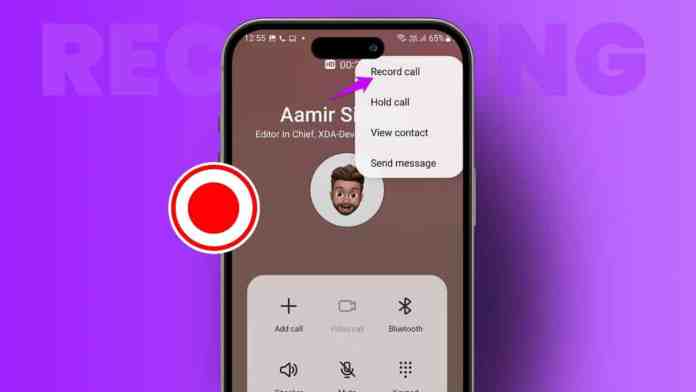
Many Android users don’t realize their device might already have recording capabilities. Open your default phone app and look for a recording button during a call or in the app’s settings. Manufacturers like Xiaomi, Samsung, and OnePlus often include this feature in certain regions.

If you see the option, tapping it usually triggers an announcement to both parties that recording has begun—this handles the consent requirement automatically. Storage can be an issue though; long calls might fail if your phone is running low on space.

When Built-in Options Fail: App Alternatives

No native recorder? Third-party apps like Auto Call Recorder can fill the gap. Download from the Google Play Store, grant microphone and storage permissions, and you’re mostly set. Android 10 and newer versions require an additional step: enabling accessibility permissions for the app to function during calls.

Be prepared for limitations. Some apps only capture your voice clearly, muffling the other party. Others might crash during lengthy conversations. Subscription fees can appear unexpectedly for “premium” features. Performance varies dramatically across different Android versions and device models.

iPhone Recording: Apple’s Controlled Approach

iPhone users face a different challenge. Apple has historically blocked third-party apps from accessing call audio directly. With iOS 18, Apple introduced its own solution: a built-in recorder accessible during calls.

Here’s how it works. Tap the record button mid-call, and the system announces to all participants that recording has started. The audio file saves directly to your Notes app. It’s a privacy-first approach that ensures consent but lacks discretion.

Major limitations remain. The feature isn’t available globally. Audio quality depends heavily on your connection. And that mandatory announcement makes it useless for situations where you’d prefer subtlety.

The Speakerphone Workaround

Some creative users employ a clunky alternative: switch to speakerphone and record using Voice Memos or another audio app. The results are typically poor—background noise overwhelms voices, and you’re tethered to holding your phone awkwardly. It’s a last-resort method at best.

Hardware Recorders: The Reliable Alternative

Frustrated with software limitations? Hardware recorders are gaining popularity for their consistency. Devices like the Plaud Note attach magnetically to iPhones (or with adhesive rings for other phones) and record audio directly from the source.

The process is simple. Flip a switch to phone call mode, press and hold the main button until it vibrates, and you’re recording. No speakerphone needed. The device captures both sides of conversations clearly, working with normal calls, WhatsApp, Zoom, and FaceTime.

Storage and battery life are impressive. Some models offer 64GB of storage (thousands of hours of audio) and can record continuously for nearly two days. Advanced versions include AI features like automatic transcription in multiple languages, summary generation, and speaker identification.

Choosing Your Method: Practical Considerations

Your ideal recording method depends on your needs. For occasional, consenting recordings, built-in options (if available) work fine. For regular professional use where reliability matters, hardware solutions justify their cost. Third-party apps occupy a middle ground—convenient but sometimes unpredictable.

Always prioritize legality. When in doubt, announce your recording. Keep recordings secure, especially if they contain sensitive information. Delete them when they’re no longer needed.

The landscape keeps changing. Android manufacturers tweak features with each update. Apple slowly expands its native tools to new regions. Hardware becomes more sophisticated. What remains constant is the human need to capture important conversations—and the responsibility to do so ethically.

Continue Reading
Click to comment

Leave a Reply

Your email address will not be published. Required fields are marked *

How To

How to Avoid Joining WhatsApp Groups: Essential Tips for Privacy Control

Published

on

How to Avoid Joining WhatsApp Groups: Essential Tips for Privacy Control

Are you tired of being added to random WhatsApp groups without your consent? You are not alone. Many users face this annoyance daily. Fortunately, there is a straightforward way to avoid joining WhatsApp groups and reclaim your privacy. This guide walks you through the exact steps to block unwanted invitations and manage your group permissions effectively.

Why You Need to Control WhatsApp Group Invites

Unwanted group invites can clutter your chats and compromise your peace of mind. Strangers or acquaintances might add you to promotional, spam, or even irrelevant discussion groups. This not only wastes your time but also exposes you to potential privacy risks. By learning how to avoid joining WhatsApp groups, you take a crucial step toward a cleaner, more secure messaging experience.

WhatsApp offers built-in settings that let you decide who can add you. However, many users overlook these options. This means they remain vulnerable to unwanted additions. Taking a few minutes to adjust these settings can save you from endless notifications and group chaos.

Step-by-Step Guide to Prevent Group Additions

Adjusting your group invite settings is simple. Follow these instructions to gain full control over who can add you to WhatsApp groups.

Accessing the Privacy Menu

First, open the WhatsApp application on your smartphone. Look for the three vertical dots in the top-right corner of the screen. Tap them to reveal a dropdown menu. From there, select “Settings.” Next, navigate to “Account” and then tap on “Privacy.” This is where all your privacy controls reside.

Customizing Group Settings

Inside the Privacy menu, scroll down until you find the “Groups” option. Tap on it. You will see three distinct choices: “Everyone,” “My Contacts,” and “My Contacts Except.” Each option offers a different level of protection against unwanted group invites.

  • Everyone: This is the default setting. Anyone who has your phone number can add you to a group. It offers no protection and is the primary reason you receive random invites.
  • My Contacts: Selecting this option restricts group additions to only people saved in your phonebook. This significantly reduces the chance of being added by unknown numbers or spammers.
  • My Contacts Except: This is the most flexible choice. It allows you to block specific contacts from adding you while still permitting others. It is ideal if you want to exclude only a few people.

Choose the option that best suits your needs. For maximum safety, consider selecting “My Contacts” or “My Contacts Except.” Once you make your selection, you will immediately start avoiding joining WhatsApp groups you do not wish to be part of.

Additional Privacy Tips for a Safer WhatsApp

Beyond group invites, WhatsApp offers several other privacy features worth exploring. Regularly reviewing these settings ensures you maintain optimal control over your account.

Profile Picture and Status Visibility

You can limit who sees your profile photo, status updates, and “last seen” information. Go to the Privacy menu again and adjust each option individually. Setting these to “My Contacts” prevents strangers from viewing your personal details.

Staying Updated with New Features

WhatsApp frequently updates its privacy tools. Check your settings periodically to catch new options. For instance, the company has introduced features like disappearing messages and screenshot blocking for profile photos. Staying informed helps you avoid joining WhatsApp groups and other privacy pitfalls.

For more advanced tips, you can explore How to Use Meta AI on WhatsApp to enhance your messaging experience further.

Share These Tips with Friends and Family

Many people remain unaware of these simple yet powerful settings. By sharing this guide, you help others protect their privacy too. A quick message or a forward can save your loved ones from unwanted group additions. After all, a secure WhatsApp community benefits everyone.

In conclusion, taking control of your group invite settings is a small effort that yields huge rewards. You can now enjoy a clutter-free chat list and focus on conversations that matter. Implement these steps today and stop unwanted group invites forever.

Continue Reading

How To

iPhone 17 Series Launch: Full Details and New Features You Need to Know

Published

on

iPhone 17 Series Launch: Full Details and New Features You Need to Know

Apple is gearing up to unveil its next-generation smartphones, and the iPhone 17 Series is already generating massive buzz. With a completely new model, significant camera upgrades, and performance boosts, this lineup promises to be one of the most exciting in years. Here is everything you need to know about the launch, pricing, design, and features.

iPhone 17 Series Launch Date and Pricing

Apple is expected to announce the iPhone 17 Series on September 9, 2025. Pre-orders will likely begin that Friday, with shipping starting a week later. This timeline follows Apple’s traditional September launch schedule.

The lineup includes four models this year:

  • iPhone 17
  • iPhone 17 Air
  • iPhone 17 Pro
  • iPhone 17 Pro Max

The iPhone 17 Air replaces the Plus model, offering a much thinner and lighter design. Expected prices are as follows:

  • iPhone 17: $799 / £799
  • iPhone 17 Air: $899 / £899
  • iPhone 17 Pro: $1,099 / £1,099
  • iPhone 17 Pro Max: $1,199 / £1,199

The Air model sits in the mid-price range, while the Pro models see a slight increase. For more on Apple’s pricing strategy, check our guide on Apple iPhone Pricing Trends.

Design and Display: A Thinner, Lighter iPhone 17 Air

The iPhone 17 Series introduces a fresh design language. The standout is the iPhone 17 Air, measuring just 5.5mm thick and weighing only 145 grams. It features a 6.6-inch display, making it both large and portable.

Key design elements of the iPhone 17 Air include:

  • Single 48MP rear camera
  • Mono speaker system
  • Off-center USB-C port
  • No physical SIM card slot
  • Compact 2800mAh battery

Apple may offer a special battery case to extend usage. The phone uses an ultra-thin OLED display with Novatek’s TDDI technology, merging touch and display layers to save space.

The standard iPhone 17 gets a 6.3-inch screen, up from the iPhone 16. Pro models likely retain titanium frames, while standard and Air models use aluminium. New color options under testing include Teal Titanium, Green Titanium, and Dark Green Titanium. Teal is the most probable launch color. All models keep the Dynamic Island cutout, with ProMotion and Always-On display features. Standard models may offer 90Hz refresh rates, while Pro versions support 120Hz.

Camera Upgrades and Performance Boost

All iPhone 17 Series models run on Apple’s A19 chip. Pro and Pro Max versions get the A19 Pro, offering higher speed and smoother performance. RAM varies: 8GB for iPhone 17 and iPhone 17 Air, 12GB for Pro models.

The front camera receives a major upgrade to 24MP with a six-element (6P) lens for sharper selfies. The Pro Max model boasts advanced rear cameras:

  • 48MP wide-angle lens
  • 48MP ultra-wide lens
  • 48MP tetraprism telephoto lens

This marks the first iPhone with three 48MP lenses. The Air model has only one 48MP rear camera. All phones support Wi-Fi 7 and Qualcomm’s 5G modem, as Apple’s own modem is not ready. A new vapour chamber cooling system uses liquid to dissipate heat during gaming. For more on camera tech, see our article on Smartphone Camera Sensors Explained.

Battery and Software: iOS 19 and Easier Battery Replacement

Battery technology sees a big improvement. Apple introduces a new removal system using low-voltage current to soften glue, making battery replacement easier. Users can apply 9V power through the USB-C port to release the battery. This system debuted in iPhone 16 models.

The iPhone 17 Series launches with iOS 19. Apple may add new AI tools, but Apple Intelligence faces challenges. Instead, the company might integrate Google Gemini into iOS 19. Key software highlights include ProMotion, Always-On Display, and Dynamic Island. New colors and frame materials differentiate each model.

As we conclude, the iPhone 17 Series Launch brings big design improvements. The new Air model is thinner and more portable. Better cameras and displays offer a richer experience. With iOS 19 and new cooling systems, performance will improve. All signs suggest that iPhone 17 will be a major upgrade. Stay tuned for its launch in September 2025. Learn more about iOS features in our guide on iOS 19 New Features.

Continue Reading

How To

How to Read Deleted Messages on WhatsApp Using the Best Android App: A Complete Guide

Published

on

How to Read Deleted Messages on WhatsApp Using the Best Android App: A Complete Guide

Have you ever received a WhatsApp notification, only to open the chat and find the message has been deleted? It happens more often than you think. Whether it’s a friend who changed their mind or a group admin removing an announcement, the curiosity to know what was said can be maddening. Fortunately, there is a way to read deleted messages on WhatsApp using a reliable Android app. This guide will walk you through everything you need to know, from finding the right tool to installing and using it effectively.

Why Messages Get Deleted on WhatsApp and How Recovery Works

WhatsApp introduced the “Delete for Everyone” feature years ago, allowing users to remove messages within a certain time frame. While this is great for privacy, it leaves recipients in the dark. However, the app stores notifications locally on your phone before they are erased. This is where a WhatsApp message recovery app comes into play. These tools scan your device’s notification log and display the content of deleted messages, even after the sender has removed them.

Building on this principle, the best Android apps for this purpose do not hack WhatsApp servers or violate encryption. Instead, they leverage existing data on your phone, making the process both safe and legal for personal use. As a result, you can view deleted WhatsApp texts without compromising your account security.

Best Android App to Read Deleted WhatsApp Messages

After testing several options, one application stands out for its ease of use and reliability. The app, often referred to as “Notification History Log” or similar variants, captures all incoming notifications, including WhatsApp messages. It then presents them in a readable format, even if the original message was deleted.

This tool is specifically designed to help you recover deleted WhatsApp messages on Android devices. It requires no root access, works with all WhatsApp versions, and updates automatically. Furthermore, it supports multiple languages and runs in the background without draining battery life.

Key Features of the App

  • Automatic capture of all WhatsApp notifications
  • Simple interface showing deleted message content
  • No root permissions needed
  • Free to download and use
  • Compatible with Android 5.0 and above

Step-by-Step Guide to Recover Deleted WhatsApp Messages

Now that you know which app to use, let’s dive into the installation and setup process. Follow these steps carefully to ensure you can undelete WhatsApp messages Android style without any hassle.

Step 1: Download and Install the App

Click on the download button below to get the app on your phone. The file is small and installs within seconds. Once downloaded, open the APK and grant the necessary permissions. Do not worry; the app only requests access to notifications, which is essential for its function.

Step 2: Enable Notification Access

After installation, go to your phone’s Settings > Apps > Special App Access > Notification Access. Toggle the permission for this app. This step is crucial because the app needs to read your notifications to save deleted messages.

Step 3: Start Monitoring

Open the app and tap the “Start” button. It will now run in the background, silently logging every WhatsApp notification. The next time a friend deletes a message, you will be able to see its content in the app’s history log.

Step 4: View Deleted Messages

Whenever you suspect a message was deleted, open the recovery app. You will find a chronological list of all notifications, including the deleted ones. Tap on any entry to expand and read the full text. It’s that simple.

Tips for Reliable WhatsApp Message Recovery

While the app works effectively, there are a few things to keep in mind for the best experience. First, ensure the app is always running in the background. Do not force-stop it or clear its cache. Second, install the app before you need it; it cannot recover messages that were deleted before installation. Third, keep your Android system updated to avoid compatibility issues.

Additionally, if you want to restore removed WhatsApp chats from backups, this app is not the right tool. For that, you would need Google Drive or local backups. However, for real-time deleted message recovery, this notification-based method is unmatched.

Frequently Asked Questions

Is it safe to use this app?

Yes, the app is safe as long as you download it from a trusted source. It does not access your personal data beyond notifications. Always read the permissions before installing.

Can I read deleted messages from any WhatsApp chat?

Yes, the app works for individual and group chats alike, as long as the notification was shown on your device before deletion.

Does this app work on iOS?

No, this method is exclusive to Android devices due to how notification logs work. iOS users have limited options for recovering deleted WhatsApp messages.

Final Thoughts

Being able to read deleted messages on WhatsApp is no longer a dream. With the right Android app, you can easily recover and view messages that others tried to erase. This tool is especially useful for those who frequently miss important information or simply want to satisfy their curiosity. Download the app today and never miss a deleted message again.

For more tech tips and app recommendations, check out our guide on hiding WhatsApp blue ticks or learn about enabling encrypted backups. Stay informed and make the most of your messaging experience.

Continue Reading

Trending