How To
Hulu Buried One of Its Smartest Sci-Fi Thrillers Inside a Sinister Silicon Valley Lab
Published
50 minutes agoon

The Accidental Discovery
I found Devs on Hulu the way I find most things worth watching now: by accident. Scrolling at 11 at night, looking for something to put on while I did the dishes. The thumbnail showed a gold Buddha statue standing in a redwood forest next to a glass office building. That combination alone was strange enough to stop me.
Two episodes later, the dishes were still in the sink. The show had me completely hooked — and I wasn’t alone. This is one of the smartest sci-fi thrillers to come out in years, yet it feels like Hulu buried it. No splashy billboards. No water-cooler buzz. Just a quiet masterpiece waiting in the algorithm’s shadows.
What Is Devs Exactly?
Created by Alex Garland — the mind behind Ex Machina and Annihilation — Devs is an eight-episode limited series that dropped in 2020. It follows Lily Chan (Sonoya Mizuno), a young software engineer at a fictional quantum computing company called Amaya, nestled in the forests of Northern California.
When her boyfriend Sergei (Karl Glusman) is hired into the company’s secretive “Devs” division and then vanishes under suspicious circumstances, Lily starts digging. What she uncovers isn’t just corporate malfeasance. It’s something far stranger — a machine that might actually predict the future by calculating the past.
The Core Premise
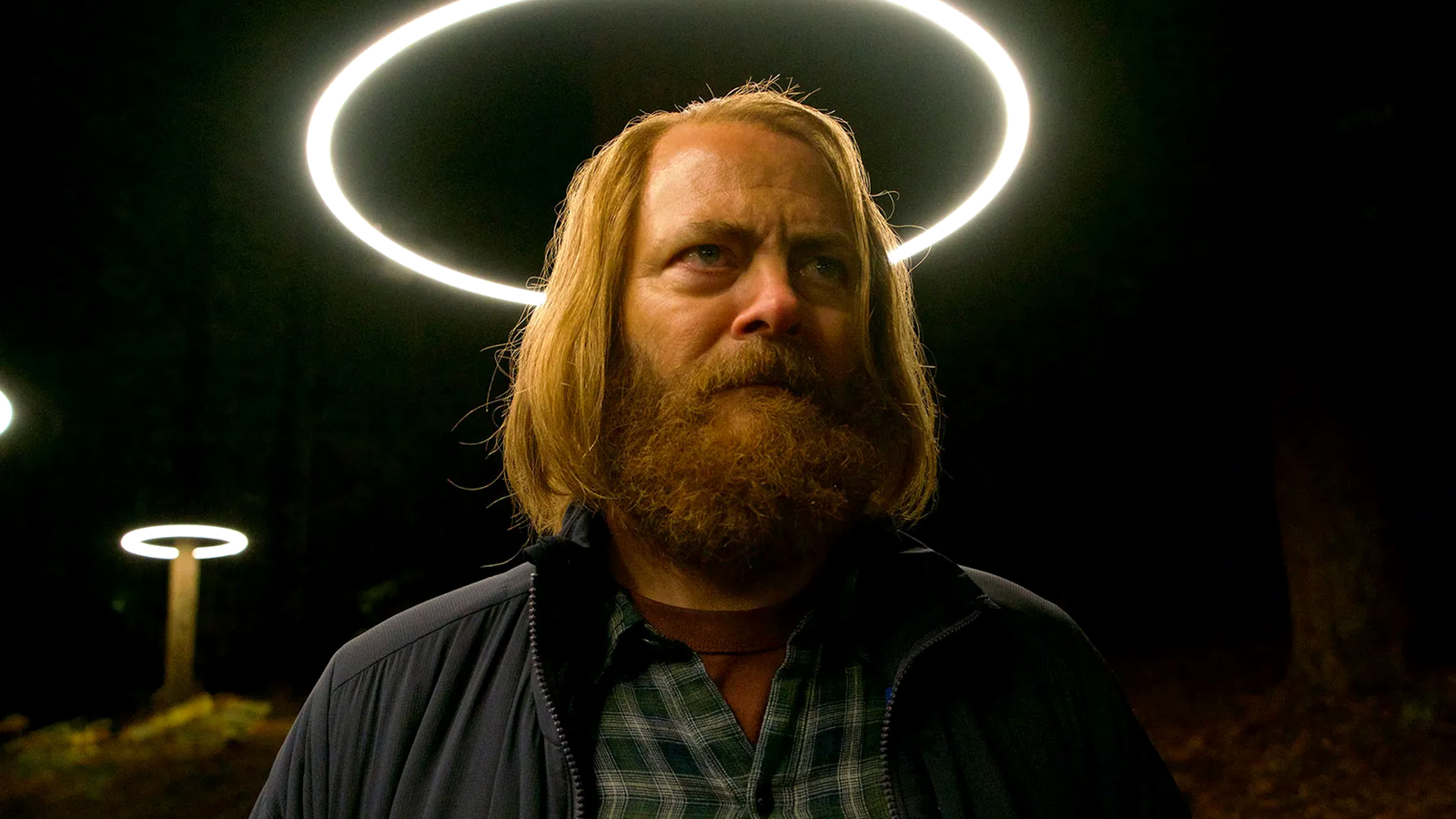
The Devs team, led by the enigmatic Forest (Nick Offerman, playing against type with chilling restraint), believes they’ve built a system that can simulate reality at the quantum level. If you can model every particle that ever existed, you can see anything that ever happened. And if you can see the past with perfect accuracy, the future becomes just another calculation.
That’s the setup. But Devs isn’t really about the tech. It’s about what that tech does to the people who build it — and the terrifying question of whether free will is just an illusion we tell ourselves to sleep at night.
Why Devs Stands Out in the Sci-Fi Crowd
Most sci-fi thrillers on streaming services lean on cheap twists and explosions. Devs takes the opposite approach. It’s slow, philosophical, and visually stunning — the kind of show that rewards patience and punishes distraction. You can’t watch this one with your phone in your hand.
Garland shoots the Amaya campus with an almost religious reverence. The glass buildings, the redwoods, the golden Buddha — it all feels like a tech cult’s cathedral. And in many ways, that’s exactly what it is. Forest isn’t just a CEO. He’s a prophet who lost his daughter and believes he’s found a way to see her again through the machine. That grief drives everything, and it gives the show a emotional weight that most tech thrillers never bother with.
Nick Offerman’s Career-Best Performance
If you only know Offerman from Parks and Recreation‘s Ron Swanson, his work here will knock you sideways. He’s quiet, wounded, and absolutely terrifying in moments. His monologues about determinism and loss are some of the best writing Garland has ever done — and that’s saying something.
The Science and the Philosophy
Devs doesn’t dumb things down. It throws around terms like the many-worlds interpretation and quantum superposition without apology. But it never feels like homework. Garland uses the science as a launching pad for bigger questions: If every choice you make was predetermined at the Big Bang, are you responsible for anything? And if you could see your own future, would you try to change it — or would that attempt just be part of the script?
The show’s answer is bleak, beautiful, and surprisingly moving. I won’t spoil it here, but the final episode is one of the most ambitious pieces of television I’ve ever seen. It’s the kind of ending that makes you sit in silence for a few minutes after the credits roll.
Is Devs Worth Your Time?
Absolutely — if you’re willing to meet it on its own terms. This isn’t a binge-in-one-sitting show. It’s dense, deliberate, and occasionally frustrating. But that’s also what makes it great. In a streaming world full of content engineered to be consumed passively, Devs demands active engagement. It trusts you to keep up.
If you’re a fan of thought-provoking sci-fi movies like Arrival or Blade Runner 2049, you’ll find a lot to love here. And if you’re just tired of the same recycled formulas, Devs offers something genuinely different.
So do yourself a favor. Skip the algorithm’s top picks tonight. Search for Devs on Hulu, pour yourself something strong, and let Alex Garland take you somewhere strange. The dishes can wait.
You may like
Social Media
Turn Old LinkedIn Newsletters Into a Discovery Engine (Plus Video Series Tips & Industry News)
Published
18 hours agoon
September 4, 2026
Why Your Old LinkedIn Newsletters Are Still Gold
Most marketers treat a newsletter like a one-and-done campaign. You write it, hit publish, and move on. That’s a mistake.
Your past LinkedIn newsletters are packed with insights your audience already engaged with. They’re proven content. So why not turn them into a discovery engine?
Here’s the idea: instead of letting older editions gather digital dust, repurpose them strategically to attract new followers and re-engage lapsed ones. It’s about working smarter, not harder.
How to Repurpose Past Newsletters for Discovery
Start by auditing your last few months of newsletters. Look for themes that performed well — high engagement, thoughtful comments, or topics that sparked conversation.
- Create a “Best Of” edition: Curate your top insights into a single newsletter and promote it as a starting point for new subscribers.
- Turn insights into carousel posts: Pull key stats or tips from past newsletters and turn them into a visual carousel for your feed.
- Link back strategically: In new posts, reference older newsletters as “deep dives” — this sends engaged readers down a rabbit hole of your best content.
- Update and refresh: If a topic is still relevant, update it with new data and republish. LinkedIn’s algorithm often gives refreshed content a second chance.
This approach turns your newsletter archive into a lead-generation tool. It’s a smart LinkedIn marketing strategy that requires zero new content creation — just smart curation.
How to Structure a Video Series for Marketing
Video is dominating social feeds, but posting random videos won’t cut it. A structured video series builds anticipation and keeps viewers coming back.
Think of it like a TV show. You need a hook, a consistent format, and a reason for people to tune in next week.
Steps to Launch a Winning Video Series
- Define your series theme: Pick one narrow topic you can explore deeply. For example, “Instagram Reels tips for local businesses” — not just “social media tips.”
- Decide on a format: Will it be a weekly Q&A, a tutorial, or a behind-the-scenes vlog? Consistency in format helps viewers know what to expect.
- Plan a season: Map out 4–8 episodes in advance. Each episode should stand alone but also build on the last.
- Promote the series: Create a trailer or announcement post. Use a consistent hashtag and posting schedule.
- Repurpose episodes: Turn each video into clips for TikTok, YouTube Shorts, or LinkedIn. One episode can feed multiple platforms.
A structured series also helps with audience retention. When viewers know episode 3 is coming next Tuesday, they’re more likely to follow you.
Industry News: Meta and TikTok Updates You Need to Know
The social media landscape never sleeps. Here’s what’s happening at the big platforms.
Meta’s Latest Moves
Meta continues to double down on AI-powered advertising tools. Recent updates suggest a push toward more automated campaign management, which could change how advertisers allocate budgets.
Also notable: Instagram is testing new features that blur the line between Reels and Stories. Keep an eye on your analytics — if engagement shifts, your content strategy may need to adapt.
TikTok’s Expanding Features
TikTok is rolling out more e-commerce integrations, making it easier for creators to tag products directly in videos. This is a big deal for affiliate marketers and small business owners.
Additionally, TikTok’s search functionality is improving, which means optimizing your video captions and descriptions for search is more important than ever. Think of TikTok as a search engine, not just a discovery feed.
Key Takeaways for Your Marketing Strategy
So what should you do with all this? Start by repurposing your best LinkedIn content. It’s low-hanging fruit.
Then, consider launching a video series with a clear structure. It doesn’t have to be perfect — just consistent.
Finally, stay agile with platform changes. Meta and TikTok are constantly evolving, and the marketers who adapt quickly will win.
For more on making the most of your content, check out our guide on repurposing content across platforms or our tips for building a content calendar.
Now get out there and turn your old content into new opportunities.
How To
Netflix Just Added 3 Resident Evil Movies That Are Officially Canon to the Games
Published
20 hours agoon
September 4, 2026
Netflix Just Made a Major Move for Resident Evil Fans
If you’ve been waiting for a reason to revisit Raccoon City, here it is. Netflix has quietly added three Resident Evil canon movies to its library — the ones that actually matter to the game timeline, not the flashy but non-canon live-action flicks starring Milla Jovovich.
That’s a big deal for anyone who’s ever tried to piece together the lore between Resident Evil 5 and Resident Evil 6 and ended up more confused than a zombie at a vegan potluck. These films fill in the gaps.
The three titles now streaming are Resident Evil: Degeneration, Resident Evil: Damnation, and Resident Evil: Vendetta. All three are CGI-animated features produced by Capcom and Sony Pictures Japan, and all three are officially recognized as part of the game continuity.
That means the events in these movies actually happened in the Resident Evil universe. Leon Kennedy’s survival in Degeneration? Canon. The bioterror outbreak in Eastern Europe in Damnation? Canon. The showdown with the mutated Glenn Arias in Vendetta? You guessed it — canon.
For newcomers, this is the perfect entry point. You don’t need to have played every game to enjoy these films, but if you have, you’ll spot the connective tissue immediately.
Why These Three Movies Matter to the Timeline
Capcom has always been careful about what it considers official storyline material. The live-action Sony Pictures films were fun popcorn entertainment, but they were never meant to align with the games. The CGI movies, however, are a different beast entirely.
They exist specifically to bridge the narrative gaps between mainline entries. Degeneration takes place in 2005, one year after the events of Resident Evil 4. It follows Claire Redfield as she gets caught in a zombie outbreak at Harvardville Airport — a direct consequence of Umbrella Corporation’s shady dealings.
Damnation jumps to 2011, slotting neatly between Resident Evil 5 and Resident Evil 6. Leon is sent to a fictional Eastern European country to investigate reports of bioweapons being used in a civil war. Things go sideways fast, and fans get to see a side of Leon that’s more jaded and world-weary than the rookie from Raccoon City.
Vendetta takes things even further. Set in 2014, it brings together Leon, Chris Redfield, and Rebecca Chambers for the first time in years. The villain, Glenn Arias, is a drug lord who wants to unleash a new virus on New York City. It’s the most action-heavy of the three, with a motorcycle chase scene that rivals anything from Mission: Impossible.
The Order That Makes the Most Sense
If you’re planning a marathon, don’t just hit shuffle. Watch them in chronological order:
- Resident Evil: Degeneration (2008, set in 2005)
- Resident Evil: Damnation (2012, set in 2011)
- Resident Evil: Vendetta (2017, set in 2014)
This order also mirrors the release dates, so you’ll see the animation quality improve as you go. The character models in Vendetta are noticeably more detailed than in Degeneration, which is a decade older.
What Makes These Films Different From the Live-Action Movies
Let’s be clear about one thing: the live-action Resident Evil films starring Milla Jovovich were never canon. They took massive liberties with the source material, introduced Alice as a brand-new protagonist, and essentially told a parallel story that had nothing to do with the games.
The CGI films, on the other hand, are produced with direct oversight from Capcom. The writers work closely with the game developers to ensure continuity. Characters look like their in-game counterparts. The tone is consistent with the survival-horror roots of the series, even when it leans into action territory.
For fans who’ve been frustrated by Hollywood adaptations missing the point, these three films feel like a breath of fresh air. They respect the source material while still delivering cinematic spectacle.
Where These Films Fit in the Larger Resident Evil Universe
Netflix has been expanding its Resident Evil offerings for a while now. The live-action TV series Resident Evil: Welcome to Raccoon City rebooted the movie franchise in 2021, but it wasn’t canon either. The streaming service also hosted the animated series Resident Evil: Infinite Darkness in 2021, which featured Leon and focused on a White House conspiracy.
These three newly added films complement that existing library nicely. If you’ve already watched Infinite Darkness, you’ll notice it takes place in 2006, between Degeneration and Damnation in the timeline. Together, they paint a fuller picture of what Leon and the other protagonists were doing between the major game installments.
It’s worth noting that Capcom has continued this tradition with newer entries. Resident Evil: Death Island, released in 2023, brings together Jill Valentine, Leon, Chris, Claire, and Rebecca for the first time. That film is also canon, though it’s not part of this Netflix batch yet.
Should You Watch Them If You’re New to Resident Evil?
Short answer: yes. Long answer: absolutely.
Each film stands on its own well enough that you won’t be lost if you haven’t played the games. The movies do a solid job of establishing who these characters are and why they’re fighting bioweapons. You’ll understand the stakes even without knowing the history of the Umbrella Corporation or the T-Virus.
That said, the experience is richer if you have some context. Knowing that Leon and Claire survived the Raccoon City incident in 1998 adds weight to their actions in Degeneration. Understanding Chris’s guilt over what happened in Resident Evil 5 makes his dynamic with Leon in Vendetta more compelling.
If you’re a completionist, consider pairing these films with the games themselves. Play Resident Evil 4, then watch Degeneration. Play Resident Evil 5, then watch Damnation. It’s a great way to experience the full story arc.
A Quick Note on the Animation Style
Some viewers might be put off by the CGI aesthetic. It’s not Pixar-level animation, and it can feel a bit stiff in the earlier films. But the action choreography is genuinely impressive, and the voice acting is solid throughout. If you can get past the uncanny valley moments, you’ll find a lot to enjoy.
For more on how to stream these films and other horror classics, check out our guide on the best horror movies on Netflix and our breakdown of Resident Evil games in chronological order.
So grab some popcorn, dim the lights, and get ready for a marathon. Raccoon City is calling, and this time, the story actually counts.
How To
How to Fix Start Menu & Taskbar Not Working in Windows 10 & 11 – Step-by-Step Guide
Published
23 hours agoon
September 4, 2026
Imagine clicking the Windows logo and nothing happens. Your taskbar sits frozen, icons unresponsive, and the Start Menu—your gateway to apps and settings—refuses to open. It’s a frustrating scenario that can bring your workflow to a halt. Fortunately, this common Windows issue isn’t as catastrophic as it seems. In a new step-by-step tutorial, you’ll discover three reliable methods to fix Start Menu and taskbar problems in both Windows 10 and Windows 11, all without losing a single file.
Whether you’re a seasoned tech enthusiast or a casual user, the video breaks down each solution in plain language. You’ll learn how to restart Windows Explorer, re-register core apps via PowerShell, and repair corrupted system files using built-in tools. By the end, you’ll have your desktop back to normal—and the confidence to tackle similar glitches in the future.
Why Does the Start Menu and Taskbar Stop Working?
Before diving into fixes, it helps to understand the root causes. The Start Menu and taskbar rely on a complex set of processes and files. When one of these gets corrupted or crashes, you’ll see symptoms like unclickable icons, a blank taskbar, or a Start button that does nothing. Common triggers include:
– **Windows Updates gone wrong** – A recent update may have introduced a bug or incomplete installation.
– **Corrupted system files** – Power outages, malware, or disk errors can damage essential Windows components.
– **Third-party software conflicts** – Certain apps, especially those that modify the shell, can interfere with Explorer.
– **Outdated or faulty drivers** – Graphics or input drivers sometimes cause UI elements to freeze.
Fortunately, the methods shown in the video address these issues directly, offering a path to recovery without resorting to a full system reset.
Method 1: Restart Windows Explorer and Kill StartMenuExperienceHost.exe
The first and quickest fix is to restart the process that manages your desktop interface. Windows Explorer (explorer.exe) controls the taskbar, Start Menu, and File Explorer. When it becomes unresponsive, a simple restart often clears the glitch. The video demonstrates how to open Task Manager (Ctrl+Shift+Esc), locate Windows Explorer, and click “Restart.” But there’s an extra step: force-closing StartMenuExperienceHost.exe—the process specifically responsible for the Start Menu in Windows 10 and 11. By ending this process, Windows will automatically relaunch it fresh, potentially resolving the issue in seconds.
This method is ideal for temporary glitches—say, after a sleep/wake cycle or a system update. It’s non-destructive and takes less than a minute. However, if the problem persists, you’ll need to move on to more thorough fixes.
Method 2: Re-Register Windows Apps Using PowerShell
If restarting Explorer doesn’t do the trick, the next step is to re-register all built-in Windows apps. Over time, app registrations can become corrupted, especially after updates or when system files are altered. The video walks you through opening PowerShell as an administrator and running a single command:
“`powershell
Get-AppXPackage -AllUsers | Foreach {Add-AppxPackage -DisableDevelopmentMode -Register “$($_.InstallLocation)AppXManifest.xml”}
“`
This command scans every app package for your user account and re-registers its manifest with Windows. It’s like giving your Start Menu and taskbar a fresh start without deleting any personal data. The process may take a few minutes, and you’ll see a flurry of activity as Windows processes each app. Once complete, restart your computer and test the Start Menu.
Building on this, the video emphasizes that this method is safe for both Windows 10 and Windows 11. It’s particularly effective if you notice that only certain apps are missing from the Start Menu or if the taskbar shows blank tiles.
Method 3: Repair Corrupted System Files with SFC and DISM
When software-level fixes fail, the culprit might be deeper—corrupted system files that affect the entire operating system. The video’s third solution uses two built-in command-line tools: System File Checker (SFC) and Deployment Imaging Service and Management Tool (DISM).
First, you’ll run `sfc /scannow` in an elevated Command Prompt. This tool scans all protected system files and replaces corrupted ones with cached copies. It’s a thorough process, so patience is key—it can take 10 to 20 minutes. If SFC finds issues but can’t fix them all, DISM comes to the rescue. The command `DISM /Online /Cleanup-Image /RestoreHealth` repairs the Windows component store, which SFC relies on for healthy files. After DISM completes, you should run SFC again to catch any remaining issues.
As a result, this two-step repair routine tackles the root cause of persistent Start Menu and taskbar failures. The video explains each command’s purpose, so you’ll understand why they work—not just how to run them. It’s a powerful approach that can resolve a wide range of Windows glitches, not just UI problems.
Extra Tips and Precautions
Throughout the tutorial, the host offers practical advice to avoid common pitfalls. For instance, always run these commands as an administrator, as standard user accounts lack the necessary permissions. Also, ensure your system is stable—avoid running these repairs during critical work, as they may require a restart. The video also notes that while these methods are data-safe, it’s always wise to back up important files before attempting any system-level changes.
In addition, if you’re using Windows 11, the steps are identical, but the visual layout of Task Manager or PowerShell may differ slightly. The video demonstrates both operating systems, so you’ll see exactly where to click and what to type.
Watch the Full Tutorial to Get Your Desktop Back
Dealing with a non-responsive Start Menu or taskbar is more than an annoyance—it disrupts your entire workflow. Fortunately, with the three methods outlined above, you can fix the issue quickly and safely. The video provides a clear, hands-on demonstration, making it easy to follow along even if you’re not tech-savvy. Instead of searching through forums or guessing at solutions, you’ll have a reliable, step-by-step guide at your fingertips.
So, if you’re ready to say goodbye to that frozen taskbar, watch the full tutorial now. Within minutes, you’ll be back to clicking the Start button with confidence—and you’ll have learned valuable troubleshooting skills for future Windows hiccups.

The #1 Claude AI Side Hustle for People Over 50 (No One Is Talking About It)

Hulu Buried One of Its Smartest Sci-Fi Thrillers Inside a Sinister Silicon Valley Lab

DEFCON Is Not What You Think: A First-Timer’s Walkthrough of the World’s Wildest Hacking Conference
Trending
CyberSecurity6 months agoLeakBase Data Breach Forum Seized in Major Europol Operation
How To5 months agoThe Truth About Fast Charging Apps for Android: Can They Speed Up Your Battery?
CyberSecurity6 months agoZero-Day Attacks Hit Record High as Enterprise Software Becomes Prime Target
CyberSecurity6 months agoRussian Hackers Target WhatsApp and Signal in Global Espionage Campaign
Social Media6 months agoYouTube Live Streaming API: A Developer’s Guide to Managing Live Broadcasts
Video4 months agoSamsung One UI 8.5 Official Update Is Here: Release Timeline, Eligible Devices & Key Features
Infosecurity6 months agoCybersecurity Communication: Why Fear-Based Messaging Fails and What Works
CyberSecurity6 months agoContextCrush Vulnerability: How a Trusted AI Tool Became an Attack Vector