Connect with us

How To

App Volume Controller: The Ultimate Guide to Managing Individual App Sound on Android

Published

on

App Volume Controller: The Ultimate Guide to Managing Individual App Sound on Android

Have you ever been frustrated by your phone’s audio? Perhaps a loud video on Facebook blasts out, or a gentle podcast is drowned by a noisy game notification. This common Android annoyance has a powerful solution: the App Volume Controller. This tool provides precise, per-application audio management, transforming how you interact with your device’s soundscape.

What is the App Volume Controller App?

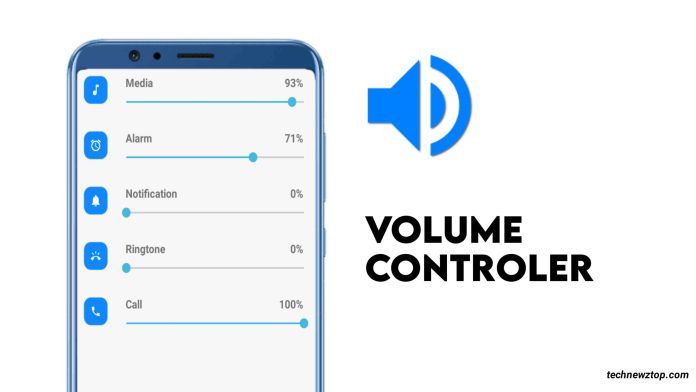
In essence, the App Volume Controller is a utility application for Android that grants users granular control over audio output. Instead of a single master volume slider affecting everything, this app allows you to set a unique volume level for each installed application. Consequently, you can tailor your audio experience to match your daily activities perfectly.

For instance, you might set your messaging apps to a low volume, your music player to 80%, and your navigation app to a clear, mid-level tone. Once configured, these settings are remembered. Therefore, every time you open WhatsApp, it will automatically use the volume level you assigned, eliminating the need for constant manual adjustments.

Key Features and Practical Benefits

This application shines through its simplicity and powerful feature set. Building on this, its design focuses on user convenience without requiring complex permissions or internet access.

Direct Notification Panel Control

A standout feature is the ability to adjust volumes directly from the notification shade. This means you can change an app’s sound level or switch your ringer profile without ever leaving the app you’re currently using. It integrates seamlessly into the Android ecosystem, acting as a virtual extension of your phone’s physical buttons.

Set-It-and-Forget-It Functionality

The core promise of the App Volume Controller is permanent customization. After you define the preferred volume for YouTube, that setting persists indefinitely. This is ideal for creating personalized audio environments for work, commuting, or relaxation. You can learn more about optimizing your Android experience in our guide on essential Android customization tips.

Installation and Performance

Available on the Google Play Store, the app boasts impressive credentials. With over 500,000 downloads and a 3.9-star rating, it has proven its reliability to a large user base. Remarkably, it achieves all this while being incredibly lightweight, requiring a mere 1.7 MB of storage space. This efficiency ensures it runs smoothly in the background without draining battery life.

On the other hand, its minimal footprint is a significant advantage for users with older devices or limited storage. Installation is straightforward, and no special permissions are needed, which enhances privacy and security. For those concerned about ads, the developers offer an ad-free experience, allowing for uninterrupted use.

Who Should Use This App?

This tool is incredibly versatile. Primarily, it’s a boon for multitaskers. Imagine listening to a calm audiobook while browsing the web; you can lower your browser’s sound effects to a whisper while keeping the narration clear. Similarly, content creators and professionals who frequently switch between communication, media, and utility apps will find it indispensable.

Furthermore, it’s perfect for parents who want to limit the maximum volume of games on their child’s device, or for anyone sharing a space who needs to keep certain notifications discreet. The utility extends to improving accessibility by allowing users to amplify sounds from specific essential apps.

How It Compares to Built-in Android Features

While newer versions of Android have introduced some basic per-app volume controls within the system settings, they often lack the immediacy and permanence offered by a dedicated App Volume Controller. The dedicated app provides a centralized, intuitive interface and the crucial “set for always” functionality that system settings sometimes reset. Discover other powerful utility apps in our review of the best Android productivity tools.

This means that the app fills a genuine gap in the Android user experience. It doesn’t just offer control; it offers consistent, automated control that adapts to your lifestyle rather than forcing you to adapt to the device’s limitations.

Final Verdict and Getting Started

In summary, the App Volume Controller app is a elegantly simple solution to a widespread audio management problem on Android. It empowers users with precise, permanent control over their device’s sound output on an app-by-app basis. The combination of a lightweight design, an ad-free environment, and seamless notification panel integration makes it a highly recommended utility for almost any Android user.

To get started, simply search for “App Volume Controller” on the Google Play Store, download the app, and begin customizing your audio profiles. The process is intuitive, and the payoff—a perfectly calibrated audio environment that works automatically—is immediate. Have you tried managing your app volumes individually? Share your experience or questions in the comments below.

Continue Reading
Click to comment

Leave a Reply

Your email address will not be published. Required fields are marked *

How To

Mastering Online Communication: A Complete Guide to Using the Internet for Chatting

Published

on

Mastering Online Communication: A Complete Guide to Using the Internet for Chatting

Have you ever wondered how people connect instantly across the globe? The answer lies in internet chatting, a technology that has transformed the way we communicate. Whether you are catching up with friends or collaborating with colleagues, understanding the basics of online chat can enhance your digital experience. This guide breaks down everything you need to know about using the internet for chatting, from text messages to face-to-face video calls.

What Is Internet Chatting and How Does It Work?

At its core, internet chatting refers to real-time communication between two or more people over the internet. This can happen through typed messages, spoken words, or live video feeds. The technology relies on a network of servers that route data between users, ensuring that conversations flow smoothly.

One of the oldest systems for this is Internet Relay Chat (IRC), a protocol that allows users to exchange text messages in channels or privately. IRC operates on a client-server model: you install a client program on your device, which connects to an IRC server. That server then relays your messages to other users connected to the same network. While IRC may seem dated, it remains popular among tech enthusiasts and open-source communities.

Today, modern apps like WhatsApp, Telegram, and Zoom have simplified the process. They handle the technical details behind the scenes, allowing you to focus on the conversation. To get started, you only need a stable internet connection and a compatible device, such as a smartphone, tablet, or computer.

Types of Internet Chatting: Text, Voice, and Video

Internet chatting has evolved beyond simple text. Today, you can choose from three main formats, each suited to different needs. Below, we explore each type in detail.

Text Chat: The Foundation of Online Communication

Text chatting is the most traditional and widely used method. It involves sending written messages back and forth in real time. Platforms like Facebook Messenger and WeChat excel at this, offering features like emojis, stickers, and file sharing. Text chat is ideal for quick updates, sharing links, or holding group discussions without interrupting your workflow.

One key advantage is that it requires minimal bandwidth. Even with a slow connection, you can send and receive messages almost instantly. Additionally, text conversations are easy to search and reference later, making them perfect for professional or academic settings. For a deeper look at secure messaging, check out our guide on WhatsApp encryption tips.

Voice Chat: Speaking Naturally Over the Internet

Voice chatting brings a human touch to online conversations. Instead of typing, you speak into a microphone, and your voice is transmitted to the other person in real time. This method is popular on platforms like Discord and Skype, especially for gaming, business meetings, or casual catch-ups.

To use voice chat, you need a microphone and speakers (or headphones). Most modern laptops and smartphones come with built-in microphones, so you may not need extra equipment. However, a stable internet connection is crucial. If your speed drops, the audio may cut out or lag. Unlike traditional phone calls, voice chat charges are based on data usage, not call duration, so it can be more cost-effective for long conversations.

Video Chat: Face-to-Face from Anywhere

Video chatting takes online communication to the next level by adding a visual element. With a webcam or built-in camera, you can see the person you are talking to, making conversations feel more personal. This is often called video conferencing, and it is widely used for remote work, online education, and virtual family gatherings.

Popular video chat apps include Zoom, Google Meet, and FaceTime. They require a camera, a microphone, and a reasonably fast internet connection—ideally at least 1 Mbps for standard definition. Many platforms now offer features like screen sharing, virtual backgrounds, and real-time captions, enhancing the experience. For more on setting up your device, read our article on recording calls and video chats.

How to Get Started with Internet Chatting

Ready to dive in? Here is a simple step-by-step approach to begin your internet chatting journey.

First, choose a platform that matches your needs. For quick text chats, try WhatsApp or Telegram. For voice and video, consider Skype or Zoom. Download the app or visit the website, then create an account using your email or phone number. Most services are free, though some offer premium features for a fee.

Next, ensure your hardware is ready. For text chat, any device works. For voice, check your microphone settings. For video, position your camera at eye level and ensure good lighting. Test your connection by running a speed test online; a download speed of at least 2 Mbps is recommended for smooth video calls.

Finally, start a conversation. Add a contact by their username, email, or phone number, then send a message or initiate a call. Most apps have intuitive interfaces, so you will learn quickly. Remember to respect privacy: avoid sharing personal information with strangers and use end-to-end encrypted apps when discussing sensitive topics.

Tips for a Better Internet Chatting Experience

To make the most of internet chatting, keep these practical tips in mind. First, use a reliable internet connection. Wi-Fi is convenient, but a wired Ethernet connection offers more stability for voice and video calls. If you are on mobile, switch to a 4G or 5G network when possible.

Second, minimize background noise. Use headphones with a built-in microphone to reduce echo, and mute yourself when not speaking in group calls. This ensures clear audio for everyone. Third, be mindful of your data usage. Video calls consume about 500 MB to 1 GB per hour, so monitor your plan if you have a cap.

Building on this, explore advanced features like screen sharing for presentations or virtual backgrounds for privacy. Many platforms also allow recording, which is useful for revisiting important discussions. For a comprehensive overview of online safety, refer to our guide on checking suspicious links to stay secure while chatting.

Common Challenges and How to Overcome Them

Even with the best setup, you may face issues. A common problem is lag or buffering during video calls. This often stems from a slow internet connection—try closing other apps that use bandwidth, such as streaming services or large downloads. If the problem persists, lower the video quality in the app settings.

Another challenge is compatibility. Some apps work better on certain operating systems. For instance, FaceTime is exclusive to Apple devices, while Zoom works across all platforms. Always check system requirements before installing. Security is also a concern. Use strong passwords, enable two-factor authentication, and avoid clicking on suspicious links sent during chats.

Therefore, staying informed about updates and best practices can prevent most issues. As technology advances, internet chatting will only become more seamless and integrated into our daily lives.

Continue Reading

How To

Border Light LED Wallpaper: Transform Your Android Screen with Vibrant Live Wallpaper Effects

Published

on

Border Light LED Wallpaper: Transform Your Android Screen with Vibrant Live Wallpaper Effects

Are you tired of a static, boring phone screen? The Border Light LED Wallpaper app offers a refreshing solution. This live wallpaper application brings dynamic, colorful light effects to the edges of your Android device. It is a simple yet powerful tool to make your phone stand out, especially in low-light settings.

What is the Border Light LED Wallpaper App?

This live wallpaper creates a glowing border around your screen. It displays revolving lights that dance along the edges, adding a lively touch to your device. The app works seamlessly on various phone models, both in lock and unlock mode. You can choose from multiple light styles to match your mood.

Key Features of the Border Light LED Wallpaper

The application offers several customization options. You can adjust the animation speed of the border light. A color picker lets you select any shade you prefer. The app also allows you to set a custom image as your wallpaper while keeping the border effect active. Furthermore, you can add your personal name in shining, colorful text.

Another useful feature is the ability to customize rounded corners. This ensures the border fits your device’s screen perfectly. Whether you have a notch display or a standard screen, the app adapts accordingly. TechNewzTop highlights that this app is designed for easy, single-click setup.

How to Download and Install the App

Downloading the border light app is straightforward. A direct download link is typically provided on the app’s official page or a trusted tech blog. Once downloaded, install the APK file on your Android device. After installation, open the app and select it as your live wallpaper from the settings menu.

Many users find the entire process takes less than a minute. The app is lightweight and does not consume excessive battery power. For a visual guide, you can watch the embedded video tutorial on the developer’s site. This step-by-step walkthrough ensures you get the most out of the edge lighting wallpaper.

Why Choose Border Light LED Wallpaper?

This application transforms an ordinary screen into an eye-catching display. The colorful lights make your phone look beautiful from all edges. At night, the effect resembles a bright star, shining vividly in the dark. It is an excellent way to personalize your device without installing complex software.

Moreover, the app works with both lock and unlock modes. This means the border light is always active, providing a consistent visual experience. Check out more Android apps for additional customization options. The developer, Md Guddu, has designed this app for users who want a quick and impactful screen upgrade.

In conclusion, the Border Light LED Wallpaper is a fantastic choice for anyone seeking a vibrant, customizable live wallpaper. Its ease of use and diverse features make it a standout option in the Android wallpaper market. Download it today and give your phone a fresh, illuminated look.

Continue Reading

How To

Amazing Water Live Wallpaper: Transform Your Android Screen with Flowing Beauty

Published

on

Amazing Water Live Wallpaper: Transform Your Android Screen with Flowing Beauty

Are you tired of static, boring backgrounds on your smartphone? Do you crave a screen that feels alive, refreshing, and visually captivating? If so, you’re in the right place. Today, we’re diving into the water live wallpaper experience offered by the Amazing Water Live Wallpaper app, a top-tier choice for Android users seeking a dynamic and splendid display.

This app isn’t just another wallpaper tool; it’s a gateway to a serene digital environment. By bringing the gentle flow of water, cascading waterfalls, and mesmerizing 3D effects directly to your home screen, it completely changes how you interact with your device. Android customization apps have evolved, and this one stands out for its simplicity and beauty.

Why Choose Amazing Water Live Wallpaper for Your Android?

Many apps promise stunning visuals, but few deliver such a seamless and free experience. The water live wallpaper from this developer is designed to make your phone look elegant without draining your battery or cluttering your interface with ads.

Stunning Visuals and Realistic Effects

The app specializes in high-definition, realistic water animations. You can choose from a variety of scenes, including a peaceful flowing stream, a powerful waterfall wallpaper, or a gentle rain effect. Each animation is rendered in smooth 3D, giving your screen a sense of depth and motion that static images simply cannot match.

Completely Free to Use and Download

One of the most appealing aspects of this app is its pricing model. You can download and use the entire collection of water live wallpaper options absolutely free. There are no hidden fees, no premium subscriptions, and no in-app purchases required to unlock the best content. This makes it accessible to everyone.

In a market where many apps charge for basic features, this is a refreshing change. You can enjoy a premium look without spending a single penny.

How to Install and Use the App

Getting started with this beautiful app is straightforward. Whether you are a tech enthusiast or a casual user, the setup process is designed to be hassle-free.

Step-by-Step Setup Guide

  1. Visit the Google Play Store: Open the Play Store on your Android device and search for “Amazing Water Live Wallpaper.” The app is officially listed and safe to download.
  2. Install the App: Tap the install button and wait for the download to complete. The app size is around 80 MB, so ensure you have sufficient storage space.
  3. Open and Set Permissions: Once installed, open the app. You will be prompted to allow certain permissions, such as access to your home screen settings. Accept these to enable the live wallpaper functionality.
  4. Select Your Wallpaper: Browse through the gallery of water scenes. Tap on any wallpaper you like, then select “Set Wallpaper” or “Apply.”

That’s it! Your phone will now display a stunning, moving water scene. You can easily switch between different wallpapers anytime you want a new look.

App Details and Performance Overview

Before downloading, it’s helpful to know the key specifications. The Amazing Water Live Wallpaper app has received positive feedback from the community.

  • App Name: Amazing Water Live Wallpaper
  • Size: 80 MB
  • Rating: 3.9 out of 5 stars
  • Price: Free
  • Total Downloads: Over 100,000+

The app is optimized to run smoothly on most modern Android devices. While it offers rich 3D graphics, it is designed to minimize battery consumption, making it a practical choice for daily use.

Final Verdict: Is It Worth the Download?

Absolutely. If you are looking for a water live wallpaper that combines beauty, ease of use, and a zero-cost entry, this app is a perfect match. It transforms your phone into a window to a tranquil natural scene, offering a moment of calm every time you glance at your screen.

Building on its simple interface and high-quality graphics, it is an excellent addition to any Android user’s toolkit. For more tips on customizing your device, check out our guide on best free wallpaper apps. Don’t settle for a dull screen when you can have a flowing masterpiece.

Continue Reading

Trending