Delete Apple ID Permanently: Your Complete Step-by-Step Guide
Deciding to delete your Apple ID isn’t something you do on a whim. It’s a significant move that cuts you off from an entire ecosystem you’ve likely built over years. Maybe you’re switching platforms, simplifying your digital life, or consolidating multiple accounts. Whatever your reason, you need to understand exactly what you’re giving up and how to do it properly.
This isn’t just logging out. It’s a permanent farewell to your iCloud photos, App Store purchases, and Apple services. Let’s walk through what that really means and how to navigate the process without losing what matters to you.
What Vanishes When You Delete Your Apple ID
Imagine closing a digital door and having it lock behind you forever. That’s deleting an Apple ID. Apple makes the process straightforward, but the consequences are absolute.
Your access to every Apple service evaporates. iCloud, iMessage, FaceTime—they all stop recognizing you immediately. That photo library you’ve curated for years? Gone. Those apps and movies you bought? You can’t download them again. Even your Apple ID email address becomes unusable for creating new accounts.
Apple does keep some financial records for legal reasons, but everything else—your data, preferences, and digital footprint within their ecosystem—is scheduled for permanent deletion. Subscriptions like Apple Music or iCloud+ cancel at the end of their billing cycle. If you have an Apple Cash balance or credits, spend them first. Outstanding payments, including Apple Pay Later plans, will actually block the deletion process until settled.
Here’s a crucial detail many miss: deletion isn’t instant. Once you submit the request, Apple takes up to seven days to process it. During that window, you can still cancel if you have second thoughts. After that period, there’s no recovery. No customer service representative can bring it back.
Essential Preparation Before You Pull the Trigger
Rushing into this is a recipe for regret. Taking a few preparatory steps can save you from that sinking feeling of lost memories or important documents.
First, rescue your data. This is non-negotiable. Visit privacy.apple.com while signed into your account. You can download a copy of everything Apple stores about you—photos, contacts, calendar events, notes, and documents from iCloud Drive. Do this on a computer with plenty of storage space; the archive can be massive.
Next, perform a full sign-out symphony. Go to every iPhone, iPad, Mac, Apple TV, and even Windows computer where you’re signed into iCloud or the App Store. Don’t forget web browsers where you might be logged into iCloud.com. If you leave a device signed in, it could become problematic later, potentially locking you out of certain features.
Take inventory of your active subscriptions. Make a list. Decide which, if any, you want to continue with a different payment method or Apple ID. Remember, these will cancel automatically, but you might want to set up replacements beforehand to avoid service interruptions.
The Permanent Deletion Process: A Walkthrough
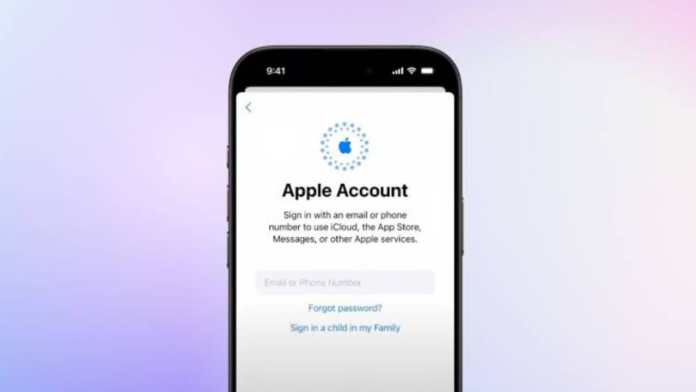
Ready to proceed? The entire operation is managed through Apple’s Data and Privacy website. You’ll need your Apple ID password and access to your trusted devices or phone number for two-factor authentication.
Open your web browser and navigate to privacy.apple.com. Sign in with the credentials for the account you wish to delete. The site will present you with several options. Look for the section boldly titled “Delete your account.”
Click the “Request to delete your account” button. Apple will ask you to select a reason from a dropdown menu—this is for their internal feedback. Then, you’ll face a comprehensive list of warnings about what you’re about to lose. Read it. Seriously, read every line.
After acknowledging the terms, you’ll choose how to receive updates about your deletion request (usually email). Then, the system generates a unique access code. This code is your only proof of identity for this request. Treat it like a priceless artifact. Take a screenshot, write it down on paper, save it in a password manager—do all three. You’ll need to enter this code immediately to confirm the request.
Finally, click “Delete account.” You’ll see a confirmation screen and be signed out. The countdown begins. Apple will email you when the process is complete, up to seven days later.
What If You Want a Trial Separation Instead?
Not ready for a permanent goodbye? Apple offers a middle ground: account deactivation. Think of it as putting your account into a deep freeze. All services are suspended, but your data remains stored on Apple’s servers. You can’t use iCloud, make purchases, or receive iMessages until you reactivate.
The process is nearly identical to deletion, but you select “Temporarily deactivate your account” on the privacy portal. You’ll still get a unique access code—guard this with your life, as it’s the only key to reactivation. Without it, your frozen account is effectively lost.
To reactivate, you must contact Apple Support directly and provide that code. They’ll verify it and thaw your account, restoring full access. Deactivation is perfect if you’re taking an extended break from Apple devices but think you might return.
Making the Final Decision
Deleting an Apple ID is a one-way street. Before you take that final step, ask yourself: Have I downloaded all my photos and important files? Are there any purchases or subscriptions I’ll genuinely miss? Is deactivation a safer option for now?
Double-check that you’ve signed out everywhere. Verify your data backup completed successfully. Ensure you’ve stored your access code in a secure, memorable place if you’re deactivating.
This process severs a significant digital connection. Done thoughtfully, it can be liberating. Done hastily, it can be a source of lasting frustration. Weigh the permanence against your reasons, follow the steps meticulously, and you’ll navigate this digital farewell without looking back with regret.









 CyberSecurity2 weeks ago
 CyberSecurity2 weeks ago
 CyberSecurity1 week ago
 Infosecurity1 week ago
 Infosecurity1 week ago