Connect with us

How To

How to Download WhatsApp Status: A Complete Step-by-Step Guide for Android Users

Published

on

How to Download WhatsApp Status: A Complete Step-by-Step Guide for Android Users

Have you ever come across a friend’s WhatsApp status that you absolutely loved — maybe a funny video, a beautiful photo, or an inspiring quote — and wished you could save it to your phone? You are not alone. Many users want to download WhatsApp status content, but the app itself does not offer a built-in save button for others’ statuses. This can be frustrating, especially when you want to share that moment or keep it for later. Fortunately, there is a simple and effective workaround. In this guide, we will show you exactly how to download WhatsApp status from your friends using a reliable third-party app. No complicated tricks, no rooting required — just a few taps and you are done.

Why Doesn’t WhatsApp Allow Direct Status Downloads?

WhatsApp prioritizes user privacy. The company intentionally does not include a native download option for viewing others’ statuses. This is to prevent unauthorized sharing and to respect the original poster’s intent. However, this does not mean you cannot save content for personal use. With the right tool, you can easily save statuses without violating anyone’s trust — as long as you do not repost without permission.

The Best Way to Download WhatsApp Status

The most straightforward method involves using a dedicated WhatsApp status downloader app. These apps are widely available on the Google Play Store and are designed to scan your WhatsApp media folder for status files. Once detected, you can save them directly to your device’s gallery. Below, we break down the entire process step by step.

Step 1: Install a Status Saver App

First, open the Google Play Store on your Android device. Search for a reputable status saver app — popular options include “Status Saver for WhatsApp” or “WhatsApp Status Downloader.” Look for an app with high ratings and positive reviews. Avoid apps that request unnecessary permissions or seem suspicious. Download and install the app on your phone.

Step 2: Grant Necessary Permissions

Once installed, open the app. It will ask for access to your device’s storage and media files. Grant these permissions. The app needs this access to read WhatsApp’s status folder and to save files to your gallery. Without these permissions, the app cannot function properly. Do not worry — reputable apps only use this access for the stated purpose.

Step 3: View Statuses in the App

After permissions are granted, the app will automatically scan your WhatsApp status folder. All recent statuses from your contacts will appear inside the app’s interface. You do not need to manually refresh or search. The app does all the work in the background. This is the quickest way to save WhatsApp status content without opening WhatsApp itself.

Step 4: Select and Save the Status

Now, browse through the list of statuses. When you find the one you want to keep, long-press on it. A menu will pop up with a “Save” or “Download” option. Tap that button. The status — whether it is a photo or a video — will be saved directly to your phone’s gallery or a dedicated folder inside the app. You can then access it anytime, even offline.

Tips for Using Status Downloader Apps Safely

While these apps are generally safe, you should still exercise caution. Only download apps from the official Google Play Store, not from third-party websites. Check the app’s privacy policy to understand how your data is handled. Additionally, avoid apps that claim to download statuses from private accounts or that ask for your WhatsApp login credentials — those are scams. Stick to trusted, well-reviewed tools.

What About iPhone Users?

Unfortunately, iOS does not allow third-party apps to access WhatsApp’s internal folders in the same way Android does. As a result, download WhatsApp status on an iPhone is more challenging. Some workarounds exist, such as screen recording or using shortcuts, but they are not as seamless. For the smoothest experience, Android remains the best platform for this task.

Final Thoughts

Learning how to download WhatsApp status is a handy skill that lets you preserve memorable moments shared by your friends. With the right app and a few simple steps, you can save photos and videos in seconds. Just remember to respect others’ privacy — do not repost someone’s status without asking first. If you found this guide helpful, share it with your friends. For more tips on using WhatsApp effectively, check out our guide on how to hide WhatsApp blue ticks or explore how to record calls on Android.

Do you have any questions about this process? Drop a comment below, and we will help you out.

Continue Reading
Click to comment

Leave a Reply

Your email address will not be published. Required fields are marked *

Social Media

Fresh Ways to Expand Your Instagram Reach Without Creating More Content

Published

on

Instagram reach tips

The Problem: You’re Posting, but Reach Is Flat

Every brand knows the grind. You craft a carousel, polish a Reel, write the perfect caption. Then? Crickets. Organic reach on Instagram has been sliding for years, and the algorithm keeps changing the rules. The old playbook—post more, hashtag harder—doesn’t move the needle anymore.

But here’s the thing: Instagram has quietly rolled out several new tools that most users haven’t even touched. These aren’t gimmicks. They’re built to push your content to fresh audiences, often without you producing a single extra asset.

Let’s walk through the updates that actually matter for Instagram reach tips in 2025—and how to use them before your competitors catch on.

Instagram TV App: Your Content Gets a Second Life

Remember when IGTV flopped? Instagram is trying again, but smarter. The standalone Instagram TV app is designed for long-form video—think tutorials, behind-the-scenes docs, or serialized content. The key difference: it’s a separate surface, which means your existing videos can be repurposed instead of created from scratch.

Here’s the smart play. Take your top-performing Reels or Stories, expand them into longer versions, and post them to the TV app. You’re not generating new ideas—you’re giving old ones a longer shelf life. The app’s algorithm tends to favor creators who post consistently, and early adopters often get a visibility boost while the feature is still gaining traction.

Don’t overthink the production. A 10-minute talking-head video with simple captions can outperform a polished 30-second clip if it answers a deeper question your audience has.

AI-Powered Story Effects: Stop Scrolling, Start Interacting

Stories are still the fastest way to stay top-of-mind, but the swipe-away rate is brutal. That’s where Instagram’s AI-driven effects come in. These aren’t your typical face filters—they’re interactive overlays that respond to user actions, like changing the background based on a poll answer or morphing an image in real time.

Why does this matter? Interactive content stops the thumb. When someone taps, swipes, or plays with your effect, Instagram’s algorithm interprets it as a strong engagement signal. That pushes your story to more of your followers’ friends—and beyond.

Try this: Create a simple AI effect that lets viewers “try on” a product or visualize a transformation. A skincare brand could use an effect that shows how a routine changes skin over 7 days. A gym could let users “scan” their posture. The more playful, the better.

Audio Swap: A One-Click Refresh for Old Reels

Here’s a frustration every creator knows: you spend hours on a Reel, it performs okay, and then the audio trend dies. Your content becomes invisible. Instagram’s audio swap feature fixes that.

Instead of re-editing the whole video, you can simply swap the soundtrack to a trending audio track. The algorithm treats it as a new post in some ways, giving it a fresh chance to appear in the Reels feed. It’s the ultimate low-effort hack for Instagram reach tips—no new filming, no new editing, just a new audio layer.

Pro tip: Check the audio’s momentum before swapping. Use Instagram’s built-in trend tracker or third-party tools to see if a track is rising or already peaked. Swapping to a dying trend is like boarding a train that’s already left the station.

Adding Music to Carousels: Turn a Static Post Into a Mini-Show

Carousels have been the workhorse of educational content—tips, step-by-steps, before-and-afters. But they’re static. Until now.

Instagram now lets you add music to carousels, turning a swipe-through into a mini-experience. The audio plays as viewers swipe, which changes the emotional tone completely. A recipe carousel with upbeat music feels like a cooking show. A travel guide with ambient sound feels like a mini-documentary.

This is a subtle but powerful way to boost engagement. Music increases the time someone spends on your post, and dwell time is a ranking factor. Plus, if the song is popular, your carousel can appear in the audio’s explore page—a whole new discovery surface.

How to Pick the Right Track

  • Match the mood: Don’t slap a random hit on a serious tutorial. The music should reinforce your message, not fight it.
  • Keep it short: A 15-second loop is usually enough. Longer tracks can feel repetitive.
  • Check the licensing: Use Instagram’s own music library to avoid copyright strikes.

Putting It All Together: A Simple Content Refresh Plan

You don’t need to adopt every feature at once. Start with one and measure the results. Here’s a practical order of operations:

  1. Audit your top 10 posts from the last 90 days. Which ones had the best engagement but could have gone further?
  2. For Reels: Use audio swap to update the soundtrack on 2–3 older videos.
  3. For carousels: Add music to your best-performing slides.
  4. For Stories: Build one AI effect and use it consistently for a week.
  5. For long-form: Repurpose a popular Reel into a 5-minute TV app episode.

Track your insights weekly. Look at reach, saves, and shares—not just likes. If a feature isn’t moving the needle after two weeks, drop it and try another.

One more thing: don’t forget the basics. These new tools work best when your profile is optimized, your bio is clear, and your posting schedule is consistent. For more on the fundamentals, check out our guide on Instagram marketing strategy or dive into how the algorithm ranks Reels.

The algorithm keeps shifting, but the principle stays the same: give people a reason to stop, interact, and share. These new features are your easiest path to doing exactly that—without burning out on content creation.

Continue Reading

Social Media

X opens up its ranking algorithm — and finally lets users check for shadowbans

Published

on

X open sources algorithm

X just made a massive chunk of its code public

On Thursday, X announced it’s significantly expanding its open source codebase — and for the first time, users will be able to see if their account or posts have been quietly suppressed by the platform’s ranking systems.

The company is releasing the source code for the “For You” timeline — the default feed you see when you open the app — on GitHub under the Apache v2 license. That’s a big deal on its own, but the move goes further. X is also opening up parts of its code that were previously closed, including model configuration, filters, and core ranking system details. That means the parameters used to weight different signals — the stuff that determines which posts actually surface — are now out in the open.

This makes the codebase roughly 10 to 15 times larger than it was before. Not exactly a small gesture.

What’s actually in the open source release?

According to X’s VP of Product, Keith Coleman, the release gives you the core ranking code that pulls posts, ranks them for any given user, and assembles the feed. But that’s not all.

“You can see the systems that filter out potentially problematic, rule-violating content,” Coleman told TechCrunch. “And some of those systems, like the ranker and the score, you can even run yourself outside the company.”

That’s a notable shift. Previously, X’s algorithm was a black box — even to developers who wanted to understand why certain posts got buried. Now, anyone with the technical chops can run the ranking system themselves.

Coleman admitted this level of openness might surprise people. “This is the kind of thing that I think people will be fairly shocked that we are releasing,” he said.

A new transparency tool for regular users

Of course, not everyone is going to dig through GitHub repositories. So X is also rolling out a transparency tool that’s actually accessible to everyday users.

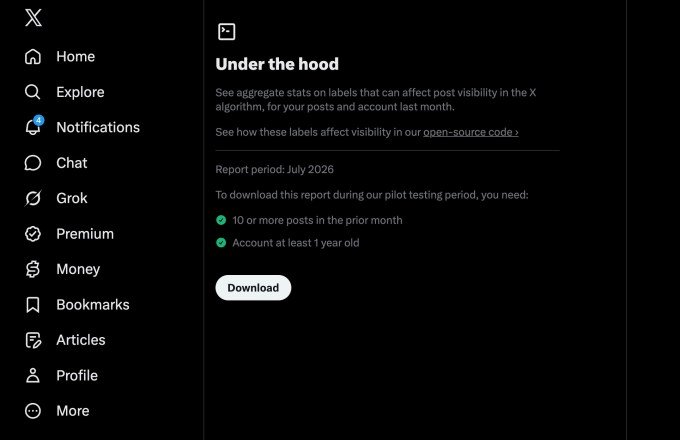
The new feature lives on an “Under the Hood” page in the app’s settings. It’s currently being tested with a pilot group of accounts that are at least a year old, and it will roll out more broadly later.

Here’s how it works:

  • If you’ve posted 10 or more times in the past month, you can download your aggregate stats as a JSON file.
  • The file shows whether any labels have been applied to your account or posts over the past calendar month.
  • That tells you if you’ve been shadowbanned or otherwise impacted by X’s ranking systems.

Not a technical user? No problem. X suggests you can drop the JSON file into an LLM of your choice, point the AI at X’s GitHub repo, and ask for an interpretation. It’s a practical workaround for people who want answers without learning to code.

External researchers already tested the code

Before the public release, X previewed the codebase to external researchers who specialize in recommendation systems. Those researchers were able to train and run X’s Phoenix scoring system using the open source code — a major milestone, according to Coleman.

Developers can now submit pull requests to the GitHub repository, and X engineers will consider incorporating those updates into the algorithm. Not every suggestion will make the cut, but Coleman is clearly excited about the possibility.

“That would be amazing to have people submitting code that improves the algorithm,” he said. “I mean, how cool would it be for the X algorithm to be not just visible to the public, but also, like, by the public?”

What’s not included (and why)

There are some gaps. Systems that use Grok to predict whether a post might violate a rule are not part of this release. X says that’s intentional — to prevent bad actors from using the code to work around the rules and flood the network with spam.

So while the release is substantial, it’s not total. The company is keeping some cards close to its chest.

Why this matters for shadowban concerns

The changes are aimed at addressing long-standing concerns about how X’s algorithm influences politics, elections, and the spread of misinformation. The platform has been home to political figures and high-profile individuals for years, and it’s now owned by a trillionaire who helped President Trump get elected.

But the transparency issues predate Musk’s ownership. Republicans in Congress alleged years ago that Twitter leaned too far left and claimed the network had “shadowbanned” their posts — making them invisible or undiscoverable without the user’s knowledge. Twitter consistently denied those claims.

Coleman says the goal is to let the public assess how posts are distributed, vet that it’s a level playing field, and critique it if it’s not.

“That’s the whole goal of this: [the code] can be audited; it can be critiqued,” he said. “We’re going to listen, and we want to make the system one that people like and trust, and feel is fair.”

The bigger picture: transparency vs. privacy

There’s some irony here. While X is pushing for more transparency around its code, the company has arguably become less transparent overall under Musk. As a private company, it’s no longer required to report to the SEC, and it’s been less forthcoming about user metrics, growth, revenue, and government takedown requests.

Now that X has merged with SpaceX, its monthly active users are once again public. But the broader picture is mixed — more open in some ways, less in others.

Still, for users who’ve wondered whether their posts were being suppressed, this is a meaningful step. The ability to check your own account’s status, combined with the open source code, gives people a way to verify what’s happening rather than just speculating.

Whether it’s enough to rebuild trust remains to be seen. But it’s a start — and it’s a lot more than most social platforms offer.

Continue Reading

How To

I Ditched Task Manager for a 17-Year-Old Free App That Puts It to Shame

Published

on

free app beats Task Manager

Task Manager Has a Blind Spot

For as long as I’ve used Windows, Task Manager has been my go-to for checking hardware usage or hunting down rogue processes. But honestly? I stuck with it out of habit, not because it’s the best tool for the job.

That hit me hard last week. My CPU was pinned at a steady 40 percent, and the culprit was dllhost.exe. Task Manager showed me the process name and its CPU number — and that was it. No details on which DLL it was hosting, no file path, no way to dig deeper. I was staring at a black box.

Enter Process Explorer: A 17-Year-Old Veteran

Then I remembered a tool I’d used years ago: Process Explorer. First released in 2001, this free utility from Microsoft’s Sysinternals suite is still actively maintained. It’s often called Task Manager on steroids — and for good reason.

Within minutes of launching it, I could see exactly what dllhost.exe was doing. Process Explorer reveals the command line, the full path to the executable, and even the specific COM object the process is hosting. That one insight turned a frustrating guessing game into a quick fix.

What Process Explorer Does That Task Manager Can’t

  • Tree view: See parent-child relationships between processes, so you know what spawned what.
  • Full details: Double-click any process to get a mountain of tabs — performance, threads, TCP/IP, environment variables, and more.
  • DLL and handle search: Use Ctrl+F to find which process has a file or DLL locked. Task Manager can’t do this at all.
  • Color-coded processes: Services are pink, processes are blue, and new items flash green — you can spot changes instantly.

Why a 17-Year-Old App Still Wins

You’d think a tool that predates Windows XP would feel dated. Process Explorer doesn’t. It’s been updated consistently, and it supports 64-bit systems, high-DPI displays, and modern Windows versions up to Windows 11. It’s free, portable (no installation needed), and runs on any Windows PC.

Task Manager has improved over the years — the Windows 10 and 11 versions are far better than the old XP-era one. But it still hides the deep technical data that power users crave. Process Explorer hands it to you on a silver platter.

If you’re troubleshooting a dllhost.exe high CPU issue or just want to understand what your computer is really doing, this is the tool to grab. It’s also a lifesaver for finding which process is using a specific file — something Task Manager simply can’t do.

How to Get Started

Download Process Explorer from the official Sysinternals site. Unzip the folder, run procexp64.exe (or procexp.exe on 32-bit systems), and you’re in. It doesn’t even need admin rights for basic viewing, though you’ll want to run it as administrator to see full details on system processes.

Replace Task Manager in your muscle memory. The learning curve is gentle — the interface looks familiar, but every click reveals more depth. Once you’ve used Process Explorer, going back to the default tool feels like driving a car with a blindfold on.

So next time your CPU spikes and Task Manager gives you nothing but a name and a number, remember: there’s a free 17-year-old app that runs circles around it. Give it a try.

Continue Reading

Trending