Connect with us

How To

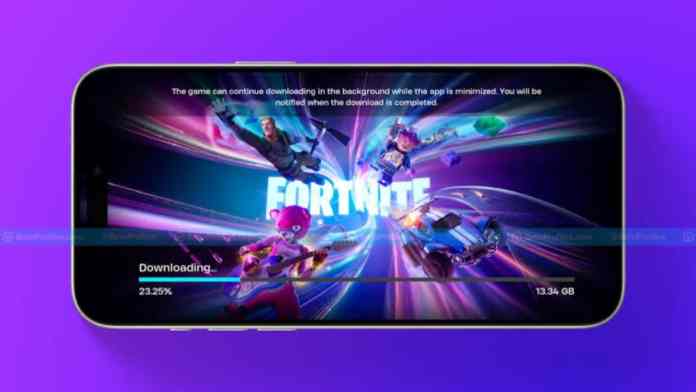
How to Play Fortnite on iPhone and iPad in 2025: A Complete Step-by-Step Guide

Published

on

How to Play Fortnite on iPhone and iPad in 2025: A Complete Step-by-Step Guide

For millions of mobile gamers, the question of how to play Fortnite on iPhone has lingered since 2020. After a bitter legal clash between Apple and Epic Games, the battle royale giant vanished from the App Store. Now, in 2025, the landscape is shifting. New court rulings and regional regulations are opening doors again. This guide covers every reliable method to get back into the game today—whether you’re in the U.S., the EU, or beyond.

Fortnite’s Long Road Back to iOS Devices

Fortnite was once a staple on iPhones and iPads, offering seamless cross-platform play with friends on consoles and PCs. That changed abruptly in 2020. Epic Games attempted to bypass Apple’s 30% commission on in-app purchases, sparking a legal firestorm. Apple removed Fortnite from its store, and for nearly five years, direct installation was impossible.

However, a landmark court ruling in April 2025 turned the tide. The court decided that Apple cannot impose extra fees on payments made outside its App Store. It also cannot block developers from including external payment links. Following this, Epic Games CEO Tim Sweeney announced that Fortnite would return to the U.S. App Store between May 4 and May 10. He also stated that if Apple applies this framework globally, Epic will relaunch worldwide and drop all lawsuits.

Until that official release rolls out, players can still enjoy Fortnite through safe, legal alternatives. Cloud gaming services and region-specific installations are the most effective paths.

How to Play Fortnite on iPhone Using Cloud Gaming Services

Cloud gaming is the simplest way to play Fortnite on iPhone without waiting for the App Store return. These services stream the game directly to your device, requiring no download. They work well on both iPhones and iPads, provided you have a stable internet connection.

1. Xbox Cloud Gaming (XCloud)

Xbox Cloud Gaming is one of the most accessible options. It runs entirely through Safari, so there’s no app to install. Best of all, it’s free.

To get started, create a Microsoft or Xbox account if you don’t already have one. Then, visit the official Fortnite page on XCloud using your iPhone browser. Tap Play, and if prompted, select Continue Anyway if you lack a controller. The game launches instantly. XCloud works on older iPhones too, as long as your internet speed is solid. It’s a fast, no-hassle solution for quick matches.

2. Amazon Luna

Amazon Luna is another excellent choice for Fortnite on iPad and iPhone. It requires only an Amazon Prime account, and you can start with a free trial.

Open the Fortnite page on the Amazon Luna website. Tap Play Free with Prime, sign in with your Amazon account, and link your Epic Games account. Then, tap Start to begin playing. Luna delivers smooth graphics with minimal lag, especially on a strong Wi-Fi connection. This makes it ideal for players who want a console-like experience on their mobile device.

3. Nvidia GeForce Now

Nvidia GeForce Now offers both free and premium tiers. The free plan provides one-hour gaming sessions, which is perfect for quick rounds. For longer playtime and better performance, you can upgrade to a paid plan.

To use it, visit the official Fortnite page on GeForce Now via Safari. Log in with your Nvidia account, tap Play, and wait for the stream to load. GeForce Now is particularly good for players who want flexibility—you can jump in for a short session or commit to a longer one with the premium option.

Installing Fortnite Directly on iPhone and iPad: EU and Beyond

For those who prefer a native installation, the process depends on your location. European Union users now have a direct path thanks to new digital regulations. Players outside the EU can use a workaround until the global rollout.

For EU Users: Install via the Epic Games Store

If you’re in the European Union, you can download Fortnite on iPhone directly from the Epic Games Store. First, ensure your iOS device is updated to version 17.4 or higher. Check this by going to Settings > General > Software Update. Install any available updates.

Next, visit the official Epic Games Store website on your iPhone. Tap Install iOS and follow the on-screen instructions. If you see a warning about blocked installations, go to Settings > Privacy & Security > Allow App Installations for Epic Games. Then, return to the Epic Games Store and finish the installation. Fortnite will appear on your home screen, ready to play. This method is safe, official, and approved for EU residents.

For Non-EU Users: A Regional Workaround

Players outside the EU still face restrictions, but there is a working method. It involves a few settings changes and a new Apple ID.

Start by setting up a proxy server on your Wi-Fi router to mask your location. Then, create a new Apple ID registered with an EU country address. Install the iOS 18 beta version for better compatibility. Sign in with your new Apple ID, open the App Store, and search for Fortnite. Download and install it directly.

This method works especially well on iPads without SIM cards, as they don’t share location data easily. Once installation is complete, switch back to your original Apple ID. Remember, this is a temporary fix until Epic Games releases Fortnite globally.

Preparing Your Device for the Best Fortnite Experience

Before diving into a match, take a few steps to optimize your device. Simple adjustments can dramatically improve performance.

  • Update iOS regularly: Keeping your system current ensures smoother gameplay and fewer crashes.
  • Use a strong internet connection: A stable Wi-Fi network is essential for lag-free cloud gaming.
  • Link your Epic Games account: This saves your progress and unlocks cross-platform play.
  • Use a Bluetooth controller: A controller provides better control and aiming than touchscreens.
  • Avoid fake apps: Only use official links from Epic Games, Xbox, Amazon, or Nvidia.

Following these tips guarantees a safer and more enjoyable experience.

What’s Next for Fortnite on iOS?

The return of Fortnite to the App Store is imminent. According to Epic’s CEO, the game will land in the U.S. between May 4 and May 10. Once Apple expands its new policy worldwide, Epic plans to bring Fortnite to every region. This means that soon, you won’t need cloud gaming or workarounds. You’ll simply download it from the App Store like before.

Epic has confirmed that once this happens, it will end all legal cases against Apple. For players, this is the end of a long wait. The Fortnite on iPad and iPhone experience is finally making a full comeback.

In the meantime, cloud services like Xbox Cloud Gaming and Amazon Luna offer reliable alternatives. For those seeking a direct install, the Epic Games Store works for EU users, while the proxy method helps others. No matter your region, you can play Fortnite on iPhone right now.

For more tips on mobile gaming, check out our guide on using Discord’s in-game overlay or explore the best controllers for iPhone gaming.

Continue Reading
Click to comment

Leave a Reply

Your email address will not be published. Required fields are marked *

How To

WhatsApp Introduces Edit Button, Undo Message Feature, and Double Verification: What You Need to Know

Published

on

WhatsApp Introduces Edit Button, Undo Message Feature, and Double Verification: What You Need to Know

WhatsApp, the world’s most popular messaging platform, is preparing to roll out three significant updates that promise to transform how users interact with the app. After years of development, the company has officially announced that a WhatsApp edit button, an undo message feature, and a double verification system are currently under testing. These additions aim to address long-standing user frustrations and bolster security.

For millions of Android and iOS users, the inability to correct a typo in a sent message has been a persistent annoyance. Similarly, accidentally deleting a conversation or worrying about unauthorized account access has led to calls for better controls. Now, WhatsApp appears to be listening.

Edit Button: Finally, the Power to Correct Mistakes

One of the most requested tools in messaging history is finally arriving. The WhatsApp edit button will allow users to modify text messages even after they have been sent. Previously, the only option was to delete the message entirely and resend it—a clunky workaround at best.

Apple introduced a similar capability for iMessage users years ago, but Android users have been left waiting. According to WhatsApp’s beta announcements, the feature has been in development for roughly five years. After a long pause, the company has now confirmed its official rollout is imminent.

How will it work? Once the feature goes live, you will be able to tap on a sent message and select an edit option. The edited version will replace the original, though recipients may see a small “edited” label to maintain transparency.

Why This Matters for Everyday Users

Think about how often you send a message with a typo, autocorrect error, or incomplete thought. With the edit button, those awkward moments become a thing of the past. It is a small change that significantly improves communication clarity.

Undo Message Feature: A Safety Net for Accidental Deletions

Alongside the edit button, WhatsApp is testing an undo message feature. This tool is designed to help users recover conversations they have accidentally deleted. The scenario is familiar: you intend to delete a message for everyone but mistakenly tap “delete for me” instead. Once that happens, the chat is gone from your device with no way back.

The new undo feature will act as a safety net. After deleting a message using the “delete for me” option, a temporary prompt will appear, giving you a few seconds to reverse the action. This time-bound window—likely just a few seconds—will allow you to restore the deleted content before it is permanently removed.

This is a practical solution for a common problem. Many users have accidentally wiped out important conversations, only to realize their error too late. The undo button provides a second chance without requiring complex workarounds.

How to Use the Undo Feature

When the feature becomes available, simply delete a message as usual. A small notification with an “Undo” button will appear at the bottom of the screen. Tap it within the allotted time, and the message will be restored instantly.

Double Verification: Strengthening Account Security

Security remains a top priority for WhatsApp, and the double verification feature is the latest step in that direction. This tool is specifically designed for users who log into their WhatsApp account on a new smartphone. Instead of a single verification code, the platform will now require two separate security codes.

The process works like this: when you attempt to sign in on another device, WhatsApp will send a 6-digit code to your registered phone number. After entering that code, you will be prompted to provide a second code, which will also be sent to the same number. This two-step approach makes it significantly harder for unauthorized parties to gain access, even if they have your phone number.

This is an upgrade over the current single-code system, which has been vulnerable to SIM-swapping attacks in the past. By adding an extra layer of verification, WhatsApp aims to protect sensitive conversations and personal data.

What These Features Mean for the Future of Messaging

Together, these three updates represent a shift toward a more user-centric design. The WhatsApp edit button empowers users to communicate more accurately, while the undo feature reduces the stress of accidental deletions. Meanwhile, double verification adds a robust security layer that keeps accounts safe.

It is important to note that all three features are still in the testing phase. Beta users on both Android and iOS will likely see them first, followed by a wider rollout once bugs are ironed out. WhatsApp has not provided an exact release date, but the official announcement suggests that the wait will not be much longer.

For those eager to try these tools early, joining the WhatsApp beta program is a good option. You can sign up through the Google Play Store or Apple’s TestFlight app. Keep an eye on update logs for mentions of edit, undo, or double verification.

To stay updated on the latest WhatsApp developments, check out our guide on How to Use Meta AI on WhatsApp. Also, learn about WhatsApp Disappearing Messages for more privacy tips.

In conclusion, WhatsApp is finally addressing some of its most persistent pain points. The edit button, undo message feature, and double verification are not just gimmicks—they are practical tools that will improve daily communication for billions of users. As testing continues, the messaging giant is proving that it still values innovation and user feedback.

What do you think about these upcoming features? Share your thoughts in the comments below. If you found this article helpful, consider sharing it with your friends on social media.

Continue Reading

How To

How to Delete Apple ID or Apple Account: The Complete Walkthrough

Published

on

How to Delete Apple ID or Apple Account: The Complete Walkthrough

Thinking about leaving the Apple ecosystem? Whether you’ve switched to another platform or simply want to clean up old accounts, knowing how to delete Apple ID is essential. This guide walks you through every step, from preparation to permanent removal, so you can say goodbye without regrets.

What Happens When You Delete Your Apple ID?

Deleting your Apple account isn’t a minor action—it’s a permanent decision. Once the process is complete, you lose access to every Apple service tied to that ID. iCloud, FaceTime, iMessage, and Apple Pay will no longer function. Your photos, videos, and documents stored in iCloud are erased. Purchased apps, music, and movies become inaccessible. Subscriptions like Apple Music or iCloud+ get canceled after the billing cycle ends.

Importantly, your email address cannot be used to create a new Apple ID. Apple Support cases and Genius Bar appointments are also voided. Financial records, however, are retained for legal compliance. If you have pending payments, such as an Apple Pay Later balance, you must settle them before proceeding. Apple will not process a deletion request until all dues are cleared.

Preparing to Delete Apple ID: Essential Steps

Before you hit the delete button, take these precautions to protect your data and avoid future headaches.

Back Up Your Data

First, save everything you care about. Download your photos, contacts, and files from iCloud to your computer or an external drive. Use Apple’s data privacy portal to request a copy of your account data. This includes emails, calendars, and documents. Without a backup, you’ll lose it all permanently.

Sign Out of All Devices

Next, log out of your Apple ID on every device—iPhone, iPad, Mac, and even browsers. If you skip this step, those devices may become unusable or locked to your account. Go to Settings, tap your name, scroll down, and select Sign Out. Repeat this for each gadget.

Review and Cancel Subscriptions

Check active subscriptions like Apple Music, Apple TV+, or Apple Arcade. Decide whether to cancel them now or let them expire. If you plan to create a new Apple ID later, you can resubscribe with that fresh account. Unused prepaid subscriptions will be forfeited.

How to Delete Apple ID Permanently

Apple’s deletion process is handled through its privacy website. Follow these steps carefully.

Step-by-Step Deletion Process

  1. Navigate to privacy.apple.com in your browser.
  2. Sign in with your Apple ID and password. If two-factor authentication is enabled, verify your identity with a trusted device.
  3. Scroll down to the Delete your account section and click Request to delete your account.
  4. Select a reason for leaving from the dropdown menu. This helps Apple improve its services.
  5. Read the on-screen information about what deletion entails. Then check the box to agree to the terms.
  6. Choose how you want to receive updates—via email or phone—and click Continue.
  7. Apple will generate a unique access code. Save it immediately. Screenshot it or write it down in a safe place. This code is your only way to cancel the deletion request.
  8. Enter the access code when prompted, then confirm your decision by clicking Delete account.
  9. You’ll see a confirmation screen. Click Sign out to finish.

Deletion is not instant. Apple takes up to seven days to process the request. During this cooling-off period, your account remains active. You can cancel by contacting Apple Support and providing your access code. After the seven days, your account and all associated data are gone forever.

How to Temporarily Deactivate Apple ID

If you’re unsure about permanent removal, consider deactivation instead. This pauses your account without erasing anything. You won’t be able to use Apple services during the deactivation period, but your data remains intact.

Steps to Deactivate

  1. Visit privacy.apple.com and sign in.
  2. Go to the Temporarily deactivate your account section.
  3. Click Request to deactivate your account and choose a reason.
  4. Follow the on-screen instructions to receive another unique access code. Save this code securely.
  5. Confirm deactivation by clicking Deactivate account.

Back up your data before deactivating. You cannot access anything until you reactivate. This option is ideal if you think you might return to Apple later.

How to Reactivate Your Apple ID

Reactivating a deactivated account is straightforward—but only if you have the access code. Contact Apple Support via their website or phone. Provide the code, and Apple will verify your identity and restore your account. Without the code, recovery is impossible. Treat that code like a key to a locked vault.

Final Thoughts

Deciding to delete Apple ID is a significant move. Ensure you’ve backed up everything important, signed out of all devices, and reviewed your subscriptions. If doubt lingers, choose deactivation over deletion—it gives you a safety net. Always store your access code in a secure location. Follow the steps outlined here, and the process will be smooth and stress-free. Choose wisely before parting ways with Apple.

Continue Reading

How To

How to Download Music from YouTube Easily in 2025: Legal, Safe, and Fast Methods

Published

on

How to Download Music from YouTube Easily in 2025

YouTube remains the world’s largest music streaming platform, but not everyone has constant internet access. Whether you’re commuting, traveling, or simply want to save data, learning how to download music from YouTube is a practical skill. In 2025, several options exist—from official subscriptions to free desktop tools and browser-based converters. This guide breaks down the safest, most efficient methods available today.

Why You Might Want to Download Music from YouTube

Listening to songs offline offers clear advantages. You avoid buffering issues, save mobile data, and enjoy uninterrupted playback. Many users also want to create personal playlists without relying on a live connection. However, not all download methods are equal in terms of legality, safety, or convenience.

The Official Route: YouTube Music Premium

The most straightforward way to download music from YouTube is through YouTube Music Premium. This paid subscription costs roughly $9.99 per month and grants legal offline access to millions of songs. It works seamlessly on Android, iOS, and the web.

To get started, install the YouTube Music app, search for your desired track, and tap the download arrow icon. For entire playlists, use the three-dot menu and select “Download.” All saved content remains within the app—you cannot transfer files to another folder. This limitation is intentional to prevent copyright infringement.

Benefits include ad-free listening, high-quality audio, and reliable offline playback. On the downside, you must maintain an active subscription. If you cancel, downloaded songs become inaccessible.

Desktop Tools for Flexible Downloads

For users who want more control over file formats and storage locations, dedicated software offers a solid alternative. Two popular choices are 4K Video Downloader and MediaHuman YouTube Downloader. Both are free, support Windows, macOS, and Linux, and allow you to extract audio from YouTube videos.

Using 4K Video Downloader

This tool is widely trusted for its simplicity. After downloading the software from the official website, copy a YouTube video URL and paste it into the application. Select “Extract Audio” and choose your preferred format—MP3 or M4A. You can also adjust the audio quality before clicking “Extract.” The process is fast and outputs files you can store anywhere on your computer.

Key features include batch downloading, no intrusive ads, and support for high-bitrate audio. However, always download from the official source to avoid malware. Use antivirus protection as an extra precaution.

MediaHuman YouTube Downloader

MediaHuman offers a similarly clean experience. Install the app, paste a YouTube link, click the music icon to switch to audio mode, and hit the download button. It supports MP3, M4A, and other common formats. The interface is intuitive, making it ideal for beginners.

Both desktop tools are best suited for personal use. Avoid downloading copyrighted material without permission. Stick to Creative Commons or royalty-free content to stay within legal boundaries.

Online Converters: Quick but Risky

If you prefer not to install software, online converters provide a browser-based solution. Websites like dirpy.com, loader.to, and x2download.com let you convert YouTube videos to audio files instantly. Simply copy the video URL, paste it into the converter, select MP3 or M4A, and click “Download.” The process takes seconds.

These platforms work on any device, including smartphones and tablets. No installation is required, which is convenient. Nevertheless, online converters come with significant risks. Many display aggressive ads, pop-ups, or even malware. Some sites have been known to track user activity or inject harmful scripts.

To stay safe, use a trusted antivirus program and avoid clicking on suspicious banners. Stick to well-known converter sites and consider using an ad blocker. Even then, be aware that these services may disappear or change their policies without notice.

Legal and Safety Considerations

Before you download music from YouTube, understand the legal landscape. Downloading copyrighted songs without permission violates YouTube’s terms of service and copyright law. This could lead to account suspension or legal action in extreme cases. Always check if a video is under a Creative Commons license or explicitly marked for free use.

Safety is equally important. Untrusted software or websites can compromise your device. Stick to official sources like YouTube Music Premium or reputable desktop applications. Keep your operating system and antivirus software up to date. If a tool seems too good to be true, it probably is.

Which Method Should You Choose?

Your choice depends on your priorities. If convenience and legality matter most, YouTube Music Premium is the clear winner. It costs money but eliminates all risks. For desktop users who want free, flexible downloads, 4K Video Downloader or MediaHuman are excellent options. Online converters work in a pinch but require caution.

Ultimately, the best method is the one that aligns with your needs and respects copyright. By following the guidelines in this article, you can enjoy your favorite music offline without compromising your security or ethics.

For more tips on digital tools and online safety, check out our guides on staying safe online and best music streaming apps.

Continue Reading

Trending