Connect with us

How To

How to Record Calls on Android and iPhone: A Step-by-Step Guide for 2025

Published

on

How to Record Calls on Android and iPhone: A Step-by-Step Guide for 2025

Recording phone conversations has become a common need for professionals, students, and everyday users. Whether you want to capture important business agreements, preserve family memories, or keep a record of critical discussions, knowing how to record calls on Android and iPhone is essential. However, the process isn’t always straightforward due to varying device capabilities, operating system restrictions, and legal requirements. This guide walks you through every reliable method, highlights the best iPhone call recording app options, and explains the call recording legality India rules you must follow.

Why People Need to Record Calls Today

Modern life moves fast, and memory often fails. Many individuals forget key details immediately after hanging up. Recordings serve as a reliable backup for business deals, client instructions, and personal commitments. Professionals use them during interviews, while students capture lecture notes from remote classes.

Moreover, families record conversations with elderly relatives to preserve stories and advice. Some users also rely on recordings for personal safety, documenting threatening or harassing calls. Beyond these uses, call recording boosts productivity. Instead of scribbling messy notes during a conversation, you can focus on the discussion and review the audio later.

Recordings also help teams align on decisions and avoid misunderstandings. Clear audio tracks make it easy to create accurate summaries, ensuring everyone stays on the same page.

Call Recording Legality in India Explained Clearly

Before you start recording, understanding the legal framework is crucial. Call recording legality India follows a consent-based system. You must inform the other party that you are recording the conversation. Recording without consent can lead to legal trouble, including privacy violations under Indian law.

Companies handling customer calls must also adhere to strict privacy regulations. Some states impose even stricter rules. Operating system updates now reflect these legal concerns. Many Android phones hide built-in recording tools in certain regions, and iPhones restrict silent recording entirely for safety reasons.

Because laws vary across countries, features differ by location. Apple blocks recording features in some nations, while Google restricts silent recording in many markets. Third-party apps must comply with similar safety laws. Therefore, obtaining clear consent remains the safest and most ethical approach. Always tell the other person before pressing record.

How to Record Calls on Android Easily Today

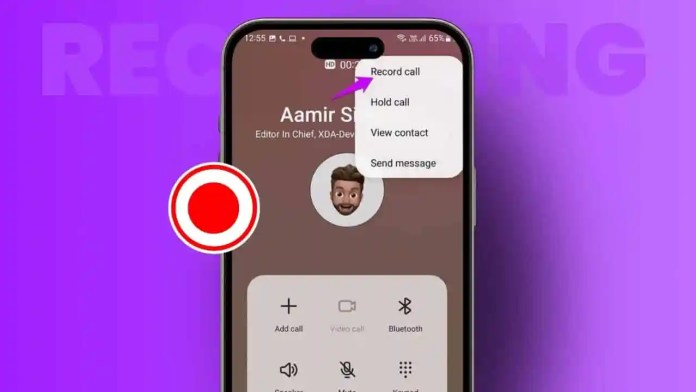
The method to record calls on Android depends heavily on your device model and region. Some smartphones come with a built-in recording feature. To check, open your Phone app and navigate to Settings. If you see a “Call Recording” option, enable it. During an active call, a record button usually appears on the screen.

However, this feature isn’t universal. Many devices automatically disable it in regions with strict privacy laws. If your phone lacks a built-in option, third-party apps step in. Auto Call Recorder is a popular choice. Download it from the Google Play Store, grant microphone and storage permissions, and enable automatic recording for specific contacts. On Android 10 and higher, you may need to activate accessibility permissions for the app to function properly.

The Google Phone app also supports recording on many devices, but availability hinges on your phone model and local regulations. Keep in mind that long recordings may stop if storage runs low. Some Android versions block call recording entirely due to restrictions.

Third-party apps, however, face challenges. They can crash during lengthy calls or record only one side of the conversation clearly. Some introduce subscription fees unexpectedly. These issues push users to seek more stable solutions.

iPhone Call Recording App Options and Limitations

For Apple users, iPhone call recording app options have historically been limited. Apple blocked silent recording for years. With iOS 18, the company introduced a built-in recorder. During a call, tap the Record button. A loud announcement informs all participants that recording has started. The audio file saves automatically in the Notes app.

While convenient, this feature has drawbacks. It isn’t available in every country. It produces only an audio file without summaries or transcripts. The announcement makes discreet recording impossible. Alternatively, you can use speakerphone and the Voice Memos app, but audio quality often suffers from background noise.

Google Voice offers recording, but only for calls made to your Google Voice number and exclusively within the United States. Normal carrier calls remain unrecorded. For users outside the U.S., this method isn’t an option. Consequently, many iPhone owners turn to hardware solutions for reliable performance.

Why Third-Party Apps Often Fail Today

Software-based recording methods frequently encounter problems. Apps crash during long conversations, fail due to microphone restrictions, or get disabled by new privacy rules. Many include hidden fees for essential features. Some record low-quality audio, making playback difficult.

Operating system updates introduce tougher security measures globally. On Android, newer versions block background recording for privacy. On iOS, third-party apps cannot access the call audio stream directly. These restrictions make app performance unreliable. That’s why a growing number of users are shifting to hardware recording devices.

Hardware Recording: A Safe and Reliable Solution

Dedicated hardware recorders offer the most dependable experience. The Plaud Note is a standout device. It attaches to your phone via a magnetic MagSafe case or an adhesive ring for non-MagSafe models. The device features two recording modes: flip the switch up for Phone Call mode, down for On-Site mode during meetings.

Press and hold the main button to start recording. The device captures audio directly from the source, producing clear, crisp sound without needing speakerphone. It works across all platforms, including WhatsApp, Zoom, and FaceTime.

Plaud Note boasts impressive storage and battery life. With 64GB of memory, it stores thousands of hours of audio. It records continuously for nearly 50 hours and stays in standby mode for up to 60 days. The included AI features transcribe audio into text, support over 112 languages, generate short summaries, extract action items, and identify speakers. Over 3,000 templates help format professional notes, saving users hundreds of hours annually.

The Bottom Line

Learning how to record calls on Android is simple when you use safe, legal methods. iPhone call recording app options remain limited but are improving with each iOS update. Always respect call recording legality India rules by obtaining consent. Third-party apps can work but face increasing restrictions. For the best clarity and reliability, consider hardware solutions like the Plaud Note. Whichever method you choose, prioritize legal compliance and data safety. For more tips, check out our guide on how to hide WhatsApp blue ticks or learn about lock screen customization.

Continue Reading
Click to comment

Leave a Reply

Your email address will not be published. Required fields are marked *

How To

How to Download WhatsApp Status: A Complete Step-by-Step Guide for Android Users

Published

on

How to Download WhatsApp Status: A Complete Step-by-Step Guide for Android Users

Have you ever come across a friend’s WhatsApp status that you absolutely loved — maybe a funny video, a beautiful photo, or an inspiring quote — and wished you could save it to your phone? You are not alone. Many users want to download WhatsApp status content, but the app itself does not offer a built-in save button for others’ statuses. This can be frustrating, especially when you want to share that moment or keep it for later. Fortunately, there is a simple and effective workaround. In this guide, we will show you exactly how to download WhatsApp status from your friends using a reliable third-party app. No complicated tricks, no rooting required — just a few taps and you are done.

Why Doesn’t WhatsApp Allow Direct Status Downloads?

WhatsApp prioritizes user privacy. The company intentionally does not include a native download option for viewing others’ statuses. This is to prevent unauthorized sharing and to respect the original poster’s intent. However, this does not mean you cannot save content for personal use. With the right tool, you can easily save statuses without violating anyone’s trust — as long as you do not repost without permission.

The Best Way to Download WhatsApp Status

The most straightforward method involves using a dedicated WhatsApp status downloader app. These apps are widely available on the Google Play Store and are designed to scan your WhatsApp media folder for status files. Once detected, you can save them directly to your device’s gallery. Below, we break down the entire process step by step.

Step 1: Install a Status Saver App

First, open the Google Play Store on your Android device. Search for a reputable status saver app — popular options include “Status Saver for WhatsApp” or “WhatsApp Status Downloader.” Look for an app with high ratings and positive reviews. Avoid apps that request unnecessary permissions or seem suspicious. Download and install the app on your phone.

Step 2: Grant Necessary Permissions

Once installed, open the app. It will ask for access to your device’s storage and media files. Grant these permissions. The app needs this access to read WhatsApp’s status folder and to save files to your gallery. Without these permissions, the app cannot function properly. Do not worry — reputable apps only use this access for the stated purpose.

Step 3: View Statuses in the App

After permissions are granted, the app will automatically scan your WhatsApp status folder. All recent statuses from your contacts will appear inside the app’s interface. You do not need to manually refresh or search. The app does all the work in the background. This is the quickest way to save WhatsApp status content without opening WhatsApp itself.

Step 4: Select and Save the Status

Now, browse through the list of statuses. When you find the one you want to keep, long-press on it. A menu will pop up with a “Save” or “Download” option. Tap that button. The status — whether it is a photo or a video — will be saved directly to your phone’s gallery or a dedicated folder inside the app. You can then access it anytime, even offline.

Tips for Using Status Downloader Apps Safely

While these apps are generally safe, you should still exercise caution. Only download apps from the official Google Play Store, not from third-party websites. Check the app’s privacy policy to understand how your data is handled. Additionally, avoid apps that claim to download statuses from private accounts or that ask for your WhatsApp login credentials — those are scams. Stick to trusted, well-reviewed tools.

What About iPhone Users?

Unfortunately, iOS does not allow third-party apps to access WhatsApp’s internal folders in the same way Android does. As a result, download WhatsApp status on an iPhone is more challenging. Some workarounds exist, such as screen recording or using shortcuts, but they are not as seamless. For the smoothest experience, Android remains the best platform for this task.

Final Thoughts

Learning how to download WhatsApp status is a handy skill that lets you preserve memorable moments shared by your friends. With the right app and a few simple steps, you can save photos and videos in seconds. Just remember to respect others’ privacy — do not repost someone’s status without asking first. If you found this guide helpful, share it with your friends. For more tips on using WhatsApp effectively, check out our guide on how to hide WhatsApp blue ticks or explore how to record calls on Android.

Do you have any questions about this process? Drop a comment below, and we will help you out.

Continue Reading

How To

TouchCall Global Calling App Review: Make Private Calls & Send Free SMS Worldwide

Published

on

TouchCall Global Calling App Review: Make Private Calls & Send Free SMS Worldwide

Have you ever wanted to call someone without revealing your real phone number? This is exactly what the TouchCall global calling app promises to deliver. Whether you need to make a private call to a friend who blocked you or simply want to keep your personal contact hidden, this application offers a clever solution. In this review, we will explore the main features, privacy benefits, and how you can start using it today.

TouchCall is designed for users who value anonymity and flexibility. Instead of showing your actual caller ID, the app displays a private contact number during outgoing calls. This means the person you are calling will not see your real phone number, which can be useful for business calls, personal safety, or simply maintaining privacy.

Key Features of TouchCall Global Calling App

The TouchCall global calling app comes packed with several useful features that go beyond basic calling. Below are the highlights that make it stand out among other communication tools.

Private Calling and Anonymous Communication

The core feature of TouchCall is its ability to hide your real phone number. When you make a call, the recipient sees a private or restricted number instead. This is achieved through a combination of analog and digital signal intercommunication technology, along with voice encryption and decryption. As a result, your calls are protected from eavesdropping and monitoring.

Additionally, the app allows you to assign individual contacts their own ringtone and background. You can also customize text tones and vibration patterns, making it easy to identify who is calling without looking at the screen.

Free SMS and Messaging

Another major draw of the TouchCall global calling app is its free SMS service. You can send unlimited text messages, pictures, and videos to any phone number within 28 countries worldwide. There are no hidden fees or monthly subscriptions required for basic usage. The app also includes a unified inbox where you can view your SMS history and manage conversations from one place.

Call Forwarding and Voicemail

TouchCall supports call forwarding, which means you can redirect incoming calls to another number when you are unavailable. For users in the United States, voicemail is also available. This feature ensures you never miss important messages, even when you cannot answer the phone.

Multi-Device Support

One of the more convenient aspects of the TouchCall global calling app is its multi-device capability. You can send messages and make calls from your computer or tablet, and then continue the conversation on your phone while on the go. The app also turns Wi-Fi-enabled tablets into functional phones, which is ideal for travelers or people who prefer not to carry multiple devices.

Is TouchCall Really Free?

Yes, the app is completely free to download and use for basic features. There are no yearly or monthly fees. The developers generate revenue through ads displayed within the app. If you find the ads intrusive, you can purchase a subscription to remove them. This model makes the app accessible to a wide audience while offering an ad-free experience for those who prefer it.

Because the app relies on ads for monetization, it remains free for the majority of users. This is a fair trade-off for the privacy and functionality it provides. If you are looking for a free SMS app or an anonymous calling app, TouchCall is a solid option worth trying.

How to Download and Install TouchCall

Getting started with the TouchCall global calling app is straightforward. Follow these simple steps:

  • Visit the official download link provided on the TouchCall website or your device’s app store.
  • Click the install button and wait for the app to download.
  • Open the app and grant the necessary permissions for calls and SMS.
  • Start making private calls and sending free messages immediately.

For more tips on using communication apps effectively, check out our guide on how to make private calls and our list of best anonymous calling apps.

Final Thoughts on TouchCall Global Calling App

In summary, the TouchCall global calling app offers a compelling mix of privacy features, free global SMS, and multi-device support. It is particularly useful for anyone who needs to make anonymous calls or wants to keep their personal number hidden. The app is easy to use, completely free (with optional ad removal), and works across multiple platforms.

However, it is worth noting that the app is intended for educational and legitimate privacy purposes. Misusing it to harass or deceive others is discouraged. If you respect the terms of use, TouchCall can be a valuable tool for secure and private communication.

Have you tried TouchCall? Share your experience in the comments below. For more app reviews and tech tips, explore our app reviews section.

Continue Reading

How To

How to Set Up Crash Detection on Your Android Phone: A Complete Guide

Published

on

How to Set Up Crash Detection on Your Android Phone: A Complete Guide

Imagine you’re driving home after a long day. Suddenly, your car jolts violently. In those crucial seconds, your phone could become your lifeline. That’s exactly what crash detection on Android is designed for. Built into select devices, this smart safety feature automatically senses a car accident and alerts emergency services or your loved ones. If you own a Google Pixel phone or a Pixel Watch, you can activate this life-saving tool in just a few minutes. This guide walks you through everything you need to know.

What Is Crash Detection and How Does It Work?

Crash detection relies on a combination of hardware and software. Your phone’s motion sensors—accelerometers and gyroscopes—constantly monitor for sudden stops, sharp impacts, and rapid changes in speed. When the system detects a potential collision, it triggers an immediate alert on your screen.

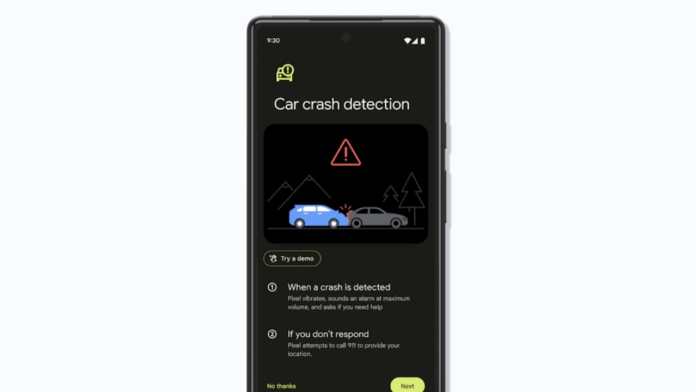
You’ll see two clear options: “I’m OK” or “Call 911 & notify contacts.” If you don’t respond within 60 seconds, the phone automatically places an emergency call. It also shares your real-time location and an audio message with dispatchers. This ensures help arrives quickly, even if you’re unable to speak.

Artificial intelligence plays a key role here. The system learns from real-world driving data to distinguish between a minor pothole and a serious accident. It evaluates speed, force, and movement patterns before sending an alert. As a result, false alarms are rare, and genuine emergencies get immediate attention.

How to Set Up Crash Detection on Your Android Phone

Crash detection isn’t turned on by default. You need to enable it manually. The process is straightforward and takes less than five minutes. Follow these steps on a Pixel phone running Android 12 or later:

Step 1: Open the Personal Safety App

Locate the Personal Safety app on your Pixel phone. It comes pre-installed on all Pixel devices from the Pixel 4A onward. If you can’t find it, search for “Safety” in your app drawer.

Step 2: Navigate to Car Crash Detection

Tap the Features tab at the bottom of the screen. Look for Car Crash Detection and select Set up. Toggle the switch to enable the feature. You’ll also see an option for Emergency Sharing—turn that on to automatically share your location with contacts during an accident.

Step 3: Add Emergency Contacts

Still inside the Safety app, go to Your info and tap Emergency contacts. Add trusted family members or close friends. Make sure they have permission to view your location and receive alerts. Once saved, your phone will notify them if a crash is detected and you don’t respond.

That’s it. Your Pixel phone is now ready to act as a silent guardian on the road.

How to Enable Crash Detection on a Pixel Watch

If you own a Pixel Watch 2 or Pixel Watch 3, you can also activate crash detection on your wrist. The watch uses its own sensors, but it needs cellular connectivity to send alerts independently. If you’ve already set up the feature on your phone, it syncs automatically. Otherwise, here’s how to enable it:

  • Press the crown button on your Pixel Watch.
  • Tap Safety in the settings menu.
  • Select Car Crash Detection and toggle it on.

Alternatively, use the Pixel Watch app on your phone:

  • Open the Pixel Watch app.
  • Tap Safety & Emergency settings.
  • Choose Car Crash Detection and activate it.

Keep in mind that the watch does not manage emergency contacts directly. You must add them through the Personal Safety app on your phone. Also, for the watch to work during a crash, it must stay connected to a mobile network or your phone.

The Future of Crash Detection Technology

Crash detection is still evolving. Google continuously updates the system using machine learning to improve accuracy. Future updates will likely reduce false positives even further and expand support to more devices.

Other manufacturers are paying attention too. Samsung is reportedly developing its own version for Galaxy phones. Apple already offers crash detection on iPhones and Apple Watches. As competition grows, this feature will become standard across the industry.

Emergency services are also adapting. Better smartphone integration means faster response times. In the future, your phone might share medical details or vehicle information with first responders. This could save countless lives by cutting precious seconds off emergency response.

Final Thoughts

Setting up crash detection on Android is one of the smartest safety moves you can make. It takes only a few minutes, yet it provides round-the-clock protection on the road. Whether you’re driving across town or across the country, this feature ensures that help is always just a sensor away.

If you haven’t enabled it yet, open the Personal Safety app right now. Add your emergency contacts, toggle on car crash detection, and drive with greater peace of mind.

Continue Reading

Trending