Connect with us

Artificial Intelligence

Microsoft brings back Copilot sidebar for Windows 11 with smarter docking controls

Published

on

Microsoft brings back Copilot sidebar for Windows 11 with smarter docking controls

Microsoft has once again reimagined how its AI assistant integrates with the operating system. After years of experimentation, the company is introducing a redesigned Copilot sidebar Windows 11 feature that lets users dock the assistant to the edge of the screen. This marks a return to a concept the company previously abandoned, but with significant improvements.

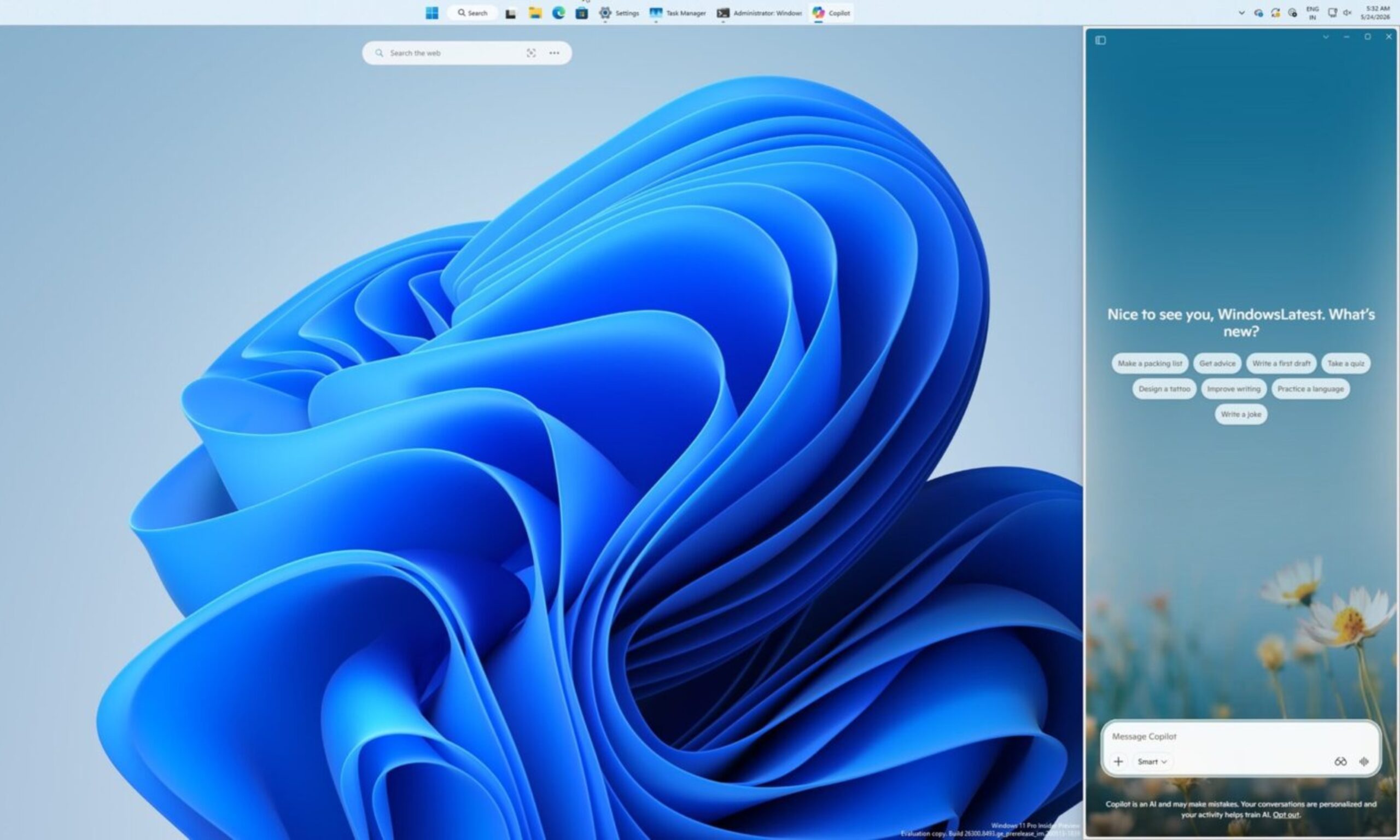
Instead of forcing Copilot to remain a standalone app that floats separately, the new approach gives users more control over placement. By hovering over a dropdown menu in the title bar, you can now snap the assistant to either the left or right side of the display. This makes it a persistent presence that stays visible even when you’re working in other applications.

How the new Copilot docking works

The docking mechanism is distinct from Windows 11’s native Snap Layouts. According to Windows Latest, which first spotted the behavior, Copilot receives its own dedicated layout options. These allow users to pin the assistant to the side without interfering with the standard window snapping experience on the operating system.

When you dock Copilot, Windows 11 automatically resizes the rest of your workspace. Active applications shift to fill the remaining screen space, and the desktop watermark moves to the opposite side. This ensures that the AI assistant remains accessible without obstructing your workflow.

In addition to the sidebar mode, Microsoft offers a picture-in-picture option. This makes Copilot visible but less intrusive, ideal for users who want quick access without a large panel taking up screen real estate.

Why Microsoft is revisiting the sidebar concept

This isn’t the first time Microsoft has tried a sidebar approach. The original version of Copilot on Windows 11 launched as a panel that sat alongside your apps. Users could ask questions about on-screen content, and the assistant would respond in context.

However, that initial implementation was built entirely on web technologies. As a result, it suffered from performance issues and limited integration with the operating system. Microsoft eventually scrapped the design in favor of a standalone app, which later evolved into an Edge-based web wrapper.

Building on this history, the new Copilot sidebar Windows 11 feature addresses the key shortcomings of the original. It now gives users meaningful control over where the assistant appears, something the first version never offered. While it’s not yet clear whether Microsoft Copilot Vision will trigger automatic docking when activated, the new behavior is rolling out gradually to Windows Insiders.

What this means for productivity

For power users who rely on AI assistance throughout the day, this change could be a significant boost. The persistent sidebar eliminates the need to constantly open and close the assistant. Instead, it remains available for quick queries, content generation, or screen analysis without breaking your focus.

This approach mirrors what Google has done with Gemini in Chrome, where the AI assistant sits in a sidebar panel. By adopting a similar model, Microsoft is acknowledging that users prefer always-available AI tools over modal windows that interrupt their workflow.

However, the success of this feature will depend on how well it integrates with third-party applications. If Copilot can interact with content across different programs seamlessly, it could become an indispensable tool for multitaskers.

How to get the new Copilot sidebar

As of now, the new docking behavior is rolling out gradually to Windows Insiders in the Dev Channel. If you’re part of the program, you may see the option appear in the Copilot title bar dropdown menu. For most users, the feature will likely arrive in a future stable update of Windows 11.

To prepare, ensure your system is running the latest version of Windows 11 and that Copilot is enabled. Once the feature reaches your device, you can experiment with different docking positions to find what works best for your workflow.

For more tips on optimizing your Windows 11 experience, check out our guide on boosting productivity with Windows 11 features. You can also learn about comparing AI assistants on Windows 11 to see how Copilot stacks up against alternatives.

Continue Reading
Click to comment

Leave a Reply

Your email address will not be published. Required fields are marked *

Artificial Intelligence

Microsoft Finally Lets You Uninstall the Copilot App Permanently in Windows 11

Published

on

Microsoft Finally Lets You Uninstall the Copilot App Permanently in Windows 11

After months of user frustration, Microsoft is taking a step back from its aggressive AI push. The company now allows users and organizations to uninstall Copilot app from Windows 11 more easily. This shift comes as part of a broader cleanup effort, giving people greater control over their computing experience.

According to a report from Windows Latest, Microsoft quietly introduced a new Group Policy option in the Windows 11 April 2026 Update. This policy, named “Remove Microsoft Copilot app,” lets administrators remove the AI assistant system-wide. You can find it under User Configuration > Administrative Templates > Windows Components > Windows AI.

Why the Change Matters for Windows 11 Users

Copilot has become one of Microsoft’s most controversial additions in recent years. While the company promotes AI as the future of productivity, many users have complained about forced integrations, performance slowdowns, and privacy concerns. The app often reappeared after major updates or fresh installations, making it hard to keep off the system.

This new policy addresses those frustrations directly. For businesses and IT administrators managing multiple PCs, it offers a permanent solution. Companies can now configure Windows devices to automatically block or remove Copilot across entire organizations, instead of uninstalling it manually on each machine.

What About Home Users?

Windows Home users don’t have official access to this policy. However, you can achieve similar results through the Registry Editor. By creating a new “WindowsAI” key and enabling a “RemoveMicrosoftCopilotApp” value, you can force Windows to remove both Copilot and Microsoft 365 Copilot apps after restarting. Advanced users can also use PowerShell with AppxPackage removal commands.

Building on this, Microsoft appears to extend the policy to cover Microsoft 365 Copilot integrations. This suggests the company recognizes that not every workplace wants AI assistants enabled by default. Learn more about Windows 11 customization options.

The Bigger Picture: Microsoft’s AI Strategy Shift

The bigger story here is less about uninstalling one app and more about Microsoft’s evolving approach to AI. Over the past two years, the company has integrated Copilot into nearly every part of Windows and Microsoft 365. Yet user adoption remains unclear. Microsoft rarely shares specific usage numbers, fueling speculation that mainstream engagement may not be as strong as expected.

Furthermore, backlash against AI integration has grown across the tech industry. Many users now want the option to choose which AI tools run on their devices, rather than having them embedded by default. By making Copilot easier to remove, Microsoft acknowledges that flexibility matters just as much as AI adoption. Explore the future of Microsoft Copilot.

What Comes Next for Windows 11 and AI

Microsoft is still expected to expand Copilot features across Windows 11 and future versions. The company remains deeply invested in AI through its partnership with OpenAI and broader AI PC initiatives. However, this new policy suggests a more careful approach. For now, users who never wanted Copilot in the first place may finally have a cleaner, more reliable way to keep it off their PCs permanently.

In conclusion, this move represents a significant shift in Microsoft’s strategy. It balances the company’s AI ambitions with user demands for control. As Windows 11 continues to evolve, expect more such adjustments that prioritize user choice over forced features.

Continue Reading

Artificial Intelligence

China’s DeepSeek Cuts Its Flagship AI Model Price by 75% — A Potential Market Shift

Published

on

China’s DeepSeek Cuts Its Flagship AI Model Price by 75% — A Potential Market Shift

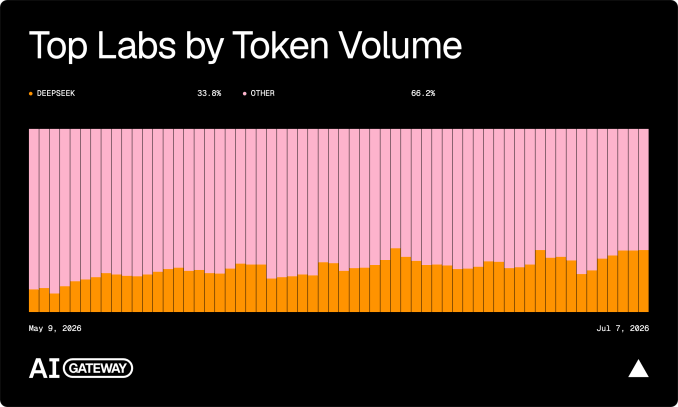
The artificial intelligence landscape just witnessed a seismic pricing event. Chinese AI startup DeepSeek has permanently slashed the cost of its flagship V4-Pro model by a staggering 75%, a move that could reshape competition in the global AI market. This DeepSeek AI price cut brings developer costs down to as little as 0.025 yuan per million tokens, down from a previous high of 24 yuan. For companies building AI applications, agents, and services, this shift promises significantly lower operating expenses.

Why would a company make such an aggressive, permanent reduction? The answer likely lies in infrastructure improvements and strategic positioning. AI firms worldwide grapple with high compute costs and limited access to advanced chips. DeepSeek’s move suggests something fundamental has changed behind the scenes.

The Role of Huawei’s Ascend Chips

Industry observers are pointing to Huawei and its Ascend AI chips as a key enabler. DeepSeek previously admitted that limited access to high-end compute capacity forced V4-Pro pricing much higher than its cheaper Flash model. At launch, Pro access reportedly cost up to 12 times more because advanced AI hardware remained constrained.

Now, those limitations may be easing. Huawei’s Ascend 950 chips have become increasingly important for Chinese AI firms after U.S. export restrictions blocked NVIDIA from selling its most advanced AI hardware inside China. This development could be a game-changer for the domestic AI ecosystem.

How Hardware Constraints Are Fading

DeepSeek did not directly explain what enabled the dramatic price cut. However, the timing aligns with improved availability of Huawei’s chips. While Huawei still faces manufacturing bottlenecks due to restrictions on advanced chipmaking equipment, the progress suggests that Chinese AI infrastructure is maturing. Learn more about AI chip market trends.

As a result, developers can now access powerful AI models at a fraction of previous costs. This could accelerate innovation in areas like natural language processing and autonomous agents.

Intensifying the Global AI Price War

The bigger implication is simple: AI models are getting cheaper fast. If Chinese firms can continue scaling AI performance while dramatically reducing inference costs, the global AI pricing battle could become far more aggressive over the next year. That puts pressure not only on rival Chinese startups but also on larger Western AI providers that charge significantly more for premium models.

For example, OpenAI’s GPT-4 Turbo and Google’s Gemini models still command premium pricing. A sustained price war could force these giants to reevaluate their strategies. Explore AI pricing strategies.

What This Means for Developers

For developers, this is a welcome development. Lower costs mean more experimentation, faster prototyping, and broader access to cutting-edge AI. Small startups and independent creators can now compete with larger players, democratizing AI development.

However, the supply of hardware remains a major question. Huawei still faces bottlenecks. But if DeepSeek’s price cuts are an early sign of improving AI infrastructure inside China, this may be the beginning of a much larger shift in the global AI market. Read about the future of AI competition.

In conclusion, the DeepSeek AI price cut is more than a promotional stunt. It signals a structural change in AI economics, driven by domestic chip advancements and strategic pricing. As the AI price war heats up, both developers and enterprises stand to benefit from lower costs and increased competition.

Continue Reading

Artificial Intelligence

Microsoft Finally Lets Users Disable the Floating Copilot Button in Office Apps

Published

on

Microsoft Finally Lets Users Disable the Floating Copilot Button in Office Apps

If you’ve been working in Word, Excel, or PowerPoint lately, you’ve likely encountered a persistent floating Copilot button hovering at the bottom-right corner of your screen. Since December 2025, this icon has been a constant companion—and for many, an unwelcome one. Now, Microsoft is responding to user feedback by giving you the option to disable the floating Copilot button and send it back to the ribbon.

Why Did Microsoft Add the Floating Copilot Button?

The decision to introduce the floating button was driven by numbers. According to internal data, only about 3.3% of Microsoft 365 users actually pay for Copilot. Adoption rates have remained well below the company’s expectations. To boost engagement, Microsoft rolled out what it calls the Copilot Dynamic Action Button (DAB), quietly expanding it to all users by May 2026.

The idea was simple: making Copilot more visible would drive more clicks. And it worked—clicks increased. However, it also sparked a wave of complaints. Excel users were hit hardest, as the button floated directly over spreadsheet cells, blocking data with no easy way to dismiss it. Many users felt the feature was intrusive rather than helpful.

How to Move the Copilot Button Off Your Screen

Starting the last week of May 2026, an update will give users the ability to disable the floating Copilot button by right-clicking the icon and choosing to move it back to the ribbon. Microsoft is not removing the dock option entirely, so you’ll still be able to switch between the floating button, the docked version, and the ribbon placement based on your preference.

Katie Kivett, partner group product manager at Microsoft, acknowledged the frustration in a recent statement. She explained that the company is making short-term adjustments while it figures out a better long-term approach for Copilot integration. This move is part of a broader effort to listen to user feedback and improve the overall experience.

What This Means for Your Workflow

For many users, this change will be a relief. The floating button was particularly disruptive in Excel, where it often covered critical data. By moving it to the ribbon, you can still access Copilot when needed without the constant visual distraction. This is a practical step toward making AI tools more user-friendly.

If you’re looking for other ways to optimize your Office experience, check out our guide on how to customize the Office ribbon for better productivity. You might also find our article on Microsoft 365 tips for power users helpful.

Microsoft’s Broader Copilot Strategy

This is not the first time Microsoft has quietly scaled back Copilot features. Just a month ago, the company began pulling Copilot buttons from various Windows 11 apps after similar pushback. It seems Microsoft is slowly learning that forcing AI into every corner of your workflow is not the same as making it useful.

Building on this, the company is now focusing on more targeted AI integrations. For example, Copilot in Teams and Outlook has received positive reviews for its ability to summarize meetings and draft emails. The lesson here is clear: users appreciate AI when it adds value without getting in the way.

What’s Next for Office Users?

As Microsoft continues to refine its Copilot strategy, users can expect more updates that prioritize control and customization. The ability to disable the floating Copilot button is just the beginning. In the coming months, we may see additional options for managing AI features across the Office suite.

For now, the best approach is to stay informed and adjust your settings as updates roll out. If you encounter any issues, Microsoft’s support page offers detailed guides on managing Copilot features. Remember, you can always revert to the floating button if you find it useful—the choice is yours.

In conclusion, Microsoft’s decision to let users disable the floating Copilot button is a welcome change. It reflects a growing understanding that user experience should come first. Whether you’re a casual user or a power user, this update gives you more control over your workspace.

Continue Reading

Trending