Connect with us

How To

Redmi Pad 2 Arrives in India: Full Specs, Price & Launch Details You Need

Published

on

Redmi Pad 2 Arrives in India: Full Specs, Price & Launch Details You Need

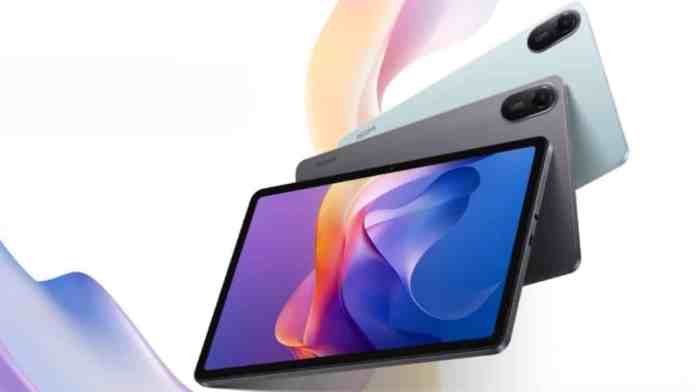
Xiaomi is making waves again in the Indian tablet market. The Redmi Pad 2 has been officially teased for launch, promising a host of upgrades over its predecessor. From a sharper display to a larger battery, this new slate aims to deliver solid value without breaking the bank. Here’s everything you need to know about the Redmi Pad 2 — including its specifications, expected price, and availability in India.

Redmi Pad 2 India Launch: Date and Availability

Xiaomi has started building anticipation on social media, particularly on platform X (formerly Twitter). A banner on Flipkart also hints at something big arriving soon. According to multiple teasers, the Redmi Pad 2 is expected to launch on June 5, 2025. That date is consistent across several promotional channels.

Once launched, the tablet will be available through major online retailers. Both Flipkart and Amazon India are expected to stock the device. In addition, Xiaomi’s own official website in India will offer the tablet, and select offline retail stores may also carry it shortly after launch.

The design, as shown in teasers, is slim and modern. Bezels are kept minimal to maximize the viewing area. The tagline “Built for More” hints at enhanced performance and features. The tablet will be available in several colour options, including Blue, Grey, Violet, and Mint Green. Both Wi-Fi-only and 4G models are confirmed, with a possible 5G variant arriving later.

Redmi Pad 2 Specifications: Display, Processor, and Battery

Stunning 2.5K Display with 90Hz Refresh Rate

The Redmi Pad 2 features an 11-inch display with a 2.5K resolution (1600×2500 pixels). This is a significant upgrade from the original model. The screen supports a 90Hz refresh rate, ensuring smooth scrolling and fluid animations. Peak brightness reaches up to 600 nits, making it usable even in bright indoor lighting.

MediaTek Helio G100 Ultra Chipset

Under the hood, the tablet is powered by the MediaTek Helio G100 Ultra processor. This chip is a step up from the previous generation and is well-suited for everyday tasks like streaming videos, playing casual games, and browsing the web. It also handles online classes and video calls without lag.

RAM and Storage Options

Xiaomi plans to offer two RAM variants in India. The base model comes with 4GB of RAM and 128GB of internal storage. For those who need more power, there is an 8GB RAM variant paired with 256GB of storage. This gives users flexibility depending on their usage habits.

Massive 9,000mAh Battery with Fast Charging

One of the standout features is the 9,000mAh battery. This large capacity ensures all-day usage on a single charge. The tablet supports 18W fast charging, so you can quickly top it up when needed. Whether you’re watching movies or attending meetings, the battery life is designed to keep up.

Audio and Camera Features

The Redmi Pad 2 includes quad speakers tuned with Dolby Atmos support. This delivers immersive sound for movies, music, and games. A 3.5mm headphone jack is also present for wired audio. The USB Type-C port handles both charging and data transfer.

For photography and video calls, the tablet sports an 8MP rear camera with an f/2.0 aperture and AI enhancements. The front-facing camera is 5MP, which is adequate for video conferencing and selfies. While not a photography powerhouse, the cameras are functional for daily use.

Redmi Pad 2 Price in India and Expected Cost

Pricing is a crucial factor for budget-conscious buyers. Based on European pricing, the 4GB + 128GB Wi-Fi model is expected to cost around EUR 229, which translates to roughly ₹22,000 in India. The 8GB + 256GB Wi-Fi variant is priced at EUR 279, or about ₹26,000.

A special 4G version with 8GB RAM and 256GB storage is also anticipated. That model is priced at EUR 299, approximately ₹29,000. However, final Indian prices may be slightly lower due to local taxes and competition.

What Makes the Redmi Pad 2 a Good Buy?

The Redmi Pad 2 arrives in India with a strong combination of display quality, battery life, and audio performance. It is an ideal choice for students who need a device for online learning, as well as entertainment lovers who enjoy streaming content. The inclusion of a 90Hz screen and quad speakers at this price point is impressive.

Compared to other budget Android tablets, the Redmi Pad 2 offers a well-rounded package. If you are looking for a reliable tablet for daily use without spending a fortune, this could be the perfect option in 2025. For more updates, check out our guide on best budget tablets in India 2025 or explore Xiaomi tablets compared.

Stay tuned for the official launch on June 5. Redmi fans and new buyers alike have plenty to look forward to.

Continue Reading
Click to comment

Leave a Reply

Your email address will not be published. Required fields are marked *

How To

How to Download Music from YouTube Easily in 2025: Legal, Safe, and Fast Methods

Published

on

How to Download Music from YouTube Easily in 2025

YouTube remains the world’s largest music streaming platform, but not everyone has constant internet access. Whether you’re commuting, traveling, or simply want to save data, learning how to download music from YouTube is a practical skill. In 2025, several options exist—from official subscriptions to free desktop tools and browser-based converters. This guide breaks down the safest, most efficient methods available today.

Why You Might Want to Download Music from YouTube

Listening to songs offline offers clear advantages. You avoid buffering issues, save mobile data, and enjoy uninterrupted playback. Many users also want to create personal playlists without relying on a live connection. However, not all download methods are equal in terms of legality, safety, or convenience.

The Official Route: YouTube Music Premium

The most straightforward way to download music from YouTube is through YouTube Music Premium. This paid subscription costs roughly $9.99 per month and grants legal offline access to millions of songs. It works seamlessly on Android, iOS, and the web.

To get started, install the YouTube Music app, search for your desired track, and tap the download arrow icon. For entire playlists, use the three-dot menu and select “Download.” All saved content remains within the app—you cannot transfer files to another folder. This limitation is intentional to prevent copyright infringement.

Benefits include ad-free listening, high-quality audio, and reliable offline playback. On the downside, you must maintain an active subscription. If you cancel, downloaded songs become inaccessible.

Desktop Tools for Flexible Downloads

For users who want more control over file formats and storage locations, dedicated software offers a solid alternative. Two popular choices are 4K Video Downloader and MediaHuman YouTube Downloader. Both are free, support Windows, macOS, and Linux, and allow you to extract audio from YouTube videos.

Using 4K Video Downloader

This tool is widely trusted for its simplicity. After downloading the software from the official website, copy a YouTube video URL and paste it into the application. Select “Extract Audio” and choose your preferred format—MP3 or M4A. You can also adjust the audio quality before clicking “Extract.” The process is fast and outputs files you can store anywhere on your computer.

Key features include batch downloading, no intrusive ads, and support for high-bitrate audio. However, always download from the official source to avoid malware. Use antivirus protection as an extra precaution.

MediaHuman YouTube Downloader

MediaHuman offers a similarly clean experience. Install the app, paste a YouTube link, click the music icon to switch to audio mode, and hit the download button. It supports MP3, M4A, and other common formats. The interface is intuitive, making it ideal for beginners.

Both desktop tools are best suited for personal use. Avoid downloading copyrighted material without permission. Stick to Creative Commons or royalty-free content to stay within legal boundaries.

Online Converters: Quick but Risky

If you prefer not to install software, online converters provide a browser-based solution. Websites like dirpy.com, loader.to, and x2download.com let you convert YouTube videos to audio files instantly. Simply copy the video URL, paste it into the converter, select MP3 or M4A, and click “Download.” The process takes seconds.

These platforms work on any device, including smartphones and tablets. No installation is required, which is convenient. Nevertheless, online converters come with significant risks. Many display aggressive ads, pop-ups, or even malware. Some sites have been known to track user activity or inject harmful scripts.

To stay safe, use a trusted antivirus program and avoid clicking on suspicious banners. Stick to well-known converter sites and consider using an ad blocker. Even then, be aware that these services may disappear or change their policies without notice.

Legal and Safety Considerations

Before you download music from YouTube, understand the legal landscape. Downloading copyrighted songs without permission violates YouTube’s terms of service and copyright law. This could lead to account suspension or legal action in extreme cases. Always check if a video is under a Creative Commons license or explicitly marked for free use.

Safety is equally important. Untrusted software or websites can compromise your device. Stick to official sources like YouTube Music Premium or reputable desktop applications. Keep your operating system and antivirus software up to date. If a tool seems too good to be true, it probably is.

Which Method Should You Choose?

Your choice depends on your priorities. If convenience and legality matter most, YouTube Music Premium is the clear winner. It costs money but eliminates all risks. For desktop users who want free, flexible downloads, 4K Video Downloader or MediaHuman are excellent options. Online converters work in a pinch but require caution.

Ultimately, the best method is the one that aligns with your needs and respects copyright. By following the guidelines in this article, you can enjoy your favorite music offline without compromising your security or ethics.

For more tips on digital tools and online safety, check out our guides on staying safe online and best music streaming apps.

Continue Reading

How To

How to Download Books to a Kindle Fire in 2025: A Complete Guide

Published

on

How to Download Books to a Kindle Fire in 2025: A Complete Guide

Reading every day is a fantastic habit, but purchasing books can quickly drain your wallet. Fortunately, you can download books to a Kindle Fire without spending a fortune. With a few straightforward techniques, you can fill your digital library with both new releases and timeless classics. This guide walks you through every reliable method available in 2025.

Using the Amazon Store Directly on Your Kindle Fire

The most straightforward way to get content is through the built-in Amazon Store. It comes pre-installed on every Kindle Fire, offering millions of titles, many of which are free.

Step-by-Step: Buying or Borrowing from Amazon

First, turn on your device and connect to a Wi-Fi network. From the Home screen, tap the Books tab at the top. Next, select the Store option to browse the catalogue. You can search for a specific author or browse categories like “Top 100 Free.”

When you find a promising title, tap the cover to open its details page. Here, you will see the price, user ratings, and a brief description. Many books offer a “Try a Sample” feature, letting you read the first chapter for free. If you are an Amazon Prime member, look for the “Borrow for Free” badge. To complete the purchase or borrow, simply tap Buy or Borrow. The file will begin downloading instantly.

To start reading, return to the Books tab on your Home screen. Tap the cover of your newly acquired book, and it will open immediately. This method is undeniably the simplest way to download books to a Kindle Fire.

Downloading Books via Your Computer or Laptop

Another reliable approach involves using a computer. This method is particularly useful if you prefer browsing on a larger screen.

How to Send Books from a Web Browser

Open your preferred web browser and go to Amazon.com. Sign in with your Amazon credentials. Use the search bar at the top to look for Kindle books, or click on the Kindle tab to explore genres like fiction, non-fiction, or bestsellers.

Once you select a book, click on it to see the price, customer reviews, and a summary. Before clicking the orange Buy button, ensure your Kindle Fire is selected in the “Deliver to” dropdown menu. After the purchase, the book is sent directly to your Amazon cloud library.

On your Kindle Fire, connect to the internet and open the Books tab. Pull down to refresh your library, and the new title will appear. Tap it to start the download. This computer-based workflow is ideal for those who manage their digital library from a desktop.

Borrowing Free eBooks with the Libby App

For readers who want to access thousands of titles without paying a cent, the Libby app is a game-changer. It connects directly to your local library’s digital collection.

Setting Up Libby on Your Kindle Fire

First, you need a library card. Visit your local library in person or check if they offer online registration. Once you have your card number and PIN, download the Libby app from the Amazon Appstore on your Kindle Fire. Open the app and follow the on-screen prompts to add your library card.

After linking your account, tap the library icon to browse the collection. You can search by author, title, or genre. When you find a book you want, tap Borrow. If it is currently checked out, tap Place Hold and wait for an email notification.

To read the borrowed book on your Kindle, tap Read With Kindle. This will open Amazon’s website in your browser. Confirm the delivery by clicking Get Library Book. Finally, open the Books tab on your Kindle Fire and refresh the page. The book will appear, ready to read. Most titles are returned automatically after the due date, so you never have to worry about late fees.

Alternative Sources for Free Kindle Books

Beyond Amazon and Libby, several other platforms provide free content legally.

Amazon’s Top 100 Free List

Amazon updates a daily list of free bestsellers. Navigate to the Kindle Store and search for “Top 100 Free.” Authors often offer the first book in a series for free to attract readers. Be aware that some free books end on a cliffhanger, encouraging you to purchase the next volume.

Public Domain Websites

Books with expired copyrights are in the public domain. Websites like Project Gutenberg and ManyBooks offer thousands of classics by authors like Jane Austen and Mark Twain. You can download these in Kindle Fire PDF or MOBI format. After downloading, transfer the file to your device using a USB cable or the Send to Kindle email feature.

Email Alert Services

Platforms such as BookBub and Free Booksy send daily newsletters featuring discounted and free Kindle books. Sign up, select your favourite genres, and receive curated lists directly in your inbox. This saves you time searching manually.

Sending Personal PDFs to Your Kindle Fire

If you have documents, notes, or eBooks in PDF format, you can easily transfer them. Connect your Kindle Fire to a computer using a USB cable. Unlock the screen, and your device will appear as a drive on your PC. Drag and drop the PDF files into the Documents folder. After safely ejecting the device, tap the Docs tab on your Kindle Fire to find your files. This method is perfect for personal use or sharing reading material.

Building on these methods, you now have a complete toolkit to download books to a Kindle Fire in 2025. Whether you prefer the Amazon Store, library apps, or public domain archives, each approach is safe, legal, and budget-friendly. Start exploring today and enjoy unlimited reading without breaking the bank.

Continue Reading

How To

How to Play Fortnite on iPhone and iPad in 2025: A Complete Step-by-Step Guide

Published

on

How to Play Fortnite on iPhone and iPad in 2025: A Complete Step-by-Step Guide

For millions of mobile gamers, the question of how to play Fortnite on iPhone has lingered since 2020. After a bitter legal clash between Apple and Epic Games, the battle royale giant vanished from the App Store. Now, in 2025, the landscape is shifting. New court rulings and regional regulations are opening doors again. This guide covers every reliable method to get back into the game today—whether you’re in the U.S., the EU, or beyond.

Fortnite’s Long Road Back to iOS Devices

Fortnite was once a staple on iPhones and iPads, offering seamless cross-platform play with friends on consoles and PCs. That changed abruptly in 2020. Epic Games attempted to bypass Apple’s 30% commission on in-app purchases, sparking a legal firestorm. Apple removed Fortnite from its store, and for nearly five years, direct installation was impossible.

However, a landmark court ruling in April 2025 turned the tide. The court decided that Apple cannot impose extra fees on payments made outside its App Store. It also cannot block developers from including external payment links. Following this, Epic Games CEO Tim Sweeney announced that Fortnite would return to the U.S. App Store between May 4 and May 10. He also stated that if Apple applies this framework globally, Epic will relaunch worldwide and drop all lawsuits.

Until that official release rolls out, players can still enjoy Fortnite through safe, legal alternatives. Cloud gaming services and region-specific installations are the most effective paths.

How to Play Fortnite on iPhone Using Cloud Gaming Services

Cloud gaming is the simplest way to play Fortnite on iPhone without waiting for the App Store return. These services stream the game directly to your device, requiring no download. They work well on both iPhones and iPads, provided you have a stable internet connection.

1. Xbox Cloud Gaming (XCloud)

Xbox Cloud Gaming is one of the most accessible options. It runs entirely through Safari, so there’s no app to install. Best of all, it’s free.

To get started, create a Microsoft or Xbox account if you don’t already have one. Then, visit the official Fortnite page on XCloud using your iPhone browser. Tap Play, and if prompted, select Continue Anyway if you lack a controller. The game launches instantly. XCloud works on older iPhones too, as long as your internet speed is solid. It’s a fast, no-hassle solution for quick matches.

2. Amazon Luna

Amazon Luna is another excellent choice for Fortnite on iPad and iPhone. It requires only an Amazon Prime account, and you can start with a free trial.

Open the Fortnite page on the Amazon Luna website. Tap Play Free with Prime, sign in with your Amazon account, and link your Epic Games account. Then, tap Start to begin playing. Luna delivers smooth graphics with minimal lag, especially on a strong Wi-Fi connection. This makes it ideal for players who want a console-like experience on their mobile device.

3. Nvidia GeForce Now

Nvidia GeForce Now offers both free and premium tiers. The free plan provides one-hour gaming sessions, which is perfect for quick rounds. For longer playtime and better performance, you can upgrade to a paid plan.

To use it, visit the official Fortnite page on GeForce Now via Safari. Log in with your Nvidia account, tap Play, and wait for the stream to load. GeForce Now is particularly good for players who want flexibility—you can jump in for a short session or commit to a longer one with the premium option.

Installing Fortnite Directly on iPhone and iPad: EU and Beyond

For those who prefer a native installation, the process depends on your location. European Union users now have a direct path thanks to new digital regulations. Players outside the EU can use a workaround until the global rollout.

For EU Users: Install via the Epic Games Store

If you’re in the European Union, you can download Fortnite on iPhone directly from the Epic Games Store. First, ensure your iOS device is updated to version 17.4 or higher. Check this by going to Settings > General > Software Update. Install any available updates.

Next, visit the official Epic Games Store website on your iPhone. Tap Install iOS and follow the on-screen instructions. If you see a warning about blocked installations, go to Settings > Privacy & Security > Allow App Installations for Epic Games. Then, return to the Epic Games Store and finish the installation. Fortnite will appear on your home screen, ready to play. This method is safe, official, and approved for EU residents.

For Non-EU Users: A Regional Workaround

Players outside the EU still face restrictions, but there is a working method. It involves a few settings changes and a new Apple ID.

Start by setting up a proxy server on your Wi-Fi router to mask your location. Then, create a new Apple ID registered with an EU country address. Install the iOS 18 beta version for better compatibility. Sign in with your new Apple ID, open the App Store, and search for Fortnite. Download and install it directly.

This method works especially well on iPads without SIM cards, as they don’t share location data easily. Once installation is complete, switch back to your original Apple ID. Remember, this is a temporary fix until Epic Games releases Fortnite globally.

Preparing Your Device for the Best Fortnite Experience

Before diving into a match, take a few steps to optimize your device. Simple adjustments can dramatically improve performance.

  • Update iOS regularly: Keeping your system current ensures smoother gameplay and fewer crashes.
  • Use a strong internet connection: A stable Wi-Fi network is essential for lag-free cloud gaming.
  • Link your Epic Games account: This saves your progress and unlocks cross-platform play.
  • Use a Bluetooth controller: A controller provides better control and aiming than touchscreens.
  • Avoid fake apps: Only use official links from Epic Games, Xbox, Amazon, or Nvidia.

Following these tips guarantees a safer and more enjoyable experience.

What’s Next for Fortnite on iOS?

The return of Fortnite to the App Store is imminent. According to Epic’s CEO, the game will land in the U.S. between May 4 and May 10. Once Apple expands its new policy worldwide, Epic plans to bring Fortnite to every region. This means that soon, you won’t need cloud gaming or workarounds. You’ll simply download it from the App Store like before.

Epic has confirmed that once this happens, it will end all legal cases against Apple. For players, this is the end of a long wait. The Fortnite on iPad and iPhone experience is finally making a full comeback.

In the meantime, cloud services like Xbox Cloud Gaming and Amazon Luna offer reliable alternatives. For those seeking a direct install, the Epic Games Store works for EU users, while the proxy method helps others. No matter your region, you can play Fortnite on iPhone right now.

For more tips on mobile gaming, check out our guide on using Discord’s in-game overlay or explore the best controllers for iPhone gaming.

Continue Reading

Trending