Connect with us

How To

Revamp Your Phone: Enjoy the Colorful Custom Floating Bar App for Android Devices

Published

on

Revamp Your Phone: Enjoy the Colorful Custom Floating Bar App for Android Devices

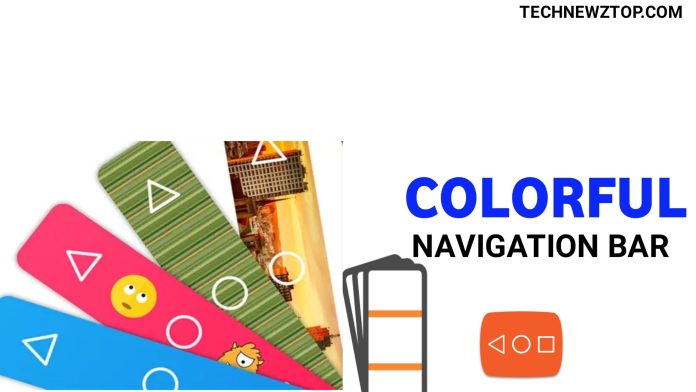
Are you tired of the same old, boring navigation bar on your Android phone? Do you want to add a splash of color and personality to your device? If so, you are in the right place. The Colorful Custom Floating Bar App offers a simple yet powerful way to transform your phone’s interface. This lightweight application lets you replace the standard navigation bar with a vibrant, customizable floating bar. It is a free tool that can give your Android device a fresh, modern look without any complicated setup.

What Makes the Colorful Custom Floating Bar App Stand Out?

This app is designed for users who crave personalization. Instead of sticking with the default navigation buttons, you can choose from a wide range of colors and styles. The floating bar sits on your screen, providing quick access to essential functions like back, home, and recent apps. It is incredibly lightweight, taking up very little storage space. In fact, over 50,000 people have already downloaded it from the Google Play Store. This popularity speaks to its reliability and ease of use.

A Lightweight and Free Solution

One of the best features of this app is its size. It is a very small application, so downloading it won’t eat up your mobile data or storage. You can grab it directly from the Google Play Store or use a direct download link. The setup process is straightforward, requiring only a few permissions. Once installed, you can start customizing immediately. This makes it an ideal choice for anyone who wants a quick UI upgrade without the hassle of rooting their phone or installing heavy software.

How to Use the Colorful Custom Navigation Bar

Using this app is remarkably simple. First, download and install the Colorful Custom Floating Bar App on your Android device. After opening it, you will need to grant a few permissions, such as overlay permission, which allows the floating bar to appear over other apps. The app then guides you through the setup. You can choose your preferred colors, adjust the bar’s transparency, and decide which buttons to display. The entire process takes just a couple of minutes. If you encounter any issues, you can leave a comment below, and the community or developer will help you out.

Why You Should Download This App Today

If you are looking for a free and fun way to customize your phone, this app is a must-try. It is perfect for users who are bored with the standard Android interface. The floating bar can be placed anywhere on the screen, giving you easy one-handed access to controls. Moreover, it does not drain your battery or slow down your device. For a more detailed walkthrough, you can watch the video tutorial provided below. Check out more Android app reviews for similar tools.

Download and Installation Guide

To download the app, simply click the link below. The installation is standard for any Android app. After downloading, open the APK file and follow the on-screen instructions. Remember to enable “Install from Unknown Sources” if you are downloading from outside the Play Store. Once installed, open the app and grant the necessary permissions. You will then be able to customize your navigation bar immediately. Learn more about Android customization tips to get the most out of your device.

Final Thoughts on the Colorful Floating Bar App

In conclusion, the Colorful Custom Floating Bar App is an excellent choice for anyone wanting to personalize their Android experience. It is free, easy to use, and offers a great way to make your phone stand out. Do not miss out on this opportunity to refresh your device’s look. Share this article with your friends on WhatsApp and Facebook if you found it helpful. For any questions, feel free to ask in the comments section below. Enjoy your new, colorful navigation!

Continue Reading
Click to comment

Leave a Reply

Your email address will not be published. Required fields are marked *

How To

Discover the Best Quick Settings Apps & Shortcuts Android Apps!

Published

on

Discover the Best Quick Settings Apps & Shortcuts Android Apps!

Are you tired of endlessly scrolling through your Android phone to find the apps you use most? Do you wish there was a faster way to access your favorite tools without digging through menus? Quick settings apps are the answer, and today we’re diving into one of the most powerful options available: Tile Shortcut – Quick Setting. This app transforms how you interact with your device, putting shortcuts right where you need them.

What Makes Quick Settings Apps Essential for Android Users?

Android’s notification shade is already a powerful tool, but quick settings apps take it to the next level. Instead of just toggling Wi-Fi or Bluetooth, you can launch any app, open a website, or trigger a specific action directly from the pull-down menu. This means less tapping, less searching, and more time doing what matters.

Furthermore, these apps help declutter your home screen. Instead of filling your launcher with dozens of icons, you can stash your most-used shortcuts in the quick settings panel. It’s like having a second, more efficient home screen that’s always just a swipe away.

Tile Shortcut – Quick Setting: A Deep Dive into Features

Tile Shortcut is more than just a simple launcher; it’s a comprehensive tool for Android shortcuts. The app lets you create custom tiles that can perform a wide range of actions. Here are the core features that make it stand out:

App Shortcuts and Web Links

You can add shortcuts to any app installed on your phone. But that’s just the beginning. The app also supports website shortcuts, so you can open your favorite pages—like Google Drive or a news site—with a single tap. This is incredibly useful for power users who rely on web-based tools.

Intents and Activities

For advanced users, Tile Shortcut allows you to create tiles that trigger specific intents or activities. For example, you can create a tile that directly opens the camera in video mode, or one that launches a specific settings page. This level of control is usually reserved for rooted devices, but Tile Shortcut makes it accessible to everyone.

Shortcut Folders and Customization

Another standout feature is the ability to create shortcut folders. You can group related shortcuts together, like all your social media apps or work tools, and access them from a single tile. Additionally, you can choose your own icons, ensuring that every tile is easily recognizable and fits your personal style.

How to Install and Use Quick Settings Apps Like Tile Shortcut

Getting started with Tile Shortcut is straightforward. Follow these steps to transform your Android experience:

  1. Download the app: Click the link below to install Tile Shortcut from the Google Play Store.
  2. Grant permissions: The app will ask for permission to write settings and access notifications. Accept these to enable full functionality.
  3. Create your first tile: Open the app, tap the ‘+’ button, and choose the type of shortcut you want. Select an app, website, or activity.
  4. Customize the icon and label: Pick an icon that matches your style and give your tile a name.
  5. Add to quick settings: Once created, the tile will appear in your notification shade. You can rearrange it just like any other quick settings tile.

Building on this, you can create multiple tiles and organize them into folders for maximum efficiency. The app is free to download, and there are no hidden costs for basic features.

For more tips on optimizing your Android device, check out our guide on Android productivity hacks.

Why Choose Tile Shortcut Over Other Quick Settings Apps?

There are many quick settings apps on the Play Store, but Tile Shortcut stands out for its balance of simplicity and power. Unlike some alternatives that are cluttered with ads or require root access, this app offers a clean interface and robust features without compromising performance.

In addition, the app’s support for intents and activities gives it an edge for tech-savvy users. Whether you’re a developer testing app components or a power user looking to streamline your workflow, Tile Shortcut provides the flexibility you need.

If you’re interested in other tools to boost your phone’s speed, read our review of best performance apps.

Final Thoughts: Is Tile Shortcut Worth It?

Absolutely. If you value efficiency and want to make the most of your Android device, quick settings apps like Tile Shortcut are a must-try. They save time, reduce clutter, and give you instant access to the tools you use daily. The app is especially useful for people who multitask heavily or use their phone for work.

However, remember that with great power comes great responsibility. While the app is designed for legitimate use, always download from trusted sources and avoid misusing any features. As with any tool, use it ethically to enhance your experience, not to bypass security measures.

For more app recommendations and Android tips, explore our collection of useful Android apps.

Continue Reading

How To

How to Use a Password Fingerprint Stylish Lock Screen to Prank Friends

Published

on

How to Use a Password Fingerprint Stylish Lock Screen to Prank Friends

Are you bored with the same old lock screen on your Android phone? Looking for a way to have some fun with your friends while also keeping your device secure? The fake fingerprint lock screen app might be exactly what you need. This clever tool mimics a real fingerprint scanner, letting you pull off hilarious pranks without any actual biometric hardware.

But it is not just about jokes. This fingerprint prank app also offers real privacy protection. In this guide, we will explore everything you need to know about the password fingerprint lock app: its features, how to download it, and how to use it to both entertain and safeguard your phone.

What Is a Fake Fingerprint Lock Screen App?

This is not a real fingerprint scanner. Instead, it is a simulation app that displays a stylish fingerprint interface on your screen. When someone tries to unlock your phone, they see a fingerprint icon, but the app uses a password or pattern behind the scenes. This makes it perfect for pranking friends who think they can unlock your device with their finger.

Building on this, the app doubles as a privacy tool. You can set a timing lock or a password lock to keep curious eyes away from your personal data. It is a dual-purpose tool that blends fun with functionality.

Key Features of the Fingerprint Stylish Lock Screen

Privacy Protection Made Fun

One of the standout features is how it protects your privacy. By installing this app, you can hide your apps, photos, and messages behind a fake fingerprint screen. Friends will think they need your fingerprint to access anything, but you control the real password.

Prank Your Friends Effortlessly

This app is designed for entertainment. Hand your phone to a friend and watch them try to unlock it with their finger. The fake fingerprint display will fool them every time. It is a harmless prank that never gets old.

Timing Lock and Password Lock

You can also set a timing lock that activates after a certain period. Or, use a traditional password lock for added security. These features make the app more than just a joke—it is a practical tool for day-to-day use.

Free and Easy to Use

The app is free to download and straightforward to set up. No complicated steps are required. Just install it, choose your settings, and start pranking.

How to Download the Fingerprint Stylish Lock App

Ready to try it? Downloading the app is simple. Click the link below to get the stylish lock screen app on your Android device. Once installed, you can customize the lock screen appearance and set your preferred unlocking method.

For more fun Android apps, check out our guide on Voice Lock Apps for Android or explore Transparent Wallpaper Apps to customize your phone further.

Install the app now and start enjoying the reactions from your friends.

Tips for Using the Fake Fingerprint Lock Screen

To get the most out of this app, follow these simple tips:

  • Set a strong password: Even though it is a prank, ensure your real password is secure.
  • Customize the lock screen: Choose a stylish fingerprint design that looks convincing.
  • Test it on friends: Hand them your phone and watch their confusion when their finger does not work.
  • Use the timing lock: Set it to activate after 30 seconds for an extra layer of fun.

However, remember that this app is meant for entertainment. Do not use it to trick people into revealing sensitive information. Keep it light-hearted.

Final Thoughts: Is This App Worth It?

In short, yes. The fake fingerprint lock screen app is a fantastic way to add some humor to your daily routine while also protecting your privacy. It is free, easy to use, and offers multiple features that make it stand out from ordinary lock screens.

If you enjoyed this article, share it with your friends on social media. For more app reviews and tech tips, visit our Android Apps section. Have you tried this app? Let us know in the comments below.

Disclaimer: This app is mentioned for entertainment purposes only. It is not intended to harm or deceive anyone. Use it responsibly.

Continue Reading

How To

WhatsApp Instant Video Messages: Complete Guide to the New Toggle Feature and How It Works

Published

on

WhatsApp Instant Video Messages: Complete Guide to the New Toggle Feature and How It Works

WhatsApp, the widely-used real-time messaging platform, continues to refine its user experience with a fresh update centered on WhatsApp instant video messages. This feature, initially rolled out in beta, is now gaining a new toggle switch that gives users more control over how they communicate. Instead of being forced into video mode, you can now decide when to record a quick clip or stick to a traditional voice note. Let’s explore what this update means for everyday messaging.

What Are WhatsApp Instant Video Messages?

Instant video messages allow you to record and send a short video clip—up to 60 seconds—directly from the chat interface. Unlike a standard video recording, this feature is designed for quick, spontaneous sharing, similar to how you would send a voice note. The video captures both audio and visual context, making conversations more expressive.

According to a report from WABetaInfo, the feature was initially enabled by default on both Android (version 2.23.18.21) and iOS (version 23.18.1.70). However, user feedback prompted WhatsApp to introduce a toggle, allowing individuals to enable or disable the instant video option as they see fit.

New Toggle Control in Chat Settings

The most significant change in this update is the addition of a dedicated toggle switch within the chat settings. Previously, the microphone icon automatically switched to video mode when tapped. Now, with the toggle, you have full authority over this behavior.

How to Enable or Disable the Video Message Toggle

To access this control, navigate to your WhatsApp chat settings. Look for the option labeled “Instant Video Messages.” By flipping this toggle, you can:

  • Enable the feature to keep the video recording option active. This allows you to switch between audio and video messages with a simple tap.
  • Disable the feature to remove the video recording option entirely, reverting the microphone icon solely to voice notes.

This flexibility ensures that users who prefer voice notes are not accidentally recording video, while those who enjoy visual messaging can keep the feature front and center. For more tips on customizing your messaging experience, check out our guide on WhatsApp Multi-Account Feature with New Interface for App Settings.

Enhanced User Experience for Voice Note Enthusiasts

This update is particularly beneficial for users who rely heavily on voice notes. By disabling the video message toggle, you eliminate the risk of inadvertently sending a video when you intended to send audio. This streamlines the communication process and reduces frustration.

On the other hand, for those who enjoy the richness of video, the feature remains easily accessible. You can record a 60-second clip by tapping the microphone icon, which now doubles as a video recorder when the toggle is enabled. This dual functionality makes WhatsApp more versatile without cluttering the interface.

Beta Testing and Future Availability

As of now, the toggle control for WhatsApp instant video messages is in beta testing. Android users with version 2.23.18.21 and iOS users with version 23.18.1.70 can try it out. The stable release is expected in the coming weeks, after WhatsApp collects feedback from beta testers.

Building on this, the company is likely to refine the feature based on user behavior. If you haven’t received the update yet, ensure your WhatsApp Messenger app is up to date from the Google Play Store or Apple App Store. For more on WhatsApp’s ongoing innovations, read about the 5 Best Features of WhatsApp That You Need to Know.

Why This Matters for Everyday Users

WhatsApp’s commitment to improving user experience is evident in this incremental update. By giving users more control over how they send messages, the platform acknowledges that one size does not fit all. Some people prefer the speed of voice notes, while others want the visual context of video. The toggle bridges this gap without forcing a choice.

In addition, this update aligns with WhatsApp’s broader strategy of adding premium features while maintaining simplicity. The instant video message feature, combined with the new toggle, offers a polished experience that feels intuitive.

Final Thoughts on WhatsApp Instant Video Messages

WhatsApp instant video messages represent a thoughtful evolution of the platform’s messaging capabilities. The addition of a toggle control in chat settings empowers users to tailor their communication style. Whether you are a fan of quick video clips or prefer the classic voice note, this update ensures you can message on your own terms.

What do you think about this move from Meta-owned WhatsApp? Share your thoughts in the comments below. For more updates on WhatsApp features and other tech news, stay tuned to TechNewzTop.

Continue Reading

Trending