Connect with us

Video

Samsung Just Dropped a Terrifying New Update – All Galaxy Phones Affected!

Published

on

If you own a Samsung Galaxy phone, a new update has already landed on your device — and it might be more invasive than you think. The latest software patch, pushed out to millions of users worldwide, enables Gemini AI to access nearly every corner of your personal data unless you manually intervene. For many, this sounds like a convenience feature; for privacy-conscious users, it’s a red flag. In this article, we break down what this Samsung Galaxy update actually does, why it matters, and how you can take back control.

What Does the Samsung Galaxy Update Change?

Building on recent trends in mobile AI, Samsung has integrated Gemini AI more deeply into its One UI interface. The update, which began rolling out in early 2025, grants the AI assistant permission to read your messages, emails, calendar events, photos, and even app usage patterns. According to the video by Sakitech, the feature is enabled by default — meaning millions of Galaxy users are already sharing data without explicit consent.

This Samsung Galaxy update is not a minor tweak. It fundamentally alters how your phone handles sensitive information. For example, Gemini AI can now scan your text messages to suggest replies, analyze your photos to create albums, or monitor your calendar to offer reminders. While these capabilities sound helpful, they also raise serious questions about privacy and data security.

Why This Update Raises Privacy Concerns

However, the core issue is not the AI itself but the lack of transparency. Many users never see a clear warning about what data is being collected or how it’s used. The update’s description in the system settings is vague, and opting out requires digging into multiple menus. As a result, the average person might remain unaware that their personal information is being harvested.

In addition, Samsung’s data handling policies have faced scrutiny in the past. Critics argue that giving an AI system unrestricted access to your digital life could lead to unintended leaks or misuse. For instance, if Gemini AI learns your daily routines, it could inadvertently expose your schedule to third-party apps or services. Therefore, understanding the permissions you grant is more important than ever.

How to Disable Gemini AI Data Access on Your Galaxy Phone

Fortunately, you can revoke these permissions. Here’s a step-by-step guide to protect your privacy:

1. Open **Settings** on your Samsung Galaxy phone.
2. Scroll down and tap **Apps**.
3. Find and select **Gemini** (or **Google Assistant** if integrated).
4. Tap **Permissions**.
5. Disable access to **Microphone**, **Storage**, **Contacts**, **SMS**, and **Calendar**.
6. Alternatively, go to **Settings > Security and Privacy > Permission Manager** and review each category.

For a more thorough approach, you can also turn off the AI assistant entirely by visiting **Settings > Advanced Features > Bixby/Gemini** and toggling it off. Remember, disabling these features may limit some convenience functions, but your data remains private.

What This Means for Future Samsung Galaxy Updates

As AI becomes more integrated into smartphones, users must stay vigilant. This Samsung Galaxy update is likely a preview of what’s to come — deeper AI integration with less user control. Samsung has not announced plans to change the default-on policy, so the responsibility falls on you to manage permissions.

Nevertheless, there is a silver lining: awareness is growing. Tech influencers like Sakitech are highlighting these changes, pushing manufacturers toward better transparency. In the meantime, take a few minutes to review your settings. Your privacy is worth it.

Watch the Full Breakdown

To see a live demonstration of how this Samsung Galaxy update works and hear expert analysis, watch the full video. It walks you through every menu and explains the risks in plain English. Don’t let your phone share more than you intend — click play and take control today.

Continue Reading
Click to comment

Leave a Reply

Your email address will not be published. Required fields are marked *

Video

5 Claude AI Skills That Pay More Than a College Degree: A Roadmap to High-Income Independence

Published

on

In an era where the cost of a college degree is skyrocketing and the job market is increasingly volatile, a new path to financial freedom is emerging—one that doesn’t require a single student loan. The video “5 Claude AI Skills That Pay More Than a College Degree” by Shane Hummus offers a compelling blueprint for leveraging Anthropic’s Claude AI to build a career that can out-earn traditional professions. This isn’t just another tech tutorial; it’s a strategic guide to mastering skills that are in high demand, often overlooked, and surprisingly accessible to anyone with an internet connection.

Why Claude AI Skills Are the New Degree

Building on the premise that traditional education is no longer the only route to a high income, the video dives into why Claude AI skills are particularly valuable. Unlike generic AI tools, Claude excels at nuanced tasks like writing in a specific voice, conducting deep research, and building complex workflows. The key, as Shane emphasizes, is not just knowing how to use Claude but mastering specific, high-value applications. This shift from general AI knowledge to specialized skills is what separates those who earn a modest side income from those who replace a six-figure salary.

The 5 High-Income Claude AI Skills You Need to Master

The heart of the video outlines five distinct skills, each designed to solve a real business problem. These aren’t abstract concepts; they are practical, monetizable abilities. The first skill involves creating custom AI workflows that automate entire processes—a skill many skip because they think it’s too technical. However, Shane breaks down a simple method to build these systems from scratch. The second skill is about using Claude to write in your exact voice, a technique that content creators and marketers will find invaluable. The third skill focuses on niche discovery—using Claude to find a market only you can dominate. The fourth skill is the intelligence method: leveraging Claude for deep research that no human could match in speed or depth. Finally, the fifth skill combines all of these into a one-person operation that runs like a small agency.

How to Launch These Skills Without a Degree

One of the most practical aspects of the video is the step-by-step blueprint for launching these Claude AI skills from scratch. Shane doesn’t just list the skills; he provides a concrete plan. He advises starting with a single skill, such as the voice-writing technique, and applying it to a niche you understand. The process involves using Claude to analyze what makes your voice unique, then creating templates and prompts that consistently produce content in that style. From there, you can offer this as a service to businesses, bloggers, or even for your own content channels. The video also warns against a common mistake: trying to build a generic AI service. Instead, the focus is on specialization, which commands higher rates and less competition.

The Hidden Formula for Owning Your Niche

Perhaps the most valuable insight in the video is the hidden formula for finding a niche only you can own. Many creators and freelancers struggle with this, but Shane reveals a set of exact questions to uncover your perfect niche using Claude. This involves combining your unique experiences, interests, and skills with Claude’s ability to identify underserved markets. The result is a niche that feels authentic and has built-in demand. This approach not only makes your work more fulfilling but also significantly increases your earning potential because you are offering something no one else can replicate.

Conclusion: The Future of High-Income Skills

In conclusion, “5 Claude AI Skills That Pay More Than a College Degree” is more than a list of tips; it’s a manifesto for a new way of working. By mastering these skills, you can bypass the traditional education system and build a career that offers both financial independence and personal freedom. The video challenges the notion that you need a degree to earn a high income, showing that with the right AI skills, you can achieve even more. If you are ready to take control of your financial future, this video is your starting point. Watch it now to learn the exact techniques that can transform your relationship with AI and your income.

Continue Reading

Video

One Claude AI Prompt Made Him Six Figures a Month — Here’s the Exact Script

Published

on

Imagine waking up to a notification that your YouTube channel just earned six figures in a single month — all because of one carefully crafted prompt for Claude AI. That’s exactly what happened to Shane Hummus, a creator who cracked the code on using artificial intelligence not as a crutch, but as a force multiplier. In a recent deep-dive video, he reveals the exact prompt that transformed his channel and outlines a blueprint that any serious creator can replicate. This isn’t about churning out generic scripts or copying competitors. Instead, it’s a systematic approach to making AI sound exactly like you — and scaling your output without sacrificing authenticity.

Why Most Creators Use AI Completely Wrong

Building on this idea, Shane argues that the biggest mistake creators make is using AI to generate content from scratch without any foundation. Writing a prompt cold — without providing examples, tone guidelines, or a clear structure — almost always produces bland, robotic text that viewers can sniff out instantly. The result? Low engagement, poor watch time, and a channel that feels soulless. The alternative, he explains, is to treat AI like a junior writer who needs detailed instructions and reference material. By feeding it your best-performing scripts and defining your unique voice upfront, you can produce content that feels authentically yours — at scale.

The Master Prompt That Builds Every Other Prompt

At the heart of Shane’s method is what he calls the “master prompt” — a single, comprehensive instruction set that teaches Claude AI to mimic his voice, structure, and strategic goals. This prompt isn’t just a one-liner; it’s a multi-paragraph document that includes:
– **Voice characteristics**: Tone, sentence length, rhetorical devices, and humor style.
– **Structural rules**: How to open with a hook, transition between points, and close with a call to action.
– **Content constraints**: Topics to avoid, required keywords, and formatting preferences.

Once this master prompt is locked in, he can reuse it across dozens of scripts, ad copy, and social posts — all while maintaining consistency. The real magic, however, lies in the “voice technique” that few creators talk about: training AI on your actual spoken cadence by providing transcriptions of your best videos. This step alone can double or triple the natural feel of AI-generated content.

The Content Matrix: How One Prompt Built a Database of 350 Videos

In addition to voice cloning, Shane reveals a hidden database his master prompt secretly built over time. Every time he generates a script, the system logs the topic, structure, and performance metrics. This creates a content matrix — a living spreadsheet that organizes ideas by niche, format, and estimated virality. Using this matrix, he was able to produce 350 unique videos in a matter of hours, each tailored to a different audience segment. The key? The master prompt isn’t static; it evolves with every piece of feedback, learning what works and what doesn’t.

As a result, this system doesn’t just save time — it eliminates the guesswork from content planning. Instead of staring at a blank page, creators can pull from a pre-vetted list of high-potential topics, each with a ready-made script that already sounds like them. Shane even shares a specific Facebook ads prompt that uses the same matrix to generate high-converting copy, proving the method works across platforms.

The Deeper Secret: Beating the Experts at Their Own Game

Perhaps the most surprising insight from Shane’s video is that this approach works best for new or small channels. While established creators often rely on personal brand and loyal audiences, newcomers can use the content matrix to out-strategize competitors by producing more relevant videos faster. The prompt acts as a strategic advisor, not just a writing tool — it identifies gaps in the market, suggests angles that competitors overlook, and ensures every piece of content serves a specific outcome (views, subscribers, or revenue).

To see the exact step-by-step workflow and get the prompts Shane uses, watch the full video below. Whether you’re a seasoned YouTuber or just starting out, this one Claude AI prompt could be the difference between struggling for views and building a six-figure channel.

Continue Reading

Video

How to Fix Windows Cannot Connect to Printer Error 0x000000006 in Windows 11/10

Published

on

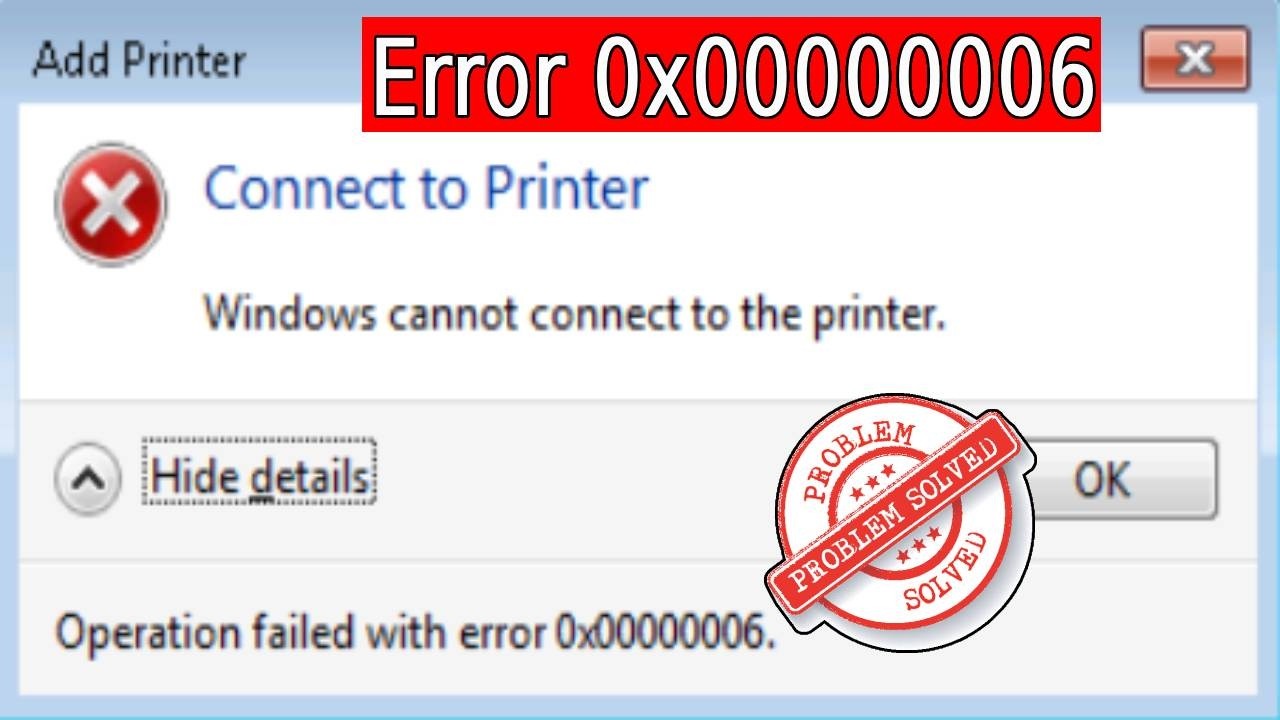
Imagine you’re about to print an important document, and suddenly Windows throws a cryptic error: “Operation failed with error 0x000000006.” It’s frustrating, especially when you’re on a deadline. This error commonly appears in Windows 11 and Windows 10 when trying to connect to a network printer. Fortunately, there’s a reliable fix—and it doesn’t require advanced IT skills.

In a detailed tutorial video, the creator walks through three proven methods to resolve this error 0x000000006. The steps range from a quick registry tweak to restarting a key system service and manually adding the printer over the network. Building on this, the video also includes a bonus tip for updating printer drivers. Let’s break down each solution so you can get back to printing without the headache.

Understanding the Error 0x000000006

The error 0x000000006 typically appears when Windows fails to communicate with a shared printer over a network. It might stem from corrupted print provider settings, a stalled Print Spooler service, or incorrect network paths. As a result, the system refuses to connect, leaving you stuck. However, the video addresses each root cause systematically.

Why Does This Error Happen?

* Corrupted Client-Side Rendering (CSR) print provider registry key.
* Print Spooler service not running or malfunctioning.
* Incorrect printer share name or network path.
* Outdated or incompatible printer drivers.

Therefore, tackling these issues in order—starting with the registry—often resolves the problem permanently.

Method 1: Registry Editor – Delete the CSR Print Provider Key

The first fix involves editing the Windows Registry. This step removes a problematic Client-Side Rendering Print Providers key that can block printer connections. The video demonstrates this clearly:

1. Press the **Windows key**, type “registry editor,” and open it.
2. Navigate to: `HKEY_LOCAL_MACHINESOFTWAREMicrosoftWindows NTCurrentVersionPrintProviders`
3. Find the key named **Client Side Rendering Print Providers**.
4. Right-click it and select **Delete**.

After deleting the key, close the Registry Editor. At this point, you can attempt to connect to the printer again. However, if the error persists, move to the next method.

**Note:** Editing the registry carries risks. Always back up the registry before making changes. The video creator recommends this as a safe step for most users.

Method 2: Restart the Print Spooler Service

The Print Spooler is the heart of Windows printing. If it’s stuck or corrupted, you’ll see error 0x000000006. Restarting it is quick and effective:

1. Press **Windows key**, search for “services,” and open the Services console.
2. Scroll down and locate **Print Spooler**.
3. Right-click it and select **Restart**.
4. Wait a few seconds for the service to restart.

In addition, you can set the service to start automatically by double-clicking it and ensuring the Startup type is **Automatic**. This prevents future interruptions. After restarting, try adding the printer again.

Method 3: Add a Local Printer Through Network

If the above steps don’t work, the video suggests manually adding the printer via the network path. This method bypasses automatic detection issues:

1. Open **Control Panel** > **Devices and Printers**.
2. Click **Add a printer**.
3. If no printer appears, select **The printer that I want isn’t listed**.
4. Choose **Add a local printer or network printer with manual settings**.
5. In the next screen, select **Create a new port** and choose **Standard TCP/IP Port**.
6. Enter the network path in the format: `\ComputerNameSharedPrinterName`.
7. Follow the prompts to install the driver and complete setup.

This approach works even when Windows fails to detect the printer automatically. As a result, you can connect directly using the exact share name.

Bonus: Update Printer Drivers

The video also mentions updating the printer driver as a preventive measure. Outdated drivers can cause error 0x000000006. To update:

1. Go to **Device Manager**.
2. Expand **Print queues**.
3. Right-click your printer and select **Update driver**.
4. Choose **Search automatically for drivers**.

If Windows doesn’t find a new driver, visit the printer manufacturer’s website for the latest version.

Final Thoughts

Error 0x000000006 can be a showstopper, but it’s not insurmountable. By following the registry fix, restarting the Print Spooler, and manually adding the printer, you can restore connectivity in minutes. The video tutorial provides a step-by-step visual guide that makes the process even easier. For best results, try the methods in order—they’re designed to address the most common causes first.

If you’re still facing issues after these steps, consider checking your network permissions or firewall settings. However, for most users, these three fixes will resolve the error 0x000000006 quickly.

Watch the full video below to see each step in action, including timestamps for quick navigation. Don’t forget to like, comment, and subscribe if it helps you out!

Continue Reading

Trending