Connect with us

How To

WhatsApp End-to-End Encrypted Backup: Complete Setup Guide for Android & iOS

Published

on

WhatsApp End-to-End Encrypted Backup: Complete Setup Guide for Android & iOS

Think about what’s in your WhatsApp chats. Private conversations, family photos, sensitive documents. Now imagine all that data sitting in your cloud backup, completely unprotected. That’s the reality for millions who haven’t enabled one crucial setting.

The Critical Gap in WhatsApp’s Security

WhatsApp’s standard end-to-end encryption is excellent. It scrambles your messages so only you and the recipient can read them during transmission. But here’s the catch everyone misses.

When your chats back up to Google Drive or iCloud, that protection vanishes. Your backup files sit there in readable form. If someone accesses your cloud account, they get your entire chat history. No encryption. No protection.

Why does this matter? Cloud breaches happen regularly. Weak passwords get cracked. Phishing attacks succeed. Your WhatsApp backup could be the weakest link in your digital security chain.

What End-to-End Encrypted Backup Actually Does

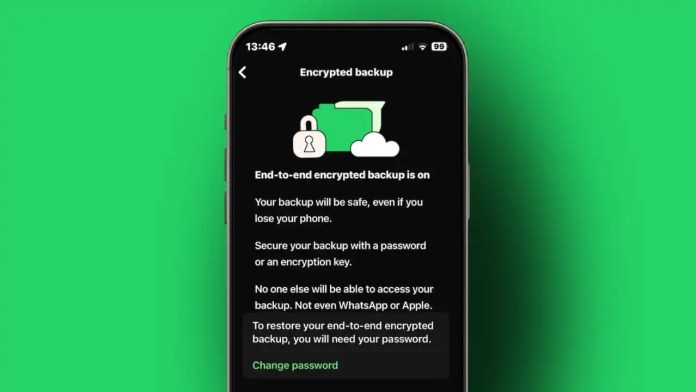
This feature creates a digital vault for your backup. Before anything leaves your phone, WhatsApp encrypts everything using a key only you control. The encrypted data then uploads to the cloud.

Neither Google nor Apple can read it. WhatsApp’s servers can’t access it. Even if someone steals the backup file, it’s just scrambled nonsense without your unique password.

The system generates a complex encryption key on your device. You protect that key with a password you create. Lose the password? The backup becomes permanently inaccessible. That’s how serious this protection is.

Enabling Encrypted Backup on Android

Let’s get practical. The process takes two minutes but protects years of conversations.

Open WhatsApp and tap the three dots in the top-right corner. Select Settings, then Chats. Tap Chat Backup. You’ll see “End-to-end encrypted backup” as an option.

Tap “Turn On.” WhatsApp will prompt you to create a password. This isn’t your WhatsApp PIN or phone password—it’s a brand new password specifically for your backup encryption.

Choosing Your Backup Password

This password is non-negotiable. Use at least eight characters mixing uppercase, lowercase, numbers, and symbols. Avoid birthdays, pet names, or common phrases.

Write it down somewhere physically secure. Store it in a password manager. Do not save it in your phone’s notes or email it to yourself. WhatsApp cannot recover this password if you forget it.

After setting your password, WhatsApp will encrypt your existing backup and all future backups automatically. The process might take a while depending on your chat history size.

Setting Up Encrypted Backup on iPhone

iPhone users follow a similar path with slight interface differences.

Open WhatsApp and tap Settings at the bottom-right. Select Chats, then Chat Backup. Look for “End-to-end Encrypted Backup” and tap it.

Tap “Turn On” and create your secure password. Confirm it when prompted. Your iPhone will now encrypt your iCloud backup.

Extra iPhone Security Measures

While you’re securing WhatsApp, enable two-factor authentication for your Apple ID. This adds another layer protecting your iCloud account itself.

Keep your iPhone updated. Apple regularly patches security vulnerabilities in iOS updates. Use Face ID or Touch ID for device unlocking—it’s more secure than simple passcodes.

Verifying Your Backup Is Protected

How do you know it worked? Return to Settings > Chats > Chat Backup. You should see “End-to-end encrypted backup: On” with the date of your last encrypted backup.

If you see “Off” instead, the feature isn’t active. Your backup remains vulnerable in cloud storage.

Another telltale sign? Unencrypted backups restore almost instantly during WhatsApp setup. Encrypted backups take longer because your device must decrypt the data first.

The Password Recovery Reality

This bears repeating because people underestimate it. WhatsApp cannot reset your encrypted backup password. There’s no “Forgot password” link. No customer support recovery option.

Forget your password? Your backup becomes digital concrete. Permanently locked. Irretrievable.

This absolute control is the feature’s greatest strength and biggest responsibility. You become the sole guardian of your chat history.

Beyond Backup: Daily WhatsApp Security Habits

Encrypted backup is crucial, but it’s not everything. Practice these habits for comprehensive protection.

Update WhatsApp regularly. Security patches matter. Enable two-step verification in WhatsApp Settings > Account. This requires a PIN when registering your number on a new device.

Be skeptical of links, even from contacts. Scammers often hijack accounts to spread malware. Don’t share verification codes with anyone—WhatsApp will never ask for them.

Regularly review linked devices in Settings > Linked Devices. Remove any you don’t recognize. Log out of WhatsApp Web sessions you’re no longer using.

Why This Feature Changes Everything

End-to-end encrypted backup completes WhatsApp’s security circle. Your messages stay protected in transit, at rest on your device, and now in cloud storage.

It addresses the vulnerability most people don’t realize exists. Your cloud provider might get hacked. Your password might get compromised. With encrypted backup, those incidents don’t expose your private conversations.

The feature represents a shift toward user-controlled security. You hold the keys. Not tech giants. Not cloud providers. You.

Take those two minutes today. Future you will thank present you when another major cloud breach hits the news and your WhatsApp history remains safely locked away.

Continue Reading
Click to comment

Leave a Reply

Your email address will not be published. Required fields are marked *

How To

How to Read Deleted Messages on WhatsApp Using the Best Android App: A Complete Guide

Published

on

How to Read Deleted Messages on WhatsApp Using the Best Android App: A Complete Guide

Have you ever received a WhatsApp notification, only to open the chat and find the message has been deleted? It happens more often than you think. Whether it’s a friend who changed their mind or a group admin removing an announcement, the curiosity to know what was said can be maddening. Fortunately, there is a way to read deleted messages on WhatsApp using a reliable Android app. This guide will walk you through everything you need to know, from finding the right tool to installing and using it effectively.

Why Messages Get Deleted on WhatsApp and How Recovery Works

WhatsApp introduced the “Delete for Everyone” feature years ago, allowing users to remove messages within a certain time frame. While this is great for privacy, it leaves recipients in the dark. However, the app stores notifications locally on your phone before they are erased. This is where a WhatsApp message recovery app comes into play. These tools scan your device’s notification log and display the content of deleted messages, even after the sender has removed them.

Building on this principle, the best Android apps for this purpose do not hack WhatsApp servers or violate encryption. Instead, they leverage existing data on your phone, making the process both safe and legal for personal use. As a result, you can view deleted WhatsApp texts without compromising your account security.

Best Android App to Read Deleted WhatsApp Messages

After testing several options, one application stands out for its ease of use and reliability. The app, often referred to as “Notification History Log” or similar variants, captures all incoming notifications, including WhatsApp messages. It then presents them in a readable format, even if the original message was deleted.

This tool is specifically designed to help you recover deleted WhatsApp messages on Android devices. It requires no root access, works with all WhatsApp versions, and updates automatically. Furthermore, it supports multiple languages and runs in the background without draining battery life.

Key Features of the App

  • Automatic capture of all WhatsApp notifications
  • Simple interface showing deleted message content
  • No root permissions needed
  • Free to download and use
  • Compatible with Android 5.0 and above

Step-by-Step Guide to Recover Deleted WhatsApp Messages

Now that you know which app to use, let’s dive into the installation and setup process. Follow these steps carefully to ensure you can undelete WhatsApp messages Android style without any hassle.

Step 1: Download and Install the App

Click on the download button below to get the app on your phone. The file is small and installs within seconds. Once downloaded, open the APK and grant the necessary permissions. Do not worry; the app only requests access to notifications, which is essential for its function.

Step 2: Enable Notification Access

After installation, go to your phone’s Settings > Apps > Special App Access > Notification Access. Toggle the permission for this app. This step is crucial because the app needs to read your notifications to save deleted messages.

Step 3: Start Monitoring

Open the app and tap the “Start” button. It will now run in the background, silently logging every WhatsApp notification. The next time a friend deletes a message, you will be able to see its content in the app’s history log.

Step 4: View Deleted Messages

Whenever you suspect a message was deleted, open the recovery app. You will find a chronological list of all notifications, including the deleted ones. Tap on any entry to expand and read the full text. It’s that simple.

Tips for Reliable WhatsApp Message Recovery

While the app works effectively, there are a few things to keep in mind for the best experience. First, ensure the app is always running in the background. Do not force-stop it or clear its cache. Second, install the app before you need it; it cannot recover messages that were deleted before installation. Third, keep your Android system updated to avoid compatibility issues.

Additionally, if you want to restore removed WhatsApp chats from backups, this app is not the right tool. For that, you would need Google Drive or local backups. However, for real-time deleted message recovery, this notification-based method is unmatched.

Frequently Asked Questions

Is it safe to use this app?

Yes, the app is safe as long as you download it from a trusted source. It does not access your personal data beyond notifications. Always read the permissions before installing.

Can I read deleted messages from any WhatsApp chat?

Yes, the app works for individual and group chats alike, as long as the notification was shown on your device before deletion.

Does this app work on iOS?

No, this method is exclusive to Android devices due to how notification logs work. iOS users have limited options for recovering deleted WhatsApp messages.

Final Thoughts

Being able to read deleted messages on WhatsApp is no longer a dream. With the right Android app, you can easily recover and view messages that others tried to erase. This tool is especially useful for those who frequently miss important information or simply want to satisfy their curiosity. Download the app today and never miss a deleted message again.

For more tech tips and app recommendations, check out our guide on hiding WhatsApp blue ticks or learn about enabling encrypted backups. Stay informed and make the most of your messaging experience.

Continue Reading

How To

ChatGPT Outage Resolved but Voice Mode Still Showing Error: What Happened?

Published

on

After a prolonged disruption that frustrated users worldwide, the ChatGPT outage resolved for most services on Tuesday evening. However, a lingering issue remains: the voice mode feature continues to display errors and sluggish performance. OpenAI has acknowledged the problem and is working on a fix.

On Tuesday, June 11, 2025, thousands of users reported being unable to access ChatGPT properly. Some encountered error messages, while others experienced extremely slow replies. The outage affected not only the chatbot but also Sora and OpenAI’s API services. Downdetector recorded a spike in complaints, with over 800 users in India alone flagging issues.

What Caused the ChatGPT Outage?

OpenAI first called the incident a “partial outage” around 3 AM ET. Engineers quickly identified the root cause and began restoring services. By 6:32 PM ET, the API was fully functional again, and most ChatGPT features came back online for all users.

This was one of the longest outages in recent memory, lasting nearly the entire day. Earlier in June, ChatGPT search had a brief hiccup, and a February outage lasted only two hours. Tuesday’s event, however, stretched much longer, leaving many developers, students, and businesses unable to work.

ChatGPT Voice Mode Error: Still a Problem

Although the ChatGPT outage resolved for text-based interactions, the voice mode remains broken. OpenAI’s status page shows high error rates and slow performance for voice features. The company has stated that engineers are actively working on a solution.

This is particularly frustrating for users who rely on voice commands for hands-free assistance. Content creators and professionals using Sora, OpenAI’s AI video tool, also faced disruptions during the outage.

User Experiences During the Downtime

On social media, users shared varied experiences. Some could not load ChatGPT at all, while others received network errors on both the website and mobile app. A few lucky users accessed the service without issues, but they were the exception. Perplexity, a search tool that uses OpenAI models, also suffered from slowness.

Paid subscribers were not spared either. Sora, the AI video generator, became unusable for many, adding to the frustration. OpenAI kept users informed with regular updates on its official status page, which helped manage expectations.

OpenAI’s Response and Next Steps

OpenAI responded quickly by updating its status page and communicating with users. The company’s engineers found the root cause and restored most services within hours. However, the voice mode fix is taking longer than expected.

Building on this, OpenAI has promised to resolve the voice mode issue soon. Until then, users may experience delays or errors when using voice-related features. The company has not provided a specific timeline for the full restoration.

This incident highlights the growing dependency on AI tools and the importance of reliable infrastructure. As more people integrate ChatGPT into their daily workflows, even short outages can have significant impacts.

What This Means for Users

For now, the ChatGPT outage resolved for text, but voice mode remains a concern. Users should check OpenAI’s status page for live updates. If you rely heavily on voice features, consider using alternative tools until the issue is fixed.

OpenAI’s transparency during the outage was commendable. Regular updates helped users stay informed, even when the news was not good. This approach builds trust, even when things go wrong.

As AI becomes more embedded in our lives, outages like this serve as a reminder to have backup plans. Whether you use ChatGPT for work, study, or creativity, knowing how to adapt during downtime is essential.

Continue Reading

How To

How to Solve Lag Problems in PUBG Mobile: A Complete Fix Guide

Published

on

How to Solve Lag Problems in PUBG Mobile: A Complete Fix Guide

Every PUBG Mobile player knows the frustration: you’re in a firefight, and suddenly your character freezes or teleports across the map. Lag can ruin an otherwise perfect game. Whether you’re playing on a budget device or dealing with a poor internet connection, this PUBG Mobile lag fix guide will help you reclaim smooth gameplay. Let’s dive into practical solutions that actually work.

Why Does PUBG Mobile Lag?

Lag in PUBG Mobile stems from two primary sources: network issues and device performance limitations. High ping causes delays between your actions and the server’s response, leading to rubber-banding and disconnections. On the other hand, low frame rates (FPS) make the game feel choppy and unresponsive.

Understanding the root cause is the first step. If you experience sudden stutters when driving or entering buildings, your internet connection is likely the culprit. If the game feels sluggish overall, your device may need optimization.

Optimize Your Internet Connection for PUBG

A stable internet connection is non-negotiable for competitive play. Here are the most effective ways to reduce ping and prevent lag spikes.

Use a Reliable Wi-Fi Network

Wi-Fi offers lower latency and more stable speeds than mobile data. If you have access to a Wi-Fi network, connect your phone to it. Even a friend’s hotspot can significantly improve your connection quality. This simple switch often eliminates the most common lag problems.

Try a VPN for Better Routing

Sometimes your internet service provider routes traffic inefficiently, causing high ping. A VPN can bypass these bottlenecks. Download a free VPN app from the Google Play Store—many offer basic versions without cost. Connect to a server near your gaming region to see a noticeable drop in ping. This is a popular PUBG Mobile lag fix for players in regions with congested networks.

Close Background Apps Using Data

Other apps running in the background can consume your bandwidth. Apps like WhatsApp, Facebook, or auto-updating services may cause ping spikes during gameplay. Turn off mobile data for non-essential apps or use a data manager tool to restrict background usage. This ensures PUBG gets the full speed of your connection.

Boost Your Device Performance

Even with a perfect connection, a slow device can cause lag. Optimize your phone to get the most out of PUBG Mobile.

Use a Game Booster App

Game booster apps prioritize system resources for your game. UU Game Booster is a popular choice—download it from the Play Store, sign in, and launch PUBG through the app. Many players report a dramatic improvement in FPS and overall smoothness. This tool cleans up RAM and disables background processes, giving your game a performance boost.

Adjust In-Game Graphics Settings

Lowering graphics settings can have an immediate effect. Set the frame rate to “Smooth” and graphics to “Balanced” or “Low.” Disable anti-aliasing and shadows. These changes reduce the load on your phone’s processor, resulting in higher and more stable FPS. Experiment with these settings to find the sweet spot between visual quality and performance.

Free Up Storage Space

A nearly full storage drive can slow down your phone. Delete unused apps, clear cache files, and move photos to the cloud. Aim for at least 10% free space on your internal storage. This helps the system run more efficiently and reduces lag in demanding games like PUBG.

Advanced Tips for Persistent Lag

If the basic fixes don’t solve your problem, try these advanced techniques.

Update Your Game and Device

Running outdated versions of PUBG Mobile or your phone’s operating system can cause compatibility issues. Check for updates in the Google Play Store and your device’s settings menu. Developers often release patches that improve performance and fix bugs.

Reset Your Network Settings

Sometimes network configurations become corrupted. Go to your phone’s settings and reset the Wi-Fi, mobile data, and Bluetooth settings. This clears cached network data and can resolve persistent connection issues. You’ll need to reconnect to Wi-Fi networks afterward, but the improvement is often worth it.

Final Thoughts on PUBG Mobile Lag Fix

Lag doesn’t have to ruin your PUBG Mobile experience. By following these steps—optimizing your internet, boosting device performance, and tweaking in-game settings—you can enjoy smooth, responsive gameplay. Start with the simplest solutions like switching to Wi-Fi or using a game booster, then move to advanced fixes if needed.

Remember, every device and network is different. Experiment with these methods to find what works best for you. With a bit of patience, you’ll be dropping into matches with confidence, knowing your connection and device are ready for action. Share this guide with your squad so everyone can play at their best.

Continue Reading

Trending