Connect with us

Social Media

YouTube Data API v3: A Developer’s Guide to Resources, Quotas, and Optimization

Published

on

YouTube Data API v3: A Developer’s Guide to Resources, Quotas, and Optimization

Building an application that interacts with YouTube’s vast ecosystem? The YouTube Data API v3 is your gateway. This powerful interface lets you programmatically access and manage YouTube data, from fetching video details to managing playlists. But where do you start, and how do you build efficiently? Let’s break down the essentials.

Getting Started: Prerequisites and Setup

Before your first API call, you need to lay some groundwork. The process is straightforward but requires a few key steps.

First, you’ll need a Google Account. This account is your key to the Google API Console, where the magic happens. Your next move is to create a new project within the Developers Console. Think of this project as a container for your application’s settings and credentials.

Once your project exists, you must explicitly enable the YouTube Data API v3 for it. Navigate to the “Enabled APIs” page in your console and ensure the status is ON for this service. Don’t skip this step—it’s like having a car but no keys.

For applications that need to act on a user’s behalf—like uploading a video or accessing private playlists—you must implement OAuth 2.0 authorization. This secure protocol ensures users grant your app permission safely. Google provides client libraries in various languages (Python, Java, JavaScript, etc.) that can dramatically simplify this authentication process and your overall implementation.

Understanding YouTube’s Building Blocks: Resources and Operations

The API models YouTube’s content as resources. Each resource is a distinct data entity with a unique ID. What can you work with?

Core Resource Types

The API provides access to over a dozen resource types. The big ones are videos, channels, and playlists. But there’s more nuance. An activity resource tracks user actions like sharing or rating a video. A playlistItem represents a single video within a playlist. Search results point to videos, channels, or playlists that match a query.

Resources often reference each other. A playlistItem contains a videoId, which points to the full video resource. This interconnected design lets you fetch related data efficiently.

What Can You Do? Supported Operations

For most resources, you can perform four fundamental operations: list (retrieve), insert (create), update (modify), and delete (remove). Not all resources support all operations. You can list public videos without authorization, but inserting, updating, or deleting always requires user permission via OAuth.

Some resources have special methods. You can rate a video or set a custom thumbnail. The API’s flexibility supports everything from data analysis bots to full-featured content management systems.

Managing Costs and Limits: The Quota System

To ensure fair usage, the API employs a quota system. Every request costs quota points. Think of it as a daily budget for API calls.

New projects start with a default quota of 10,000 units per day. For many developers, this is plenty. How is it spent? Different operations have different costs. A simple read operation, like fetching a list of videos, typically costs 1 unit. A write operation, such as updating a playlist, costs 50 units. More expensive actions include search requests and video uploads, each costing 100 units.

You can monitor your usage in the API Console’s Quotas page. Hitting your limit? You can request a quota extension by filling out a form, explaining your application’s needs and expected traffic.

Fetching Only What You Need: Partial Resources

Efficiency is a core principle of the YouTube Data API. Why download an entire video resource if you only need the title and view count? The API requires you to specify exactly which data groups you want, saving bandwidth and processing time.

The Mandatory ‘part’ Parameter

Every request that retrieves a resource must include the part parameter. This parameter specifies which top-level property groups (called “parts”) to include in the response. A video resource, for instance, has parts like snippet (basic details), statistics (views, likes), and contentDetails (duration).

By requesting only part=snippet,statistics, you avoid the overhead of receiving data your app won’t use. This practice reduces latency and keeps your data transfers lean.

Fine-Tuning with the ‘fields’ Parameter

Need even more precision? The fields parameter acts as a filter on top of the parts you selected. It lets you drill down and exclude specific nested properties.

Imagine you requested the snippet part for a video, which includes title, description, thumbnails, and more. If you only need the title, you could add fields=items(snippet/title) to your request. The API would strip out everything else from the snippet object. This granular control is perfect for optimizing mobile apps where every kilobyte counts.

Boosting Your App’s Performance

Beyond careful data selection, the API offers built-in tools to make your application faster and more robust.

Leverage ETags for Caching

ETags are version identifiers for resources. They enable powerful caching strategies. Your app can store a resource locally along with its ETag. The next time you need that data, send a request with the stored ETag. If the resource hasn’t changed on YouTube’s servers, the API returns a simple “304 Not Modified” status instead of the full data. Your app then uses its cached copy.

This dramatically cuts down on response times and data usage for static or infrequently changed content. ETags also prevent accidental data conflicts. When updating a resource, you can provide its ETag. If another process modified the resource first (changing its ETag), your update will fail, alerting you to the conflict.

Enable Gzip Compression

A simple yet effective trick: always ask for compressed responses. You can reduce the size of API responses by up to 70% by enabling gzip compression. The trade-off is a small amount of CPU time on your end to decompress the data, but the network savings are almost always worth it.

To enable it, set the Accept-Encoding: gzip header in your HTTP requests. Also, append “(gzip)” to your application’s User-Agent string. The API will then send back nicely compressed data, speeding up transfers, especially for large lists of resources.

Mastering these concepts—from quota management to partial requests and performance tweaks—will help you build responsive, efficient applications that make the most of YouTube’s platform. Start with a clear goal, request only the data you need, and let the API’s built-in optimizations work for you.

Social Media

Bluesky’s AI assistant Attie evolves into an open-ended research tool for the social web

Published

on

Bluesky Attie AI assistant

A new chapter for Attie

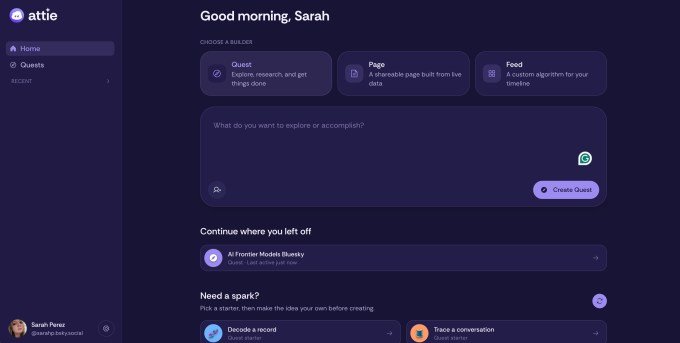
Bluesky’s AI assistant, Attie, is getting a major upgrade. Originally launched in March as a tool to help users build custom social feeds without writing a single line of code, Attie is now expanding into what the company calls an open-ended research tool. The new feature, named Quests, lets anyone ask Attie questions about what’s happening across the broader Bluesky ecosystem — which the company nicknames the Atmosphere.

That ecosystem doesn’t stop at Bluesky itself. Quests can pull information from any app built on the AT Protocol, the decentralized foundation that underpins the network. So if you’re curious about trending topics, influential voices in a specific city, or even a niche field like open-source gardening tools, Attie can now help you dig into it.

What Quests actually does

Think of Quests as a research assistant for the open social web. Instead of just filtering your feed or recommending accounts, you can ask Attie open-ended questions. For example: “What are the most talked-about topics among climate scientists on Bluesky right now?” or “Who are the top accounts discussing AI policy in Europe?”

The company describes the feature as a way to “fight back against the proliferation of misinformation and noise.” In a blog post, Bluesky’s chief innovation officer Jay Graber — who stepped down as CEO in March and was replaced by Toni Schneider, former founding CEO of Automattic — wrote that Attie is meant to help people “make sense of the internet” and “find the truth yourself.”

Graber also emphasized that the goal is to lower the barrier to entry for using the AT Protocol. “We want Attie to reduce the barrier to entry and expertise required to learn how to use the AT Protocol,” she wrote, “and to put the tools for customizing your experience in the hands of anyone who wants them.”

Why Bluesky needs this now

Bluesky’s user growth has clearly slowed. The social network saw its user base double to 40 million last October — a remarkable surge within just a year — but it now reports around 45.6 million registered accounts. That’s growth of only about 5.6 million over the past eight months.

So the company is looking for fresh ways to expand its audience and, eventually, generate revenue. Attie is free for now, but Bluesky has floated the idea of charging for the service down the road. In March, the company announced it had raised $100 million in funding, giving it some runway to experiment. That cash is being used to explore ideas like Attie, a premium subscription tier, and tools for power users.

Balancing community sentiment with revenue needs

There’s a tension here. Many Bluesky users are openly skeptical of AI — for economic, political, and environmental reasons. The company has to navigate that community sentiment while also figuring out how to keep the lights on. Attie is one of the more visible attempts to strike that balance: a useful AI tool that doesn’t feel like an intrusion, and that might one day become a paid service.

Graber acknowledged that Attie is being redesigned with accessibility features and a new logo. More changes are coming in the months ahead.

What’s next for Attie (and who gets access)

For now, the new Attie experience is in beta. Users will be invited in from a waitlist over the coming weeks. The company hasn’t shared a specific timeline for a wider rollout, but the direction is clear: Attie is no longer just a feed-builder. It’s becoming a research tool for the open social web.

The bigger picture is that Bluesky is betting that tools like Attie will prove more useful than the algorithmic noise machines that dominate much of social media today. As Graber put it, “Our bet is that tools that help people make sense of the world will prove to be more useful than those that fill it with confusion.”

Whether users will pay for that clarity is an open question. But for now, the company is focused on getting the tool right — and getting it into more hands.

If you’re interested in how Bluesky’s approach compares to other platforms, you might also want to check out our guide on WhatsApp HD photo sending or read about the latest WhatsApp privacy settings.

Continue Reading

Social Media

Your YouTube Videos Look Different on a 65-Inch Screen. Here’s What to Do About It.

Published

on

YouTube on TV

The Living Room Is YouTube’s New Frontier

YouTube isn’t just for phones anymore. The platform is making a serious play for the biggest screen in the house — your TV. And the numbers back it up: YouTube reports that viewers now watch over 1 billion hours of content daily on TV screens. That’s not a niche. That’s a shift in how people consume video.

For marketers, this changes the game. Not in the cliché sense — literally. The way someone watches a video on a phone, hunched over during a commute, is completely different from how they experience it on a 65-inch OLED while lounging on a couch. Lean back vs. lean forward. Distracted vs. immersed.

If you’re still creating content with only mobile in mind, you’re leaving a massive audience segment on the table. Here’s how to fix that.

Why Connected TV Viewers Are Different

Think about the last time you watched YouTube on a TV. You probably weren’t scrolling. You weren’t multitasking. You were sitting back, maybe with a remote in hand, expecting a polished, high-production experience.

Connected TV (CTV) viewers behave differently. They watch longer sessions — often 20 minutes or more. They’re less likely to click away after five seconds. But they’re also more critical of poor audio, shaky camera work, and text that’s too small to read from across the room.

This audience isn’t hunting for quick how-tos. They want documentaries, deep dives, vlogs with a narrative arc, and content that feels like it belongs on a premium screen. If your video looks like it was shot on a webcam in 2010, they’ll bounce.

Optimize Your Channel for TV Discovery

YouTube on TV doesn’t work the same way as the mobile app. The interface is simplified. There’s no endless sidebar of suggested videos. Instead, the home screen features large thumbnails, bold titles, and a heavy emphasis on your channel’s brand identity.

Thumbnails Need to Pop on a Big Screen

That thumbnail you carefully designed for a phone screen? On a TV, it might look washed out or cluttered. Test your thumbnails at full size on a monitor. Use high contrast colors. Make faces large and expressive. Text should be minimal — three words max, and only if it’s readable from six feet away.

Channel Branding Matters More Than Ever

TV viewers are more likely to browse by channel rather than by individual video. That means your channel banner, logo, and series playlists become critical. If your branding is inconsistent or amateurish, it signals low quality. Invest in a clean, professional channel identity that looks good on a 4K display.

Five Technical Tweaks for TV-Friendly Video

You don’t need a Hollywood budget, but you do need to hit some basic technical thresholds. Here’s a quick checklist:

  • Resolution: Upload in 4K if possible. At minimum, 1080p at a high bitrate. TV screens magnify every compression artifact.
  • Aspect ratio: Stick to 16:9. Vertical or square videos look terrible on a TV — they get pillarboxed into tiny strips.
  • Audio: Use a decent microphone. TV speakers (or soundbars) reveal background noise and echo. Clear, balanced audio is non-negotiable.
  • Text and graphics: Don’t put critical information in the bottom third of the frame. TV screens often crop that area. Keep text centered and large.
  • Length: Aim for 10–20 minutes. CTV viewers settle in for longer content. Short clips feel like a tease.

New YouTube Features Built for TV

YouTube has rolled out several features specifically for the TV experience, and smart marketers are using them.

YouTube Shorts on TV — Yes, Really

In 2024, YouTube brought Shorts to the TV app. But here’s the twist: they appear in a vertical feed on the side of the screen, not full-screen. That means your Shorts need to work both as standalone vertical clips and as part of a larger TV interface. Keep the first two seconds punchy — that’s your hook on any screen.

QR Codes for Engagement

TV viewers can’t click a link. YouTube solved this with QR codes that appear on screen, letting viewers scan with their phone to subscribe, visit a website, or watch a related video. Add a QR code to your video’s end screen or description. Make it large enough to scan from a couch.

YouTube Select for TV

Brands can now buy ads specifically within YouTube’s TV app inventory. This is premium placement — full-screen, unskippable ads that run before or during long-form content. If your ad creative is built for mobile, it won’t work here. Produce TV-native ads with cinematic pacing and clear calls to action that don’t require a click.

Measuring Success on the Big Screen

Standard YouTube analytics won’t tell you how many viewers are on TV. You need to dig into the device report. Go to YouTube Studio → Analytics → Audience → Device type. Look for the “TV” category. If it’s growing, your strategy is working.

Pay attention to watch time from TV users. It’s usually higher per session than mobile. Also check the “Top videos on TV” report — it shows which of your videos resonate most with this audience. Double down on that format.

One more metric: engagement rate. TV viewers comment less (typing with a remote is painful), but they subscribe more. A spike in subscribers after a video goes live could mean it performed well on TV.

The Bottom Line for Marketers

YouTube on TV isn’t a future trend. It’s happening now. The platform is actively redesigning its interface, ad products, and content formats for the living room. If you’re not optimizing for it, you’re invisible to a growing, high-value audience.

Start small. Update your thumbnails. Check your aspect ratio. Look at your device analytics. Then produce one video specifically for the TV experience — longer, cleaner, more narrative. See what happens.

The couch is the new commute. Make sure your content looks good on it.

Continue Reading

Social Media

Meta finally brings parental supervision to Threads — here’s what parents can control

Published

on

Threads parental supervision

The wait is over: Threads gets parental controls

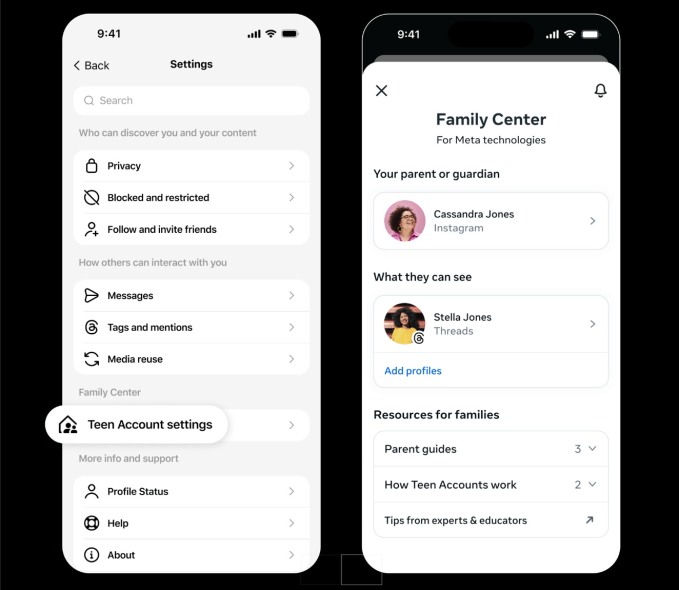
Nearly three years after Threads launched in July 2023, Meta is finally rolling out parental supervision tools for the platform. Starting next week in the U.S., parents and guardians will be able to monitor and manage their teen’s activity on the app through Meta’s Family Center — the same hub that already controls settings across Instagram and Facebook.

The move comes as Meta faces mounting pressure from regulators and lawmakers over teen safety. The company has been expanding parental controls across its apps for years, and Threads — now boasting 500 million monthly users — was a glaring gap. Lawsuits from multiple states and child safety advocates have only sharpened the spotlight.

So what can parents actually do? Quite a bit, it turns out.

Screen time tracking and daily limits

Parents will see exactly how much time their teen spends on Threads each day for the past week, including a weekly average. They can then set a daily time limit — and crucially, that limit applies across all devices. If a teen switches from phone to laptop, the clock keeps ticking.

Here’s what the new Threads parental supervision dashboard offers:

  • Daily time limit: Set a maximum number of minutes per day. Total time across devices is counted.
  • Sleep mode: Block or limit access during specific hours, especially at night. Meta already mutes notifications and turns on auto-replies for all teens from 10 p.m. to 7 a.m., but parents can tighten this further.
  • Privacy controls: Manage who can tag the teen in posts. Parents can also decide whether teens under 16 are allowed to change their default privacy settings — like private accounts — to something less restrictive.

Meta says teens on Threads already have built-in protections: private accounts by default, and limits on the content they see. But now parents have the final say on whether those settings can be loosened.

Why now? The pressure on Meta is real

It’s no secret that social media companies are under fire. Meta, along with TikTok, Snap, and others, faces a wave of lawsuits from states and school districts alleging that their platforms harm teens’ mental health. The U.S. Senate has held multiple hearings, and the Kids Online Safety Act (KOSA) is moving through Congress.

Threads was an obvious weak spot. While Instagram and Facebook have had parental controls for years, the text-based platform — which Meta positioned as a Twitter alternative — had none. For a company that says it prioritizes teen safety, that was a hard gap to explain.

Now, with these tools, Meta can argue that Threads is no longer the Wild West for teens. But critics note that supervision tools only work if parents actually use them — and many don’t.

What about the rest of the world?

The rollout starts in the U.S. next week. Meta told TechCrunch it plans to bring Threads parental supervision globally by the end of 2025. No specific countries or dates have been announced yet.

For parents outside the U.S., that means waiting — but not forever. And for teens? Well, the days of unlimited late-night scrolling on Threads may be numbered.

The bigger picture: Are parental controls enough?

Parental supervision tools are a step forward, but they’re not a silver bullet. A time limit doesn’t stop a teen from seeing harmful content during the minutes they are online. And Meta’s own research has shown that teens often find ways around parental controls — using friends’ phones, for example.

Still, the Threads parental supervision rollout is a meaningful addition. It gives parents a window into their teen’s digital habits, and a way to set boundaries without confiscating the phone entirely. For a platform that grew to half a billion users in less than three years, that kind of oversight was long overdue.

Whether it will satisfy regulators — or the parents filing lawsuits — is another question entirely.

Continue Reading

Trending