Connect with us

How To

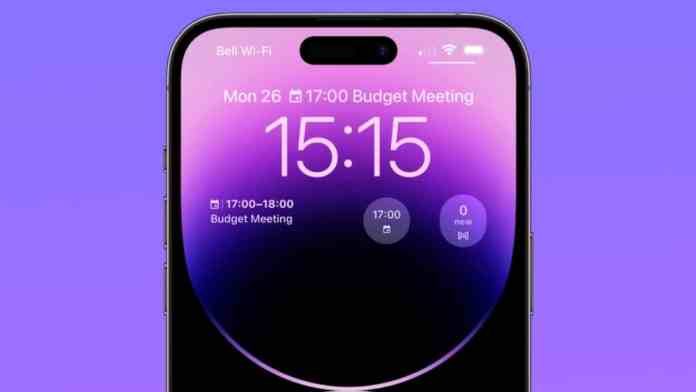
Lock Screen Widgets: Android & iOS Productivity Hacks That Save Time

Published

on

Lock Screen Widgets: Android & iOS Productivity Hacks That Save Time

How many times do you unlock your phone each day? Twenty? Fifty? More? Every time you swipe or tap to enter your device, you’re losing precious seconds. Those moments add up quickly. What if your phone could show you what you need before you even unlock it?

Modern smartphones have transformed the lock screen from a simple security barrier into a dynamic information hub. Both Android and iOS now support widgets that display everything from your next meeting to the weather forecast. This isn’t just about customization—it’s about reclaiming time and attention.

Why Your Lock Screen Should Work Harder

Think about your typical morning. You wake up and check your phone. Without widgets, you might unlock it, open your calendar app, check the weather app, then maybe glance at your fitness tracker. That’s multiple steps and several seconds gone.

With properly configured lock screen widgets, all that information appears at a glance. Your next meeting, today’s forecast, your activity rings—they’re all visible before you touch your passcode. This immediate access eliminates what psychologists call “micro-friction”—those tiny barriers that disrupt our flow throughout the day.

The benefits extend beyond convenience. By reducing unnecessary unlocks, you naturally decrease distractions. How often have you unlocked your phone for one specific purpose, only to find yourself scrolling through social media minutes later? A focused lock screen helps you stay on task.

Essential Widgets for Maximum Efficiency

Not all widgets are created equal. Some provide genuine utility, while others just add visual clutter. Here are the categories that deliver real value.

Calendar and Schedule Widgets

These are arguably the most useful lock screen additions for professionals. A well-designed calendar widget shows your next appointment, its location, and how soon it starts. No more frantic unlocking to check if you’re running late for that 2 PM conference call.

The best implementations show just enough information—time, title, and maybe the video conferencing link—without overwhelming the display. This glanceable format means you can check your schedule while walking between meetings or during a quick coffee break.

Weather and Travel Information

Will it rain this afternoon? Should you grab an umbrella before leaving the house? A weather widget answers these questions instantly. Beyond basic temperature, advanced widgets show precipitation chances, sunrise and sunset times, and even air quality indexes.

For travelers, some widgets can display multiple time zones or flight status information. Imagine knowing your boarding time without digging through email confirmations.

Quick Action and Control Widgets

These are your shortcuts to frequently used functions. Music playback controls let you skip tracks or adjust volume without opening your streaming app. Smart home widgets can turn lights on or off, adjust thermostats, or view security cameras.

Voice assistant widgets provide hands-free access to Siri or Google Assistant. Fitness widgets show your daily step count or exercise rings. The key is choosing actions you perform regularly—not every possible function your phone offers.

Customizing Your Lock Screen Experience

Both Android and iOS offer extensive customization options, though their approaches differ slightly.

iOS Lock Screen Personalization

Apple’s lock screen customization has evolved significantly, particularly with recent iOS versions. The system now supports multiple lock screens that you can switch between based on Focus modes or time of day.

Visual customization goes deep. You can adjust font styles and colors to match your wallpaper. The Depth Effect uses computational photography to make subjects appear in front of the time display. Photo Shuffle cycles through your favorite memories automatically.

Thematic lock screens—like travel, fitness, or minimalist designs—help create cohesive visual experiences. But remember: aesthetics should enhance functionality, not compete with it.

Android Widget Flexibility

Android’s approach varies by manufacturer and version, but generally offers more flexibility in widget placement and sizing. Some devices let you add widgets by swiping left or right on the lock screen, then tapping the plus icon.

Manufacturer skins matter. Samsung’s One UI might offer different widget options than Google’s Pixel launcher. The availability of third-party widgets also depends on your device and Android version.

Adding widgets typically requires authentication first—you’ll need to enter your PIN or use biometrics before making changes. This security measure prevents unauthorized modifications to your lock screen layout.

Avoiding Common Widget Mistakes

More widgets don’t necessarily mean more productivity. In fact, overcrowding your lock screen can have the opposite effect.

Too many widgets create visual noise. Instead of quickly finding the information you need, you waste time scanning through cluttered displays. Performance can suffer too—widgets that update frequently consume battery life and processing power.

Privacy considerations are crucial. Some widgets might display sensitive information like calendar details or message previews. Always balance convenience with security. If you work in public spaces, consider which widgets should appear on your lock screen versus those better kept behind authentication.

Choose widgets that update on demand rather than constantly refreshing. Calendar events don’t change minute-by-minute, so there’s no need for real-time updates. Weather information might refresh every hour, not every minute.

The Cumulative Impact of Small Savings

Let’s do some math. Suppose checking your calendar the old way takes 8 seconds—unlocking, finding the app, waiting for it to load. With a lock screen widget, it takes 2 seconds. That’s a 6-second saving.

If you check your calendar six times daily, you save 36 seconds. Add weather checks, music controls, and quick app launches, and you might reclaim 2-3 minutes daily. Over a year, that’s 12-18 hours saved—almost an entire waking day returned to you.

Beyond time savings, there’s cognitive benefit. Every decision to unlock your phone carries what behavioral economists call “decision fatigue.” By making essential information available without that decision, you preserve mental energy for more important tasks.

Your phone’s lock screen has evolved from a simple security feature to a potential productivity powerhouse. With thoughtful widget selection and mindful customization, you can transform those brief glances into meaningful time savings. The seconds you save today become hours you reclaim over months—all from a screen you were already looking at anyway.

Continue Reading
Click to comment

Leave a Reply

Your email address will not be published. Required fields are marked *

How To

Fortnite on iPhone in 2025: Your Complete Guide to Playing Now

Published

on

Fortnite on iPhone in 2025: Your Complete Guide to Playing Now

Remember when Fortnite was the game to play on your iPhone? For years, a legal battle between Epic Games and Apple left iOS players out in the cold. That long wait is finally ending. The landscape has shifted dramatically, and getting back into the battle bus on your iPhone or iPad is now possible. Whether you’re in the EU, the US, or elsewhere, here’s how to jump back into the action today.

The Road Back to the App Store

Fortnite’s removal from the App Store in 2020 was a major event for mobile gamers. Epic Games challenged Apple’s payment rules, and the game was pulled. For nearly five years, iPhone users were locked out of the official experience.

A pivotal court ruling in April 2025 changed everything. The decision stated Apple could not block external payment links or charge extra fees for payments made outside its ecosystem. In response, Epic Games CEO Tim Sweeney announced Fortnite’s return to the U.S. App Store is imminent, scheduled for early May 2025. He also indicated that if Apple applies these rules globally, Epic will relaunch the game worldwide and drop its lawsuits.

So, the official return is on the horizon. But what if you don’t want to wait? You have options.

Play Fortnite Instantly with Cloud Gaming

Don’t want to fuss with downloads or location tricks? Cloud gaming is your best friend. These services stream the game directly to your Safari browser. No installation needed, just a solid internet connection. It’s a perfectly legal and secure way to play right now.

Xbox Cloud Gaming (XCloud)

This is arguably the simplest method. It’s free and works directly in your browser.

Just visit the official Fortnite page on Xbox Cloud Gaming using Safari on your iPhone or iPad. You’ll need a free Microsoft account. Tap ‘Play,’ and you’re in. You can even play without a controller using touch controls. Performance is surprisingly good, even on older devices, as long as your Wi-Fi is stable.

Amazon Luna

If you have an Amazon Prime subscription, you already have access. Head to the Fortnite page on Amazon Luna’s website, sign in with your Amazon account, and link your Epic Games profile. Tap ‘Play Free with Prime’ to start streaming. The service is optimized for smooth gameplay with minimal input lag, making it a great choice for competitive matches.

Nvidia GeForce Now

GeForce Now offers a bit more flexibility. You can start with a free plan that gives you one-hour gaming sessions—perfect for a few quick matches. For unlimited play and priority access, a paid subscription is available. Visit the service via Safari, log in, and launch Fortnite. It’s a powerful option for players who want the highest possible streaming quality.

Direct Installation: For EU Users and Beyond

If you prefer having the app on your home screen, the process depends heavily on where you live.

For Players in the European Union

New EU regulations have opened the door. You can download Fortnite directly from the Epic Games Store. First, ensure your iPhone or iPad is running iOS 17.4 or later. Go to Settings > General > Software Update to check.

Next, visit the Epic Games Store website on your device. Tap ‘Install iOS’ and follow the prompts. You may need to grant permission in your Settings under Privacy & Security to allow installations from Epic Games. Once complete, the Fortnite icon will appear on your home screen, ready for action.

A Workaround for Players Outside the EU

For those outside Europe, the App Store remains locked. However, a method involving a location change can work. This process is more technical and is most reliable on Wi-Fi-only iPads, as they don’t use cellular data for location.

The idea is to make Apple’s services think you’re in the EU. This typically involves using a proxy on your network and creating a new Apple ID with an address in an EU country. After signing into this new account on your device, you can search the App Store and download Fortnite. Remember to switch back to your main Apple ID afterward. While effective, this method requires careful setup.

Optimizing Your iPhone for Fortnite

Before you drop into the island, take a minute to set up your device for the best experience.

Keep your iOS updated. Each update can bring performance improvements and bug fixes. A strong, stable Wi-Fi connection is non-negotiable for cloud gaming or online play. If you’re serious about winning, pair a Bluetooth controller like a PlayStation DualSense or an Xbox Wireless Controller. The precision is far superior to touchscreen controls.

Most importantly, only use official sources: Epic Games, Xbox, Amazon, or Nvidia. Avoid any third-party sites promising “hacked” versions; they’re often scams or security risks.

The Future is Cross-Platform

The return of Fortnite to the iPhone App Store marks the end of a long chapter in mobile gaming. Epic Games has committed to ending its legal battles once the game is available globally under the new rules. Soon, the complex workarounds and cloud streaming will be unnecessary for most players. You’ll simply search the App Store, hit download, and play—just like old times, but with all the new seasons and content you’ve missed.

Until that global rollout is complete, you’re not stuck waiting. Whether through the seamless stream of XCloud, the direct download in the EU, or a clever location switch, the battle bus is boarding. Your iPhone is ready to be a gaming device again.

Continue Reading

How To

Hide WhatsApp Blue Ticks: A Complete Guide for Android and iPhone

Published

on

Hide WhatsApp Blue Ticks: A Complete Guide for Android and iPhone

That little blue checkmark. For some, it’s a simple confirmation. For others, it’s a source of anxiety, pressure, and overthinking. The WhatsApp read receipt—the infamous blue tick—has quietly reshaped how we communicate. It tells the sender you’ve seen their message, whether you’re ready to reply or not.

Ever felt that subtle pressure to respond immediately after opening a chat? You’re not alone. Many users seek ways to reclaim a bit of digital privacy and mental space by turning this feature off. The good news is you can disable it, but there are trade-offs and important details to understand first.

Understanding WhatsApp’s Tick System

Before you change any settings, it helps to know what those symbols actually mean. WhatsApp uses a simple visual code to show a message’s journey from your phone to someone else’s screen.

When you hit send, a single grey clock icon appears. This means your message is queued, waiting for a stable internet connection. Once it’s sent from your device, the clock turns into one grey tick. That’s WhatsApp confirming it has your message.

Two grey ticks mean the message has successfully landed on the recipient’s phone. It’s delivered. This doesn’t mean they’ve seen it—just that it’s sitting in their notifications or chat list.

Here’s where the social contract changes. When those two grey ticks turn blue, the app signals that the recipient has opened the chat and seen the message. Technically, WhatsApp only confirms the chat was opened, not that every word was read, but the implication is clear.

This system creates a peculiar modern dilemma. That blue double-check can trigger a cascade of questions: Are they ignoring me? Should I follow up? Why no reply? Disabling read receipts is often about silencing that internal noise.

How to Turn Off Blue Ticks on Android

The process on Android is straightforward. Remember one crucial rule upfront: this is a mutual setting. If you turn off your read receipts, you also won’t see when others read your messages. It’s a two-way street.

Here’s the step-by-step process:

Step 1: Open your WhatsApp application.

Step 2: Tap the three vertical dots in the top-right corner to open the menu.

Step 3: Select “Settings” from the list.

Step 4: Tap on “Privacy.”

Step 5: Scroll down until you find “Read receipts.”

Step 6: Toggle the switch to the OFF position.

The change takes effect immediately. Your sent messages will no longer show blue ticks to the sender, and you’ll lose the ability to see blue ticks on messages you send to others.

Important Android Limitations

This setting has clear boundaries. It applies only to your private, one-on-one chats. Group chats are a different story. WhatsApp maintains transparency in groups, so even with your read receipts off, blue ticks will still appear for messages you read in any group.

Voice messages also play by their own rules. When you listen to a voice note, the microphone icon next to it will turn blue for the sender, indicating playback. This happens regardless of your read receipt setting. WhatsApp treats listening as a separate action you can’t hide.

How to Turn Off Blue Ticks on iPhone

iPhone users follow a nearly identical path, just with a slightly different interface.

Step 1: Launch WhatsApp on your iPhone.

Step 2: Tap the “Settings” tab in the bottom-right corner.

Step 3: Select “Privacy.”

Step 4: Find and tap “Read Receipts.”

Step 5: Toggle the setting off.

That’s it. Your blue ticks are now disabled for individual chats.

Important iPhone Notes

Just like on Android, the grey ticks (single and double) will still show for message delivery. This setting is independent of your “Last Seen” or “Online” status. Those are controlled separately within the same Privacy menu.

The group chat rule is universal. No matter your device—Android, iPhone, or even WhatsApp Web—you cannot disable read receipts in group conversations. The blue ticks will always show there.

The Pros and Cons of Disabling Read Receipts

Is turning off blue ticks the right move for you? Let’s weigh the practical effects.

The Advantages: You gain significant privacy. You can read messages on your own time without the sender knowing you’ve seen them. This reduces the pressure for an instant reply, which is perfect for busy schedules, focused work sessions, or simply avoiding awkward social expectations. It gives you back a sense of control over your attention.

The Disadvantages: The trade-off is total. You lose the ability to see when others read your messages. This can be frustrating if you’re waiting for an important confirmation or reply. For business communication, this lack of transparency can sometimes erode trust, as customers can’t see that you’ve acknowledged their message.

The decision often comes down to your primary use case. Are you managing personal chats where boundaries are helpful? Or are you using WhatsApp for customer support, where visibility builds confidence?

Special Cases: WhatsApp Web, Desktop, and Business

What about other versions of WhatsApp? The rule is simple: the setting on your mobile phone controls everything. If you disable read receipts in the Android or iPhone app, that setting automatically applies to WhatsApp Web and the Desktop app. There’s no separate toggle on those platforms.

For WhatsApp Business users, the option exists in the same Privacy menu. The steps are identical. However, business accounts should consider the impact more carefully.

For many small businesses, the blue tick is a powerful tool. It shows customers their message has been seen, which can be reassuring, especially for complaints or urgent inquiries. Turning it off might leave customers feeling ignored. If your business uses WhatsApp primarily for broadcasting announcements (not two-way support), disabling receipts might be acceptable. For active customer service, keeping them on is usually the better strategy.

Making Your Decision

Disabling WhatsApp’s blue ticks is a personal choice centered on digital wellbeing. It’s a tool for reducing notification anxiety and reclaiming a small piece of conversational privacy.

Just go in with your eyes open. You’re choosing a path of mutual invisibility. You won’t see their reads, and they won’t see yours. Group chats and voice notes remain fully transparent, by WhatsApp’s design.

Think about your communication style. Do you value the unspoken accountability the blue ticks create? Or do you prefer the freedom to process messages without a digital audience? Your answer will guide you to the right setting for your peace of mind.

Continue Reading

Social Media

Microsoft Cloud for Startups: Technical Documentation and Previous Versions

Published

on

Navigating Microsoft’s Technical Documentation for Startup Growth

Launching a startup is an exhilarating challenge. You’re building something from scratch, often with limited resources and immense pressure to succeed quickly. The right technology foundation isn’t just helpful—it’s critical for survival and scaling. Microsoft Cloud offers a comprehensive suite of tools designed specifically for this journey. But where do you begin? The answer often lies in the extensive technical documentation, including access to previous versions, which provides a roadmap for implementation and troubleshooting.

Think of this documentation as your engineering team’s playbook. It details how to configure services, integrate systems, and maintain security protocols. For a startup CTO or lead developer, these resources are invaluable. They reduce guesswork, accelerate deployment, and help avoid costly technical missteps early in the company’s lifecycle. Having access to both current and archived documentation means you can understand the evolution of a service and manage updates without breaking existing functionality.

Building a Secure and Compliant Foundation from Day One

Security and compliance aren’t luxuries reserved for established enterprises. Customers today demand that their data is protected, regardless of a company’s size or age. A single breach can destroy a startup’s reputation before it even gets off the ground. Microsoft Cloud addresses this head-on by embedding robust security controls and compliance frameworks directly into its services.

The technical documentation guides startups through implementing these features correctly. It explains how to set up identity and access management, encrypt sensitive data, and configure network security. For startups operating in regulated industries like fintech or healthtech, the compliance guidance is particularly crucial. It helps navigate complex standards such as GDPR, HIPAA, or SOC 2, turning a potential obstacle into a competitive advantage. Building with security and compliance in mind from the start is far easier than retrofitting it later.

Why Previous Versions of Documentation Matter

Software and cloud services evolve constantly. New features are added, APIs are updated, and interfaces change. While moving forward is essential, startups often operate on specific, stable versions of a service. Perhaps a critical integration was built on an earlier API version, or a budget freeze delayed an upgrade cycle. This is where archived technical documentation becomes a lifeline.

Access to previous versions allows developers to accurately maintain and troubleshoot their current environment. It provides context for why certain configurations were made and offers solutions for issues that may no longer be present in the latest release. This historical perspective prevents disruptions and gives technical teams the confidence to manage their stack effectively, even when they can’t immediately adopt the newest tools.

Accelerating Development and Scaling Operations

Speed is the currency of the startup world. The faster you can build, test, and deploy, the quicker you can learn from the market and iterate. Microsoft Cloud’s services, from Azure App Service to GitHub and Power Platform, are built for rapid development. The accompanying documentation provides the practical know-how to harness this speed.

Step-by-step tutorials, code samples, and architecture best practices help small teams achieve big results. They show how to automate deployments, set up continuous integration and delivery (CI/CD), and monitor application performance. As user numbers grow, the documentation also outlines scaling strategies—how to efficiently add more compute power, manage database load, and optimize costs. This guidance empowers startups to focus on their core product innovation, not the underlying infrastructure headaches.

Ultimately, technical documentation is more than just a reference manual. For a startup leveraging the Microsoft Cloud, it’s a strategic asset. It provides the clarity and depth needed to build a resilient, secure, and scalable business. By understanding both the current tools and their historical context, startup teams can make informed decisions, mitigate risks, and lay a foundation for long-term success. The cloud provides the power; the documentation provides the blueprint to use it wisely.

Continue Reading

Trending