Connect with us

How To

Lock Screen Widgets: Android & iOS Productivity Hacks That Save Time

Published

on

Lock Screen Widgets: Android & iOS Productivity Hacks That Save Time

How many times do you unlock your phone each day? Twenty? Fifty? More? Every time you swipe or tap to enter your device, you’re losing precious seconds. Those moments add up quickly. What if your phone could show you what you need before you even unlock it?

Modern smartphones have transformed the lock screen from a simple security barrier into a dynamic information hub. Both Android and iOS now support widgets that display everything from your next meeting to the weather forecast. This isn’t just about customization—it’s about reclaiming time and attention.

Why Your Lock Screen Should Work Harder

Think about your typical morning. You wake up and check your phone. Without widgets, you might unlock it, open your calendar app, check the weather app, then maybe glance at your fitness tracker. That’s multiple steps and several seconds gone.

With properly configured lock screen widgets, all that information appears at a glance. Your next meeting, today’s forecast, your activity rings—they’re all visible before you touch your passcode. This immediate access eliminates what psychologists call “micro-friction”—those tiny barriers that disrupt our flow throughout the day.

The benefits extend beyond convenience. By reducing unnecessary unlocks, you naturally decrease distractions. How often have you unlocked your phone for one specific purpose, only to find yourself scrolling through social media minutes later? A focused lock screen helps you stay on task.

Essential Widgets for Maximum Efficiency

Not all widgets are created equal. Some provide genuine utility, while others just add visual clutter. Here are the categories that deliver real value.

Calendar and Schedule Widgets

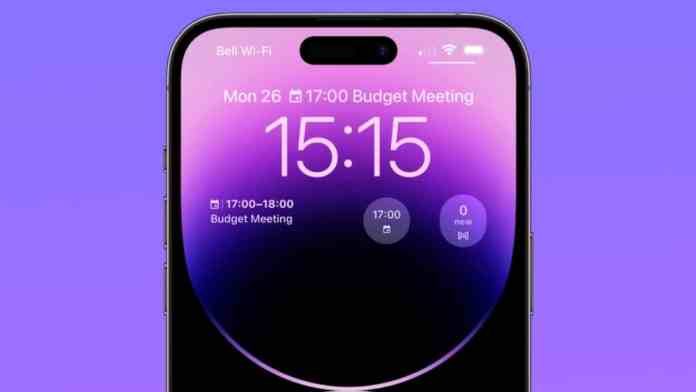
These are arguably the most useful lock screen additions for professionals. A well-designed calendar widget shows your next appointment, its location, and how soon it starts. No more frantic unlocking to check if you’re running late for that 2 PM conference call.

The best implementations show just enough information—time, title, and maybe the video conferencing link—without overwhelming the display. This glanceable format means you can check your schedule while walking between meetings or during a quick coffee break.

Weather and Travel Information

Will it rain this afternoon? Should you grab an umbrella before leaving the house? A weather widget answers these questions instantly. Beyond basic temperature, advanced widgets show precipitation chances, sunrise and sunset times, and even air quality indexes.

For travelers, some widgets can display multiple time zones or flight status information. Imagine knowing your boarding time without digging through email confirmations.

Quick Action and Control Widgets

These are your shortcuts to frequently used functions. Music playback controls let you skip tracks or adjust volume without opening your streaming app. Smart home widgets can turn lights on or off, adjust thermostats, or view security cameras.

Voice assistant widgets provide hands-free access to Siri or Google Assistant. Fitness widgets show your daily step count or exercise rings. The key is choosing actions you perform regularly—not every possible function your phone offers.

Customizing Your Lock Screen Experience

Both Android and iOS offer extensive customization options, though their approaches differ slightly.

iOS Lock Screen Personalization

Apple’s lock screen customization has evolved significantly, particularly with recent iOS versions. The system now supports multiple lock screens that you can switch between based on Focus modes or time of day.

Visual customization goes deep. You can adjust font styles and colors to match your wallpaper. The Depth Effect uses computational photography to make subjects appear in front of the time display. Photo Shuffle cycles through your favorite memories automatically.

Thematic lock screens—like travel, fitness, or minimalist designs—help create cohesive visual experiences. But remember: aesthetics should enhance functionality, not compete with it.

Android Widget Flexibility

Android’s approach varies by manufacturer and version, but generally offers more flexibility in widget placement and sizing. Some devices let you add widgets by swiping left or right on the lock screen, then tapping the plus icon.

Manufacturer skins matter. Samsung’s One UI might offer different widget options than Google’s Pixel launcher. The availability of third-party widgets also depends on your device and Android version.

Adding widgets typically requires authentication first—you’ll need to enter your PIN or use biometrics before making changes. This security measure prevents unauthorized modifications to your lock screen layout.

Avoiding Common Widget Mistakes

More widgets don’t necessarily mean more productivity. In fact, overcrowding your lock screen can have the opposite effect.

Too many widgets create visual noise. Instead of quickly finding the information you need, you waste time scanning through cluttered displays. Performance can suffer too—widgets that update frequently consume battery life and processing power.

Privacy considerations are crucial. Some widgets might display sensitive information like calendar details or message previews. Always balance convenience with security. If you work in public spaces, consider which widgets should appear on your lock screen versus those better kept behind authentication.

Choose widgets that update on demand rather than constantly refreshing. Calendar events don’t change minute-by-minute, so there’s no need for real-time updates. Weather information might refresh every hour, not every minute.

The Cumulative Impact of Small Savings

Let’s do some math. Suppose checking your calendar the old way takes 8 seconds—unlocking, finding the app, waiting for it to load. With a lock screen widget, it takes 2 seconds. That’s a 6-second saving.

If you check your calendar six times daily, you save 36 seconds. Add weather checks, music controls, and quick app launches, and you might reclaim 2-3 minutes daily. Over a year, that’s 12-18 hours saved—almost an entire waking day returned to you.

Beyond time savings, there’s cognitive benefit. Every decision to unlock your phone carries what behavioral economists call “decision fatigue.” By making essential information available without that decision, you preserve mental energy for more important tasks.

Your phone’s lock screen has evolved from a simple security feature to a potential productivity powerhouse. With thoughtful widget selection and mindful customization, you can transform those brief glances into meaningful time savings. The seconds you save today become hours you reclaim over months—all from a screen you were already looking at anyway.

Continue Reading
Click to comment

Leave a Reply

Your email address will not be published. Required fields are marked *

How To

WhatsApp Emoji Reactions: How the New Chat Feature Will Change Your Messaging Experience

Published

on

WhatsApp Emoji Reactions: A New Way to Express Yourself in Chats

Have you ever wished you could quickly respond to a friend’s message on WhatsApp without typing a single word? The platform is finally addressing that desire. A new WhatsApp emoji reaction feature is currently in development, promising to make conversations faster, more fun, and far more expressive. This update will allow users to react to any message with a simple emoji tap, similar to what you might have seen on Instagram or Facebook Messenger.

Messaging apps have evolved beyond simple text. Today, users crave instant, visual ways to communicate feelings. This upcoming change is a direct response to that trend. Instead of sending a thumbs-up or a laughing emoji as a separate message, you will soon be able to attach it directly to the original text. This keeps chats cleaner and more intuitive.

Let’s dive into everything we know about this WhatsApp new feature, including how it works, who can test it now, and when you might expect it on your own phone.

What Is the WhatsApp Emoji Reaction Feature?

In simple terms, an emoji reaction chat feature lets you respond to a specific message using an emoji. It is a non-verbal cue that shows agreement, laughter, love, or surprise. The concept is already popular on platforms like Messenger and Instagram Direct, and WhatsApp is now catching up.

According to reports from WABetaInfo, a reliable source for WhatsApp updates, the feature has been spotted in the latest beta version of the app. Early screenshots show a small pop-up menu appearing when you long-press a message. From there, you can select from a set of common emojis. This eliminates the need to type a separate reply for simple reactions.

This is not just about convenience. It also changes the social dynamics of group chats. Imagine a family group where someone shares a photo. Instead of ten people typing “Nice!”, they can simply tap a heart or a fire emoji. The conversation becomes less cluttered and more focused on genuine discussion.

How Does It Work on WhatsApp?

Using the WhatsApp emoji reaction tool is designed to be incredibly straightforward. Here is a step-by-step look at how it functions based on current beta tests:

  • Long-Press Activation: You press and hold on any text, image, or video message in your chat.
  • Emoji Selection: A row of six to eight emojis appears above the message. These usually include thumbs up, heart, laughing, crying, surprised, and praying hands.
  • Instant Feedback: Tapping an emoji attaches it to the message. The sender and other chat members can see the reaction count.

This system is built for speed. It takes less than a second to react, making it perfect for busy group conversations or when you are multitasking. The feature works on both individual and group chats, though early tests focused primarily on one-on-one conversations.

Beta Testing and Availability

Right now, this feature is not available to the general public. It is currently being tested by a select group of Android beta testers. These users have access to WhatsApp version 2.22.8 or newer. If you are eager to try the WhatsApp beta testing program, you can sign up through the Google Play Store. However, be aware that beta versions may contain bugs or unfinished features.

There is no official release date for the stable version. WhatsApp typically tests features for several weeks or months before a global rollout. The company wants to ensure the feature works smoothly across different devices and operating systems before pushing it to everyone.

Why This Feature Matters for Users

The addition of a messenger emoji replies system goes beyond just copying a popular trend. It addresses a real user need: reducing friction in communication. When you are in a hurry, typing a full response can be annoying. A quick emoji reaction keeps the conversation flowing without interruption.

Moreover, it adds a layer of emotional nuance. Text can sometimes feel flat. A laughing emoji reaction can show that you found a joke funny, while a heart reaction can express appreciation without being overly verbose. This makes digital conversations feel more human.

Business users on WhatsApp Business may also benefit. Quick reactions can help customer service agents acknowledge a query or confirm an order without typing repetitive responses. This could improve response times and overall customer satisfaction.

What to Expect in the Final Update

As with any WhatsApp update 2025, the final version may look different from the beta. WhatsApp often tweaks the emoji selection or adds animations based on user feedback. For example, some users have requested the ability to use custom emojis or stickers as reactions. While this is not confirmed, it is a possibility for future updates.

Another question is privacy. When you react to a message, only people in that chat can see your reaction. Your reaction is not shared publicly or with external servers in a way that compromises your privacy. WhatsApp continues to use end-to-end encryption, so your reactions remain private.

To prepare for this feature, make sure your app is updated to the latest version. You can check for updates in your device’s app store. Once the feature goes live, you will see it automatically appear in your chats without any extra settings to enable.

Final Thoughts on the Emoji Reaction Feature

In conclusion, the WhatsApp emoji reaction feature represents a meaningful improvement to the platform’s core functionality. It makes conversations faster, more expressive, and less cluttered. While it is still in the testing phase, the early signs are promising.

Are you excited about this change? Let us know in the comments below. If you found this article helpful, consider sharing it with your friends on social media. For more tech news and guides, check out our article on How to Use Meta AI on WhatsApp or explore Top 5 WhatsApp Features You Might Have Missed.

Continue Reading

How To

How to Avoid Joining WhatsApp Groups: Essential Tips for Privacy Control

Published

on

How to Avoid Joining WhatsApp Groups: Essential Tips for Privacy Control

Are you tired of being added to random WhatsApp groups without your consent? You are not alone. Many users face this annoyance daily. Fortunately, there is a straightforward way to avoid joining WhatsApp groups and reclaim your privacy. This guide walks you through the exact steps to block unwanted invitations and manage your group permissions effectively.

Why You Need to Control WhatsApp Group Invites

Unwanted group invites can clutter your chats and compromise your peace of mind. Strangers or acquaintances might add you to promotional, spam, or even irrelevant discussion groups. This not only wastes your time but also exposes you to potential privacy risks. By learning how to avoid joining WhatsApp groups, you take a crucial step toward a cleaner, more secure messaging experience.

WhatsApp offers built-in settings that let you decide who can add you. However, many users overlook these options. This means they remain vulnerable to unwanted additions. Taking a few minutes to adjust these settings can save you from endless notifications and group chaos.

Step-by-Step Guide to Prevent Group Additions

Adjusting your group invite settings is simple. Follow these instructions to gain full control over who can add you to WhatsApp groups.

Accessing the Privacy Menu

First, open the WhatsApp application on your smartphone. Look for the three vertical dots in the top-right corner of the screen. Tap them to reveal a dropdown menu. From there, select “Settings.” Next, navigate to “Account” and then tap on “Privacy.” This is where all your privacy controls reside.

Customizing Group Settings

Inside the Privacy menu, scroll down until you find the “Groups” option. Tap on it. You will see three distinct choices: “Everyone,” “My Contacts,” and “My Contacts Except.” Each option offers a different level of protection against unwanted group invites.

  • Everyone: This is the default setting. Anyone who has your phone number can add you to a group. It offers no protection and is the primary reason you receive random invites.
  • My Contacts: Selecting this option restricts group additions to only people saved in your phonebook. This significantly reduces the chance of being added by unknown numbers or spammers.
  • My Contacts Except: This is the most flexible choice. It allows you to block specific contacts from adding you while still permitting others. It is ideal if you want to exclude only a few people.

Choose the option that best suits your needs. For maximum safety, consider selecting “My Contacts” or “My Contacts Except.” Once you make your selection, you will immediately start avoiding joining WhatsApp groups you do not wish to be part of.

Additional Privacy Tips for a Safer WhatsApp

Beyond group invites, WhatsApp offers several other privacy features worth exploring. Regularly reviewing these settings ensures you maintain optimal control over your account.

Profile Picture and Status Visibility

You can limit who sees your profile photo, status updates, and “last seen” information. Go to the Privacy menu again and adjust each option individually. Setting these to “My Contacts” prevents strangers from viewing your personal details.

Staying Updated with New Features

WhatsApp frequently updates its privacy tools. Check your settings periodically to catch new options. For instance, the company has introduced features like disappearing messages and screenshot blocking for profile photos. Staying informed helps you avoid joining WhatsApp groups and other privacy pitfalls.

For more advanced tips, you can explore How to Use Meta AI on WhatsApp to enhance your messaging experience further.

Share These Tips with Friends and Family

Many people remain unaware of these simple yet powerful settings. By sharing this guide, you help others protect their privacy too. A quick message or a forward can save your loved ones from unwanted group additions. After all, a secure WhatsApp community benefits everyone.

In conclusion, taking control of your group invite settings is a small effort that yields huge rewards. You can now enjoy a clutter-free chat list and focus on conversations that matter. Implement these steps today and stop unwanted group invites forever.

Continue Reading

How To

iPhone 17 Series Launch: Full Details and New Features You Need to Know

Published

on

iPhone 17 Series Launch: Full Details and New Features You Need to Know

Apple is gearing up to unveil its next-generation smartphones, and the iPhone 17 Series is already generating massive buzz. With a completely new model, significant camera upgrades, and performance boosts, this lineup promises to be one of the most exciting in years. Here is everything you need to know about the launch, pricing, design, and features.

iPhone 17 Series Launch Date and Pricing

Apple is expected to announce the iPhone 17 Series on September 9, 2025. Pre-orders will likely begin that Friday, with shipping starting a week later. This timeline follows Apple’s traditional September launch schedule.

The lineup includes four models this year:

  • iPhone 17
  • iPhone 17 Air
  • iPhone 17 Pro
  • iPhone 17 Pro Max

The iPhone 17 Air replaces the Plus model, offering a much thinner and lighter design. Expected prices are as follows:

  • iPhone 17: $799 / £799
  • iPhone 17 Air: $899 / £899
  • iPhone 17 Pro: $1,099 / £1,099
  • iPhone 17 Pro Max: $1,199 / £1,199

The Air model sits in the mid-price range, while the Pro models see a slight increase. For more on Apple’s pricing strategy, check our guide on Apple iPhone Pricing Trends.

Design and Display: A Thinner, Lighter iPhone 17 Air

The iPhone 17 Series introduces a fresh design language. The standout is the iPhone 17 Air, measuring just 5.5mm thick and weighing only 145 grams. It features a 6.6-inch display, making it both large and portable.

Key design elements of the iPhone 17 Air include:

  • Single 48MP rear camera
  • Mono speaker system
  • Off-center USB-C port
  • No physical SIM card slot
  • Compact 2800mAh battery

Apple may offer a special battery case to extend usage. The phone uses an ultra-thin OLED display with Novatek’s TDDI technology, merging touch and display layers to save space.

The standard iPhone 17 gets a 6.3-inch screen, up from the iPhone 16. Pro models likely retain titanium frames, while standard and Air models use aluminium. New color options under testing include Teal Titanium, Green Titanium, and Dark Green Titanium. Teal is the most probable launch color. All models keep the Dynamic Island cutout, with ProMotion and Always-On display features. Standard models may offer 90Hz refresh rates, while Pro versions support 120Hz.

Camera Upgrades and Performance Boost

All iPhone 17 Series models run on Apple’s A19 chip. Pro and Pro Max versions get the A19 Pro, offering higher speed and smoother performance. RAM varies: 8GB for iPhone 17 and iPhone 17 Air, 12GB for Pro models.

The front camera receives a major upgrade to 24MP with a six-element (6P) lens for sharper selfies. The Pro Max model boasts advanced rear cameras:

  • 48MP wide-angle lens
  • 48MP ultra-wide lens
  • 48MP tetraprism telephoto lens

This marks the first iPhone with three 48MP lenses. The Air model has only one 48MP rear camera. All phones support Wi-Fi 7 and Qualcomm’s 5G modem, as Apple’s own modem is not ready. A new vapour chamber cooling system uses liquid to dissipate heat during gaming. For more on camera tech, see our article on Smartphone Camera Sensors Explained.

Battery and Software: iOS 19 and Easier Battery Replacement

Battery technology sees a big improvement. Apple introduces a new removal system using low-voltage current to soften glue, making battery replacement easier. Users can apply 9V power through the USB-C port to release the battery. This system debuted in iPhone 16 models.

The iPhone 17 Series launches with iOS 19. Apple may add new AI tools, but Apple Intelligence faces challenges. Instead, the company might integrate Google Gemini into iOS 19. Key software highlights include ProMotion, Always-On Display, and Dynamic Island. New colors and frame materials differentiate each model.

As we conclude, the iPhone 17 Series Launch brings big design improvements. The new Air model is thinner and more portable. Better cameras and displays offer a richer experience. With iOS 19 and new cooling systems, performance will improve. All signs suggest that iPhone 17 will be a major upgrade. Stay tuned for its launch in September 2025. Learn more about iOS features in our guide on iOS 19 New Features.

Continue Reading

Trending