Connect with us

How To

Master Do Not Disturb on Android: Your Ultimate Guide to Silencing Distractions

Published

on

Master Do Not Disturb on Android: Your Ultimate Guide to Silencing Distractions

Is your phone constantly buzzing with alerts you don’t need? You are not alone. The Do Not Disturb on Android feature is a powerful tool designed to give you back control over your attention. It goes far beyond simply muting your device, offering a smart way to filter out the noise while letting through what truly matters. This guide will walk you through everything from the basics to advanced customization, helping you create a quieter, more productive digital life.

Understanding Do Not Disturb vs. Silent Mode

Many people confuse Do Not Disturb with the traditional silent mode. While both reduce sound, they work in fundamentally different ways. Silent mode simply mutes all ringtones and notification sounds, but your screen still lights up with every incoming alert. The distraction remains visual.

Do Not Disturb on Android, however, is far more intelligent. It can completely suppress both sound and visual interruptions. Crucially, it allows you to create exceptions. You can let calls from your family ring through, allow alarms to sound, or permit notifications from a specific work app. This level of granular control makes it a superior choice for focused work, restful sleep, or uninterrupted travel.

How to Activate Do Not Disturb on Android

Getting started with Do Not Disturb on Android is simple, with a few different paths to activation. Whether you own a Samsung, Google Pixel, or another brand, the core steps are similar.

Using Quick Settings (Fastest Method)

The quickest way to enable the feature is through the Quick Settings panel. Simply swipe down from the top of your screen once or twice (depending on your device) to reveal the full tile menu. Look for the Do Not Disturb icon, which often looks like a circle with a line through it or a minus sign inside a circle. Tap it once to activate the feature immediately. Tap it again to turn it off.

Activating Through the Settings App

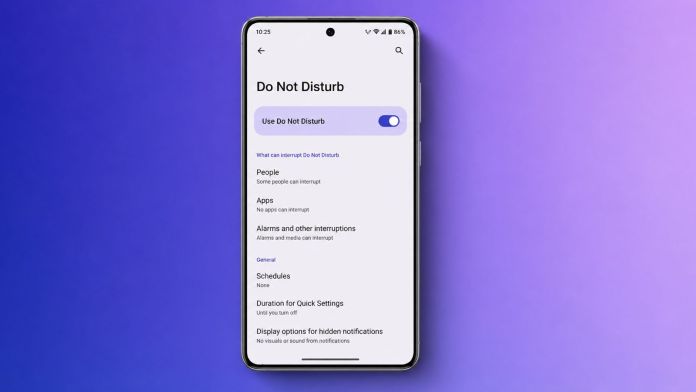
For those who prefer a more detailed approach, the Settings app offers full control. Navigate to Settings > Sound & vibration > Do Not Disturb. Here, you will find a “Turn on now” button at the top of the screen. This method is also your gateway to deeper customization.

Samsung and Google Pixel Specifics

On Samsung devices, the feature is tightly integrated with Modes and Routines. You can find the toggle in Quick Settings or within the main Settings menu under “Modes and Routines.” This allows for powerful automation based on your activity, like a “Work” or “Sleep” mode. On Google Pixel phones, the standard Android controls apply, but they also integrate with Focus Mode and Bedtime Mode found within the Digital Wellbeing settings. These offer preset configurations for specific scenarios.

Customizing Your Do Not Disturb Settings

The true power of Do Not Disturb on Android lies in its customization. You can tailor it to fit your exact needs, ensuring you never miss a critical alert while blocking everything else.

Managing Calls, Messages, and App Exceptions

Within the Do Not Disturb settings, you will find options to control who can reach you. Under the “People” section, you can allow calls and messages from anyone, only your starred contacts, or a specific list of contacts. You can also choose to block everyone entirely. A particularly useful feature is “Allow repeat callers.” If the same person calls twice within 15 minutes, their second call will break through, which is invaluable for emergencies.

For apps, navigate to the “Apps” section within Do Not Disturb settings. You can add individual applications, like your messaging or calendar app, and configure the types of notifications they can show. This ensures that while most apps are silenced, critical ones—like a work email client or a family group chat—can still get your attention.

Setting Up Automatic Schedules

Manually toggling Do Not Disturb on Android can become tedious. This is where scheduling shines. You can create time-based rules that activate automatically. For example, you can set a schedule for every night from 11 PM to 7 AM. The phone will enter DND mode without you lifting a finger.

Building on this, Android also allows you to schedule DND during calendar events. If you have a meeting in your Google Calendar, your phone can automatically silence itself for its duration. To set this up, go to Settings > Sound & vibration > Do Not Disturb > Schedules > Add more > Event. Choose your preferred calendar and let the phone handle the rest. This is a game-changer for maintaining professionalism during important appointments.

Troubleshooting Common Do Not Disturb Issues

Sometimes, things don’t work as expected. If your phone is still buzzing despite DND being active, a few quick checks can help. First, review your exceptions list. You may have accidentally allowed a contact or app to bypass the silence. Second, restart your phone to clear any temporary software glitches. Third, ensure your Android software is up to date, as updates often fix bugs related to system features. If the problem persists, booting into Safe Mode can help identify if a third-party app is interfering.

As a final step, you can reset your app preferences. Go to Settings > System > Reset options > Reset app preferences. This will not delete your data but will restore default permissions for all apps, which can resolve conflicts.

Frequently Asked Questions

Will my alarm still ring with Do Not Disturb on?

Yes, by default, alarms are allowed to sound even when Do Not Disturb is active. You can disable this in the “Alarms & other interruptions” section of the DND settings if needed.

Can I schedule Do Not Disturb for specific days?

Absolutely. When creating a time-based schedule, you can select which days of the week the schedule should be active. This is perfect for setting a work schedule from Monday to Friday.

Does Do Not Disturb block vibrations?

Yes, DND can block all vibrations, not just sounds. You can customize this in the settings to either allow or block vibrations for different types of interruptions.

Mastering Do Not Disturb on Android is about reclaiming your time and focus. By setting up the right schedules and exceptions, you can enjoy a phone that works for you, not against you. For more tips on managing your digital wellbeing, check out our guide on hiding WhatsApp blue ticks or learn how to stay safe from online scams.

Continue Reading
Click to comment

Leave a Reply

Your email address will not be published. Required fields are marked *

How To

Keep Your WhatsApp Chat Real Name Hidden Using Hide Chat Name App

Published

on

Keep Your WhatsApp Chat Real Name Hidden Using Hide Chat Name App

Have you ever been chatting on WhatsApp while someone beside you glanced at your screen and saw the contact name you’d rather keep private? It happens more often than you’d think. Whether you’re in a crowded café or sitting next to a friend, unwanted eyes can catch a glimpse of your conversation. Fortunately, a simple tool called the Hide Real Chat Name app offers a practical solution. This article explains how to hide WhatsApp chat name effortlessly and regain control over your privacy.

Many people feel uneasy when others see who they are messaging. The app steps in to mask the contact name, so only you know who you’re talking to. It’s a straightforward privacy hack that doesn’t require technical skills. Below, we dive into downloading, setting up, and using this app effectively.

Why You Need to Hide WhatsApp Chat Name

Privacy isn’t just about encryption—it’s about what others see on your screen. When you’re messaging a colleague, a family member, or a friend, the contact name appears prominently. In shared spaces, this can lead to awkward questions or unwanted attention.

Using a tool to hide WhatsApp chat name gives you peace of mind. It doesn’t alter your chats or block messages; it simply conceals the name from view. This is especially useful for people who use WhatsApp in public transport, offices, or social gatherings.

Furthermore, the app works without interfering with WhatsApp’s core functions. You can still send texts, images, and voice notes normally. The only difference is that your contact name stays hidden from prying eyes.

How to Download the Hide Real Chat Name App

Unlike many popular apps, this tool isn’t available on the Google Play Store. Instead, you can find it through a quick web search. Here’s how to get it safely:

  • Open your browser: Use Google Chrome, Safari, or any search engine on your phone or computer.
  • Search for the app: Type “Hide Real Chat Name App” into the search bar and hit enter.
  • Choose a trusted source: Look for download links from reputable websites to avoid malware. Check user reviews or ratings if available.
  • Download and install: Tap the download button and follow the on-screen instructions. Enable installation from unknown sources in your settings if prompted.

After installation, you’re ready to set it up. The process takes less than a minute.

Step-by-Step Guide to Using the App

Once the app is installed, follow these simple steps to start hiding your contact names:

  1. Launch the app: Tap its icon from your app drawer.
  2. Grant necessary permissions: The app will request access to overlay on other apps or read notifications. Accept these permissions to let it function correctly.
  3. Tap ‘Start’: A button inside the app activates the name-hiding feature. You’ll see a confirmation message.
  4. Open WhatsApp: Go to any chat. The contact name at the top will now appear blank or replaced with a generic label like “Chat”.

That’s it! You can now chat freely without worrying about your contact name being visible. If you want to restore the names later, simply open the app again and toggle the feature off.

Tips for Best Results

To make the most of this privacy tool, consider these pointers:

  • Keep the app updated: Developers occasionally release fixes for compatibility with new WhatsApp versions.
  • Test with a friend: Before relying on it in sensitive situations, check that the name hiding works as expected.
  • Combine with other privacy settings: Use WhatsApp’s own privacy features—like hiding last seen or profile photo—for layered protection.

Is This App Safe to Use?

Safety is a valid concern when downloading apps outside official stores. The Hide Real Chat Name app has been used by many without issues, but you should take precautions. Always download from a source with positive feedback. Avoid clicking on ads that promise the app—stick to direct download links.

Additionally, the app does not access your messages or contacts. It only modifies the display of contact names on your screen. For extra safety, run a quick antivirus scan after installation. Most users find it reliable and lightweight.

Building on this, remember that no app is perfect. If you encounter bugs, check for updates or reinstall the app. The developer community often addresses problems promptly.

Final Thoughts on WhatsApp Name Privacy

Protecting your privacy on messaging platforms doesn’t have to be complicated. With the Hide Real Chat Name app, you can hide WhatsApp chat name in seconds and chat without second-guessing who might be looking. It’s a small tool that delivers a big peace of mind.

As a result, you can enjoy your conversations without the stress of exposure. Download the app today, follow the guide above, and take control of your WhatsApp privacy. For more tips on securing your digital life, check out our guide on changing your WhatsApp number without losing chats or explore WhatsApp’s latest features.

Have you tried this app? Share your experience in the comments below. Your feedback helps other readers decide if it’s right for them.

Continue Reading

How To

WhatsApp Beta for Mac OS Now Open to All Users: Download the Native App Today

Published

on

WhatsApp Beta for Mac OS Now Open to All Users: Download the Native App Today

After months of limited testing, the WhatsApp beta for Mac OS is finally available for everyone to download. Mac users who have been waiting for a native, smooth experience can now grab the app directly from the official website. This new version, built using Mac Catalyst, promises a redesigned interface and better performance compared to the older web-based solution.

Previously, only a select group of testers could access the beta through TestFlight. Now, the company has opened the doors wider, allowing any Mac user to install and explore the app. Let’s dive into what this means for you and how you can get started.

What Is the New WhatsApp Beta for Mac OS?

This isn’t just a minor update — it’s a complete rebuild. The WhatsApp beta for Mac OS is a native application, meaning it’s designed specifically for Apple’s ecosystem. According to reports from WABetaInfo, the app leverages Mac Catalyst to bring iOS features directly to your desktop.

As a result, users get a dedicated sidebar that makes navigation effortless. You can quickly switch between chats, calls, starred messages, and archived conversations. The ability to drag and drop files is also included, making file sharing much more intuitive.

Redesigned Interface and Key Features

The interface has been completely overhauled. It feels cleaner and more aligned with macOS design standards. One standout feature is the option to hide the sidebar if you prefer a more minimalist view. Additionally, the app includes a built-in tool for reporting crashes and bugs, which is crucial for a beta version.

This means that while the app is stable enough for daily use, the developers are still actively collecting feedback to iron out any issues. For more on how to report problems, check our guide on reporting bugs in beta apps.

How to Download and Install the WhatsApp Beta for Mac OS

Getting started is straightforward. Head over to the official WhatsApp website and download the DMG file. Once downloaded, open the file and drag the app into your Applications folder. After installation, launch the app and scan the QR code using your phone’s WhatsApp to link your account.

It’s worth noting that the app requires Mac OS 11 Big Sur or newer. It is optimized for Apple Silicon (M1, M2, and later chips) but also supports select Intel-based Macs that can run Mac Catalyst apps. If you’re unsure about compatibility, check your system version under “About This Mac.”

For a step-by-step walkthrough, you might find our article on installing beta software on Mac helpful.

Performance and Compatibility: What to Expect

Early reports suggest that this beta delivers a faster and more efficient experience than the previous Electron-based app. Because it’s built natively, it uses fewer system resources and feels more responsive. This is especially noticeable on Apple Silicon Macs, where the app runs seamlessly.

However, keep in mind that this is still a beta. Some features may not work perfectly, and you might encounter occasional glitches. The good news is that the team is actively working on updates, so improvements are rolling out regularly.

If you’re a power user who relies on WhatsApp for work, you’ll appreciate the smoother multitasking and the ability to keep chats open in a separate window. It’s a significant step up from the web version.

Why This Matters for Mac Users

For years, Mac users have felt like second-class citizens when it comes to WhatsApp. The web version lacked many features available on iOS, and the old desktop app was outdated. This release changes that narrative. The WhatsApp beta for Mac OS brings parity with the mobile experience, offering features like end-to-end encryption, voice and video calls, and media sharing — all in a native package.

Moreover, the app supports push notifications, so you won’t miss any messages even when the app is running in the background. This is a game-changer for those who use WhatsApp as their primary communication tool.

To stay updated on future releases, consider joining the official WhatsApp channel or following tech news sources. For more tips on maximizing your WhatsApp experience, explore our guide on WhatsApp tips and tricks.

Final Thoughts

The arrival of the WhatsApp beta for Mac OS marks a new chapter for Mac users. It’s a native, fast, and feature-rich application that finally delivers the experience many have been waiting for. While still in beta, it’s stable enough for daily use and offers a glimpse into the future of WhatsApp on desktop.

So, if you’re a Mac user, head to the official website and download the beta today. Don’t forget to share your feedback with the developers — your input helps shape the final version. And if you found this article helpful, share it with your friends on social media.

Continue Reading

How To

Voice Screen Lock: How to Set a Unique Screen Lock on Your Android Phone Using Voice Commands

Published

on

Voice Screen Lock: How to Set a Unique Screen Lock on Your Android Phone Using Voice Commands

Are you tired of the same old pattern or PIN lock on your phone? What if you could unlock it just by speaking? That’s exactly what the Voice Screen Lock app offers. This tool transforms your Android phone lock into a voice-activated system, adding both convenience and a layer of novelty to your daily routine. In this guide, we’ll walk you through everything you need to know about setting up this unique screen lock.

What Makes Voice Screen Lock a Unique Screen Lock Option?

Most people rely on fingerprints, patterns, or passwords. However, a voice lock stands out because it’s completely hands-free. Imagine you’re cooking, driving, or your hands are full—just say the magic word, and your phone unlocks. This app records your voice command and uses it as the key. It’s not just secure; it’s also a fun way to impress your friends.

Building on this idea, the app is designed for simplicity. You don’t need to root your device or follow complex steps. It works on most modern Android smartphones. As a result, anyone can use it without technical expertise.

How to Download and Install the Voice Screen Lock App

To get started, you need to install the app from the Google Play Store. The process is straightforward and similar to downloading any other app. Follow these steps to set up your Android phone lock:

  1. Open the Google Play Store on your Android device.
  2. In the search bar, type “Voice Screen Lock” and press enter.
  3. Look for the official app by a trusted developer. Tap on it to open the download page.
  4. Click the “Install” button. The app will download and install automatically.
  5. Once installed, open the app to begin the configuration.

Alternatively, you can use the direct download link provided on the developer’s website. However, always ensure you’re downloading from a legitimate source to avoid malware.

Step-by-Step Guide to Setting Up Your Voice Lock

After installation, the real fun begins. Here’s how to configure your unique screen lock using the app:

Grant Necessary Permissions

First, the app will ask for permissions. This includes access to your microphone and the ability to override the lock screen. Grant these permissions so the app can function properly. Without them, the voice unlock feature won’t work.

Record Your Voice Command

Next, you’ll record a custom voice command. Choose a phrase that’s easy to remember but hard for others to guess. For example, “Open sesame” or “Unlock now.” Speak clearly into the microphone. The app will save this as your unique key.

Test the Setup

After recording, lock your phone manually. Then, say your voice command. If everything is set correctly, the screen should unlock instantly. If it doesn’t, repeat the recording process. Make sure there’s no background noise interfering.

This means that the app uses voice recognition technology to match your spoken phrase. It’s not perfect—background noise can sometimes cause errors—but in quiet environments, it works reliably.

Why You Should Use a Voice Lock for Your Android Phone

There are several benefits to using a voice unlock app. First, it adds an extra layer of security. Even if someone sees your pattern, they can’t mimic your voice perfectly. Second, it’s incredibly convenient. You don’t need to touch the screen, which is useful when your hands are dirty or wet.

Furthermore, it’s a great accessibility tool. People with motor disabilities may find it easier to unlock their phone with voice commands. The app also provides a fun, futuristic experience that makes your device feel smarter.

However, keep in mind that voice locks aren’t as secure as biometric methods like fingerprints. A recording of your voice could potentially unlock the phone. Therefore, use this feature in low-risk situations or as a secondary lock.

Tips for Maximizing Your Voice Screen Lock Experience

To get the most out of this unique screen lock, consider these tips:

  • Choose a unique phrase: Avoid common words like “hello” or “phone.” Use something personal.
  • Speak consistently: The app works best when you say the command in the same tone and speed each time.
  • Update regularly: Check for app updates to ensure compatibility with your Android version.
  • Combine with other locks: Use the voice lock alongside a PIN or pattern for added security.

In addition, share this app with friends and family. They might enjoy the hands-free convenience too. For more tech tips, check out our guide on boosting your phone volume or read about changing WhatsApp font size.

Final Thoughts on Voice Screen Lock

The Voice Screen Lock app is a creative solution for anyone wanting a hands-free Android phone lock. It’s easy to set up, fun to use, and adds a touch of innovation to your daily life. While it may not replace traditional locks for everyone, it’s definitely worth trying as a secondary option.

Remember, phone security is crucial. A voice lock is just one tool in your arsenal. Stay updated with the latest apps and security tips by following our blog. Try the app today and enjoy the convenience of unlocking your phone with just your voice.

Continue Reading

Trending