Connect with us

How To

Top 5 Best Android Lock Screen Apps: Secure Your Phone in Style

Published

on

Top 5 Best Android Lock Screen Apps: Secure Your Phone in Style

Your smartphone holds your entire digital life — messages, photos, banking apps, and social media. A strong, stylish lock screen is your first line of defense. But the default options can feel boring. Fortunately, the Google Play Store is packed with creative alternatives. In this guide, we explore the best Android lock screen apps that combine security with eye-catching design. Whether you want a pattern, a keypad, or even a door-style lock, these apps have you covered.

Why You Need a Custom Lock Screen App

Stock Android lock screens are functional but limited. They offer basic PINs, patterns, and passwords. Custom apps, however, let you express your personality. You can change wallpapers, add sounds, and even embed photos. More importantly, they often include extra security features. This means you can protect sensitive data while making your phone uniquely yours. In short, the best Android lock screen apps upgrade both safety and aesthetics.

1. Pattern Lock Screen App — Classic Security with a Personal Touch

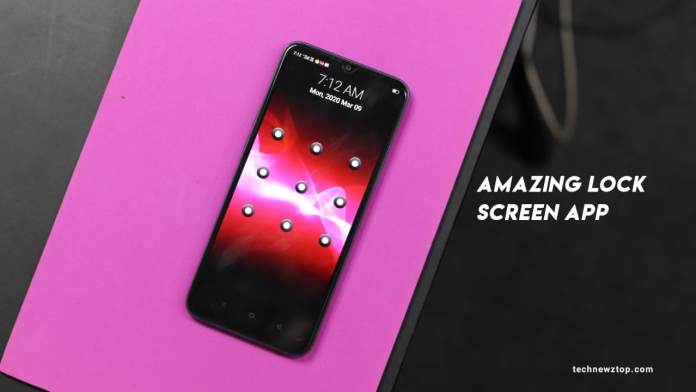
Pattern locks are a favorite among Android users. They are quick to use and hard to crack. This app takes the concept further. You can apply different wallpapers behind your pattern grid. Want to see your family photo every time you unlock? No problem. The app also lets you change passwords and styles easily.

How to Use the Pattern Lock Screen App

First, download it from the Play Store. Open the app and grant the necessary permissions. Then, enable the lock screen from the settings. From there, you can choose a pattern style. The app offers dozens of grid designs. You can also swap wallpapers from your gallery. To change your password, simply navigate to the “Change Password” option. It is that straightforward.

2. Keypad Lock Screen App — Retro Vibes with Modern Features

If you miss the tactile feel of a numeric keypad, this app is for you. It mimics old-school phone keypads but adds contemporary perks. You get satisfying click sounds when you tap. The interface looks clean and vintage. Plus, you can customize the wallpaper behind the keypad. This is one of the best Android lock screen apps for users who love nostalgia.

How to Use the Keypad Lock Screen App

After installation, open the app and allow permissions. Tap “Enable Lock” to activate it. You can change your passcode under “Change Passcode.” For wallpapers, select “Change Wallpaper” and pick from built-in options or your gallery. Sound settings let you toggle keypress tones on or off. Everything is controlled from a simple dashboard.

3. Door Lock Screen App — A Unique Visual Twist

This app transforms your lock screen into a realistic door. Swipe a latch, turn a knob, or slide a bolt. It feels like you are unlocking a physical door every time. This novelty makes it a standout choice. Beyond the fun, it still offers solid security. You can set a PIN behind the door animation. For those tired of standard screens, this is a refreshing alternative among best Android lock screen apps.

How to Use the Door Lock Screen App

Download and open the app. Grant the required permissions. You will see a door theme by default. To change it, browse the theme gallery. Each door style has its own unlocking gesture. You can also adjust security settings, like enabling a backup PIN. The app is lightweight and does not drain battery. It is a conversation starter, too.

4. Lock Screen App with Wallpaper and Gallery Integration

This versatile app focuses on personalization. You can set any image from your gallery as the lock screen background. It also supports live wallpapers. The app includes a built-in gallery picker. You can even create a slideshow of your favorite photos. Security options include pattern, PIN, and password. It is ideal for users who want their lock screen to tell a story.

How to Use This App

Install and open the app. Enable the lock from the settings menu. To change the wallpaper, tap “Change Wallpaper” and select from your gallery or the app’s collection. For security, choose “Change Password” to set a PIN or pattern. The app also allows you to customize lock screen shortcuts. It is one of the most flexible best Android lock screen apps available.

5. All-in-One Lock Screen App — Maximum Customization

This is a powerhouse app. It combines pattern, keypad, and wallpaper features into one package. You can switch between lock types anytime. It offers dozens of themes, sound effects, and animation styles. You can even add a signature or quote on the lock screen. For power users, this app provides the most control. It is the ultimate choice for anyone serious about Android lock screen customization.

How to Use the All-in-One App

After downloading, open the app and grant permissions. Tap “Enable Lock” to start. From the main menu, you can change the lock type, wallpaper, and password. Explore the theme store for fresh designs. Sound settings let you pick unlock tones. The app also supports fingerprint integration on compatible devices. Everything is intuitive and fast.

How to Choose the Right Lock Screen App for You

Consider your priorities. Do you value security above all? Go for pattern or PIN-based apps. Prefer aesthetics? Look for apps with extensive wallpaper and theme libraries. If you love novelty, try the door lock screen. For maximum flexibility, the all-in-one app is unbeatable. All these options are free or have affordable premium versions. They are easy to find on the Google Play Store.

Final Thoughts on the Best Android Lock Screen Apps

Your lock screen is the first thing you see every day. Make it count. The best Android lock screen apps blend security with style, giving you both peace of mind and visual pleasure. From pattern grids to door animations, there is something for everyone. Download a couple, test them out, and keep the one that fits your vibe. Your phone will thank you. For more tips on securing your Android device, check out our other guides.

Note: This article is for informational purposes. Always download apps from trusted sources like the Google Play Store. Review permissions carefully before installation.

Continue Reading
Click to comment

Leave a Reply

Your email address will not be published. Required fields are marked *

How To

Turn Your Android Phone Into an iPhone 14 With the Best iPhone Launcher App

Published

on

Turn Your Android Phone Into an iPhone 14 With the Best iPhone Launcher App

Have you ever looked at the latest iPhone 14 and wished you could get that sleek iOS experience without buying a new device? You’re not alone. Many Android users feel the same way. However, there’s no need to switch phones or spend a fortune. With the right iPhone launcher, you can transform your Android phone into an iPhone 14 in just a few minutes. This guide walks you through everything you need to know about the iPhone 14 launcher OS 16 app, from downloading it to customising your home screen.

Why Use an iPhone Launcher on Android?

An iPhone launcher replaces your standard Android interface with one that mimics the look and feel of Apple’s iOS. This means you get the familiar grid of apps, the Control Center-style toggles, and even the iconic dock at the bottom of your screen.

For many users, this is a fun way to experiment with a different operating system. It’s also perfect for those who prefer the clean, minimalist design of iOS but want to keep the flexibility and affordability of an Android phone. Instead of buying a new device, you can simply install an app and enjoy a fresh, iPhone-like experience.

How to Download and Install the iPhone 14 Launcher OS 16 App

Getting started is surprisingly simple. The iPhone 14 launcher app is available on the Google Play Store, and the entire process takes less than five minutes.

Step 1: Open the Google Play Store

Unlock your Android phone and open the Google Play Store. This is where you’ll find the launcher app.

Step 2: Search for the App

In the search bar at the top, type “iPhone 14 launcher” or “iOS 16 launcher.” You’ll see several options. Look for the app with the highest ratings and most downloads — often named “iPhone 14 Launcher OS 16” or something similar. Alternatively, you can use a direct download link from a trusted source like iPhone 14 Launcher on Google Play.

Step 3: Install the App

Tap on the app from the search results. Then, press the green “Install” button. Wait a few seconds for the download to finish. Once installed, tap “Open” to launch the app.

Setting Up Your iPhone 14 Launcher: A Complete Guide

Once the app is installed, you’ll need to configure it to replace your current home screen. Follow these steps carefully.

Grant Necessary Permissions

When you open the launcher for the first time, it will ask for several permissions. These typically include access to your phone’s settings and the ability to draw over other apps. Grant these permissions so the launcher can function correctly.

Set the Launcher as Default

After granting permissions, the app will prompt you to set it as your default home screen. Tap “Set as default” or “Always” when asked. This step is crucial — without it, your phone will revert to the standard Android interface every time you press the home button.

Customise Your New Interface

Now the fun begins. Your Android phone will instantly transform to look like an iPhone 14. You’ll see the iOS-style dock, app icons, and even the signature swipe-up gesture to open the app drawer. Many launchers also include a Control Center that you can access by swiping down from the top-right corner, just like on a real iPhone.

If you want to tweak things further, explore the launcher’s settings. You can change the wallpaper, adjust icon sizes, and even add widgets that mimic iOS 16’s lock screen features.

Additional Tips for a More Authentic iOS Experience

To make your Android phone feel even more like an iPhone 14, consider pairing the launcher with a few extra apps. For example, you can install an always-on display app that adds a notification border light to your screen — a feature popular on newer iPhones. You can also download an iOS-style keyboard or a ringtone pack with classic iPhone sounds.

Another useful trick is to enable gesture navigation in your Android settings. This replaces the traditional back, home, and recent apps buttons with swipe gestures, mirroring the iPhone’s navigation style perfectly.

Can You Switch Back to Android?

Absolutely. One of the best things about using an iPhone launcher is that it’s completely reversible. If you decide you miss the original Android interface, simply go to your phone’s Settings > Apps > Default apps > Home app. From there, select your original launcher (often called “Pixel Launcher” or “One UI Home”). Your phone will instantly return to its original look.

This flexibility means there’s zero risk in trying out the iPhone 14 launcher. You can switch back and forth as often as you like, enjoying the best of both worlds.

Final Thoughts: Is the iPhone 14 Launcher Worth It?

For anyone curious about the iPhone experience without committing to a new device, an iPhone launcher is an excellent choice. It offers a convincing visual transformation, a smooth user interface, and plenty of customisation options. While it won’t give you access to Apple-exclusive services like iMessage or FaceTime, it does provide the aesthetic and feel of iOS 16 on your existing hardware.

So why wait? Download the iPhone 14 launcher OS 16 app today and give your Android phone a stunning makeover. Share this guide with friends who might also want to enjoy the iPhone look on their devices.

Continue Reading

How To

iPhone 14 Series Launch: Complete Guide to Specifications, Price, and Availability

Published

on

iPhone 14 Series Launch: Complete Guide to Specifications, Price, and Availability

Apple has officially set the stage for its next major product unveiling. The iPhone 14 series launch is scheduled for September 7, 2022, at the company’s Cupertino campus. This event, dubbed ‘Far out,’ promises to showcase the next generation of iPhones alongside updated smartwatches and potentially new iPads. For tech enthusiasts and everyday users alike, this represents a significant moment in the mobile industry calendar.

What to Expect from the Apple September Event

Apple’s first in-person gathering since the pandemic began will take place at Apple Park. The keynote starts at 10:00 AM PT and will be streamed live on Apple’s event page and YouTube channel. This marks a return to normalcy for the tech giant, which had relied on pre-recorded presentations for two years.

According to industry reports, Apple plans to introduce four models in the iPhone 14 lineup: the standard iPhone 14, iPhone 14 Max, iPhone 14 Pro, and iPhone 14 Pro Max. Notably, the company may discontinue the 5.4-inch mini variant this year, replacing it with a larger 6.7-inch non-Pro model.

iPhone 14 Series Specifications: What’s New Under the Hood

Display and Design Changes

The iPhone 14 and iPhone 14 Pro are expected to feature a 6.1-inch display, while the iPhone 14 Max and iPhone 14 Pro Max will likely boast a 6.7-inch screen. Samsung Display is rumored to supply OLED panels, using different material grades for Pro and non-Pro models to manage costs effectively.

Pro models may adopt a new design with a circular hole-punch cutout combined with a pill-shaped cutout, replacing the traditional notch. This change aims to improve screen real estate while maintaining Face ID functionality.

Performance and Chipset

The iPhone 14 Pro and Pro Max are tipped to run on Apple’s next-generation A16 Bionic chipset. In contrast, the standard iPhone 14 and iPhone 14 Max might use a redesigned version of last year’s A15 Bionic chip. This tiered approach allows Apple to differentiate performance across the lineup while managing production costs.

Camera Upgrades

Camera improvements are a major focus for the Pro models. The iPhone 14 Pro and Pro Max are expected to feature an updated camera system with enhanced low-light performance and improved autofocus. All four models will likely include a new front-facing camera with autofocus capabilities, a first for the iPhone series.

iPhone 14 Price and Availability

Pricing for the iPhone 14 series is expected to start at around $799 for the base model, matching the launch price of the iPhone 13. However, the iPhone 14 Pro and Pro Max may see a price increase due to the upgraded components and new design.

In terms of availability, Apple will begin production in China first, with Indian manufacturing starting approximately two months later. This dual-production strategy helps Apple meet global demand while diversifying its supply chain.

For comparison, you can check out our detailed review of the iPhone 13 Pro Max to see how the new models stack up. Additionally, read about Apple Watch Series 8 features that may debut alongside the iPhones.

Additional Products Expected at the Event

Beyond the iPhone 14 series, Apple is likely to unveil the Apple Watch Series 8 in two variants: a standard model and a rugged Pro version. The Pro variant is rumored to feature a larger display, titanium body, shatter-resistant glass, and a body temperature sensor. A refreshed Apple Watch SE may also be announced.

However, new iPad models are not expected at this September event. Reports suggest Apple will hold a separate event in October to unveil updated iPads and possibly Mac updates.

Final Thoughts on the iPhone 14 Series Launch

The iPhone 14 series launch represents Apple’s most ambitious lineup refresh in years. With four distinct models, significant camera upgrades, and a potential design overhaul, there is plenty to look forward to. Whether you are upgrading from an older model or considering your first iPhone, the 2022 lineup offers options for every budget and preference.

Stay tuned for more updates after the official event. For the latest tech news, explore our guide on best iPhone accessories for 2022.

Continue Reading

How To

WhatsApp Rolls Out New Security Feature for Web and Desktop: Biometric Authentication Now Required

Published

on

WhatsApp Rolls Out New Security Feature for Web and Desktop: Biometric Authentication Now Required

If you use WhatsApp on your computer, you already know how convenient it is to scan a QR code and instantly sync your chats. However, that same ease of use also created a serious vulnerability: anyone with access to your unlocked phone could link your account to another device. To close this loophole, WhatsApp has introduced a critical WhatsApp security feature for web and desktop users. This update requires biometric authentication—either your fingerprint or facial recognition—before you can scan the QR code.

In this article, we break down everything you need to know about this new protection layer, how it works, and why it matters for your privacy.

What Is the New WhatsApp Security Feature for Web and Desktop?

This new WhatsApp security feature adds a mandatory biometric check on your phone before you can link your account to a web or desktop client. In the past, simply scanning a QR code was enough. Now, the app forces you to authenticate using your phone’s built-in fingerprint scanner or facial recognition system.

Once you enable this feature, even if a friend or a stranger picks up your unlocked phone and tries to connect your WhatsApp to their computer, they will be blocked. The phone will demand a fingerprint or a face scan before proceeding. This means your account remains safe from unauthorized access.

Why Did WhatsApp Introduce This Change?

The primary driver was user security. Cybercriminals and pranksters could previously exploit the QR-code-only system. If your phone was left unattended, someone could quickly link your account to their desktop and read your private messages. This WhatsApp security feature eliminates that risk entirely.

Building on this, the update also aligns with broader industry trends. Many messaging apps, including Signal and Telegram, have already adopted similar biometric protections for desktop linking. WhatsApp is now catching up to ensure its users enjoy the same level of safety.

How to Enable the New WhatsApp Security Feature on Your Phone

Activating this protection is straightforward. Follow these steps to secure your account:

  1. Open WhatsApp on your smartphone.
  2. Tap the three vertical dots in the top-right corner (Android) or go to Settings (iPhone).
  3. Select Linked devices (formerly called WhatsApp Web).
  4. Tap on Link a device.
  5. Your phone will automatically prompt you to authenticate using your fingerprint or facial recognition. Complete that step.
  6. After successful authentication, scan the QR code displayed on the web or desktop client.

That is all there is to it. Once you have completed this process, the biometric requirement will be active for all future linking attempts.

What Happens If Someone Tries to Access Your Account Without Permission?

Imagine you leave your phone on your desk at work. A colleague picks it up and heads to the WhatsApp Web page. They scan the QR code, but instead of linking, the phone asks for your fingerprint or face. Without your biometric data, they cannot proceed. The connection fails, and your account remains secure.

This WhatsApp security feature works silently in the background. You do not need to toggle any extra settings after the initial setup. The biometric prompt appears automatically every time someone attempts to link a new device.

In addition, if you ever lose your phone, this feature provides a crucial extra barrier. Even if the thief manages to unlock your screen, they still cannot link your WhatsApp to another device without your fingerprint or face.

Comparing WhatsApp’s Biometric Lock with Other Messaging Apps

WhatsApp is not the first messenger to adopt this approach. Signal has required biometric authentication for desktop linking for years. Telegram also offers a similar option in its settings. However, WhatsApp’s implementation is more aggressive: it is mandatory, not optional. You cannot bypass the biometric check once the feature rolls out to your account.

This makes WhatsApp one of the most secure platforms for desktop messaging—at least in terms of device linking. For users who value privacy, this is a welcome change.

Additional Tips to Keep Your WhatsApp Account Secure

While the new WhatsApp security feature is a major improvement, you should also consider these best practices:

  • Enable two-step verification: Go to Settings > Account > Two-step verification and set a PIN. This adds a password layer when registering your phone number with WhatsApp.
  • Review linked devices regularly: In Settings > Linked devices, you can see all active sessions. Tap any device to log it out remotely.
  • Keep your phone’s OS updated: Security patches from Apple and Google often fix vulnerabilities that could be exploited.
  • Never share your QR code: Treat your QR code like a password. Do not post it online or send it to anyone.

For more guidance on protecting your digital life, check out our guide on how to secure your WhatsApp account. You might also find our article on top privacy tips for messaging apps useful.

Final Thoughts: A Small Step with Big Impact

WhatsApp’s decision to enforce biometric authentication for web and desktop linking is a smart move. It addresses a real security gap without complicating the user experience. The process remains quick—just one extra tap or glance—but the protection it provides is substantial.

As cyber threats evolve, every layer of security matters. This WhatsApp security feature ensures that even if your phone falls into the wrong hands, your private conversations stay private. Take a moment today to verify that the feature is active on your account. Share this information with your friends and family so they can also benefit from the update.

Stay safe, stay connected, and remember: a little extra security goes a long way.

Continue Reading

Trending